
For any UK business leader looking at SharePoint and OneDrive, the choice becomes much clearer once you grasp their core purpose. Think of it this way: SharePoint is the shared, central hub for team collaboration (the ‘We’), while OneDrive is your secure, personal locker for individual work (the ‘Me’). Getting this distinction right from the start is the key to preventing data chaos and getting the most out of your Microsoft 365 investment.

SharePoint vs OneDrive: The Definitive Answer
At its heart, the SharePoint versus OneDrive debate isn’t about which tool is better, but which one is right for the job at hand. It’s a common mistake to use them interchangeably, and that’s what leads to disorganised files, security headaches, and a lot of confusion for your team.
I often tell clients to think of it like the shared office kitchen versus your personal desk drawer. Both hold important things, but their purpose, who owns them, and how you use them are worlds apart.
SharePoint is built from the ground up to be a company asset. It’s the central library for department files, project documents, and company-wide resources like HR policies or brand guidelines. Crucially, everything stored here belongs to the organisation, ensuring business continuity long after an employee moves on.
In contrast, OneDrive for Business is the digital equivalent of that personal work drawer. It’s tied directly to an individual’s account and is meant for their drafts, personal work notes, and files that aren’t quite ready for team review. While you can certainly share files from OneDrive, its primary role is individual storage and more informal, ad-hoc collaboration.
The adoption rates for these tools really highlight their different roles. The UK has become a major user of Microsoft’s collaboration tech, with 1,882 websites running on SharePoint as of 2025. This shows just how much British organisations value the platform for structured team projects and proper information management. You can learn more about the global adoption of SharePoint technology and see how the UK stacks up.
Internalising this ‘Me vs We’ concept is the foundation of a solid, efficient file management strategy. When your team understands this, they can store, share, and collaborate on files correctly, which is a massive boost for both productivity and security.
SharePoint vs OneDrive At a Glance
To make it even clearer, here’s a quick rundown of the core differences. This table helps you see at a glance where each tool fits best.
| Feature | Microsoft SharePoint | Microsoft OneDrive for Business |
|---|---|---|
| Primary Use Case | Team collaboration, company intranets, and document management (‘We’). | Personal file storage, drafting documents, and ad-hoc sharing (‘Me’). |
| Data Ownership | Organisation-owned. Files remain with the company when an employee leaves. | User-owned. Files are tied to the individual’s account. |
| Storage Model | Pooled storage for the entire organisation (e.g., 1 TB + 10 GB per user). | Individual storage allocation per user (typically 1 TB each). |
| Best For | Project files, departmental resources, official company documents. | Personal work files, drafts, and sharing with a small number of people. |
By using the right tool for the right purpose, you create a far more organised and secure environment. It stops OneDrive from becoming a messy graveyard of outdated ‘final_final_v2.docx’ files and ensures SharePoint remains the single source of truth for your teams.
Ready to optimise your file management and collaboration? Phone 0845 855 0000 today or Send us a message to discuss how we can help your business leverage the full power of Microsoft 365.
Understanding Core Purpose and Architecture
To really get to grips with SharePoint and OneDrive, you have to look past the surface features and understand how they’re built. The two platforms have fundamentally different designs, and that affects everything from who owns the data to how you manage it long-term—a critical point for any UK business.
At its heart, SharePoint is a central hub for team-owned information. Think of it as your company’s digital headquarters or a shared library. It’s built around a framework of sites and document libraries, creating a structured place for all the information that belongs to the organisation. This setup is deliberately designed for permanence and collective ownership.
In contrast, OneDrive is all about decentralised, user-owned storage. It’s essentially the cloud-based equivalent of your personal ‘My Documents’ folder. Each user gets their own private space, making it the perfect digital locker for their individual work files, rough drafts, and anything not quite ready for the rest of the team.
Ownership and Governance Implications
This architectural split has huge consequences for data ownership. Any file stored in SharePoint belongs to the business, not an individual. When an employee leaves, their access is simply revoked. The data, however, stays put, safe and sound within the company’s SharePoint site, fully accessible to their team and management. This is fantastic for business continuity and protecting your intellectual property.
OneDrive is a different story. Since the files are tied directly to an individual’s account, a proper offboarding process is absolutely vital. If an employee leaves, their OneDrive files can become inaccessible or even be deleted after a set period unless your IT admin takes specific steps to transfer ownership. Forgetting this can easily lead to serious data loss.
Key Takeaway: SharePoint’s design provides built-in data resilience for team and company files. OneDrive’s personal nature means you need a deliberate IT governance plan to safeguard a departing employee’s important work.
Understanding the Storage Models
How storage is allocated also highlights their different jobs. SharePoint uses a pooled storage model. A UK business with a Microsoft 365 plan usually gets 1 TB of base storage, plus an extra 10 GB for each licensed user. This collective pool is shared across all company sites, which is ideal for storing large volumes of data for entire departments and big projects.
OneDrive, on the other hand, gives each user their own generous slice of storage, typically starting at 1 TB per person. This individual allowance reinforces its role as a personal workspace, completely separate from the shared company repository.
The smart way to use SharePoint and OneDrive in a UK business is to see them as complementary tools. SharePoint Online is the powerhouse for company-wide collaboration with its pooled storage. OneDrive for Business gives everyone a substantial amount of personal space. For UK SMEs, the choice becomes clear: SharePoint’s customisable structure is built to handle complex team needs, while OneDrive’s simple design is perfect for businesses that just need straightforward file storage and sharing. To dig deeper into its features, our guide on what is SharePoint Online is a great place to start.
Both platforms are sophisticated cloud services. To get a better feel for the technology they’re built on, it helps to understand the different service models. This excellent PaaS, IaaS, and SaaS cloud model comparison breaks it down nicely. This context helps clarify why they’re structured so differently. Ultimately, grasping this core architectural difference is the first step to building a file management policy that actually works.
Comparing Collaboration and File Sharing Features
The ‘Me vs We’ principle we’ve talked about really snaps into focus when you look at the day-to-day collaboration and sharing features. While both SharePoint and OneDrive let you work with colleagues and external partners, they’re built for completely different scenarios. The real difference in the SharePoint vs OneDrive debate comes down to structure and control.
SharePoint is engineered for structured, formal teamwork. Think of it as the place for files that are team assets—documents that need proper management, oversight, and a clear audit trail. This is where its more advanced features really come into their own, turning a simple document into a managed piece of company information.
OneDrive, on the other hand, is all about agility and convenience. It’s perfect for informal, ad-hoc sharing, like when you need to get a draft in front of a colleague quickly or send a secure link to an external contact without giving them access to an entire project workspace.
Structured Teamwork in SharePoint
SharePoint’s toolkit is geared towards creating a single source of truth for team projects. It provides a level of control that OneDrive just isn’t designed for, making it the clear winner for documents central to your business operations.
Key features for team collaboration include:
- Version History: SharePoint offers robust versioning, letting you track both major (published) and minor (draft) versions of a document. This is brilliant for managing official documents like company policies or client proposals, where you need a concrete record of every approved change.
- Content Approval Workflows: You can set up simple workflows that require a manager’s sign-off before a document is published for the wider team. This is a fantastic way to ensure quality control and stop unfinished work from being shared too early.
- Metadata and Content Types: This is a game-changer. You can add custom metadata (or tags) to files, such as ‘Project Name’, ‘Client’, or ‘Status’. Suddenly, your documents become incredibly easy to search and organise, creating a powerful, filterable library that a simple folder structure can’t hope to match.
- Granular Permissions: The level of detail here is immense. You can control access at the site, library, folder, and even individual file level, making sure team members only see the information relevant to their roles.
SharePoint moves you beyond simple file storage and into a proper document management system. Its features are designed not just to store files, but to manage their entire lifecycle within a collaborative team setting.
Agile Sharing with OneDrive
OneDrive takes a more straightforward, user-centric approach to sharing. It’s less about long-term management and more about immediate, person-to-person collaboration. That simplicity is its greatest strength for individual tasks and quick turnarounds.
For example, if you’re drafting a report and just want some quick feedback from a single colleague, sharing it from your OneDrive is the fastest way to do it. You can send a secure link that expires after a set time or requires a password, giving you control without the fuss of setting up complex site permissions. It’s ideal for personal drafts and informal reviews.
To give this some context, the deep integration of these tools is a major reason for their adoption in UK businesses. Within Microsoft 365, tools like Teams, SharePoint, and OneDrive are responsible for over 60% of active collaboration sessions each month. What’s more, in organisations that have fully embraced these integrated apps, around 72% of employees use at least two of them every week. This shows how they form the very backbone of modern productivity. You can explore more data on Microsoft 365 engagement to understand these trends better.
To help you visualise the differences, here’s a quick breakdown of the core sharing and collaboration features.
Feature Breakdown: Collaboration and Sharing
| Capability | SharePoint | OneDrive |
|---|---|---|
| Primary Use Case | Centralised team files, project documents, company-wide resources (‘We’). | Personal work files, drafts, ad-hoc sharing with individuals or small groups (‘Me’). |
| Permissions Model | Highly granular. Permissions can be set at site, library, folder, and item level. Based on groups. | User-centric. Sharing is typically done by inviting specific people or creating shareable links. |
| Version History | Robust, with major (published) and minor (draft) version control. | Automatic version history for Office documents, but simpler than SharePoint’s. |
| Content Approval | Yes, built-in approval workflows can be configured to control document publishing. | No. Sharing is direct and doesn’t have a formal approval gate. |
| Metadata & Tags | Yes. Custom columns and content types can be added to libraries for advanced sorting and filtering. | No. Organisation is limited to standard file/folder structures. |
| External Sharing | Can be tightly controlled by administrators at the site level. Highly secure. | Very easy for users to do. Can be restricted by admins but designed for simplicity. |
Ultimately, it all comes down to the file’s purpose. If it’s your personal draft or needs a quick, temporary share, OneDrive is the perfect tool for the job. But the moment that file becomes an official team asset or part of a structured project, its proper home is in SharePoint.
Need help defining the right collaboration strategy for your team? Phone 0845 855 0000 today or Send us a message to get expert advice.
Navigating Security and Compliance Controls
For any UK business, getting security and compliance right isn’t just a good idea—it’s a necessity, especially if you’re in a regulated industry. This is where the deep architectural differences between SharePoint and OneDrive really start to matter. The whole SharePoint vs OneDrive security debate boils down to one key concept: centralised, enterprise-grade control versus individual user administration.
SharePoint was built from the ground up with organisational governance in mind. It gives your IT team a powerful, central admin centre to enforce robust security protocols across the entire business. Think of it as setting the definitive rules of the road for how company data is handled, ensuring everything stays consistent and under control.
OneDrive, on the other hand, applies its security at the user level. While it’s certainly secure and inherits the main security policies from your Microsoft 365 setup, its management is more decentralised. This makes sense when you remember its primary role is as a personal storage locker for your work files.
Enterprise-Grade Governance with SharePoint
When you need to enforce strict, uniform security and compliance policies across team or company data, SharePoint is the only real choice. Its features are designed to give your IT department fine-grained control, which is absolutely vital for protecting sensitive information and meeting regulatory standards like GDPR.
SharePoint’s key governance features include:
- Data Loss Prevention (DLP): You can build sophisticated DLP policies that operate at the SharePoint site level. These policies automatically sniff out sensitive information—like financial data or personal details—and can block it from being shared, preventing costly data leaks before they happen.
- eDiscovery and Legal Holds: If you’re facing litigation or an internal investigation, SharePoint lets admins place a legal hold on an entire site. This action preserves every scrap of content, including drafts and deleted items, making sure it’s all available for legal review.
- Audit Logs: SharePoint keeps meticulous records. It tracks every single action taken on a file or site, showing you who viewed, changed, shared, or deleted a document. This creates a clear, undeniable trail for any security or compliance audit.
- Retention Policies: You can set firm rules for how long certain documents must be kept and when they must be deleted. These policies are applied to whole sites, guaranteeing that all project files or departmental records follow your company’s data lifecycle rules to the letter.
The SharePoint admin centre is your command post for data governance. It lets your IT team manage permissions, enforce policies, and monitor activity across all of the company’s collaboration spaces from one place.
User-Centric Security in OneDrive
OneDrive is secure, no question about it, but its security model is fundamentally built around the user. An admin can set organisation-wide sharing rules—like blocking external sharing completely—but the day-to-day security management is often in the user’s hands. This is intentional; it’s designed for personal work files.
An individual’s OneDrive inherits the high-level security of the organisation, but the control is much more localised. For instance, a user can create a secure sharing link for a document in their OneDrive that has an expiry date—a simple but effective security measure for quick, one-off collaboration.
Ultimately, the best approach is to see these tools as two parts of a connected system. SharePoint provides the robust framework for company-wide security, and OneDrive operates securely within that framework for individual work.
But it’s crucial to remember that no system is foolproof. A truly resilient security strategy must include a reliable backup. For anyone responsible for a Microsoft 365 environment, understanding the importance of backing up your Office 365 data is a non-negotiable part of a complete data protection plan. These backups ensure that even with the best controls, you’re still protected against accidental deletion, corruption, or a ransomware attack.
Choosing the Right Tool for the Right Task
Putting the theory into practice is where most teams get stuck. To stop the confusion and make sure data ends up in the right place from day one, you need to give your people clear, real-world scenarios they can actually follow. This section is your playbook for day-to-day work.
The guiding principle couldn’t be simpler: SharePoint is for official team and company business (‘We’), and OneDrive is for your personal work drafts and informal sharing (‘Me’). If you can get your team to adopt that one rule, you’ve already won half the battle in creating a secure, organised digital workspace.
This decision tree shows the basic security choice you’re making. When you need enterprise-level control, the path becomes very clear.
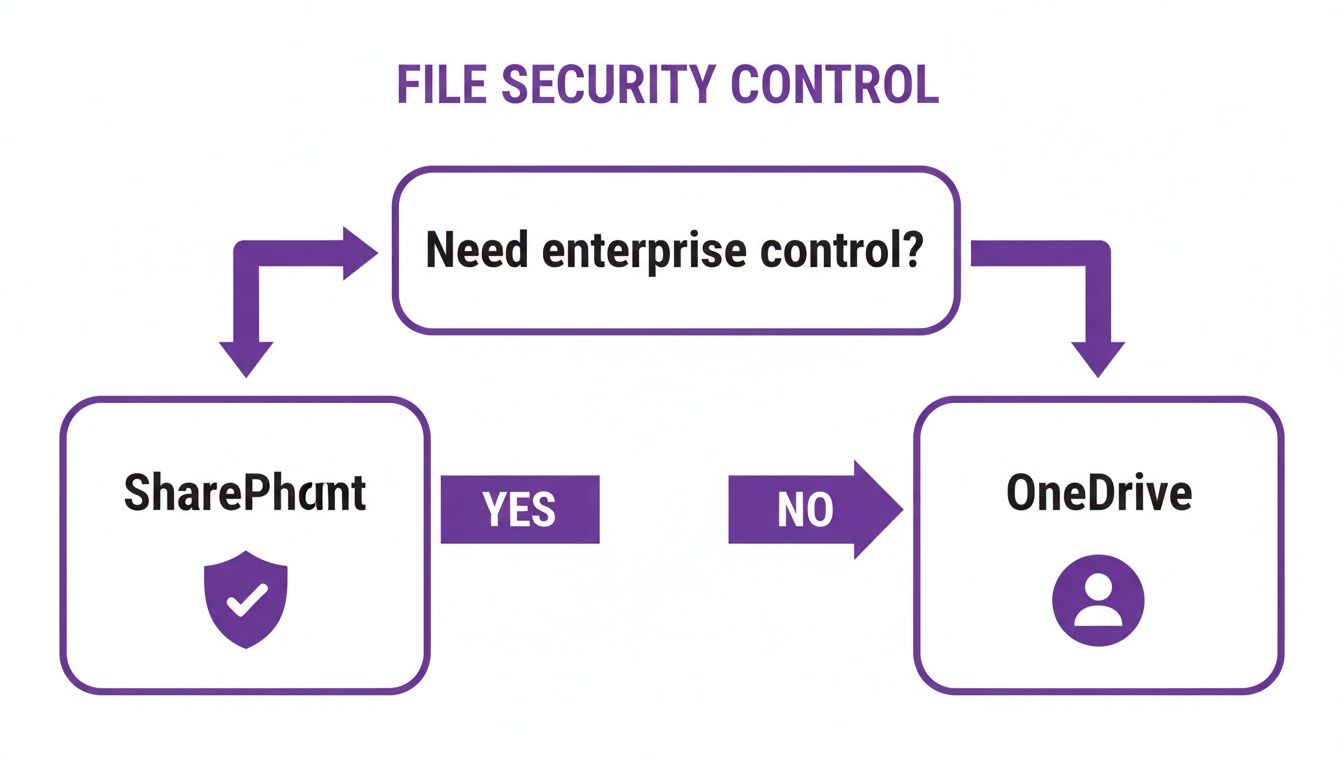
The flowchart drives home a critical point: if the data needs centralised, company-owned security and governance, SharePoint is non-negotiable. OneDrive, on the other hand, is built for files managed at the individual user level.
When to Use SharePoint
SharePoint is the right choice any time a file or a piece of information is a shared asset. If it belongs to a team, a department, or the whole company, it belongs in SharePoint. The platform is built from the ground up for collaboration, control, and long-term access, making it the bedrock of organised teamwork.
Think of SharePoint for these common scenarios:
- Building a Company Intranet: This is where you create a central hub for news, announcements, and key resources like the staff directory or company calendar. A SharePoint communication site is literally designed for this job.
- Managing Departmental Projects: When your marketing team is working on a new campaign, every brief, asset, and report should live in a dedicated SharePoint team site. This guarantees everyone has the latest versions, and crucially, the files stay with the company if a team member leaves.
- Storing Official HR Policies: Documents like the employee handbook, health and safety procedures, and holiday request forms are company assets. Sticking them in a SharePoint document library makes them the single source of truth, complete with version control and permissions to stop unauthorised changes.
- Collaborating with External Partners: Working on a long-term project with a client or supplier? You can create a secure SharePoint site and give them limited access. It’s a far more controlled and professional environment for sharing files than endlessly emailing attachments back and forth.
Key Insight: If you can imagine someone asking, “Where is the official file for…?”, the answer should always be SharePoint. It’s your organisation’s permanent, shared filing cabinet.
When to Use OneDrive for Business
OneDrive shines when a file is in its infancy or is primarily owned by one person. It gives employees a secure, personal space for their work-in-progress, letting them be productive without cluttering up shared team spaces with endless draft documents. Its simplicity is perfect for quick, informal tasks.
Use OneDrive in these specific situations:
- Drafting a Report or Proposal: Before a document is ready for the team to see, it belongs in your OneDrive. This is your personal sandbox to work on drafts, gather your thoughts, and polish your ideas without causing version chaos in a team library.
- Storing Personal Work-Related Files: This is the spot for your own meeting notes, performance review drafts, or informal analysis that helps you in your role but doesn’t need to be a shared team resource.
- Sharing a Large File for Quick Feedback: Need a colleague to quickly eyeball a presentation slide or a big design file? Sharing a secure link from your OneDrive is the fastest way. You can easily set the link to expire or make it view-only.
- Backing Up Your Desktop and Documents: The OneDrive sync client can automatically back up your known Windows folders (Desktop, Documents, Pictures). This protects your local files in the cloud and makes them accessible from any device you use.
By training your team to just pause and ask, “Is this ‘Me’ or ‘We’ work?”, you can guide them to make the right choice every single time. This simple habit improves both productivity and data governance across your entire business.
Need help creating a clear file management policy for your team? Phone 0845 855 0000 today or Send us a message to discuss your needs.
How SharePoint And OneDrive Power Microsoft Teams
Microsoft Teams has quickly become the go-to place for modern teamwork, but most people don’t realise what’s happening behind the curtain. SharePoint and OneDrive are the powerful engines running silently in the background, and understanding how they work together is the key to mastering file management in Teams.
The whole SharePoint vs. OneDrive debate gets really interesting here, as each platform handles a different part of the Teams experience.
This backend setup isn’t just a technical footnote; it directly affects how your team collaborates. When you spin up a new Team, Microsoft automatically creates a dedicated SharePoint team site for it. This site acts as the central library for every file shared within that Team’s channels.
SharePoint For Team Channels
For every channel you create in a Team, a corresponding folder is made inside the main SharePoint document library. This simple structure keeps all files for a specific project or topic organised and, crucially, owned by the team itself, not by one person.
This connection brings some powerful advantages:
- Centralised Ownership: Files belong to the team. If someone leaves the company, the documents stay put.
- Advanced Permissions: You get to use SharePoint’s granular security controls, right from the Teams interface.
- Full Document Management: All the good stuff like version history and metadata is there for your channel files.
In short, the ‘Files’ tab you see in a Teams channel is just a clean, simple window into a much more powerful SharePoint document library.
Key Insight: Think of Teams as the collaborative front-of-house and SharePoint as the smart, secure back-office filing system. This integration means your teamwork is built on a solid foundation of enterprise-level document control.
OneDrive For Private Chats
But the picture changes completely when you switch from public channels to private chats. If you share a file in a one-to-one chat or a small group message, it doesn’t go to SharePoint at all. Instead, it’s stored in the OneDrive for Business account of the person who shared it.
A special folder, ‘Microsoft Teams Chat Files’, is automatically created in that person’s OneDrive. The system then shares the file with the other people in the chat. This is a much better fit for the informal, ad-hoc nature of private chats, keeping quick drafts and one-off files out of the official team library.
Knowing how this works is vital for training your users and setting up good governance. It’s why a file shared in a channel is always accessible to the team, but a file from a private chat is tied to an individual’s account. This knowledge is essential for building effective remote working solutions that are both productive and secure. When you know where every file lives, you can apply the right policies and make sure your data is always managed properly.
To get your team collaboration strategy right, Phone 0845 855 0000 today or Send us a message.
So, Which One Is Right for Your Business?
We’ve covered a lot of ground, but the core principle for choosing between SharePoint and OneDrive really is that simple: SharePoint is for teamwork (‘We’), and OneDrive is for personal work (‘Me’). Getting this right is the first, most important step toward building an organised and secure digital workspace for your company.
Of course, choosing the right tool is only half the battle. Real success comes from clear communication and user training. Your team needs to know, without a shadow of a doubt, where different types of files should live. When you create a straightforward data governance plan, you’re not just adding rules; you’re empowering your people to make smart choices every day. This simple act is what secures your digital assets and unlocks genuine productivity.
A truly effective file management strategy isn’t about the technology alone. It’s about fostering a culture where everyone understands their part in organising and protecting company data, turning what seems like a complex decision into a simple daily habit.
Your Implementation Checklist
To help you translate this understanding into action, here’s a practical checklist to get you started:
- Define clear guidelines: Create a simple document that explains when to use SharePoint versus OneDrive. Use real-world examples that your team will instantly recognise from their own workflows.
- Train your team: Run a short, practical training session on the ‘We vs. Me’ concept. Make it interactive and leave plenty of time for questions.
- Audit your existing data: Take a look at where files are currently stored. You’ll likely find team-critical documents sitting in personal OneDrive accounts. Plan a simple migration to the correct SharePoint site.
- Set your governance policies: Talk to your IT partner about configuring the right security and retention policies in the background. This ensures your data stays safe and compliant without creating extra work for your staff.
Ready to get your file management and collaboration running smoothly? Give F1 Group a call on 0845 855 0000 today, or send us a message to see how we can help your business get the most out of Microsoft 365.
Frequently Asked Questions
When it comes to SharePoint vs OneDrive, a few common questions always pop up for UK businesses. Let’s tackle them head-on to clear up any confusion and help you build a smarter file management strategy.
Can OneDrive Replace SharePoint?
The short answer is no. OneDrive and SharePoint are designed for fundamentally different jobs, and trying to make one do the work of the other is a recipe for trouble. Think of OneDrive as your personal work locker (the ‘Me’ space), while SharePoint is the shared project room for the whole team (the ‘We’ space).
If you try to use OneDrive as a central hub for team files, you’ll quickly run into a mess of permission management issues. Worse, there’s a serious risk of data loss when an employee leaves, and you lose the robust governance features SharePoint was built for. They’re designed to work together, not as substitutes for one another.
Which Is Better For External Sharing?
It really depends on what you’re trying to do.
If you just need to send a large file to a client for a quick review, OneDrive is simpler and more direct. You can generate a secure link, set it to expire, and get the job done in seconds. It’s perfect for one-off tasks.
However, for any kind of ongoing collaboration with partners, suppliers, or long-term clients, SharePoint is the clear winner. It lets you build a dedicated, secure site where you can control exactly who sees what. This granular control is essential for protecting sensitive information during sustained projects and business relationships.
How Do Pricing And Storage Work In The UK?
For most businesses in the UK using Microsoft 365, both SharePoint and OneDrive are bundled into the subscription. You don’t pay for them separately.
In terms of storage, each user typically gets a generous 1 TB for their personal OneDrive.
SharePoint storage works a bit differently. Your entire organisation gets a base of 1 TB of pooled storage, and then an extra 10 GB is added for every licensed user. So, a UK business with 20 employees would have a total of 1.2 TB (1 TB base + 20 x 10 GB) of shared storage. Popular plans like Microsoft 365 Business Basic start at around £4.90 per user, per month.
Ready to get your file management and collaboration running smoothly? Phone 0845 855 0000 today or send us a message to see how we can help your business get the most out of Microsoft 365.