
To truly backup Office 365, you first need to accept a critical fact: Microsoft doesn’t handle it all for you. While they do an excellent job of keeping their global platform running, the responsibility for protecting your actual business data—from accidental deletion to a full-blown ransomware attack—falls squarely on your shoulders. This is why a dedicated, third-party backup solution isn’t just a nice-to-have; it’s essential for genuine data security.
Why Your Business Can’t Afford to Ignore Office 365 Backups
It’s a dangerously common belief among businesses, especially here in the East Midlands, that putting data in the Microsoft cloud makes it invincible. Unfortunately, the reality is far more complicated, governed by what Microsoft calls the Shared Responsibility Model.
The best way to think about it is like renting a highly secure storage unit. The company that owns the facility (Microsoft) guarantees the building’s integrity. They ensure the power stays on, the roof doesn’t leak, and the main gates are locked. But they have zero responsibility for what’s inside your specific unit. If you accidentally throw out a priceless heirloom, that’s on you.
In the same way, Microsoft manages the vast infrastructure behind Microsoft 365—guaranteeing uptime, maintaining servers, and securing their network. Your data, however—your emails, Teams chats, and SharePoint files—is your responsibility to protect from loss.
The Everyday Threats Facing UK Businesses
This isn’t some abstract IT theory; it’s a real-world business risk. We see data loss happen every single day, often from simple mistakes that can grind a company to a halt.
Here are the most common culprits I’ve seen over the years:
- Accidental Deletion: This is, by far, the biggest cause of data loss. Someone cleans out their inbox or a shared folder and, without realising it, permanently deletes a critical contract or a vital project file.
- Malicious Insiders: A disgruntled employee on their way out decides to cause chaos. They might systematically delete sensitive client communications or wipe entire SharePoint sites, leaving a huge mess to clean up.
- External Security Threats: A cleverly worded phishing email fools a user into giving away their login details. Before you know it, a cybercriminal has access and can steal, corrupt, or encrypt your files in a ransomware attack.
That last one, ransomware, is a growing nightmare for UK businesses. A recent report from the UK’s National Cyber Security Centre (NCSC) highlighted a 15 percent increase in ransomware incidents targeting companies. This worrying trend shows why a proper Microsoft 365 backup strategy is no longer optional. For any organisation, from Lincoln to Newark, leaving data protection to chance is a gamble you can’t afford to lose.
A backup you don’t have is a business you can’t recover. Relying solely on Microsoft’s built-in tools is like having a car without a spare tyre—you’re fine until you’re not, and by then, it’s too late.
Understanding Your True Responsibility
To really understand this division of duties, it helps to see it laid out. Before diving into the specifics of Microsoft 365, it’s worth getting a good handle on what backups are and why they are indispensable as a foundational concept.
The table below breaks down the Shared Responsibility Model, making it clear where Microsoft’s job ends and yours begins.
Microsoft’s Responsibility vs Your Responsibility
| Data Protection Area | Microsoft’s Role | Your Business’s Role |
|---|---|---|
| Physical Security | Protecting data centres from unauthorised access, fire, and theft. | — |
| Infrastructure | Ensuring hardware (servers, storage) and network availability (uptime). | — |
| Application-Level Security | Protecting the Microsoft 365 service itself from broad threats. | Managing user access, permissions, and security settings. |
| Data Retention (Basic) | Providing short-term recovery options (e.g., Recycle Bin). | Implementing a long-term retention policy for compliance and business needs. |
| Data Backup | Providing geo-redundancy for disaster recovery of their platform. | Creating and managing a comprehensive backup of your actual data. |
| Data Recovery | Restoring their services after a major outage. | Restoring specific items, files, mailboxes, or sites from your backup. |
Ultimately, Microsoft’s role is about platform availability, while your role is all about data accessibility and recoverability. You can learn more by reading our guide on https://www.f1group.com/why-you-need-a-separate-cloud-backup-system-for-microsoft-365-understanding-disaster-recovery/.
Without a proper backup, a simple human error could spiral into a costly disaster, hitting your productivity, damaging client trust, and hurting your bottom line. A dedicated backup service gives you the safety net that Microsoft’s native tools were never designed to provide.
What Native Microsoft 365 Protection Actually Covers

Before you can decide how to back up your Microsoft 365 environment, you need a realistic view of what Microsoft already gives you. It’s a common misconception that because your data is in the cloud, it’s automatically safe. The truth is, the built-in tools are designed more for short-term operational hiccups, not genuine disaster recovery.
Getting to grips with these limitations is the first real step towards building a proper safety net for your business data. Let’s pull back the curtain on the features you’re likely using every day and expose the gaps they can leave in your defences.
The Recycle Bin: A Temporary Safety Net
We’ve all used the Recycle Bin. In both Exchange Online (your email) and SharePoint/OneDrive (your files), when someone deletes an item, it doesn’t just disappear. It first lands in a ‘Deleted Items’ folder.
From there, the user can usually fish it out themselves. If they empty that folder, the item then shifts to a second-stage Recycle Bin that only an administrator can access. It’s a great system for catching those simple, “oops, I didn’t mean to delete that” moments.
But here’s the catch: there’s a strict time limit. By default, items are permanently wiped 93 days after they were first deleted. Once that clock runs out, the data is gone forever. It’s not a backup; it’s more of a temporary reprieve.
Version History: A Limited Rewind Button
SharePoint and OneDrive have a fantastic version history feature. Every time a document is changed and saved, it creates a new version, letting you see the file’s history. If someone accidentally messes up a report or overwrites important information, you can just roll it back to an earlier, cleaner version.
While this is brilliant for collaboration and fixing small errors, it’s useless if the entire file gets deleted or, worse, if a whole SharePoint site is compromised. Think of it as a tool for content integrity, not a recovery mechanism for a major incident.
Retention Policies: A Compliance Tool, Not a Backup
Microsoft 365 also provides some powerful retention and litigation hold policies. These are designed specifically to meet legal and regulatory demands, like GDPR here in the UK. You can set a policy that stops any email or file from being permanently deleted for a set period, even if a user tries their best to get rid of it.
This sounds like a backup, but its purpose is entirely different. It’s there to preserve data for legal discovery, not to get your business back online quickly. Trying to restore a specific user’s mailbox or a critical SharePoint site from a retention policy is a messy, slow process that simply isn’t practical when you’re in the middle of a crisis. A complete data strategy must also factor in your wider security risk management responsibilities.
The native tools in Microsoft 365 are like the safety features in a car—airbags and seatbelts. They’re vital for minor incidents but won’t help you rebuild the car after a catastrophic crash. That’s what a true backup solution is for.
This protection gap is a serious business risk. It’s worrying that industry surveys have found 53 percent of organisations suffered data loss or corruption in a single year, yet half admitted they weren’t ready to recover. For UK businesses in the East Midlands, often with limited IT resources, that’s a dangerous gamble. The native Microsoft 365 Backup service is a very recent addition, meaning countless businesses have been using the platform for years with no robust, built-in backup option, leaving them exposed. You can discover more insights on UK business preparedness to get the full picture.
The New Microsoft 365 Backup Service
Microsoft has started to address these gaps with its own Microsoft 365 Backup service. This is a genuine backup solution that sits inside the Microsoft ecosystem, and it’s a big step up from the other native features. It offers much faster, large-scale recovery for OneDrive, SharePoint, and Exchange.
However, it works on a consumption-based pricing model, meaning you pay for the amount of data you protect, which can be hard to predict. For a UK business, this might work out to around £0.12 per GB per month. While it’s a powerful tool, it may not be the most cost-effective or flexible option for every company, especially when you compare it to the predictable, per-user pricing of established third-party solutions. It’s a welcome development, but it’s just one of several tools you need to evaluate—not an automatic go-to.
For a robust data protection plan, get in touch with our team of experts. Phone 0845 855 0000 today or send us a message to discuss your Office 365 backup strategy.
Choosing Your Microsoft 365 Backup Strategy
Deciding how to back up your Microsoft 365 environment is one of the most important calls you’ll make for your business. This isn’t just an IT task to tick off a list; it’s a strategic decision that directly impacts your operational resilience, budget, and ability to meet compliance rules.
The conversation nearly always boils down to two paths: stick with Microsoft’s own built-in backup tools or partner with a specialised third-party provider. For businesses across the East Midlands, from growing firms in Leicester to established companies in Nottingham, getting this right means digging into the details. Let’s break down the key factors—cost, recovery speed, and data control—to give you the clarity you need.
Weighing Up the Costs: A UK Perspective
Cost is, understandably, the first thing on everyone’s mind. The two approaches have completely different pricing models, which can make a direct comparison feel like comparing apples and oranges. You really need to think about how each will affect your budget in the long run.
- Microsoft 365 Backup (Consumption-Based): Microsoft’s native solution works on a “pay-as-you-go” model. You get a bill based on the amount of data you’re protecting, which is notoriously difficult to forecast. The price is around £0.12 per gigabyte per month. For a small business with 1TB of data, that might seem reasonable at about £120 a month. But your data will grow—it always does—and so will your bill, creating unpredictable operational costs.
- Third-Party Solutions (Per-User Licensing): Most third-party vendors offer a much more predictable, budget-friendly model. You pay a fixed fee per user, per month (or year), no matter how much data that person creates. A typical plan might cost somewhere between £2.50 to £5.00 per user per month. This makes budgeting a breeze and is often far more cost-effective for businesses with a lot of data or a growing team.
For most UK companies, the predictable nature of per-user licensing is a huge win, helping to avoid nasty surprises on the monthly invoice.
Recovery Speed and Granularity
When things go wrong, every second of downtime costs money and chips away at your reputation. How quickly and precisely you can get your data back is a non-negotiable. This is where the differences between native and third-party solutions really start to show.
Microsoft’s native backup service has made some impressive leaps forward. A major plus is its ability to handle bulk restores at incredible speeds—a real advantage for larger organisations. The service can recover data at rates of up to 2TB per hour at scale, which is a game-changer for major incidents where you need to restore entire SharePoint sites or mailboxes in one go. You can read the full announcement on this Microsoft 365 Backup technology to see how it works.
However, where third-party solutions often shine is in granular recovery. Think about it: you probably don’t need a whole mailbox restored, just one critical email with its attachments. Or maybe a single, important conversation from a Teams channel. Leading third-party tools are built for this kind of surgical precision, letting you find and restore individual items in minutes without disrupting everyone else.
Data Sovereignty and Control
For any UK business, knowing exactly where your data is stored is a critical compliance requirement, especially under GDPR. Data sovereignty—the idea that your data is subject to the laws of the country where it’s located—is a top concern.
Choosing a backup strategy isn’t just about recovering files; it’s about retaining control over your most valuable business asset. Your choice determines your ability to meet compliance obligations and ensure data remains within UK borders.
While Microsoft guarantees your primary Microsoft 365 data will stay in UK data centres if you’re a UK organisation, the backup situation can be a bit murkier. It’s vital to confirm where your backups are actually being stored.
Many third-party providers solve this problem by letting you explicitly choose a UK-based data centre for your backup copies. This gives you a clear, unambiguous guarantee of data sovereignty, making compliance simpler and giving you complete peace of mind. As our guide on why cloud backup is vital for Microsoft 365 data explains, keeping your backups separate from your live environment is a fundamental principle of good data security.
Microsoft 365 Backup vs Third-Party Solutions
To make an informed decision, it helps to see the key differences side-by-side. This table breaks down what you get with each approach.
| Feature | Native Microsoft 365 Backup | Typical Third-Party Solution |
|---|---|---|
| Pricing Model | Consumption-based (£0.12/GB/month) – unpredictable costs. | Per-user, per-month licensing (£2.50-£5.00) – predictable budgeting. |
| Recovery Speed | Excellent for large-scale, bulk restores (up to 2TB/hour). | Strong performance, but excels at rapid, granular item-level recovery. |
| Granularity | Primarily focused on entire mailboxes, sites, and OneDrive accounts. | Superior granular control for restoring individual files, emails, or Teams chats. |
| Data Sovereignty | Data stays within the Microsoft ecosystem. | You can often explicitly choose a UK data centre for assured sovereignty. |
| Management | Managed within the Microsoft 365 Admin Centre. | A separate, dedicated portal offering advanced reporting and features. |
| Coverage | Covers Exchange, SharePoint, and OneDrive. | Often extends to Teams (posts, conversations, metadata), Planner, and other apps. |
So, what’s the verdict? While Microsoft’s native service is a powerful option for huge, large-scale recovery jobs, many UK SMBs find the predictable costs, fine-grained control, and guaranteed data sovereignty of a third-party solution to be a more practical and robust choice for their day-to-day needs.
Ready to find the right backup strategy for your business? Phone 0845 855 0000 today or Send us a message for expert advice.
How to Implement Your Office 365 Backup Solution
Alright, we’ve covered the theory, so let’s get our hands dirty. Actually putting a robust Microsoft 365 backup solution in place isn’t nearly as intimidating as it sounds, especially when you break it down into manageable stages. The goal here is to move from making a decision to having active protection, without any unnecessary headaches.
This handy visual breaks down the core journey of deploying a backup strategy, from the initial deep dive into your needs all the way to flicking the final switch.
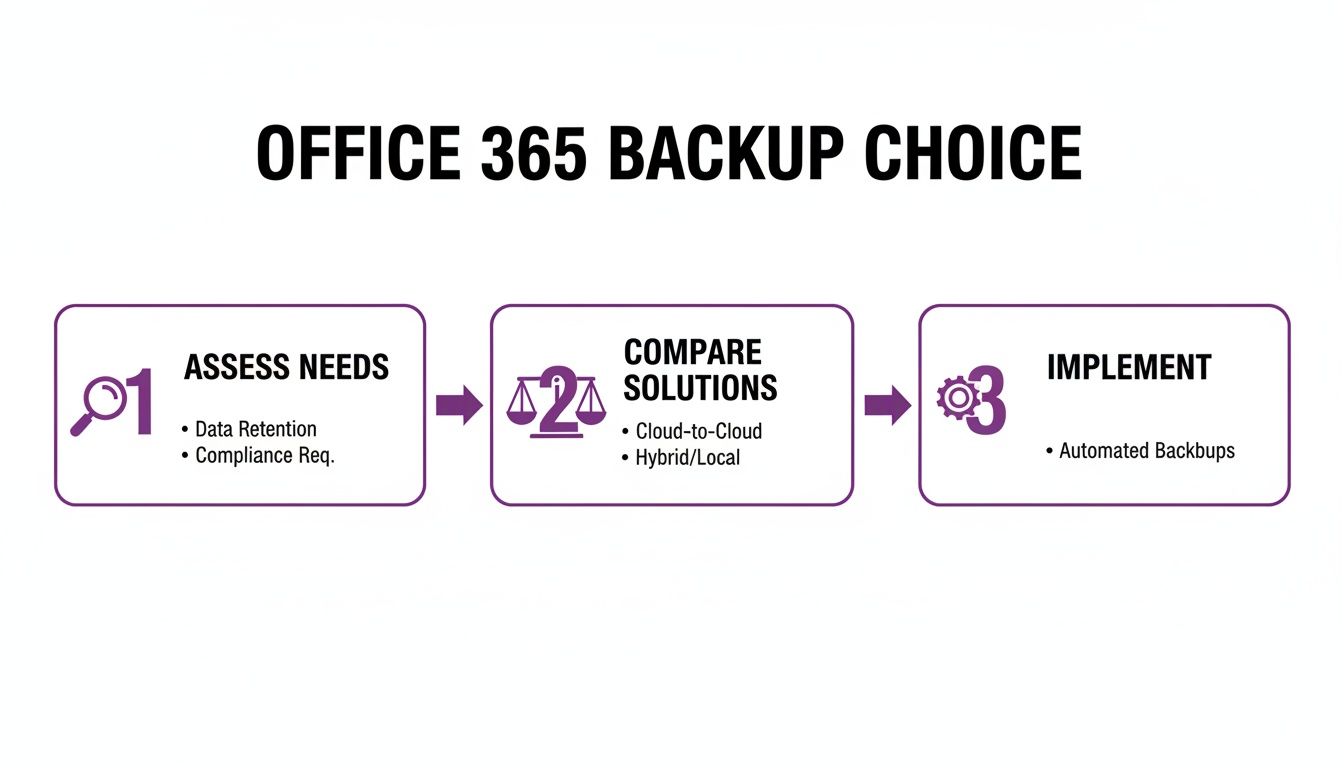
As you can see, a successful rollout hinges on doing your homework first—assessing and comparing—before you touch any of the technical settings. It’s a measured approach that helps you sidestep common mistakes and ensures the solution you’ve picked is a perfect fit for your business.
Laying the Groundwork for Implementation
Before you even think about configuring your first backup job, there’s a crucial first step: permissions. Your chosen third-party service needs a secure handshake with your Microsoft 365 tenant to access the data it needs to protect.
This is almost always handled through OAuth 2.0, a secure industry standard for authorisation. Crucially, this means you never share your global administrator password. Instead, you grant specific, tightly controlled permissions to the backup application.
The process generally looks something like this:
- Creating an Application Registration: First, you register the backup service as a trusted application inside your Azure Active Directory.
- Assigning API Permissions: Next, you grant specific permissions for services like Exchange, SharePoint, and Teams. This is key—it ensures the tool can read data for backup but can’t take any other actions.
- Granting Admin Consent: The final step is a formal approval, usually done by a Global Administrator, which officially authorises the connection between the backup service and your Microsoft 365 tenant.
Think of it like giving a trusted security guard a specific keycard. It grants them access only to the rooms they need to protect (your data) without handing over the master key to the entire building (your global admin rights).
Getting this permissions-based approach right is fundamental. It keeps your environment secure while enabling your backup Office 365 strategy to function correctly.
Configuring Your First Backup Jobs
Once the secure connection is live, it’s time for the main event: telling the service what to back up and how often. Most modern solutions give you an impressive level of control, letting you tailor policies for different departments, user groups, or types of data.
A typical setup screen will make it clear how you can enable protection across your Microsoft 365 services. It’s usually a straightforward case of selecting and activating backups for the big three: SharePoint, OneDrive, and Exchange.
Let’s walk through a practical way to set up your first backup jobs for the best results.
Exchange Online (Email)
For nearly every business I’ve worked with, email is priority number one. Your initial policy needs to be comprehensive.
- What to Back Up: Select all user mailboxes, shared mailboxes, and public folders. Don’t be tempted to cut corners by excluding certain users; that one critical email you need to recover could be sitting in anyone’s inbox.
- Backup Frequency: A daily backup is the bare minimum. Many of the best services now offer multiple backups per day (say, every 4 to 6 hours), which dramatically improves your Recovery Point Objective (RPO) if you need to restore something from earlier in the day.
SharePoint Online and OneDrive for Business
These two are the heart of your file storage and collaboration. Since SharePoint underpins how files are stored in Teams, getting this right is non-negotiable.
- What to Back Up: Make sure you select all SharePoint sites—Team sites, communication sites, the lot. Just as important, include all individual OneDrive accounts. It’s a classic mistake to forget that each user’s OneDrive is a treasure trove of business-critical data.
- Backup Frequency: Daily backups are a solid baseline here. Because documents in these services can change so frequently, more regular snapshots can be a lifesaver if your backup service supports it.
Microsoft Teams
Backing up Teams is a bit more nuanced because its data is spread across the Microsoft 365 ecosystem. A good backup tool understands this and neatly pulls it all together for you.
- What to Back Up: A proper Teams backup doesn’t just grab the files (which live in SharePoint). It also captures the conversations, the channel structures, and all the associated metadata. Often, that context is just as valuable as the files themselves.
- Backup Frequency: It makes sense to align this with your SharePoint policy, as the two are so closely linked. Daily backups are the standard here.
Defining Retention Policies for UK Compliance
The final piece of the implementation puzzle is setting your retention rules. This simply means deciding how long your backed-up data is kept before it’s automatically deleted. This isn’t just about managing storage space; it’s a critical compliance task, especially under UK regulations like GDPR.
A solid retention policy should achieve three things:
- Meet Legal Requirements: Keep data for the period mandated by your industry’s regulations or other legal standards.
- Serve Business Needs: Hold onto data long enough for operational recovery, but not so long that it bloats storage costs and increases risk.
- Offer Flexibility: Many platforms allow for ‘grandfather-father-son’ retention. For example, you might keep daily backups for 30 days, weekly backups for 6 months, and monthly backups for 7 years.
For a UK business, a sensible starting point is often retaining all data for a minimum of 1 year, with specific records like financial data kept for 7 years. This strikes a great balance between easy recoverability and robust compliance.
Ready to implement a secure and compliant backup solution? Phone 0845 855 0000 today or Send us a message to speak with one of our experts.
Testing Recovery and Managing Your Backups

Here’s a hard truth I’ve learned over the years: an untested backup is just an expensive, hope-filled gamble. The real value of your solution isn’t in the successful backup job notification; it’s proven the moment you confidently restore a single critical email or an entire SharePoint site under pressure. This is why regular, structured testing is non-negotiable.
Without a solid testing plan, you’re flying blind. You have no real idea if your backups are complete, uncorrupted, or even accessible until a crisis hits. By then, it’s far too late.
A Playbook for Realistic Restore Scenarios
Good testing goes way beyond a simple “can I see the files?” check. You need to simulate the kind of real-world data loss incidents that businesses across the East Midlands face every day. This approach doesn’t just validate the technology; it prepares your team to act decisively when it matters most.
I recommend building your testing playbook around these essential scenarios:
- The Single Critical Email: Picture this: a director accidentally deletes an email chain containing vital contract details. Your test is to dive into yesterday’s backup, find that specific email, and restore it directly to their live mailbox without touching anything else.
- The Corrupted OneDrive File: A key financial spreadsheet in a user’s OneDrive is now a garbled mess. The goal is to restore a clean version of that single file from the last known good backup, ensuring all the recent formulas and data are perfectly intact.
- The Wiped SharePoint Library: A disgruntled employee (it happens) deletes an entire document library from a crucial project’s SharePoint site. Your test is to restore the whole library—folders, files, and all permissions—back to its original state.
Think of a backup test as your dress rehearsal for a disaster. Running through these scenarios builds muscle memory. When a real incident occurs, your response is calm and effective, not panicked and chaotic.
Establishing a Simple Testing Schedule
You don’t need to perform full-scale disaster recovery drills every week. For most businesses, a manageable, consistent schedule is far more effective for guaranteeing the integrity of your backup office 365 solution.
Here’s a practical schedule that works well for small and medium-sized businesses:
- Monthly Spot Checks: Once a month, perform a small-scale, granular restore. Pick a random file from a user’s OneDrive or an email from a shared mailbox and restore it. It only takes a few minutes but gives you peace of mind that the system is working.
- Quarterly Scenario Tests: Every three months, run one of the bigger scenarios from your playbook. This could be restoring a deleted SharePoint list or a Teams channel conversation. It tests a broader dataset and keeps your team familiar with the process.
- Annual Full Review: At least once a year, take a step back and review your entire backup policy. Are all the new starters and SharePoint sites included? Do your retention settings still align with UK compliance regulations like GDPR?
This structured approach turns testing into a routine operational task, not a disruptive fire drill.
Your Ongoing Backup Management Checklist
Beyond testing, effective long-term management ensures your protection stays robust as your business evolves. A backup system isn’t something you can “set and forget”. Regular oversight is essential to catch small issues before they snowball into major problems.
Use this operational checklist to stay on top of your backup management:
- Monitor Job Success: Glance at your backup portal daily or weekly to confirm all jobs completed without errors.
- Review Storage Usage: Keep an eye on storage consumption. A sudden, unexpected spike could signal a problem, like a runaway process or even a ransomware attack encrypting files.
- Manage User Access: Regularly audit who has admin rights to your backup solution. Permissions should be on a strict need-to-know basis to minimise risk.
- Stay Updated: Make sure your backup software or service is always running the latest version. This gives you critical security patches and new features.
Consistent management transforms your backup solution from a passive safety net into an active, reliable part of your business’s operational resilience.
Need help creating a robust testing and management plan for your backups? Phone 0845 855 0000 today or Send us a message to speak with our data protection experts.
Time to Take Control of Your Microsoft 365 Data
We’ve walked through the shared responsibility model, looked at the gaps in Microsoft’s own tools, and established why a dedicated backup for Office 365 is no longer a ‘nice-to-have’—it’s a business necessity. Protecting your data has shifted from a simple IT task to a fundamental pillar of business survival.
For any business operating in Lincoln, Nottingham, Leicester, or anywhere across the East Midlands, the path forward is clear. You can’t afford to leave your most critical asset vulnerable to accidental deletion, a disgruntled employee, or a ransomware attack. A solid backup strategy is the only real safety net you have, the one thing that guarantees you can get back on your feet quickly and keep the business running. It’s the difference between a temporary hiccup and a full-blown disaster.
Your Local Partner in Data Protection
This is where we come in. As your local partner, F1Group can help you make sense of it all. We’ll work with you to understand your specific risks, pick the right tools for the job, and put a resilient strategy in place that protects your business for years to come.
Thinking about the big picture, a complete data control strategy also means managing the entire lifecycle of your information. This even includes knowing how to properly dispose of old hardware according to guidelines like the NIST SP 800-88 standard for secure data sanitization, ensuring sensitive data is completely destroyed when equipment is retired.
Taking control of your data isn’t a one-off project; it’s an ongoing commitment to keeping your business resilient. The peace of mind that comes from knowing your data is secure and recoverable? That’s priceless.
Don’t wait until a data loss incident forces you to react. The time to be proactive is right now.
Take the first step towards securing your business’s future. The experts at F1Group are ready to help. Phone 0845 855 0000 today or Send us a message to get started.