
If you’re drowning in a sea of disconnected spreadsheets and data overload, you’re not alone. The real challenge for most businesses isn’t a lack of data; it’s making sense of it all. This is where Power BI comes in. At its heart, Power BI is used to turn complex, fragmented business data into clear, interactive visuals.
Think of it as a smart translator. It takes all the raw numbers and jargon from your different systems and converts them into insightful stories, allowing you to make confident decisions based on facts, not guesswork.
From Complex Data to Clear Decisions with Power BI
So many businesses are staring at the same problem: endless spreadsheets packed with sales figures, operational metrics, and financial reports. Each bit of information lives in its own silo, making it almost impossible to see the bigger picture. This is exactly the problem Power BI was built to solve.
It works by becoming a central hub, connecting to all your different data sources—from a simple Excel file to a complex cloud database—and pulling everything together. Suddenly, you have a single, reliable source of truth.
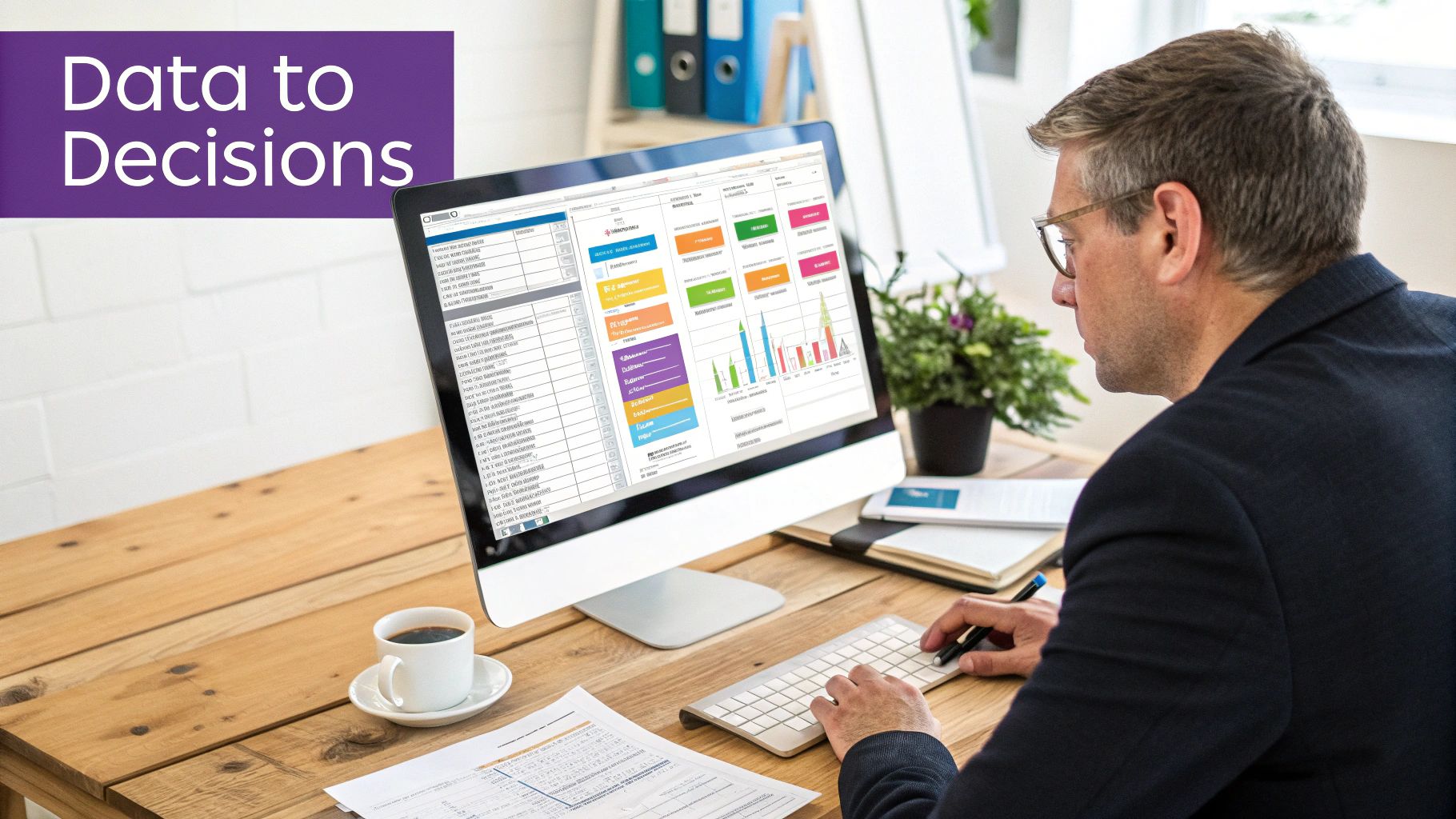
Instead of your team spending hours manually piecing together reports, you can build dynamic dashboards that update in real time. And these aren’t just static charts; they’re fully interactive tools. You can click on a sales region on a map to see a performance breakdown by product, or filter a financial chart to view profitability over a specific quarter. This puts the power to explore data and find answers directly into the hands of your team, without them needing to be data analysts.
Unlocking Business Intelligence in the UK
Here in the UK, the move towards business intelligence tools is gathering serious pace, and Power BI is right at the front of the pack. For businesses in regions like Lincolnshire and Nottinghamshire, this widespread adoption is great news. It means there’s a strong support network and a large pool of skilled professionals available.
UK research has shown that self-service BI tools like Power BI can save users over two hours per week on reporting tasks alone. Even better, report production becomes up to 2.5 times faster thanks to automation. Just think what your team could do with that time back—focusing on strategy and analysis instead of just wrestling with data.
This shift towards self-service analytics gives businesses a real competitive edge. It puts powerful data exploration tools into the hands of the people who know the business inside and out, leading to some key benefits:
- Faster Decision-Making: With live, consolidated data at your fingertips, you can react instantly to market changes or internal performance trends.
- Improved Operational Efficiency: Spot bottlenecks, track key performance indicators (KPIs), and fine-tune your processes with clear, visual feedback.
- A Single Source of Truth: No more conflicting reports or arguments over whose numbers are correct. Everyone in the organisation works from the same accurate, up-to-date information.
At its core, Power BI is powered by the cloud. To get a better grasp of this, it’s worth exploring the benefits of cloud computing for business and understanding how it allows platforms like this to deliver such scalable and secure analytics. By setting the stage with a clear data strategy, you can completely change your company’s relationship with its own information.
Understanding the Core Power BI Components
To get a real handle on what Power BI is used for, it’s best to look under the bonnet and see how its main parts fit together. It’s not just one single application; think of it as a suite of connected tools designed to get you from raw, messy data to crystal-clear insights. Each part has a specific job to do, but they all work together beautifully.
The Power BI Ecosystem Explained
It all starts with Power BI Desktop. This is your workshop, a free application you install on your computer where all the creative work happens. Here, you’ll connect to all your different data sources – whether they’re simple Excel spreadsheets, cloud-based apps, or internal company databases. This is where you actually build the visual reports, dragging and dropping elements to create insightful charts, maps, and tables.
Once you’ve built a report in Desktop that you’re happy with, you need a way to share it securely with your team or the wider business. That’s the job of the Power BI Service, a cloud-based platform (SaaS – Software as a Service) where you publish your finished reports. Think of it as a secure online hub for all your company’s data visualisations.
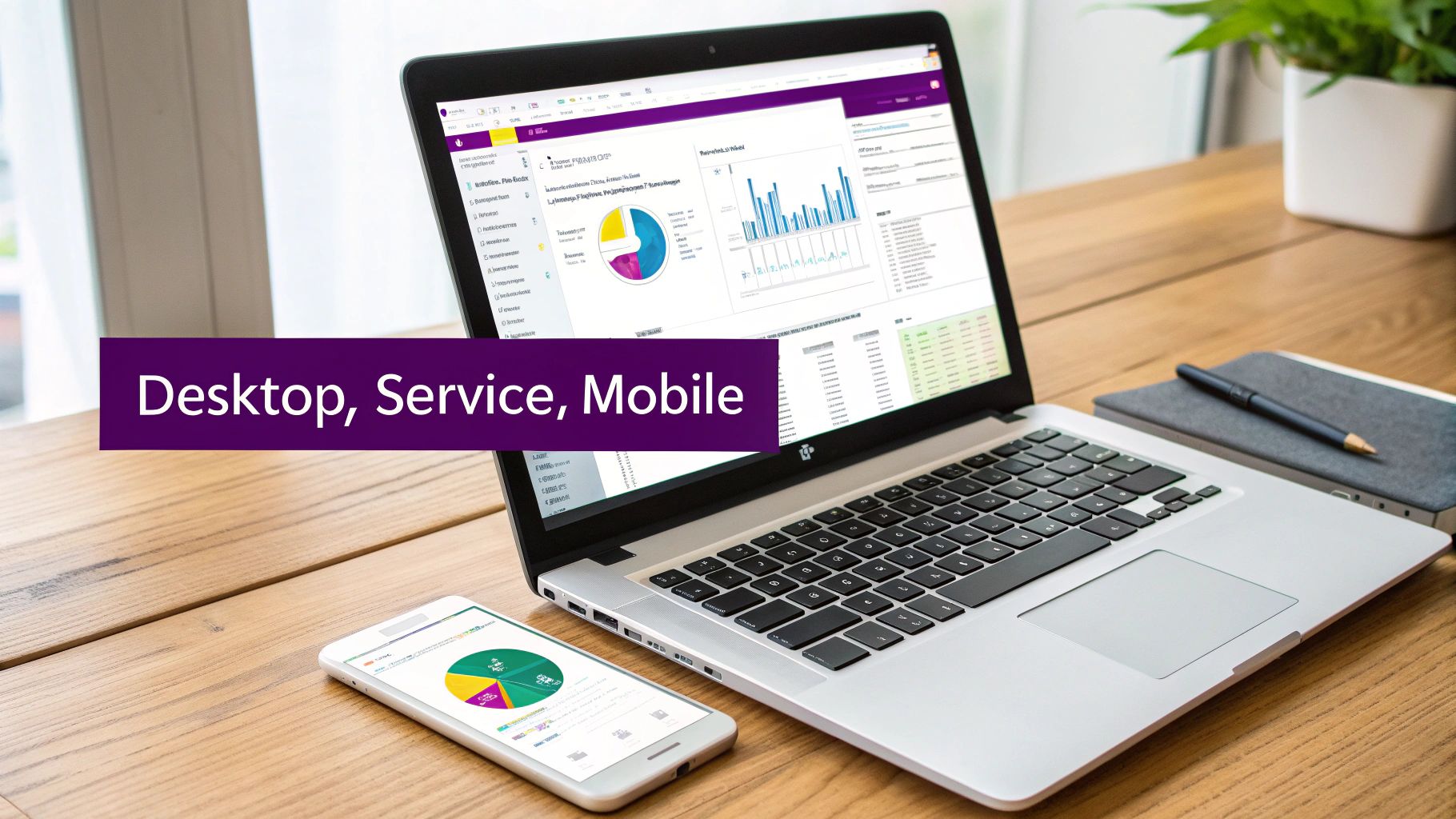
Finally, for decision-makers who are rarely at their desks, there’s Power BI Mobile. This is a dedicated app that makes your reports and dashboards available on any smartphone or tablet, ensuring key insights are always just a tap away.
To make sense of how these pieces interact, here’s a quick breakdown of the core components and who they’re for.
Power BI Components at a Glance
| Component | Primary Use | Ideal User |
|---|---|---|
| Power BI Desktop | Building data models and creating interactive visual reports from scratch. | Data analysts, business intelligence developers, and ‘power users’ in various departments. |
| Power BI Service | Sharing reports, collaborating with colleagues, and creating high-level dashboards. | Business managers, team leaders, and any stakeholder who needs to view and interact with data. |
| Power BI Mobile | Viewing and interacting with reports and dashboards on the go. | Executives, sales teams, field service staff, and anyone needing mobile access to data. |
This tightly integrated system means you can go from building a report on your laptop to sharing it with the entire company and viewing it on a phone in minutes. It closes the loop between data preparation and business decision-making.
The Technical Magic Behind the Scenes
A few key concepts are working away in the background to make all this possible. The first is data connectors. These are essentially the bridges that allow Power BI to pull information from the hundreds of different systems you already use, like Dynamics 365, SharePoint, or even simple CSV files. They make gathering all your data in one place almost effortless.
Next up is data modelling. This sounds more complicated than it is. It’s really just about telling Power BI how your different bits of data relate to each other. For example, you might connect your ‘sales data’ to your ‘customer data’ using a shared ‘CustomerID’ field. This simple link is what allows you to analyse sales figures by customer location or business size.
Finally, there’s DAX (Data Analysis Expressions). This is the formula language used within Power BI. If you’ve ever written a formula in Excel, DAX will feel like a natural, much more powerful, evolution. It allows you to create custom calculations and new metrics that go beyond your raw data, such as calculating year-on-year growth or finding the average sale value per region.
These building blocks are also fundamental to the wider Microsoft ecosystem. You can explore how they all connect in our guide to the Microsoft Power Platform.
Together, the core components—Desktop, Service, and Mobile—along with the underlying power of connectors, modelling, and DAX, create a remarkably complete system for turning your business data into intelligence you can actually act on.
How UK Businesses Are Using Power BI
It’s one thing to talk about the features of a tool like Power BI, but it’s another to see it in action. Across the UK, small and mid-sized businesses are using it to solve real-world problems and find opportunities they never knew existed.
This isn’t about big-budget data science for massive corporations. It’s about giving businesses just like yours the ability to make smarter, faster decisions. Let’s look at a few practical examples of how Power BI is making a genuine difference.

Creating Live Sales and Performance Dashboards
One of the quickest wins with Power BI is in sales management. Forget waiting for someone to manually stitch together weekly or monthly reports in Excel. Instead, businesses are building live dashboards that give an immediate, at-a-glance picture of what’s happening.
Picture this: a sales manager no longer has to chase their team for the latest figures. They simply open a single dashboard that automatically pulls data straight from the company’s CRM.
In a few clicks, they can see an interactive map of the UK showing sales performance by region. They can then drill down into a specific area, say Nottinghamshire, to see which salesperson is ahead, what’s selling well, and how they’re tracking against quarterly targets.
This level of real-time insight means they can spot problems early and step in to help, rather than discovering an issue weeks later. It shifts the entire conversation from, “What happened last month?” to, “What can we do right now to hit our goals?”.
Automating Financial Reporting and Analysis
Finance teams often feel like they’re drowning in manual reporting. They spend countless hours pulling data from accounting software, bank feeds, and various spreadsheets just to create standard reports like P&L statements or cash flow forecasts. It’s not just slow; it’s a process ripe for human error.
Power BI can automate this entire workflow. By connecting directly to your financial systems, it produces accurate, real-time reports that are always current.
- Profit and Loss (P&L): A finance director can view a live P&L, instantly filtering by department, project, or date range to see what’s driving profitability.
- Expense Tracking: Dashboards can flag unusual spending trends, highlight departments creeping over budget, and pinpoint opportunities for cost savings.
- Project Profitability: Think of a professional services firm in Lincoln that needs to know if its projects are actually making money. A Power BI dashboard can bring together timesheet data, project expenses, and client invoices to show exactly which projects are profitable and which are draining resources.
This automation frees up the finance team from mundane data entry, allowing them to focus on the strategic analysis that truly helps the business grow.
Monitoring Operational Efficiency
Power BI’s usefulness extends far beyond sales and finance. It’s an incredibly powerful tool for visualising and improving the nitty-gritty of day-to-day operations. If a process generates data, you can track it, measure it, and make it better.
Take a logistics company based in Newark, for example. They could use Power BI to get a complete overview of their delivery network. By connecting to vehicle telematics, warehouse systems, and order databases, they can build dashboards that answer crucial questions:
- Are our deliveries on time?
- Which routes are the most efficient, and which are costing us money?
- How long does it take to load vehicles at the depot?
- Are we seeing recurring delays with specific drivers or vehicles?
It’s the same for a manufacturing firm wanting to track production line output and machine downtime, or a customer service team monitoring ticket volumes and response times.
In every scenario, Power BI takes raw operational data and turns it into clear visual signals. This helps teams make small, informed adjustments that add up to big gains in productivity and cost savings.
Power BI Doesn’t Live on an Island: Integrating with Your Microsoft Tools
One of the best things about Power BI is that it doesn’t operate in a vacuum. Its real power is unlocked when it connects seamlessly with the Microsoft ecosystem—the very tools your business probably uses every single day. This isn’t just a handy feature; it’s a strategic advantage that turns your existing software into a connected, intelligent platform.
Think of Power BI as the data layer that sits across your entire Microsoft suite, rather than a separate, standalone tool. It can pull data from customer records in Dynamics 365, analyse figures from Excel spreadsheets stored in SharePoint, or connect to vast operational databases hosted in Azure. This built-in connectivity is fantastic for breaking down the data silos that so often get in the way of real business insight.
Bringing Live Data into Your Daily Workflows
The integration goes much further than just connecting to data sources. You can embed live, interactive Power BI reports directly into the applications where your teams collaborate. This completely changes how people interact with data, moving it from a static report to a dynamic part of the conversation.
Imagine your sales team discussing quarterly performance in a Microsoft Teams channel. Instead of pasting an outdated screenshot of a chart, you can embed the actual Power BI sales dashboard right into the chat. Team members can then filter, drill down, and explore the data in real-time during the discussion, making sure everyone is working from the same live information.
The same goes for board meetings. By embedding a live Power BI report into a PowerPoint slide, you can finally put an end to presenting old data. If a board member asks a question, you can interact with the report on the slide to find the answer instantly. No more “I’ll get back to you on that.”
Automating Actions with the Power Platform
Power BI is a key part of the wider Microsoft Power Platform, which also includes Power Apps and Power Automate. When you use them together, you create a powerful system for not just seeing data, but also acting on it.
This combination allows you to build clever automations that respond to changes in your data. For instance, you could set up a workflow in Power Automate that kicks off when a key performance indicator (KPI) on your Power BI dashboard drops below a certain point.
- Trigger an Alert: If customer service satisfaction scores fall, an automated alert could be sent to the department head via Teams.
- Create a Task: When inventory levels for a key product dip, a task could be automatically created in Microsoft Planner for the purchasing manager.
- Update a Record: If a sales opportunity in Dynamics 365 is flagged as ‘at-risk’ in a Power BI report, a follow-up activity could be automatically scheduled for the account owner.
This is what turns Power BI from a simple reporting tool into an active, responsive part of your business operations.
Unlocking Insights with Copilot AI
The latest evolution in this ecosystem is the integration of Copilot, Microsoft’s AI assistant. Copilot in Power BI makes data analysis more accessible than ever before. Now, your team can simply ask questions in plain English to build reports and find insights.
Instead of needing to know how to use the report builder, a manager could just type, “Show me our top five products by sales in the East Midlands for the last quarter.” Copilot will then generate the right visual on the spot. This empowers everyone in the organisation to get answers from their data, dramatically speeding up the decision-making process. For many, this represents a significant step up from relying solely on static spreadsheets, and our guide on enhancing Excel with Power BI explores this transition in more detail.
This integrated approach is particularly powerful for UK businesses. Official statistics show that while 69% of UK firms had adopted cloud systems by 2023, only 9% had adopted AI. Power BI acts as the crucial bridge, helping businesses consolidate data from Microsoft 365, Azure, and Dynamics 365, and then layering on AI-driven insights with tools like Copilot. To see the full picture, you can read the government’s research on technology adoption in UK firms.
A Practical Roadmap to Getting Started
Bringing a new tool like Power BI into your business can feel daunting. But the truth is, getting started successfully is less about the software and more about your strategy. Forget installations and settings for a moment. The real first step is to ask one simple question: What’s the most pressing business problem we need to solve right now?
This “business-first” thinking is your secret weapon. Maybe you need to figure out why sales have dipped in a specific region, pinpoint where operational costs are spiralling, or get a real-time view of project profitability. Whatever it is, having a clear objective focuses your efforts and ensures your very first Power BI project delivers immediate, tangible value.
Once you know the question you’re trying to answer, the conversation naturally turns to your data. After all, a great dashboard is only as good as the information it’s built on. This is where the crucial topics of data governance and security come into play.
Building a Foundation of Trust and Security
Think of data governance as quality control for your information. It’s the process of making sure your data is accurate, consistent, and reliable. This means identifying the single source of truth for your numbers—whether that’s your CRM, accounting software, or stock management system—and setting clear rules for how that data is handled. Without good governance, you risk building reports on shaky foundations, which can lead to misguided decisions.
Security is just as critical. Power BI comes with robust, enterprise-grade security features that give you complete control over who sees what. Using a feature called Row-Level Security (RLS), you can set it up so a sales manager in Lincoln only sees data for their team, while the managing director gets the full, nationwide picture from the same report. This level of granular control is essential for protecting sensitive business information.
This process of turning raw data into shareable insights is where Power BI really shines. It acts as the engine that pulls everything together.
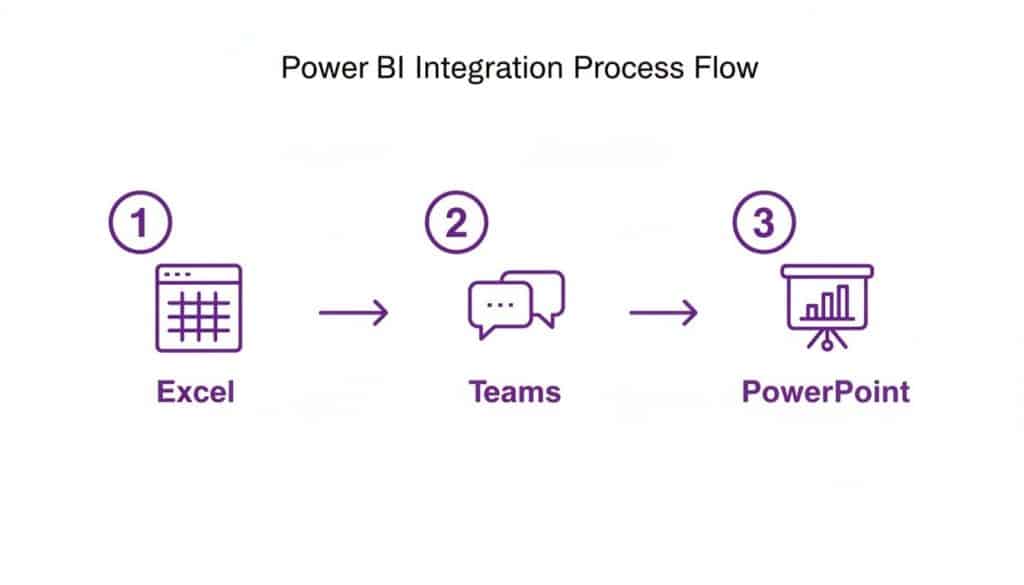
As you can see, it seamlessly connects everyday tools. Data that starts in an Excel spreadsheet can be transformed into an interactive report, shared in a Teams channel for discussion, and then dropped straight into a PowerPoint presentation—all while remaining live and up-to-date.
Choosing the Right Power BI Licence
Getting your head around the licensing options is a key part of the plan. Microsoft offers several tiers to suit different business needs and budgets, and the UK pricing makes it very accessible.
Here’s a simplified breakdown to help you see where you might fit.
Power BI Licence Comparison (UK Pricing)
| Licence Type | Typical User | Key Feature | Indicative UK Price (per user/month) |
|---|---|---|---|
| Power BI Free | Individual user or learner | Create reports for personal use on your own machine. Cannot share or collaborate. | £0 |
| Power BI Pro | Report creators & key decision-makers | Publish, share, and collaborate on reports and dashboards with other Pro users. | £8.20 |
| Power BI Premium (Per User) | Data analysts & power users | All Pro features, plus larger model sizes, advanced AI, and more frequent refreshes. | £16.40 |
| Power BI Premium (Per Capacity) | Large organisations | Distribute content widely to users who don’t need a licence to view reports. | Varies by capacity |
For most small and medium-sized businesses, the sweet spot is usually a set of Power BI Pro licences for the people who will be creating and interacting with the reports. This provides the collaborative features you need without the enterprise-level cost.
Once you start creating your visuals, you’ll want to make them count. For practical tips, check out our guide on how to create a Power BI dashboard.
A phased, strategic rollout almost always works best. Start small with a well-defined business problem and work with an experienced partner like F1Group to get it right. We can guide you through every stage—from the initial setup and data governance to training your team and providing ongoing support.
Start Making Smarter, Data-Driven Decisions
We’ve walked through how Power BI can take all that raw, scattered data your business collects and turn it into one of your most valuable assets. The real goal here is to get your organisation out of the old cycle of slow, reactive reporting and into a world of proactive, automated insights that actually fuel growth.
When you bring together information from every corner of your business—sales figures, financial reports, operational data, and more—you create a single, reliable source of truth. This kind of clarity gives your team the confidence to make faster, better-informed decisions, sharpen up your operations, and spot trends or opportunities that would otherwise stay buried in spreadsheets. It’s a genuine shift towards a more intelligent, competitive way of working.
Unlock the Potential Hiding in Your Data
For small and medium-sized businesses right here in the East Midlands, this isn’t just a technical upgrade; it’s a strategic move. It means you can compete on intelligence, not just on scale. Imagine knowing precisely which of your products are flying off the shelves in Nottinghamshire, or spotting a service delivery bottleneck in Lincoln long before it turns into a real headache.
That’s what data-driven decision-making actually looks like on the ground. It’s about building a culture where questions are answered with hard data, not just gut feelings. The benefits are tangible and easy to see:
- Less Manual Grunt Work: Your team can stop spending hours pulling reports together and start spending that time actually analysing them.
- Far Greater Accuracy: Automated data feeds cut out the human errors that inevitably creep into manual spreadsheet work.
- Become More Agile: Live dashboards mean you can react instantly to market shifts or internal performance dips.
- Discover Deeper Insights: Visuals have a knack for revealing patterns and connections that are simply invisible in endless rows of numbers.
The ultimate aim is to create a powerful feedback loop. Your daily operations generate data, Power BI transforms that data into clear insights, and your team uses those insights to make smarter operational decisions. This cycle of continuous improvement is what gives you a real competitive edge.
While Power BI is fantastic at pulling all your internal data together, it’s also smart to use specialised tools for specific jobs. For instance, getting to grips with web traffic analysis with Google Analytics can offer vital clues about customer engagement on your website, adding another layer to your business intelligence. When you combine these different streams, you build a much richer, more complete picture of your entire business landscape.
The time has come to unlock the potential hidden within your data.
Frequently Asked Questions About Power BI
It’s natural to have questions when you’re thinking about bringing a new tool into your business. To clear things up and help you feel confident, here are some straightforward answers to the questions we hear most often about Power BI.
Do I Need to Be a Data Scientist to Use It?
Not at all. While Power BI is powerful enough for data specialists, it was designed from the ground up for ‘self-service business intelligence’. That’s just a fancy way of saying it’s built for regular people in departments like sales, finance, and operations to get the answers they need from their own data.
If you’ve ever used Microsoft Excel, the interface will feel quite familiar. With a bit of initial training and support, most professionals can get to grips with building their first insightful reports. For the more complex stuff, partnering with an expert like F1Group can help bridge any technical gaps.
How Is Power BI Different from Microsoft Excel?
This is a great question. Excel is brilliant for calculations, managing lists, and smaller-scale analysis. Power BI, however, is a different beast entirely—it’s purpose-built for analysing huge amounts of data and creating interactive visualisations.
Think of it like this: Excel is a versatile pocketknife, perfect for all sorts of everyday tasks. Power BI is more like a specialised power tool, engineered to handle millions of rows of data without breaking a sweat and connect to hundreds of different data sources simultaneously. It turns raw data into dynamic, shareable dashboards that refresh automatically.
Is My Business Data Secure in Power BI?
Absolutely. Security isn’t an afterthought; it’s baked into the core of Power BI and the entire Microsoft cloud platform. It works seamlessly with Microsoft’s top-tier security tools, including Azure Active Directory, which controls who gets access to what.
You can also set up what’s called row-level security (RLS). This is a critical feature that means people only see the data relevant to them. For instance, a sales manager for the Nottinghamshire region would only see performance figures for their patch, keeping sensitive company-wide information secure while delivering the insights they need.
What Is the First Step to Adopting Power BI?
The best way to start isn’t with technology, but with a question. Begin by pinpointing a specific business challenge you’re trying to solve. Ask something clear like, “Why are our sales dipping in Leicester?” or “Which of our marketing campaigns is actually working?”
Once you have your goal, you can figure out which data you need to answer it. We always recommend starting with a small, focused pilot project. This lets you connect a couple of data sources, build a simple dashboard to prove the concept, and demonstrate the value of Power BI to the rest of the business, quickly and effectively.
Ready to find the answers hidden in your data? The team at F1Group can help you scope out your first project and make sure you get started on the right foot.
Phone 0845 855 0000 today or Send us a message.