
It's a common mistake, but a dangerous one. Many businesses believe that because their data is in Microsoft 365, it’s automatically backed up and totally secure. The truth is, a dedicated backup for Office 365 is non-negotiable. Microsoft’s main job is to keep their services running, not to protect your company’s data from being lost or attacked. This leaves a massive gap, making your information far more vulnerable than you probably think.
Why Your Microsoft 365 Data Is Not as Safe as You Think
It's so easy to assume that because your data lives in the cloud with a tech giant like Microsoft, it's untouchable. But the reality is a little more complicated. Microsoft works on what they call the Shared Responsibility Model.
Here’s a simple way to think about it. Imagine Microsoft provides a high-security, state-of-the-art office building. They’ve got the best locks, security guards on patrol, and top-of-the-line fire suppression systems. Their responsibility is to make sure the building itself is safe, secure, and always open for business.
But you're responsible for everything you put inside your specific office – your files, your client records, your intellectual property. If you accidentally throw a vital contract in the shredder, or a disgruntled employee walks out with a box of sensitive files, the building’s security can’t get them back for you.
"Under the shared responsibility model, Microsoft is responsible for Microsoft 365 service uptime and the underlying infrastructure. However, you are responsible for the security of your own data within the service."
Grasping this one concept is the most important step. Microsoft guarantees the platform works; you are responsible for protecting the data you put on it.
The Most Common Causes of Data Loss
Losing data isn't some rare, abstract threat. It’s a frequent and expensive headache for businesses of all shapes and sizes, and the causes often come from where you least expect them.
Here are the top ways UK businesses lose their critical Office 365 data:
- Accidental Deletion and User Error: This is, by far, the biggest culprit. Someone on your team might permanently delete a vital SharePoint site, a whole OneDrive folder, or a key email chain, assuming it’s no longer needed. Microsoft’s standard Recycle Bin is only a temporary safety net; after a short period, that data is gone for good.
- Ransomware and Malware Attacks: Cybercriminals are getting smarter and are now actively targeting cloud data. A successful ransomware attack can lock up your entire email system or encrypt every file in your SharePoint library. Without a clean, separate backup, you’re left with a terrible choice: pay the ransom or face a catastrophic loss of data.
- Malicious Insider Threats: Think about a disgruntled employee who still has their login details. Before they leave, they could deliberately delete huge chunks of data. To the system, their actions look perfectly legitimate, making it almost impossible to spot the damage until it's far too late.
The scale of the problem is genuinely staggering. A 2023 Veeam UK webinar revealed that a massive 53% of UK businesses suffered data loss or corruption in Microsoft 365 in the last year alone. Even more worrying, half of those companies had no backup strategy to fall back on. You can discover more insights about these Office 365 data protection trends and see for yourself why being prepared is so critical. This isn't just a minor issue; it's a clear and urgent call to action for a proper backup for Office 365, one that goes beyond Microsoft's built-in features to give you real peace of mind.
To safeguard your organisation's future, you need to secure your data. Phone 0845 855 0000 today or Send us a message to discuss your data protection strategy.
Microsoft's Built-in Protection vs True Backup
It’s a common misconception that Microsoft 365 comes with a comprehensive backup service right out of the box. While Microsoft certainly provides some handy data protection features, it's vital to understand they aren't a true backup solution. Think of them more as safety nets, designed for short-term fixes and keeping things running smoothly, not for recovering from a genuine disaster.
An easy way to picture it is to think of Microsoft's Recycle Bin as the wastepaper basket next to your desk. It’s brilliant for grabbing a document you accidentally binned a few minutes ago. But if a ransomware attack hits your entire office, that little bin offers zero protection. It's part of the same system and gets locked down with everything else.
The same goes for features like version history. While useful for rolling back a single file to an earlier state, it won't help you restore an entire SharePoint site that a disgruntled employee has maliciously deleted. These tools are all part of your live, working environment, which makes them vulnerable to the very same threats you need protection from.
This diagram shows the main threats that can slip past Microsoft's native protections, highlighting why a separate backup strategy is so important.
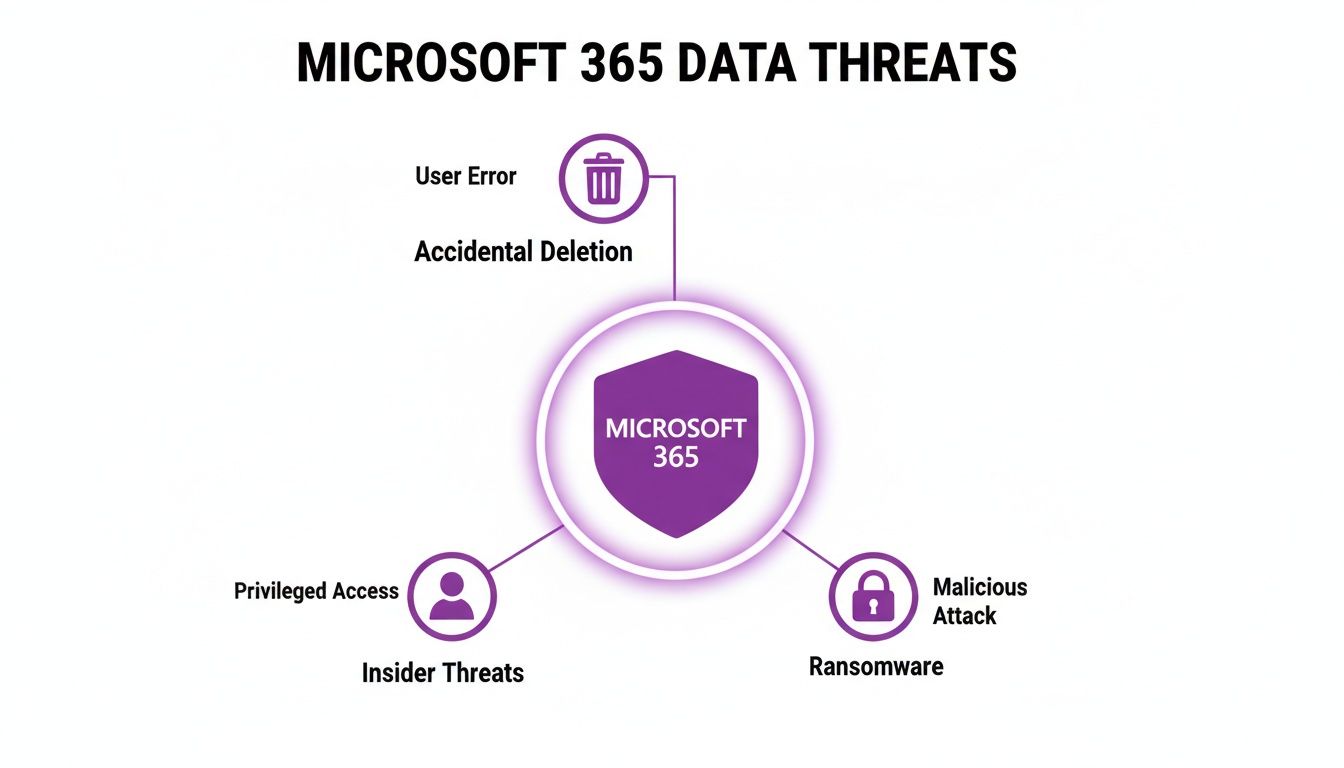
As you can see, threats like simple human error, ransomware, and malicious insiders can easily bypass the basic safety nets within Microsoft 365, leaving your data wide open to risk.
Understanding Native Retention Policies
Microsoft 365 also includes tools like Litigation Hold and eDiscovery, which often get mistaken for backups. In reality, they are compliance tools, not recovery tools. Their job is to preserve data exactly as it is, preventing it from being permanently deleted for legal or regulatory reasons.
While that sounds useful, it creates a massive problem during a data loss event. If a file gets encrypted by ransomware, the retention policy will diligently preserve the scrambled, unusable version. It doesn't keep a separate, clean, point-in-time copy that you can actually restore from.
A true backup creates a distinct, air-gapped copy of your data that is stored completely independently from the source. This isolation is the key difference and your ultimate defence against system-wide corruption or attack.
This separation is your guarantee. It means that even if your live Microsoft 365 environment is completely compromised, you have a safe, clean set of data tucked away, ready to be restored. We dig into this idea a bit more in our guide to understanding disaster recovery for Microsoft 365.
Microsoft Native Features vs Third-Party Backup Comparison
To really spell out the difference, let’s put Microsoft's built-in features head-to-head with what a dedicated third-party backup solution provides. The gap in recovery capabilities, retention flexibility, and overall security is stark—and it directly impacts how quickly your business can get back on its feet after a problem.
The table below breaks down these key differences, showing you exactly where Microsoft’s responsibility ends and yours begins.
| Feature | Microsoft 365 Native Protection | Dedicated Third-Party Backup |
|---|---|---|
| Primary Purpose | High availability, compliance, and short-term recovery for day-to-day operational continuity. | Long-term data retention and comprehensive disaster recovery from any scenario. |
| Data Recovery Scope | Limited to recently deleted items (Recycle Bin) or previous file versions. Not for major data loss. | Granular, point-in-time recovery of individual emails, files, folders, mailboxes, or entire sites. |
| Retention Period | Fixed and limited (e.g., SharePoint Recycle Bin is 93 days by default). Designed for compliance, not recovery. | Flexible and customisable, letting you keep data for years to meet your specific industry or business needs. |
| Ransomware Protection | Highly vulnerable. The system replicates encrypted files and deletions, making clean recovery impossible. | Offers isolated, unchangeable (immutable) copies of your data, ensuring a clean version is always available for restore. |
| Data Location | Data stays within the same Microsoft 365 environment, sharing the same security risks. | Data is stored in a separate, secure, and often geographically distinct location—completely isolated from your live data. |
| Ease of Restoration | Can be complex and time-consuming, often needing an administrator for anything beyond simple recovery. | Provides a simple, user-friendly interface for fast and efficient restoration, which drastically minimises downtime. |
At the end of the day, relying only on Microsoft’s built-in tools is a gamble. They provide a baseline of protection that simply isn’t robust enough to handle the most common and damaging types of data loss that East Midlands businesses face today. A dedicated third-party backup service is your true insurance policy—a secure, off-site vault that guarantees you can get your data back, no matter what happens.
What a Comprehensive Office 365 Backup Must Cover
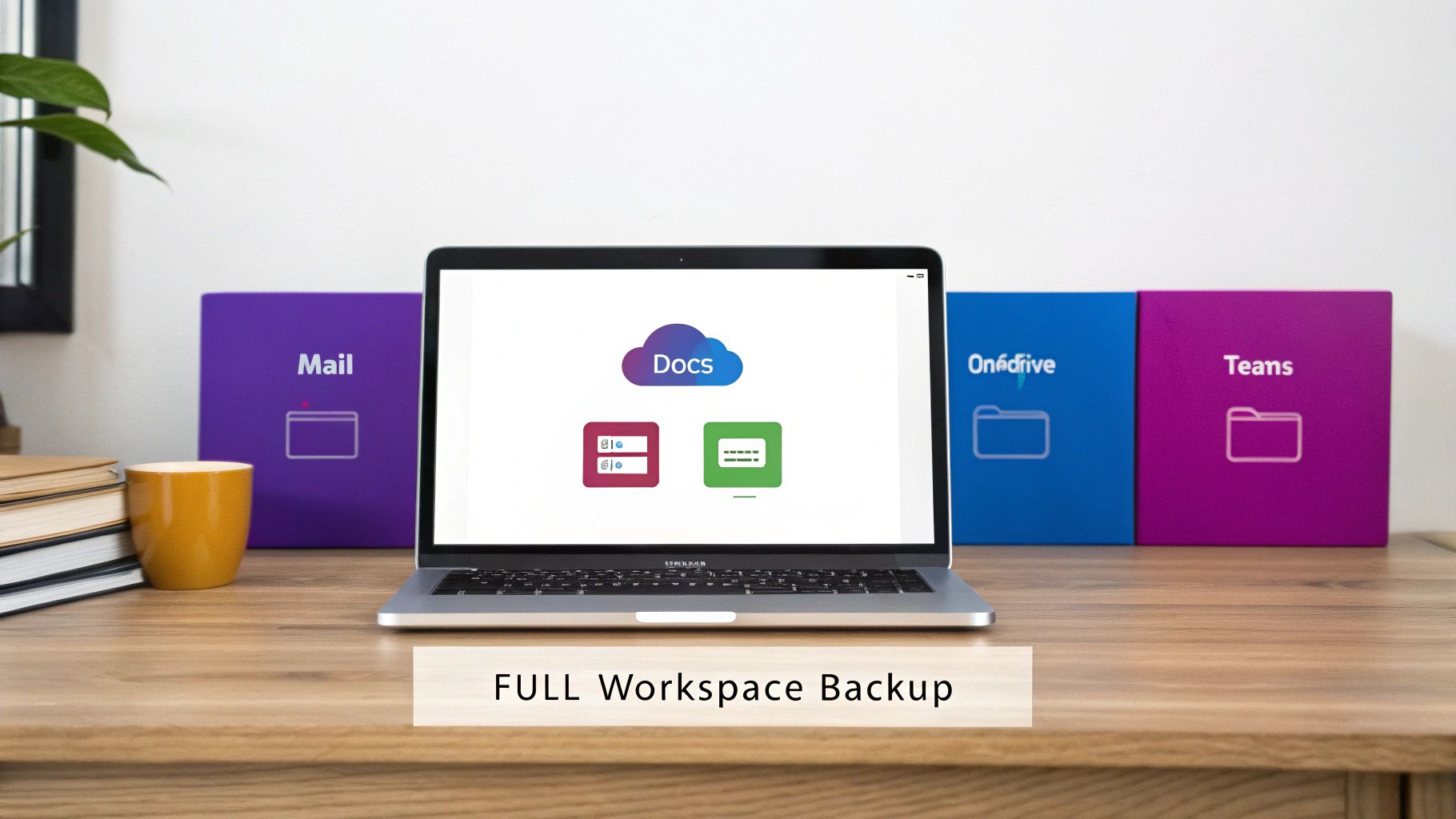
A solid backup for Office 365 is about much more than just saving your emails. It’s about securing your entire digital workspace, making sure every scrap of data your business depends on can be brought back quickly and in one piece. Losing just one part of this interconnected system can grind your operations to a halt.
Think of your Microsoft 365 suite as your company’s digital headquarters. It’s where you talk, where you manage projects, and where your most important documents live. A partial backup is like locking the front door but leaving all the windows wide open—it gives you a dangerous and false sense of security.
The only way to guarantee genuine business continuity is with a backup strategy that covers all the key applications. This ensures that no matter where data is created or stored, it’s safe, secure, and ready to be restored the moment you need it most.
Protecting Your Communications Hub with Exchange Online Backup
For most businesses, Exchange Online is the central nervous system for communication. It holds so much more than emails; we’re talking calendars, contacts, tasks, and notes that are all vital for day-to-day operations. A proper Exchange backup has to cover every single one of these components.
Just imagine a key employee’s mailbox gets corrupted days before a massive client meeting. Without a backup, you could lose the entire email chain for the project, all their scheduled appointments, and critical contact details. A proper backup offers granular recovery, letting you restore that single mailbox to its last good state without messing with anyone else’s work.
Securing Corporate Knowledge with SharePoint Backup
SharePoint is your foundation for teamwork and knowledge management. It houses everything from the company intranet and policy documents to specific project sites and departmental files. And since all your Teams files are actually stored in SharePoint, its importance is hard to overstate.
What if someone accidentally deleted a crucial project site? Months of collaborative work, client approvals, and final versions could vanish in an instant. While Microsoft’s own retention policies might hang onto the data for a bit, they are no substitute for a real backup. A dedicated SharePoint backup lets you restore the entire site—structure, permissions, and all—preserving that priceless company knowledge.
A comprehensive backup solution sees SharePoint not just as a folder for files, but as a structured database of your company’s collective intelligence. It protects both the content and its context, which is absolutely vital for a meaningful recovery.
Safeguarding Individual User Data in OneDrive
While SharePoint is for corporate data, OneDrive for Business is the secure locker for individual files. It’s where your team members keep their drafts, personal work notes, and reports. Often, the work that starts here ends up in a much bigger collaborative project.
Ransomware hitting a user’s OneDrive is a classic, and painful, scenario. Without a separate, off-site backup, you’re stuck trying to piece things together from Microsoft’s version history—a time-consuming process that might not even get you a clean copy. A third-party backup gives you the power to roll back that entire OneDrive account to a point in time before the attack, keeping data loss and downtime to a minimum.
Preserving Collaboration with Microsoft Teams Backup
Microsoft Teams has quickly become the go-to hub for modern teamwork. It pulls together chats, channels, files, and apps into one place. But this complexity makes it especially vulnerable to data loss, as its data is scattered across Exchange Online (calendars), SharePoint (files), and other services.
Picture losing all the files and chat history from a critical Teams channel right before a product launch. That means conversations where key decisions were made, shared files with final designs, and meeting notes are all gone. A truly comprehensive backup for Office 365 needs to be able to find and reassemble all this scattered data, letting you restore the entire channel so your project doesn’t miss a beat.
Protecting these four pillars—Exchange, SharePoint, OneDrive, and Teams—is simply non-negotiable for any business that takes its data security seriously.
To ensure your digital workspace is fully protected, phone 0845 855 0000 today or Send us a message.
How to Choose the Right Backup Solution for Your Business
With so many options on the market, picking the right backup for Office 365 can feel a bit overwhelming. But it doesn’t have to be. By focusing on a few crucial criteria, you can cut through the noise and find a solution that genuinely protects your business. This isn’t just about ticking boxes; it’s about finding a partner and a tool that fits your specific operational and legal needs.
Making a smart decision starts with asking the right questions. When you’re figuring out how to choose the right backup solution, exploring the wider market of data backup solutions for small business can give you some great perspective and help you build a solid evaluation checklist.
Data Sovereignty and GDPR Compliance
For any business in the UK, the first and most critical point to check is data sovereignty. In simple terms, this means knowing exactly where your backed-up data is physically stored. To stay compliant with GDPR and other UK data protection laws, your data has to be kept within the UK or a region with equivalent, robust data protection standards.
Many providers use global data centres, which sounds impressive but could mean your sensitive company information ends up in a country with completely different, and potentially weaker, privacy laws. That’s a massive compliance risk you don’t want to take.
Always ask a potential provider one simple question: “Are your data centres located in the UK?” If they can’t give you a clear, confident “yes,” that’s a major red flag. Sticking to UK-based data centres is non-negotiable for both compliance and peace of mind.
Core Security and Recovery Features
Once you’ve nailed down data sovereignty, it’s time to dig into the security and recovery features. These are the things that separate a basic file-copying service from a proper business continuity tool that will save you when things go wrong.
Here are the essentials to look for:
- End-to-End Encryption: Your data needs to be scrambled and unreadable both while it’s travelling over the internet (in transit) and when it’s sitting on a server (at rest). This ensures that even if a data centre were breached, your files would be useless to intruders.
- Immutable Storage: Think of this as your ultimate shield against ransomware. Immutable backups cannot be changed, encrypted, or deleted by anyone—not even a rogue administrator. It guarantees you will always have a clean, untouchable copy of your data to restore from, no matter what.
- Recovery Speed (RPO/RTO): When disaster strikes, how quickly can you get back up and running? A good solution should help you hit your Recovery Point Objective (RPO) and Recovery Time Objective (RTO) with fast, flexible recovery options. You need the ability to restore a single, crucial email just as easily as an entire SharePoint site.
Understanding how modern cloud backups have evolved from older, traditional systems can also help you appreciate the speed and flexibility on offer. You can get a better sense of this in our article on cloud versus traditional backup systems.
Understanding Pricing Models
Office 365 backup pricing is usually pretty straightforward, but you need to know exactly what your money is getting you. Most UK providers use a per-user, per-month model, which makes budgeting nice and predictable.
Here’s a general breakdown of what to expect at different price points:
- £2.50 – £3.50 per user/month: This entry-level price bracket typically covers the essentials—backups for Exchange Online, OneDrive, and SharePoint. It often comes with unlimited storage and basic retention policies, making it a solid starting point for many small businesses.
- £3.50 – £5.00 per user/month: Moving into this range, you should expect more advanced capabilities. This usually includes backup for Microsoft Teams (both chats and files), more granular retention policies, and beefed-up security features like immutability. This tier is perfect for businesses with stricter compliance needs or those who rely heavily on Teams for collaboration.
Don’t be afraid to ask for specifics. Clarify what’s included in the price—are there storage limits? How flexible is the retention period? Is Teams backup part of the standard package or a paid add-on? A clear picture of the costs and features will help you make the best financial and technical decision for your organisation.
To get a clear, no-obligation quote tailored to your business, phone 0845 855 0000 today or Send us a message to discuss your specific requirements.
Putting Your Backup Plan to the Test
So, you’ve chosen a backup solution. That’s a great start, but a plan on paper is just that—a plan. Now comes the part where we make sure it actually works. Implementing and testing your Office 365 backup is how you turn a good idea into a genuine safety net for your business. It’s about creating a documented, repeatable process that you know you can rely on when things go wrong.
I always tell clients to think of it like a fire drill. You don’t wait for a real fire to start figuring out where the exits are. You practise. It’s the same with your data. By regularly testing your recovery process, you ensure that when a real crisis hits—whether it’s a ransomware attack or an accidental deletion—you can get back up and running calmly and efficiently.

This simple act of testing transforms your backup from a line item on an invoice into a powerful tool for business continuity. It gives you the confidence that your data isn’t just saved somewhere; it’s genuinely recoverable when you need it most.
Setting Up Your Backup Policies
First things first, you need to define the rules of the game for your backups. This is more than just flipping a switch; it means setting clear parameters that make sense for your day-to-day operations and any compliance rules you need to follow.
Here are the key policies you’ll want to configure right from day one:
- Backup Frequency: How often should you back up your data? For most businesses, a daily backup is the gold standard. It’s usually run overnight to avoid disrupting anyone’s work, and it means you’ll never lose more than a day’s worth of progress.
- Backup Scope: What, exactly, are you protecting? A solid plan needs to cover all the essential Microsoft 365 services: Exchange Online mailboxes, SharePoint sites, user OneDrive accounts, and Microsoft Teams. You can’t afford to leave any part of your digital workspace vulnerable.
- Retention Period: How long do you need to hang on to your backups? This is often dictated by industry regulations (the legal and financial sectors are particularly strict) or your own internal policies. A common approach is keeping daily backups for 30 days, monthly backups for a year, and yearly backups for seven years.
These policies are the foundation of your entire strategy. Get them right, and you’ll have consistent, compliant data protection across the board.
You Can’t Afford to Skip Recovery Drills
Let’s be blunt: a backup you haven’t tested is a liability, not an asset. The only way to be absolutely certain your system works is to perform regular recovery drills. These tests don’t just confirm that the data is being copied correctly; they prove that your team knows how to restore it quickly and without mistakes.
A successful recovery test does more than just validate your technology; it builds institutional knowledge and confidence. It ensures that your response during a real data loss event is swift and effective, rather than panicked and chaotic.
Your testing schedule should cover different scenarios to prepare you for different kinds of data loss. By running these drills, you’ll spot potential roadblocks or gaps in your process long before they become real-world problems. This is a core component of any solid strategy, and you can learn more by reading our guide on building a disaster recovery plan for IT.
A Simple Framework for Effective Testing
To get real value from your recovery drills, you need a clear, repeatable testing framework. This structure ensures you cover all the important bases and helps you refine your strategy over time.
Try running these tests at least quarterly:
- Granular File Restore: Start with the most common scenario. Pick a random but important file from someone’s OneDrive or a SharePoint site and restore it. Time how long it takes from the moment you start to the moment the file is back.
- Full Mailbox Recovery: Imagine a key employee’s mailbox has been completely wiped out. The goal here is to restore the entire mailbox to a test account and check that everything—emails, calendar appointments, contacts—is back where it should be.
- SharePoint Site Restoration: Now, test a bigger incident. Restore a complete SharePoint project site to make sure not just the files come back, but also the permissions, metadata, and site structure.
- Document and Train: After every test, write down what happened. Note the timings, any hiccups you ran into, and what went well. Use these notes to improve your procedures and train the key people responsible for recovery.
By consistently implementing and testing your backup strategy, you build a truly robust defence for your company’s most valuable asset: its data.
Protect your business with a backup strategy you can trust. Phone 0845 855 0000 today or Send us a message to get started.
So, What’s the Next Step for Your Microsoft 365 Data?
If you take just one thing away from this guide, let it be this: relying solely on Microsoft’s default settings leaves your business dangerously exposed. A dedicated backup for Office 365 isn’t a nice-to-have feature; it’s a non-negotiable part of modern data protection and keeping your business running, no matter what.
The reality is that accidental deletions, crippling ransomware attacks, and even internal threats are far too common to simply hope for the best. We’ve walked through the risks, the gaps in Microsoft’s own tools, and what to look for in a proper backup solution. You should now have a solid understanding of what to protect and how to choose a service that fits your company’s needs and budget.
Ultimately, a robust backup strategy is a cornerstone of a much larger picture, playing a critical role in how to protect intellectual property and making sure your business can bounce back from any data disaster.
Your Local Backup Experts in the East Midlands
For small and medium-sized businesses here in the East Midlands and across the UK, getting this right doesn’t have to be complicated. Teaming up with a local IT expert can take the entire headache out of the equation.
A good partner handles the tricky parts—selection, setup, and day-to-day management—freeing you up to focus on what you do best: running your business. You get the peace of mind that comes from knowing your most important data is safe and sound.
Acting now is the single best defence against data loss down the line. We won’t just set up your backups and walk away; we’ll help you test them regularly to prove they work, so you can be confident that when you need your data back, it will be there.
Getting in touch is easy. Just use the simple contact form below to start the conversation.
This clean, simple form gets your message straight to our team of experts without any fuss.
Don’t wait for a crisis to discover a hole in your defences. Secure your business-critical data today and build the resilience your organisation needs to withstand any threat.
For a no-obligation chat about your specific needs, phone us on 0845 855 0000 today or Send us a message.
Frequently Asked Questions
When it comes to backing up Office 365, there are always a few key questions that pop up. Let’s tackle some of the most common ones we hear from businesses across the East Midlands.
Doesn’t Microsoft’s Geo-Redundancy Count as a Backup?
This is a really common misconception, but the short answer is no. Think of geo-redundancy as a resilience feature, not a backup. Its job is to keep Microsoft’s services online if one of their data centres goes down.
It does this by copying your live data to another location. The catch? It copies everything in near real-time. If a file gets corrupted or a ransomware attack encrypts your data, that damaged version is instantly copied over too. You’re left with two bad copies instead of one good one.
A true backup is a separate, point-in-time copy of your data, kept completely isolated from the live system. That isolation is the secret sauce – it gives you a clean, safe version to restore from, no matter what disaster has just happened.
How Long Should We Retain Our Office 365 Backups?
How long you keep your backups really boils down to your specific business needs, especially any industry regulations you have to follow. For instance, if you’re in the legal or financial sectors, you’ll likely have very strict rules about keeping records for many years.
For many UK businesses, a good rule of thumb is to aim for a seven-year retention period for key data. A proper third-party backup service gives you the control to set up smart, tiered policies. You could, for example:
- Keep daily backups for the past 30 days for quick restores.
- Hold on to monthly backups for an entire year.
- Archive yearly backups for as long as your compliance rules demand.
This layered approach gives you the perfect balance between having data ready when you need it and managing your storage costs.
Can I Recover Just a Single Email or File?
Yes, absolutely! This is one of the biggest day-to-day benefits of having a dedicated backup solution. It’s called granular recovery, and it’s a lifesaver for business efficiency.
Instead of having to restore an entire mailbox just to find one lost email, granular recovery lets you pinpoint and restore single items. Whether it’s one specific email, a file someone accidentally deleted from their OneDrive, or a document from a SharePoint site, you can get it back in minutes. It turns a potential crisis into a minor blip on the radar.
Take the final step in protecting your business data. For expert advice on implementing a robust backup plan, call F1Group on 0845 855 0000 today or Send us a message.
Phone 0845 855 0000 today or Send us a message.