
Let's be blunt: in 2026, relying on a password alone is a massive, unnecessary risk. Think of Microsoft 2 factor authentication (MFA) as the mandatory security check that slams the door on unauthorised access. It’s no longer an optional extra; it’s a fundamental part of protecting your business.
Why Microsoft MFA Is Non-Negotiable For UK Businesses
The idea of a secure network perimeter is long gone. Your new perimeter is your team’s digital identity, and a simple username and password just don't cut it anymore. Cybercriminals are masters at exploiting that single point of failure, using everything from automated brute-force attacks to incredibly convincing phishing emails.
This is exactly where Microsoft's MFA proves its worth. It's a simple but powerful concept: even if a criminal manages to steal a user's password, they're stopped dead in their tracks because they don't have the second factor—like a code from an app or a fingerprint scan. This one change drastically reduces the chance of a successful account takeover.
The Sobering Reality Of Modern Cyber Threats
This isn't just theory. For businesses across the UK, from London to the East Midlands, the threat is very real and happens every single day. Phishing campaigns have evolved far beyond the spam-filled emails of the past. Today's attacks can be surgically precise, perfectly impersonating trusted contacts or services to trick employees into handing over their credentials.
A prime example was the sophisticated phishing kit known as Tycoon 2FA. By mid-2025, it was responsible for a staggering number of fraudulent emails each month and accounted for roughly 62% of all phishing attempts that Microsoft’s systems blocked. This really highlights the scale of what you're up against. To get a better handle on the mechanics behind this, it’s worth reviewing the fundamentals of Two-Factor Authentication.
MFA At A Glance: Password vs Multi-Factor Authentication
This quick comparison illustrates the dramatic difference in security posture between accounts protected only by a password and those secured with Microsoft MFA.
| Security Layer | Risk of Account Compromise | Effectiveness Against Automated Attacks |
|---|---|---|
| Password Only | High | Very Low |
| Microsoft MFA | Extremely Low | Very High |
As you can see, the addition of that second factor creates a monumental leap in security, moving an account from a vulnerable state to a well-defended one.
Building Trust and Meeting Expectations
Implementing strong security measures isn't just about defence—it's about demonstrating your commitment to protecting data, which builds trust with both your customers and your own staff. This is especially true here in the UK, where people are increasingly aware of data protection.
A striking 67% of individuals in the UK view platforms using two-factor authentication as showing a strong commitment to protecting personal data. This figure is significantly higher than global averages, showcasing the unique trust factor among British users.
The numbers from Microsoft's own research are even more telling, revealing that over 99.9% of compromised accounts do not use MFA. With phishing attacks in the UK having surged by 28% in 2023, choosing not to enable this protection on your Microsoft 365 or Azure environment is a gamble you can't afford to take.
We've covered this topic in more detail before, and if you want to dive deeper, you can read our guide explaining what multi-factor authentication is and why it matters. The evidence is clear: enabling MFA is the single most effective security step you can take.
Security Defaults vs. Conditional Access: Picking Your MFA Strategy
So, you’re ready to roll out Microsoft MFA. Great decision. Your first big choice is deciding how you're going to switch it on. Within Microsoft Entra ID, you have two main routes: Security Defaults and Conditional Access. Getting this right from the start is key to balancing solid security with how your business actually works day-to-day.
The Straightforward Path: Security Defaults
Think of Security Defaults as Microsoft's "good for everyone" baseline. It’s a free, built-in feature that comes with every Microsoft 365 and Azure subscription. You can literally flip a switch and instantly apply a solid layer of security across your entire organisation. No complex setup, no policy headaches.
This simplicity makes it a fantastic option for small businesses that need robust protection without having a dedicated IT team to manage the fine details. Once it's on, Security Defaults makes sure everyone, including your admins, has to register for MFA and use it for important sign-ins or when accessing your systems from a new device or location.
The difference it makes is night and day. This image from Microsoft paints a very clear picture of the risk you’re taking by not having it.
It really is that simple. You're choosing to enable a control that, according to Microsoft's own data, blocks over 99% of account compromise attacks.
From my experience, Security Defaults is the ideal starting point if your organisation:
- Is just getting started with Microsoft 365 and wants a strong security posture from day one.
- Doesn't have complex compliance rules or lots of different user roles to manage.
- Runs a lean operation without a lot of IT resources to spare for policy management.
But that simplicity is also its biggest drawback. Security Defaults is an all-or-nothing affair. You can't customise the rules, and you can't exclude certain people or apps. For some businesses, that lack of flexibility is a deal-breaker. If you want to understand more about the system managing all this, have a read of what Microsoft Entra ID (formerly Azure Active Directory) is.
The Flexible Powerhouse: Conditional Access
This is where Conditional Access comes in. If Security Defaults is a simple on/off switch, Conditional Access is a sophisticated control panel. It’s a powerful rules engine that lets you create granular "if-this, then-that" policies for user access.
You get to decide precisely who can access what, from where, and under what conditions.
For instance, we've helped a professional services firm in Leicester set up a policy that requires MFA for anyone trying to access sensitive client files in SharePoint, but allows password-only access for something low-risk like the company's internal news portal. Another client, a logistics company in Grimsby, uses it to give office staff seamless access while always challenging their drivers with MFA when they log in from their tablets on the road.
With Conditional Access, you stop thinking in terms of a single, blunt security policy. Instead, you start creating a dynamic, risk-aware security posture that fits your business like a glove. It lets you find that sweet spot between tight security and a smooth user experience, which is crucial for preventing the dreaded "MFA fatigue."
The level of control you get is huge. You can build policies based on all sorts of signals, including:
- User or group: Apply stricter rules for your finance team than for your marketing team.
- Location: Trust logins from your corporate network but challenge ones from a coffee shop's public Wi-Fi.
- Device health: Block access from personal devices that don't meet your security standards.
- Sign-in risk: Automatically force an MFA prompt if a login attempt looks suspicious, like coming from an anonymous IP address.
The Investment and The Payoff
All this power and flexibility does have a cost attached. To use Conditional Access, you'll need a Microsoft Entra ID P1 or P2 licence for your users. Looking at current pricing in 2026, a P1 licence is running at about £5.00 per user, per month, while the P2 licence, with even more advanced features, is around £7.50 per user, per month.
It’s easy to see that as just another line on the expense sheet, but it's really an investment. You need to weigh that monthly cost against the potential—and often catastrophic—cost of a data breach. For most organisations, the ability to fine-tune security, meet compliance standards, and make life easier for your users delivers a return that makes the licence fee a no-brainer.
Call us on 0845 855 0000 today or Send us a message to talk through your security needs. We can help you figure out the right strategy for your business.
A Practical Guide to Switching On Microsoft MFA
Alright, you've figured out your strategy. Now it’s time to get your hands dirty and actually switch on Microsoft 2 factor authentication. Let's walk through this like we would with one of our own clients, focusing on the real-world steps and insider tips that prevent headaches and keep your team productive.
The Quick Win: Activating Security Defaults
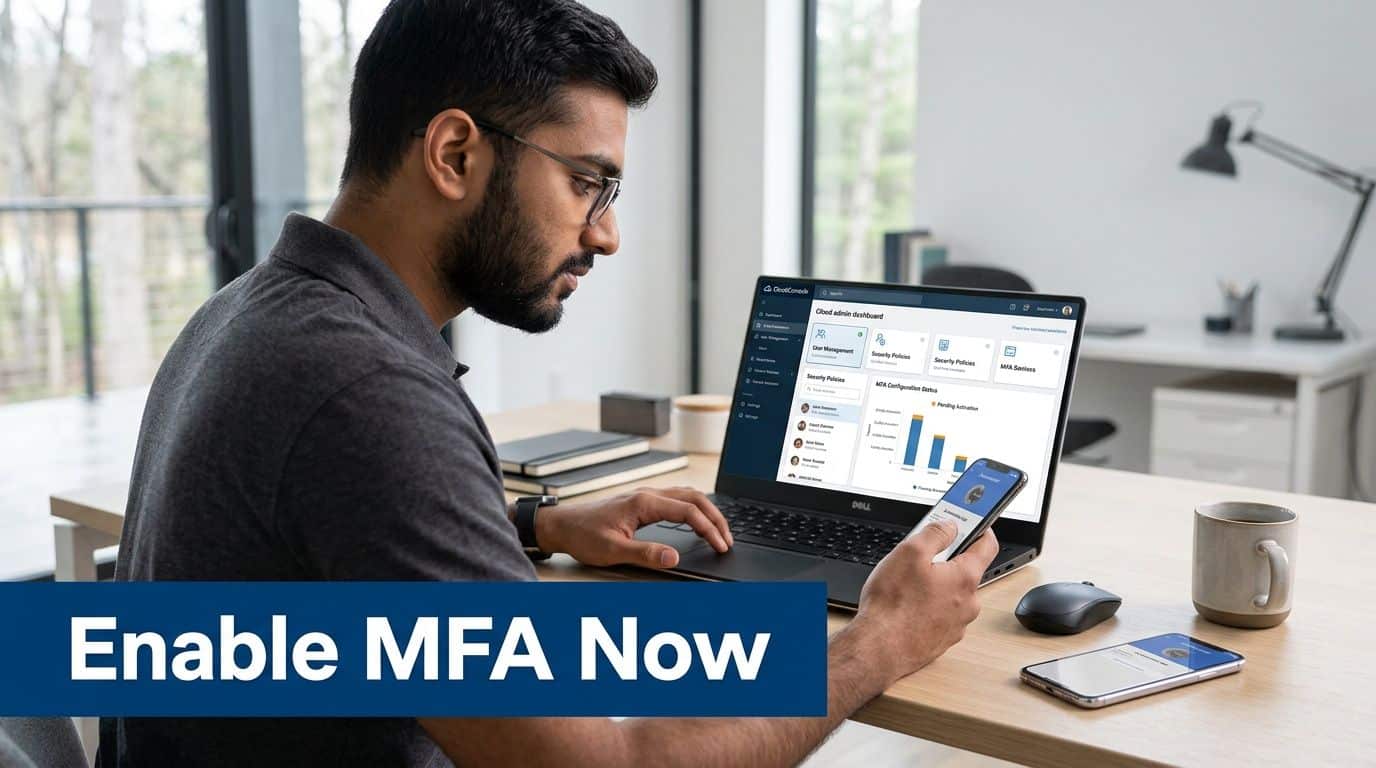
For most small and medium-sized businesses, Security Defaults is the best place to start. It's a single switch that immediately boosts your security posture across the board.
To get there, you'll need to go to the Microsoft Entra admin centre. Navigate to the 'Properties' for your tenant, and right at the bottom, you'll see a link for 'Manage Security defaults'. A simple toggle from 'No' to 'Yes' does the job.
A Tip from the Trenches: Before you flick that switch, give your team a heads-up. A quick email explaining that they'll be asked to set up an extra security step on their next login will save you a mountain of support tickets. It frames the change as a planned security upgrade, not a random, confusing interruption.
Flipping this one switch forces MFA registration for everyone, including administrators. It also prompts for MFA whenever a sign-in seems risky, like from a new country or an unrecognised device. It's a massive security gain for any company without a dedicated IT security team.
The Tailored Approach: Building a Conditional Access Policy
If you need more control, you'll be working in Conditional Access. This is where you can fine-tune security to match how your business actually operates. Let's build a policy from the ground up for a very common scenario: requiring MFA for all users accessing any cloud application.
You'll find Conditional Access in the Microsoft Entra admin centre, under the 'Protection' section. When you create a new policy, think of it as a simple "if this, then that" rule.
-
The 'If' (Assignments): First, decide who this applies to. To cast the widest net for maximum security, we'll select 'All users'.
-
The 'If' (Cloud Apps): Next, what are they trying to access? We'll choose 'All cloud apps'. This covers everything from SharePoint and Teams to any third-party apps you've linked to Entra ID.
-
The 'Then' (Access Controls): Finally, define the action. In the 'Grant' section, choose 'Grant access' but add the condition 'Require multifactor authentication'.
With just those settings, you've created a powerful security perimeter around your entire Microsoft 365 environment. Conditional Access works by checking these signals—like who the user is and what they're trying to do—before deciding whether to grant access.
The Unmissable Step: Your 'Break-Glass' Account
This is the part people often forget, and it's absolutely critical. When you're setting the user assignments for your policy, you must exclude at least one emergency access account. We call this a 'break-glass' account.
Picture this: you make a small mistake in your MFA policy and accidentally lock everyone out, including yourself and all other admins. Without an account that is exempt from the policy, you have no way back in. It's a genuine disaster scenario we've seen happen.
Your break-glass account needs to be:
- Used only for emergencies.
- Protected by an incredibly long and complex password.
- Closely monitored for any sign-in alerts.
Skipping this step is one of the most dangerous and common mistakes you can make. It's your escape hatch; make sure it's in place.
Whether you opt for the simplicity of Security Defaults or the granular power of Conditional Access, enabling Microsoft 2 factor authentication is one of the single most impactful security improvements you can make. The data backs this up—Microsoft's research shows that using 2FA can block an astonishing 99.9% of automated cyber-attacks.
Need some help planning your rollout? Phone 0845 855 0000 today or Send us a message.
Guiding Your Team Through the New Login Experience
You’ve probably noticed an extra step when signing into your work account lately. This is a security feature called Microsoft 2-factor authentication, or MFA, and it’s one of the best ways to protect your account—and our company’s data—from anyone trying to gain unauthorised access.
Think of it like using your bank card at a cash machine. It’s not enough to just have the card (something you have); you also need your PIN (something you know). MFA works the same way, pairing your password with a second check to prove it’s really you, usually involving your mobile phone.
So, Why the Extra Step?
In short, it’s all about security. Passwords can be guessed, stolen, or exposed in data breaches. By requiring a second factor, we make it incredibly difficult for an attacker to get into your account, even if they have your password. It’s a simple change that protects your work and keeps the company safe from cyber-attacks.
The good news is that it’s quick and easy to set up. For most people, the best and most convenient method is the Microsoft Authenticator app.
Setting Up the Microsoft Authenticator App
This is our recommended method as it strikes the perfect balance between top-tier security and everyday convenience. The app is free, and you'll be up and running in just a couple of minutes.
The next time you sign in, you’ll be prompted to get started. Just follow the on-screen instructions, which will walk you through it:
- First, you’ll need to download the Microsoft Authenticator app from the Apple App Store or Google Play Store onto your smartphone.
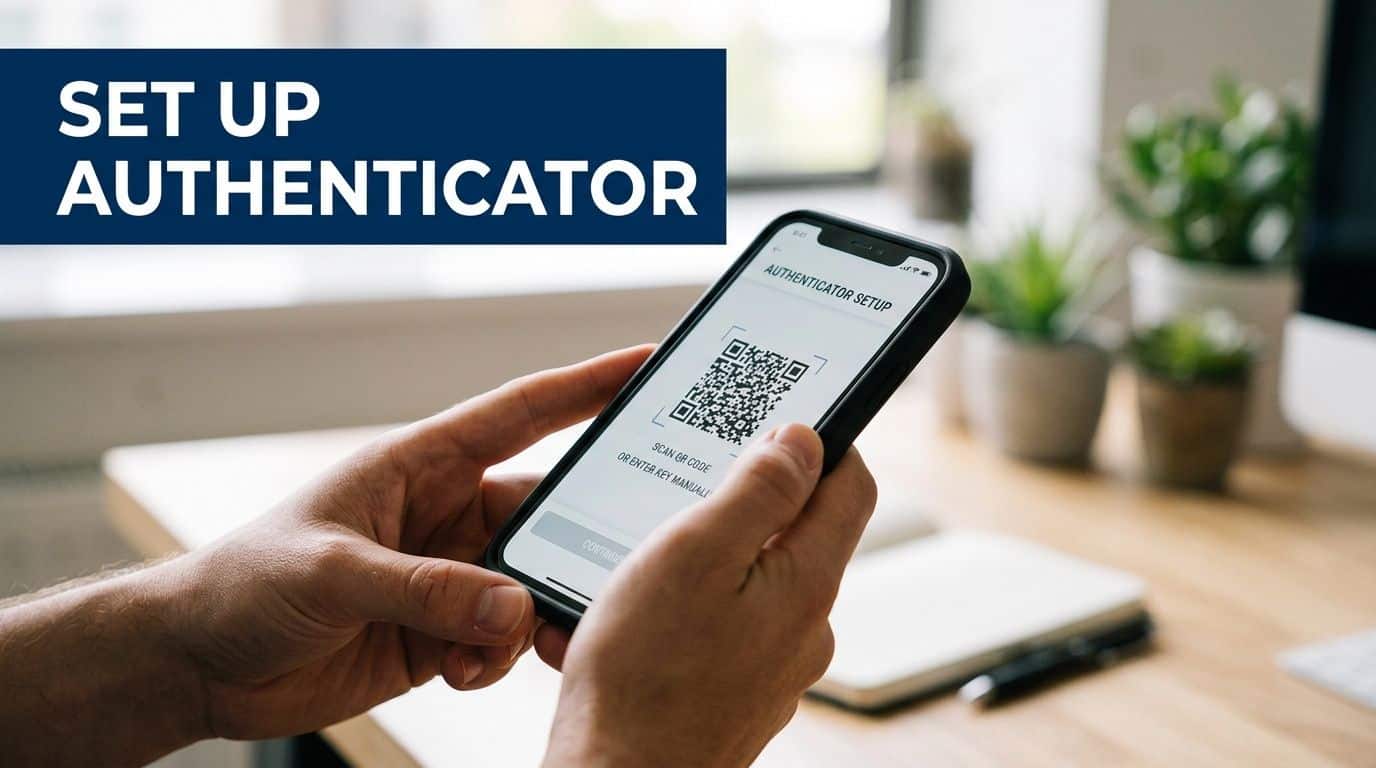
- Once installed, open the app and choose to add a new account. Your computer will display a square barcode (a QR code)—simply point your phone’s camera at it.
- To finish, the system will send a test notification to your phone. Just tap 'Approve' in the app, and you’re all set.
From now on, whenever you log in, you’ll just get a simple push notification on your phone. For extra security, you might see a feature called number matching, where your login screen shows a number that you’ll need to type into the app. This is a fantastic way to stop accidental approvals and confirm you’re the one actively signing in.
This simple 'approve' button is what stops attackers in their tracks. Even if they have your password, they can't get past this check without your phone. It puts you in complete control.
Other Authentication Options
We know the authenticator app might not be the right fit for everyone, so Microsoft offers a few other ways to verify your identity. You can set these up as your main method or just as a backup.
- SMS Text Message: You can opt to have a six-digit code sent to your phone via text. It's convenient, but generally seen as less secure than using an app.
- Phone Call: Another option is to receive an automated phone call where you'll be asked to press the hash key (#) to approve the login.
- Hardware Security Key (FIDO2): For maximum security, you can use a physical USB device, like a YubiKey. You just plug it into your computer and touch it to approve access. This is the most secure method available, resistant to phishing, and ideal for those of us handling highly sensitive information.
Choosing Your Second Factor: A Quick Comparison
To help you decide which method works best for you, here’s a quick breakdown of the options.
| Authentication Method | Security Level | Best For | Requires |
|---|---|---|---|
| Microsoft Authenticator | High | Most users, balancing security and ease of use. | A smartphone (iOS or Android). |
| SMS Text/Phone Call | Standard | A backup method or for users without a smartphone. | Any mobile phone. |
| Hardware Security Key | Highest | Users with high-security needs or in restricted environments. | A physical FIDO2 key. |
Ultimately, any of these methods is a massive step up from relying on a password alone. Making this small change to your login routine makes a huge difference in keeping our entire organisation secure.
A well-trained team is the backbone of any strong security culture. You can learn more about this by reading our thoughts on security awareness and training. By embracing Microsoft 2 factor authentication, you are taking a vital, personal step in safeguarding our collective data.
Need help with your IT security? Phone 0845 855 0000 today or Send us a message.
Best Practices for a Smooth and Secure MFA Rollout
Turning on Microsoft 2 factor authentication is a massive win for security, but the real test is how you roll it out. Just flipping a switch overnight is a recipe for a flooded helpdesk and frustrated staff. A poorly managed launch can make security feel like a burden rather than a safeguard.
Over the years, we've guided countless UK businesses through this process. The key takeaway is always the same: a thoughtful strategy is everything. It’s about managing people and perceptions just as much as it is about managing the technology.
Start with a Phased Rollout
Resist the urge to go all-in at once. The smartest approach is to begin with a small, hand-picked pilot group. This gives you a safe, controlled environment to test your policies, gather honest feedback, and iron out any wrinkles before the company-wide launch.
You'll want a diverse pilot group to get a true sense of the challenges ahead. We've found the ideal mix includes:
- IT Staff: Get your own team on it first. They are best placed to spot technical snags and will become your MFA champions when it’s time to help others.
- A Departmental Team: Pick a non-technical department, like marketing or finance. This will show you how everyday users cope with the new login process.
- Key Stakeholders: Including a few managers or senior leaders helps secure that all-important buy-in from the top down.
Their feedback is gold. Ask them everything: Was the enrolment process clear? Were the prompts too frequent? Where did they get stuck? This real-world insight lets you fine-tune your documentation and support plan before everyone else is brought on board.
Communicate Clearly and Proactively
Few things cause more user friction than a surprise security prompt they weren't expecting. You have to get out ahead of the change, explaining not just what is happening, but why it’s so important.
A phased rollout paired with clear, proactive communication transforms your MFA implementation from a technical task into a collaborative security upgrade. It builds trust and ensures everyone understands their role in protecting the business.
A solid communication plan should map out several touchpoints:
- An initial announcement email explaining what MFA is and why the business is adopting it now.
- A follow-up message with clear, step-by-step instructions, complete with screenshots or links to your guides.
- A final heads-up right before their group is scheduled for activation.
When you're drafting these messages, focus on the personal benefits. This isn't just about protecting company data; it’s also about safeguarding their personal information tied to their work accounts.
Optimise the User Experience with Trusted Locations
One of the most common complaints we hear about MFA is "prompt fatigue" – the feeling of being constantly challenged to prove your identity. This is where Conditional Access policies become your best tool, specifically with Trusted Locations.
By designating your office's IP address range as a trusted location, you can tell Microsoft that sign-ins from the corporate network are low-risk. As a result, users won't be prompted for MFA every time they open a familiar app at their desk.
This one tweak makes a world of difference to the user experience. You maintain high security for any external or unusual sign-ins, while your team can get on with their work without needless interruptions. It’s the perfect balance.
Monitor and Manage Your Implementation
Your job isn't finished once MFA is enabled. Continuous monitoring is essential to ensure everyone is adopting the new system and to catch any security gaps. The sign-in logs in the Microsoft Entra admin centre are invaluable here.
These logs give you a detailed view of every sign-in, showing who is using MFA successfully and, more importantly, who isn't. This data lets you proactively reach out to users who haven't completed their registration and offer a helping hand. It ensures no one gets left behind.
Lastly, never forget your 'break-glass' account. This is an emergency admin account, completely excluded from all MFA policies, that acts as your safety net. Its credentials must be kept securely offline, and you should monitor it relentlessly for any login attempts. This account is for absolute emergencies only, and protecting it is a non-negotiable part of responsible IT management.
Need help planning and executing your MFA rollout? Phone 0845 855 0000 today or Send us a message to speak with our experts.
Common Questions We Hear About Microsoft MFA
Even with a perfect rollout plan, your team will have questions. It's only natural when changing something as fundamental as how they log in. We get asked about Microsoft MFA all the time by businesses across the East Midlands, so we've put together answers to the most common queries we encounter.
What If Someone Loses Their Phone?
This isn’t a question of if, but when. It’s bound to happen, so having a solid plan is crucial.
The very first thing an administrator must do is jump into the Microsoft Entra admin centre and revoke that user's active login sessions. This immediately shuts the door on anyone trying to use the lost device to access company data.
Once the immediate threat is contained, you can get your employee back to work. If they've set up a backup authentication method, like an SMS code to a different number, they can use that to sign in and register their new phone. Simple.
If there’s no backup method, an admin can issue a Temporary Access Pass (TAP). Think of it as a one-time, time-limited password that lets the user log in securely to set up their MFA methods from scratch.
We always insist that our clients make setting up a secondary authentication method a mandatory part of the process. It turns a potential security crisis into a minor, five-minute fix.
Will We Get Annoying MFA Prompts All the Time?
This is a huge concern for many, and it's a valid one. Nobody wants to deal with 'MFA fatigue'. The short answer is no, you shouldn't be prompted every single time you log in.
Microsoft's system is smart. If you're using Conditional Access policies, you can define rules that dramatically reduce how often your team sees an MFA prompt. For example, a key strategy is to set your main office IP address as a 'Trusted Location'. This tells Microsoft 365 that anyone signing in from the corporate network is likely safe, letting them bypass the MFA challenge while at their desks.
The system is also constantly analysing risk behind the scenes. A login from a recognised device in a familiar location is far less likely to be challenged than one from an unknown network halfway across the world. It’s all about striking that perfect balance between airtight security and a smooth user experience.
Are We Stuck Using the Microsoft Authenticator App?
While we're big fans of the Microsoft Authenticator app—its push notifications and number matching are fantastic—it's definitely not your only choice. Microsoft 365 is flexible and supports several verification methods.
Other popular options include:
- SMS Text Messages: A simple six-digit code sent to a registered mobile.
- Voice Calls: An automated call where the user presses a key to approve the login.
- Third-Party Apps: You're free to use other authenticators like Google Authenticator or Authy that generate standard time-based codes (TOTP).
- FIDO2 Security Keys: For maximum security, you can use physical hardware keys like a YubiKey. These offer phishing-resistant authentication that's practically unbreakable.
For most UK businesses, we find that a combination of the Microsoft Authenticator app as the main method and SMS as a backup offers the best blend of security and convenience.
Is This Really Necessary for a Small Business?
Absolutely, one hundred percent. The idea that small businesses are too small to be targets is one of the most dangerous myths in cybersecurity today. Attackers often go after smaller organisations precisely because they assume security controls like MFA aren't in place.
The great news is that protecting your business has never been easier. Microsoft’s Security Defaults is a free feature you can enable with a single click. It immediately enforces MFA for everyone and blocks outdated, insecure login methods.
This one setting provides a baseline defence that stops over 99% of common identity-based attacks. It’s the single most effective security measure any small business using Microsoft 365 can take, and it doesn't require any deep technical expertise to switch on.
Have more questions or need expert help securing your Microsoft environment?
Phone 0845 855 0000 today or Send us a message.
Ready to Lock Down Your Digital Front Door?
Putting Microsoft 2-factor authentication in place is, without a doubt, the most significant security improvement you can make for your business. We've seen firsthand how it can stop an attack in its tracks.
Whether you're a smaller business getting started with Security Defaults or a larger organisation fine-tuning access with Conditional Access, the tools are right there in your Microsoft 365 subscription. The key is to act now before it’s too late.
If you need a guiding hand through the planning, rollout, or simply want reliable IT support that has your back, our team at F1Group is here to help.
Phone 0845 855 0000 today or send us a message to chat about strengthening your security posture today.