
Email threads rarely fail all at once. They fail imperceptibly.
A project document starts in SharePoint, someone downloads a copy to amend it, then sends it round Outlook as an attachment. Another person replies with a revised version. A third saves the “latest” copy locally because they do not trust the folder structure. By Friday, nobody is certain which file is current, who approved it, or whether the final version is stored anywhere the wider team can find.
That gap between where teams communicate and where teams store work is exactly why sharepoint to outlook matters. Outlook still runs the day for many organisations. Approvals, customer replies, supplier queries, HR conversations, and meeting requests all pass through it. SharePoint is where the business should keep controlled documents, shared knowledge, and governed records. If those two worlds stay separate, staff waste time hunting, re-sending, and second-guessing.
For East Midlands businesses, this is rarely a purely technical problem. It is an operating model problem. Manufacturing teams need controlled project information. Charities need accessible, auditable records. Mid-sized firms need staff to stop filing important information inside personal inboxes. The practical value of connecting SharePoint and Outlook is not that it looks tidy in Microsoft 365. The value is that it gives people one dependable place to work from, without asking them to abandon the tools they already use all day.
Bridging the Gap Between Collaboration and Communication
A common pattern appears in growing businesses. SharePoint is rolled out with good intentions, but staff continue to live in Outlook. They still receive instructions by email, still send attachments out of habit, and still treat their mailbox as a task manager, archive, and filing cabinet.
That creates three problems very quickly.
First, version control breaks down. The latest document may be in SharePoint, attached to an email, or saved onto a desktop. Second, knowledge stays personal. If a key member of staff is away, their mailbox often becomes the missing part of the project record. Third, governance weakens. Sensitive correspondence sits in inboxes when it should sit in a structured SharePoint library with proper permissions and retention controls.
SharePoint to Outlook works best when you stop thinking of it as a sync trick and start treating it as a work pattern. The point is not just to move files between apps. The point is to keep communication tied to the right record.
In practice, that usually means a few shifts:
- Emails with business value go to SharePoint, not just to a personal folder in Outlook.
- Attachments become links or managed documents, not duplicate copies sent repeatedly.
- Shared calendars and lists support the work, rather than leaving decisions buried in email chains.
- Metadata does the heavy lifting, so teams can search by sender, subject, project, or date instead of memory.
The biggest improvement comes when staff no longer have to choose between convenience and control. Outlook stays familiar. SharePoint provides the structure.
Practical takeaway: If your team still says “send me the latest version”, your SharePoint and Outlook setup is not joined up enough.
Essential Prerequisites for a Seamless Connection
A SharePoint to Outlook rollout usually succeeds or fails before anyone clicks Sync.
The early problems are rarely technical in the way businesses expect. In East Midlands firms, the sticking points are usually unclear ownership, mixed Outlook clients, libraries built like dumping grounds, and security settings that block the exact behaviour staff rely on day to day. If the setup is loose, Outlook exposes those gaps faster.
Start with permissions and structure
A messy library does not become easier to use because it appears in Outlook. It becomes easier to misuse.
That is why the first job is to sort the SharePoint side properly. If you need a quick grounding in what SharePoint Online does for document control and collaboration, start there, then come back to the integration decisions.
Focus on the basics that affect real user behaviour:
- Library purpose: Give each library a defined role. “General documents” or “misc” usually turns into long-term clutter.
- Permissions: Match access to business need. If users should not see HR, finance, or case files in SharePoint, they should not be able to surface them through connected Outlook processes either.
- Naming rules: File and folder names need to make sense without local knowledge or memory.
- Metadata: Sender, subject, project code, client name, document type, and date often help staff find information faster than a deep folder structure.
- Ownership: Name the person or team responsible for each site, library, and mailbox. Without that, no one fixes drift.
A simple test works well here. Ask a new starter to find a filed email or document without help. If they struggle, the structure needs work before you add integration on top.
Confirm the Microsoft 365 setup
“Outlook” is not one consistent experience across every device and tenant.
Classic Outlook, new Outlook, Outlook on the web, and mobile clients can behave differently. That matters for SMBs because many run a mixed estate for longer than planned. One director may still be on a legacy desktop build, project staff may use web access, and mobile users may never see the same options at all.
Check these points before rollout:
- Which Outlook client each user group has
- Whether OneDrive sync is being used for SharePoint libraries
- Whether shared mailboxes are part of the filing process
- Whether Power Automate access and licensing are available where needed
- Whether endpoint, browser, or conditional access policies interfere with opening links, attaching files, or saving content back to SharePoint
That last point causes a lot of frustration. I have seen businesses assume “drag it from SharePoint into Outlook” is a simple user action, only to find browser controls, Intune restrictions, or protected view settings break the process on half the estate.
Set governance before staff build workarounds
Convenience always wins if governance is vague.
Once users find that saving an email to the right library takes six clicks, they keep it in Outlook, download the attachment locally, or forward it to a colleague “for safety”. At that point, the technical connection exists, but the business process has already failed.
Set the rules in advance:
| Area | What to decide |
|---|---|
| Email filing | Which emails belong in SharePoint and which can stay in Outlook |
| Retention | How long emails and documents should be kept |
| Ownership | Who maintains each site, library, and mailbox process |
| Access | Who can read, edit, approve, or delete |
| Labelling | Which metadata or sensitivity labels staff must apply |
For UK SMBs, this is not just tidy administration. It affects GDPR compliance, subject access requests, and the ability to explain where a record lives and why.
Accessibility and usability need testing in the live setup
This is the part many teams leave until after go-live.
SharePoint and Outlook can look fine in a demo and still frustrate staff in production. Drag and drop may fail. Keyboard-only users may hit dead ends. Screen reader behaviour may differ across browser and Outlook combinations. A process that depends on visual cues or precise mouse actions is risky from the start.
Use practical checks before rollout:
- Test with keyboard-only navigation: If filing or linking relies on a mouse, the process is incomplete.
- Test with assistive technology: Screen reader support should be checked in the client mix your staff use.
- Use meaningful file names: “final”, “latest”, and “new version” create confusion for everyone.
- Keep library layouts simple: Deep folder nesting increases failure points and slows users down.
- Provide another method: Copy link, attach as link, or a guided filing action is often more reliable than drag and drop.
For organisations subject to the Equality Act 2010, accessibility is part of the operational requirement, not a nice extra. It also reduces support tickets, because the same design choices that help assistive technology users usually make the process clearer for everyone else.
Tip: If your filing method only works when someone drags a file from one pane to another, treat it as unfinished. A dependable process gives staff a clear keyboard-friendly alternative.
Connecting SharePoint Elements Directly into Outlook
A project manager in Nottingham gets an urgent client email, drags it toward a synced SharePoint folder, and nothing happens. They try again. Then they save the attachment to Downloads, rename it badly, and promise themselves they will file it properly later. That is the point where a tidy Microsoft 365 design starts to break down in real business use.
The practical answer is to connect the SharePoint element that supports the job in front of the user. For some teams, that is a document library. For others, it is a calendar, a list, or a synced working folder. A quick refresher on what SharePoint Online is in practical business terms helps here, because Outlook works best as a window into selected SharePoint content, not as a replacement for SharePoint itself.
Document libraries and email filing
For many East Midlands SMBs, the highest-value connection is still simple. Get business-critical emails and attachments out of personal inboxes and into a controlled SharePoint library.
That matters in regulated work. If a sales quote, complaint response, HR exchange, or supplier approval sits only in one person’s mailbox, retrieval becomes slow, handover becomes risky, and GDPR subject access work becomes harder than it should be.
Used properly, SharePoint libraries support a better pattern:
- File key emails to a team-owned location
- Store attachments once, in the right library
- Use columns and metadata to support retrieval
- Send links to current documents instead of another attachment
- Keep a clearer record of who can access what
The catch is consistency. Manual filing works for a week, then real workloads take over. Staff under pressure will always choose the fastest path, even if it creates a weaker audit trail.
A workable filing method usually looks like this:
- Create libraries around business records, such as Projects, Contracts, Complaints, or HR Cases.
- Add columns that match how the team searches, not what looked sensible in a workshop.
- Restrict access properly, especially where inbox content contains personal or commercial data.
- Define what must be filed, because “save important emails” is too vague to survive a busy month.
- Use automation for repeated inbox patterns, especially in shared mailboxes.
Teams considering automation can review examples of Power Automate workflows for non-technical teams. That is often the point where Outlook and SharePoint stop feeling like two separate systems.
SharePoint calendars in Outlook
Calendar connections still have a place, although they need a clear owner.
If a team tracks project milestones, planned leave, site visits, booking windows, or deadline-driven operational work in SharePoint, surfacing that calendar in Outlook can reduce missed actions because staff already manage their day there. It is a sensible fit for admin teams, service coordinators, and project offices that live in the Outlook calendar view.
Accuracy matters more than convenience. A neglected shared calendar causes more confusion than no shared calendar at all.
Use this approach only where someone is responsible for keeping the entries current and removing old ones.
Lists, contacts, and lightweight operational tracking
SharePoint lists can support Outlook-led work without turning into a full application. That is useful for smaller businesses that need shared visibility but do not need a custom app on day one.
Typical examples include:
- Supplier contact registers
- Project action logs
- Escalation trackers
- Issue lists
- Reference contact lists for shared teams
The strength of this setup is speed. Staff can keep working from email while checking a shared source of truth for the supporting detail.
There is a limit, though. Once a list starts handling approvals, branching logic, or too many exceptions, Outlook becomes the wrong front end. At that point, build the process properly in Power Apps, Power Automate, or another fit-for-purpose tool.
Syncing files to desktop for Outlook-adjacent work
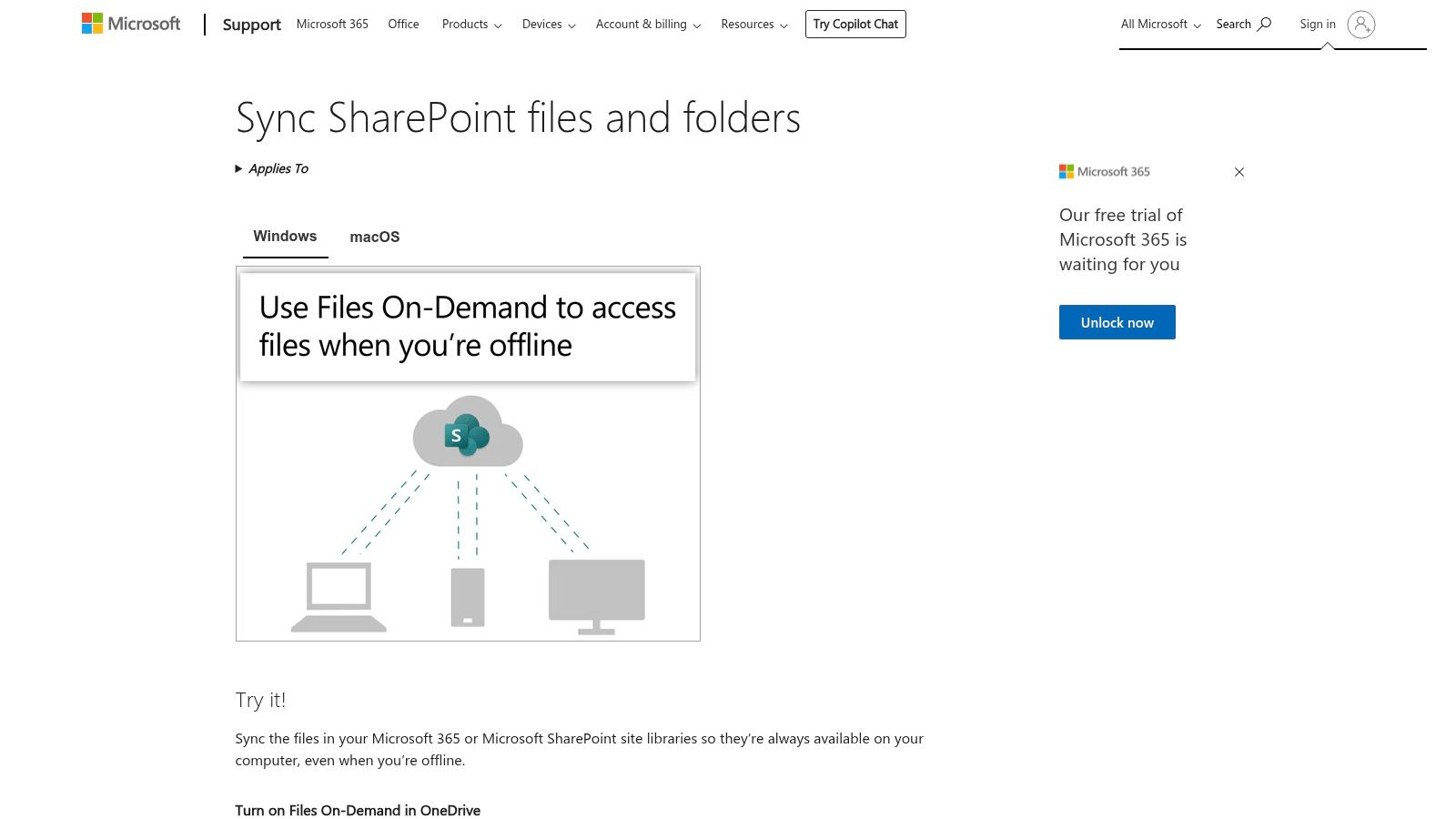
A lot of day-to-day SharePoint and Outlook use depends on OneDrive sync. Staff sync a library, work with files in File Explorer, and reply to emails with links or references to the current document.
It is familiar, which is why users like it. It is also one of the first places poor structure shows up.
If a library contains too many old files, nested folders, inconsistent naming, or unclear permissions, sync becomes slow and trust drops. In practice, the better design is to sync active working libraries only, keep archived material separate, and avoid building one giant departmental dumping ground.
This is also where drag-and-drop expectations need managing. Some users expect they can drag emails or attachments straight from Outlook into a synced SharePoint location every time. In some client combinations that works poorly, inconsistently, or not at all. For businesses handling finance, HR, or customer records, that is not just annoying. It creates real filing gaps.
A safer pattern is straightforward:
- Sync current working libraries, not everything
- Archive inactive material separately
- Use links instead of duplicate local copies
- Keep folder structures shallow
- Treat failed drag-and-drop as a design issue, not user error
For readers who want a visual walkthrough of syncing SharePoint files before building wider Outlook habits, this overview is useful:
What staff need to learn
Training does not need to be long. It does need to be specific.
Users need a few rules they can apply under pressure:
- Save business records to the team location, not a personal inbox
- Share links to SharePoint documents where appropriate
- Open the document from SharePoint when the current version matters
- Avoid private copies unless there is a real business reason
- Report repetitive filing tasks so they can be automated or simplified
That last point is usually where the bigger improvement appears. Repeated manual handling is a signal that the process needs redesign, especially where retention, access control, or GDPR accountability matter.
Automating Workflows with Power Automate and Copilot
Monday morning in a shared finance mailbox usually looks the same. Invoice emails arrive in bursts, attachments come through with inconsistent names, and someone has to decide what gets saved to SharePoint, what gets forwarded for approval, and what gets chased later. In East Midlands SMEs, that manual handling is where delays, missed records, and GDPR headaches start.
Automation removes those routine decisions from busy staff and puts them into a controlled process. The gain is not just speed. It is consistency, traceability, and fewer gaps between Outlook activity and SharePoint records.
A practical workflow that saves real time
A shared mailbox flow is one of the clearest examples.
Take an accounts inbox receiving supplier invoices. Without automation, a member of staff opens the email, downloads the attachment, renames it, saves it into SharePoint, then alerts the next person. That process works until the inbox is busy, the naming is inconsistent, or two people assume the other one already filed it.
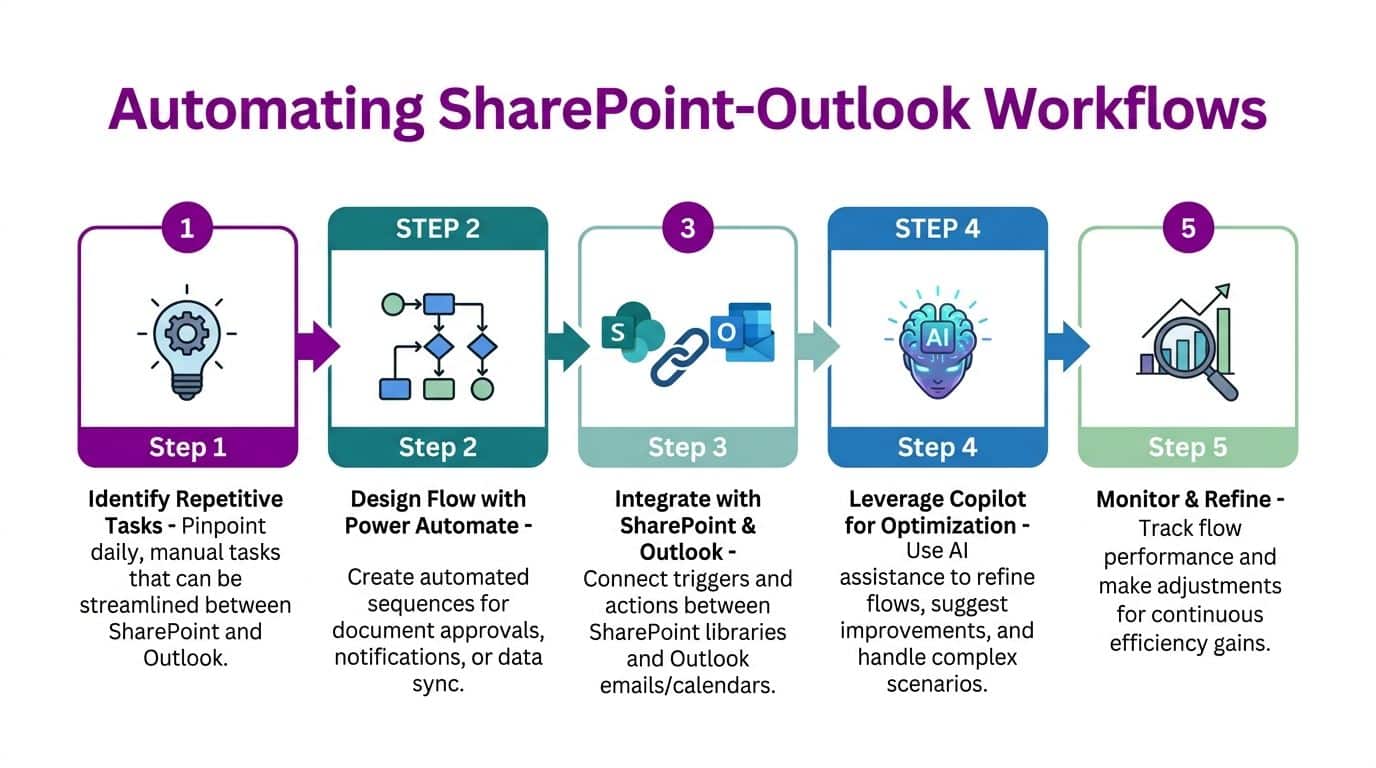
Power Automate can turn that into a rules-based workflow:
- An email lands in a shared mailbox.
- The flow checks for an attachment and defined criteria.
- The attachment is saved into the correct SharePoint library or folder.
- Email details are added as metadata.
- A Teams message, approval request, or follow-up task is triggered.
That setup gives finance, HR, and operations teams a clearer audit trail. It also reduces the common problem of records sitting in Outlook long after the business thought they were safely stored.
What to automate first
Start with processes that are high-volume, repetitive, and easy to define. If a task needs a person to make a fresh judgement every time, it is usually a poor candidate for a first flow.
Good starting points include:
- Invoice attachments from finance inboxes
- CVs or application forms sent to recruitment mailboxes
- Support emails that need storing against a case library
- Sales enquiries that should create or update a shared record
- Approval emails that need to trigger document review
If you want examples that are approachable for operational teams, Power Automate workflows for non-technical teams is a useful companion read.
The harder part is rarely the trigger. It is handling exceptions properly. Decide what happens when the sender is unknown, the attachment is missing, the file type is blocked, or the destination folder no longer matches the business process. That is the difference between a demo flow and one that survives month-end, annual leave, and staff turnover.
Where Copilot helps and where it does not
Copilot is useful for reducing reading and sorting time. It can summarise long email threads, pull out actions, and help staff find related documents already stored in SharePoint.
It does not repair a poor information structure.
If permissions are messy, folder design is inconsistent, or metadata is optional and ignored, Copilot will still be working with low-quality inputs. For regulated teams dealing with HR records, customer correspondence, or commercially sensitive documents, that matters. AI assistance should sit on top of a governed process, not replace one.
A practical division of labour looks like this:
| Task type | Best fit |
|---|---|
| Repetitive filing | Power Automate |
| Metadata capture from known patterns | Power Automate |
| Summarising long conversations | Copilot |
| Suggesting related content | Copilot |
| Repairing a broken information structure | Neither. Fix the structure first |
Keep the workflow visible to the business
Automation causes problems when only IT understands what it is doing. Each live flow should have a plain-English record covering the mailbox, trigger, SharePoint destination, owner, permissions, and fallback action if the flow fails.
That matters even more for GDPR. If an automated process files personal data into the wrong library, sends a notification to the wrong group, or stores documents longer than intended, the issue is not technical only. It becomes a compliance problem.
For teams that want to build this properly, this guide on how to use Power Automate explains the building blocks in a practical way.
The best automation is usually boring. Staff trust it, managers can explain it, and the business knows where the record lives without checking three inboxes and two desktops.
Troubleshooting Sync Issues and Security Best Practices
A lot of Microsoft 365 guidance implies that once SharePoint and Outlook are connected, the rest is just user adoption. That is not how it plays out in practice.
The problems are usually specific. A library syncs for one user but not another. A file opens from SharePoint but cannot be dragged into an Outlook message. A team thinks they are working from one source of truth, but offline copies are scattered across laptops.
That is where practical troubleshooting matters.

The drag-and-drop problem nobody enjoys
One of the most frustrating issues in sharepoint to outlook work is simple to describe and awkward to resolve. Users can see the SharePoint file, but they cannot drag it directly into an Outlook email as expected.
Many UK SMEs face collaboration tool integration barriers, with file sharing often cited as a key challenge, and this drag-and-drop gap remains largely unaddressed in vendor resources according to the discussion captured in this Microsoft Answers thread about SharePoint file drag issues in Outlook.
The usual causes are practical rather than mysterious:
- OneDrive sync conflicts
- Browser or endpoint security policies
- Differences between Outlook clients
- Users trying to drag a cloud placeholder rather than a locally available file
- Modern attachment behaviour preferring links over physical file attachment
What generally works better:
- Use SharePoint or OneDrive sync so the file is available locally before attaching
- Use Outlook’s Add from SharePoint or attach link-style options where appropriate
- Make files available offline if the process needs a file attachment
- Check whether the issue is client-specific by testing the same action in another Outlook version
- Review endpoint controls that may block the hand-off between synced content and desktop apps
The mistake is assuming the user is doing something wrong. Often the workflow itself is asking for a behaviour Microsoft 365 does not support consistently.
Practical rule: If a process depends on perfect drag-and-drop behaviour, redesign the process before training users harder.
Sync problems that point to design issues
Some sync complaints are not technical faults. They are signs the library structure is too large or too broad.
Watch for these warning signs:
- Users sync whole departmental sites when they only need one active folder
- File Explorer becomes the main way people move through SharePoint
- Old archives sit inside the same synced workspace as current work
- Naming collisions create duplicate local copies
- Users rely on offline access without knowing which version they changed
When those patterns appear, reduce the sync footprint. Make active libraries smaller. Separate archive content. Use browser access for reference material and local sync for active collaboration only.
Add-ins and third-party tools
Sometimes the native experience is enough. Sometimes it is not.
If a business needs more controlled email filing, stronger metadata prompts, or support for larger library interactions, an add-in can be sensible. The right answer depends on the process. For some teams, native Microsoft 365 features plus Power Automate are sufficient. For others, especially where email filing is business-critical, specialist tooling can reduce user friction.
Where paid tools are considered, organisations often evaluate options in the region of about £5 to £10 per user per month depending on scope and licensing. The important question is not the monthly figure. It is whether the tool reduces manual handling, improves consistency, and fits your governance model.
Security habits that prevent long-term mess
Security in SharePoint to Outlook is mostly about discipline, not drama. The dangerous failures tend to be ordinary ones. Overshared libraries. Synced sensitive files on unmanaged devices. Staff forwarding documents externally because links “felt too complicated”.
A safer operating model includes:
- Least-privilege access: Only give library access to people who need it.
- Controlled shared mailboxes: Do not let business-critical mail live in one person’s inbox.
- Clear offline policy: Decide when files may be synced locally and on which devices.
- Retention-aware filing: Store important emails in the governed SharePoint location, not ad hoc PST-style habits.
- Permission reviews: Check inherited SharePoint permissions regularly, especially after team changes.
For businesses formalising this properly, security and governance should sit inside a wider security risk management approach, not as a side note to collaboration tooling.
What works and what does not
A blunt summary is often the most useful one.
| Works well | Usually fails |
|---|---|
| Syncing active working libraries | Syncing everything “just in case” |
| Filing important emails into defined libraries | Asking staff to save every email manually |
| Using metadata for retrieval | Relying on memory and folder sprawl |
| Designing alternatives to drag and drop | Assuming drag and drop will behave consistently |
| Automating repeatable inbox workflows | Treating every filing task as a user training issue |
The common assumption is that more integration always means less friction. In practice, more integration without tighter design usually means more places for confusion to spread.
Unify Your Workspace and Reclaim Your Productivity
SharePoint to Outlook is not about making Microsoft 365 look more connected on a diagram. It is about removing the daily friction that slows teams down.
When the setup is right, staff stop chasing attachments and start working from governed shared records. Key emails no longer disappear into personal inboxes. Documents are easier to trust because the latest version lives in one place. Operational teams spend less time on filing and more time on core work.
The business case is straightforward. Communication belongs in Outlook. Controlled collaboration belongs in SharePoint. The two need to work together because real work does not happen in clean application boundaries.
The practical reality is also straightforward. Native features are useful, but they have limits. Drag-and-drop is not always reliable. Syncing needs restraint. Accessibility needs deliberate testing. Automation delivers the biggest gains when the underlying structure is already sensible.
For East Midlands organisations, this is often one of the clearest ways to improve Microsoft 365 without launching a huge transformation programme. Fix the document path. Fix the filing path. Fix the hand-off between inboxes and shared records. The effect is cumulative.
If your team still treats email as the system of record, there is usually a better way to run it.
If you want help designing a practical, secure Microsoft 365 setup that makes SharePoint and Outlook work properly together, talk to F1Group. We support organisations across the East Midlands with Microsoft 365, automation, security, and hands-on IT expertise. Phone 0845 855 0000 today or Send us a message https://www.f1group.com/contact/.