
For any UK business, Google Chrome isn't just a web browser. It's the central nervous system of your daily operations. It’s where your team accesses everything from cloud files and financial software to the CRM that holds all your customer data. Protecting it isn't just an IT task; it’s fundamental to safeguarding your entire business.
Because Chrome is so dominant, it's become a huge target. Cybercriminals know that if they can find a way into one employee's browser, they have a direct line into your corporate network, financial accounts, and sensitive client information.
Why Chrome Security Is Non-Negotiable for UK Businesses

Think about how deeply Chrome is embedded in your business. Your staff live in it all day, managing SharePoint documents, working in Microsoft 365, and accessing cloud portals like Azure.
This reliance on the browser, while fantastic for productivity, opens up a massive attack surface. A single insecure browser on one person's machine can be the weak link that leads to a major security breach. In my experience, overlooking browser security is one of the most common and dangerous mistakes a business can make.
The Real-World Risks of an Unsecured Browser
These aren't just theoretical dangers. We see attackers exploiting browser vulnerabilities every single day to steal money and data. With a massive 65.8% market share on UK desktops, Chrome’s popularity makes it an incredibly lucrative target.
The numbers speak for themselves. The UK's National Cyber Security Centre (NCSC) reported that a staggering 72% of phishing attacks against UK businesses in 2025 were delivered through Chrome. A single incident in March 2026 saw a malicious Chrome extension, disguised as a Power BI tool, compromise over 4,500 UK SMEs. The fallout was immense, resulting in £12.7 million in ransomware losses. You can find more analysis on the ever-changing browser security landscape over at SecurityBoulevard.com.
A compromised browser is essentially a back door into your entire business. Attackers don't need to break down your main security walls if they can simply walk through an unlocked door left open by an insecure browser.
To give you a better sense of what's at stake, here’s a quick overview of the most common threats we see and the primary defences this guide will help you implement.
Chrome Security Risks and Key Defences for UK Businesses
| Security Risk Category | Example Threat | Primary Defence Strategy |
|---|---|---|
| Credential Theft | A fake login page for Microsoft 365 captures an employee’s username and password. | Password manager enforcement, multi-factor authentication (MFA), and user training on phishing. |
| Malware & Ransomware | An employee visits a compromised website that automatically downloads malware onto their device. | Enhanced Safe Browsing, centrally managed extension blocklists, and prompt browser patching. |
| Data Exfiltration | A malicious browser extension quietly siphons off customer data or intellectual property over weeks or months. | Strict extension controls, sandboxing via Site Isolation, and enterprise-level activity logging. |
| Phishing & Social Engineering | An email link directs a user to a convincing but fraudulent invoice portal designed to steal payment details. | Real-time URL scanning, browser-level warnings, and continuous security awareness training. |
These are the core battlegrounds where browser security is won or lost. By tackling them head-on, you can significantly reduce your company's risk profile.
Turning a Liability into a Secure Asset
So, how do you turn Chrome from your biggest potential liability into a hardened, secure asset? It's about being proactive and strategic.
This guide is a practical playbook for UK business owners and IT managers. We’ll go beyond simply listing features and give you a layered defence strategy you can actually implement. We’ll start with the foundational settings any business can apply and scale up to enterprise-grade policy enforcement, walking you through each step to protect your organisation.
Ready to secure your business? Phone 0845 855 0000 today or Send us a message to discuss your cyber security needs.
Getting to Grips with Chrome's Essential Security Features
Before we even think about deploying enterprise-wide policies, we need to lock down the basics. Think of it like this: there's no point installing a state-of-the-art alarm system if you've left the windows wide open. Mastering Chrome's built-in security settings is that fundamental first step.
Too many organisations just roll with Chrome's default settings, assuming they're good enough. They aren't. A few quick tweaks can make a world of difference to your security posture. Let's walk through the non-negotiable settings every IT team should configure to create a secure baseline for every single user.
Switch on Enhanced Safe Browsing
If you only make one change, make it this one. Switching every user to Enhanced Safe Browsing is the single most impactful security adjustment you can make inside Chrome itself. Standard protection is decent, but the enhanced version offers the kind of proactive, real-time defence that a business environment demands.
Instead of just checking against a static list of known bad sites, it actively sends data about suspicious or unknown sites and downloads back to Google for real-time analysis. This gives you a few massive advantages:
- Predictive Phishing Protection: It’s smart enough to spot and block brand-new phishing campaigns before they even hit a public blacklist.
- Deeper Malware Scans: It provides a crucial second opinion on files just before they're downloaded, acting as a vital safety net against ransomware and other malware.
- Breach Alerts: It’ll tell you straight away if a user’s credentials, saved in Chrome, have appeared in a third-party data breach.
Some people might raise an eyebrow at the privacy implications, but for a business, the trade-off is a no-brainer. The data sent is anonymised, temporary, and the security benefits are immense. Running without it is just asking for trouble.
Tame Site Permissions and Privacy Settings
Next, you need to dictate what websites can and can't do on a user's machine. By default, Chrome lets sites ask for all sorts of permissions—access to the camera, microphone, or the ability to spam users with notifications. All it takes is one employee clicking "Allow" on a shady website to open up a significant security gap.
Your first stop should be Settings > Privacy and security > Site Settings. This is where you'll set the ground rules.
For the vast majority of business users, the best practice is to set permissions like Microphone, Camera, and Notifications to "Don't allow sites to…" by default. This "deny first" approach minimises your attack surface enormously. Users can—and should—then grant exceptions for trusted work apps like Microsoft Teams or Google Meet on a case-by-case basis.
This section is also where you can manage JavaScript. While turning it off completely would render most of the web unusable, you can create specific exceptions to block it from running on sites you don't trust. It's a more advanced tactic, but it's incredibly effective for neutering exploits that rely on malicious scripts.
Set a Clear Protocol for Browsing Data
Good browser hygiene means having a clear policy on how and when browsing data is cleared. You don't want to nuke everything on exit and force users to constantly log back into their essential tools, but you can't let sensitive data just sit there indefinitely.
Head over to Settings > Privacy and security > Clear browsing data. For shared devices or users with privileged access, enforcing a "clear on exit" policy for certain data types is just common sense.
A Sensible "Clear on Exit" Setup:
- Browsing history: Prevents others from snooping on user activity.
- Download history: Wipes the record of what files have been downloaded.
- Cached images and files: Frees up disk space and removes any potentially compromised cached content.
Crucially, you'll probably want to avoid clearing Cookies and other site data automatically. Doing so would log users out of key services like Microsoft 365 or Google Workspace, leading to a flood of support tickets. The goal is always to find that sweet spot between tight security and genuine productivity.
With this secure baseline in place, you're now ready to build on it with enterprise-grade policies that turn every browser in your organisation into a hardened asset, not a potential liability.
Deploying Enterprise-Grade Security Policies for Chrome
Manually tweaking browser settings on one machine is simple. But as your business grows, relying on individual users to maintain their own security is a recipe for disaster. It's just not practical. You need to move from advising on security to actively enforcing it.
This is where centralised management comes in. By deploying enterprise-grade policies, you can standardise browser security for Chrome across your entire organisation. It's the only way to guarantee compliance, close security gaps, and turn Chrome from a potential liability into a properly managed corporate tool.
Let's get into the nitty-gritty of how IT administrators can achieve this level of control. We'll look at the main tools of the trade—from traditional on-premise solutions to modern cloud platforms—so you can pick the right one for your setup.
Choosing Your Management Weapon: Group Policy, Intune, or Cloud Management
The right tool for the job really depends on your company's existing IT infrastructure. Each of these platforms offers a powerful way to push out and lock down Chrome policies, but they cater to very different environments.
-
Group Policy Objects (GPO): If you run a traditional on-premise Windows Server with Active Directory (AD), GPO is your workhorse. It’s incredibly granular, powerful, and probably something your IT team already knows inside and out.
-
Microsoft Intune: For businesses that have embraced the cloud with Microsoft 365, Intune is the modern answer. It gives you the power to manage devices and apps like Chrome no matter where they are, which is essential for any remote or hybrid team.
-
Chrome Browser Cloud Management (CBCM): This is Google's own free, cloud-based solution. It's a brilliant choice if you don't already have a device management system in place, or if you're managing a mix of operating systems like Windows, macOS, and Linux.
No matter which tool you land on, the mission is the same: enforce policies that protect your business from web-based threats. This isn't about micromanaging; it's about creating a secure baseline for everyone.
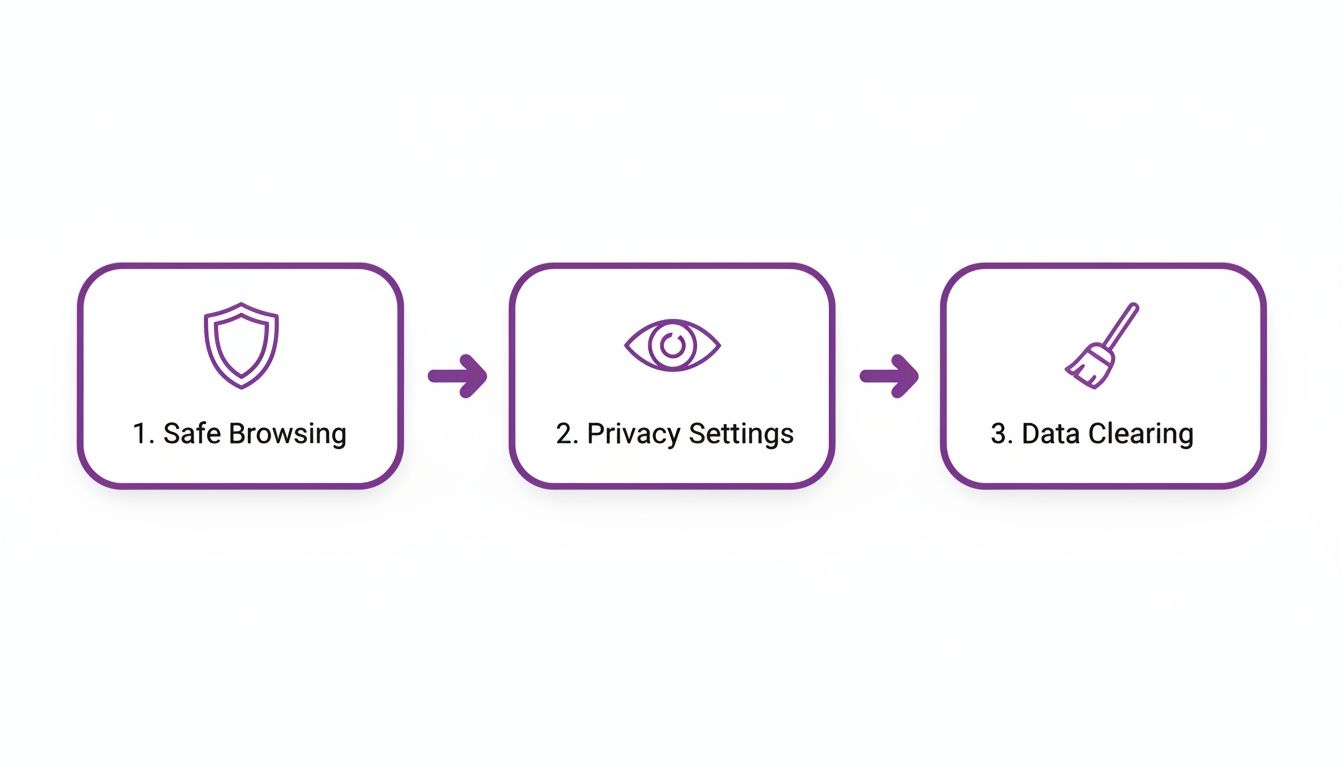
These core pillars—Safe Browsing, privacy controls, and data handling—are precisely what you can automate and enforce through enterprise policies, ensuring every single user is protected by default.
Real-World Policy Enforcement Scenarios
Let's put this into a real-world context. Imagine an employee gets a convincing phishing email and clicks a malicious link. Without enforced policies, they might just click "ignore" on a browser warning. Or worse, they might already have a dodgy extension installed that’s just waiting to scoop up their login details.
With a centrally managed policy pushed out from Intune or GPO, you take that risk out of their hands. The dangerous site is blocked outright, and the malicious extension was never allowed in the first place.
This is the kind of control that makes a tangible difference. If your team is distributed, you might want to look deeper into what Microsoft Intune is and how it can secure your devices, regardless of their location.
Implementing Critical Security Policies
So, what specific policies should you be deploying right now? Here are a few high-impact changes that will immediately improve your security posture.
Force-Installing Security Extensions
Don't just send an email hoping users install your company's password manager or security tools. Force the issue. Use the ExtensionInstallForcelist policy to push out a list of extensions that are installed automatically and, crucially, cannot be removed by the user. This guarantees every employee has the essential security kit from day one.
Blocking Unwanted and Risky Extensions
This is your single biggest defence against malware delivered via extensions. The ExtensionInstallBlocklist policy is your best friend here. A common and highly effective strategy is to set the value to *, which blocks all extensions by default. You can then use the ExtensionInstallAllowlist to create an exclusive list of approved, vetted extensions your team actually needs. This "deny-by-default" approach is a cornerstone of a Zero Trust security model.
By blocking all extensions and only allowing a pre-vetted list, you shut down one of the most common attack vectors targeting Chrome. It stops users from installing random, potentially dangerous add-ons that could siphon off data or steal credentials.
Locking Down Key Settings
Beyond extensions, you can control hundreds of other browser behaviours. Some of the most critical policies for security are:
- Enforce Safe Browsing: Use the
SafeBrowsingEnabledandSafeBrowsingProtectionLevelpolicies to ensure Enhanced Safe Browsing is active for everyone, all the time. - Disable Guest Browsing: Set the
BrowserGuestModeEnabledpolicy tofalse. Guest mode is a loophole that can be used to bypass user-based policies and logging. - Set a Secure Homepage: With
RestoreOnStartupURLs, you can make Chrome open specific, work-related pages on launch, like your company intranet or a critical business app. - Mandate Update Schedules: Policies like
RelaunchNotificationandRelaunchWindowcan force users to restart their browser to apply security updates within a timeframe you define. This drastically shrinks your window of exposure to zero-day vulnerabilities.
By taking a centralised approach to browser security for Chrome, you shift from a position of hope to one of control. Enforcing these policies establishes a consistent, robust defence across every device in your organisation, massively strengthening your resilience against web-based attacks.
Ready to take control of your organisation's browser security? Phone 0845 855 0000 today or Send us a message to speak with our experts.
Getting a Grip on Unmanaged Chrome Extensions
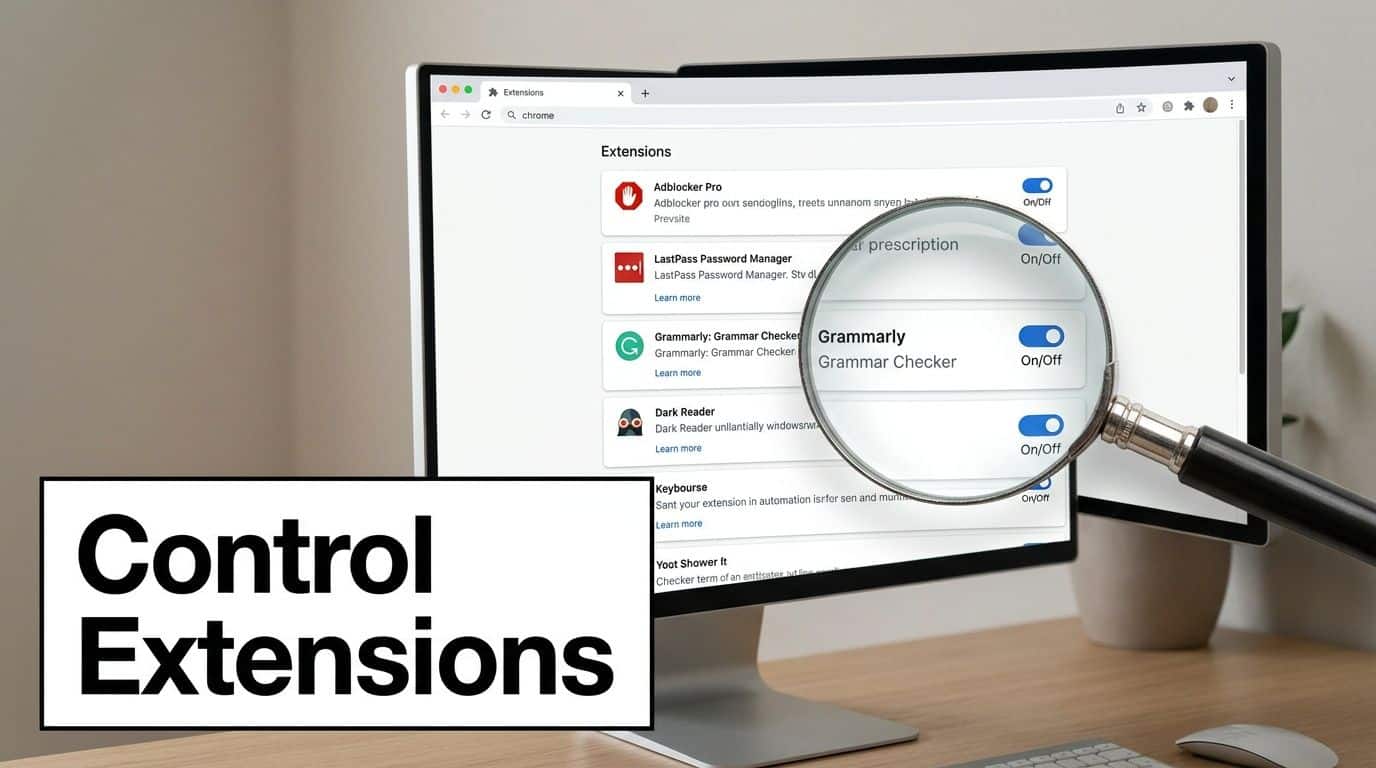
Chrome extensions present a real headache for any IT team. On one hand, they can be fantastic productivity tools, linking directly into workflows like Microsoft 365. But here's the catch: every single extension is also a potential back door into your company's network. It's a massive, and frankly, often-ignored attack surface.
The sheer convenience of extensions makes it easy for everyone to forget what they are—third-party code running with high-level permissions inside the browser. For an attacker, a seemingly innocent add-on is the perfect Trojan horse for scraping credentials, logging keystrokes, or quietly funnelling sensitive data out of your systems. Getting this under control isn't just a "nice-to-have"; it's a fundamental part of modern browser security for Chrome.
The Hidden Dangers in Plain Sight
Attackers are masters at using extensions to slip past traditional security. They’ll package malware into a useful-looking tool, like a PDF converter or a grammar checker, that silently gets to work in the background. Once a user clicks ‘install’, that extension can often read data from every single webpage they visit. This could be anything from internal SharePoint documents and sensitive emails to customer records in your CRM.
The scale of this problem is staggering. The NCSC reported that over 15,000 malicious extensions were pushed through the Chrome Web Store in 2026 alone, affecting 9.2% of UK business users. We saw this first-hand recently when a sophisticated campaign used malware disguised as a helpful Copilot enhancer. It stole Azure credentials from around 2,800 UK mid-sized firms, leading to an estimated £28 million in costs related to the data breach, according to ICO figures.
If you want to truly grasp how much power these add-ons can wield, it's worth understanding how they're made. Reading a developer's experience of building a Chrome plugin is an eye-opener. It really drives home why letting users install them without oversight is such a high-stakes gamble.
Shifting to a Zero Trust Model for Extensions
The only truly effective defence here is to apply a Zero Trust philosophy: never trust, always verify. For extensions, this means ditching the old, reactive block-list approach. Instead of chasing down known bad extensions, you need to flip the model on its head. Block everything by default.
This "deny-all, permit-by-exception" strategy is a game-changer. It shrinks your attack surface dramatically by preventing employees from installing random, unvetted extensions that look useful but might be riddled with vulnerabilities. It’s the single most powerful policy you can enforce to lock down the extension threat.
By centrally managing an "allow-list" of extensions, you take the guesswork and risk out of your employees' hands. You ensure that only approved, business-critical tools are running in their browsers, effectively shutting down a major entry point for attackers.
How to Properly Vet New Extensions
Of course, an allow-list is only as good as the extensions on it. You need a solid process for evaluating and approving any new tool before it gets the green light. Before adding anything, your IT team must do its homework.
Here are the key questions we always ask during our vetting process:
- What permissions does it need? Be ruthless here. If a simple screenshot tool is asking to read data from every website you visit, that’s an immediate red flag. The principle of least privilege is crucial.
- Who is the developer? Is this a well-known company with a track record, or a faceless developer with no digital footprint? Look for a professional website, a clear privacy policy, and a history of regular updates.
- What’s the user feedback like? A large user base and genuinely positive reviews are a good sign, but don't take them at face value. Look for detailed, credible reviews and be wary of anything that seems faked or botted.
- How recent is the last update? An extension that hasn’t been updated in years is a security risk. It might contain unpatched vulnerabilities or, worse, could have been abandoned and be ripe for hijacking.
By running every request through this checklist, you build a trusted library of tools that actually help your team without putting the business at risk. This disciplined approach is the foundation of a secure and manageable browser environment.
Taking Your Browser Defences to the Next Level
Once you’ve locked down the basic settings and pushed out your enterprise policies, it’s time to get into the more technical side of things. This is where we move from standard practice to building a truly hardened browser environment, turning Chrome into a fortress against the kind of attacks that keep IT managers up at night.
Let's dig into some of Chrome's most powerful, and often misunderstood, built-in defences. We'll also cover the absolute necessity of proactive patching and why robust monitoring is your best friend for spotting trouble before it escalates.
Understanding Sandboxing and Site Isolation
One of Chrome's best security features, right out of the box, is its sandboxing. The easiest way to think of it is a series of secure, virtual boxes. Every tab, every extension, and every process gets its own box. If a malicious website manages to run some nasty code in one tab, the sandbox is designed to trap it there, preventing it from hopping over to other tabs or, critically, your computer's operating system.
Site Isolation pushes this idea even further. It's a stricter rule that ensures pages from different websites always run in separate processes, each in its own dedicated sandbox. This makes it incredibly difficult for a compromised website to snoop on or steal data from other sites you might have open, like your company’s internal SharePoint portal or Microsoft 365.
Of course, there's a trade-off. While Chrome's sandboxing has been shown to cut down cross-site attacks by a staggering 89%, it does use more memory. We've seen this create an overhead of around 18% in some instances, which can occasionally slow down resource-hungry web apps like Dynamics 365. For most businesses, though, this slight performance dip is a tiny price to pay for such a massive security gain.
You Need a Proactive Patching and Update Strategy
One of the oldest tricks in an attacker's book is exploiting a known vulnerability that an organisation simply hasn't patched yet. With new threats cropping up daily, sitting back and waiting for users to update their browsers is a recipe for disaster. You have to be proactive.
Over the last five years, UK-specific Chrome vulnerabilities have shot up by 41%, and NCSC trackers reported 51 critical CVEs in 2025 alone. These numbers show just how urgent timely updates are. By using the enterprise policies we talked about earlier, you can force every browser in your fleet to update automatically and relaunch within a set time. This simple action closes that window of opportunity before an attacker can even find it.
A browser that is even one version out of date is a significant security risk. Enforcing automatic updates isn't just a best practice; it's an essential, non-negotiable part of modern browser security.
Get Eyes on Everything with Logging and SIEM Integration
You can't defend what you can't see. Chrome has powerful reporting features, but they truly shine when you feed that data into a Security Information and Event Management (SIEM) tool like Azure Sentinel. This gives you a clear line of sight into browser activity across your entire organisation, creating an invaluable audit trail for threat hunting and incident response.
By forwarding Chrome's activity logs to your SIEM, you can start monitoring for:
- Suspicious Downloads: Get instant alerts for downloads from untrusted sources or for unusual file types that have no place in your business.
- Blocked Malware Attempts: See exactly when Safe Browsing has stepped in, which can be a key indicator that specific users are being targeted.
- Failed Policy Compliance: Quickly identify devices that aren't following the security rules you've set, so you can bring them back into line.
This level of detailed monitoring is a cornerstone of a Zero Trust architecture. If you're unfamiliar with the concept, you can learn more in our guide to Zero Trust security. The data proves that even robust built-in tools are stronger when layered. For example, while Chrome's Safe Browsing blocked 4.2 billion phishing attempts in the UK in 2025, it still missed 26% more threats than when paired with dedicated antivirus solutions. Integrating your browser logs into a central platform gives you that complete picture needed to catch what might otherwise slip through the cracks.
Ready to implement these advanced strategies? Phone 0845 855 0000 today or Send us a message to speak with our security experts.
Building Your Human Firewall Through User Training
We've covered a lot of ground on the technical side of securing Chrome, but all the policies and controls in the world can be undone by a single, accidental click. This is where we need to talk about the most crucial layer of your browser security: your people.
Building a "human firewall" through ongoing security training isn't just a nice-to-have; it's an absolute necessity. Technology is great at blocking known threats, but it often falls short when faced with clever social engineering. Attackers are constantly inventing new ways to trick staff into giving away credentials or downloading something malicious, and a well-trained team is your best possible defence.
Core Components of an Effective Security Programme
A truly effective training programme isn't a one-off presentation you sit through once a year. It has to be a continuous process that weaves security awareness into the very fabric of your company culture. The focus should be on the practical, real-world threats your employees will almost certainly face while using their web browser.
To really fortify your team, it's worth looking into comprehensive and effective cybersecurity training programs designed to build that strong human firewall.
Key training modules should always cover:
- Spotting Phishing Links: Show people how to hover over links to check the real destination URL. Train them to spot the subtle signs of a fake login page and to be wary of any email or message demanding urgent action with credentials.
- Safe Credential Management: Drive home the risks of saving passwords directly in the browser (unless a master password is in use) and make sure everyone understands why using the company's approved password manager is mandatory.
- Understanding Wi-Fi Risks: A lot of people still don't realise just how insecure public Wi-Fi can be. Explain the dangers of working from a cafe or airport and train employees to always connect via a company VPN when on an untrusted network.
- Recognising Malicious Downloads: Teach your team what to look for in suspicious file downloads. They need to learn to question any software that prompts for an unexpected installation, even if it looks like it's from a legitimate website.
The goal is to empower your team to become active participants in the company's defence strategy. When an employee can confidently identify and report a phishing attempt, they have prevented a potential breach that technology alone might have missed.
For a deeper dive into establishing these vital skills, explore our resources on security awareness and training to help you cultivate a more vigilant workforce.
Staying ahead of threats requires constant vigilance and expert guidance. For comprehensive implementation and management of these strategies, our team is here to help.
Phone 0845 855 0000 today or Send us a message to secure your business.
Common Questions on Chrome Browser Security
When it comes to locking down Chrome for your business, a few questions pop up time and time again. Let's tackle some of the most common ones we hear from IT teams across the UK.
Is Chrome More Secure Than Microsoft Edge?
It's a fair question, and the answer isn't a simple yes or no. Both browsers are built on the same Chromium foundation, which means they share a lot of core security features, like sandboxing. You might have heard that Edge has a slight advantage due to its deep integration with Windows-native tools like SmartScreen.
But here’s the real-world perspective: security isn't about small feature differences. It's about management. A well-managed Chrome deployment, where you're actively enforcing policies for updates, extensions, and Safe Browsing, will always be more secure than an unmanaged Edge browser left to its own devices.
The most secure browser is the one your organisation actively manages. Consistent policy enforcement, extension control, and timely patching are far more critical than minor differences between browsers.
Does Incognito Mode Actually Keep Me Secure?
Let's clear this one up: no, Incognito mode is for privacy, not security. It’s designed to stop Chrome from saving your browsing history, cookies, and form data on the local machine once you close the window. That's it.
It does not make you invisible online. Your internet service provider, your employer, and the websites you visit can still see your activity. Critically, it offers zero additional protection from phishing scams, malware, or someone snooping on your connection over public Wi-Fi. Think of it as a "don't save" button, not a security shield.
How Should I Respond to a Chrome Security Warning?
You must take them seriously. Every single time. When that big red screen appears, warning you about a dangerous or deceptive site, it’s not just a suggestion. It’s Chrome’s Safe Browsing feature telling you it has identified a known threat, like a phishing page or a site pushing malware.
What should you do? Simple. Close the tab immediately. Don’t click "proceed" or try to get around it. Whatever you do, never, ever enter login details, personal information, or download files from a page that Chrome has flagged as unsafe.
Take the guesswork out of your cyber security. For expert advice on securing your business's browsers and IT infrastructure, contact F1Group.
Phone 0845 855 0000 today or Send us a message.