
Teams meetings rarely end when the call ends. The effort often starts afterwards. Someone wants the decision list. Someone else wants the actions. A manager asks who agreed to the deadline. Another attendee remembers the conversation differently. Then one person opens a notebook, another digs through chat, and a third tries to reconstruct the meeting from memory. That is the gap copilot meeting notes is designed to close. Used properly, it turns a meeting recap from an improvised admin task into part of the meeting itself. Used badly, it creates confusion, compliance risk, and a false sense that AI has captured everything accurately.
In a mid-sized UK business, the difference comes down to rollout discipline. Licensing matters. Teams policy matters. Transcription settings matter. User habits matter. So does GDPR.
The End of Scrambled Meeting Minutes
Most organisations do not have a meeting problem. They have a post-meeting problem.
The meeting may have been productive. People discussed the budget, agreed next steps, challenged a supplier decision, and settled on owners. Then the call closed, and the shared understanding started to fade almost immediately.
Copilot meeting notes changes that rhythm inside Microsoft Teams. Instead of relying on one person to produce a coherent summary later, Copilot can generate structured recaps with key points, decisions, tasks, and follow-ups directly in Teams. That matters because the admin load after meetings is often where momentum gets lost.
UK-focused implementation reporting notes that organisations using Copilot in meetings see a 30% reduction in time spent on post-meeting follow-ups, and UK government endorsements in 2024 reported average savings of 2 to 3 hours per week per employee on meeting-related tasks according to this Copilot in Microsoft Teams meeting summaries overview.
What this looks like in practice
A finance review is a good example. The team discusses revised spend, delays a hiring request, agrees that one manager will rework a forecast, and leaves with a rough idea of next actions. In a traditional setup, the output depends on whoever happened to take notes.
With Copilot enabled, the recap is far easier to work with. Users can review the main discussion points, identify what was decided, and pull out actions without replaying the entire meeting. That is where the feature earns its place. It reduces friction after the meeting, not just during it.
Where the value is real and where it is overstated
Operational value is clear. Teams stop wasting effort reconstructing discussions. Managers spend less time chasing clarification. Staff who joined late or missed the call can catch up faster.
The overstated part is the idea that Copilot removes the need for judgement. It does not. If a meeting is poorly chaired, full of side conversations, or lacks explicit decisions, the recap will reflect that ambiguity.
Tip: Copilot works best when people state decisions clearly, assign owners out loud, and avoid leaving actions implied.
There is also a practical point many businesses miss. Copilot is not just a shiny add-on to Teams. It becomes part of your collaboration operating model. If your organisation already lives in Microsoft 365, meeting notes are one of the most immediate places where AI can deliver visible value.
Preparing Your Organisation for Copilot
Buying licences before checking the estate is one of the quickest ways to create frustration.
Copilot meeting notes relies on the wider Microsoft 365 environment being in decent shape. If user identities are messy, apps are out of date, Teams policies vary wildly between departments, or your tenant has inherited years of ad hoc settings, the rollout becomes harder than it needs to be.
Start with environment readiness
Before assigning anything, review the tenant properly. Check how meetings are configured, whether transcription is already permitted, how external access is handled, and whether users are consistently on supported Microsoft 365 apps and Teams clients.
A useful pre-rollout reference is this guide on how to assess your Microsoft 365 environment’s readiness for Copilot. It is worth reading before you build a business case, because Copilot exposes weaknesses in Microsoft 365 governance very quickly.
Licensing reality
Many projects become muddled at this stage. Copilot is not just “on” because the business uses Teams.
You need the right Microsoft 365 base licensing in place before you consider Copilot licensing. In practice, organisations usually need to confirm that users are already on the appropriate Microsoft 365 business or enterprise plans, then assign the Copilot entitlement to the users who need it.
Because Microsoft licensing changes over time and often varies by agreement type, channel, and organisation profile, the safest approach is to verify current UK commercial pricing directly through your Microsoft partner or licensing provider rather than relying on an old blog post or a US pricing example.
Decide who needs it first
Do not start with every employee.
For a mid-sized business, the first wave usually includes:
- Department heads: They run meetings where decisions, actions, and accountability matter.
- Project managers: They gain immediate value from structured recap and action tracking.
- Executive support staff: They often spend time converting raw discussion into usable notes.
- Client-facing managers: They benefit when follow-up points are clearer and easier to review.
A selective rollout keeps cost controlled and gives IT a manageable group to support.
Technical checks worth doing before purchase
The most important preparation steps are not glamorous, but they prevent support tickets later.
- Check Teams client consistency: Users on mixed client versions create avoidable rollout issues.
- Review meeting policy settings: If transcription is blocked in one department and allowed in another, user experience becomes inconsistent.
- Confirm identity and access model: Shared accounts, unusual delegate patterns, and inherited permissions can complicate note ownership and recap access.
- Review sensitivity and governance approach: If meeting content is sensitive, your permissions model matters from day one.
For organisations evaluating broader AI use across Microsoft 365, the F1Group Copilot page is a useful reference point for the wider platform context.
Practical takeaway: buy Copilot only after you know which users need it, which meeting scenarios matter, and which tenant controls will shape the rollout.
Administrator Configuration and Deployment in Teams
The technical rollout should be controlled, not improvised.
Most problems with copilot meeting notes do not come from the feature itself. They come from inconsistent Teams policy, unclear defaults, and an assumption that users will understand what transcription does the first time they see it.
Set policy before you announce the feature
Start in the Teams admin environment and review the policies that affect meetings. The core issue is simple. Copilot’s behaviour changes depending on whether transcription is available and how the meeting is configured.
A sensible deployment approach looks like this:
-
Create a pilot group first
Use a defined security group or a clearly managed set of pilot users. Avoid rolling out tenant-wide until you have tested recap behaviour, permissions, and user understanding. -
Review meeting policy settings
Confirm whether transcription is allowed, whether recording is allowed, and whether those settings differ by department or user group. -
Decide your organisational default
Some businesses want transcription broadly available for internal meetings. Others want it limited to certain teams because of confidentiality or client obligations. -
Document exceptions
Senior leadership meetings, HR cases, legal discussions, and regulated client calls often need different handling from ordinary operational meetings.
Transcription with recording and without recording
Administrators need to be precise at this stage.
Copilot can work in Teams meetings without recording when configured in the right mode, but full post-meeting notes require transcription. That distinction matters because many users assume “no recording” means “no meeting data exists”. It does not mean that.
If your business wants the richest recap after the meeting, you need to decide when organisers are allowed to enable transcription and what rules govern that use. If your business prefers lower capture by default, you may allow in-meeting assistance but limit broader recap behaviour.
Outlook and Teams are linked more closely than users realise
Meeting organisers often create meetings in Outlook, then expect Teams behaviour to sort itself out. In practice, meeting options set by the organiser can shape what happens once the Teams session starts.
That means administrators need to train users on both sides of the workflow:
- Scheduling behaviour in Outlook
- Meeting options in Teams
- What transcription changes during and after the meeting
- Who can access recap content once the meeting ends
If users do not understand this chain, they will open support tickets saying Copilot “sometimes works and sometimes doesn’t”.
Common deployment mistakes
A few patterns come up repeatedly in mid-sized environments.
| Issue | What usually causes it | Better approach |
|---|---|---|
| Copilot appears for some users but not others | Mixed licence assignment or inconsistent policy | Pilot with clearly scoped users and documented settings |
| Users expect full notes but only get limited output | Transcription not enabled for that meeting | Train organisers on when and how to enable it |
| Sensitive meetings are transcribed by habit | No policy guidance or user guardrails | Publish clear internal rules for high-risk meeting types |
| External meetings create uncertainty | Organisers do not know consent and retention expectations | Add a meeting prep checklist for external or regulated discussions |
A practical user support resource for the meeting platform itself is this Microsoft Teams guide from F1Group, especially if your wider Teams usage still varies across departments.
Tip: Treat copilot meeting notes as a governed Teams capability, not a personal productivity feature. The admin model determines whether users trust it.
Roll out in layers
The strongest approach is phased.
Start with internal meetings. Then test project meetings. Then introduce selected external meeting scenarios where consent, retention, and ownership are well understood. If you start with your hardest edge cases, the rollout will feel more difficult than it proves to be.
A User's Guide to Smarter Meeting Notes
Users do not need a long manual. They need to know what Copilot is good at, where to find the output, and how to ask better questions.
That is the difference between passive usage and productive usage.
During the meeting
The best users treat Copilot as a live assistant, not a magical replacement for attention.
If the meeting has clear discussion threads, they can prompt for a recap of the conversation so far, ask for open questions, or check whether an action has been assigned. This is useful in longer operational meetings where decisions emerge gradually rather than all at once.
Useful prompt styles include:
- Summarise the key decisions made so far
- List the actions mentioned and who owns them
- What deadlines were mentioned in this meeting
- What are the unresolved questions
- Summarise the areas where attendees disagreed
The wording does not need to be clever. It needs to be specific.
After the meeting
Post-meeting recap is where most users see the immediate benefit.
Instead of replaying the full call, they can review the generated notes in Teams, scan key points, and check whether the agreed actions match their understanding. For managers who chair back-to-back meetings, that is often the first moment they realise the feature is worth adopting.
This walkthrough gives a useful sense of the user experience in practice.
What works well
Copilot meeting notes tends to perform well when the meeting itself is structured.
A straightforward project review, governance call, or internal planning session usually produces cleaner output than a brainstorming meeting with people interrupting one another. If attendees say things like “John will update the supplier shortlist by Friday” or “We are approving option two”, the recap is far more useful.
Users should also get into the habit of validating the output before forwarding it on. It is a strong first draft. It is not a legal record by default.
What does not work well
There are several user mistakes that undermine the feature:
- Treating the recap as complete without checking it
- Using vague prompts
- Assuming every action has been captured if no owner was stated clearly
- Using it in highly sensitive meetings without understanding the organisation’s rules
- Expecting the same output quality from every meeting type
The biggest practical lesson is simple. Better meetings produce better AI notes.
Practical advice: if a decision matters, state it plainly in the meeting. If an action matters, name the owner and the expected deadline aloud.
Where the notes fit into daily work
The recap becomes more useful when it feeds existing habits.
A project lead may use the notes to update a Planner board or a task list. A manager may use them to draft a follow-up email. A department head may use them to confirm who agreed to what before sending a summary to stakeholders.
The strongest adopters do not admire the notes. They use them as working material.
Managing Data Access and UK Compliance
Many standard tutorials become too light here.
They show how to turn features on, but they do not deal properly with the governance questions a UK business has to answer. If you are handling staff matters, commercial negotiations, health-related information, legal discussion, or regulated client conversations, copilot meeting notes is not just a convenience feature. It is a data handling decision.
The key compliance distinction
For UK organisations, a critical compliance point is straightforward. Copilot can work without recording a meeting, but enabling full post-meeting notes requires transcription, and that in turn requires documented consent from participants and clear retention policies, as noted in Microsoft’s guidance on using Copilot without recording a Teams meeting.
That single distinction should shape your policy design.
If users believe “not recording” means the same thing as “no transcript concerns”, they can put the organisation at risk without intending to.
Questions your policy should answer
A usable internal policy should be able to answer these points without ambiguity:
- When is transcription allowed
- Who can enable it
- What must organisers do when external attendees are present
- How is consent captured or documented
- Which meeting types are excluded or restricted
- How long transcript-related data should be retained under your internal rules
- Who can access recap content after the meeting
- What happens when a meeting contains sensitive employee or client information
Many businesses skip these questions because they assume Microsoft’s defaults are enough. They are not enough for your internal governance model.
Data access matters as much as data capture
Meeting notes are only part of the issue. Access control is the other half.
If recap content is available too widely, users may expose information that was acceptable during a live meeting but not appropriate for broader review later. This is why your Microsoft 365 permissions model, meeting ownership model, and content governance need to line up.
A useful companion topic here is role-based access control. If access is loose elsewhere in the tenant, Copilot does not fix that. It often makes the weakness more visible.
Regulated meetings need a separate rulebook
Not every meeting deserves the same treatment.
HR investigations, disciplinary conversations, legal advice calls, financial control discussions, and certain client meetings should usually be classified separately from routine internal collaboration. In those cases, the safest answer may be not to use transcription-enabled notes by default at all.
That is not anti-AI. It is proper governance.
Tip: classify meeting scenarios before rollout. “Internal weekly team meeting” and “external legal matter” should never sit under the same operational rule.
Build compliance into rollout, not after it
A lot of organisations only discuss compliance after a user asks whether a transcript should have existed in the first place. By then, the wrong sequence has already happened.
A better approach is to run a formal risk review alongside your pilot. If your business needs a structured framework for that thinking, this guide to mastering your compliance risk assessment is a useful external reference.
The practical goal is not to eliminate all risk. It is to make the organisation’s decisions deliberate, documented, and repeatable.
Driving Adoption and Measuring Success
A technically correct rollout can still fail if users do not trust the output or do not understand when to use it.
That is why adoption needs structure.
In the UK government Microsoft 365 Copilot experiment, users gave the product a recommendation score of 8.2 out of 10 and an overall satisfaction score of 7.7 out of 10 according to the cross-government findings report. The gap matters. People could see the value, but satisfaction lagged behind recommendation.
That is exactly what many businesses experience in practice. Users like the idea quickly. They become satisfied later, once training, prompting habits, and governance are clearer.
Start with a visible pilot group
Do not choose your pilot group only by seniority. Choose by meeting volume, process maturity, and willingness to give useful feedback.
A good pilot group usually includes a mix of:
- Operational managers who run recurring meetings
- Project leads who need action tracking
- Executive or administrative support staff who can compare old and new note-taking workflows
- IT or digital champions who will report issues clearly
This group gives you better implementation feedback than a random cross-section of licence holders.
Train for scenarios, not features
Feature-led training tends to be forgettable. Scenario-led training sticks.
Run short sessions around practical questions:
| Scenario | What users should learn |
|---|---|
| Internal weekly team meeting | When to enable transcription and how to review recap |
| Project checkpoint | How to ask for actions, deadlines, and unresolved issues |
| External client meeting | What consent and governance rules apply |
| Leadership discussion | When not to rely on AI notes as the sole record |
Keep the sessions short. Users retain far more when they can map guidance to meetings they already run.
Measure behaviour, not just sentiment
If you only ask whether users “like Copilot”, you will get a shallow answer.
Look for practical indicators instead. Are managers sending clearer follow-ups? Are fewer people asking what was agreed after a meeting? Are teams using recap to catch up without replaying the call? Are support tickets decreasing as organisers become more confident with the settings?
For organisations using Microsoft reporting tools, adoption and collaboration patterns can help show whether usage is becoming normal rather than novelty-driven.
Key takeaway: recommendation tells you whether users see promise. Satisfaction tells you whether your rollout model is working.
Keep the feedback loop active
Initial usage provides significant learning.
Collect examples of strong prompts. Document the meetings where output was poor and why. Capture recurring points of confusion around transcription, access, and recap visibility. Then feed those lessons into training, policy, and support guidance.
That is how Copilot meeting notes moves from being a feature a few people try to a habit the business adopts.
Troubleshooting and Your Rollout Checklist
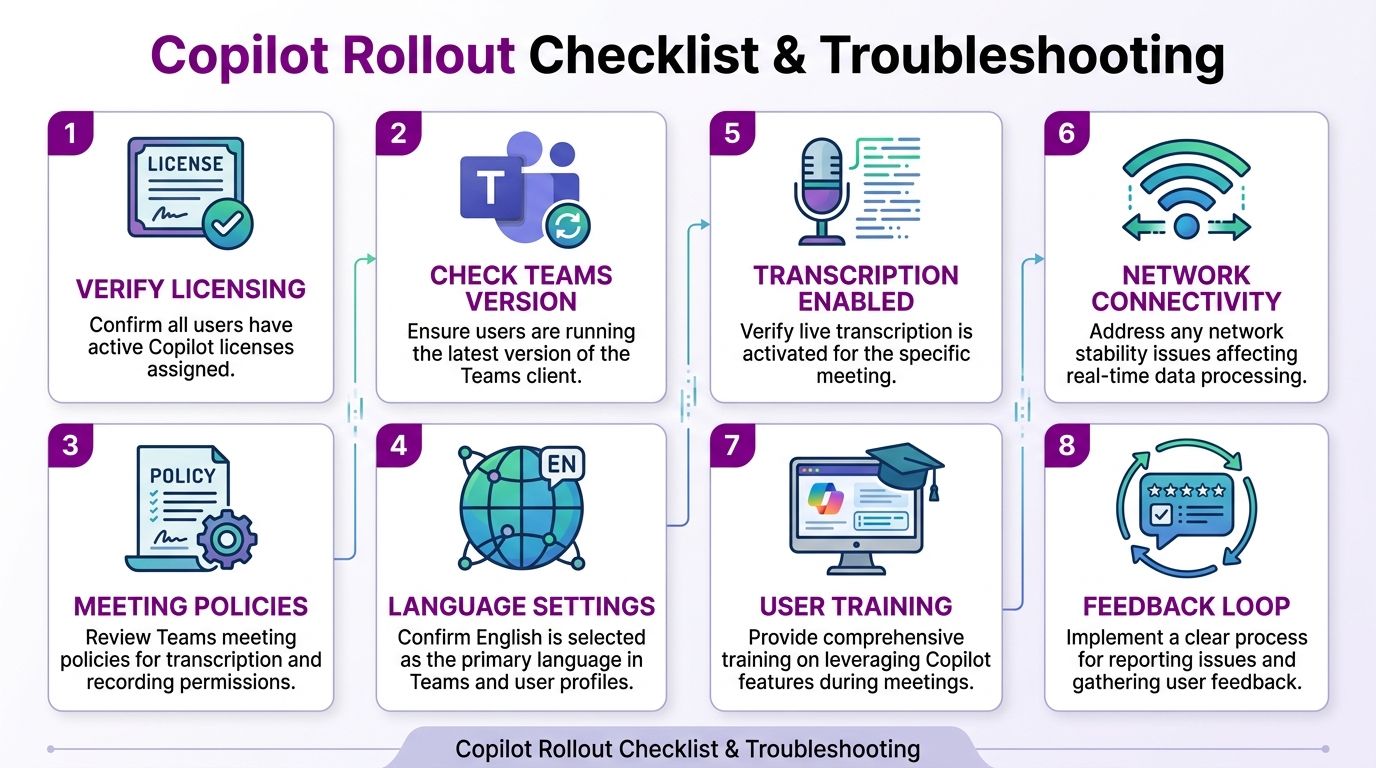
By the time Copilot meeting notes reaches the service desk, the pattern is usually familiar. Common support tickets include users reporting Copilot is missing from their Teams client, notes failed to generate after a meeting, or recap is unavailable because the meeting included external attendees and nobody is sure which policy applied.
In a mid-sized UK business, those incidents are rarely random. They usually point to a gap in licensing, meeting policy, user understanding, or tenant configuration. More complex estates can add friction around SharePoint governance, hybrid identity, or inconsistent Microsoft 365 setup across departments, which is a practical issue raised in this video on Copilot implementation considerations.
The first troubleshooting checks
Run these checks in order before you escalate to Microsoft or treat the issue as a platform fault.
- Licence assignment: Confirm the affected user has the correct Copilot entitlement and that the licence is fully applied.
- Teams client state: Check that the user is on the current Teams client, not an older installation with delayed updates.
- Meeting settings: Confirm transcription was enabled for that specific meeting. No transcript usually means no useful AI-generated notes.
- Policy alignment: Review the Teams meeting policy assigned to the organiser and the affected user.
- Meeting type: Check whether external participants, cross-tenant access, or sensitivity labels limited recap or note visibility.
- Recording and transcript language: Mismatched spoken language and transcript settings can reduce note quality and trigger avoidable complaints.
That short list resolves a large share of incidents.
Problems that are technical on the surface, but operational underneath
Some tickets are really rollout issues.
If a team expects a reliable action list from meetings where nobody starts transcription, support cannot fix that with policy alone. If one department uses a standard meeting template and another leaves every organiser to decide settings ad hoc, output quality will vary. If leaders treat Copilot notes as an official record for sensitive HR or disciplinary conversations, the problem is governance and judgement, not feature failure.
That is why rollout needs a support model, owner, and documented rules. Mid-sized organisations often skip that step because the feature looks simple. The support queue then carries the cost.
A practical rollout checklist
Use this as a final pass before expanding beyond the pilot.
-
Verify licensing
Confirm intended users have the required Microsoft 365 and Copilot licences, and check for group-based licensing delays. -
Standardise the Teams client
Reduce variation in desktop builds and update channels where you can. Mixed client versions create avoidable noise during pilot support. -
Review meeting policies
Check transcription, recording, and recap-related settings against your agreed operating model. -
Test with real meeting types
Run controlled tests for internal meetings, leadership calls, and meetings with external attendees. Do not rely on a single happy-path demo. -
Confirm language settings
Match transcription language to how people speak in meetings, especially in organisations with regional accents, multilingual teams, or client-facing calls. -
Check data location and access assumptions
Make sure your Microsoft 365 data governance, SharePoint permissions, and sensitivity labels align with how recap content will be accessed and stored. -
Train organisers first
Organisers control the settings that determine whether notes are useful. Give them clear instructions on transcription, participant expectations, and when AI notes should not be the only record. -
Define an exception process
HR, legal, finance, and regulated teams need a documented route for meetings where standard Copilot usage is restricted or requires extra approval. -
Create a feedback route
Give users a simple way to report missing features, poor outputs, and policy questions. Route those issues to someone who can separate training gaps from tenant configuration problems.
The rollout standard worth aiming for
A good rollout produces fewer avoidable tickets, clearer meeting follow-up, and fewer disputes about what was agreed.
For UK organisations, it also stands up to scrutiny. That means administrators can explain who can generate notes, where the underlying data sits, what happens in meetings with guests, and when staff should use a formal minute-taker instead. If those answers are vague, the rollout is not finished.
Copilot meeting notes earns trust when setup, policy, and meeting habits line up. That takes more work than assigning licences, but it is the difference between a pilot people try once and a service the business adopts.
If you want hands-on help planning or deploying Copilot across Microsoft 365, talk to F1Group. We support organisations across the East Midlands with practical Microsoft 365, Teams, security, and AI rollout advice. Phone 0845 855 0000 today or Send us a message.