
Let's be honest, when most people think of PowerPoint, they picture endless bullet points and cheesy clipart from a bygone era. It’s time for a rethink. The PowerPoint of today, nestled within the Microsoft 365 suite, is a completely different beast. If you're wondering how to actually use it to make a difference in your business, the answer isn't about fancy transitions. It’s about crafting compelling stories, presenting live data, and getting your team on the same page, effortlessly.
Beyond Basic Slides: A Modern Approach to PowerPoint
For UK businesses, getting to grips with modern PowerPoint means ditching the static slideshows and creating dynamic, engaging experiences that genuinely drive results. We’re going to show you how PowerPoint works hand-in-glove with tools like Teams, Power BI, and Copilot AI to turn presentation-building from a chore into a core part of your productivity.

The deep integration within the Microsoft ecosystem is what makes PowerPoint so indispensable today. It’s no longer just about broadcasting information; it’s about connecting with your audience, whether they're across the table or working from home.
This is particularly true for small and mid-sized businesses. Here in the UK, we're seeing more and more companies, especially in regions like the East Midlands, lean on PowerPoint within Microsoft 365 to standardise their presentations and boost efficiency. This reflects a wider trend—Microsoft 365 has seen a 6% seat growth in commercial segments globally, as businesses embrace the cloud. You can find more details on Microsoft 365's growth and impact.
PowerPoint Use Cases Across Your Organisation
To see the real-world value, it helps to look at how different people in your organisation can use these modern features. Here's a quick summary of how various roles can put PowerPoint to work.
| Business Role | Primary PowerPoint Use Case | Key Integrated Tool |
|---|---|---|
| Sales Team | Creating dynamic pitch decks with live, interactive sales figures and customer data. | Power BI |
| Marketing Dept. | Ensuring brand consistency across all materials and exporting slides as video/GIFs for social media. | Slide Master |
| IT Director | Instantly generating training materials or project updates from existing Word documents. | Copilot AI |
| HR Manager | Building interactive onboarding modules and recording training sessions directly in the app. | Microsoft Forms |
Each of these examples moves beyond a simple presentation and turns PowerPoint into a tool for solving specific business problems.
How Different Roles Can Use PowerPoint in Practice
Let’s dig a little deeper into what this looks like day-to-day. The real magic happens when you connect PowerPoint to the other tools you already use.
-
For Sales Teams: Imagine walking into a client meeting and pulling up a sales deck where the charts and graphs are not static images, but live Power BI dashboards. You can filter and drill down into the data in real time, answering client questions on the spot.
-
For Marketing Departments: Keeping the brand looking sharp is a constant battle. By setting up a Slide Master template, you ensure every presentation that leaves the company is perfectly on-brand. They can also quickly repurpose presentation content into engaging videos or GIFs for social media campaigns, all without leaving PowerPoint.
-
For IT Directors: Time is always short. Instead of manually creating a presentation to explain a new system rollout, an IT Director can use Copilot AI to instantly generate a full slide deck from a technical document or Word outline. This frees them up to focus on the actual implementation.
-
For HR Managers: Onboarding new starters can be repetitive. HR can build interactive training modules by embedding a quiz made in Microsoft Forms directly into a slide. They can also record themselves explaining a policy, screen-record a process, and save it all within the presentation for new hires to watch on demand.
The real value of modern PowerPoint isn't in adding more animations or flashy transitions. It's about using its integrated features to communicate more clearly, collaborate more efficiently, and make data-driven decisions faster.
By focusing on these practical applications, you can completely change how your business communicates, both internally and externally.
Ready to see how these tools can work for you? To start your journey towards more impactful presentations, phone 0845 855 0000 today or send us a message using our contact form.
Building Your Presentation Foundation for Success
Before you even think about fancy transitions or animations, a great presentation starts with a solid, well-structured foundation. It’s tempting to just open a new file and start typing, but taking a few minutes to set things up properly will save you a massive headache later. The single most powerful tool for this, and one that most people ignore, is the Slide Master.
Think of the Slide Master as the master blueprint for your entire deck. I've seen teams waste hours manually adding the company logo to every single slide. With the Slide Master, you do it once. You set your company fonts, colour palette, and logo placement, and those changes automatically cascade across every slide you create. It’s the secret to ensuring brand consistency and a polished look every time.
Effortless Design with AI Assistance
Once you've got your brand template sorted, you can focus on the content of each slide. This is where PowerPoint's built-in AI, Designer, comes in handy. It’s a genuinely clever feature that analyses what you've added to a slide—like a chunk of text or an image—and suggests professional layouts with a single click.
It’s a fantastic way to turn a boring, bullet-pointed slide into something visually engaging in seconds. My advice? Use Designer for inspiration. Let it show you what's possible, but don't be afraid to tweak its suggestions to better fit your message. The goal is for the design to support your content, not overpower it.
A great presentation is built like a good story. It needs a clear beginning (the problem), a compelling middle (the solution), and a strong end (the call to action). Your design and structure should guide the audience through this narrative.
Sourcing High-Quality Visuals Natively
Speaking of visuals, the days of trawling through questionable "free" stock photo sites are over. PowerPoint now has a massive, high-quality library of visuals built right in, so you never have to leave the application. This is a game-changer for avoiding pixelated images and potential copyright issues.
Just head to the "Insert" tab, and you'll find a goldmine of resources:
- Stock Images: A huge collection of professional photos on almost any topic you can think of.
- Icons: Clean, simple vector graphics. You can easily change their colour to match your brand palette perfectly.
- Illustrations: Modern, stylised drawings that can give your presentation a unique character.
By starting with a solid template from Slide Master, using Designer for layout ideas, and pulling from the built-in media library, you create a natural workflow. This process helps you build a presentation that not only looks professional but also communicates your message with clarity and impact, steering you clear of overcrowded slides and inconsistent formatting.
Bringing Your Presentations to Life with Data and Interactivity
We've all sat through them: presentations where the charts feel stale and the data is already out of date the moment it hits the screen. It’s a sure-fire way to lose your audience. The real magic happens when you stop thinking of PowerPoint as a static document and start treating it as a dynamic, living dashboard.
One of the simplest yet most effective tricks I’ve seen is linking an Excel spreadsheet directly to a slide. Picture this: you're presenting quarterly sales figures, but your finance team is making last-minute adjustments. Instead of frantically copying and pasting, your chart automatically refreshes with the latest numbers from the linked file. No more embarrassing errors, just up-to-the-minute accuracy.
Go Live with Interactive Dashboards
For those truly data-heavy discussions, embedding a live Power BI dashboard is a total game-changer. This isn't just about showing a graph; it's about exploring the data with your audience. You can filter, slice, and drill down into the information right there on the slide, answering complex questions on the spot with hard evidence. It turns a one-way broadcast into an interactive discovery session.
If you’re just starting out with Power BI, our guide on how a Power BI tutorial for beginners is a great place to get your bearings.
Guide Attention with Strategic Animation
Animations often get a bad name, usually because they're overused and distracting. But when applied with a bit of finesse, they become powerful tools for storytelling and directing focus. Forget the spinning text and checkerboard wipes; subtle is always better.
Think about how you can guide your audience's eyes:
- Appear/Fade: These are your go-to animations. Use them to introduce bullet points one by one. This stops your audience from reading ahead and forces them to listen to the point you’re actually making. You control the flow.
- Morph Transition: This is where things get really clever. Morph seamlessly transforms an object from one slide to the next. It’s perfect for illustrating a process, showing a product’s evolution, or creating a smooth visual journey without a jarring cut.
- Zoom: With Zoom, you can create a non-linear, conversational presentation. It lets you create a main "hub" slide and then jump to different sections based on audience feedback or interest. It makes your deck feel less like a rigid script and more like an interactive dashboard.
For some extra polish, you can even create animation from images using AI workflows to add bespoke animated elements to your slides.
The goal isn't to impress with motion, but to direct attention. A subtle fade-in on a key statistic or a smooth transition showing a step-by-step process makes your information easier to digest and remember.
Let’s apply this to a real-world sales scenario. If your business uses Dynamics 365, you can pull live customer data to generate highly personalised pitch decks. Imagine walking into a meeting where the slides automatically display the client’s name, their recent purchase history, and relevant service suggestions. It’s an incredibly powerful way to show you’ve done your homework.
You could even embed a Microsoft Form to poll your audience mid-presentation, gathering instant feedback and making them an active part of the conversation.
Ready to build more dynamic and data-driven presentations? Phone 0845 855 0000 today or send us a message to learn how we can help.
Boosting Productivity with AI and Automation
The real magic of modern PowerPoint isn't just in making prettier slides; it's in its power to automate the grunt work. This frees your team up to think about strategy instead of spending hours wrestling with fonts and layouts. This is where AI, particularly Microsoft Copilot, steps in and completely changes the game.
Forget staring at a blank screen. You can now generate a whole presentation from a single instruction. Imagine telling Copilot, “Create a 10-slide presentation for our quarterly business review, using the sales data in ‘Q3_Sales.xlsx’ and the key points from ‘Meeting_Notes.docx’.” In minutes, Copilot analyses those files, builds a narrative, and hands you a solid first draft.
Instantly Generate Content with Copilot
This isn't just a gimmick; it’s a massive time-saver for almost any role. An IT Director in Nottingham, for example, could use Copilot to whip up a quarterly performance review deck straight from a dense Azure cost management report. The AI can pull out the most important metrics, build the charts for you, and even draft speaker notes for each slide.
Beyond starting from scratch, Copilot is fantastic for polishing what you've already got. It can:
- Summarise long presentations: Instantly boil down a 50-slide report into a handful of key takeaways for an executive summary.
- Organise your presentation: Look at a jumble of slides and automatically group them into logical sections with proper titles.
- Generate speaker notes: Create detailed talking points for every slide, giving you a great starting point for your delivery prep.
We dive deeper into these features in our guide to Microsoft AI Copilot.
Automate Workflows with Power Automate
For even more efficiency, you can hook PowerPoint up to Power Automate and build custom workflows. This means setting up triggers that automatically create and send out presentations without anyone having to lift a finger.
Think about a weekly sales report. You could build a workflow where Power Automate grabs the latest sales figures from Dynamics 365, drops them into a pre-made PowerPoint template, saves the file as a PDF, and then emails it to the management team every Friday afternoon. It’s consistent, always on time, and gets rid of the risk of human error.
The diagram below shows a simple way to think about making your presentations more dynamic by connecting live data, guiding your audience, and adding interactive elements.
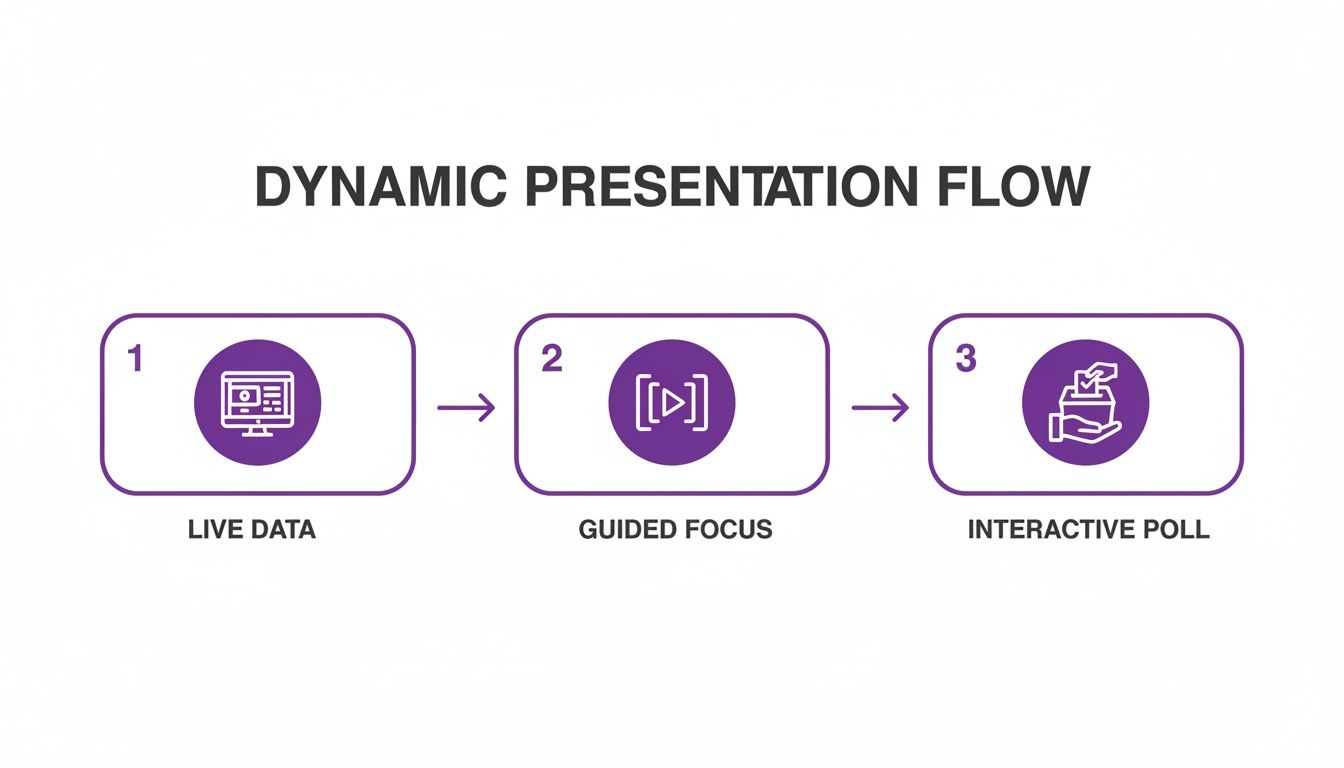
The takeaway here is simple: the best presentations are no longer static. They use real-time information and pull the audience into the conversation.
PowerPoint's growing role in business operations is undeniable, with 25% of UK businesses having already adopted AI technologies. For IT managers across the East Midlands, from Scunthorpe to Newark, knowing how to use PowerPoint with tools like Copilot and Power Automate is fast becoming a core skill for driving productivity. You can learn more about this trend and what it means for modern work in recent industry analysis.
By automating routine presentation tasks, you're not just saving time; you're reclaiming valuable employee hours that can be redirected towards innovation, customer service, and strategic planning.
Ready to see how AI and automation can reshape your workflows? Phone 0845 855 0000 today or send us a message to get some expert advice.
Collaborating Securely in a Hybrid Workplace
Gone are the days of juggling endless email threads with "Presentation_v4_FINAL_final.pptx" attached. In a hybrid world, where your team might be split between the Lincoln office and their homes across the UK, that old way of working just doesn't cut it. True collaboration needs to be seamless and, most importantly, secure. Thankfully, PowerPoint, as part of Microsoft 365, is built for exactly this.

The key is real-time co-authoring. Simply save your presentation to OneDrive or SharePoint, and multiple people can jump into the file and edit it at the same time. You’ll see their cursors moving and changes appearing as they happen. It’s a game-changer that ends version confusion for good and gives you one central file to work from.
Managing Feedback and Controlling Access
Forget about collating feedback from different emails or documents. You can now keep the entire conversation right inside the presentation. By using comments and @-mentions, you can flag a specific slide and tag a colleague directly. They’ll get an alert and can jump straight in to give their input where it's needed.
Of course, opening up collaboration means you have to be smart about security. Storing your files in SharePoint or OneDrive is the first line of defence. The next is carefully managing who can do what with them. It’s worth understanding the nuances of these platforms, which you can explore in our guide on SharePoint vs OneDrive for business use.
You have fine-grained control over every file you share:
- View only: Lets people see the presentation but prevents them from making changes.
- Can edit: Gives full editing access to trusted team members.
- Block download: Stops anyone from saving a local copy, keeping your data from walking out the door.
Secure sharing isn't just about protecting data; it's about controlling the narrative. By managing permissions and using features like expiring links, you ensure that only the right people see the right version of your presentation at the right time.
Presenting Seamlessly within Microsoft Teams
When you're ready to present, there's no need to fumble with screen sharing. PowerPoint Live in Microsoft Teams lets you present your deck directly within the meeting, giving you far more control and creating a better experience for your audience.
While you're presenting, your audience can privately flick through the slides at their own pace or switch to high-contrast mode if they need it—all without interrupting your flow. Meanwhile, you get a dedicated presenter view showing your notes, the next slide, and the meeting chat, all in one place. It’s an incredibly professional way to run a meeting.
This kind of integrated workflow is becoming the standard. With Microsoft 365 commercial seats growing 4-6% annually, UK businesses are clearly leaning into these tools. In fact, a huge 72% of professionals now use collaboration apps every week, making features like sharing a PowerPoint directly in Teams vital. You can find more data on the latest digital trends in the UK that highlight this shift.
Want to improve how your team collaborates on presentations? Phone 0845 855 0000 today or send us a message.
So, What's Next? Putting Your New PowerPoint Skills to Work
We’ve covered a lot of ground, moving well beyond basic text and bullet points. You've seen how to build a rock-solid foundation with Slide Master, present live data that updates automatically, and even get a helping hand from AI. We've also explored how PowerPoint functions as a secure, real-time tool for collaboration, which is essential for any modern hybrid team.
But knowing what’s possible is one thing; putting it into practice is another. Moving past old-school slides isn’t just about aesthetics—it’s about getting better results for your business. When your presentations are sharp, clear, and efficient, it ensures your message actually lands, your team works faster, and your whole organisation looks more professional. The best part? You can do all of this with the Microsoft 365 tools you’re already paying for.
Your Action Plan for Better Presentations
The key is not to try and do everything at once. Just pick one area to focus on first—the one that will make the biggest difference to your day-to-day work.
- For the Sales & Marketing Team: Your first port of call should be brand consistency. Use Slide Master to create a single, official template that everyone has to use. No more rogue logos or off-brand fonts.
- For Data Analysts & Finance: Tired of copying and pasting static charts? Try linking a live Excel sheet directly into your slide. Or, better yet, embed a Power BI tile for a truly interactive dashboard right in your presentation.
- For IT & Project Managers: The next time you need to create a project kickoff deck, let Copilot do the heavy lifting. Point it to your project plan in Word or a OneNote file and ask it to generate a first draft.
The real change happens when you stop seeing PowerPoint as a simple tool for making slides. Think of it instead as a dynamic communication hub, one that plugs directly into the rest of your Microsoft ecosystem.
This is exactly where F1Group can help you make the connection. We provide expert guidance on everything from managed IT support to building custom Power Platform solutions and getting your team up and running with Copilot AI.
Ready to see what your presentations are truly capable of? Give us a call on 0845 855 0000 or send us a message to get started.
Common PowerPoint Questions We Hear from UK Businesses
When we talk with businesses about getting the most out of Microsoft 365, a few questions about PowerPoint pop up time and time again. Here are our answers to some of the most frequent ones.
Can We Really Use PowerPoint for Interactive Staff Training?
You absolutely can, and many businesses are surprised by just how powerful it is for this. Modern PowerPoint is far more than a simple slideshow tool; it's a solid platform for creating self-paced training modules.
The trick is to think beyond a linear presentation. You can use hyperlinks on objects or text to build a branching navigation, letting staff jump to the sections they need most. For a more engaging experience, you can embed quizzes directly using Microsoft Forms or insert tutorial videos from your company's Microsoft Stream account.
The real game-changer is the 'Recording' tab. This lets you record your voice and timings slide-by-slide, effectively turning a presentation into a full e-learning course. It’s perfect for new starter onboarding, and you can share it securely with the team through SharePoint.
What's the UK Cost for the Copilot AI Feature?
Microsoft Copilot is an add-on for specific Microsoft 365 plans – namely Business Standard, Business Premium, E3, and E5. For UK businesses, the current cost is around £25 per user, per month, which is billed annually.
While that's an extra line on the budget, the boost in productivity is often immediate. We've seen clients get a fast return on their investment simply because Copilot can create a first draft, summarise dense reports into key slides, or generate speaker notes in seconds. It frees up your team's most valuable asset: their time.
How Secure Is It to Share PowerPoint Files with Clients?
It's extremely secure, as long as you steer clear of email attachments. The moment you attach a file to an email, you lose all control over it. A far better and more professional approach is to use the secure sharing features built right into Microsoft 365.
By sharing a link to the file stored in your business's OneDrive or SharePoint, you maintain complete control over your intellectual property. You can:
- Set an expiry date on the link so it stops working after your review period ends.
- Protect it with a unique password for an added layer of security.
- Even block the recipient from downloading the file, forcing them to view it online in their browser.
This method gives you peace of mind and ensures your sensitive commercial information stays protected.
Ready to get more from your Microsoft 365 tools? The expert team at F1Group is here to help.
Phone 0845 855 0000 today or Send us a message to discuss your IT needs.