
If you’ve ever spent an afternoon wrestling with a spreadsheet, you know how easily data analysis can grind things to a halt. Using Copilot in Excel is like having a conversation. You type what you need in plain English into a side pane—whether it’s to generate a complex formula, analyse a specific dataset, or create a chart—and it gets to work. Think of it as an intelligent assistant, built right into your worksheets, specifically to take the tedious jobs off your plate.
A Smarter Way to Work with Your Data
For so many businesses here in the East Midlands, from logistics firms in Leicester to manufacturers in Nottingham, Microsoft Excel is the engine room. It’s where you’re tracking sales figures, managing project timelines, and keeping financial records straight. But the sheer power of Excel can also be its biggest hurdle; getting the most out of it often means knowing your way around some seriously complex formulas and functions.
That's where a lot of teams hit a wall. Precious time vanishes on repetitive data cleaning. People get stuck trying to remember the right syntax for a VLOOKUP or SUMIFS, or they struggle to turn endless rows of numbers into a visual story that makes sense to the board. It’s not just that these manual tasks are time-consuming—they actively get in the way of finding real, strategic insights.
This is exactly the problem that Copilot for Microsoft 365 was built to solve. Picture it as an expert analyst sitting at your elbow, ready to jump in on your most demanding spreadsheet tasks. Instead of hunting through menus for the right function, you can just ask Copilot what you need, and it does the heavy lifting.
Copilot essentially makes data analysis more accessible. It gives everyone on your team the ability to find answers and spot trends that were previously buried in complicated datasets, no matter their level of Excel skill.
This guide is designed to go beyond the marketing hype and give local businesses some solid, practical advice. We’ll walk through how you can turn raw data into a clear, strategic asset. The goal isn't just about writing formulas faster; it's about helping you understand the story your data is telling. We'll lay out a clear path, from getting it set up to running advanced analysis, using examples that make sense for your business.
So, what can you actually get done with it?
- Slash the Manual Work: Spend far less time on the boring stuff, like formatting data and writing formulas from scratch.
- Find Deeper Insights: Quickly spot trends, outliers, and patterns without needing a degree in data science.
- Sharpen Your Decision-Making: Create professional charts and summaries that give stakeholders a clear view of performance at a glance.
- Upskill Your Team: By making data analysis easier for everyone, you start to build a stronger data-driven culture across the company.
Getting Started: Your Copilot for Excel Setup Checklist
Before you can ask Copilot to analyse a single row of data, there's a bit of groundwork to do. Getting your digital house in order from the very beginning is the secret to a smooth and secure experience with Copilot in Excel. Think of it as laying a solid foundation before you start building—a little prep now saves a lot of headaches later.
First Things First: Licensing and Investment
The journey starts with licensing. Copilot isn't a free update; it's a powerful add-on that requires a specific subscription. To even be eligible, your business must already be on one of these plans:
- Microsoft 365 Business Standard
- Microsoft 365 Business Premium
- Microsoft 365 E3
- Microsoft 365 E5
Once you have one of these base licences in place, you can then purchase the Copilot for Microsoft 365 add-on for the users who need it.
To help clarify the costs and prerequisites for UK businesses, here's a quick summary.
Copilot for Microsoft 365 UK Pricing and Requirements
| Requirement | Details | Estimated UK Cost (per user/month) |
|---|---|---|
| Base Licence | Must have an active subscription to M365 Business Standard, Business Premium, E3, or E5. | Varies by plan. |
| Add-on Licence | Copilot for Microsoft 365 licence must be purchased on top of the base licence. | £24.70 (Billed annually) |
| Minimum Users | No minimum seat requirement. You can purchase for a single user. | N/A |
As you can see, it's a significant investment, which is why having a clear plan for its use is so important. Your IT administrator can assign these licences directly from the Microsoft 365 admin centre, which is perfect for a controlled, phased rollout to the departments that will see the most immediate benefit.
One of the most common questions we get is about security. The good news is that Copilot operates entirely within your existing Microsoft 365 security framework. It inherits the user's permissions, meaning it can only see and work with data that the user themselves can access. Your sensitive information stays right where it should—secure within your Microsoft tenant.
This diagram neatly shows how Copilot fits into your workflow, acting as an intelligent processor that turns raw spreadsheet data into genuine business insights.
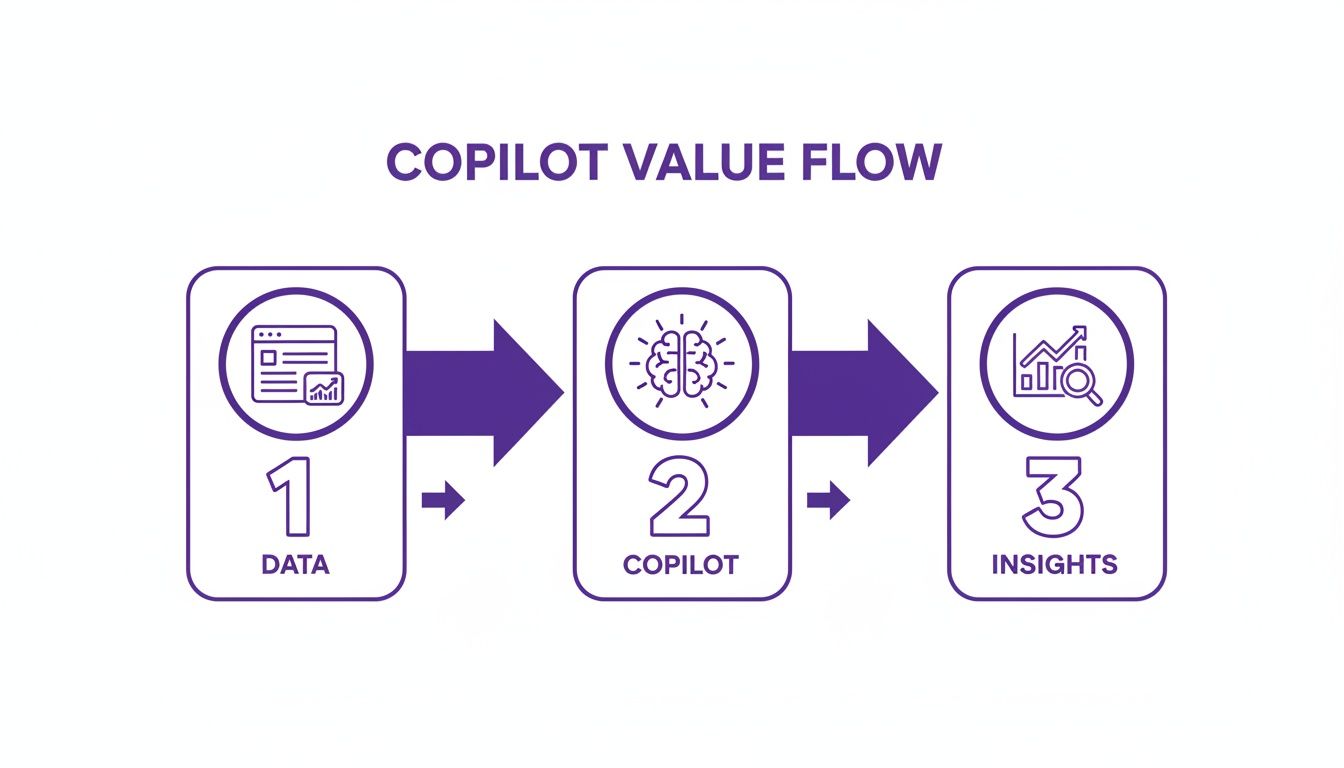
It’s the bridge between your complex data and the clear, actionable intelligence you need to make better decisions.
Ticking the Technical Boxes
Beyond licensing, there are a few technical checkboxes to tick. They aren't complicated, but they are essential for Copilot to work its magic in Excel.
First, your files absolutely must be in the cloud. Copilot needs to access your spreadsheets via OneDrive or SharePoint. If your team is still saving crucial workbooks to local desktops or an old on-site server, this is the perfect time to finalise that migration. It's a non-negotiable step for enabling Copilot.
Second, your Microsoft 365 Apps need to be on the right update schedule. Copilot is built on the latest features, so your organisation must be set to either the Current Channel or the Monthly Enterprise Channel. Your IT provider can easily check and manage this for you.
Finally, while not a strict requirement, we strongly recommend enabling Autosave. Since Copilot is interacting with your cloud files in real-time, having Autosave switched on ensures every change is captured instantly. It just makes for a much more seamless and reliable experience.
Getting these elements in place is the key to determining if your organisation is ready for Microsoft Copilot. It might feel like a bit of admin, but with the right licences, cloud storage, and app versions, your team will be perfectly positioned to unlock the full potential of AI in your spreadsheets.
Putting Copilot Prompts to Work on Everyday Tasks
Alright, with the setup out of the way, it’s time for the fun part: seeing what Copilot can actually do for your business. We're moving from theory to practice, looking at real-world scenarios you’ll encounter across your sales, finance, and operations teams. I’ll share some specific, ready-to-use prompts you can adapt for your own data.
The real magic of Copilot is its grasp of natural language. You no longer need to be a formula guru to dig deep into your spreadsheets; you just need to learn how to ask the right questions.
Crafting Prompts for Sales Analysis
Your sales data is a goldmine, but digging through it is often a slow, manual grind. Copilot can take over, turning those raw numbers into genuinely useful insights that help you understand team performance, spot trends, and find new growth opportunities.
Let's imagine you're a sales manager for a company in Leicester, staring at your quarterly results. You have a table named 'Q2_Sales' with columns for the sales rep, the product, and the revenue from each deal.
Instead of spending an hour filtering, sorting, and writing formulas, you could just ask Copilot:
"Analyse the data in the 'Q2_Sales' table. Show me the top 3 sales reps by total revenue and add a new column calculating their commission at a 5% rate for sales over £15,000."
In seconds, Copilot gets to work. It generates the formulas, adds the new 'Commission' column, and calculates the figures for your top performers. A task that could have easily eaten up your afternoon is done with a single sentence.
Here are a few other practical prompts to try with your sales team:
- "Which products are most frequently sold together? Look at the transaction data and find the top 5 product pairings."
- "Highlight all sales in the East Midlands region that are 20% below the average sale value for that region."
- "Create a pivot chart showing the monthly sales trend for our best-selling product over the last year."
Streamlining Financial Reporting
Finance departments practically live in Excel, handling everything from cash flow projections to expense tracking. The complexity can be intimidating, but Copilot makes sophisticated financial analysis far more accessible.
Think about a finance manager in Nottingham who needs to forecast the company's financial position. They have two sheets in their workbook: 'Expenses' and 'Revenue', both with historical monthly data.
What was once a seriously complex task becomes much simpler with a clear prompt:
"Forecast our cash flow for the next six months based on the historical data in the 'Expenses' and 'Revenue' sheets. Project the trend and show me the forecast in a line chart."
Copilot will analyse the past data, apply a forecasting model, and generate both the projected numbers and a visual chart. This gives the finance team a clear view of future cash positions so they can make decisions proactively, without spending hours wrestling with manual forecast models.
Optimising Operational Workflows
Beyond sales and finance, Copilot is a lifesaver for day-to-day operational tasks. Whether it's managing inventory, tracking project milestones, or cleaning up messy customer data, it handles the repetitive stuff, freeing your team to focus on work that actually requires their expertise.
Data cleaning is a perfect example. We've all been there—inconsistent data entry is a constant headache. If you have a column of postcodes with a mix of uppercase, lowercase, and missing spaces, a simple prompt can fix it instantly.
For a column named 'Postcode', you could just say:
"Format all entries in the 'Postcode' column to be uppercase and make sure there's a single space separating the two parts."
That one command saves you from the mind-numbing job of correcting each entry by hand, ensuring your data is clean and reliable. When you see how Copilot tidies up your workflows, it really puts the power of Artificial Intelligence Automation into perspective.
Big UK companies are already seeing the benefits. The energy giant Centrica noted that the tool has matured significantly, enabling powerful analysis right alongside documents and spreadsheets. This reflects a wider trend where formula generation assistance saw a 35% jump from late 2023 to early 2024, especially for tasks related to UK compliance.
Unleashing Creativity with Data
Copilot isn't just for number-crunching; it can also be a surprisingly good brainstorming partner. It can help you generate ideas and content directly within your spreadsheet, connecting your raw data to creative output.
Here are a few ways to use it for more creative tasks:
- Marketing Content: "Based on the product features listed in cells A2:A10, write five compelling marketing taglines for a social media campaign."
- SEO Keywords: "Generate a list of 20 long-tail SEO keywords related to 'managed IT support in the East Midlands' using the descriptions in the 'Services' sheet."
- Project Planning: "Create a project plan outline in a table. I need columns for Task, Owner, Start Date, and End Date for a new website launch."
By learning how to use Copilot effectively, you stop seeing Excel as just a calculation tool and start seeing it as a dynamic partner in your business. It makes data analysis accessible to everyone, allowing anyone on your team to ask complex questions and get immediate, accurate answers.
Ready to put these ideas into action? Phone 0845 855 0000 today or Send us a message to chat about how we can help you get Copilot working for your business securely and effectively.
From Raw Data to Insightful Dashboards
It’s easy to think that building a proper, insightful dashboard is a job reserved for specialised tools and data analysts. But that’s no longer the whole story. While those dedicated platforms certainly have their place, Copilot brings a surprising amount of that dashboard-building power right into the familiar grid of an Excel spreadsheet.
What I want to walk you through here is a real-world workflow: taking a messy, raw dataset and turning it into a clear, interactive dashboard. This isn't about one-off questions; it's about stringing commands together, starting with a broad look at the data and then drilling down into specific charts and summaries. The goal is to turn a static sheet of numbers into something a director can glance at and immediately understand.

Starting the Analytical Conversation
Let's say you're looking at a table named 'QuarterlySales'. It’s crammed with raw data from the last three months – a jumble of regions, products, sales figures, and dates. It's all there, but it’s not telling you a story yet. This is where you begin the conversation with Copilot.
You don't need to be precise. Start with a broad, open-ended prompt:
"Analyse the 'QuarterlySales' table and identify the key trends and any significant outliers in the data."
Copilot won’t just dump a wall of numbers back at you. It’ll give you a plain English summary. You might get a response pointing out that the East Midlands region is consistently outperforming others, or that a specific product line saw a strange dip in sales last month. This first prompt is your compass, showing you where to dig deeper.
From Insights to Visuals
Once Copilot has flagged the interesting parts of your data, the natural next step is to see them. This is how you start building the actual components of your dashboard. You just keep the conversation going with more specific, visual commands based on what it just told you.
For instance, you could follow up with:
- "Now, create a bar chart that compares the total revenue by region."
- "Generate a line graph showing the monthly revenue growth for the entire quarter."
- "Create a pie chart breaking down sales by product category."
With each command, another visual element pops onto your worksheet. In a matter of minutes, you can have a collection of charts that clearly illustrate your business performance, all without manually fiddling with Excel's charting tools. You’re turning that dense table into a story anyone can follow.
Refining and Polishing Your Dashboard
A great dashboard isn't just a random collection of charts; it’s organised, clean, and easy to interpret. Copilot can help with the finishing touches, too.
After you’ve got the core visuals in place, use prompts to tidy them up and add context.
- "Add data labels to the bar chart showing the exact sales figures for each region."
- "Change the colour scheme of all charts to match our company's branding colours."
- "Create a summary table above the charts showing the top three performing products and their total sales."
This back-and-forth process of analysis, visualisation, and refinement is what makes Copilot so effective. It’s like having a data assistant who handles the tedious parts, freeing you up to think about the bigger picture.
For any business wondering about the ROI, the efficiency gain is huge. A UK public sector case study on Buckinghamshire Council’s early adoption of Microsoft Copilot showed a 20% drop in task completion time for executive assistants. This saved them 60-90 minutes daily on reporting tasks alone. You can explore the findings of this UK public sector success with Copilot for more details on its tangible benefits.
The ability to move from a raw dataset to a shareable dashboard in minutes is a significant step forward. It empowers team members who aren't data analysts to uncover and present valuable business intelligence, fostering a more data-informed culture.
Of course, while Excel dashboards are brilliant for quick analysis, sometimes you need more horsepower. For those situations, dedicated platforms are the way to go. Our guide on how to create a Power BI dashboard is a great resource for when your data analysis needs get more complex.
By using Copilot to build dashboards directly in Excel, businesses across the East Midlands can make faster, more informed decisions. It closes the gap between simply having data and actually understanding it, giving you a clear path from a spreadsheet to genuine strategic insight.
Ready to transform your data analysis? Phone 0845 855 0000 today or Send us a message to learn how we can help you implement Copilot securely and effectively.
Best Practices for a Successful Rollout
Bringing any new technology into your business is more than just a technical exercise. For small and mid-sized businesses here in the East Midlands, the real win comes from embedding Copilot into your day-to-day work, not just switching it on. This means thinking just as much about your people and processes as you do about the software itself.
One of the first questions we always get is about data privacy, and it's a good one to ask. Let's be crystal clear: your company’s data is never used to train the public AI models. Copilot works entirely within your company's Microsoft 365 security bubble. It respects all the permissions and access rights you've already set, so sensitive information stays exactly where it should be—secure within your business.
Start Small and Build Momentum
Rather than flipping a switch for the entire company, we've seen far greater success with a phased rollout. Find a small, keen group to be your pioneers—maybe a team in finance or sales who live and breathe Excel and are excited by new ways of working.
Starting this way has some big advantages:
- Get Real-World Feedback: You’ll quickly see how Copilot handles your actual data and workflows, uncovering quick wins and ironing out any kinks.
- Create Internal Champions: This first group will become your in-house experts. Their success stories are powerful and will generate genuine excitement for a wider rollout.
- Tailor Your Training: Forget generic examples. The pilot phase is the perfect time to build training guides and best practices that speak directly to your business needs.
This controlled start is a fundamental part of good change management in digital transformation. It helps ensure the new tool is genuinely welcomed, not forced upon people.
Master the Art of the Prompt
The quality of what you get out of Copilot is entirely dependent on the quality of what you put in. It's the old 'garbage in, garbage out' principle, but for AI. You need to encourage your team to be specific and give Copilot context.
Don't just ask, "Analyse this data."
A much better prompt would be something like, "Analyse the sales data in the 'Q3_Revenue' table. Identify the top three products by profit margin and create a bar chart to visualise the comparison." That level of detail is what guides Copilot to give you a precise, genuinely useful result.
It's crucial to set realistic expectations. Copilot is an incredibly powerful assistant, but it's designed to enhance human expertise, not replace it. It's brilliant at speeding up tasks, sparking ideas, and finding patterns, but the final strategic calls and critical thinking still belong to your team.
The early results are looking very promising. Softcat, the UK's largest Microsoft partner, has been using Copilot since October 2023, finding efficiencies that any business in Nottingham or Grimsby can achieve. With 91% of firms using Copilot planning to expand its use and a 60% adoption rate among Fortune 500 companies already by early 2024, the opportunity for UK SMEs is undeniable. Our DBS-checked experts can ensure a cyber-secure integration, helping you turn Copilot into a powerhouse for your data analysis.
Invest in User Training and Support
Finally, don't skimp on training. Copilot is designed to be intuitive, but proper training is what unlocks its full potential and gives your team the confidence to really run with it.
Focus your training on a few key areas:
- Prompt Engineering Basics: Teach people how to write clear, effective prompts that get results.
- Use-Case Workshops: Run sessions dedicated to specific department needs, like financial modelling for the accounts team or sales forecasting for the sales team.
- Security and Privacy: Reassure everyone about how their data is being handled and reinforce your own company data policies.
- Keep the Learning Going: Set up a Teams channel where people can share tips, ask questions, and learn from each other's successes.
By combining a smart rollout with a solid plan for user training, you can ensure Copilot becomes a genuinely valued tool that drives real productivity across your business.
Ready to plan your Copilot rollout? Phone 0845 855 0000 today or Send us a message for expert guidance.
Ready to Take Control of Your Business Data?
As you can see, Copilot in Excel is much more than just a flashy new add-on. It’s a genuinely practical tool that can completely reshape how you work with your data every single day.
We’ve walked through how it slashes the time spent on routine tasks, helps you spot trends you might have otherwise missed, and gives your team the confidence to make smarter decisions, faster. The real magic happens when you implement it correctly, turning those endless spreadsheets into a source of genuine business intelligence.
If you’re ready to see what AI can really do for your business, we’re here to help. At F1 Group, our team specialises in deploying and managing Microsoft Copilot for businesses across the East Midlands, making sure you get the most out of your investment right from the start.
Fancy a no-obligation chat about getting Copilot up and running in your business? Give us a call on 0845 855 0000 or send us a quick message.
Your Top Questions About Copilot in Excel Answered
When a new piece of tech comes along, it’s only natural to have a few questions before diving in. We get it. To help you get a clear picture, here are some of the most common things we’re asked by businesses across the East Midlands.
Is Our Business Data Safe with Copilot?
This is usually the first question on everyone's mind, and thankfully, the answer is a firm yes. Your data is secure. Copilot is built on top of your existing Microsoft 365 security and privacy framework, so it inherits all the protections you already trust.
Crucially, Microsoft does not use your company’s data to train the public large language models (LLMs) that power the tool. Everything happens securely inside your own Microsoft 365 tenant. Your sensitive information never leaves your control and is protected by the same compliance and security policies you have in place today.
Does Copilot Work with Our Old Excel Files?
This is a good practical question. Copilot needs to work with modern file formats and be connected to the cloud to do its magic. It won't work with legacy Excel files, like those ending in .xls.
To get Copilot to analyse your data, your workbooks must be:
- Saved in the modern .xlsx or .xlsm format.
- Stored in OneDrive or a SharePoint document library.
If your team is still using older file types or saving everything to a local server, you’ll need to plan a migration to the cloud as a first step. It’s a prerequisite for unlocking what Copilot can do.
What's the Real Difference Between Copilot and Normal Excel Functions?
The biggest difference is how you get things done. With standard functions like SUM, VLOOKUP, or IF, you have to know the exact syntax and structure. You’re essentially speaking Excel’s language.
Copilot flips that around. It understands your natural, conversational language. You just describe what you want to achieve, and Copilot generates the right formula or chart for you. Think of it as an intelligent interpreter, bridging the gap between your goal and Excel's technical commands.
It's like having a toolbox full of powerful tools (standard functions) versus having an expert assistant by your side (Copilot) who knows exactly which tool to grab and how to use it, just by listening to what you need.
Can We Just Try Copilot with a Few People First?
Absolutely, and we highly recommend it. Microsoft’s licensing is really flexible—there's no minimum seat count for businesses, so you can buy a licence for just a single user if you want.
This makes a phased rollout the perfect strategy. Start with a small pilot team of keen users in a key department, like finance or sales. This is a brilliant, low-risk way to gather genuine feedback, build some internal success stories, and figure out the best way to train everyone else before you go company-wide.
Phone 0845 855 0000 today or Send us a message to get started.