
So, you’re ready to bring Microsoft Teams into your business. At its heart, Teams is all about creating a single, shared space where your team's conversations, files, and essential tools can live together. It cuts through the noise of scattered emails and disjointed file-sharing by creating dedicated digital workspaces for different projects or departments. This makes it so much easier for everyone to stay on the same page, whether they're sharing a desk in the office or working from home.
Getting Started Without Getting Overwhelmed

Jumping into any new platform can feel like a big step, but getting to grips with Microsoft Teams is far more straightforward than you might think. For businesses across the UK, especially here in the East Midlands, it’s become the go-to tool for keeping productivity high and teams connected.
The best way to approach it is by starting with the basics. Don't try to master every single feature on day one. Instead, we'll focus on the three critical first steps: picking the right licence, getting the app installed, and creating your very first Team. Nailing these fundamentals builds a solid foundation for your team's success.
Choosing the Right Licence for Your UK Business
Before your team can jump in, you’ll need to have the right Microsoft 365 or Teams licence in place. The options are designed to grow with you, covering everything from basic chat to advanced security features. From our experience, most small and medium-sized businesses find the best value in the "Microsoft 365 Business" plans.
Here’s a quick look at the most common licence options we see UK businesses choosing.
Microsoft Teams Licence Options for UK Businesses
| Plan | Key Features | Ideal For | Indicative UK Price (Per User/Month) |
|---|---|---|---|
| Microsoft Teams Essentials | Standalone Teams app, unlimited group meetings (up to 30 hours), 10 GB cloud storage per user. | Small businesses that primarily need a robust meeting and chat solution. | Around £3.20 |
| Microsoft 365 Business Basic | Web/mobile Office apps, Teams, Exchange email, 1 TB OneDrive storage. | Businesses needing professional email and cloud storage alongside Teams. | Around £4.90 |
| Microsoft 365 Business Standard | All Basic features plus full desktop versions of Office apps (Word, Excel, PowerPoint). | The most popular all-in-one choice for businesses wanting the complete productivity suite. | Around £10.30 |
Making the right choice from the start means you’re only paying for the tools you'll actually use, which is just smart business. These prices are indicative and can change, but they give you a solid idea of the investment.
Installing the App and Signing In
Once your licence is sorted, the next practical step is getting the software onto your computers and phones. You can download the Microsoft Teams desktop app for Windows or Mac directly from Microsoft. The mobile apps for iOS and Android are just as important—they're essential for keeping team members connected when they're away from their desks.
Signing in is straightforward. Just use the same email and password you use for your Microsoft 365 business account. The first time you log in, Teams will give you a quick tour of the layout, pointing out where to find your Chats, Teams, and Calendar.
The rise of Teams in the UK has been nothing short of remarkable. It now commands a dominant 44.78% market share in the business instant messaging space. During the massive shift to remote work, its usage skyrocketed by an incredible 894%, cementing its role as a non-negotiable business tool.
Creating Your First Team and Channel
With the app up and running, it's time to build your first digital workspace. The logic is simple:
- A Team is the high-level group of people working together, like your entire Marketing department or your Accounts team.
- A Channel is a focused conversation within that Team, dedicated to a specific topic, project, or task.
This structure is what keeps everything organised and prevents important information from getting lost.
For instance, imagine a marketing agency based in Lincoln. They could create a Team called "Marketing Department". Within that Team, they might set up several Channels:
- Q3 Campaign: For all discussions, files, and planning related to their third-quarter marketing drive.
- Social Media Content: A dedicated space for planning, drafting, and reviewing social media posts.
- General: The default channel for team-wide announcements, water-cooler chat, and anything that doesn't fit elsewhere.
By creating a logical framework right from the start, you give your staff in Nottingham, Leicester, and across the East Midlands a clear and effective hub for their work.
Mastering Everyday Communication in Teams
Once your Teams and Channels are set up, the real work begins: making day-to-day communication actually work for your business. Think of Microsoft Teams as more than just a chat app. It's the central hub for your business's information flow, designed to make sure important news gets seen and everyday chatter stays organised.
Getting beyond basic text messages is where you’ll see a huge jump in productivity. It means less time trying to make sense of endless email chains and more time acting on clear, concise information. For a project team in Derby, this can be the difference between a project running like clockwork and one getting bogged down in missed updates and confusion.
Making Your Messages Matter
Let's be honest, not all messages carry the same weight. A critical project update needs to stand out far more than a casual question about lunch. Teams gives you the tools to be intentional with your communication.
One of the simplest but most overlooked features is rich text formatting. Instead of just firing off plain text, click the 'Format' button (the 'A' with a pencil) below the message box. This unlocks a whole new world of clarity:
- Use bold, italics, or underlining to make key points pop.
- Create bulleted or numbered lists to lay out steps or options clearly.
- Highlight text when you need a specific word or phrase to be noticed.
- Insert links with proper descriptive text, which looks so much cleaner than pasting a long, messy URL.
This is especially powerful when you need to make an Announcement. By selecting 'Announcement' as your post type, you can add a headline and even a background colour or image. It’s perfect for a CEO in Leicester who needs to share a company-wide update and ensure it doesn’t just get scrolled past in the daily conversation.
A well-formatted announcement is instantly recognisable and signals importance. It cuts through the noise, ensuring that everyone from the shop floor to the management team sees the message, which does wonders for internal communication.
Managing Notifications and Your Availability
Constant pings and pop-ups are a productivity killer. A big part of using Teams well is learning how to manage your notifications – and respecting how you notify others.
Your status message is a brilliant, simple way to let people know what you're up to. Set your status to 'Busy', 'Do not disturb', or 'Away'. Better yet, write a custom message like, "Head down on the Q3 report until 2pm – will reply then". It’s a proactive way to manage expectations and cut down on interruptions.
And for those moments when a message is genuinely critical? Use urgent notifications. When you write a message, click the exclamation mark icon to set its importance. Marking it as ! Important flags it in the channel, but marking it as !! Urgent is the real game-changer. It notifies the person or channel every two minutes for a full 20 minutes until it's read. Use this one sparingly, but it's invaluable for those time-sensitive issues that absolutely cannot wait.
Running More Effective Meetings
Meetings are a cornerstone of business, but they can also be a massive time-drain if they aren't managed properly. Teams is packed with features designed to make every meeting more productive and inclusive from start to finish.
When you schedule a meeting, always put a clear agenda in the invitation details so people can come prepared. During the meeting itself, get your team into the habit of using these built-in tools:
- Live Captions and Transcription: These features make meetings more accessible for everyone. A live transcript creates a searchable record of the conversation, which is incredibly useful for anyone who missed the meeting or needs to recall a specific detail later on.
- Breakout Rooms: For larger meetings or workshops, you can split participants into smaller, focused groups. This encourages real discussion far better than trying to have a conversation with twenty people all at once.
- Raise Hand and Chat: Encourage people to use the 'Raise Hand' feature to ask questions without interrupting the speaker. The meeting chat is also perfect for sharing links or asking side questions that don't need to derail the main conversation.
By adopting these practices, your meetings will become focused, interactive sessions rather than just passive listening exercises. And for businesses looking to integrate their phone systems directly into this environment, understanding how the Microsoft Teams Phone system works can create a truly unified communication platform.
Collaborating on Files and Projects
Microsoft Teams is so much more than just a chat app; it's where your real work happens. Once you move past messaging, you'll discover a powerful, all-in-one space for file collaboration and project management that genuinely cuts down on the time your staff spend bouncing between different applications.
When someone shares a file in a Teams channel, it doesn't just vanish into the ether. Every file is automatically saved in a dedicated SharePoint site built just for that Team. This is a game-changer because it means all your shared documents instantly benefit from enterprise-grade version control and security.
This is where the different communication methods in Teams really come together to support collaborative work.
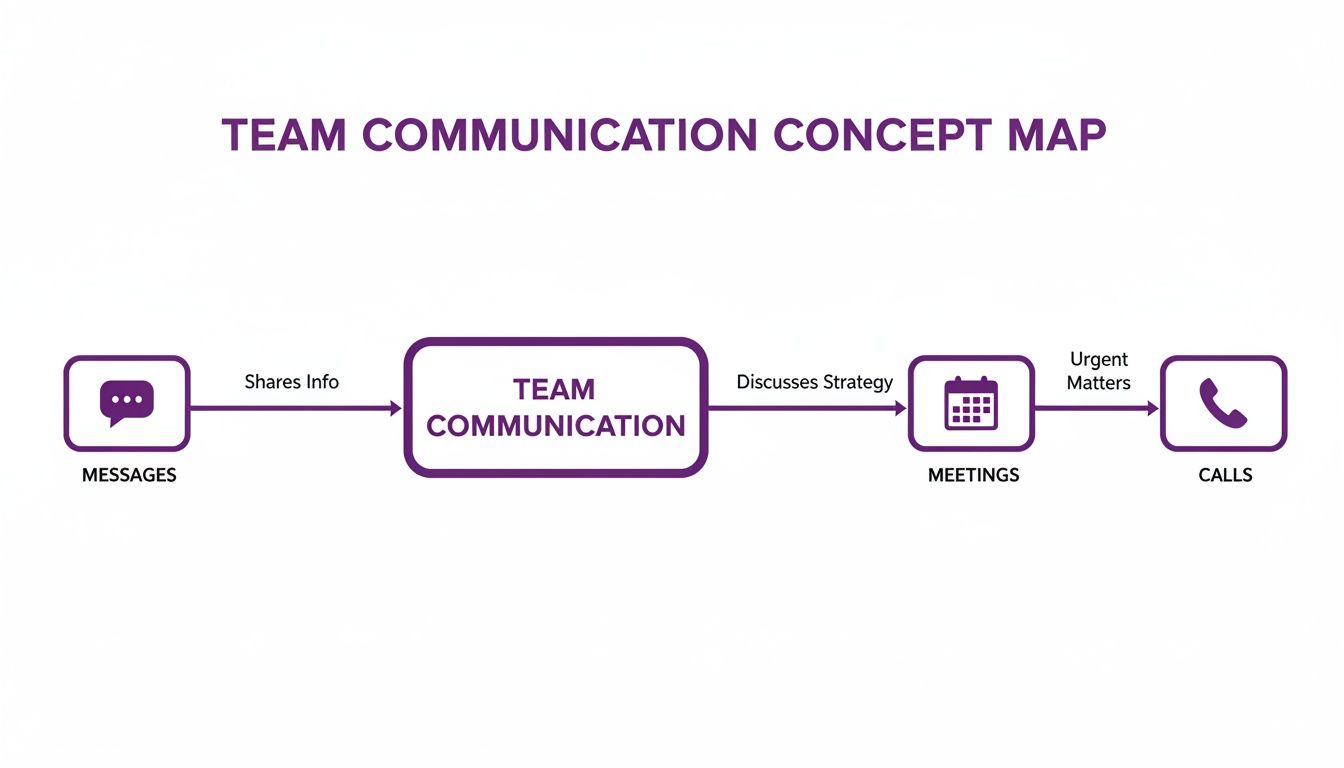
As you can see, messages, meetings, and calls each have their place, creating a complete system that keeps everyone on the same page.
Understanding Where Your Files Live
To get the most out of Teams, it’s vital to know where your files are actually being stored. It's a common point of confusion, but the logic is straightforward. Any file shared in a one-on-one or group chat is saved in the sharer’s personal OneDrive for Business folder. In contrast, every file uploaded to a channel goes straight into the Team’s SharePoint site. Grasping this is key, and understanding the differences between SharePoint and OneDrive will seriously optimise how you manage your files.
Here’s an easy way I tell my clients to remember it:
- OneDrive: Think of this as your personal cloud drive. It's for your own work files, rough drafts, and anything you're not ready to share with the whole team. It's "My Documents," but accessible from anywhere.
- SharePoint: This is the team's shared filing cabinet. It’s for documents that belong to a specific project or department and need to be accessible to everyone in that channel.
This distinction is the bedrock of good permissions management. Files in a channel automatically inherit their permissions from the Team's membership list, so you never have to worry about the wrong people gaining access.
Real-Time Co-Authoring and Seamless Sharing
Here's where the magic really happens. One of the most powerful features in Teams is the ability for multiple people to edit the same document at the exact same time. It's called co-authoring, and it completely transforms how teams work together.
Imagine your sales team in Newark trying to finalise a proposal. Instead of the old, painful process of emailing different versions back and forth, they can simply open the Word document right inside their Teams channel. They’ll see each other’s cursors moving and changes appearing in real-time, allowing them to collaborate, add comments, and perfect the document together.
By keeping all file collaboration inside Teams, you eliminate version confusion for good. The file in the channel is always the single source of truth everyone can trust. This simple shift saves countless hours and prevents expensive mistakes.
And this isn't just for Word documents. This collaborative power extends across the entire Microsoft 365 suite. You can pin an Excel spreadsheet with project costs or a PowerPoint presentation to the top of a channel as a tab for quick access. You can even share and discuss a Power BI sales report directly in a channel conversation, making sure everyone is looking at the same live data.
Integrating Your Essential Tools
Let's be realistic—no business runs on a single application. A huge part of using Microsoft Teams effectively is bringing your other essential tools into the workspace using custom tabs. This is what elevates Teams from a communication app to a true work hub.
Instead of your team having to juggle a dozen browser tabs for different services, you can add those services directly into the relevant channel.
- Project Management: Add Microsoft Planner (now part of Tasks) or even a third-party tool like Trello or Asana as a tab. This lets you manage project tasks and deadlines right where the project conversations are happening.
- Customer Relationship Management (CRM): Pin your Dynamics 365 dashboard to the sales channel tab. Now your team can pull up customer records in a second without ever leaving Teams.
- Content and Wikis: Use the built-in Wiki tab to create a simple knowledge base for a project, or add a tab for a shared OneNote notebook for more detailed meeting notes and brainstorming sessions.
Integrating these apps creates a truly seamless workflow. It not only makes life easier for your employees but also gives your business an efficiency boost by keeping every project-related tool and piece of information in one organised, central place.
Boosting Productivity with AI and Automation

Once your team is comfortable with chats, channels, and files, you can unlock the next level of efficiency in Microsoft Teams. This is where we move beyond simple communication and start making Teams do the heavy lifting for us through smart automation and AI.
We're not talking about needing a developer on staff. The magic here lies in using two powerful tools from the Microsoft ecosystem: the Microsoft Power Platform and the AI assistant, Microsoft Copilot. Integrating these into Teams turns it from a collaboration space into a genuine productivity powerhouse.
Automating Everyday Tasks with Power Automate
Think about all the small, repetitive tasks your team does every day. What if you could automate them? That's exactly what Power Automate is for. It lets you build automated workflows (Microsoft calls them 'flows') that connect your apps and services.
Inside Teams, you'll find this functionality within the 'Workflows' app. You can get started quickly with pre-built templates or create your own from scratch. It’s surprisingly straightforward.
Here’s a real-world example we often set up for our clients in the East Midlands. A sales team has a channel for "New Leads," but messages can easily get buried. We can build a flow that:
- Triggers every time a message in that specific channel contains the word "client".
- Automatically creates a new task in a Planner board for the sales manager.
- Populates the task with the content of the original Teams message, so no context is lost.
It’s a simple setup, but it means no lead ever falls through the cracks again. That's the kind of practical automation that makes a real difference.
Heads Up: Microsoft is retiring the old Office 365 Connectors by the end of 2025. All that functionality is moving to Power Automate, so getting your team familiar with building these simple flows now will put you well ahead of the game.
Transforming Your Workday with Microsoft Copilot
This is where things get really exciting. Microsoft Copilot is an AI assistant built directly into Microsoft 365, and its integration with Teams is a game-changer. It understands the context of your work—your chats, meetings, and documents—to provide intelligent help that slashes your admin time.
The impact is already clear. A recent UK report revealed that SMEs using AI tools like Copilot within Teams are seeing productivity boosts from 27% to 133%. With 25% of UK businesses now using AI, having it embedded in familiar apps removes the learning curve. You can read more about how AI is boosting productivity for UK SMEs on itbuilder.co.uk.
So, what does Copilot actually do inside Teams?
-
Summarise Long Conversations: Came back from holiday to a wall of text? Instead of scrolling for an hour, just ask Copilot to "summarise this conversation." It will instantly pull out the key discussion points, decisions made, and any action items.
-
Generate Meeting Notes: In a Teams meeting, Copilot can transcribe everything being said. Afterwards, it can generate a perfect summary, complete with a list of action items and who they were assigned to. This feature alone is a massive time-saver.
-
Draft Replies and Messages: Stuck on how to phrase something? Tell Copilot what you want to say. For instance, "Politely decline this meeting and suggest a new time next week." It will write a professional draft for you to check and send.
Think of a local charity in the East Midlands planning a fundraiser. The team could use Copilot to summarise all the scattered volunteer coordination chats. Then, a Power Automate flow could take that summary and automatically assign the agreed-upon tasks in Planner.
When you start combining these tools, you're not just using Teams to talk—you're using it to work smarter, not harder. If you're looking to get your business ready, you can explore our guide on how to prepare for Microsoft AI Copilot.
Getting to Grips with Security and Governance
As a business owner, keeping your company's data safe is one of those responsibilities that keeps you up at night. As your team gets comfortable with Microsoft Teams, it's crucial to lay down some ground rules from the very beginning. Getting your security and governance right from day one will save you a world of pain later on.
This isn't about creating a complex, restrictive system. It's about being deliberate. The aim is to build a digital workspace that feels both productive and secure, giving your team the freedom to collaborate without putting your valuable information at risk.
Of course, your Teams security is only as strong as the network it sits on. This means thinking about the bigger picture, like addressing critical security vulnerabilities in network devices to fend off external threats.
Your Control Panel: The Teams Admin Centre
All the controls you'll need are waiting for you in the Microsoft Teams Admin Centre. It can look a bit daunting at first glance, but you only need to focus on a few key areas to seriously strengthen your organisation's security. Think of it as your digital HQ for managing how everyone uses the platform.
This is where you move from just using Teams to actively managing it. You can put clear rules in place that stop the digital clutter and confusion that so often lead to lost files and messy communication.
Good governance isn't about locking things down; it’s about providing clear guardrails. When people have a clear framework for creating teams or sharing files, they can work more confidently and securely.
A great place to start is deciding who can create new Teams in the first place. For most smaller businesses, I always recommend limiting this ability to just a few key people, like department heads or your IT lead. This one simple change prevents a sprawl of duplicate or pointless teams, keeping everything organised and easy to navigate.
Essential Policies for East Midlands SMBs
Once you've got that basic structure sorted, you can turn your attention to a few specific policies. These offer the biggest security bang for your buck without causing massive disruption, which is perfect for small and medium-sized businesses that don't have a dedicated compliance department.
Here are the top three areas I'd tackle first:
- Team Naming Conventions: Get a policy in place that automatically adds a prefix or suffix to team names. For example, "MKT – Project Alpha" immediately tells you it belongs to the marketing team. It’s a small thing that makes managing and finding teams so much easier down the line.
- Guest Access Controls: You need to be crystal clear about what external guests can and cannot do. Can they share files? Can they start a new channel? By default, guest permissions are quite generous, so it's vital to review these settings and restrict them to only what's absolutely necessary for collaboration.
- Data Loss Prevention (DLP): Set up a few simple DLP policies to automatically spot and block the sharing of sensitive data, like credit card details or National Insurance numbers. Think of it as an automated safety net that protects your business from costly, accidental data leaks.
The One Thing You Absolutely Must Do: MFA
If you only do one thing from this entire guide, make it this: enforce multi-factor authentication (MFA) for every single user.
MFA adds a second layer of security, usually a code from a phone app, on top of a password. It makes it incredibly difficult for someone to get into your account, even if they've managed to steal a password. Honestly, this single setting is your most powerful defence against a massive range of cyberattacks.
The sheer scale of Teams adoption highlights why this is so critical. By 2026, Microsoft Teams is used by over 320 million people every day, and more than 90% of Fortune 100-equivalent companies rely on it. With that many organisations on board, security has to be the top priority. You can see more on how Teams adoption is shaping business practices at The VoIP Shop.
By combining strong authentication like MFA with clear governance from the Admin Centre, you’re well on your way to creating a secure, organised, and efficient digital workspace.
Driving Adoption and Measuring Your Success
Let’s be honest: just installing a new piece of software and sending out a company-wide email doesn't work. The real win comes when your team actually uses it, and more importantly, wants to use it. Making Microsoft Teams a success in your business is far more about people and habits than it is about technology. It's about showing everyone, from the shop floor to the management team, how it genuinely makes their day-to-day tasks easier.
A fantastic way I’ve seen this work for businesses across the East Midlands is by creating an internal ‘Champions’ network. You likely already know who these people are—the ones who are naturally curious about new tech and are always happy to help a colleague. Hand-pick a few of these enthusiastic staff from different departments.
These champions become your on-the-ground advocates. They offer informal, over-the-shoulder support and share handy tips they've picked up. This kind of peer-to-peer help is often gold because it's instant, relatable, and comes without the pressure of a formal training session.
Building Momentum and Measuring Impact
To back up your champions, think about running short, punchy training sessions. Forget long, draining overviews that cover everything at once. Instead, try a 20-minute 'lunch and learn' on "Mastering Meetings" one week, and "File Collaboration Tricks" the next. This approach respects that everyone is busy and gives them practical skills they can use straight away.
So, how do you know if any of this is actually working? You have to look at the data. This is where the Microsoft Adoption Score becomes your best friend. Tucked away in the Microsoft 365 admin centre, this tool gives you a clear, data-backed picture of how your organisation is using Teams and other M365 apps.
The Adoption Score isn't just a report card; think of it as a diagnostic tool. It stops you from guessing about who's using what and gives you real data to pinpoint exactly where your team might need a bit more support.
The score breaks down usage into key areas like Communication, Meetings, and Collaboration. For example, if you notice a low score in the 'Meetings' category, it might be a clear sign that people aren’t using powerful features like screen sharing, polls, or recording. That's your cue to schedule a quick session focused specifically on making meetings more interactive.
By pairing a human-focused strategy like a Champions network with the hard data from the Adoption Score, you can see the real-world impact of your investment. It helps you turn the rollout of a new tool into a measurable success story for your business.
Answering Your Top Microsoft Teams Questions
When we help businesses across the East Midlands roll out Microsoft Teams, a few key questions almost always come up. Let's get you some straight answers based on our experience.
What's the Real Cost of Microsoft Teams in the UK?
There's a free version of Teams, which is a great way to dip your toes in the water with basic chat and online meetings. It’s a solid starting point for very small teams or casual use.
However, the real power of Teams is unlocked with a Microsoft 365 subscription. For most businesses, this is the only way to go. Plans like Business Basic (costing around £4.90 per user, per month) or Business Standard (at about £10.30 per user, per month) are popular choices because they bundle Teams with the other tools you use every day, like a professional email address and cloud storage.
Can I Use Teams to Call Landlines and Mobiles?
Yes, you can, and it's a game-changer for many businesses. Your standard Teams account lets you make video and audio calls to anyone else on Teams, but to reach a regular phone number, you need an add-on.
This feature is called Microsoft Teams Phone System. Once you add a calling plan, Teams effectively becomes your complete office phone system. It means all your communication—internal chats, team meetings, and external phone calls—lives in one place. It’s a fantastic way to simplify your tech and cut ties with an old, clunky phone system.
Just How Secure is Our Company Data in Teams?
Microsoft takes security incredibly seriously, and Teams is built on an enterprise-grade foundation. It has multiple layers of protection built right in.
Key security measures like data encryption, both in transit and at rest, are standard. This ensures that your files and conversations are shielded from unauthorised access.
Security isn't just a switch you flip; it's a process. Microsoft provides the robust tools, but your internal policies are what make them truly effective. We saw this in our deep dive on security earlier.
Ultimately, keeping your data safe comes down to combining Microsoft's features with your own smart practices. Things like enforcing multi-factor authentication (MFA) for logins and setting clear rules for guest access are non-negotiable. Proper configuration is absolutely vital.
Ready to secure your Microsoft Teams environment? Phone 0845 855 0000 today or Send us a message for expert guidance.
Ready to get the most out of Microsoft Teams for your business? For expert IT support and guidance in the East Midlands and beyond, Phone 0845 855 0000 today or Send us a message.