
Are you drowning in manual data entry, chasing approvals, and constantly juggling disconnected apps? It’s a common story. Power Automate is Microsoft’s answer to this problem, letting you build automated workflows (called ‘flows’) that link your favourite apps and services. Think of it as a way to synchronise files, get notifications, and collect data without you having to lift a finger every time. It's a remarkably practical tool for solving everyday business headaches.
Unlocking Efficiency with Business Process Automation
Repetitive, manual jobs are the silent productivity killers in so many UK businesses. Whether it's chasing invoice approvals or copying data from a spreadsheet into another application, these tasks eat up time that your team could be spending on work that actually drives growth. This is where a tool like Power Automate really comes into its own, acting as the digital glue between all the different systems your business uses.

Why Automation Matters for UK Businesses
Let’s take a real-world example. Imagine a manufacturing firm in Lincoln that turns its chaotic invoice processing into a slick, automated system. Instead of someone having to manually download an email attachment, save it to the right folder, and then ping a manager for approval, Power Automate can do it all. The moment an invoice lands in a specific Outlook inbox, a flow can save the attachment to SharePoint and instantly notify the right person in Microsoft Teams to approve it.
This is a perfect example of effective business process automation. If you want to get to grips with the wider strategy behind this, our guide on what is business process automation is a great place to start.
What really gives Power Automate its edge is how deeply it's woven into the Microsoft ecosystem. It connects the dots between the tools your team already relies on, making them work together far more intelligently.
- Microsoft 365 Integration: You can automate tasks across Outlook, SharePoint, Teams, Excel, and more.
- Dynamics 365 Synergy: Build workflows that trigger actions directly within your CRM or ERP systems.
- Azure Connectivity: For more complex needs, you can link your automations to powerful cloud services.
By bringing these platforms together, you can design some seriously powerful, end-to-end solutions that are built around how your business actually operates.
Our goal here is to strip away the jargon and show you the real-world benefits: saving huge amounts of time, dramatically reducing human error, and freeing up your people for the work that matters.
Learning to use Power Automate isn’t about turning everyone into a developer. It's about giving your team the ability to spot a bottleneck and build a simple, effective solution for it. The result is a more responsive, productive, and competitive business.
Ready to transform your business processes? Phone 0845 855 0000 today or send us a message to discover how we can help.
Your First Look at the Power Automate Interface
Jumping into a new tool can feel a bit overwhelming, but the team behind Power Automate has done a great job of making the platform approachable. You really don't need a background in coding to get started. Let's walk through the main environment together.
The moment you sign in, you land on the home screen. This isn’t just a welcome mat; it’s your command centre. It immediately shows you popular templates and connectors, which are fantastic shortcuts for getting common tasks automated quickly. I always think of this page as the launchpad for any new project.
Almost everything you need to do starts from the navigation menu on the left. This is where you’ll toggle between building new flows and checking on the ones you already have running. Getting comfortable with this menu is the first real step to becoming proficient with the platform. It's designed to be intuitive, so everything you need is usually just a click away.
Core Navigation Areas Explained
Let's quickly break down the most important sections on that left-hand menu. These four areas are where you'll spend nearly all of your time.
- Create: This is where the real work begins. You'll head here whenever you want to build a new flow from the ground up, whether it's an automated, instant, or scheduled one.
- Templates: Why start from scratch if you don't have to? This section is a huge library of pre-built flows for common business needs. It's an absolute time-saver.
- My flows: Every flow you create or save from a template lives here. This is your personal dashboard for editing, enabling/disabling, and checking the run history of all your automations.
- Connectors: This is essentially the address book of all the apps and services that Power Automate can communicate with. With hundreds of options, from SharePoint and Outlook to services like Twitter and Dropbox, this is where you see just how powerful the integration possibilities are.
Knowing what each of these does helps you move around with confidence, so you know exactly where to go to start something new or check on a process that's already running.
Understanding Triggers and Actions
At its core, every single flow is built from two simple components: a trigger and one or more actions. Once you get your head around this concept, everything else falls into place.
A trigger is the event that starts your automation. An action is the task that gets performed in response. You can't have an action without a trigger to kick things off.
Here’s a simple analogy: receiving an email from a specific client (the trigger) prompts you to save its attachment into a project folder (the action). Power Automate just takes care of that process for you, every single time.
A brilliant way to get a feel for this is to dive into the Templates section. Try searching for "Save Microsoft 365 email attachments to OneDrive for Business". When you select it, Power Automate walks you through connecting your accounts (like Outlook and OneDrive) and builds the flow for you. It's a simple, confidence-building exercise that shows just how accessible this kind of automation really is.
Ready to transform your business processes? Phone 0845 855 0000 today or Send us a message to discover how we can help.
Building Your First Automation Flows From Scratch
Alright, enough theory. The best way to really get to grips with Power Automate is to roll up your sleeves and build something. We’re going to walk through creating the three most common types of flows, each solving a real-world problem I see all the time with UK small and medium-sized businesses.
First, we'll tackle an Automated cloud flow that springs into action when something specific happens. Then, we’ll create an Instant cloud flow you can fire off with the tap of a button. Finally, a Scheduled cloud flow that runs like clockwork. By the time we're done, you'll have three practical automations up and running and a solid understanding to build on.
Remember, every flow boils down to a simple concept: a trigger kicks things off, and one or more actions get the job done.
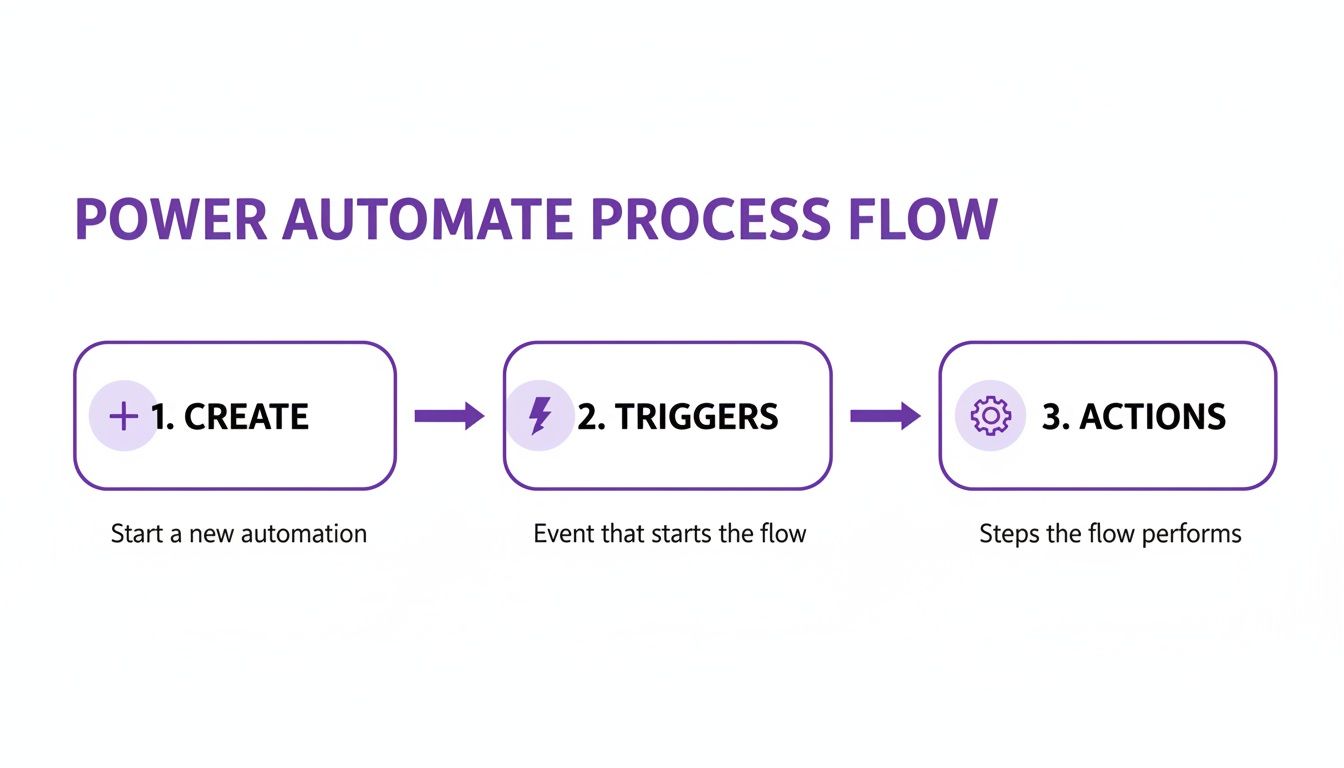
This "trigger and action" model is the foundation for everything you’ll do. Let's start with a classic.
Your First Automated Cloud Flow: The Invoice Processor
Automated flows are the true workhorses of Power Automate. You set them up once, and they run quietly in the background, saving you countless hours. A perfect first project for any business is handling supplier invoices that arrive by email.
Let’s build a flow that automatically:
- Triggers the moment a new email lands in a dedicated Outlook folder (e.g., 'Invoices to Process').
- Checks to make sure the email actually has an attachment.
- Saves that attachment into a specific SharePoint folder (like 'Finance > Pending Invoices').
- Pops a message into a Microsoft Teams channel to let the finance team know it's there.
To get started, head to the Create page and pick Automated cloud flow. Give it a clear name, something like "Process Incoming Supplier Invoices". For the trigger, search for "When a new email arrives (V3)", connect it to your Microsoft 365 account, and point it to the folder you want to watch.
From there, you'll add your actions. The first is a Condition check. This is crucial – you only want the flow to proceed if there are attachments. If the condition is met, you add the "Create file" action for SharePoint, telling it where to save the file and what to call it. To finish, add the "Post message in a chat or channel" action for Teams. Just like that, you’ve automated your invoice intake.
Your Second Flow: The Instant Calendar Blocker
What about tasks you do repeatedly but not on a schedule? That’s where Instant flows shine. You trigger them manually, often from your phone, making them perfect for those little on-the-spot jobs.
A brilliant example is blocking out an hour in your calendar for deep work. Instead of clicking through your calendar every time, let's build a one-tap button to do it for you.
Here’s the plan:
- Trigger: Manually run the flow from a button.
- Action: Instantly create a new one-hour event in your Microsoft 365 Outlook calendar.
From the Create screen again, this time choose Instant cloud flow. Select "Manually trigger a flow" as the trigger and name it something intuitive like "Block 1 Hour for Focus Time".
Next, add the "Create event (V4)" action for Outlook. The magic here is using expressions to make the timing dynamic. For the Start time, use the expression utcNow(), and for the End time, use addHours(utcNow(), 1). This tells Power Automate to always block out the next 60 minutes from the exact moment you press the button. Set a default subject like "Focus Time – Do Not Disturb", save it, and it will appear as a button in your Power Automate mobile app.
This kind of personal, on-demand automation is exactly what makes low-code platforms so powerful. It gives you the ability to solve your own productivity niggles without needing a developer. To dive deeper into this concept, check out our guide on what is low-code development.
Comparing Power Automate Flow Types
Choosing the right flow type is the first step to successful automation. This quick table breaks down the key differences to help you decide which one fits your needs.
| Flow Type | Trigger | Common Use Case | Example for a UK SMB |
|---|---|---|---|
| Automated | An event occurs in a connected app (e.g., new email, file created). | Background processes that respond to actions without user input. | Automatically saving a new client's signed contract from an email to SharePoint. |
| Instant | Manual user action (e.g., clicking a button on a mobile device or in an app). | Repetitive, on-demand tasks that you want to start immediately. | A site engineer using a mobile button to log a completed job, which sends a notification to the office. |
| Scheduled | A predefined time and frequency (e.g., daily at 9 AM, weekly on Friday). | Regular, time-based tasks like reporting, reminders, or data syncing. | Sending a weekly summary of overdue invoices from Dynamics 365 to the accounts team every Monday morning. |
As you can see, each flow type has its own speciality. Mastering when to use each one is key to getting the most out of the platform.
Your Third Flow: The Scheduled Daily Report
Last but not least, we have Scheduled flows. These are your go-to for anything that needs to happen on a regular basis – daily reports, weekly reminders, or monthly data clean-ups.
Let's build a flow that sends a daily summary of new leads from a SharePoint list directly into the sales channel in Microsoft Teams. This way, the team can kick off their day with the latest opportunities right in front of them.
This flow will:
- Trigger: Run automatically every weekday morning at 8:00 AM.
- Action: Fetch all new items from a SharePoint list named 'New Leads'.
- Action: Neatly format those items into an easy-to-read table.
- Action: Post that table as a message in the sales team's Teams channel.
Back on the Create page, pick Scheduled cloud flow. Call it "Daily Sales Leads Summary" and configure the schedule to run every 1 day, making sure to select only the weekdays (Monday to Friday).
First, add the "Get items" action, pointing it to your SharePoint site and the 'New Leads' list. Next, use the "Create HTML table" action to turn that raw data into a clean table. The final step is to use the "Post message in a chat or channel" action, dropping the output from the HTML table right into the message body. Now, your sales team gets a fresh report every morning without anyone lifting a finger.
Connecting Power Automate with Your Business Systems
The real power of automation isn't just about making one task easier; it's about breaking down the walls between all your different business applications. While a standalone flow is useful, the magic really happens when Power Automate acts as the central hub, tying your separate systems into one cohesive operation. For most UK businesses, this journey starts within the familiar world of the Microsoft stack.

This ability to weave everything together is precisely why Power Automate has become a cornerstone for so many organisations. Just look at the success of UK Power Networks, which saw a 96% adoption rate and an incredible 480% ROI from an integration involving Power Automate. For our clients across the East Midlands—in Nottingham, Leicester, Grimsby, and beyond—this isn't just a statistic; it's proof of the real, measurable gains possible with properly implemented automation. You can read more about their story over on Microsoft's UK stories website.
Deep Integration with Microsoft 365 and Dynamics 365
Chances are, your business already runs on Microsoft 365. The good news is that Power Automate isn’t just compatible with these tools; it’s woven into their very fabric. This native connection means you can build powerful workflows without getting bogged down in complex configurations.
Think about a common headache: document approvals. You can set up a flow that triggers the moment a new policy document is uploaded to a specific SharePoint library. It could then automatically post an approval request in a Teams channel, tagging the right manager. Once they approve it with a single click, the flow can move the file to an "Approved Policies" folder and send out a confirmation email. Simple.
The possibilities are practically endless:
- Outlook & Planner: Automatically create a new task in Microsoft Planner whenever an email from a key client is flagged as important.
- Excel & SharePoint: Build a flow that reads new rows from an Excel spreadsheet in OneDrive and uses that data to populate a SharePoint list.
- Forms & Teams: Instantly post the results of a Microsoft Forms survey into a designated Teams channel for immediate discussion.
This deep connectivity extends right into Dynamics 365 as well. A classic, high-impact use case is automating sales follow-ups. You can create a flow that watches for a new lead being added to Dynamics 365 Sales. The moment it appears, the flow can schedule a follow-up task in the assigned salesperson's Outlook calendar, ensuring no opportunity ever slips through the cracks.
Extending Your Reach with Azure and Third-Party Connectors
While Microsoft 365 and Dynamics 365 cover a huge amount of ground, Power Automate's capabilities don't end there. For more complex or demanding scenarios, it can connect directly with Microsoft Azure's powerful services. This opens the door to enterprise-grade solutions, like triggering a flow based on an alert from Azure Monitor or writing data directly to an Azure SQL Database.
But what about all the tools your business uses that aren't from Microsoft? This is where the vast connector library comes into its own. With hundreds of pre-built connectors, you can link Power Automate to a massive range of third-party services.
The connector library is your bridge to the wider world. It lets you integrate with everything from social media platforms like X (formerly Twitter) and LinkedIn to other business mainstays like Salesforce, Dropbox, or Mailchimp.
This means you could build a flow that posts a marketing update to all your social media channels simultaneously. Or one that adds a new subscriber from your website's contact form directly into your Mailchimp mailing list. The process is the same as connecting to a Microsoft service: you choose the connector, authenticate your account, and then pick the triggers and actions you need.
When Expert Guidance Becomes Invaluable
As you start designing flows that span multiple systems—especially those handling sensitive customer or financial data—the complexity can ramp up quickly. Making sure data is mapped correctly, that the flow can handle errors gracefully, and that the entire process is secure becomes absolutely critical.
This is often the point where partnering with an automation expert pays dividends. An experienced team can help you navigate tricky integrations, build custom connectors for your bespoke systems, and establish a reliable framework. It’s about ensuring your data flows not just automatically, but also securely and reliably across your entire operation, turning your collection of apps into a truly connected business.
Ready to connect your systems and automate your success? Phone 0845 855 0000 today or Send us a message to discuss how we can build the integrations your business needs.
Governance, Security, and Licensing Done Right
When your team really starts to embrace Power Automate, you'll find flows popping up everywhere. That's fantastic, but it's also the point where you need to think bigger. It's time to build a solid framework to manage everything.
Good governance isn’t about bureaucracy or slowing people down. It’s about making sure your automations are secure, compliant, and cost-effective as you grow. This is where you shift from simply building individual flows to managing a proper automation strategy for the whole business.
A great place to start is with licensing. Many Microsoft 365 plans already give you the green light to use Power Automate with standard connectors like Outlook and SharePoint. But if you want to tap into premium services like Dynamics 365, Salesforce, or use advanced features like AI Builder, you’ll need to step up to a premium licence.
Thinking about security from day one will save you a world of pain later on. Just look at UK Power Networks, which serves 8.5 million homes and businesses. They’ve masterfully woven Power Automate into their operations, proving these tools can be securely integrated at a massive scale to boost both productivity and safety. You can read more about how they turbocharged operations with Microsoft technologies.
Demystifying Power Automate Licensing
Getting your head around the licensing model is crucial for avoiding any nasty surprises on your bill. Microsoft has a few different tiers, each built for different scenarios. Getting this right means you only pay for what you actually need.
- Included with Microsoft 365: Perfect for internal automations. Most business plans let you create unlimited flows using standard connectors, so you can easily connect tools like Teams, Planner, and SharePoint.
- Power Automate Premium: This is a per-user plan you'll need for premium connectors or attended Robotic Process Automation (RPA). In the UK, you're looking at around £12.30 per user, per month.
- Power Automate Process: This one is licensed per bot, not per user. It's built for those heavy-duty, unattended automations that run in the background. Prices start from around £123.10 per bot, per month.
The key is finding the right mix. Your marketing manager might be perfectly happy with the standard licence, but the finance team connecting to a third-party accounting system will definitely need the Premium plan.
Creating a Secure Framework for Automation
With automations zipping data across your business, you absolutely must control how that information moves. This is exactly what Data Loss Prevention (DLP) policies are for. Think of them as a set of rules you create in the Power Platform admin centre to dictate which connectors can be used together.
You could, for instance, set up a policy that allows data to flow freely between SharePoint and Outlook but slams the door shut on any attempt to send that same SharePoint data to a personal Dropbox account. It's a fundamental part of building a strong security posture.
DLP policies are your first line of defence against accidental data leaks. They allow you to define clear boundaries, ensuring sensitive company information stays within your secure, managed environment.
Another smart move is to set up separate environments for development, testing, and production. Giving your team a 'sandbox' environment to build and experiment in means they can innovate without any risk of breaking live business processes. This structured approach to change management is a non-negotiable for any organisation serious about automation. A big part of this is knowing who can access what, a core principle of effective identity and access management.
Ready to build a secure and scalable automation strategy? Phone 0845 855 0000 today or Send us a message to discuss how our experts at F1Group can help you work more efficiently and securely.
So, you’ve built your first few flows. Maybe you’re sending simple notifications or even running scheduled reports. That’s fantastic. You can get a lot done on your own, but there's often a point where you hit a ceiling.
Knowing when to call in a specialist is crucial. It’s about recognising when a project’s complexity or the need for a truly solid, scalable strategy goes beyond what you can reasonably handle in-house. It’s a strategic move, not a sign of failure.
When to Call for Backup
Bringing in an expert makes sense when you start dealing with challenges that need a deeper level of experience. This is where professional guidance can save you a mountain of time, headaches, and ultimately, money.
Think about getting help if you find yourself needing to:
- Wrangle Complex Integrations: Are you trying to get a modern cloud app to talk to your old, on-premises accounting software? Connecting multiple, disparate systems so data flows cleanly and securely is a real art form.
- Build Custom Connectors: Your business runs on a specialised, in-house application that has no ready-made Power Automate connector. A specialist can build one from scratch, opening up a world of automation possibilities.
- Implement Proper Governance: As more people in your organisation start building flows, things can get messy fast. An expert can help establish robust Data Loss Prevention (DLP) policies and a secure environment strategy to keep everything compliant and under control.
- Roll Out Structured Team Training: Moving from informal, self-taught learning to a proper training programme is key. It ensures everyone is on the same page, building efficient flows and following best practices from day one.
Bringing in an expert isn’t giving up. It's a smart decision to accelerate your automation journey with confidence, making sure your solutions are scalable, secure, and built to last.
Ready to see what automation can really do for your business? Phone 0845 855 0000 today or Send us a message to chat with our experts at F1Group. We can help you work smarter, not harder.
Your Power Automate Questions Answered
When you're just getting started with a new tool, a few questions are bound to come up. It's completely normal. To help you navigate those early days, here are some straight-talking answers to the questions we hear most often from UK businesses diving into Power Automate.
What's the Real Difference Between Power Automate and Azure Logic Apps?
This is a great question, and it's easy to see why people get them confused.
Think of Power Automate as the go-to tool for business users. It’s designed to let you, the person who actually does the work, build clever automations for your everyday tasks right inside the apps you already use, especially across the Microsoft 365 suite. You don't need a background in coding to create some seriously useful flows.
Azure Logic Apps, on the other hand, is the heavy-lifter in the family. It's a developer-centric service built for mission-critical, enterprise-level integrations. If you're looking to build complex, business-wide workflows that demand advanced capabilities, that's where Logic Apps shines. For most SMBs, Power Automate is the perfect, and most practical, starting point.
How Much Does Power Automate Actually Cost in the UK?
The good news is that you might already have access to it. Many Microsoft 365 business plans include a Power Automate licence for standard connectors (think SharePoint, Outlook, and Teams) at no extra charge. It's worth checking your existing subscription first.
When your automation needs grow and you want to connect to premium services or unlock more advanced features, you'll need a paid licence. The two main options are:
- Power Automate Premium: This is a per-user licence, perfect when a few key people in your team need to build flows using premium connectors. It currently runs at about £12.30 per user/month.
- Power Automate Process: This licence is for a 'bot' and is what you'd use for unattended automations that run quietly in the background, like processing invoices overnight. This plan starts from around £123.10 per bot/month.
Picking the right licence can be tricky. We often help clients analyse exactly what they need to make sure they're on the most cost-effective plan.
Can Power Automate Reach Our Data That's Still On-Premises?
Yes, it absolutely can. This is a common requirement, and Power Automate handles it by using something called an on-premises data gateway.
The gateway is essentially a secure bridge that connects the Microsoft cloud to your local network. It lets your cloud-based flows safely interact with data on a local SQL Server or in a file share, all without you having to move that data. Getting the gateway configured correctly is key to keeping everything secure and running smoothly.
Is It Secure Enough for Our Sensitive Business Data?
Security is obviously a huge concern, and rightly so. Power Automate is built on Microsoft’s robust, enterprise-grade security framework, so it’s designed from the ground up to be secure.
The real power comes from the controls you have. You can implement Data Loss Prevention (DLP) policies to dictate which apps and services are allowed to connect to each other. This is crucial for stopping sensitive business data from accidentally being shared to a personal Dropbox account, for example. For even more sensitive processes, we can implement extra layers of protection. At F1Group, setting up these security best practices is a core part of what we do, ensuring you can automate with confidence.
Ready to see what automation can really do for your business? Phone 0845 855 0000 today or Send us a message to chat with one of our experts at F1Group. We can help you build smarter, more secure ways of working.