
The conversation around Windows 11 features has moved on from being a simple discussion about updates. It’s now a critical business decision. With Windows 10 support officially in the rearview mirror, upgrading isn't just about staying current—it's about protecting your organisation and positioning it for what comes next.
Why Upgrading to Windows 11 Is a Strategic Move
The 14 October 2025 deadline for Windows 10 support wasn't just another date on the calendar; it was a turning point. If you're still running Windows 10, you're no longer just using an older system. You're operating on a platform that no longer receives free security updates, making it a direct and growing risk to your business.
Think of Windows 11 as a new foundation for your operations, built specifically for today’s challenges. It's the only way to access the latest security protocols, unlock the genuine productivity boosts from AI tools like Microsoft Copilot, and integrate properly with the modern Microsoft 365 and Azure ecosystems.
The New Baseline for Business Operations
For any forward-thinking organisation in 2026, Windows 11 is the new standard. Its entire architecture was designed to deal with the kind of sophisticated cyber-attacks that older systems simply weren't built to handle. This reframes the migration: it's less about getting a few new features and more about building a secure, resilient base for every single thing your business does.
The question is no longer if you should upgrade, but when and how. Every day you wait, you accumulate more risk and potential cost. A proactive move, on the other hand, lets you take immediate advantage of modern security and technology.
The image below breaks down the core reasons for making the switch, from the hard deadline of support ending to the strategic benefits you gain.
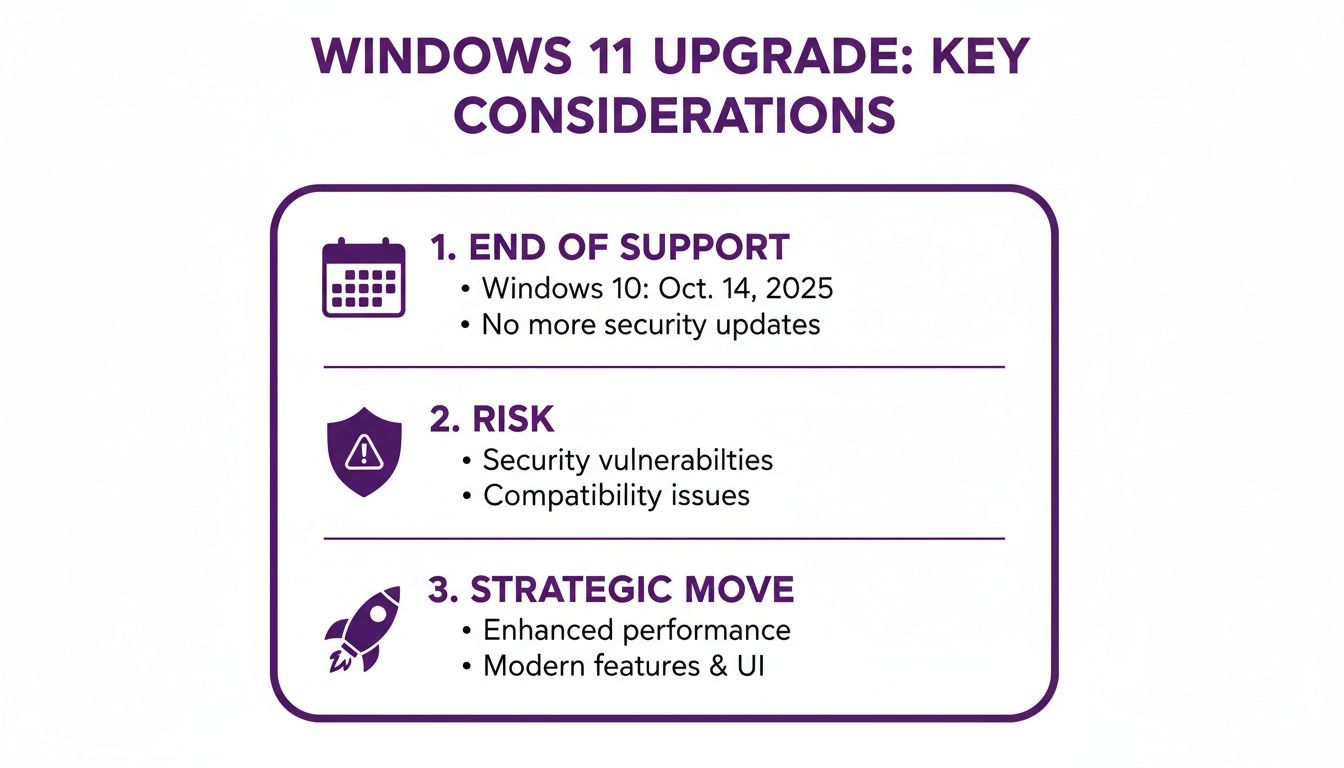
As you can see, this isn't just about modernising your IT. It’s a direct response to a changing threat landscape and an opportunity to build a more efficient business.
To put the current situation into perspective, here is a direct comparison of the two operating systems as they stand today.
Windows 10 vs Windows 11 for Businesses in 2026
This table highlights the stark differences for any business still weighing its options after the end of standard support.
| Feature Area | Windows 10 (Post-Support) | Windows 11 |
|---|---|---|
| Security Updates | None by default. Requires paid Extended Security Updates (ESU). | Continuous security updates, patches, and feature releases are included. |
| Cybersecurity | Vulnerable to new and emerging threats not covered by old patches. | Built-in, modern security like TPM 2.0, HVCI, and VBS as standard. |
| AI & Productivity | No native integration with modern AI tools like Microsoft Copilot. | Deeply integrated with Microsoft Copilot for enhanced productivity and workflow automation. |
| Cost Model | “Free” to run, but ESU costs start at £48 per device and increase annually. | Included with a valid Windows licence. No extra fees for core security. |
| Compatibility | Works on older hardware but misses out on modern performance and security gains. | Requires modern hardware (TPM 2.0, Secure Boot), ensuring a secure foundation. |
| User Experience | Familiar but dated interface. No new features or UI improvements. | Modern, redesigned interface focused on productivity, collaboration, and focus. |
The reality is that continuing with Windows 10 is now a paid service that offers declining value, while Windows 11 provides the security and innovation needed to stay competitive.
The Cost of Inaction
The shift is well underway. Here in the UK, adoption among small and mid-sized businesses, particularly in areas like the East Midlands, has picked up pace. By November 2025, market share for Windows 11 had hit an estimated 54%, a huge leap from just 28% at the end of 2024.
Still, many are lagging. A surprising 42.7% of UK Windows desktops are still running Windows 10, a situation often forced by older hardware that lacks the necessary TPM 2.0 security chip. As detailed in a report from The Register, these businesses face a tough choice: invest in new hardware or pay for Extended Security Updates (ESU), which start at £48 per device for the first year and only get more expensive.
By sticking with Windows 10, you are making a conscious decision to:
- Accept major security risks: Without ongoing, free security patches, your systems are low-hanging fruit for malware, ransomware, and data breaches.
- Take on rising costs: Paying for ESU is a costly stopgap. It’s money spent to stand still, with no new features or performance gains.
- Fall behind competitors: You’re locking yourself out of the AI-driven productivity and collaboration tools that your rivals are using to get ahead.
Ultimately, the upgrade isn’t just an IT project anymore. It’s a core business decision that has a direct impact on your security, your budget, and your ability to compete.
Ready to make your IT a strategic asset for growth? Phone 0845 855 0000 today or Send us a message to discuss a smooth migration plan for your business.
Next-Generation Security Built for Modern Threats
When it comes to business security, we’ve moved past thinking of it as just another feature. It’s now the very bedrock of your operations. Microsoft clearly understood this when designing Windows 11, creating an operating system that tackles modern threats from the ground up, rather than just reacting to them. This isn’t a minor update; it’s a complete rethink of how your devices should protect your data.
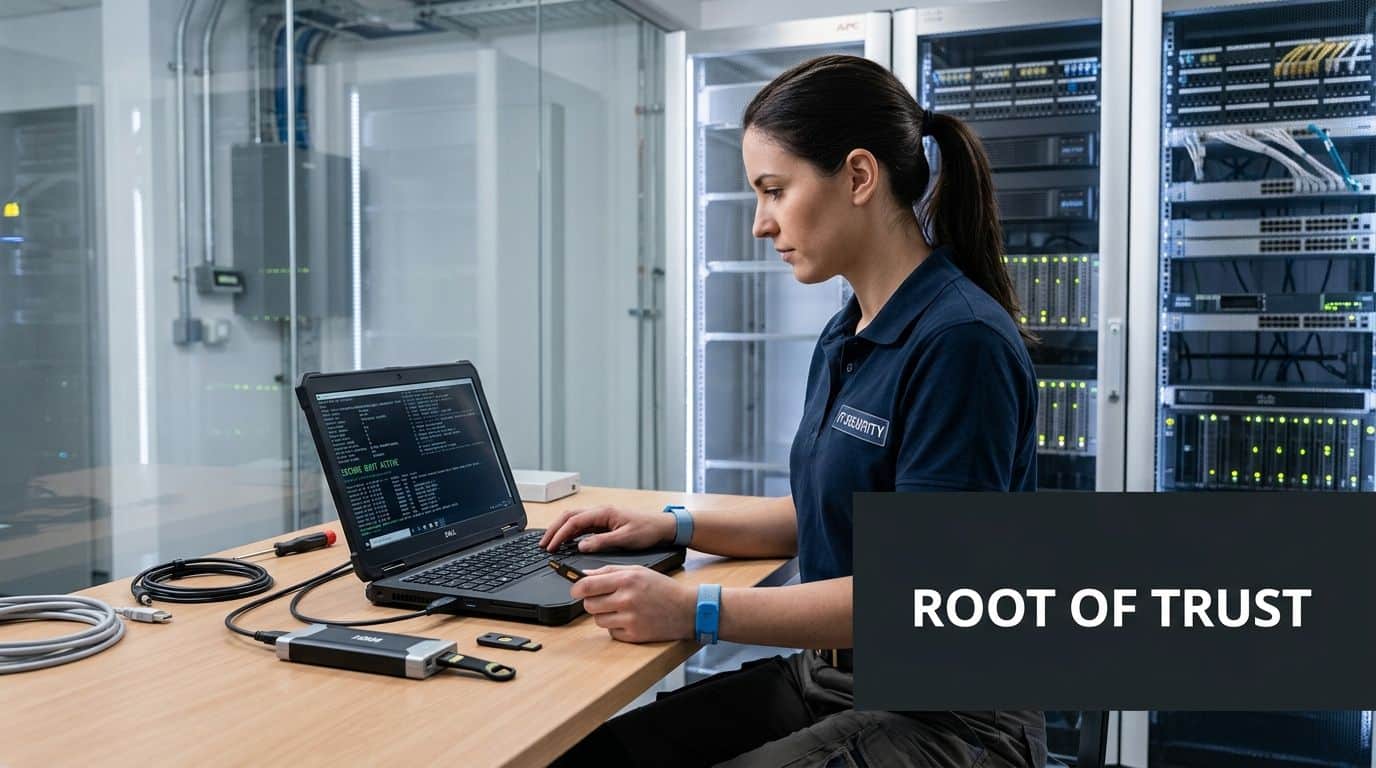
Think of your company’s data like the contents of a modern bank vault. A strong front door isn’t enough; you need multiple, independent layers of security all working in concert. That’s the core principle behind the security architecture in Windows 11.
Creating a Hardware Root of Trust
One of the biggest shifts is how Windows 11 insists on specific hardware. These components aren’t optional extras; they work together to create a “root of trust”, embedding security directly into the silicon of the device itself.
It all starts with two key players:
- TPM 2.0 (Trusted Platform Module): This is a dedicated microchip, a tiny fortress on your motherboard that provides hardware-based security functions. It securely stores cryptographic keys, passwords, and digital certificates, keeping them safe from malware that might infect the main system.
- Secure Boot: This feature acts like a bouncer for your PC’s boot-up process. It makes sure that only software trusted by the manufacturer can load when you turn on your device, stopping malicious code like rootkits in their tracks.
Together, TPM 2.0 and Secure Boot create a verified, secure environment from the second a device is powered on—long before your antivirus software has even had its morning coffee.
Since its launch on 5 October 2021, these built-in protections have made a real difference. We’ve seen security enhancements in Windows 11 help reduce cyber incidents for UK businesses by up to 40% after they upgrade. This is more important than ever, especially now that free security patches for Windows 10 officially ended on 14 October 2025.
Isolating Threats with Virtualisation
Windows 11 takes this protection a step further with a powerful feature called Virtualisation-Based Security (VBS). It uses the PC’s hardware to carve out an isolated, secure bubble of memory that’s completely separate from the main operating system.
VBS essentially runs a mini, high-security OS alongside your normal Windows environment. Critical system processes, like authenticating a user’s login, are handled inside this protected space, keeping them well out of reach of any malware.
This approach makes it exponentially harder for attackers to steal credentials or compromise the core of the system. Even if malware finds a way onto the main OS, it’s effectively locked out of the VBS container where the real crown jewels are kept.
This type of isolation is a game-changer for defending against common attacks. The advanced security protocols in Windows 11 are designed to safeguard against sophisticated threats and perfectly complement broader strategies to prevent ransomware.
Advanced Defences for Day-to-Day Operations
On top of this strong foundation, Windows 11 brings enhanced features that actively protect your team during their daily work.
- Smart App Control: This feature offers brilliant protection from new and emerging threats by blocking malicious or untrusted applications. It uses a smart combination of code signing and AI to predict whether an app is safe before it ever gets a chance to run.
- Enhanced Windows Defender: The built-in antivirus is more capable than ever, blocking 99.9% of known threats in real-time. It’s deeply woven into the operating system and connected to the cloud, allowing for much faster threat detection.
These always-on security measures are vital for supporting a modern hybrid workforce, where staff connect from all sorts of networks. They are also essential for businesses looking to achieve certifications like Cyber Essentials. For organisations managing multiple devices, these features can all be centrally managed with tools like Microsoft Intune. If you want to dive deeper, you can explore our guide on https://www.f1group.com/what-is-microsoft-intune/ and how it can help secure your business.
Boosting Productivity With a Smarter Workflow
While the security upgrades are vital, what your team will feel day-to-day with Windows 11 are the smart, practical improvements to their workflow. These aren’t just superficial tweaks; they’re well-thought-out Windows 11 features designed to cut down on friction, reduce distractions, and give your people back their most valuable resource: time.
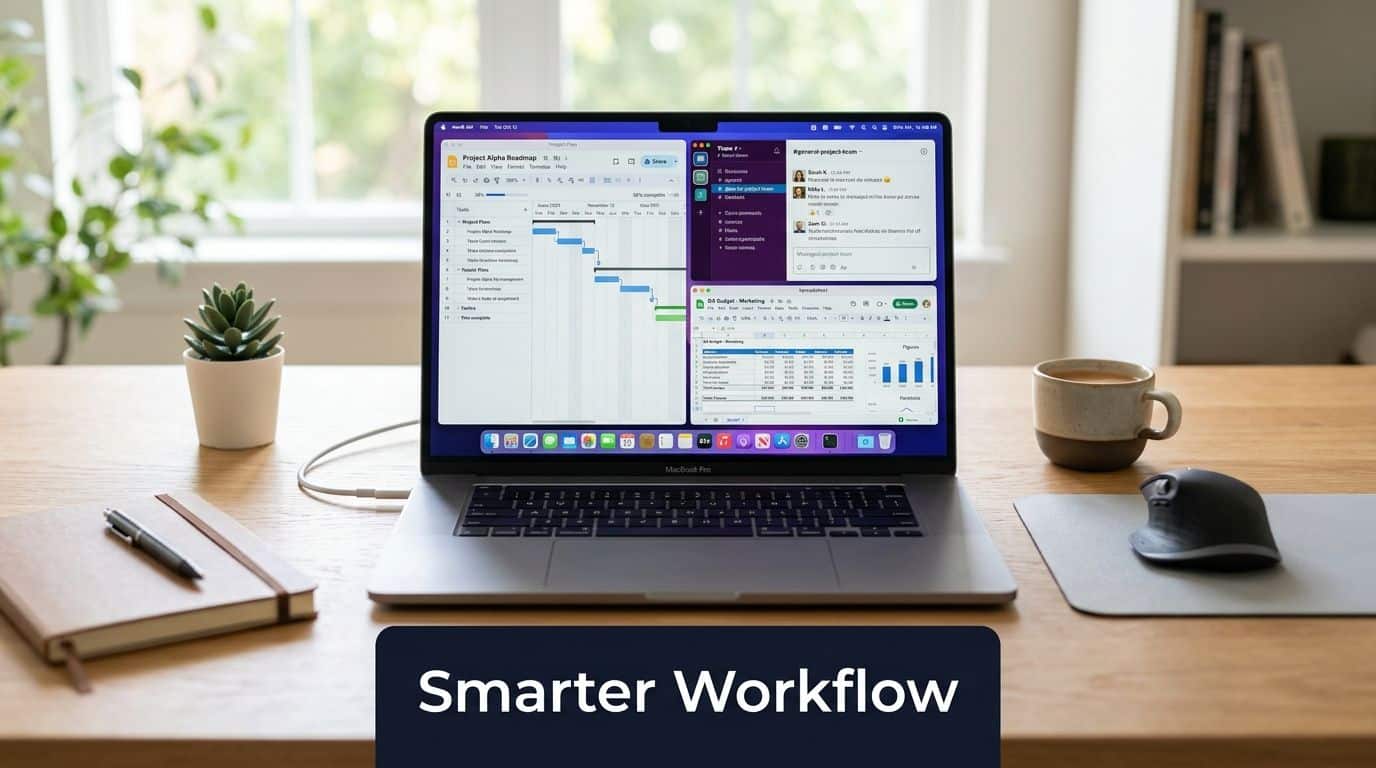
Think of it like organising a workshop. You wouldn’t leave essential tools scattered all over the place; you’d create specific stations for specific tasks. That’s precisely what Windows 11 helps you do on your screen, and the productivity dividend can be felt across the entire business.
Master Your Multitasking with Snap Layouts and Groups
One of the most talked-about Windows 11 features is how it handles window management, and for good reason. For anyone who lives with multiple applications open, Snap Layouts are a game-changer. Instead of the old, clumsy method of dragging and resizing windows, you simply hover over the maximise button to see a choice of ready-made layouts.
With a couple of clicks, a user can instantly tile their open apps into a perfect grid. A project manager, for instance, could have their project plan, the team chat, and a budget spreadsheet all neatly arranged and fully visible on one screen. No fuss.
But that’s just the start. Windows 11 then saves this arrangement as a Snap Group.
- Build a workspace: Pull together the exact apps you need for a specific job.
- Minimise it all: When a different task calls, you can minimise the entire group to the taskbar in one go.
- Bring it back instantly: When you’re ready to return, one click restores the entire layout exactly as you left it. No more hunting for individual windows.
This is incredibly useful for roles involving constant context-switching. Think of sales staff flipping between their CRM and email, or finance teams checking invoices against accounting software. It helps maintain focus and slashes the time wasted just managing windows.
Snap Groups turn the usual chaos of multitasking into an organised, efficient process. It’s about empowering your team to build bespoke, task-specific desktops they can summon in an instant.
Bring Order to Your Files with Tabbed Explorer
Another deceptively simple but brilliant addition is tabs in File Explorer. For years, we’ve all been conditioned to accept that managing multiple folders means juggling a mess of separate windows. Windows 11 finally fixes this, making File Explorer behave just like your web browser.
Now, your staff can have multiple folders, network drives, and even cloud locations open in one tidy window. An account manager can keep tabs for different clients, while someone in marketing can have their image library, campaign documents, and social media planner all organised in one place.
It’s a small change with a big impact:
- Less Clutter: One File Explorer window is infinitely cleaner than five or six.
- Better Navigation: Switching between key locations is instant, with no need to find the right window.
- Simpler File Transfers: Dragging files between tabs is far more intuitive than navigating between separate windows.
These productivity-focused Windows 11 features show that Microsoft has been listening. They directly solve the small, daily frustrations that collectively add up to a huge amount of lost time. By making these core interactions smoother, Windows 11 helps every member of your team work smarter, not harder.
To discuss how these features can be deployed to improve your team’s efficiency, phone 0845 855 0000 today or Send us a message.
Unlocking AI on Your Desktop with Copilot
The talk around Artificial Intelligence has well and truly moved from far-off data centres and onto the everyday desktop. Many of the most practical Windows 11 features are driving this change. We’re not talking about AI as a gimmick, but as a genuinely useful, intelligent assistant that’s built right into the system to help with daily work. Microsoft Copilot, now an integral part of Windows 11, is the connection between your operating system and the apps you rely on every day.
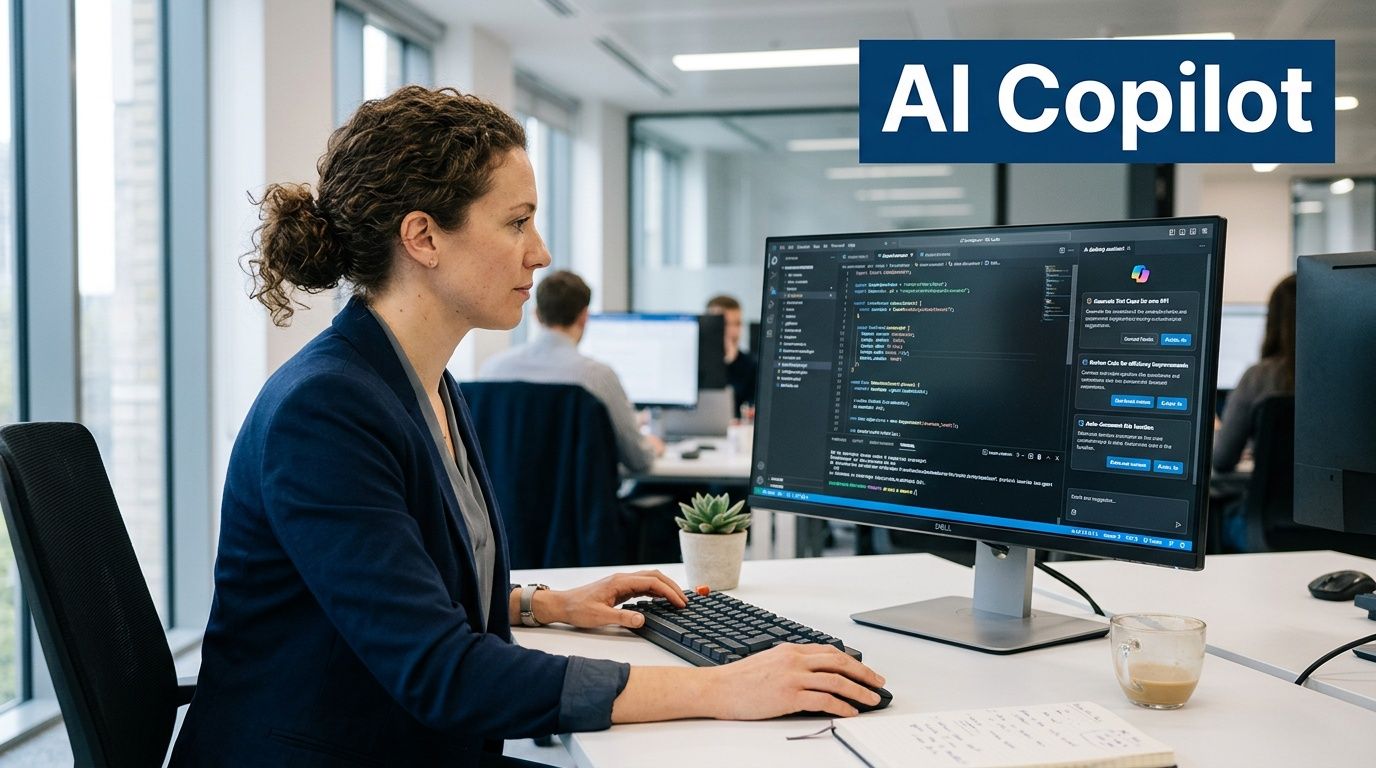
Think of Copilot less like another piece of software you have to launch, and more like an ever-present colleague. It already understands the context of what you’re working on because it’s embedded within the Microsoft ecosystem you use. Adopting Windows 11 is the key first step to properly preparing your business for AI and seeing some real, tangible results.
Turning Data into Decisions Instantly
For anyone whose job involves wrestling with data, Copilot is like having a powerful analyst on standby. Picture an accounts manager looking at a huge sales spreadsheet in Excel. Instead of spending the next hour wrangling pivot tables and charts, they can just ask Copilot a question in plain English.
A simple prompt like, “Analyse sales data for the last quarter by region and generate a forecast chart for the next six months,” gets done in seconds. That’s a task that could easily have eaten up a whole afternoon. Copilot doesn’t just fetch the numbers; it can spot trends and whip up professional-looking charts ready for a report, freeing up your team to think about strategy instead of getting bogged down in manual work.
From Information Overload to Actionable Insights
We all get buried under too much information. Whether it’s long competitor reports, dense legal documents, or never-ending email chains, just finding the key points is a huge time sink. This is another place where Copilot proves its worth, acting as a tireless research assistant.
A marketing lead, for instance, could give Copilot a 50-page competitor analysis and ask it to “Summarise this report into the top five strategic threats and opportunities, presented as bullet points.” Copilot reads, digests, and pulls out the vital information, handing back a concise summary the team can act on immediately.
Copilot changes how you interact with information. It shifts your team from being passive readers to active directors, empowering them to find the signal in the noise and make better, faster decisions.
Speeding Up Everyday Business Operations
Copilot’s usefulness touches almost every part of the business, helping to automate the creation of routine documents, which saves time and keeps things consistent.
An operations director, for example, could use it to draft internal comms. They might prompt it with, “Draft an internal policy update for all staff regarding the new hybrid working schedule, ensuring a positive and clear tone.” Copilot generates a solid draft that just needs a quick review before being sent out via Outlook or Teams.
Its real strength comes from being so deeply integrated:
- In Teams: Copilot can summarise long meetings you couldn’t make, pulling out action items and key decisions.
- In Outlook: It can help you draft a professional reply or clear your inbox by summarising lengthy email threads.
- In Word: It can create a first draft of a proposal, report, or job description from a simple outline.
For a deeper look into how this technology can be integrated into your business, you can learn more about our Microsoft AI Copilot services. And while Copilot is a major highlight, the ecosystem is open to other AI tools, too. Developers, for instance, can streamline their work with solutions like Win-Claude-Code integration on Windows. Upgrading to Windows 11 isn’t just about a new look; it’s about giving your organisation the AI tools it needs to be more productive and competitive.
Your Step-by-Step Windows 11 Migration Plan
Moving to Windows 11 isn’t just a simple click-and-go update. For any business, it’s a project that needs a proper plan. If you approach it with a clear, structured roadmap, you can turn a potentially disruptive task into a smooth transition that genuinely boosts your team’s productivity. We’ve broken the migration down into three manageable phases for your IT team.
Before you do anything else, you need to know exactly what you’re working with. A successful migration hinges on one thing: knowing which of your current devices are ready for the upgrade and which aren’t. Getting this right from the start helps you avoid nasty surprises down the line.
Phase 1: Hardware Assessment and Auditing
The first real job is to check your hardware against the strict requirements for Windows 11. This isn’t just about performance; it’s about security. The two absolute deal-breakers are:
- TPM 2.0 (Trusted Platform Module): This is a dedicated security chip on the motherboard. It’s not optional—it’s essential for many of Windows 11’s advanced security features to function.
- A compatible modern processor: Microsoft keeps an official list of supported CPUs. If a processor isn’t on that list, the device simply won’t upgrade.
Your task here is to audit your entire fleet of PCs and laptops. While Microsoft’s PC Health Check app is fine for one or two machines, for a whole business, you’ll need something more powerful. Using endpoint management software gives you a complete picture, sorting your devices into three groups: compatible, upgradeable (perhaps just needing a quick BIOS change to enable TPM), or needing replacement.
This hardware audit is the bedrock of your entire migration budget and timeline. A clear picture at this stage prevents costly surprises and lets you plan a strategic, cost-effective replacement cycle for any machines that don’t make the cut.
Once you know which machines can physically run Windows 11, the next question is whether they can run your business.
Phase 2: Application and Software Testing
Microsoft has put a lot of effort into app compatibility, promising that anything working on Windows 10 should work on Windows 11. But when it comes to your critical, bespoke, or industry-specific software, you can’t afford to just hope for the best.
This is where proactive testing comes in. Set up a pilot group of users—a mix of people from different departments—to test your key applications in a controlled environment. Tools within Microsoft Endpoint Manager are perfect for this. It’s your chance to find and fix any issues, from minor glitches to show-stopping compatibility problems, before they can affect the entire company. For a deeper dive into managing your information during a move like this, have a look at our guide to data migration best practices.
Phase 3: Phased Deployment Strategy
With your hardware checked and your software tested, it’s time for the rollout. Whatever you do, avoid a “big bang” approach where everyone gets upgraded at once—it’s far too risky. A phased deployment is the smart way to go, and you’ve got a couple of excellent methods to choose from.
-
In-Place Upgrades: This is the most straightforward route. Using tools like Windows Update for Business or Configuration Manager, you can upgrade existing Windows 10 machines while keeping all user files, settings, and apps exactly where they are. It’s perfect for compatible devices and causes the least disruption for your team.
-
Windows Autopilot (Zero-Touch Deployment): This is the modern, cloud-first approach, ideal for new hardware or for wiping and re-provisioning existing devices. With Autopilot, you can pre-configure devices before they’re even unboxed. The moment a user signs in with their company credentials, the device automatically pulls down the right policies, apps, and settings from the cloud. It’s a genuine zero-touch experience for your IT department.
Often, the best strategy is a hybrid one. Use in-place upgrades for your existing compatible machines and bring in Windows Autopilot for new hardware rollouts. This combination ensures a seamless, low-disruption upgrade that brings all the new Windows 11 features to your team effectively.
To start planning your smooth and secure migration to Windows 11, phone 0845 855 0000 today or Send us a message.
Make Windows 11 Work for You, Not the Other Way Around
So, we’ve walked through the powerful Windows 11 features, from its hardware-backed security to the genuinely useful AI in Copilot. It’s clear this isn’t just another software update. It’s a chance to make your business more secure, productive, and frankly, a step ahead of the competition.
But here’s the thing: these aren’t plug-and-play benefits. Getting them to work properly and actually make a difference to your bottom line requires a plan. Simply installing the new OS is one thing; weaving its capabilities into the fabric of your business is another entirely.
That’s where having an expert partner like F1Group changes the game. We’re not just here to install software. Our job is to make sure these advanced tools don’t just sit on your machines, but are actively helping your team work smarter every single day. We turn your IT from a necessary expense into an engine for growth.
From Upgrade Headaches to Total Mastery
As a certified Microsoft partner with deep roots right here in the East Midlands, we provide the practical, hands-on expertise businesses need. We’ve seen what works and what doesn’t, and our entire approach is built on delivering real results, not just ticking off a technical checklist. We make sure your move to Windows 11 is smooth, secure, and perfectly aligned with where you want your business to go.
We specialise in helping businesses like yours unlock the full potential of the Microsoft ecosystem. Here’s how we do it:
- Pre-Migration Audits: We start by taking a good look under the bonnet. Our team assesses all your current hardware and software to spot any compatibility issues early, creating a clear, cost-effective upgrade plan before we touch a single machine.
- Seamless Deployment: We handle the entire rollout with minimal disruption, whether that means in-place upgrades for your current devices or using Windows Autopilot for a slick, zero-touch setup on new ones.
- Ongoing Managed IT Support: Our relationship doesn’t end when the upgrade is done. We’re in it for the long haul, providing proactive support to keep your systems running flawlessly, day in and day out.
When you work with F1Group, you get a local team that’s genuinely invested in your success. We take ownership of your IT challenges so you can get back to what you do best: running your business.
Unlock Your Business’s True Potential
The move to Windows 11, and especially the adoption of AI tools like Copilot, is a massive opportunity. But getting the most out of it takes specialist knowledge. Our team doesn’t just know Windows 11; we’re experts at integrating it with Microsoft 365, Azure, and the Power Platform to create a single, intelligent digital workplace.
If your business is based in Lincoln, Nottingham, Leicester, or anywhere across the East Midlands, let’s have a conversation. We can help you cut through the complexity of this upgrade and ensure your investment delivers a real return.
Ready to make your IT a strategic asset for growth? Phone 0845 855 0000 today or Send us a message to discuss a smooth and successful migration to Windows 11.
Common Questions About Upgrading to Windows 11
Deciding to upgrade your company’s operating system always kicks off a lot of questions. It’s a big decision, so let’s get straight into the practical answers for the common concerns we hear from businesses considering the move to Windows 11.
Can I Still Upgrade if My Business PCs Are Old?
It’s less about the age of the machine and more about what’s inside. The conversation really starts with a few key components: the processor, the amount of RAM, and a specific security chip called TPM 2.0.
Many PCs bought before 2021 simply don’t have these, which unfortunately makes them incompatible. The only way to know for sure is to check.
That’s why the first step should always be a thorough hardware audit. We can perform a full assessment of your entire IT setup, giving you a clear picture of which machines are good to go, which might just need a small upgrade, and which will need replacing. From there, we can map out a phased, budget-friendly plan to get you upgraded without causing chaos.
What Happens if We Just Stick with Windows 10?
With the 14 October 2025 support deadline now in the past, sticking with Windows 10 has become a risky and expensive proposition. Microsoft no longer provides free security patches, which means every new virus, piece of malware, or cyber-attack is a direct threat to your unprotected systems.
If you want any security updates at all, you’re now looking at paying for Extended Security Updates (ESU). The fees start at around £48 per device for the first year and are set to climb each year after that. Staying on Windows 10 means you’re paying more for an outdated system, all while taking on more risk and missing out on the genuine productivity boosts and AI tools in Windows 11.
Will Our Existing Software and Applications Work?
For the most part, yes. Microsoft has worked hard to make compatibility a priority, so the vast majority of applications that worked perfectly on Windows 10 will run just as well on Windows 11. Your team’s core, day-to-day software should make the transition without a hitch.
That being said, if your business relies on older, custom-built, or very specialised software, you absolutely cannot afford to make assumptions. It is vital to test everything thoroughly before you roll out the new OS.
This is a core part of our migration service. We use Microsoft’s own diagnostic tools, combined with our own experience, to carry out proper application testing. By finding and fixing any potential conflicts before they can affect your staff, we make sure the switch is completely seamless for your business.
F1Group is ready to help you navigate your upgrade and unlock the full potential of your IT.
Phone 0845 855 0000 today or Send us a message to get started.