
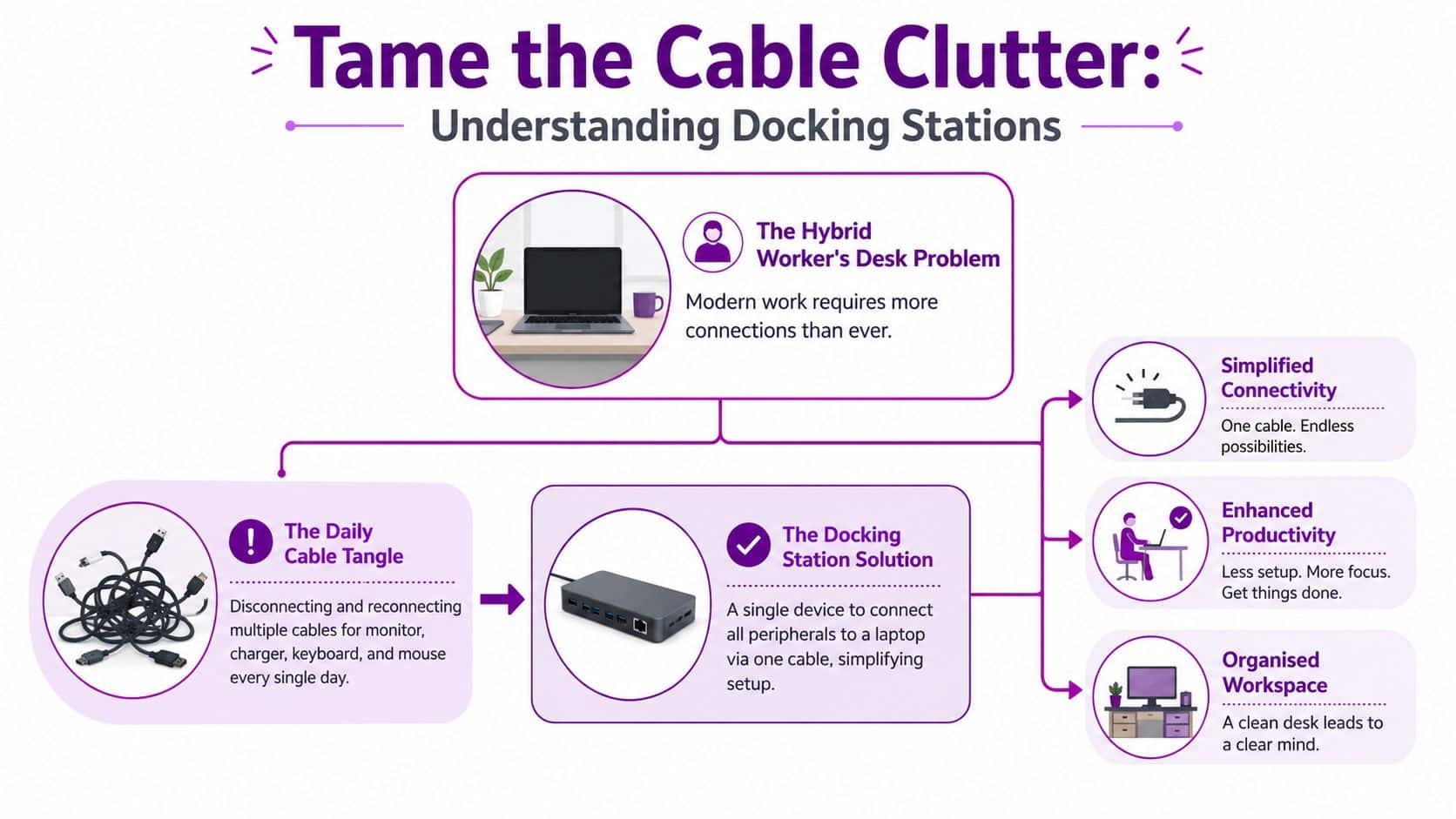
You're probably reading this because someone in the business is fed up with the same daily routine. Laptop open. Charger in. Monitor cable in. Keyboard dongle in. Mouse in. Maybe Ethernet too, if Wi-Fi in the office is patchy. Then the whole process gets reversed when the workday is over or before heading to another site.
That's where people usually ask, what's a docking station, and do we need one or is it just another gadget on the desk?
In business IT terms, a docking station isn't a nice-to-have bit of desk furniture. It's the thing that turns a portable laptop into a proper workstation with one connection instead of a mess of separate cables. If you're running hybrid working, hot desks, or a Microsoft 365-led workplace where people move between home and office, it often becomes part of the core setup rather than an accessory.
What Is a Docking Station Really
A docking station solves a simple problem. Modern laptops are portable, but they're often poor desktop replacements on their own. They don't have enough ports, they rely on adapters, and they force users to connect and disconnect everything manually.
A good dock acts like a universal translator between the laptop and the desk. One cable goes into the laptop, and the dock handles the rest. That usually means external screens, keyboard, mouse, wired network, audio, USB devices, and power.
A docking station is technically defined as a port replicator that plugs into a laptop, typically via a single USB-C or Thunderbolt connection, to replicate the full desktop experience by providing additional ports for legacy and modern devices. It often includes USB-A, audio jacks, and Ethernet for stable internet connections, which matter in secure, reliable business IT environments, as described in Wikipedia's docking station entry.
What it does in practice
For most office users, the dock sits permanently on the desk and stays connected to everything that doesn't move:
- Monitors stay plugged in so users don't have to fumble with HDMI or DisplayPort cables
- USB devices remain in place such as keyboard, mouse, webcam, headset receiver, printer, or external storage
- Network stays stable through wired Ethernet where required
- Charging can happen through the same cable if the dock supports the right power delivery
The result is an organised desk and a much faster start to the working day.
Practical rule: If a user arrives at their desk with a laptop and still needs to connect three or four separate cables, they probably need a proper docking station rather than another adapter.
Docking station versus a simple hub
Buyers often get caught out. A cheap USB-C hub and a docking station can look similar online, but they aren't built for the same job.
A proper dock usually has its own power source and is designed for all-day use at a workstation. A basic hub is more like a travel accessory. It may add ports, but it often won't power a demanding laptop properly, and it may struggle once you add multiple displays and permanent desk peripherals.
That distinction matters because many businesses buy what looks right on a product page, then discover it doesn't behave like a desktop setup once staff start using Teams, Power BI, large spreadsheets, or multiple screens at once.
The Main Types of Docking Stations Explained
A business owner usually asks the wrong first question here. They ask, “Which dock is best?” The better question is, “Which dock matches the laptops we buy, the screens we use, and the wattage those laptops need at full load?”
That last point gets missed all the time. Plenty of docks can connect monitors and USB devices. Far fewer can charge a modern business laptop properly while doing it. If the dock supplies too little power, staff end up with battery drain, fan noise, throttled performance, or laptops that work fine on paper but feel slow in day-to-day use.
USB-C and universal docks
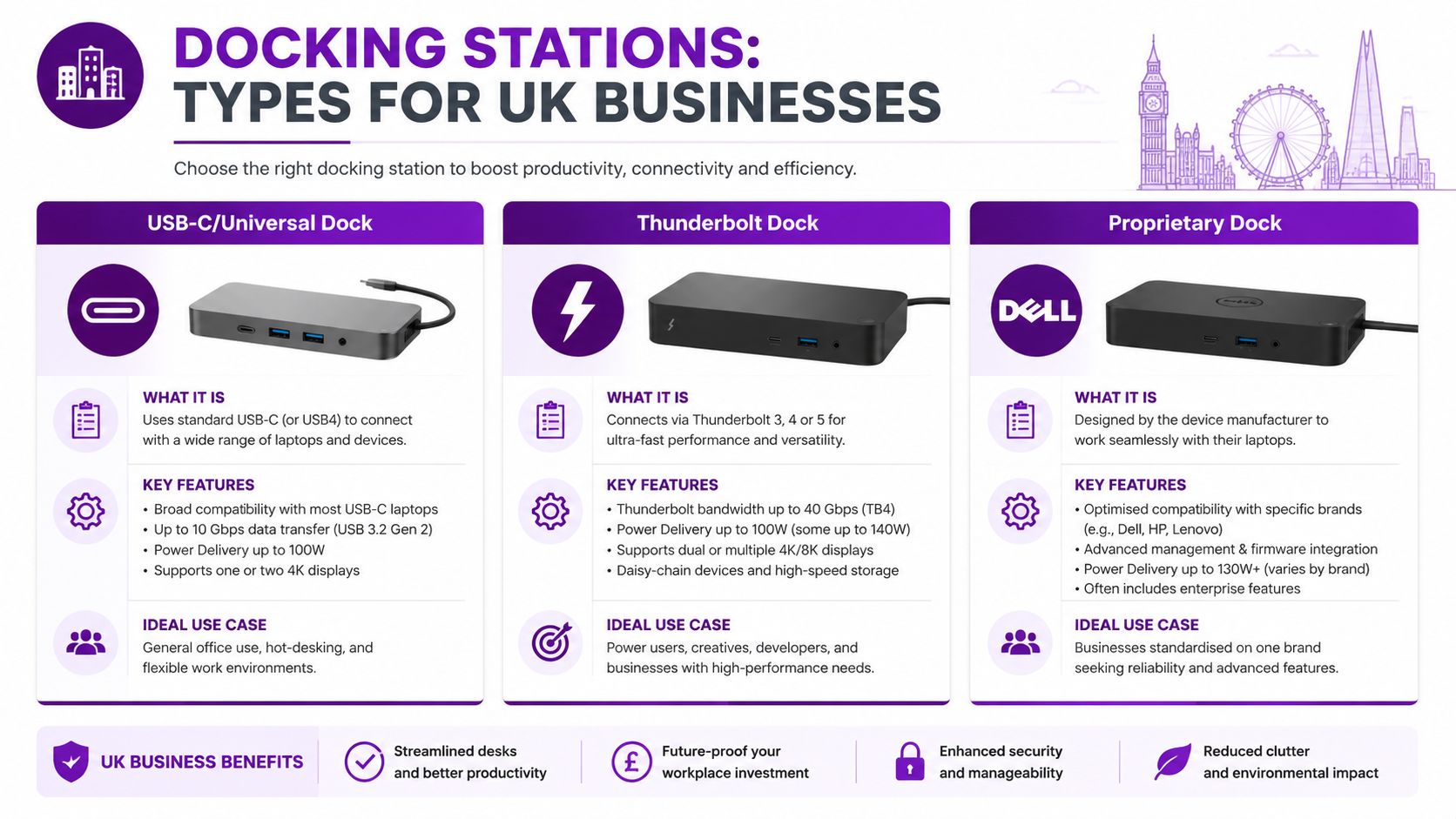
USB-C and universal docks are the default choice for many SMBs because they work across mixed laptop estates. If you have Dell, HP, Lenovo, and Surface devices in the same office, this is usually the first category to assess.
They fit best where the workload is predictable:
- General office users with one or two displays
- Shared desks where compatibility matters more than peak performance
- SMBs standardising on USB-C laptops without specialist graphics or data needs
Typical UK pricing for a business-grade model often sits around £150 to £250.
The benefit is flexibility. The risk is assuming “USB-C” tells you enough. It does not. Two docks with the same connector can behave very differently once you add dual screens, Ethernet, webcam, headset, external storage, and laptop charging at the same time.
A power mismatch causes expensive mistakes. A budget dock may technically charge a laptop, but not at the wattage that laptop expects under normal business use. Before buying in volume, check the laptop's required USB-C or Thunderbolt power input against the dock's power delivery output. Businesses reviewing broader digital workspace solutions for hybrid teams should treat wattage matching as part of the desk standard, not an afterthought.
Thunderbolt docks
Thunderbolt docks are for users who need more headroom. The connector looks similar to USB-C, which is why buyers often assume the experience will be the same. It is not.
Thunderbolt docks usually make sense for:
| Dock type | Best for | Typical UK price |
|---|---|---|
| USB-C or universal | Standard office users | £150 to £250 |
| Thunderbolt | Power users, creative work, demanding display setups | £250 to £400+ |
| Proprietary | Single-brand laptop estates | Varies by vendor and support model |
In practice, Thunderbolt is the safer option for staff running multiple high-resolution displays, heavier external storage, or more demanding applications. It costs more, but that extra spend often prevents the support calls that start with “the dock works, but everything feels unreliable.”
It also reduces one common procurement error. Teams buy a lower-cost dock because it appears to cover the port list, then discover it cannot handle the combination of displays, peripherals, and charging load the user needs every day. Thunderbolt gives more margin for growth, which matters if laptops get refreshed before desks do.
A short visual walkthrough helps if you're comparing options for the office:
Proprietary docks
Dell, HP, and Lenovo have all sold docks built closely around their own laptop ranges. In a fully standardised estate, that can be a sensible operational choice. Compatibility is usually clearer, firmware support is easier to manage, and warranty conversations tend to be simpler.
The trade-off is procurement flexibility. If the next laptop rollout introduces another brand, those docks may become awkward, limited, or unusable. I have seen businesses save time in year one with a brand-specific dock, then lose that saving later when purchasing rules changed or stock shortages forced a switch in laptop vendor.
If you run one laptop brand across the estate, proprietary docks can be efficient. If you run a mixed estate, universal or Thunderbolt docks usually age better.
A proper docking station also differs from a simple port expander in how it handles power and connected devices. As outlined in Anker's explanation of how docking stations work, a dock uses dedicated internal hardware to manage power, peripherals, audio, video, and data together. That is why the right dock can support external screens, wired devices, and charging through one connection, while the wrong one creates intermittent faults that waste staff time.
A practical shortlist is simple. Start with laptop model, display requirement, and charging wattage. Then choose the dock type. That order prevents a lot of avoidable buying mistakes.
Business Benefits Beyond a Tidy Desk
The first benefit people notice is a cleaner desk. It isn't the most important one.
The primary value is operational. In the UK market, the main reason organisations adopt docking stations is the rise of remote and hybrid working, where users need a complete workstation without constantly disconnecting and reconnecting devices, as noted by RS Components on docking stations for mobile computing.
Better start-of-day productivity
A laptop on its own is fine for occasional work. It's not ideal for a full day of meetings, document work, spreadsheets, browser tabs, and messaging. Staff work more comfortably when they can sit down, connect once, and immediately use full-sized screens, keyboard, mouse, and network.
That doesn't just save a few moments. It removes friction. Less fiddling with cables means fewer interruptions, fewer “why isn't my monitor detected?” problems, and fewer staff working half the day from a compromised setup because they can't be bothered reconnecting everything.
Hot-desking that actually works
Many businesses say they offer hot-desking. In practice, some offer a table, a monitor, and a pile of random leads.
A standard dock changes that. Users plug in one cable and the desk works the same way every time. That consistency is what makes shared desks usable rather than frustrating.
Before standardisation, one desk may have HDMI only, another may rely on separate USB adapters, and another may not have power delivery at all. After standardisation, each desk behaves predictably.
For firms planning wider digital workspace solutions, that consistency matters as much as the hardware itself.
Better control for IT
There's also a support angle. Wired Ethernet through the dock is often more stable than office Wi-Fi for fixed desks, especially where buildings have awkward layouts or interference. That helps with reliability during video calls, cloud application use, and large file transfers.
It also gives IT a more repeatable support model. When every user on a floor has the same dock, fault finding is faster. If every desk has a different adapter chain bought from different online sellers, support becomes guesswork.
Key Technical Considerations Before You Buy
A dock can look right on paper and still be wrong for the laptop it is meant to support.
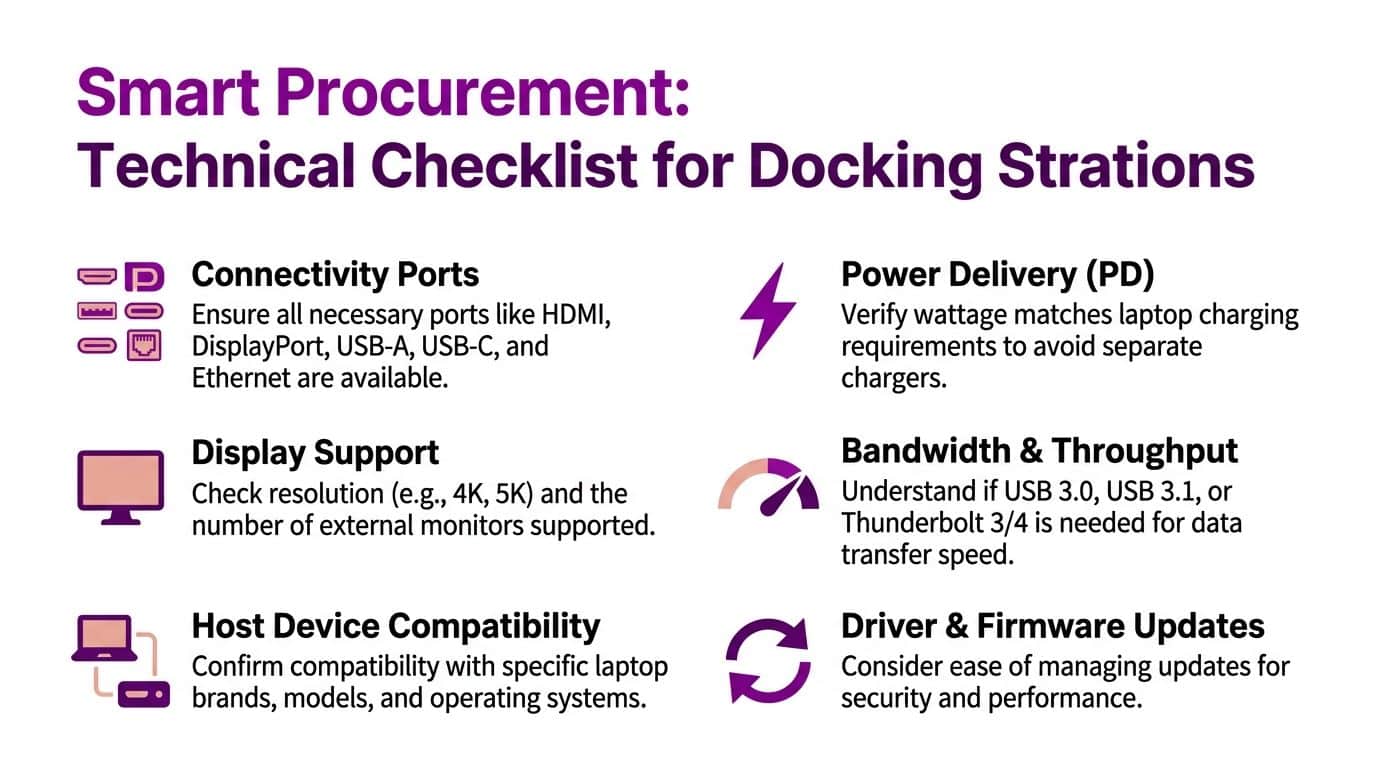
I see this purchase mistake a lot. Someone checks for two monitor outputs, a few USB ports, and Ethernet, then assumes any USB-C dock will do the job. The missed detail is power. Many lower-cost docks say they charge a laptop, but under a normal business workload they do not deliver enough wattage to keep newer machines running properly.
That is how you end up with staff plugged into a dock all day while the battery still drops, the fan runs harder, or the laptop limits performance to stay within the power available. Users blame the laptop. Procurement blames the dock. The underlying issue is that the wattage was never matched to the device.
Check power delivery before anything else
Start with the laptop, not the dock.
Look at the charger supplied with each laptop model in your business. If the laptop normally ships with a higher-wattage charger than the dock can provide, treat that as a warning sign. A dock that falls short may be acceptable for light office use on some machines, but it is a poor fit for power-hungry business laptops, especially when users are on video calls, driving multiple displays, syncing cloud files, and charging peripherals at the same time.
A simple buying question avoids a lot of waste. Will this dock power this exact laptop properly during a normal workday?
A wattage-matching checklist
Use this before placing an order:
-
List the exact laptop models in use
Buy against the actual device estate, not the logo on the lid. -
Check the standard charger rating for each model
If the dock output is below that figure, test properly before rollout. -
Group users by workload
Front-desk staff on one screen have different power needs from designers, engineers, or finance users running several applications and displays. -
Count the displays at each desk
More screens usually mean more strain on both power delivery and data throughput. -
Decide whether one-cable working is a real requirement
If staff still need a separate laptop charger, the dock is only solving part of the problem. -
Test one unit with the hardest-to-support laptop
That tells you more than any marketing spec sheet.
Display support and bandwidth
Ports alone do not tell you how well a dock will behave. Two models can both offer HDMI, USB, and Ethernet, yet one handles dual displays cleanly while the other starts to struggle once external storage, webcams, and network traffic are added.
Bandwidth matters more as desks get more demanding. Higher-resolution monitors, fast SSDs, and multiple USB devices all compete for capacity. As noted earlier in the article, some higher-end docks handle this far better than entry-level models. That difference shows up in day-to-day use as lag, display dropouts, or limited monitor options.
Desk design matters as well. Power placement, cable routing, and furniture layout all affect whether the final setup is tidy and reliable or awkward and fragile. If you are planning around more than just the dock, this guide to powering modern workspaces is a useful reference.
Ports, compatibility, and support overhead
Check the dock against the peripherals people use.
- USB-A still matters for keyboards, mice, headsets, smart card readers, and older accessories
- USB-C can mean different things depending on whether the port handles data only, display output, charging, or all three
- Ethernet is still worth having on fixed desks where reliability matters more than convenience
- Driver and firmware support matter because poor update support turns a cheap dock into a repeat support ticket
For businesses managing devices centrally, dock choice also affects how predictable each desk is to support. If your team already uses Microsoft Intune for business device control, the same thinking applies here. Standard hardware with known behaviour is easier to maintain than a mix of adapters and bargain docks with inconsistent results.
A docking station should reduce friction at the desk. If the power is wrong, the monitor support is limited, or the ports do not match real working habits, it does the opposite.
Deployment and Security for IT Teams
One dock on one desk is a buying decision. Fifty docks across the business is an IT standards decision.
That matters more now because the market is getting bigger, not smaller. The UK docking station market is projected to grow from USD 2.1 billion in 2025 to USD 4.0 billion by 2032, with a 9.7% CAGR, according to Mobility Foresights' UK docking station market outlook. The point for IT teams isn't the headline figure. It's what the projection reflects: docks are becoming part of normal business infrastructure.
Standardise where you can
Supporting one or two approved dock models is far easier than dealing with a different device on every desk. Standardisation helps with:
- Procurement because ordering is repeatable
- Support because the same faults appear in the same way
- Spare stock because you can keep replacement units ready
- User guidance because everyone follows the same process
If you already manage laptops through Microsoft Intune for business device control, the same principle applies to desk hardware. Predictability reduces support effort.
Watch for security and network features
Consumer buyers rarely think about this. IT teams have to.
Some business environments need features such as MAC address pass-through for network access controls or device-based authentication. If your network policies depend on that sort of behaviour, a retail-grade dock may be unsuitable even if it looks fine on paper.
There's also the bring-your-own-dock problem. Staff often buy their own hubs or docks because they want extra ports at home or in the office. From a support and security standpoint, that creates risk. Unvetted accessories can introduce firmware uncertainty, compatibility issues, and a support burden your team never agreed to own.
Approved hardware lists aren't bureaucracy for the sake of it. They stop small desk accessories becoming avoidable support incidents.
Rollout habits that save trouble
Good deployments tend to include a pilot group first, especially where there's a mix of laptops and monitor types. That's where you discover quirks around display behaviour, charging, cabling, and desk ergonomics before the wider rollout starts.
Label the desk cable clearly. Keep the user action simple. One cable for the laptop. Nothing clever. The more steps a user has to remember, the more tickets the helpdesk gets later.
Procurement Checklist for Your SMB
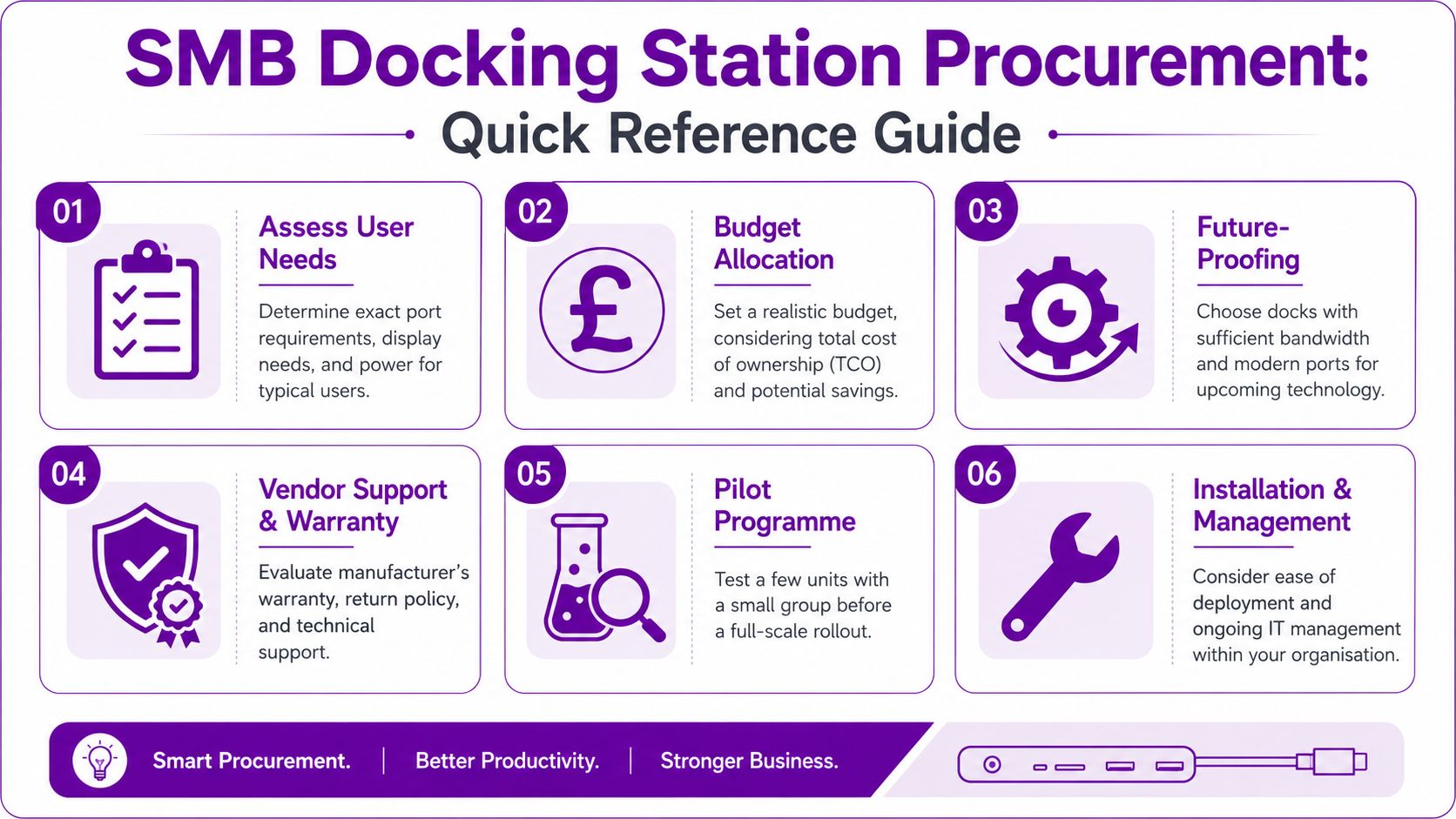
If you're buying docks for a small or mid-sized business, keep the conversation grounded in real working patterns. Don't start with brand. Start with users, laptops, and desks.
Questions to answer before you buy
-
Which laptop models are in scope
A dock that works well with one USB-C laptop may be a poor fit for another. -
How many monitors does each role need
A single-screen admin desk has different requirements from finance, design, or management users. -
Is wired Ethernet required
Some desks can rely on Wi-Fi. Others shouldn't. -
Which existing peripherals must stay in use
USB-A keyboards, webcams, headsets, smart card readers, and printers still shape the port choice. -
What's the budget per workstation
In practical terms, expect around £150 to £250 for a capable USB-C dock and £250 to £400+ for a stronger Thunderbolt model.
A simple shortlist method
Use this three-part check:
| Decision area | What to confirm |
|---|---|
| User profile | Office admin, hybrid worker, power user, or shared desk |
| Technical fit | Wattage, monitor support, Ethernet, USB mix, compatibility |
| Operational fit | Warranty, support, spare availability, ease of rollout |
A pilot with a small user group is worth doing before a wider purchase. It exposes desk-level issues that spec sheets don't show, such as awkward cable lengths, monitor handshake problems, or users needing ports on the front rather than the rear.
For organisations that want a more structured buying process, the principles behind procurement of consultancy services also apply to hardware decisions. Clear requirements first, supplier conversation second.
Expert IT Support with F1Group
Choosing a dock sounds simple until you're buying for multiple teams, mixed laptop models, different monitor setups, and a hybrid working policy that changes from department to department. That's where businesses usually lose time and money. Not because docking stations are complicated in theory, but because the wrong choice creates support noise for months.
A practical IT partner helps in three places. First, matching the dock to the actual laptop estate and user profile. Second, handling procurement and rollout so desks are consistent. Third, supporting the environment afterwards when firmware, peripherals, or laptop standards change.
That's particularly useful for East Midlands organisations juggling managed IT, Microsoft 365 working, cloud adoption, and office standardisation at the same time. The desk setup still matters. If the hardware layer is wrong, the user experience suffers even when the software stack is well designed.
If you're trying to work out what's a docking station, the better business question is usually this: which dock suits our laptops, our desks, and our users without creating extra support issues later? Getting that answer right saves frustration for staff and reduces avoidable tickets for IT.
F1Group helps organisations across the East Midlands choose, deploy, and support the right workplace technology for real business use. If you want docking stations that match your laptops, desk layouts, and hybrid working model, Phone 0845 855 0000 today or Send us a message.