
A charity office in Nottingham is trying to coordinate a volunteer rota, answer service-user enquiries and prepare a funding report. The inboxes sit across different accounts, files are attached to old emails, and a volunteer has recently left without anyone being quite sure which access should be removed. Meanwhile, every pound spent on technology competes with frontline work.
That's the situation in which Microsoft 365 for nonprofits can make a practical difference. It brings email, collaboration, cloud storage, identity management and security into one environment, while the UK charitable licensing framework can reduce the cost for eligible organisations.
The important point is that the programme isn't “free Microsoft Office”. The July 2025 changes altered what charities can receive as donated licences and what they need to budget for as discounted subscriptions. A sensible plan now blends donated Business Basic seats with paid Business Premium licences where desktop applications, device management and stronger security are required.

The practical idea: Give each person the licence that matches their work, then manage access, devices and data as an ongoing charity process.
This guide takes East Midlands charity leaders through the essentials: what Microsoft 365 provides, how UK eligibility works, where donated licensing ends, how to plan security and migration, and how to choose a configuration that remains affordable as staff and volunteer roles change.
Introduction to Microsoft 365 for Nonprofits in the UK
For a small charity in Lincoln, Leicester or Newark, hybrid working can create problems that have little to do with the mission. A volunteer may need a document from home, a trustee may need to review a board paper, and a member of staff may be working from a community venue rather than the main office. If files live on personal laptops and conversations remain scattered across inboxes, people spend time searching instead of serving their communities.
Microsoft 365 gives the organisation a shared cloud workplace. Staff can use Outlook for email, Teams for conversations and meetings, OneDrive for personal work files, and SharePoint for shared charity documents. These services work together, so a team can move from a discussion to a meeting and then to the relevant file without creating another disconnected system.
The nonprofit offer differs from commercial licensing because eligible charities can access donated and discounted plans through a validation process. The organisation still needs a properly managed Microsoft 365 tenant, named users and sensible security controls. The charitable status changes the licensing route, not the need for responsible administration.
Why the programme matters locally
An organisation operating across Nottingham and Lincoln might have employees, sessional workers, trustees and volunteers with very different technology requirements. A coordinator who works from a managed laptop may need installed Office applications and device protection. A volunteer who only checks email and attends Teams meetings may need a lighter licence.
That distinction helps a charity protect its budget without giving everyone the same package. It also supports better governance. When documents sit in controlled SharePoint libraries and access follows a person's role, the charity has a clearer account of who can see information and why.
What a good outcome looks like
A successful deployment should make ordinary work easier without making technology the centre of attention. New starters receive the right access, leavers lose it promptly, teams know where to store documents, and trustees can collaborate without asking someone to email another copy.
The remainder of this guide explains the decisions behind that outcome. Licensing comes first, followed by the practical benefits, security and migration work, cost planning, and the support arrangements that can keep the system organised.
What Microsoft 365 for Nonprofits Is and How It Works
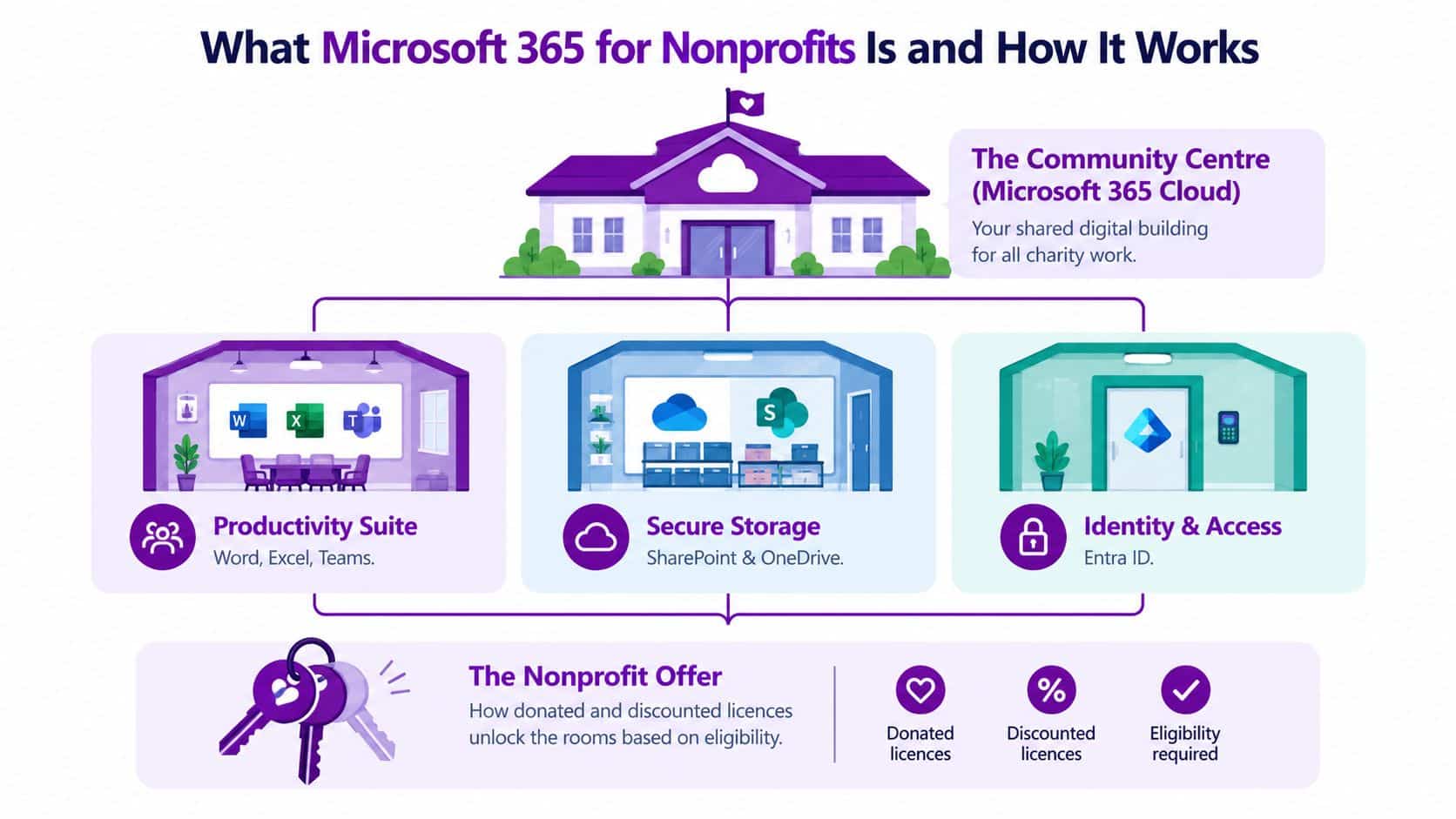
Think of Microsoft 365 as a community centre with secure rooms. The charity's Microsoft 365 tenant is the building. Each person has an identity that acts like a key, and the organisation decides which rooms that key opens. The tenant keeps the charity's work in its own managed environment rather than mixing it with another organisation's information.
The rooms have different purposes:
- Productivity room: Word, Excel, PowerPoint and Teams support everyday writing, analysis, meetings and collaboration.
- Storage room: SharePoint provides shared team libraries, while OneDrive gives each user a personal work area for files.
- Identity and access room: Entra ID helps the charity manage user identities, sign-in and access decisions.
- Email and calendar room: Exchange Online supports organisational email, calendars and shared communication.
How donated and discounted licences fit
Microsoft doesn't normally provide every feature in one universal charitable package. Instead, eligible organisations choose from plans with different capabilities. A donated licence provides access without the usual subscription charge under the relevant charitable offer. A discounted licence remains paid, but at a reduced nonprofit rate.
Business Basic is the usual entry point for web and mobile productivity, email, Teams and cloud storage. It's useful for people who work mainly in a browser or on a mobile device. It isn't the same as a full desktop and security package.
Business Premium builds on the productivity foundation by adding desktop applications and stronger controls for managed devices and protected access. Features such as Microsoft Defender, Intune and Conditional Access become relevant when the charity needs to protect information on laptops, tablets and other devices.
A free seat is valuable only when it matches the user's actual job. Giving a browser-only worker a premium licence may waste money, while giving a staff member with a sensitive managed laptop too little protection can create avoidable risk.
What validation changes
A charity doesn't just select a nonprofit plan at checkout and start assigning it. It normally completes nonprofit registration and validation, then assigns licences to active users in the Microsoft 365 administration environment.
That makes the programme both a financial arrangement and a governance responsibility. The charity needs accurate records of staff, volunteers and trustees, clear ownership of shared resources, and a process for changing access when roles change.
Eligibility and Licensing Options with UK GBP Pricing
A charity in the East Midlands may have staff on laptops, volunteers using phones and trustees who only need occasional access. Licensing should follow those roles, but eligibility comes first. Microsoft's framework can cover organisations registered with the Charity Commission for England and Wales, OSCR in Scotland, or the Charity Commission for Northern Ireland. The HMRC charitable tax-exempt status route may also apply. Registration and validation normally need to be complete before nonprofit licences are assigned. UK nonprofit eligibility and validation guidance explains the process and the commonly cited annual revenue below £3.5 million threshold for the charitable grant route.
Allow time for validation before a migration, renewal or new-starter programme. The process is commonly described as taking around 5 to 20 business days, depending on the workflow and source. Finance and IT leads should therefore begin registration before licences are needed, rather than treating approval as an instant checkout step.
The change charities need to budget for
The UK model changed on 1 July 2025. Microsoft discontinued the donated Microsoft 365 Business Premium and Office 365 E1 grants, so charities renewing on or after that date no longer received those particular grants. Eligible UK nonprofits could still access up to 300 donated Microsoft 365 Business Basic licences, while many other nonprofit SKUs moved to discounted offers. Discounts have been reported at up to 75% for products including Business Standard, Business Premium and Office 365 E1. The UK charity licence update describes the move from broad free entitlement towards donated entry-level seats plus paid upgrades.
The Logic's UK charity licensing and pricing guide lists Business Premium at about £4.20 per user per month under annual commitment. That price makes Premium a targeted security purchase, not a default licence for every user. It suits staff who need desktop applications, managed devices, Defender, Intune and policy-based access.
Microsoft 365 Nonprofit Plans Compared for UK Charities
| Plan | GBP Pricing | Best For | Key Includes |
|---|---|---|---|
| Business Basic | Donated for up to 300 licences | Volunteers and users needing browser or mobile access | Email, Teams, web and mobile Office apps, and cloud storage |
| Business Standard | Discounted nonprofit offer | Users requiring installed Office applications without the full Premium security stack | Desktop, web and mobile Office applications, email and collaboration |
| Business Premium | About £4.20 per user per month under annual commitment | Staff handling sensitive information or using managed devices | Business Standard capabilities plus stronger security, Defender, Intune and Conditional Access |
| Office 365 E1 | Discounted nonprofit offer | Organisations assessing web-based productivity and email needs | Web and mobile productivity, email and collaboration |
The practical model is a blend: assign donated Basic seats where browser and mobile access meet the role, then reserve paid Premium for people handling sensitive information or using managed devices. The 300-seat limit is a planning boundary, not a reason to assign Basic indiscriminately. A user with a protected laptop or higher-risk responsibilities may need Premium even when a donated Basic seat remains available.
For a broader explanation of Premium capabilities, see Business Premium for Microsoft 365 users.
Key Features and Benefits That Help Charities Thrive
A charity usually doesn't need technology for its own sake. It needs a reliable way to coordinate people, protect information and report its work. Microsoft 365 maps those needs to familiar tools.
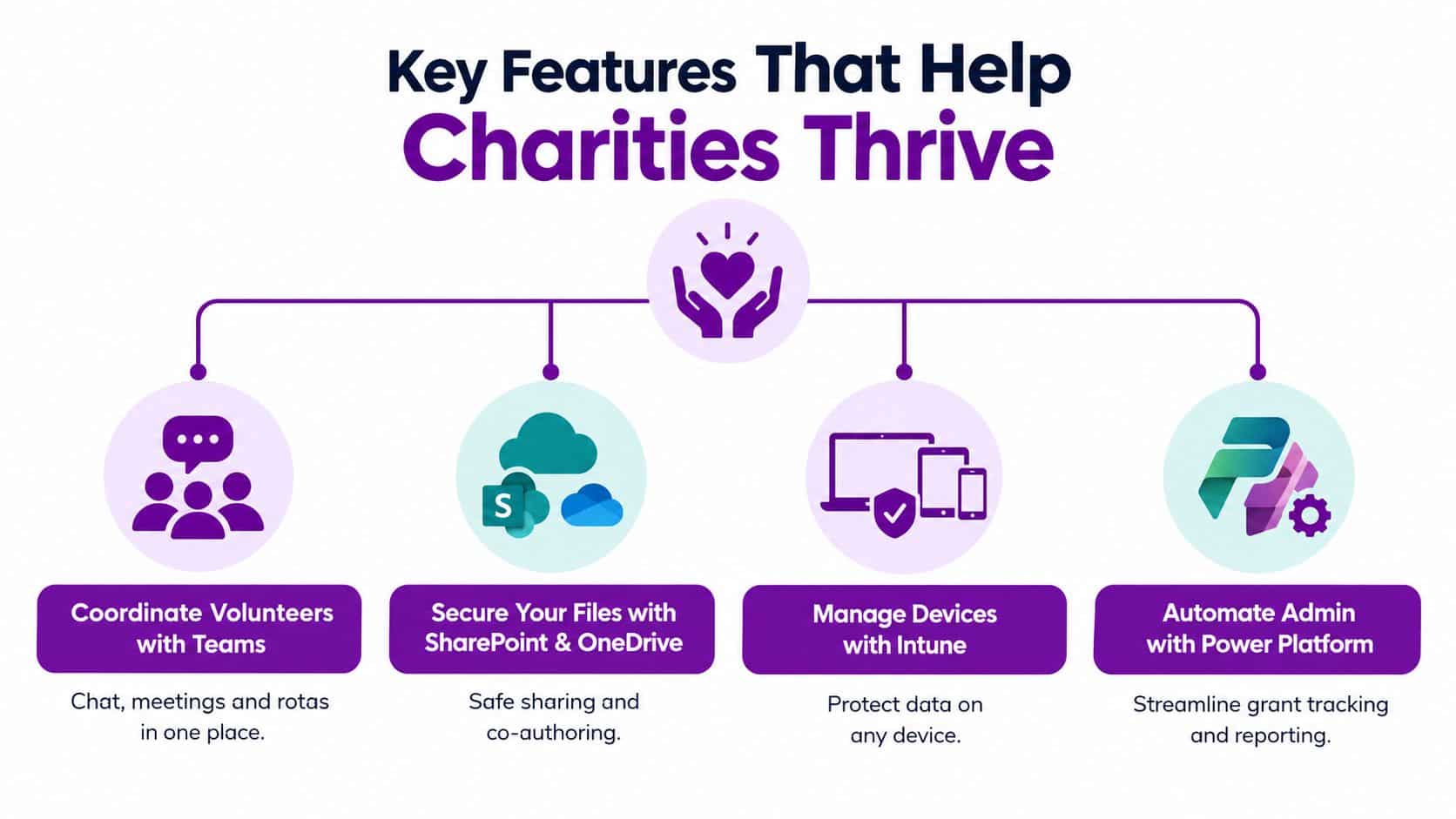
Teams can give a volunteer group one place for announcements, meetings, questions and working documents. A coordinator in Lincoln can update a rota while a colleague in Nottingham joins remotely. That's more dependable than asking volunteers to search through separate email threads for the latest attachment.
SharePoint and OneDrive separate shared organisational information from an individual's working files. A grant-reporting team can co-author a document, control who can edit it and keep the final version in a known library. OneDrive is useful for a user's active work, while SharePoint is usually the better home for records that belong to a team or project.
Matching tools to charity work
Exchange Online provides a professional email service connected to calendars and user identities. That helps a charity present a consistent public face while giving staff shared calendars and mailboxes that can be managed when responsibilities change.
Intune addresses the device problem. If a staff member accesses case information from a laptop, the charity needs more than a username and password. Intune can support device enrolment and compliance decisions, while Business Premium provides the licensing route for organisations that need these stronger controls.
Microsoft Defender adds protection around email and endpoints. It doesn't replace user awareness or sensible policies, but it gives the charity a stronger technical foundation than relying on every user to identify suspicious activity unaided.
Power Platform can help with repetitive administration. A charity might connect a form to a workflow for volunteer onboarding, create a simple Power Apps interface for an internal process, or use Power BI to present reporting information. The design should begin with the process, not the software.
Benefits in practice: Teams coordinates people, SharePoint organises shared knowledge, Exchange supports professional communication, and Premium controls help protect the devices used to access charity data.
Some charities also compare Microsoft's offer with wider sector resources. A curated guide to free tools for community organizations can help leaders review complementary options, particularly where a specific volunteering or fundraising need sits outside Microsoft 365.
For a concise visual explanation of how the tools relate to common charity tasks, watch this overview:
The best mix depends on the charity's working pattern. A volunteer-led group may gain more from clear Teams and SharePoint organisation, while a multi-site service with managed laptops may need Premium controls for a defined staff group.
Security Compliance and Migration Checklist for a Smooth Rollout
Security works best when it's built into the rollout rather than added after users have moved their files. A charity can start with identity, then protect access, then organise information and devices. Each control should answer a clear question: who is signing in, what are they allowed to access, and is the device trustworthy enough to use?
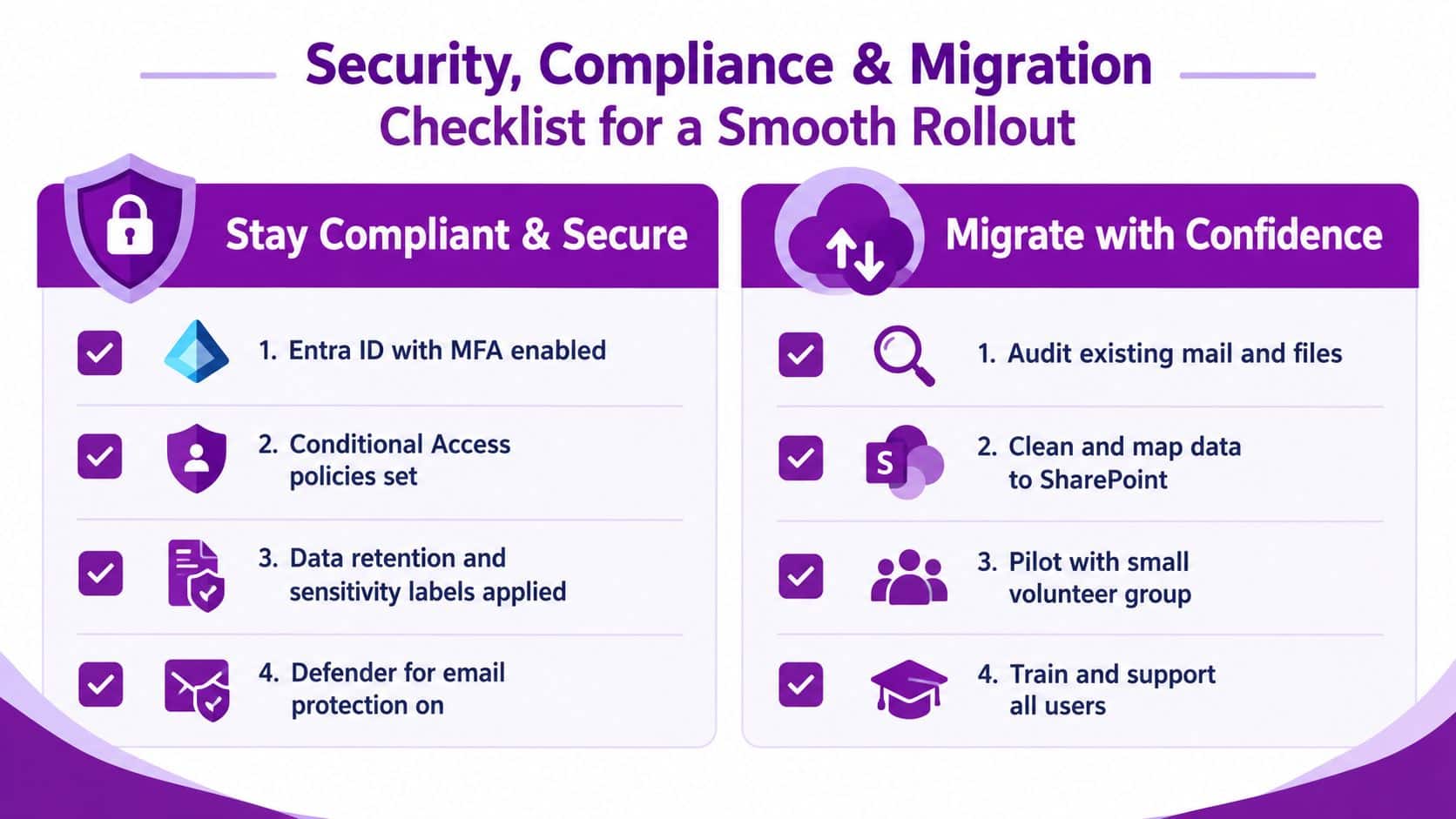
Stay compliant and secure
-
Clean Entra ID first. Remove duplicate accounts, confirm ownership of shared mailboxes and identify accounts belonging to former staff or volunteers. An accurate directory gives every later control a better foundation.
-
Enable multi-factor authentication. A password alone shouldn't be the only barrier protecting charity email and files. MFA asks the user for another proof of identity, such as an approval or security code.
-
Use Conditional Access. These policies can consider the person, device, application and sign-in context before allowing access. The charity might require stronger verification or block access when the risk is unacceptable.
-
Protect information deliberately. Data-loss prevention, retention settings and sensitivity labels can help the charity distinguish ordinary working documents from sensitive service-user or donor information. Rules should be understandable enough for staff and volunteers to follow.
-
Add Defender and device controls where needed. Business Premium users may need Microsoft Defender for email and endpoint protection, alongside Intune policies that check whether devices meet the charity's requirements.
Migrate in a controlled sequence
Begin by auditing existing email, file shares, personal storage and spreadsheets. Don't move every historical file because it exists. Remove duplicates, identify records that need restricted access, and map each useful collection to a SharePoint site or approved OneDrive location.
Pilot the change with a small group that includes a staff member and a volunteer. Their questions will expose confusing folder names, missing permissions and training gaps before the wider rollout. Once the pilot works, migrate in manageable stages and provide short instructions for daily tasks.
A practical Microsoft 365 migration checklist can support this planning, particularly where the charity is moving from mixed storage and informal email processes.
Treat licences as a lifecycle
One UK guidance source says nonprofit customers must use 85% of granted licences, and active users must have used cloud services within 90 days. The licence governance guidance makes the operational point clear: dormant accounts and unmanaged volunteer turnover can waste entitlement or create compliance concerns.
Review user assignments regularly. When a volunteer finishes, disable or remove access, transfer ownership of relevant files and confirm that shared resources still have an accountable owner. When someone changes role, reassess whether Basic still fits or whether Premium controls are now necessary.
Costs ROI Integrations and Pitfalls to Avoid
The lowest licence bill isn't automatically the lowest total cost. A charity also pays through staff time, avoidable support calls, unmanaged devices, duplicate documents and slow reporting. The strongest model usually combines donated Basic seats for suitable users with paid Premium seats for people whose work justifies advanced controls.
A simple decision matrix helps:
| Charity requirement | Sensible direction | Reason |
|---|---|---|
| Web and mobile email, Teams and documents | Business Basic where eligible | Keeps light users on the donated foundation |
| Installed Office applications | Business Standard or Premium | Matches users who work regularly in desktop applications |
| Managed laptops and stronger access policies | Business Premium | Adds the security and device-management capability needed |
| Automated reporting or repetitive administration | Power Platform review | Connects forms, workflows and data without creating another isolated process |
Build a useful ROI case
Finance leaders can compare the subscription cost with the work it supports. Consider time spent locating documents, recreating reports, manually onboarding volunteers and recovering access after a departure. The value case becomes stronger when a controlled workflow reduces repeated work and gives fundraisers more time for donor and grant activity.
Integrations should follow a defined operational need. Dynamics 365 may support fundraising, customer service or HR processes. Azure can provide a wider cloud platform for applications and identity-related services. Power Apps, Power Automate and Power BI can turn manual forms and spreadsheets into managed workflows and reports. Copilot should be considered only after permissions, data quality and responsible-use arrangements are in place.
Avoid the expensive shortcuts
- Over-assigning Basic: A user may appear to need only email, but installed applications or device protection could be part of the role. Review the work rather than assigning by job title alone.
- Ignoring governance: Uncontrolled Teams and SharePoint sites can make information harder to find. Set owners, naming conventions and review points.
- Skipping volunteer training: A technically correct rollout can still fail if people don't know where files belong or how to report suspicious messages.
- Leaving leavers active: A departed volunteer's account can retain access to sensitive material. Include offboarding in the same process as licence management.
Cost discipline: Spend on capability where it reduces risk or removes repeated work. Don't pay for features nobody uses, but don't remove controls that protect the charity's most sensitive information.
Choosing the Right Partner and Next Steps with F1Group
East Midlands charities often need more than a licence recommendation. They may need help proving eligibility, assigning the right seats, securing identities, migrating files and supporting volunteers after launch.
For practical ideas beyond Microsoft 365, resources covering free tools for nonprofits can help organisations explore additional options for volunteer management and community work.
Choose a partner that can explain licensing in plain English and configure the environment around real responsibilities. Vendor certification, DBS-checked engineers, remote and on-site support, and experience with Microsoft 365, Azure, Dynamics 365, Power Platform and cyber security all matter. A charity serving communities in Lincoln, Nottingham, Leicester, Scunthorpe, Grimsby or Newark should also ask how the partner will handle onboarding, offboarding, device compliance and ongoing reviews.
F1Group has supported organisations since 1995, with Microsoft-focused services that include managed IT, Microsoft 365 administration, security reviews, migration and device setup. Its IT support for charities can provide a practical route from eligibility checks to day-to-day governance.
F1Group can help your charity combine donated Business Basic seats with appropriately assigned Premium licences, then secure identities, devices and shared data for confident hybrid working. Phone 0845 855 0000 today or Send us a message to discuss your Microsoft 365 nonprofit requirements.