
The ONS found that 69% of UK firms with at least 10 employees used cloud-based computing systems and applications in 2023, compared with 9% using artificial intelligence. Those figures put cloud services in perspective: they are now part of the everyday foundations of business IT, rather than an experimental extra.
For a small business, adopting cloud is an operating decision, not just a licence purchase. Decide which workloads should move first, which can remain in place, and how each choice affects security and cost. A staged approach lets you assess Microsoft 365, Azure or other services before changing how the business works.
Why UK Small Businesses Are Moving to Microsoft Cloud
A business with staff in the office, at home and visiting customers needs its files and systems to be available in more than one place. Moving suitable workloads to the cloud can give people access to shared information wherever they work, without relying on a single office server. The decision is which systems to move first, not whether to transfer everything at once.
That flexibility supports shared working, too. Colleagues can work on the same documents and keep conversations connected to the work, rather than passing files between devices or waiting to return to the office. For a small firm, less time spent chasing the latest version can make a noticeable difference to the working day.
Resilience is another driver. If an office server fails or the premises are unavailable, cloud-hosted services can help staff continue working, provided they have internet access and the services are set up correctly. This is not a substitute for backups, security or a recovery plan. It changes where some systems run, so owners should check how data is protected and how services can be restored.
Cloud computing means using software, storage or computing resources hosted online. A useful way to assess it is to compare each workload with the job it does. Start with a system that is difficult to access remotely or costly to maintain, then check the effort, risks and ongoing charges involved in moving it. Leave workloads in place when the business case is unclear.
Subscription pricing can also make spending easier to plan than replacing equipment in large, occasional purchases. Costs still depend on the services and support chosen, so a monthly bill is not automatically cheaper over time. The Office for National Statistics figure cited earlier covers UK firms with at least 10 employees, rather than the smallest businesses, and offers wider context rather than a direct measure of every small firm's adoption.
The aim is a workable operating model: choose what staff need from anywhere, what needs stronger recovery arrangements, and what the business can manage itself. Scale services as needs change, while checking costs and responsibilities along the way.
Microsoft 365, Azure and Dynamics 365 Explained Simply
A useful way to choose Microsoft cloud services is to match each one to a job in the business. Microsoft 365 is the furnished office, Azure is the flexible workshop, and Dynamics 365 is the specialist toolkit. They can work together, but they solve different problems. You can move one workload at a time rather than treating them as a single all-or-nothing purchase.
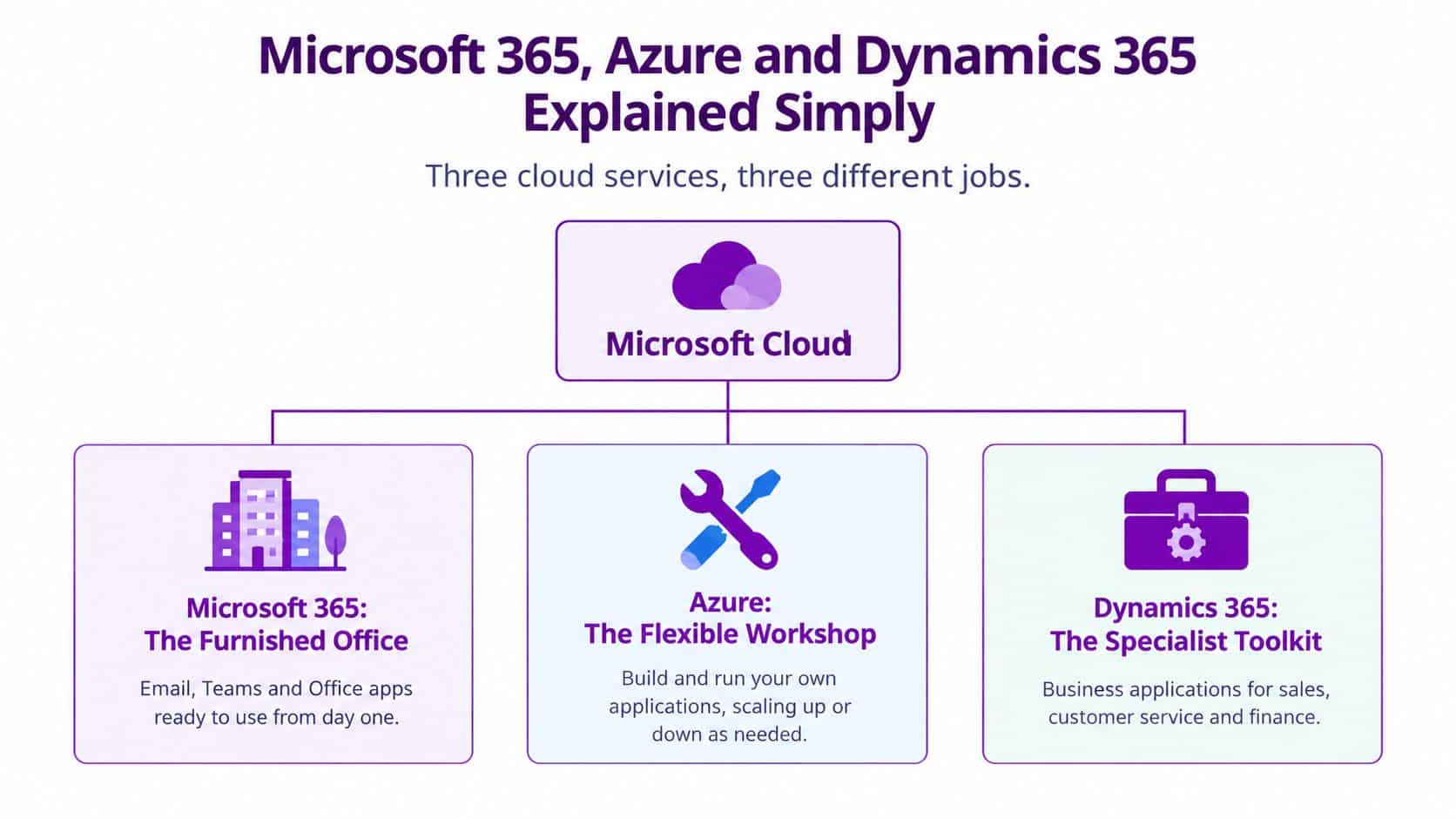
The furnished office
Microsoft 365 brings together Outlook, Teams, OneDrive, SharePoint and Office applications. It can be a practical first move if staff need email, meetings and shared documents without relying entirely on systems at the office. Before moving, decide who needs access to which files and how staff will sign in on different devices. Those settings are part of running the service, not an optional extra.
The flexible workshop
Azure provides computing resources in Microsoft's cloud. A business could use it to host an application or database, particularly if that workload does not fit within Microsoft 365. Like a workshop set up for a particular job, Azure needs careful planning: someone must configure, secure and monitor the resources. Moving an application there changes who looks after its underlying environment, so agree on responsibility before migration.
The specialist toolkit
Dynamics 365 supports processes such as sales and customer service. It can organise customer records and related tasks more consistently than separate spreadsheets and inboxes. The right fit depends on the way your team works; a business with a simple process may not need a dedicated business application yet.
Cloud services and local equipment can share the work. The UK Business Data Survey found that 55% of small businesses used a public cloud or third-party service through software or a web solution, while 45% used business-owned servers on premises (UK Business Data Survey). These figures describe overlapping approaches, not a rule that every business should move everything. Start by identifying which workload would benefit from a change, then weigh the support and management it will need alongside the service itself.
Everyday Use Cases for Small Business Teams
A busy working day quickly exposes where information gets stuck. Staff may be unsure which document is current, search several inboxes for a customer update, or wait until they return to the office to access a file. Microsoft cloud services can help with these everyday tasks, but the right starting point is the work causing the most friction.

Email and files that follow the team
A team using Microsoft 365 could route general enquiries through a shared mailbox, keep project conversations in Teams channels and store working documents in SharePoint or OneDrive. Version history works like a paper trail: staff can find an earlier version if they need to check a change. Clear permissions and an agreed home for each type of file help keep this arrangement orderly.
Microsoft Entra ID helps manage who can access work accounts and services. Multi-factor authentication adds another sign-in check. File synchronisation helps people work across devices, but it isn't a recovery plan, so the business should decide how important information will be restored if it is lost or damaged.
Customer records in one place
A sales team could use Dynamics 365 Sales to keep customer details, conversations and follow-up tasks together. A service team could manage cases in Dynamics 365 Customer Service and check their status without searching separate inboxes. The benefit depends on staff using the system as part of their customer process, rather than adding another place to enter the same information.
Reporting that answers a real question
Power BI can turn information from business systems into reports that help an owner make a specific decision. For instance, a small firm could connect its sales data and compare monthly revenue by product or service. If one line is falling behind, the owner can decide whether to review pricing, stock or sales activity. The report is useful because it supports a choice, not because it contains more charts.
Start with a question the business already needs to answer, such as which jobs bring in the most revenue or where service cases are taking longer to resolve. Then check whether the required data is recorded consistently and whether Power BI can access it. A chart built on incomplete or mismatched records may give a misleading picture.
For a 20-person firm, a sensible sequence might be to organise shared files first, improve how the team tracks customer enquiries next, then build a report around a management decision. Treat each move as a change to how work is done, not just a new licence to buy. Add the next tool when the team can explain what problem it will solve.
Microsoft Cloud Costs in GBP and How to Control Them
A licence is one part of the cloud budget, not the whole operating cost. Your three-year estimate should also account for setup, support, cloud usage and which staff need which features. Microsoft's UK pages list the Microsoft 365 prices below as per user per month, paid annually, excluding VAT. These prices were listed on 23 October 2026; check the pages again before budgeting, as prices can change.
| Plan | Annual price with Teams | Annual price without Teams |
|---|---|---|
| Business Basic | £5.40 | £4.20 |
| Business Standard | £10.80 | £8.30 |
| Business Premium | £16.90 | £14.40 |
Business Basic covers lighter productivity needs. Business Standard adds the desktop versions of productivity applications, while Business Premium combines productivity and security features. Compare Microsoft 365 Business Basic pricing and Business Standard pricing with what each person really uses. The Business Premium pricing page can help you assess whether its additional features suit your team.
Think beyond the headline subscription
Microsoft lists Business Standard with Copilot at £18.10 per user per month and Business Premium with Copilot at £24.60 per user per month, paid annually. The listed Copilot uplift for Premium is £7.70 per user per month. For 20 Premium users, that uplift alone would add £1,848 a year before VAT. It is not the total annual cost of the Premium licences and Copilot. Selected advanced AI features may also involve usage-based charges, so check what is included before setting a budget.
Windows 365 Business supplies a hosted Windows desktop, rather than a Microsoft 365 productivity plan. Microsoft's UK pricing page lists a 2-vCPU, 4-GB RAM and 64-GB storage Cloud PC at £22.20 per user per month, a 2-vCPU, 8-GB RAM and 128-GB storage configuration at £31.30, and a 4-vCPU, 16-GB RAM and 256-GB configuration at £54.90. Check the Windows 365 Business pricing and configurations page for current details before estimating costs.
For a three-year view, match each recurring licence or cloud service to the people and workloads that need it. Then add implementation and support costs, keeping them separate from monthly subscriptions and Azure consumption. A hosted desktop may fit some roles better than others, just as not every employee needs the same Microsoft 365 plan.
Azure's pay-as-you-go pricing means businesses can pay for cloud services as they use them, rather than buying all infrastructure upfront. Spending still depends on how services are configured and managed. Budgets and cost alerts, correctly sized virtual machines, storage lifecycle policies and reserved pricing for predictable workloads can help keep costs in check. For help comparing plans and licence terms, see this guide to Office 365 licensing.
Choosing Between Onsite Support and Managed Services
Choosing cloud support is an operating-model decision, not a choice between buying a licence and hiring an IT person. The right arrangement depends on who will manage day-to-day requests, cover urgent problems and take responsibility for specialist work. A small business may keep some tasks in-house and bring in outside support where it lacks time or expertise.
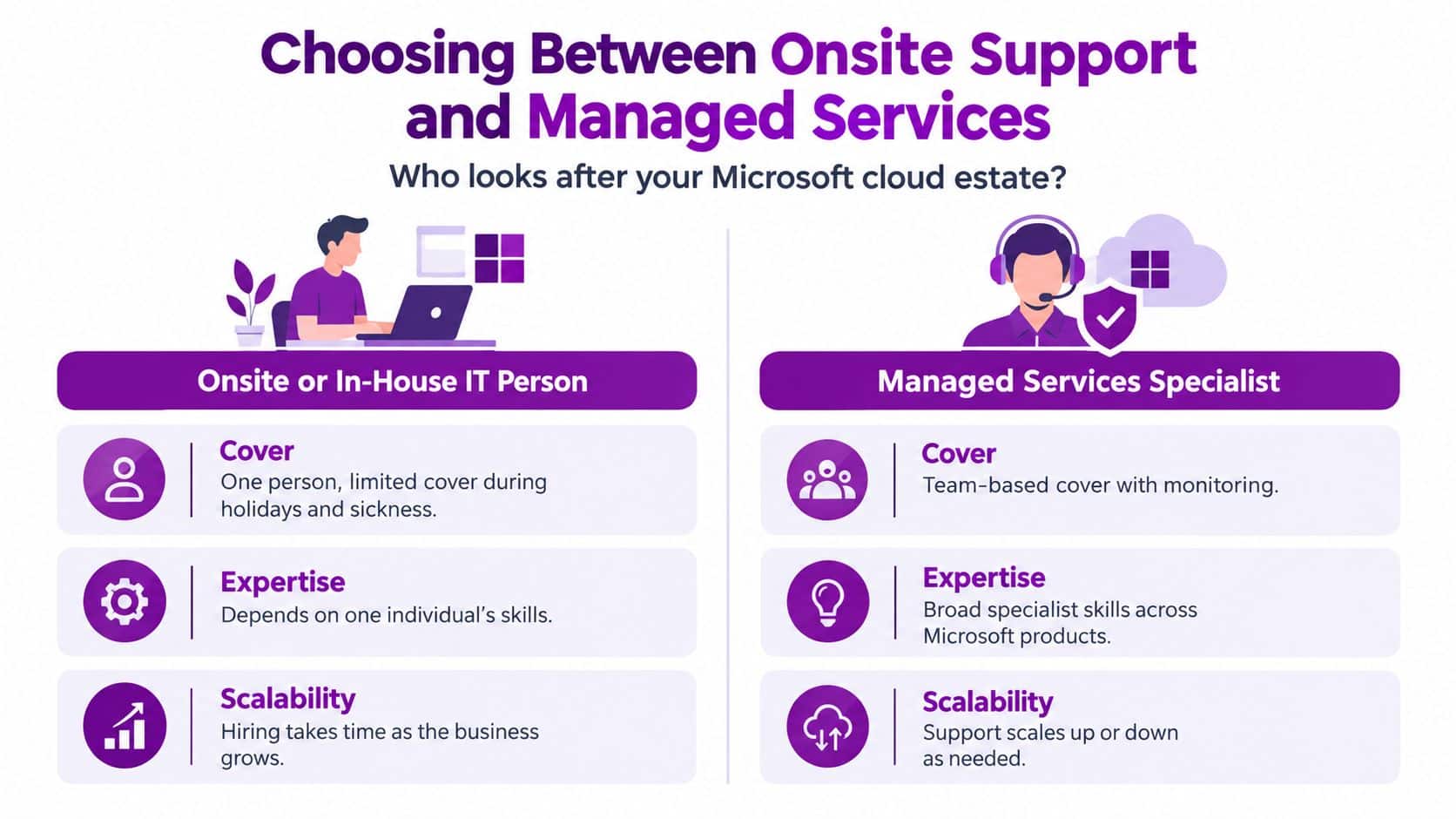
An in-house engineer can learn how your people work and how your systems fit together. That knowledge is valuable, but relying on one person can leave gaps during illness or holidays. Their skills may also cover some, but not all, of Microsoft 365, Azure, Dynamics 365, Power Platform and cyber security. For a small team, providing out-of-hours cover can be difficult too.
A managed service gives you access to a support team under an agreed arrangement. Check the detail before comparing it with an employee's salary: which systems are covered, how staff report problems, how urgent incidents are handled, and what work incurs extra charges? External support can complement an internal contact, rather than replace that person.
| Consideration | In-house or onsite | Managed services |
|---|---|---|
| Cover | Depends on the availability of the internal person or team | Team-based support may be available, depending on the agreement |
| Expertise | Depends on the skills held in-house | Can provide access to different specialists |
| Cost planning | Plan for staffing, training and cover | Agree the service scope and charges |
| Growth | More capacity may require recruitment | Support can be adjusted as needs change |
The comparison is about fit, not a universal winner. A business with regular onsite needs may value an employee who knows its equipment and staff. One with several cloud systems and limited internal cover may prefer an external team. A hybrid arrangement can keep business knowledge close while giving specialist tasks to a provider.
F1Group provides managed IT support across Lincoln, Nottingham, Leicester, Scunthorpe, Grimsby and Newark, and has supported organisations since 1995. Its vendor-certified, DBS-checked engineers work remotely or onsite across Microsoft 365, Azure, Dynamics 365 Sales, Customer Service and HR, Copilot AI, Power Platform, custom app development and cyber security.
Practical rule: Keep a named person responsible for decisions, whether they work in-house or for a partner. Agree who handles routine requests, specialist work and urgent incidents, and who owns the outcome if something goes wrong.
To compare arrangements, list the support your staff actually need and check what each option includes. Review the SME IT services available against those requirements, including cover, responsibilities and any work outside the agreed scope.
Planning a Staged Migration to the Cloud
A staged migration gives a small business time to test decisions before they affect everyone. Start with a workload the team understands, then use the results to decide what should move next. Migration is an operating-model decision, not a race to move every server.
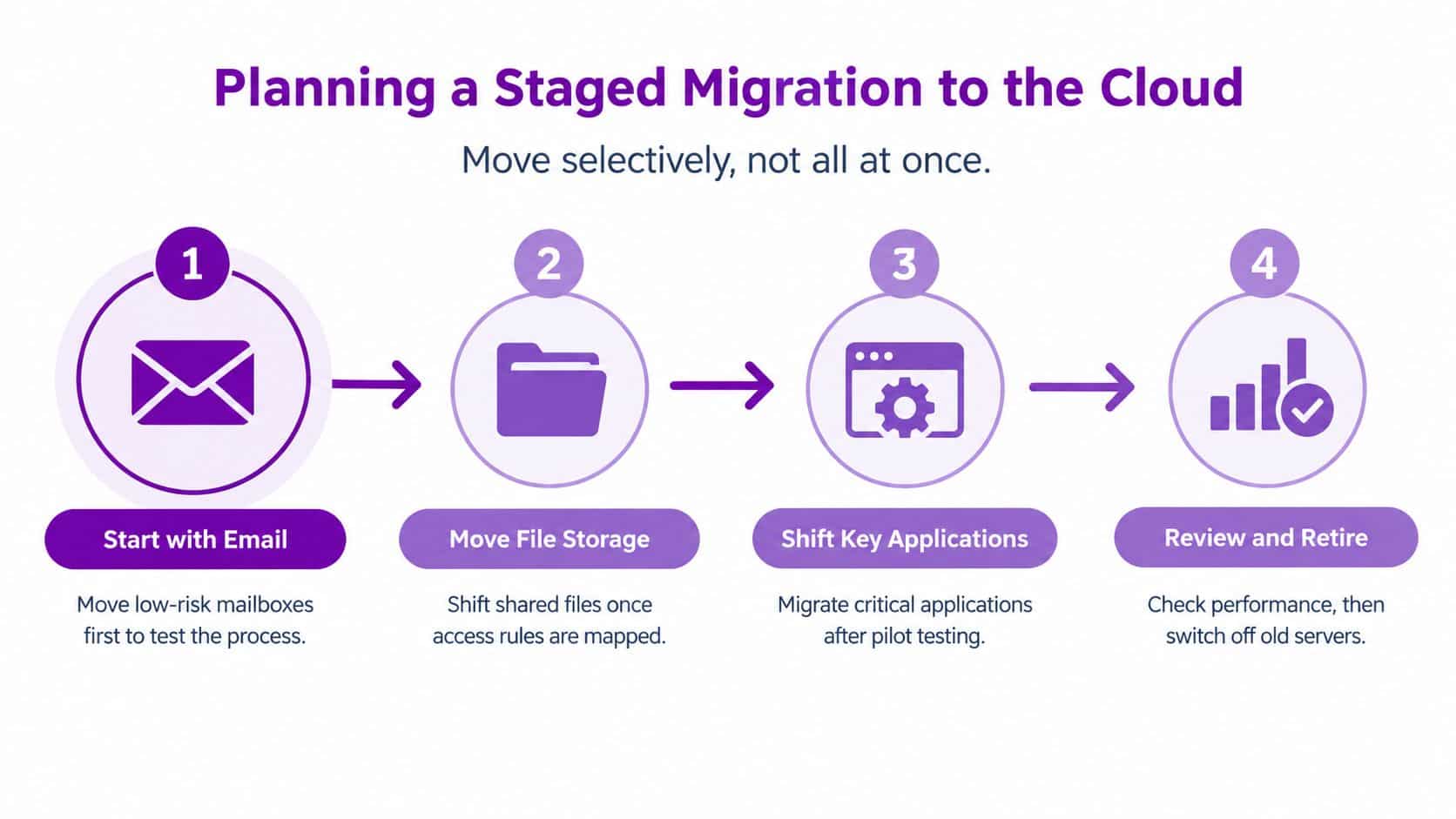
Start with identity and email
Map who needs access to each account and service, then plan sign-in, security controls and recovery if an account is compromised. Begin with a pilot of around five to ten staff, including someone who handles day-to-day administration and people who use email in different ways. Allow a few weeks to test access and resolve snags before expanding.
Set rollback criteria in advance. For example, pause the rollout if pilot users cannot access essential mail or shared services, and keep the existing email setup available until the new one is working reliably.
Move files and collaboration deliberately
Next, map shared folders, permissions and working practices. Decide where documents should live and who can access them. Pilot a small, representative set of folders with the staff who use them regularly. Check that permissions, file links and everyday tasks still work before moving more teams. A few weeks may be enough for a straightforward file move, while complicated folder structures need more preparation.
Add backup, security and business applications
With identity and files working, review backup and recovery, access controls and links to other systems. Test one business application with its users before choosing whether it belongs in Azure, a Microsoft service or on premises. Some older applications need redesign rather than a direct move, so allow time to assess dependencies.
For each workload, ask what recovery the business needs, where data must reside, which systems need to connect and whether users are ready. Compare the three-year total cost, including support and ongoing consumption. If a pilot misses agreed recovery, access or performance requirements, pause and restore the previous arrangement before trying again.
Review before switching off old systems
Keep old equipment available until the new service has passed agreed checks and users can complete their work. Compare costs and outcomes with the existing setup, then decide whether to retire it. Cloud services can shift spending from upfront equipment costs to ongoing charges, but a server moved without redesign or cost controls may not become cheaper.
Keep a workload on premises if its move cannot yet be justified. Compare the result with the original baseline before approving the next stage.
For a step-by-step planning framework, use these cloud migration best practices. The video below provides another overview of cloud migration to consider alongside the staged approach.
Your Next Steps for Microsoft Cloud in the East Midlands
You don't need a grand transformation project to make a useful start. Set aside time this week to make a clear picture of what the business uses, who relies on it and what needs attention first.
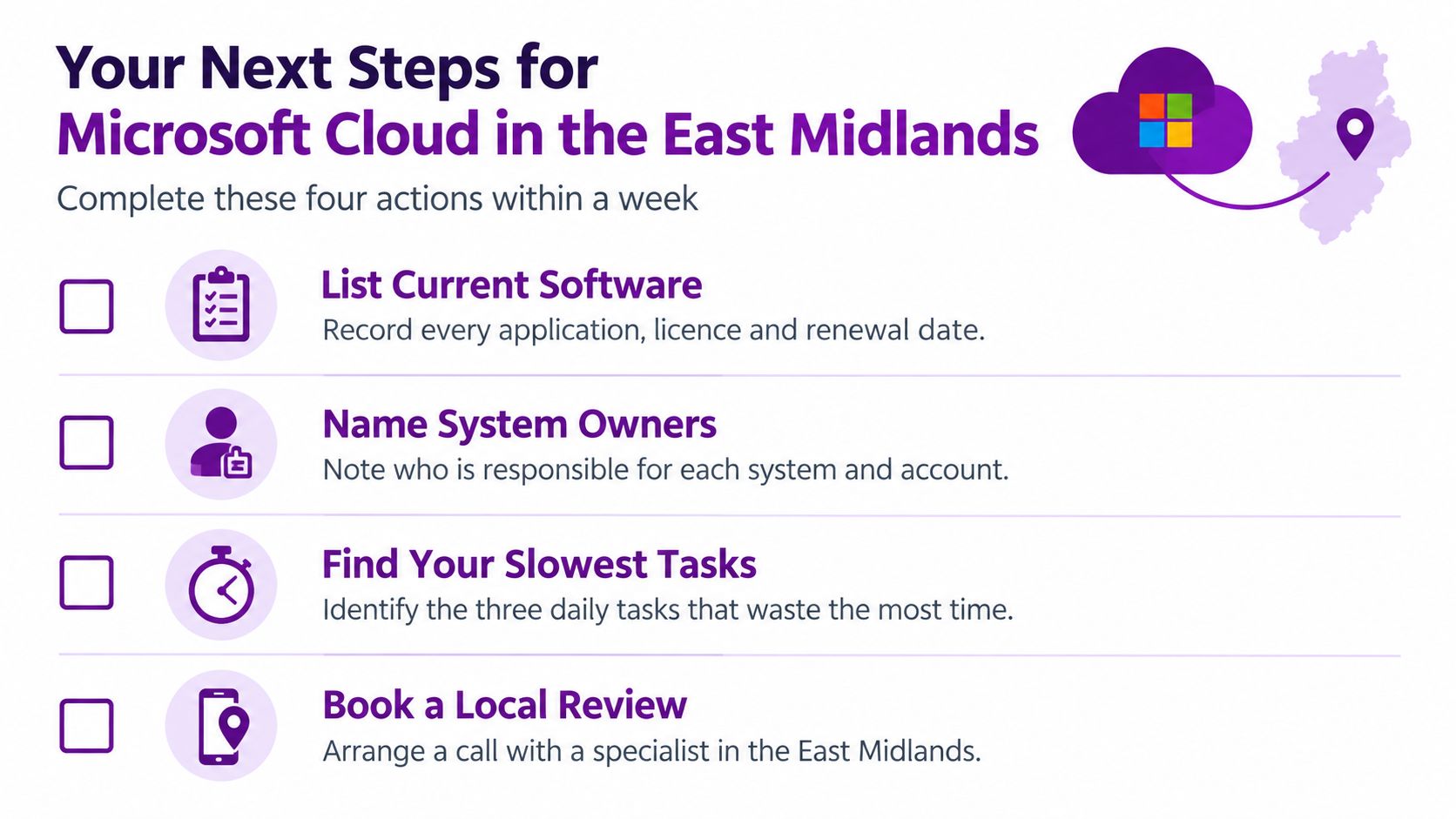
Use this checklist to prepare:
- List your software and servers. Record the applications people use, current licences and renewal dates, and any equipment the business still depends on.
- Group users by need. Note which staff need desktop applications, collaboration features or stronger security controls, rather than assuming one plan fits everyone.
- Decide whether Copilot belongs in the plan now. Identify a specific task it could support, and consider it later if the need isn't clear.
- Flag legacy applications. Record what each one connects to and whether it needs to move, be redesigned or remain on premises.
- Agree a three-year budget in GBP. Keep VAT separate, and include support, implementation and relevant ongoing service costs.
A useful first conversation with an IT partner should result in a workload-by-workload assessment, clear reasons for what moves first and a costed staged plan. Ask how the proposed changes will be supported, how staff will adapt and how the business will judge whether the project has delivered what it needs.
For businesses across the East Midlands, a local review can help turn a list of systems into manageable decisions. Phone 0845 855 0000 today, or send us a message to arrange a review of your Microsoft estate.
F1Group supports East Midlands organisations with managed IT, Microsoft 365 and Azure planning, migration and ongoing support. To discuss a staged approach that fits your systems and team, visit F1Group.