
More than 300,000 companies in the United Kingdom use Microsoft 365, making the UK its second-largest market globally, and the platform holds about 47.9% market share in Office productivity suites according to 2024 Microsoft 365 usage data. That should change how you think about Microsoft Office for businesses.
This isn’t just Word and Excel with a subscription attached. For most SMEs, Microsoft 365 has become the operational layer for email, meetings, file storage, identity, document control, and increasingly AI-assisted work. When it’s set up properly, staff work faster, data is easier to govern, and remote or hybrid working becomes far less fragile.
When it’s set up badly, the opposite happens. Teams sprawl. SharePoint turns into a dumping ground. Licences drift out of line with actual use. Security settings stay half-finished. Owners end up paying for a platform they’re only partly using.
That gap between buying licences and getting business value is where practical IT advice matters, especially for firms across Lincoln, Nottingham, Leicester, Scunthorpe, Grimsby, and Newark.
The Modern Workplace Runs on Microsoft 365
The phrase “Microsoft Office” still makes many business owners think of a box of software installed on a PC. That model is outdated. Now, the business conversation centers on a connected cloud platform that combines familiar apps with communication, storage, identity, and security in one estate.
For a growing business, that matters because work no longer sits in one office, on one machine, or inside one server cupboard. Sales teams need access on the road. Finance teams need version control. Directors need reporting that isn’t trapped in someone’s inbox. New starters need to be onboarded quickly without IT rebuilding the wheel each time.
Microsoft 365 has become the default environment for that kind of operation. Not because every business uses every feature, but because the core toolkit solves common problems in a joined-up way.
Practical rule: If your team still treats email, files, meetings, and security as separate systems, you’re carrying more admin risk than you need to.
The shift also changes what “IT support” means. It’s no longer just fixing Outlook when it breaks. It’s deciding how Teams should be structured, how SharePoint permissions should work, how data should be retained, and which users require premium security controls.
That’s why the most useful approach is to look at Microsoft 365 as part of your wider modern workplace strategy, not as a software renewal. The businesses that get the most from it usually make three decisions early. They choose the right plan, lock down governance before rollout, and treat user adoption as part of the project rather than an afterthought.
What Microsoft 365 for Business Actually Includes
Most confusion around Microsoft Office for businesses comes from the name. People assume they’re buying apps. In practice, they’re buying a digital working environment.
At the core are the familiar tools. Word, Excel, PowerPoint, and Outlook still do the heavy lifting for daily work. The difference is that they now sit inside a platform designed for shared access, cloud sync, and collaboration across devices.
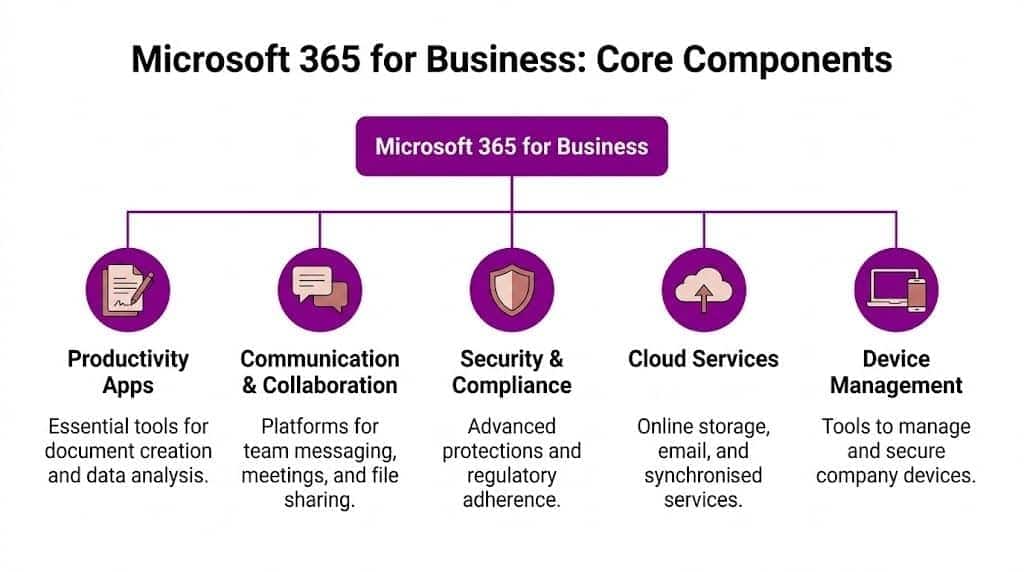
The three parts that matter most
The easiest way to understand Microsoft 365 is to split it into three practical layers.
-
Core productivity apps
This is the “Office” part. Staff create proposals in Word, budgets in Excel, presentations in PowerPoint, and manage email through Outlook. For many businesses, desktop apps still matter because people need full functionality, offline access, and familiar workflows. -
Communication and collaboration tools
Teams, SharePoint, and Exchange Online change how work moves around the business. Teams handles chat, meetings, and channel-based collaboration. SharePoint gives structure to shared documents and internal sites. Exchange Online keeps business email in the same cloud estate. -
Cloud storage and access
OneDrive gives each user 1TB of storage, which is part of why staff can work from almost anywhere without relying on local files or USB drives, as outlined in this Microsoft 365 Business plan overview. That same source notes Microsoft 365 Business plans are engineered for real-time collaboration and can deliver a 35-50% productivity uplift through features such as autosave, version history, and multi-device app installation.
Why the integration matters more than the app list
A business doesn’t gain much from having Word in the cloud if staff still save files to desktops, send attachments back and forth, and lose track of versions. The primary gain comes from the way the tools work together.
A proposal starts in Word, lives in SharePoint, is shared in Teams, gets comments from managers in real time, and stays backed by permissions and audit controls. That’s a better process, not just newer software.
Staff don’t need more apps. They need fewer points of friction between the apps they already use.
What businesses often overlook
Business owners usually focus on visible tools first. Word, Outlook, Teams. The hidden value often sits elsewhere.
| Area | What it changes in practice |
|---|---|
| File control | Staff stop asking which version is final |
| Remote access | Users can move between office, home, and mobile more easily |
| Onboarding | New users can start from a standard setup instead of ad hoc installs |
| Resilience | Data is less dependent on one device or one office location |
That’s the practical difference. Microsoft 365 isn’t a collection of icons on a menu. It’s the system that ties together how people communicate, store information, and get work done.
Choosing the Right Microsoft 365 Business Plan for Your Organisation
Most SMEs don’t need every Microsoft licence under the sun. They need the right one for the way people work.
For organisations with up to 300 users, the business plans are usually the starting point. The mistake is to choose only on monthly price. That often leads to under-licensing key users, over-licensing occasional users, or adding bolt-ons later that would have been simpler to include from day one.
The practical difference between Basic, Standard, and Premium
Business Basic suits organisations that mainly need cloud services. It works well for firms with web-based working habits, frontline staff, or very light desktop app requirements. If your team lives in browser tabs and only occasionally edits documents, Basic can be enough.
Business Standard is the common choice for office-based SMEs. It adds desktop Office apps alongside the cloud services, which matters if staff rely on richer Excel workbooks, more complex formatting, or regular offline work. For many businesses, this is the sensible midpoint.
Business Premium is the plan to look at when security, compliance, and device control are business priorities rather than “nice to have” extras. If the company has laptops outside the office, handles sensitive information, or wants stronger control over endpoints and identity, Premium is usually the more realistic option than trying to recreate those protections piecemeal. For a fuller breakdown of where it fits, this Microsoft 365 Business Premium guide is useful.
Microsoft 365 Business Plan Comparison UK Pricing 2026
Because plan pricing changes and Microsoft updates packaging regularly, it’s best to confirm current UK pricing at the point of purchase rather than relying on a static article. What matters more is matching the plan to the role.
| Feature | Business Basic | Business Standard | Business Premium |
|---|---|---|---|
| Web and mobile Office apps | Yes | Yes | Yes |
| Desktop Office apps | No | Yes | Yes |
| Business email | Yes | Yes | Yes |
| Teams | Yes | Yes | Yes |
| OneDrive | Yes | Yes | Yes |
| SharePoint | Yes | Yes | Yes |
| Advanced security and device management | Limited | Limited | Stronger fit |
| Best fit | Start-ups, light users, shared device environments | Most office-based SMEs | Security-conscious SMEs and regulated organisations |
A simple way to decide
Use job role, not hierarchy, as your guide.
- Shared and occasional users often fit Basic.
- Day-to-day knowledge workers usually need Standard.
- Directors, finance, HR, managers, and mobile staff with sensitive access often justify Premium.
A mixed estate is normal. Not everyone needs the same licence, and forcing a single plan across the whole company usually wastes money or leaves gaps.
If your licence decision is based only on per-user cost, you’ll probably pay twice. Once on the subscription, and again fixing the consequences.
A good Microsoft 365 setup usually starts with a licence review, a device review, and a clear view of where the business holds regulated or commercially sensitive information.
Navigating Security and Compliance in the UK
A lot of Microsoft 365 content focuses on features and skips the harder question. Are you configuring it in a way that stands up to real-world risk?
The platform includes strong controls. You can use multi-factor authentication, conditional access policies, anti-malware filtering, data loss prevention, retention policies, and device management. Those tools are valuable, but they don’t protect anyone by default just because a licence exists.

Licensing risk is a compliance issue, not just an admin issue
One of the least discussed problems in the UK market is licensing compliance. A Federation of Small Businesses report summary indicates 28% of UK SMBs faced software licensing issues, with Microsoft audits leading to average fines of £12,500 for non-compliant businesses in regions such as the East Midlands.
That catches firms out in several ways. A business adds users quickly but doesn’t update licensing correctly. Teams are moved between plans without checking feature dependencies. Shared mailboxes, archived accounts, and device access sit in grey areas for too long. None of that feels dramatic until an audit or an incident forces a closer look.
Security tools only work when policy matches reality
In practice, the bigger problem is usually inconsistency. One department uses MFA everywhere. Another still has exceptions. One site stores documents in structured SharePoint libraries. Another uses personal OneDrive folders as if they were team repositories.
That’s where internal process matters as much as Microsoft configuration. If your managers need to deliver internal compliance training, it helps to treat Microsoft 365 policies as operational rules people understand, not hidden technical settings buried in an admin console.
Security fails most often where ownership is unclear. Someone assumes IT is handling it, while IT assumes the business has approved the policy.
What a UK SME should review first
A sensible review usually covers these areas before any wider rollout or cleanup project.
-
Identity controls
Check MFA coverage, privileged access, leaver processes, and whether shared accounts still exist. -
Data locations
Review where files live today. Desktop, server, SharePoint, Teams, and personal OneDrive all create different governance issues. -
Licensing alignment
Match each user type to the right subscription and remove legacy drift. -
Policy enforcement
Make sure retention, sharing, and access rules reflect the way the organisation actually works.
For organisations that need a structured approach, a security and risk management review is often the point where Microsoft 365 starts becoming manageable instead of sprawling.
Unlocking Potential with the Broader Microsoft Ecosystem
Microsoft 365 becomes far more valuable when it stops acting as a standalone product and starts acting as the front door to the wider Microsoft estate.
That’s where many SMEs hit a second stage of maturity. They’ve already moved email and files into the cloud. The next question is how to connect that environment to business systems, automate repetitive tasks, and give managers better visibility without buying a collection of disconnected tools.
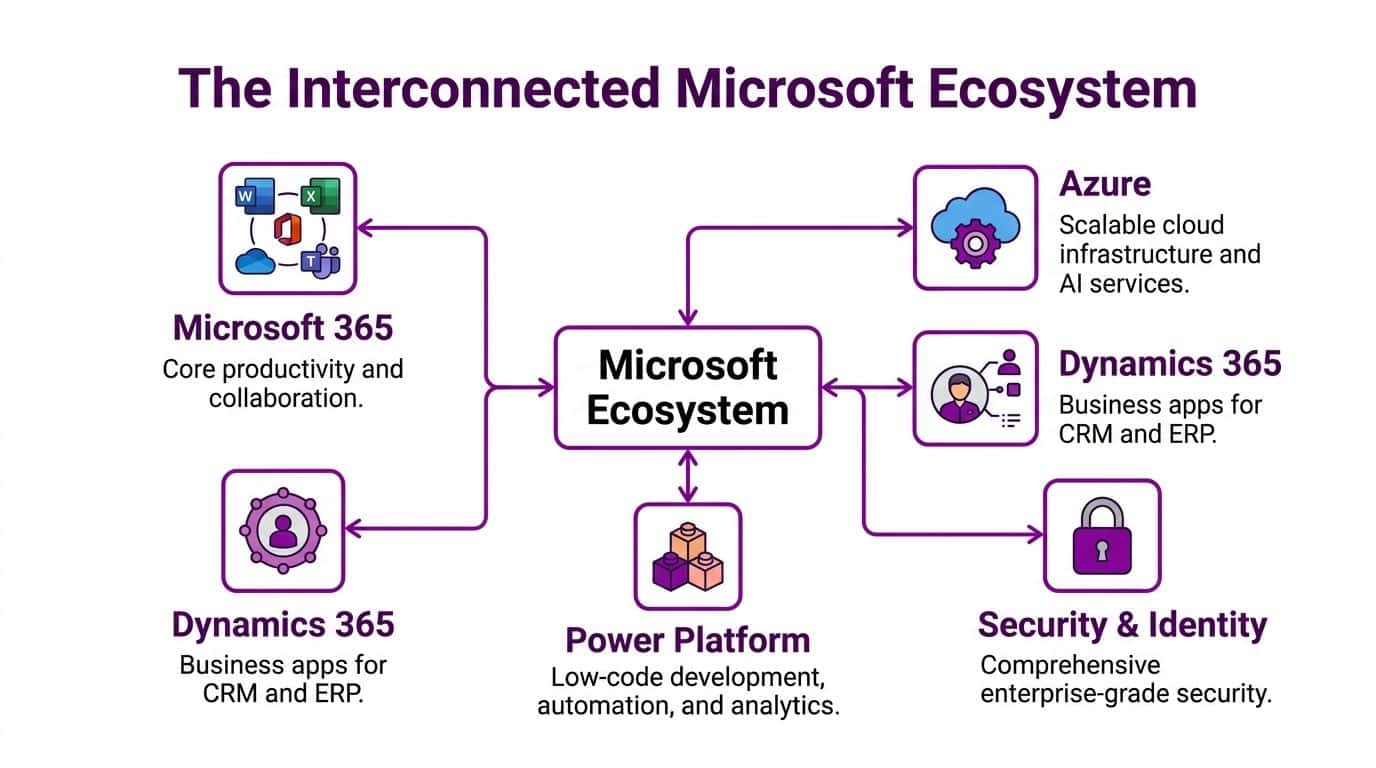
Where Azure fits
Azure matters even if you never spin up a virtual server. For many SMEs, the most immediate value sits in identity, access control, and the wider services that support secure cloud working.
That means one user identity across Microsoft services, tighter control over sign-in, and better foundations for secure app access. It also makes future cloud projects easier because the identity layer is already in place rather than being patched together later.
Dynamics 365 turns collaboration into operational work
When Dynamics 365 is connected properly, Teams and Outlook become more useful because staff can work around customer and operational context rather than isolated messages.
A sales user can collaborate around an opportunity. A service team can keep conversations tied to a customer record. Managers can reduce the amount of status chasing because information sits closer to the work itself.
Power Platform is where process improvement becomes practical
This is often the most underused part of the stack. Power Apps, Power Automate, and Power BI let businesses solve small but expensive operational problems without commissioning a full software rebuild.
Consider the kinds of tasks that waste time every week:
-
Approval bottlenecks
Purchase requests, holiday approvals, and document sign-off often still move by email. Power Automate can structure those handovers. -
Spreadsheet-driven processes
Teams often rely on Excel for job tracking, asset logs, or internal requests. Power Apps can replace that with something cleaner and easier to control. -
Fragmented reporting
Managers pull figures from multiple systems into one board pack. Power BI can bring that together in a more maintainable way.
The biggest gains usually don’t come from dramatic transformation. They come from removing ten small delays that staff hit every day.
Used together, Microsoft 365, Azure, Dynamics 365, and the Power Platform create a more connected operating model. Staff spend less time re-entering data, hunting for files, or manually chasing process steps. Leaders get better visibility. IT gets a platform that is easier to govern than a patchwork of unrelated services.
The Impact of AI with Microsoft Copilot
Copilot is the part of the Microsoft story attracting the most attention, and for good reason. Used well, it can reduce the grind around email, meetings, document drafting, and data interpretation. Used carelessly, it can expose data problems a business didn’t realise it had.

Where Copilot helps in day-to-day work
The practical use cases are easy to spot. In Outlook, Copilot can help summarise long threads and draft replies. In Teams, it can surface key points from meetings and conversations. In Word, it can help with first drafts and restructuring. In Excel, it can help users interrogate data without manually building every formula from scratch.
That doesn’t mean it replaces skilled staff. It means it can remove some of the repetitive setup work that slows them down.
The catch is that Copilot works with the information your organisation already exposes through Microsoft 365. If permissions are loose, file structures are messy, or sensitive content is overshared, AI can make those weaknesses more visible rather than less important.
The security and data sovereignty trade-off
A UK-focused review of Copilot security considerations cites NCSC findings that 42% of mid-sized firms using cloud AI like Copilot experienced data exfiltration attempts. The same source notes that while Copilot has EU data residency options, a percentage of queries may still be routed via US servers, which creates GDPR risk for businesses that haven’t assessed that exposure properly.
That matters more for regulated sectors, businesses handling HR data, finance teams, and organisations with contractual obligations around where data is processed. Copilot isn’t just another app switch. It’s a data governance decision.
Before enabling Copilot, review who can access what. AI will follow your permissions, not your intentions.
Roll out AI after housekeeping, not before
The most successful Copilot deployments tend to follow a sequence.
-
Clean up permissions
Remove stale access, review broad sharing, and tighten high-risk areas. -
Review information structure
Make sure Teams, SharePoint, and OneDrive aren’t storing critical data in uncontrolled ways. -
Define acceptable use
Staff need clarity on what they can use AI for, what requires human review, and what should never be pasted into prompts.
A useful primer sits below if your team wants to see Microsoft’s own Copilot interface in action before making wider policy decisions.
Copilot can be productive. It can also be disruptive if the business expects instant gains without first doing the dull but necessary governance work. That’s the trade-off.
Best Practices for M365 Deployment and Management
A successful Microsoft 365 rollout is rarely about the migration tool. It’s about sequencing, ownership, and restraint.
Businesses usually run into trouble when they try to move everything at once, copy poor file structures directly into SharePoint, or assume staff will automatically adopt new ways of working because the licences are live. They won’t. People fall back to familiar habits unless the rollout is designed around how they work.

Start with a phased migration
The safest approach is usually staged rather than dramatic. Move email, files, devices, and collaboration in a planned order. Test with a small user group first. Confirm how permissions behave. Check mobile access. Validate line-of-business integrations before expanding the rollout.
That gives the organisation space to fix design issues early. It also reduces the chance of creating a large clean-up exercise after launch.
Focus on the people side early
Technical deployment is only half the job. The harder part is changing habits.
A practical adoption plan usually includes:
-
Clear ownership
Someone in the business should own Teams structure, file governance, and naming conventions. If nobody owns it, clutter appears fast. -
Role-based training
Finance, sales, operations, and directors don’t need the same guidance. Training should reflect how each group uses the platform. -
Simple rules for storage
Staff need to know what belongs in Teams, what belongs in SharePoint, what stays in personal OneDrive, and what should never be shared casually.
Governance prevents slow decline
A Microsoft 365 tenant rarely fails in one dramatic moment. It decays through small unmanaged decisions. New Teams get created without purpose. External sharing stays open longer than intended. Former project spaces remain accessible. Nobody reviews ownerless groups.
That’s why ongoing administration matters. Someone has to review user lifecycle, access permissions, archive rules, device posture, and the sprawl that builds up over time.
A tidy tenant is easier to secure, easier to support, and much easier for staff to trust.
Build support around the full lifecycle
The most effective operating model usually combines internal business ownership with external technical support where needed. That can include migration planning, policy setup, user onboarding, security review, and backup strategy.
As one option among others, F1Group provides third-party backup for Office 365 data, which is relevant for businesses that want additional protection against accidental deletion, cyber risk, or retention gaps beyond native Microsoft controls. That kind of service tends to matter more after the first real incident than before it.
Good deployment work is quiet. Users can find what they need. Meetings and files behave as expected. Leavers are removed cleanly. New starters are productive quickly. That’s what “done properly” looks like.
Maximising Your Return on Investment with Expert Support
For most SMEs, Microsoft 365 ROI is won or lost after the licences are bought.
The return from Microsoft Office for Businesses comes from better operational discipline. Staff spend less time chasing files, switching between disconnected tools, and fixing avoidable access issues. Finance gets clearer control of subscription spend. Directors get a platform that can support growth without adding the same level of administrative overhead every time the business changes.
Microsoft has published commissioned ROI work through Forrester on Microsoft 365, but those numbers should be treated as a starting point, not a budget promise. Composite studies can be useful for benchmarking, yet they do not reflect the specific reality of every East Midlands manufacturer, professional services firm, or multi-site SME. UK pricing, existing contracts, regulatory obligations, and the condition of your current IT estate all affect whether the investment pays back quickly or drifts into shelfware.
That gap between buying and benefiting is where many organisations lose money.
In practice, the biggest ROI gains usually come from a short list of decisions. Choosing the right licence mix instead of over-licensing everyone. Reducing duplicate tools that people kept because the Microsoft equivalent was never configured properly. Setting clear ownership for Teams, SharePoint, devices, and user changes so routine admin does not turn into recurring disruption. Giving staff enough training to use what they already have, especially in businesses that are paying for features nobody touches.
Support matters because most SMEs do not have spare time to audit licences, plan change, track adoption, and keep security aligned with business risk. Internal teams are often capable, but stretched. An experienced partner adds value by spotting waste early, tightening the setup, and helping the business avoid expensive rework six months later.
At F1Group, we usually find that clients get the best return when Microsoft 365 is treated as an operating platform, not just a bundle of apps. That means tying licensing, security, data handling, device management, and user support back to measurable business outcomes such as faster onboarding, fewer support tickets, cleaner audits, and lower exposure to cyber incidents.
If you want practical help with Microsoft 365 planning, deployment, security, licensing, or ongoing support, speak to F1Group. Phone 0845 855 0000 today or send us a message.