
More than 99.9% of compromised accounts in the UK had Multi-Factor Authentication switched off, according to Microsoft security metrics cited here. That single fact changes the conversation. MFA implementation isn't a polish item for next quarter. It's basic account protection.
For most UK organisations, especially those running Microsoft 365, the primary question isn't whether to enable MFA. It's how to implement it without locking people out, breaking legacy workflows, or creating a support mess on Monday morning. Good MFA projects are rarely about clicking one setting. They're about account hygiene, sensible policy design, user communication, and a realistic plan for exceptions.
Why MFA Is No Longer Optional for UK Businesses
More than 99.9% of compromised accounts had MFA turned off, as noted earlier. For UK businesses, that is no longer just a security warning. It is becoming a compliance issue with procurement and certification consequences attached.
Passwords still fail in ordinary ways. Staff reuse them, attackers phish them, and old credentials remain saved in browsers or on unmanaged devices. Once a password is exposed, a Microsoft 365 account without a second factor is usually straightforward to abuse.
In the UK, the business case now overlaps directly with compliance. From April 2026, Cyber Essentials will treat MFA on cloud services as a pass or fail control. For SMEs, that changes the conversation from "should we do this?" to "how do we implement it properly, and what will an assessor expect us to show?"
What this changes for SMEs
For a small or mid-sized business, MFA reaches far beyond employee email. It affects administrator accounts, remote access, third-party SaaS platforms, and any cloud service your team uses to handle customer data, finance, or internal operations. Protecting only directors or only IT admins is not enough.
Practical rule: If a cloud service offers MFA, assume you will need to enable it, manage exceptions carefully, and explain your approach during a security review.
The organisations that struggle are not usually careless. They are busy, under-resourced, and working around legacy setups that were never designed with modern identity controls in mind. I see the same pattern in first-time Microsoft 365 projects. MFA gets enabled for standard users, but service accounts are left behind, shared access is still handled informally, and nobody decides what happens when a senior manager changes phone on a Friday evening.
That gap between policy and day-to-day operations is where UK SMEs get caught out.
The business risk is bigger than the login screen
A single compromised Microsoft 365 account can expose email, Teams, SharePoint, OneDrive, and connected business systems. The first visible problem might be a phishing email sent from a real mailbox or a fake supplier payment request that appears to come from finance. By the time someone notices, the attacker may already have access to files, conversations, and password reset paths.
MFA implementation reduces that exposure quickly, but only when the rollout covers the awkward accounts as well as the obvious ones. Break-glass access, admin accounts, and exceptions need rules from the start. If they are left until after go-live, they usually become permanent gaps.
Laying the Groundwork for a Successful Rollout
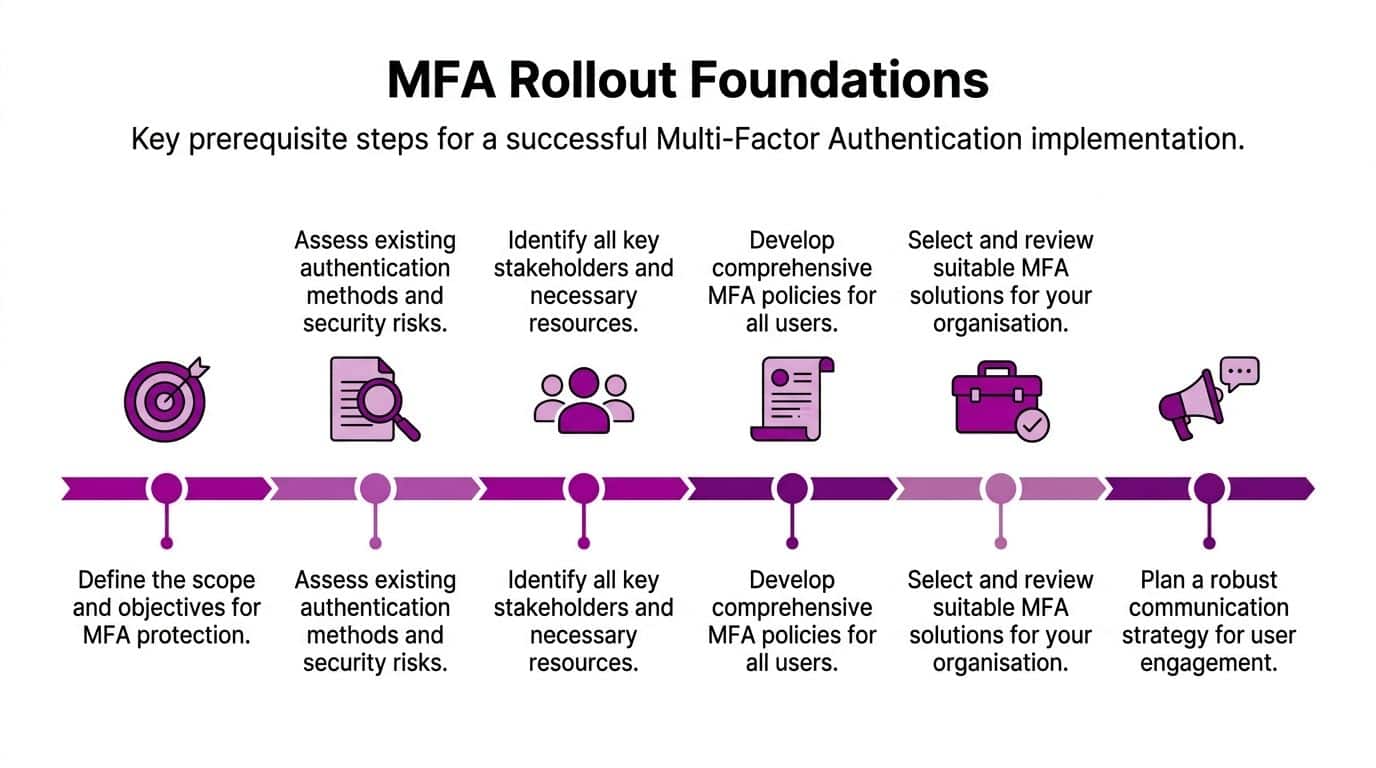
MFA projects usually succeed or fail before any policy is switched on. The outcome is set during the planning stage, when you decide which accounts exist, which sign-ins are still legitimate, and what the business will do about exceptions.
Start with an account audit
Begin with an identity review that reflects how the business works, not how the directory looks on paper.
- Named user accounts. Employees, contractors, and temporary staff with active sign-in rights.
- Privileged accounts. Admin roles in Microsoft 365, Azure, Exchange, SharePoint, and any third-party platform tied to Microsoft sign-in.
- Dormant accounts. Leavers, test users, and old shared logins that should be disabled or removed before rollout.
- Service and application-linked accounts. Accounts tied to scanners, line-of-business apps, backup tools, or legacy workflows.
- Guest users. External collaborators in Teams, SharePoint, and project spaces.
This step reduces avoidable disruption. I often find that once stale accounts are removed and service dependencies are documented, the MFA design becomes simpler and the support burden drops.
Decide how much control you need
The first technical decision is usually about control, not features.
Security Defaults works well for smaller Microsoft 365 estates that need a quick baseline and have few exceptions. Conditional Access is better for organisations with mixed device use, travelling staff, legacy applications, or tighter admin controls. For many UK SMEs, that is the point where a basic setup stops being enough.
A useful planning discussion should cover four things:
- Who goes first. Admins and other high-risk roles should be in the first wave.
- Which apps still rely on older authentication methods. Those need fixing before enforcement.
- Which MFA methods you will allow. Approval fatigue and weak fallback methods create risk.
- How recovery works. Lost phones, number changes, and staff leaving suddenly are routine support events.
The best MFA implementation plans look boring on paper. That is usually a good sign.
If you want a practical Microsoft-specific reference while making those choices, this guide to Microsoft 2 factor authentication setup options is a useful companion.
Set policy before technology
Write the operating rules down before rollout starts. Decide who can approve an exception, how identity is verified during factor resets, which accounts are excluded temporarily, and when those exclusions must be reviewed. If that process is informal, the helpdesk will fill the gaps under pressure, and those quick fixes tend to stay in place.
This matters even more for UK businesses working towards compliance. Cyber Essentials will tighten expectations around MFA for cloud services in 2026, so the actual work is not just enabling prompts. It is proving that the business can manage admin access, emergency access, and edge cases in a controlled way.
That same discipline often exposes wider security gaps. Firms that review MFA properly often uncover weak joiner-leaver processes, unmanaged supplier access, and missed access control system opportunities across physical and digital environments.
Configuring MFA in Microsoft 365 and Azure
Once the groundwork is done, the technical choices become clearer. In a Microsoft environment, most first projects come down to two implementation paths. Use Security Defaults if you want a simple baseline and don't need much nuance. Use Conditional Access if you need targeted deployment, stronger method control, location-aware rules, or more careful handling of exceptions.
The mistake is choosing only on convenience. Choose based on how your organisation functions.
Security Defaults or Conditional Access
Security Defaults suits smaller estates with a straightforward sign-in pattern. It's fast to enable and gives you an immediate lift in protection. It doesn't give you much room for customized policy.
Conditional Access is the better fit when you need control. You can target specific user groups, apply different requirements to admin roles, shape remote access, and keep a close eye on how emergency accounts are excluded. For many SMEs, that's the difference between a policy that survives contact with reality and one that gets bypassed in the first week.
For a more Microsoft-specific walkthrough of setup decisions, this guide to Microsoft 2 factor authentication is a useful companion reference.
Choose factors based on risk, not habit
A lot of businesses still think MFA means "text a code to a phone". That's understandable, but it isn't where the strongest protection sits now. The UK's NCSC recommends phishing-resistant MFA methods like FIDO2 security keys, and notes these are proven to reduce automated credential stuffing attacks by 99.9% in the context of highest-level protection, as set out in the NCSC guidance on MFA for corporate online services.
That doesn't mean every user needs a hardware key on day one. It does mean you should be deliberate about where weaker methods remain in use.
Comparison of MFA Authentication Methods
| Method | Security Level | User Convenience | Best For |
|---|---|---|---|
| SMS codes | Lower | Familiar, but can be inconvenient when mobile coverage is poor | Temporary fallback where stronger options aren’t yet deployed |
| Microsoft Authenticator app | Stronger than SMS for most standard rollouts | Good once enrolled, especially for routine Microsoft 365 use | Most staff in a typical SME rollout |
| FIDO2 security keys | Highest, phishing-resistant | Very convenient after setup, but requires physical key management | Admins, senior staff, finance users, and high-risk roles |
What works in practice
For most first-time Microsoft 365 MFA implementation projects, a sensible pattern is:
- Admins first. Use the strongest available factor, ideally phishing-resistant.
- General staff next. Microsoft Authenticator usually gives the best balance of security and usability.
- SMS only as a fallback. Don't build the whole policy around it if you can avoid it.
- Recovery kept separate. Recovery shouldn't be a loophole.
Physical entry and digital identity also overlap more often than people realise. If you're reviewing user journeys across sites, devices, and permissions, the wider conversation around access control system opportunities can help frame how identity policy fits into everyday operations rather than sitting in a silo.
A good rule is simple. Put your strongest factors where the blast radius is highest. Not every user needs the same method, but every sign-in path needs a reasoned decision behind it.
Implementing a Phased Rollout and Pilot Group
The fastest way to make MFA unpopular is to switch it on for everyone at once. That creates avoidable support calls, rushed exemptions, and pressure to weaken the policy just to get people working again.
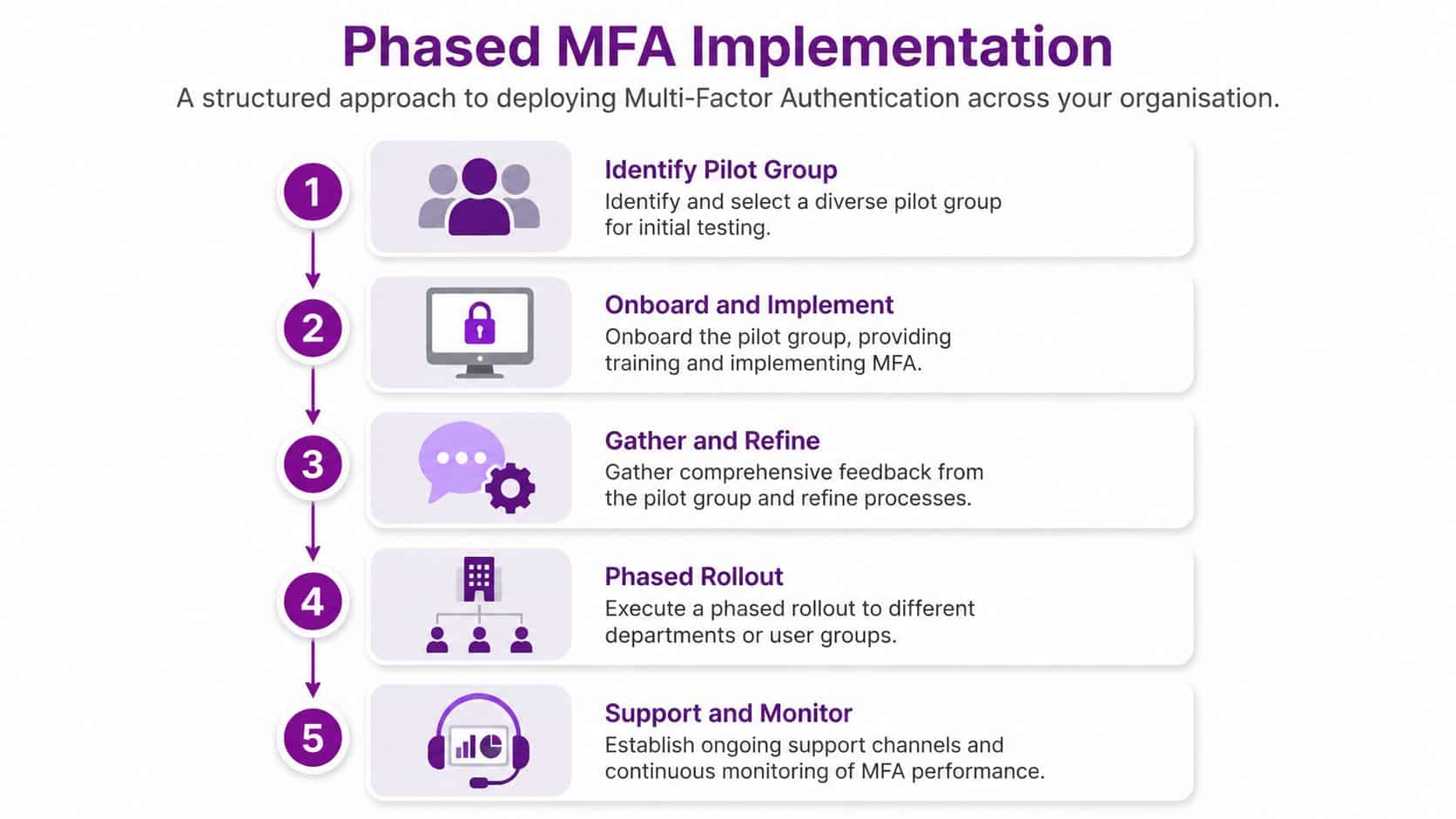
A phased rollout is slower on paper and faster in real life.
Pick a pilot group that tells you the truth
Don't choose only your most technical staff. They matter, but they won't expose every usability problem. A better pilot group usually includes:
- IT or digital staff who can spot configuration issues quickly.
- A finance or operations user who works across several Microsoft 365 apps.
- A remote or hybrid worker who signs in from multiple locations and devices.
- One sceptical but constructive user who'll tell you where the process is awkward.
That mix surfaces the common friction points early. App registration prompts, secondary device setup, travel-related sign-ins, and factor recovery questions all tend to appear during pilot rather than full deployment.
Roll out by group, not by panic
In Microsoft Entra, target policies through groups rather than one-off exceptions. That keeps the rollout governed. It also makes it easier to prove who is in scope at each stage.
A practical sequence often looks like this:
- Privileged accounts first. Protect admin access before broad staff rollout.
- Pilot users second. Test communication, setup flow, and support process.
- High-risk departments next. Finance, HR, leadership, and customer-facing teams with sensitive data.
- All remaining staff. Expand once the process is stable.
- Guests and edge cases. Tidy up the awkward identities deliberately rather than ignoring them.
Early pilot feedback usually isn't about the security control itself. It's about timing, instructions, and recovery. Fix those, and adoption improves quickly.
The other benefit of phased deployment is that it gives your support team breathing room. They can see the actual questions users ask, sharpen the documentation, and decide where self-service works and where a human check is safer.
Onboarding Your Team and Communicating the Change
Technical MFA projects fail for human reasons all the time. Staff don't understand why the change is happening. They enrol the wrong method. They ignore the email until the prompt appears during a client meeting.
Good communication removes most of that friction before the first sign-in challenge appears.

Keep the first message simple
Your first staff announcement should answer three things plainly:
- Why it's changing. To protect accounts, email, files, and the organisation.
- What users need to do. Register a factor and complete a short setup.
- When it's happening. Give a clear deadline and enough notice.
Don't drown the message in security jargon. Most users don't need a lecture on identity architecture. They need confidence that the process is legitimate, manageable, and supported.
A short internal training campaign also helps, as broader security awareness and training supports the technical rollout. If users already recognise phishing risk and account compromise tactics, MFA makes immediate sense to them.
Show the setup, don't just describe it
Written steps are useful, but screenshots and short videos usually do more heavy lifting. Give people separate setup guidance for iPhone and Android if you're using Microsoft Authenticator. Label each step clearly. Keep each page short.
Useful onboarding materials usually include:
- A registration guide with screenshots from the Microsoft sign-in prompts.
- A brief FAQ covering lost phones, new devices, and what to expect when travelling.
- A support route so users know where to go before they get locked out.
- A note on approved methods so they don't choose the least suitable option by default.
This short explainer can support user comms during rollout:
Give managers a script
Line managers influence adoption more than many IT teams expect. If managers know when prompts will appear and what staff should do, they can reinforce the rollout calmly instead of escalating confusion.
"We're adding an extra sign-in step to protect your account and company data. You'll receive instructions before your group goes live. If you change phones or need help registering, contact IT before the deadline."
That sort of message works because it's direct and practical. Staff don't need hype. They need clarity.
Managing Exceptions and Break-Glass Accounts
Most MFA guidance assumes every account can be treated like a normal user identity. Real environments aren't that tidy. Service accounts, legacy integrations, shared operational devices, and emergency admin access all complicate the picture.
Ignoring those accounts doesn't make the problem disappear. It just leaves hidden risk in place.
Exceptions need governance, not wishful thinking
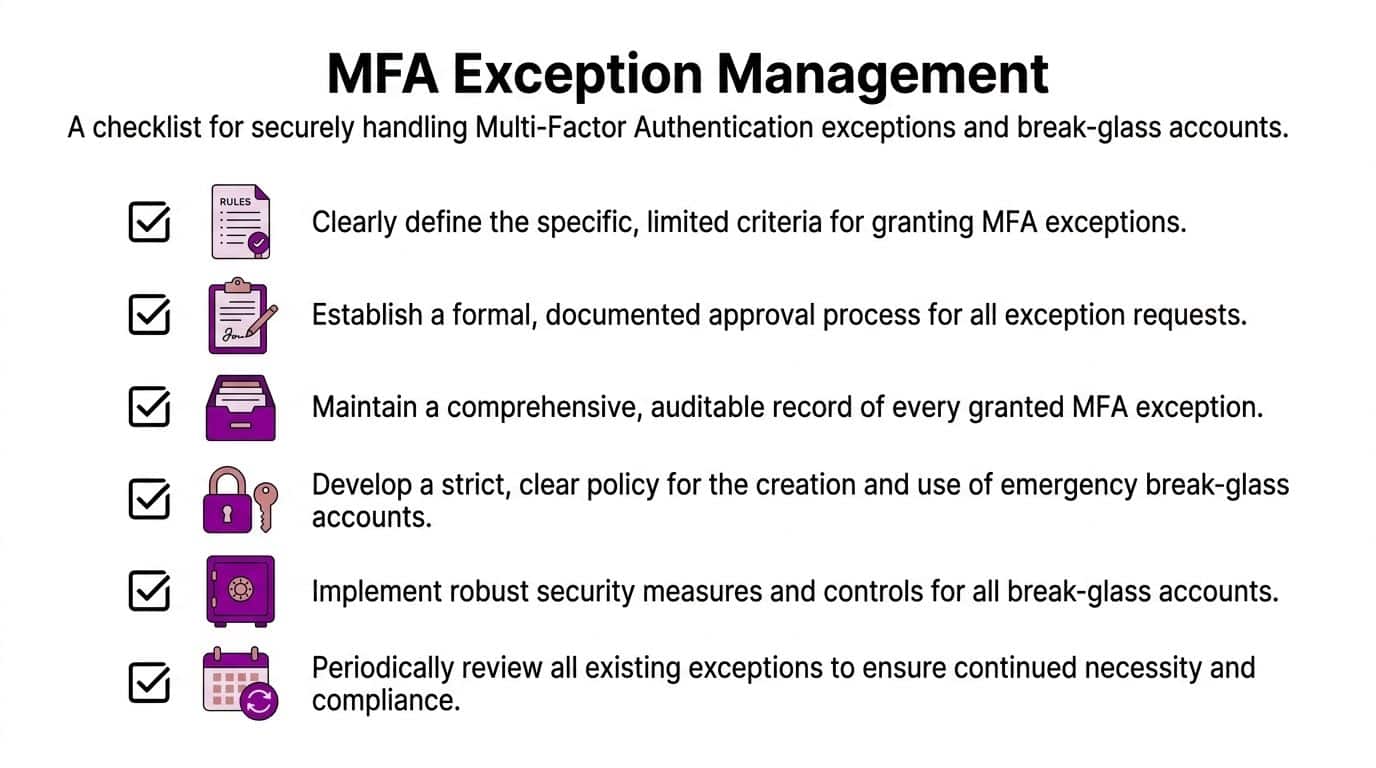
An exception should be rare, documented, approved, and reviewed. If someone says, "this account can't use MFA", the next questions should be immediate. Why not. What depends on it. What compensating controls exist. When will it be reviewed again.
That matters because some UK-sector guidance already points towards formal documentation and governance for exceptions, especially where operational realities make full coverage difficult. In practice, that means exception handling belongs in risk management, not just in the admin portal.
A workable exception record should capture:
- The account or system affected
- Why MFA isn't currently feasible
- Who approved the exception
- What extra controls are in place
- When the exception will be reviewed or removed
Compensating controls worth considering
| Control area | What to do |
|---|---|
| Access scope | Reduce permissions to the minimum required |
| Sign-in restrictions | Limit where and how the account can be used |
| Monitoring | Alert on any sign-in or unusual activity |
| Ownership | Assign a named person or team responsible for review |
Build break-glass accounts carefully
Break-glass accounts are emergency administrator accounts for worst-case access recovery. They exist because identity systems can fail, users can lose factors, and policy mistakes can lock out legitimate admins. They should be few in number, tightly controlled, and excluded only where absolutely necessary.
Good practice usually includes keeping credentials stored securely offline, restricting knowledge of the storage location, and setting alerts for any use of the account. If a break-glass account is used, treat it as a significant event. Review what happened, rotate credentials, and confirm whether the trigger was legitimate.
For a more focused look at emergency access planning, this article on the break glass account pattern is worth reading.
A break-glass account is not an admin shortcut. It's an emergency control. If people use it because normal access is inconvenient, the design is wrong.
The hardest part of MFA implementation isn't enabling prompts. It's deciding where the rules can bend, who is allowed to approve that, and how you'll stop exceptions from becoming the default.
Monitoring Your Security and Next Steps
Once MFA is live, the work changes shape. You're no longer deploying a control. You're operating it.
In Microsoft environments, the sign-in logs and authentication reporting are where you start. Review successful and failed challenges, look for repeated prompts that suggest user friction, and pay attention to unusual sign-in behaviour around privileged accounts. If users are struggling with legitimate access, fix the experience before they invent their own workaround.
What to review regularly
Keep the review cycle practical:
- Conditional Access policies. Check whether the targeting still matches your business structure.
- Authentication methods. Retire weak fallback paths where stronger options are now realistic.
- Exception records. Remove anything that no longer has a valid operational reason.
- Emergency accounts. Confirm storage, alerting, and access procedure still make sense.
Passwordless options are the natural next step for many organisations, particularly for high-risk users already on stronger factors. But don't rush there until your MFA implementation is stable, documented, and understood by staff.
The businesses that get the most value from MFA aren't the ones that only switched it on. They're the ones that built a manageable process around it and kept refining the details after go-live.
F1Group helps organisations across the East Midlands secure Microsoft 365 and Azure with practical, hands-on delivery. If you need help planning an MFA implementation, handling exceptions safely, or getting ready for the April 2026 Cyber Essentials change, phone 0845 855 0000 today or send us a message.