
The Copilot licences are live, the launch webinar is over, and staff are asking whether the assistant can draft a report, summarise a meeting or handle confidential information. If the only measure of success is how many people opened Copilot, you still don't know whether they can use it well, or whether it's helping them do their work.
For UK SMEs and charities, Microsoft Copilot training works best as a change-management and measurement exercise, not a one-off lesson in where to click. UK public-sector evaluations show why: people may use Copilot and like it while still needing more practice, clearer use cases and safeguards to get dependable results.
Why Most Microsoft Copilot Training Programmes Fall Flat
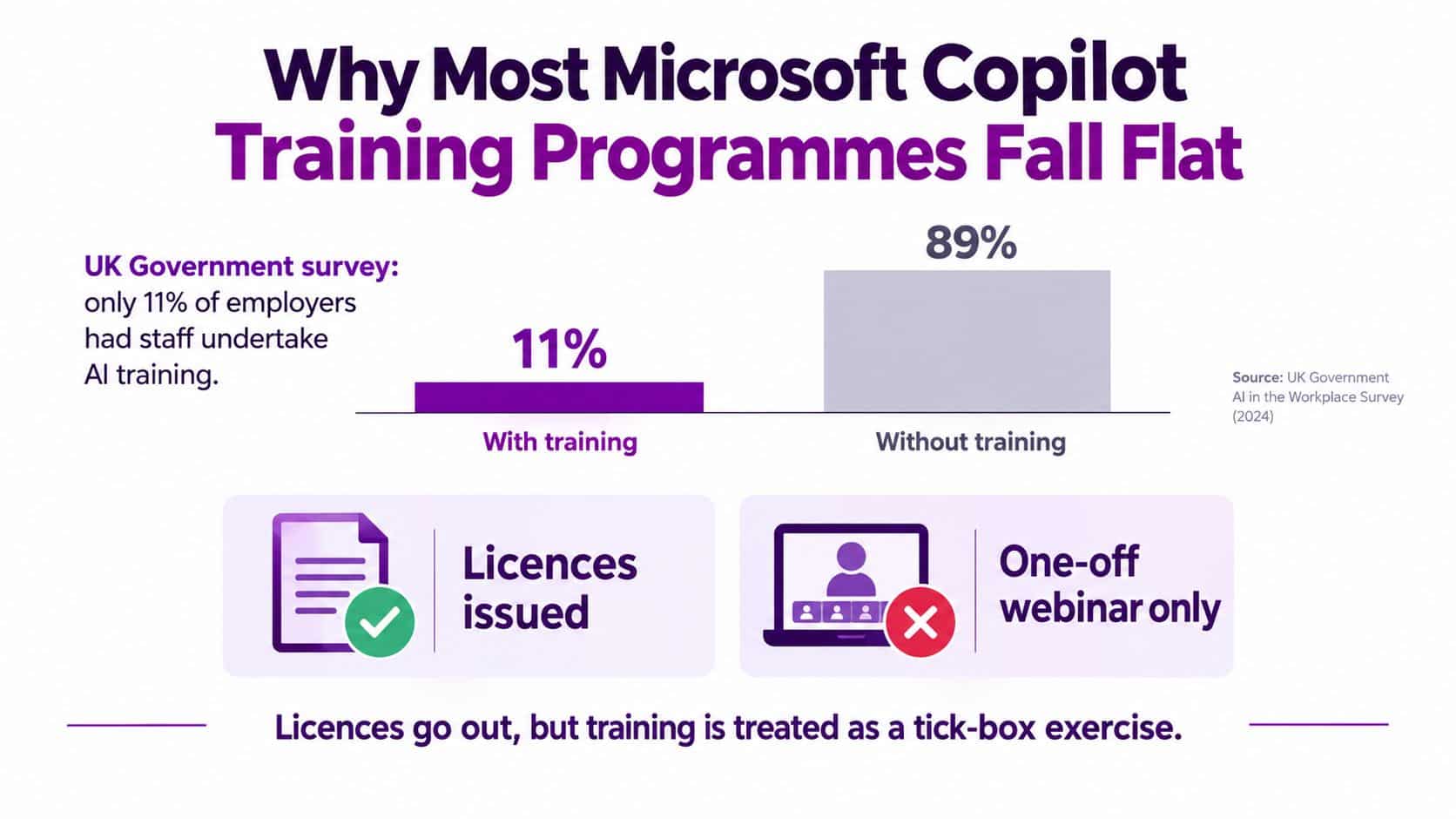
Buying licences isn't the same as building capability. In a 2024 UK Government survey of 801 organisations, only 11% said staff had undertaken AI training in the previous 12 months. Among employers with dedicated AI specialists or implementers, the figure was 48%, suggesting structured training is more common where organisations already have formal AI capability (UK Government employer survey on AI skills).
HM Revenue and Customs' Copilot trial presents a useful contrast. 83% of staff given a licence used the tool, and average satisfaction was 7.1 out of 10. Yet the evaluation also identified practical, targeted training and time to learn as areas needing attention. Users self-reported saving 2–3% of their working week, equivalent to roughly 60 minutes for a full-time employee, but the findings don't prove that issuing licences alone creates productivity gains (HMRC's evaluation of its Copilot trial).
That distinction matters. A staff member might open Copilot, get a plausible draft and still spend longer checking, correcting and formatting it than they would have spent starting from scratch. Useful adoption means knowing when to use the tool, how to check its output and what information must stay out of a prompt.
Access puts Copilot on the screen. Competence helps staff use it safely, accurately and for work that matters.
A webinar can introduce features, but it can't substitute for practice with real tasks, role-specific guidance and follow-up. The next steps are to check whether your environment is ready, build learning around different jobs and measure work outcomes rather than attendance alone.
Readiness Checks Before You Open the Training Plan
Training can't fix inconsistent access or unclear safeguards. Before booking sessions, confirm that people can use the right Copilot features and that your organisation has decided how staff should handle information.
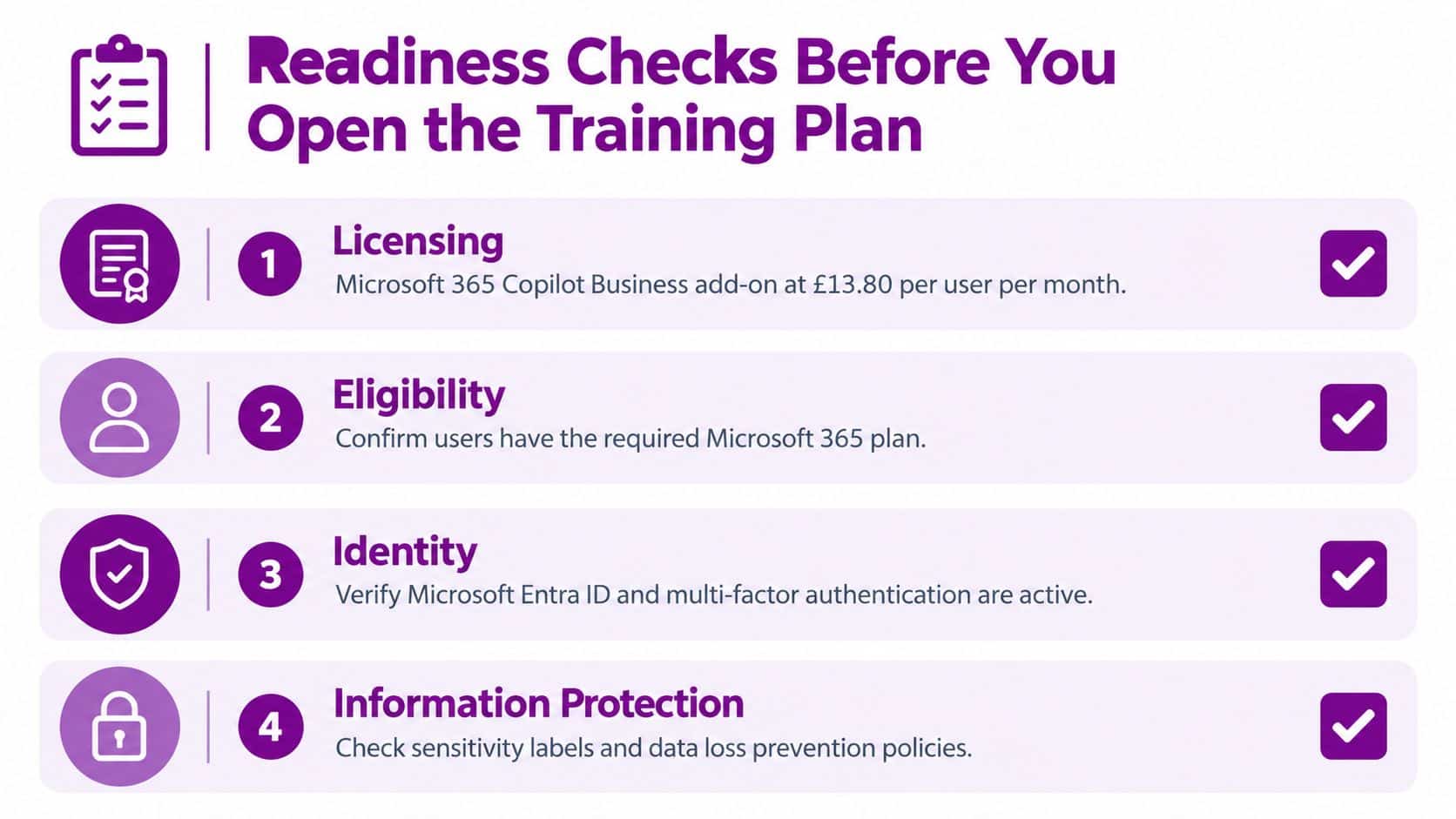
Start with a licence audit. Microsoft lists the Microsoft 365 Copilot Business add-on at £13.80 per user per month when paid yearly, reduced from £16.10, and Microsoft 365 Copilot Enterprise at £23.10 per user per month when paid yearly. Both prices exclude VAT, and both require a qualifying Microsoft 365 plan. Confirm current promotional pricing, subscription eligibility and the users who need an add-on directly against Microsoft's UK Copilot pricing. For the Business add-on, also check Microsoft's stated limit of up to 300 users.
Then check the environment in order:
- Licensing and eligibility: Which staff have an eligible Microsoft 365 base subscription, and who has the Copilot add-on? A licence audit helps separate entitlement problems from training problems.
- Identity: Are the correct user accounts enabled, and are Microsoft Entra ID and multi-factor authentication configured as expected?
- Information protection: Do sensitivity labels, permissions and data loss prevention policies reflect the information people handle? Review conditional access and make sure staff understand what they can and can't share.
- Training access: Can each trainee open the relevant Copilot features in the apps they use? Test this before the session, not while the group is waiting.
Put the answers on a one-page readiness checklist for the IT steering group. Include named owners for licence checks, identity and security controls, and training logistics. Agree what information can be used in practice exercises, and prepare a safe dataset if staff shouldn't use live documents.
A short Microsoft Copilot governance review can help frame questions around access and acceptable use. The point isn't to delay learning until every technical detail is perfect. It's to avoid asking staff to practise in an environment where access is uneven or the rules are unclear.
Designing Role-Based Learning Paths
A trustee, a finance officer and a senior leader don't need the same Copilot course. Give everyone a common foundation in safe use, then tailor practice to the decisions and documents their role involves.
| Audience | Duration | Format | Core outcomes |
|---|---|---|---|
| Senior leaders | 60-minute briefing | Discussion with practical examples | Understand risks, appropriate use and how to judge business value |
| Knowledge workers | Half-day practitioner track | Guided exercises in Microsoft 365 apps | Write useful prompts, verify outputs and handle confidential information |
| Frontline teams | Short micro-modules | Brief, workflow-based sessions | Apply Copilot to specific tasks, such as customer service or finance |
For senior leaders, keep the briefing focused on governance and decision-making. Show how a generated summary can be useful, where a human must check it, and how managers can assess whether a proposed use case is worth pursuing. A tour of every button is less valuable than a candid discussion of accountability and risk.
Knowledge workers need time to practise. Use tasks they recognise, such as turning meeting notes into an action list or preparing a first draft from approved source material. Ask staff to refine the prompt, compare the answer with its sources, identify unsupported statements and explain what they changed. That teaches a repeatable way of working, not a collection of prompts to copy.
For frontline teams, keep modules focused on immediate workflows. A customer service team might practise drafting a response from a sanitised enquiry and checking that the reply follows the organisation's policy. Finance staff might use a safe example to summarise a report, then confirm the figures against the original document.
Every pathway should address prompt formulation, checking generated content, information governance, confidentiality and role-specific processes. Those topics are more important than demonstrating features no one will use.
Separate the common safety rules from the job-specific practice. That gives everyone a shared standard without forcing every team through the same examples.
Hands-On Labs That Mirror Real Work
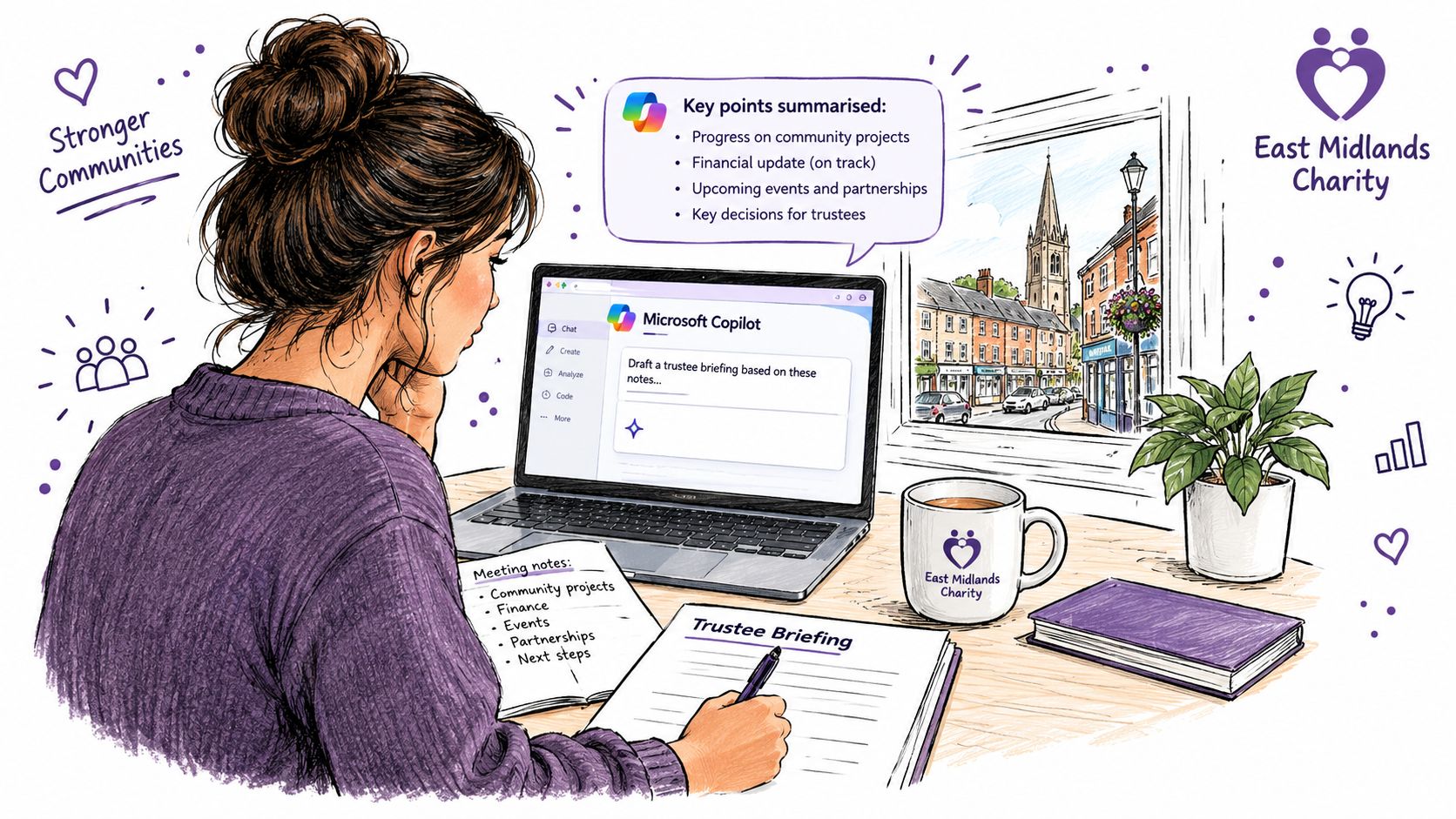
At a small East Midlands charity, a useful lab starts with familiar work, not an abstract prompt-writing contest. The trainer prepares sanitised meeting notes, a sample funding application and a fictional donor record, then asks participants to work through tasks they could recognise in their own roles.
For a trustee briefing, a trainee might prompt Copilot: “Draft a concise briefing from these meeting notes, grouped under decisions, risks and actions. Don't add information that isn't in the notes.” The trainer asks the trainee to check each statement against the source, remove unsupported detail and confirm that names or sensitive information have been handled appropriately before approving the draft.
Next, the group summarises a sample funding application. They compare Copilot's summary with the original, check eligibility conditions and flag anything that needs a human decision. Then they draft a donor email from the fictional record, checking tone, facts and whether the proposed details are appropriate to share.
Build a feedback loop into each exercise. Trainees should record the time spent prompting, reviewing, correcting and approving the output, and note where Copilot invented, omitted or misinterpreted information. That record gives you a credible starting point for later time-saving assessments; counting only the time taken to produce the first draft misses the work needed to make it usable.
Trainers who want practical ways to keep participants involved can draw on these active learning tips from Next Level Online College. The principle applies directly to Copilot: ask people to do the task, explain their checks and compare approaches, rather than watching a trainer perform a polished demonstration.
Run the lab in Teams or SharePoint using a dedicated practice area with sanitised files and controlled permissions. Don't ask staff to paste sensitive case notes, donor information or live client records into an exercise. For task ideas across departments, use Microsoft Copilot use cases as a starting point, then adapt them to your own approved workflows.
Measuring What Actually Matters After Training
A satisfaction score can tell you whether a session felt useful. It won't tell you whether staff use Copilot appropriately, accept its output without enough checking or spend more time correcting a draft than they save.
A stronger evaluation combines observed behaviour, user feedback and task-level measures. The Department for Business and Trade evaluation drew on usage data, diary studies, interviews and observed tasks. It found that respondents who completed at least two hours of independent training were more likely to be satisfied with Copilot and more likely to recommend it (DBT's Microsoft 365 Copilot evaluation). Treat this as a useful signal to provide time for practice, not a guarantee that a fixed amount of training will produce the same result in every organisation.
The Department for Work and Pensions' evaluation compared licensed users with non-users, using surveys, econometric analysis, demographic and role controls, and interviews. After controlling for demographic, occupational and AI-attitude variables, DWP users reported an average saving of 19 minutes per day across eight routine tasks (DWP's Copilot trial evaluation). It's a useful example of why comparisons and controls matter. Voluntary adoption isn't proof of universal productivity gains: motivated users may be more likely to experiment and respond to surveys.
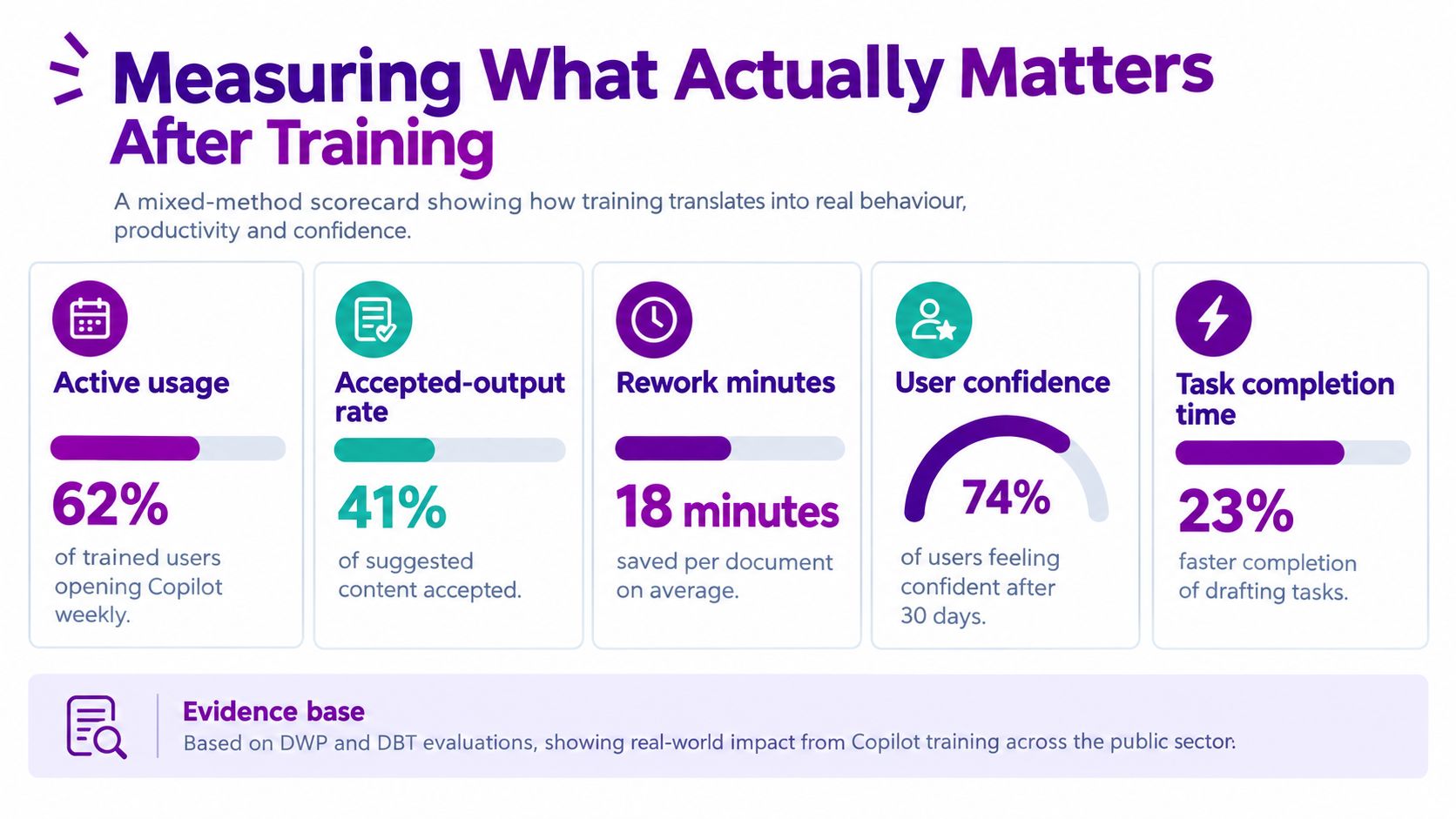
Use a simple scorecard, broken down by role, to focus the review:
- Active usage: Are people using Copilot for the tasks covered in training?
- Accepted-output rate: Which outputs are used, and which are rejected?
- Rework minutes: How much time goes on fact-checking, correction and reformatting?
- User confidence: Can staff explain when to use Copilot and how to verify its work?
- Policy incidents: Are there problems with sensitive information, permissions or accountability?
Set a pre-training baseline and compare it with post-training tasks against a suitable pre-training or non-user comparison where possible. Review patterns over a 4–8 week period, while treating that window as a practical evaluation choice rather than a universal standard. The accompanying video on measuring Copilot training outcomes can support the discussion, but your own task records and feedback should drive decisions.
Change Management Beyond the Launch Webinar
Training doesn't end when people leave the session. UK research reported that 78% of professionals used generative AI at least weekly, while only 24% had received training; it also found that 45% of enterprises offered company-wide or role-specific AI training (UK research on AI skills and training). For an organisation rolling out Copilot, that gap makes ongoing guidance more useful than a launch webinar followed by silence.
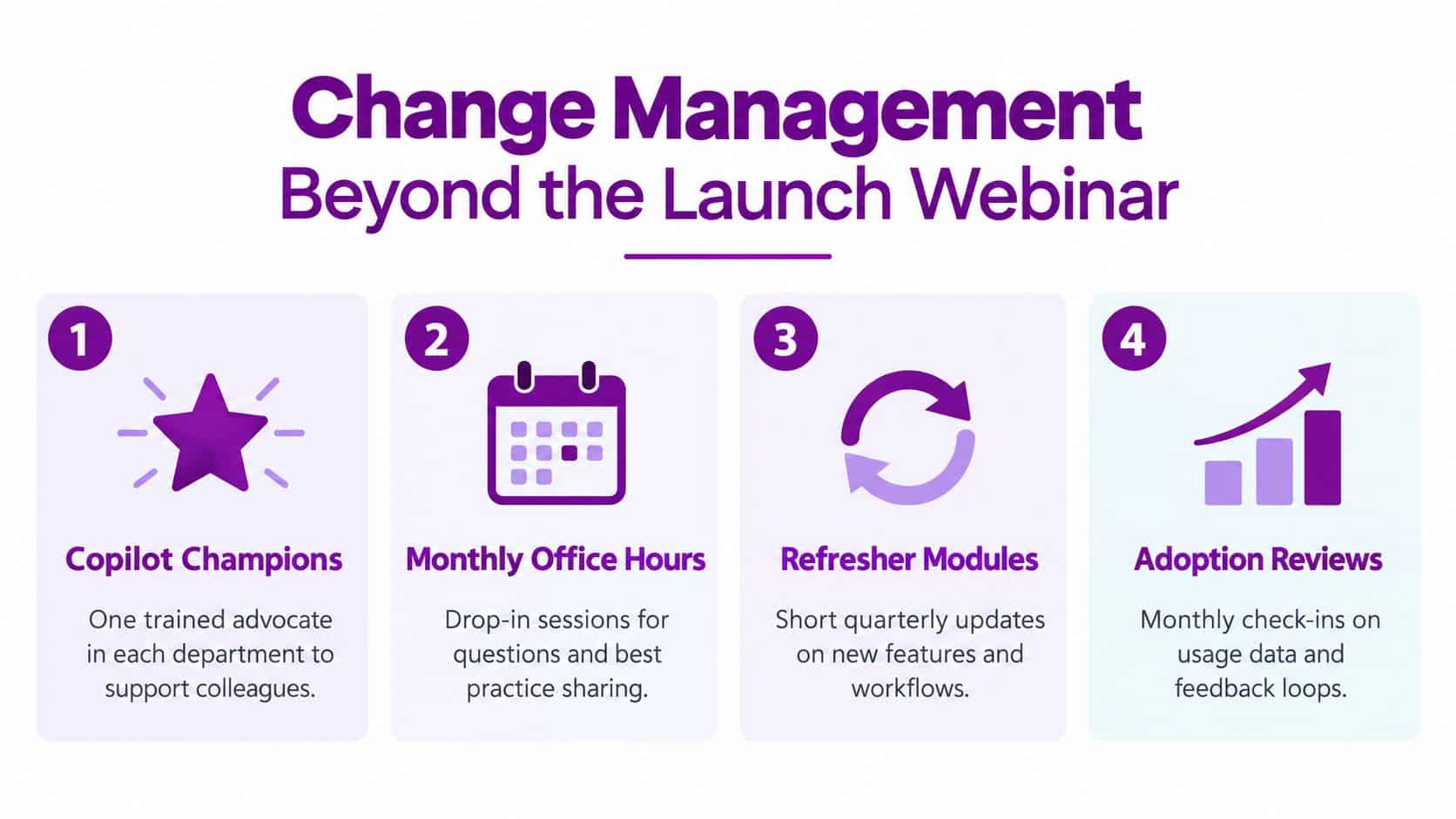
Set up practical ways for staff to ask questions and share what works:
- Department champions: Give each team a trained colleague who can help with common questions and point people towards approved guidance.
- Monthly office hours: Make space for staff to bring a task, discuss what went wrong and learn how others check outputs.
- A shared prompt library: Store reviewed examples in SharePoint, with the task, intended audience and relevant verification steps.
- Refresher modules and reviews: Revisit workflows as staff learn, policies change or Copilot capabilities shift. Review usage and feedback without ranking individuals by activity.
Managers should assess whether processes are improving, not use Copilot activity as a proxy for effort or performance. Agree acceptable-use rules covering permissions, sensitive data, records retention and human accountability. Staff must know who checks a generated answer before it becomes advice, a decision or a message to a customer.
Low usage isn't always a failure. If staff avoid a feature because they don't understand how it handles information or who is accountable for the result, their caution may be protecting the organisation. Respond by clarifying permissions and rules, then provide supervised practice. A change-management approach for digital transformation can help connect training, communication and policy review, rather than leaving them as separate activities.
Your 90-Day Microsoft Copilot Training Rollout
A rollout should give your team time to prepare, practise and adjust. Use this schedule as a working plan, with a named owner for each phase and a simple check before moving on.
| Phase | Owner | Actions | Success criterion |
|---|---|---|---|
| Weeks 1–2, readiness and stakeholder mapping | IT lead with security and department managers | Audit licences and access, review information-protection controls, map roles and select representative tasks | Target users can access the right tools, and owners approve the practice scenarios |
| Weeks 3–6, briefings and labs | Training lead with department champions | Brief senior leaders, run practitioner labs, and deliver short workflow modules for frontline teams | Participants complete role-relevant exercises and can explain how they check outputs |
| Weeks 7–10, reinforcement | Champions and line managers | Hold office hours, maintain the SharePoint prompt library, answer questions and gather feedback | Staff can find support and approved examples when they encounter a new task |
| Weeks 11–12, measurement and refresh | IT lead with business owners | Review usage, accepted outputs, rework, confidence and policy incidents; revise training where needed | Leaders agree what to continue, change or stop, based on task evidence |
Keep the plan proportionate. A small charity may start with a few representative workflows and expand after staff have tested the approach. A larger SME may need separate owners for licensing, security, training and measurement, but the same principle applies: access, practice and outcomes must be considered together.
Before the rollout begins, make sure leaders agree what success means. Don't count licence activation or course attendance as proof that Copilot is improving work. Look at whether people can complete suitable tasks safely, check the results and explain where human judgement remains essential.
F1Group supports Microsoft 365 Copilot deployment, including practical training and support for pilot users during rollout. To plan an approach for your East Midlands SME or charity, visit F1Group, phone 0845 855 0000 today, or send us a message.