
If you're running an East Midlands business with an ageing file server, on-premises Exchange, and a team that now expects to work from anywhere, you're probably already feeling the pressure. Mailboxes are harder to maintain, remote access is clunky, and every upgrade discussion turns into a bigger infrastructure conversation than anyone wants.
That's usually the point where an Office 365 migration moves from “something we should look at” to a live project. For most SMBs, the challenge isn't deciding whether Microsoft 365 makes sense. It's getting from the current setup to the new one without disrupting the working day, exposing data, or leaving staff confused on Monday morning.
A good migration is less about moving data and more about controlling risk. The companies that get it right treat the move as a business change with technical consequences, not just an IT exercise. That means planning properly, choosing the right migration model, keeping security tight during the move, and giving users enough support to adopt the new tools with confidence.
Your Pre-Migration Blueprint Assessment and Planning
A typical first meeting starts the same way. The finance director wants email moved with no Monday disruption, the ops lead is worried about the shared drive nobody fully understands, and someone mentions an old scanner that still sends invoices through an on-premises mailbox. That is the starting point for an Office 365 migration in a UK SMB. Before anyone touches DNS, mail flow, or file moves, you need a clear picture of what exists today and what the business cannot afford to lose access to.
At F1Group, we treat this stage as risk mapping. The technical estate matters, but the business context matters just as much. An East Midlands manufacturer, solicitor, or multi-site service firm can all land on Microsoft 365, yet the planning priorities will differ because their tolerance for downtime, security exposure, and user disruption is different.
Microsoft advises organisations to assess their current environment before migration, including identities, mailboxes, applications, and network readiness, in its Microsoft 365 and Office 365 migration performance and best practices guidance. For SMBs, that means slowing down long enough to document the estate properly instead of assuming the existing setup is simpler than it really is.
What to assess before you move anything
Start with the areas that cause the most trouble later if they are missed:
- User accounts and identities: Confirm who needs access, which accounts are shared, where MFA will be introduced, and whether the current Active Directory is tidy enough to sync cleanly.
- Mail data: Check mailbox sizes, shared mailboxes, aliases, archives, forwarding rules, and service accounts used by printers, scanners, or business systems.
- File storage: Review what is still active on the server, what can be archived, and which folder permissions are so messy that they need redesign rather than a straight copy.
- Applications and dependencies: Identify software tied to local authentication, old Outlook versions, mapped drives, SMTP relay, or hard-coded server paths.
- Connectivity and devices: Test whether laptops, mobiles, remote workers, and office broadband can cope with the change, especially if large OneDrive or SharePoint sync activity is expected.
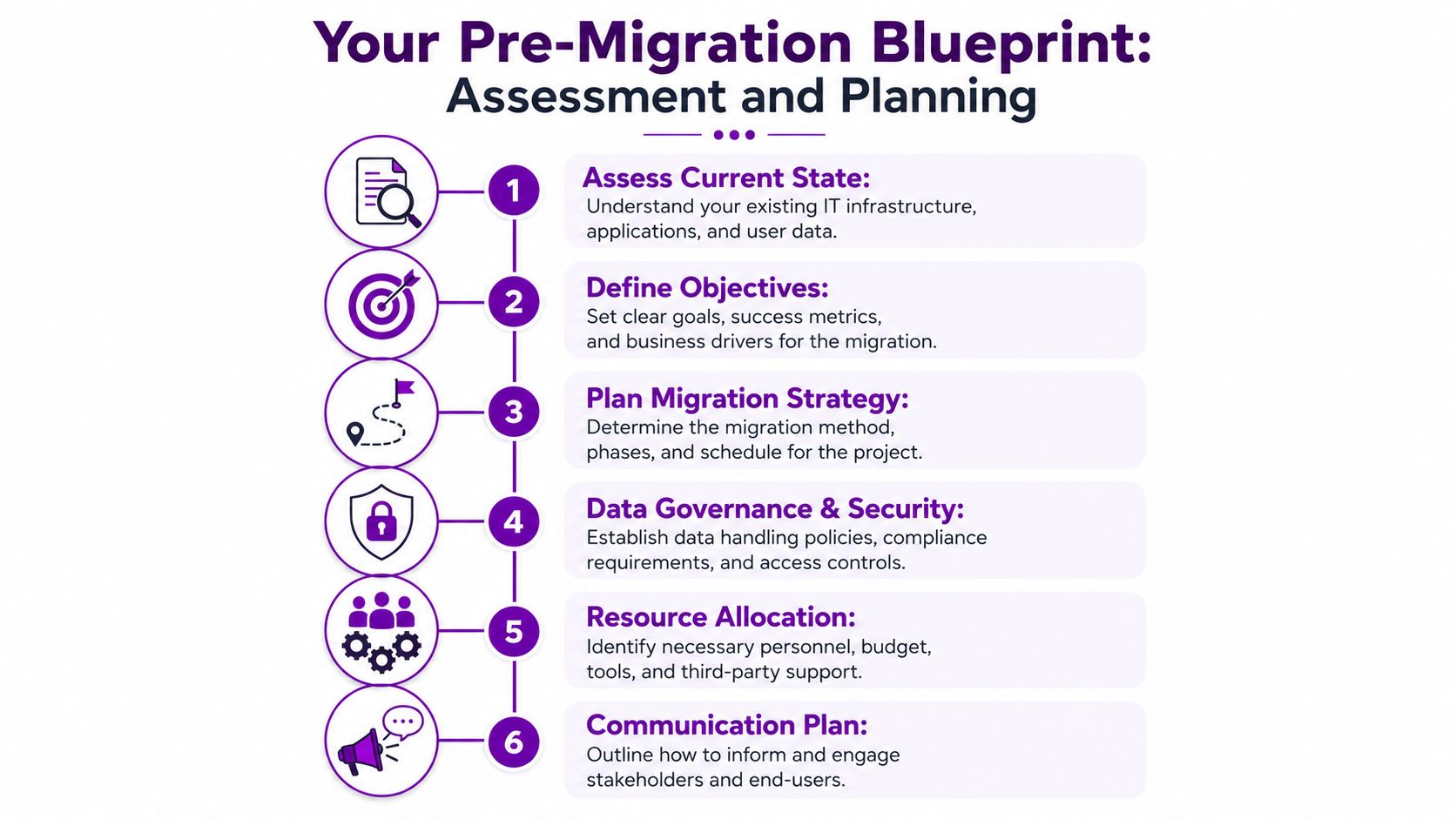
Discovery work is not admin for the sake of it. It prevents avoidable failures. We often find dormant accounts still connected to workflows, mailbox permissions nobody can explain, and folders with inherited access rights built up over years. Those are not edge cases. They are the details that decide whether the migration feels controlled or chaotic.
Security also needs to be part of planning, not something bolted on after the move. During migration, data is in transit, permissions are being rebuilt, and temporary access decisions are often made under time pressure. For UK SMBs without a dedicated internal IT team, that is usually where managed support earns its keep. Someone needs to own identity cleanup, conditional access decisions, admin role control, and rollback planning while the business keeps operating.
Why UK data location and governance still matter
For many UK businesses, cloud adoption became easier once Microsoft established UK cloud regions and gave organisations clearer options around data residency and service delivery. Microsoft outlines its UK datacentre presence and regional service model in its UK datacentre and Microsoft Cloud services information. That does not remove every compliance question, but it gives SMBs a firmer basis for governance conversations, especially in regulated sectors or businesses dealing with sensitive client information.
The practical point is simple. If your leadership team is asking where data lives, who can access it during the move, and how retention or audit requirements will carry over, those questions belong in the blueprint stage.
Planning decisions that shape the whole project
A workable migration plan sets business rules, not just technical tasks:
- Choose the right pilot group: Start with users who are important enough to test properly but not so operationally sensitive that any issue becomes a business incident.
- Protect business-critical functions: Finance teams, directors, customer service desks, and shared inboxes often need a different migration window and tighter validation.
- Define success in operational terms: Success means users can sign in, receive mail, find the right files, use Teams, and continue their normal work without support queues spiralling.
- Set support ownership early: Decide who handles first-line questions, device reconfiguration, permission issues, and out-of-hours escalation before the first batch moves.
If the migration sits inside a wider move away from on-premises systems, align it with a broader Azure cloud adoption framework for UK businesses instead of treating Microsoft 365 as an isolated project. That helps avoid one of the most common SMB mistakes. Solving email first, then discovering six months later that identity, file governance, device management, and security were never planned as part of the same change.
Choosing Your Migration Path Cutover Staged or Hybrid
The right migration route depends less on what's technically possible and more on how much disruption your business can tolerate. Three organisations can run the same version of Exchange and still need completely different migration plans.
For SMBs, the question is simple. Do you want speed, control, or long-term coexistence?
Comparing the main migration options
Here's the practical view.
| Method | Best For | Timeline | User Impact |
|---|---|---|---|
| Cutover | Smaller, simpler environments with limited dependencies | Short, concentrated move | Higher disruption in a single change window |
| Staged | SMBs that need continuity and lower risk | Over several weeks or months | Lower disruption because users move in batches |
| Hybrid | Larger or more complex organisations with ongoing on-premises needs | Longer-term arrangement | Lower immediate disruption, but more operational complexity |
Microsoft's Exchange guidance says staged migrations move on-premises mailboxes to Microsoft 365 over weeks or months, which makes them a practical fit for SMBs that want a controlled cutover rather than a single all-at-once change, as noted in Microsoft's Office 365 migration best practices.
What works in the real world
A cutover migration sounds attractive because it's simple to explain. One date, one move, one changeover. In a very small business with straightforward mail, limited shared resources, and a team happy to absorb change all at once, it can work.
It often works less well when the business has grown organically. The more shared mailboxes, delegated access, old devices, and undocumented workarounds you have, the more a cutover becomes a gamble.
A staged migration usually suits East Midlands SMBs far better. You move a pilot group first, learn from it, then bring over departments in a sensible order. Finance can be handled differently from sales. Remote users can be scheduled separately from office-based teams. Problems stay contained.
A staged approach gives you room to correct course before one small issue becomes a company-wide outage.
A hybrid migration has its place, but it's not automatically the “professional” option. It's often chosen because an organisation has a genuine need to keep on-premises and cloud services linked for longer. If that need doesn't exist, hybrid can add operational burden without delivering much value to an SMB.
How to choose without overcomplicating it
Use business criteria, not just technical labels.
- Choose cutover if your setup is small, your dependencies are limited, and you can accept a sharper change event.
- Choose staged if continuity matters, users need support, and you want lower-risk migration windows.
- Choose hybrid if there's a clear operational reason to keep systems joined for a longer period.
One mistake appears repeatedly. Businesses choose the fastest route on paper, then spend more time firefighting than they would have spent on a staged move. The migration path should reduce business risk, not only shorten the project calendar.
Executing the Core Migration Mail Files and Teams
Friday evening looks calm. By Monday at 8:15, the finance manager cannot open shared mailboxes, sales staff are missing recent emails on their phones, and half the business is asking where their Teams files have gone. That is what a poorly sequenced Microsoft 365 migration looks like for an SMB. The technical move matters, but the order of work matters more.
For most East Midlands businesses we support, the safest approach is to run the migration as separate workstreams with clear ownership. Identity comes first because sign-in failures stop work immediately. Mail follows because it is still the most visible service for users. Files and Teams come after that, with extra care around permissions, ownership, and what staff will see on day one.
Start with identity and sign-in
Users judge the migration by one simple test. Can they log in and get to what they need?
That puts identity at the centre of delivery. Set up the target Microsoft 365 tenant properly, match user accounts carefully, and check authentication across laptops, mobiles, and any shared devices still in circulation. If the business still relies on on-premises Active Directory, sync design and sign-in behaviour need to be settled before the first mailbox batch moves.
The pattern is straightforward. Inventory the accounts and dependencies. Prepare licences and the target tenant. Test with a pilot group and a rollback option. Migrate in batches. Reconfigure domains at the right point. Verify access, mail flow, and user experience after each stage. Skipping any of those steps usually shows up later as support tickets and lost time.
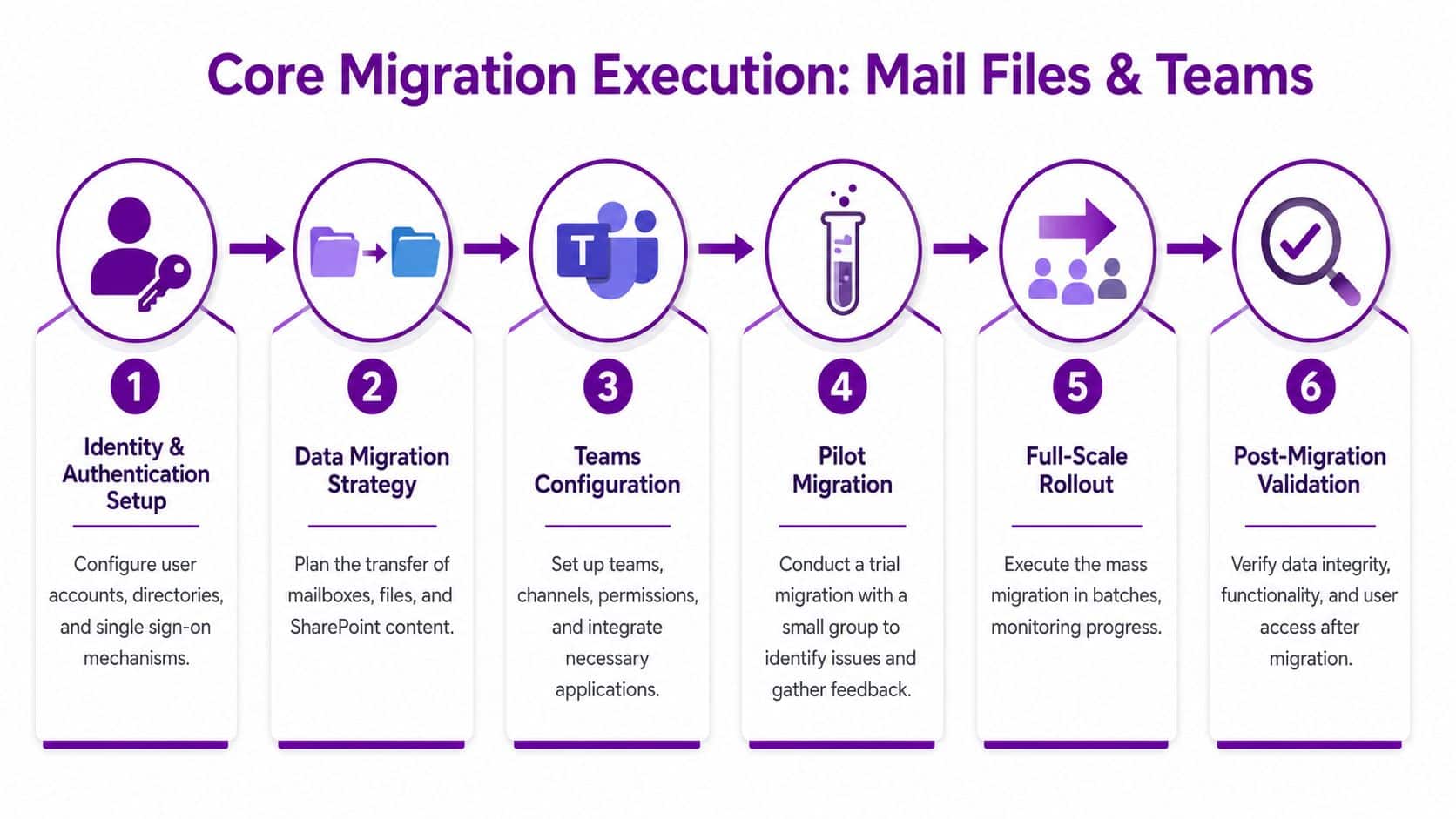
Move mailboxes with order, not urgency
Mailbox migration gets attention because everyone notices email problems immediately. That is exactly why it needs a calm, repeatable process.
A sensible mail move usually includes:
- Pilot users first: Pick people who reflect how the business works, are willing to give feedback, and will not put revenue or operations at risk if something needs correcting.
- Shared mailbox review: Check delegated access, send-as permissions, and any mailbox that several people rely on.
- Batch scheduling: Group users by department, location, working pattern, and how much support they are likely to need.
- Client validation: Test Outlook profiles, mobile mail access, autocomplete behaviour, and shared mailbox visibility after each batch.
Native Microsoft tools often cover straightforward moves well. Third-party migration tools earn their place when the source environment is untidy, there are cross-tenant requirements, or the business needs better reporting and control during cutover. We advise clients to choose the tool that fits the estate they have, not the estate they wish they had.
User guidance also needs to arrive at the same time as the technical change. If staff are moving into Teams more heavily as part of the project, a clear internal resource such as how to use Microsoft Teams effectively in day-to-day work reduces avoidable confusion in the first week.
A short walkthrough can also help teams understand what changes during the move:
Handle files and Teams carefully
File migration is where many projects lose discipline. A file server can be copied into SharePoint Online or OneDrive, but that does not mean the result will work well for the business. Old folder structures often reflect years of exceptions, one-off requests, and unclear ownership.
Clean-up is part of the migration, not an optional extra. Review permissions, duplicates, stale data, and folders no one can properly explain. SharePoint tends to work better when the structure mirrors current teams and business processes rather than the way a server grew over time.
Teams needs the same care. Channels, membership, linked SharePoint libraries, meeting artefacts, and naming conventions all need checking before and after migration. One support issue we see often is simple but disruptive. Users do not know where meeting recordings now live. If Teams meetings are central to daily work, a practical guide to streamlining Teams recording discovery can save a lot of post-migration support time.
Move what people still use, structure it properly, and archive the rest with a clear retention decision.
For organisations that want managed support around planning, delivery, cutover, and user assistance, F1Group is one available option alongside Microsoft's native tools and specialist migration platforms.
Embedding Security and Compliance Throughout the Project
Security can't wait until the last mailbox has moved. If you leave controls until the end, the migration period itself becomes the weak point. That's exactly when users are working across old and new platforms, permissions are being translated, and administrators are making rapid changes under time pressure.
That temporary overlap is where mistakes happen. Access becomes broader than intended. Devices connect without the right checks. Shared data lands in the right place, but with the wrong visibility.
The risk sits in the transition period
A successful migration needs to preserve least-privilege access, device protection, and auditability throughout cutover, because temporary coexistence between old and new systems can increase exposure under modern UK data protection obligations, as explained in this guidance on avoiding security gaps during Office 365 migration.
That means security design should be part of planning, pilot, and rollout. Not a clean-up task afterwards.
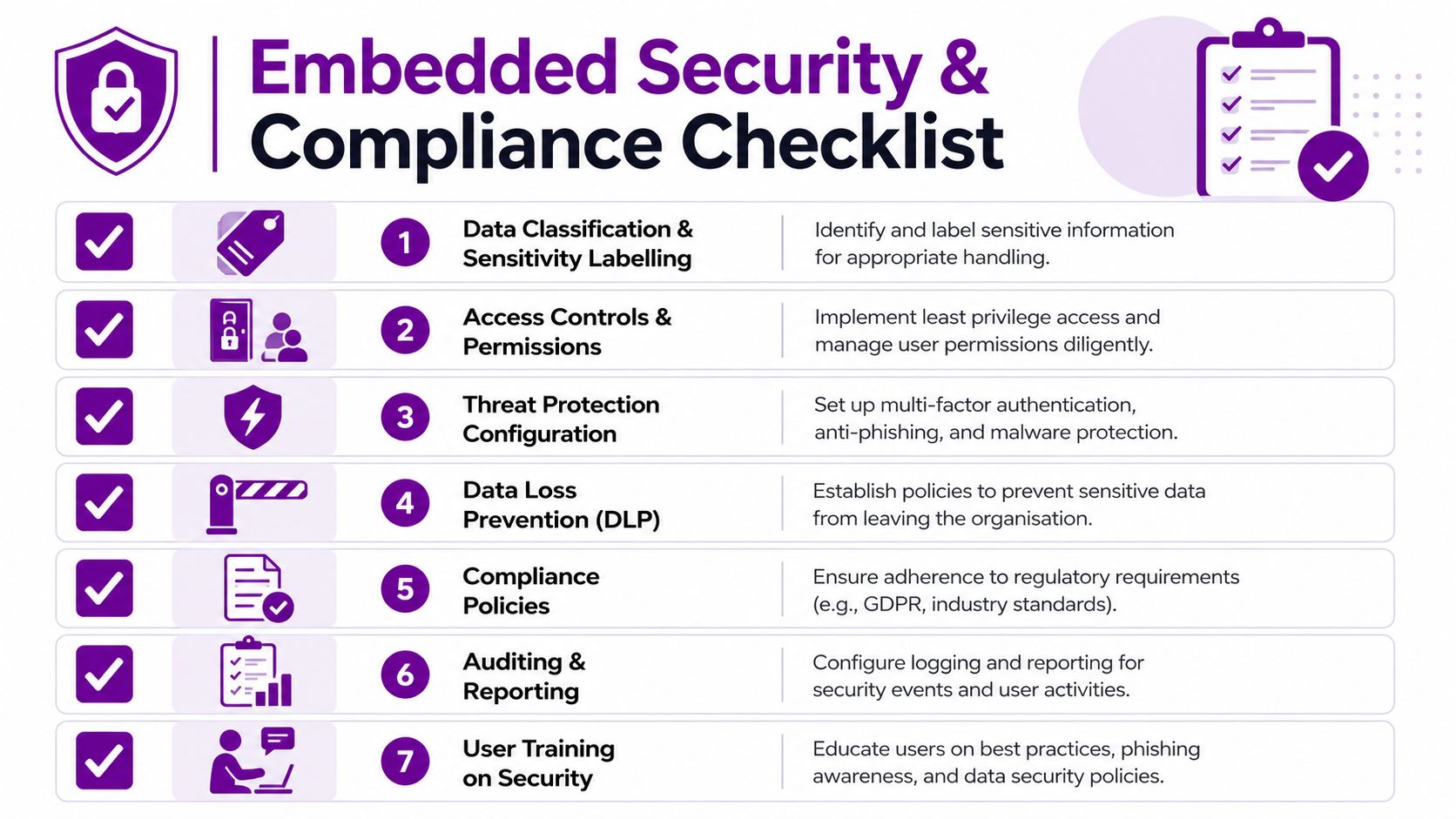
Controls that need to be present from day one
The basics matter here, but they need to be implemented deliberately.
- Identity protection: Enable strong sign-in controls from the outset, especially for administrators, remote users, and anyone with access to sensitive data.
- Permission mapping: File shares and mailbox delegation need to be translated with care. Such translation often introduces excessive access.
- Access reviews: Check who should still have access to old shared folders, finance content, HR records, and executive mailboxes.
- Encryption and policy coverage: Data in transit and at rest should remain protected during every phase of the move.
- Audit logging: If something changes unexpectedly during cutover, you need enough visibility to identify it quickly.
Compliance is operational, not theoretical
For UK SMBs, compliance during migration isn't just about where data ends up. It's about whether the organisation can show that access remained controlled, decisions were documented, and the transition didn't create an unmanaged gap.
That's especially important when old systems remain in place for a short period while users are moved in batches. During that window, administrators should know exactly which environment holds the live copy of each dataset, who can access it, and what retention expectations still apply.
Security should tighten as the migration progresses. If access becomes looser during cutover, the project is heading in the wrong direction.
Resilience matters too. Businesses often focus heavily on moving data, but not enough on protecting it once it arrives. Reviewing options for backup for Office 365 and Microsoft 365 workloads is a practical part of reducing operational risk once services are live.
Managing the Human Element Pilot Testing and User Adoption
A migration can be technically correct and still feel like a failure to staff. That usually happens when users receive a new sign-in page, a different file structure, unfamiliar Teams behaviour, and no clear explanation of what changed or where to get help.
The pilot group is where that gets fixed.
Why a pilot group changes the outcome
A useful pilot isn't just a small technical test. It's a rehearsal with real people who work in different ways. One person uses Outlook heavily with shared calendars. Another lives in Excel and shared folders. Someone else works mostly from a mobile phone. Those differences matter because they expose issues the project team won't always see.

In practice, pilot feedback often reveals things such as:
- Access confusion: Users can sign in, but can't find the shared resources they use every day.
- Process gaps: A department relied on a folder structure or mailbox permission no one documented properly.
- Training needs: Staff don't necessarily need long manuals. They need short, role-specific guidance that answers immediate questions.
Communication prevents day-one chaos
The most effective communication plans are simple and timed properly. Staff need to know:
- What is changing
- When it is changing
- What they need to do
- How to get help
That sounds basic, but many migrations still bury users in technical language or leave them guessing. A concise email before migration, a reminder the day before, and a short how-to guide for first login and file access will usually outperform a dense handbook nobody reads.
A finance team may need guidance on shared mailboxes and document access. A sales team may need help with Teams meetings and mobile apps. A director may need reassurance that delegated calendar access still works. Good user adoption is specific.
The fastest way to overload a helpdesk is to assume users will “work it out” once the migration is complete.
Support also needs to be visible in the first few days after each batch. People don't just need the platform to function. They need confidence that someone owns the transition and can sort issues without them chasing multiple suppliers or internal teams.
After the Cutover Post-Migration Support and Optimisation
Going live isn't the finish line. It's the point where the platform starts proving whether the migration was done properly.
The first priority is verification. Check that mail flow is stable, files are where users expect them to be, permissions match the design, and shared resources behave correctly across desktop and mobile access. Then deal with what should now be retired. Old servers, legacy processes, and duplicate data stores should not be left hanging around just because the project team is relieved the move is over.
The second priority is optimisation. Microsoft 365 often lands in an organisation with only the minimum needed for cutover. That's normal. What matters is what happens next. Security settings can be refined, collaboration spaces can be tidied up, and departments can be shown how to use SharePoint, Teams, and OneDrive in ways that improve day-to-day work.
For many SMBs, this is the point where managed support becomes more valuable than the migration itself. A partner can monitor the environment, resolve user issues, review permissions, and help the business get more from the platform rather than letting it settle into a half-finished state.
Long-term success comes from treating Office 365 migration as the start of a better operating model, not just a technical relocation.
If you're planning an Office 365 migration and want practical guidance from an experienced Microsoft partner in the East Midlands, speak to F1Group. Phone 0845 855 0000 today or send us a message.