
The recommended Teams background size is 1920 x 1080 pixels with a 16:9 aspect ratio. If you want the short version, start there, use a PNG or JPEG, and design with cropping in mind.
That’s the answer often sought. The problem is that it’s rarely the whole problem. In practice, businesses run into blurred logos, awkward cropping, slow laptops, inaccessible designs, and inconsistent branding across staff and meeting rooms. A background that looks fine on one screen can look messy on another, and a file that uploads today might not behave the same way after a Teams update.
For UK SMBs, especially those running Microsoft 365 across mixed devices and shared meeting spaces, teams background size is partly a design question and partly an IT governance question. If you get both right, calls look sharper, staff present themselves more professionally, and you avoid a lot of avoidable support noise.
Teams Background Size A Quick Reference Guide
If you're checking specs in a hurry, this is the version to keep.
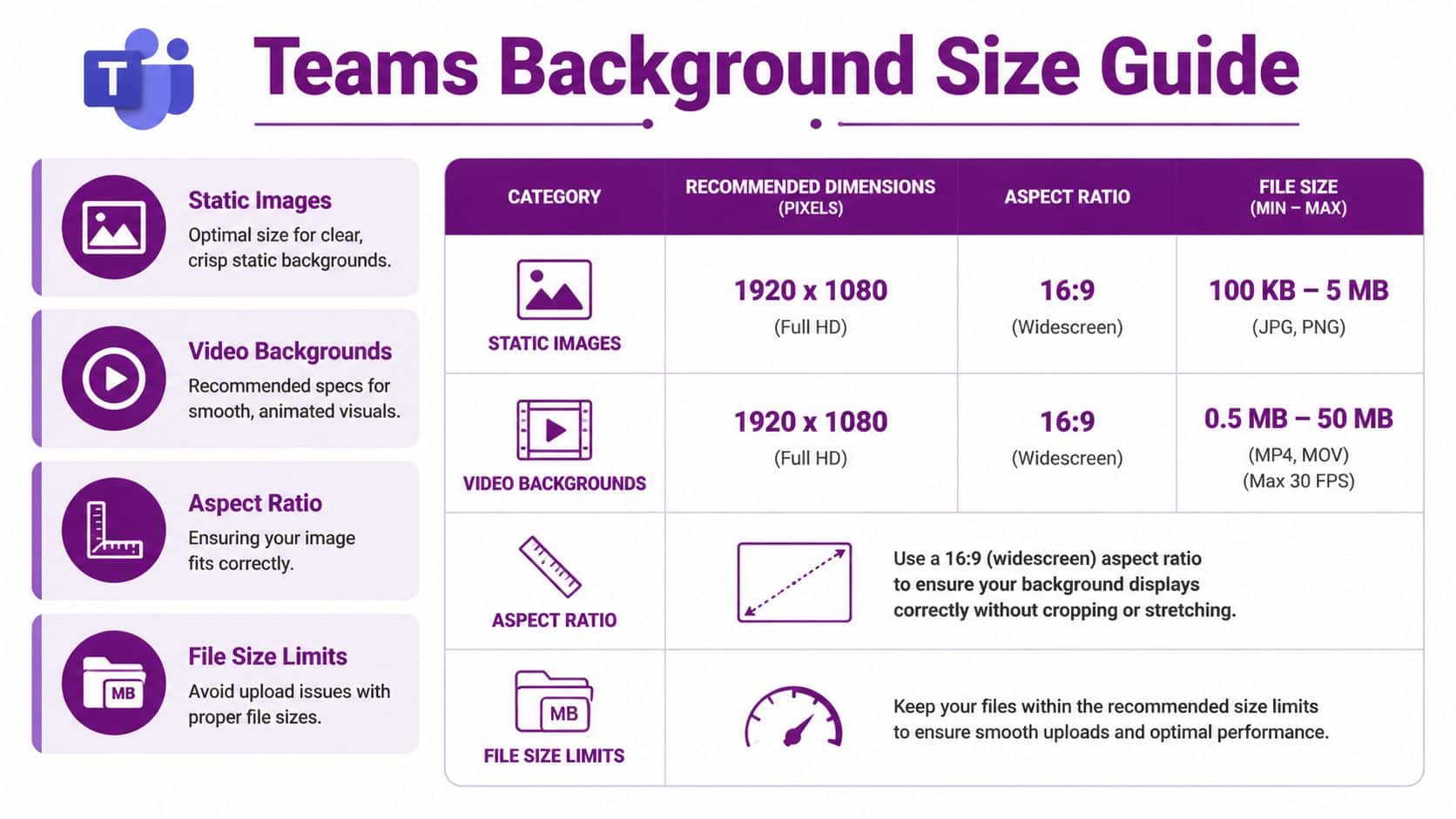
A standard business desktop setup should use 1920 x 1080 at 16:9. Teams hardware such as panels has stricter handling, so admins need a separate file set for room devices rather than assuming one image works everywhere. If your users need a broader walkthrough of the client itself, Microsoft newcomers often benefit from a practical guide to how to use Microsoft Teams.
| Attribute | Recommendation | Supported Range / Notes |
|---|---|---|
| Recommended meeting background size | 1920 x 1080 px | Best fit for standard desktop meetings |
| Aspect ratio | 16:9 | Helps avoid awkward cropping and black bars |
| Meeting background formats | PNG or JPEG | Use a clean, high-quality source file |
| Temporary 2025 upload issue | Standard files could fail | A March 2025 update briefly rejected 1920×1080 uploads if they exceeded 1800×1800 px checks |
| Teams panels minimum size | 1280 x 720 px | Device-specific minimum for panels |
| Teams panels file formats | JPG, JPEG, PNG | Panels support image files only |
| Teams panels file size | Keep within device limits | 100 KB to 2 MB for panels |
| Panel cropping behaviour | Design for centre crop | Images outside the expected ratio are automatically centre-cropped |
| Larger meeting images | Use with care | Teams has supported flexible checks up to 3840 x 2160 px after the March 2025 fix |
Practical rule: Build one master background at 1920 x 1080, then create separate panel-ready variants if you manage meeting room devices.
Understanding the Recommended 1920×1080 Dimension
1920 x 1080 became the default recommendation because it matches the 16:9 shape used by modern Full HD displays. That matters more than people think. When the image shape matches the display shape, Teams doesn’t need to force odd resizing just to fill the frame.
This is why properly sized backgrounds tend to look calm and natural. Faces stay central, the image fills the visible area more predictably, and you’re less likely to get empty edges or stretched visual elements. On typical office laptops and monitors, 16:9 is still the safest choice.
There’s also a practical history behind it. Microsoft’s custom background feature became widely adopted after the April 2020 rollout, during the sharp rise in remote work, and Teams usage grew from 20 million to 75 million daily active users globally by that month according to the background context cited by Custom Virtual Office’s summary of Teams background sizing.
Why this size still works
The recommendation isn’t about chasing the biggest image possible. It’s about using a size that suits most business meetings without adding unnecessary overhead.
A good Teams background should do three things:
- Fit the frame cleanly so staff don’t look boxed in or cut out against awkward edges.
- Stay sharp on common office displays without bloating the file.
- Keep design predictable so logos, patterns, and text stay where you expect them.
If a client asks for one safe standard across the business, this is the one.
How Teams Automatically Scales and Crops Images
Teams doesn’t place your image on screen exactly as uploaded. It scales and crops according to the meeting window, display resolution, and the way your camera is framing you. That’s why a background can look perfect in a preview and slightly different in a live meeting.
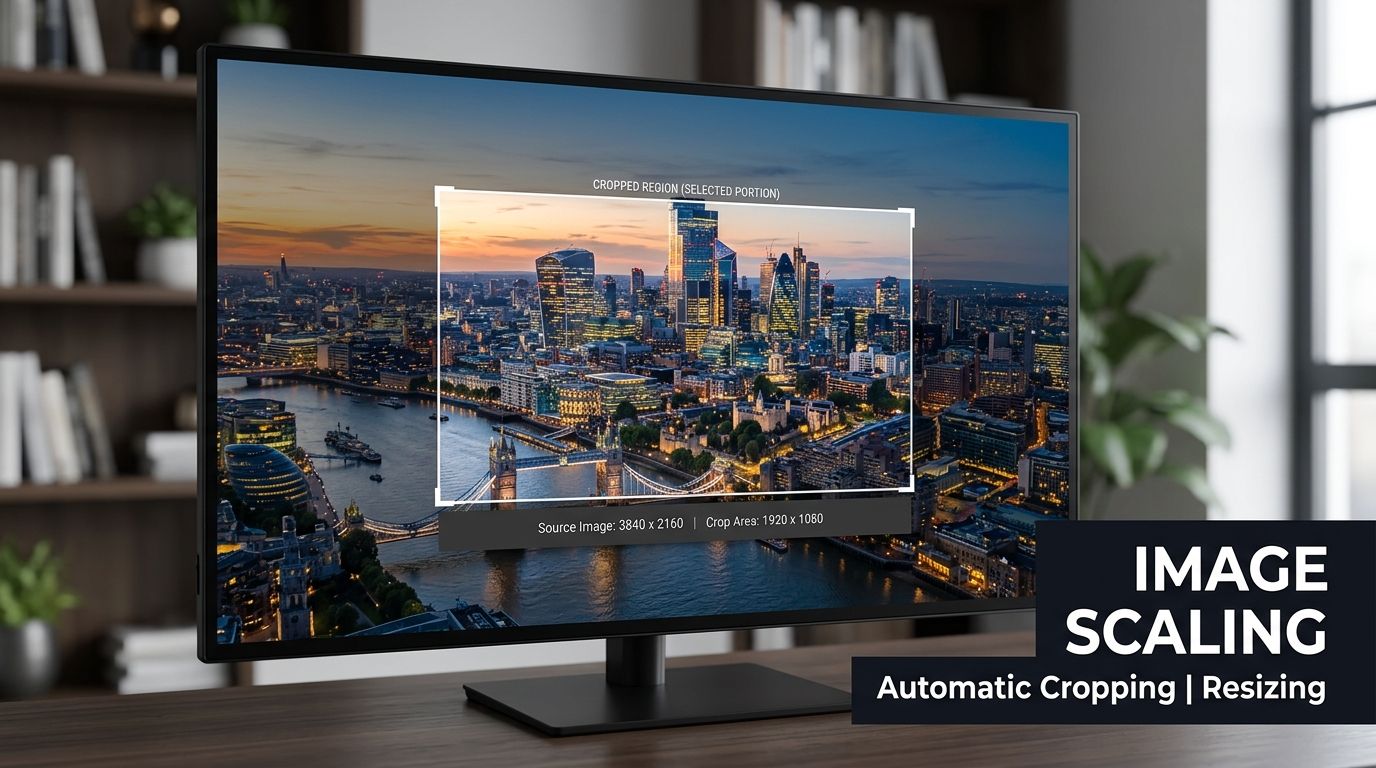
Using 1920 x 1080 at 16:9 remains the benchmark because it gives an edge-to-edge fit on over 90% of UK enterprise devices, and Microsoft guidance also notes it’s sensible to test on a 1280×720 minimum display and expect a 20-30% centre-crop on 4K monitors in some scenarios, as discussed in Microsoft Q&A guidance on Teams background best practices.
What gets cropped first
The centre of the image usually survives. The edges are where problems start.
If you place a logo too close to the far left or right, Teams may trim it. If you use a square image, Teams has to decide what to lose to force it into a wide frame. If you use a vertical design, even more of it may disappear.
That leads to a simple design rule:
- Keep important branding near the middle third
- Avoid placing text in the corners
- Leave visual breathing room around the outside edges
Don’t design to the file. Design to the crop.
What works and what doesn't
A plain branded wall, subtle office backdrop, or soft gradient usually survives scaling well. Dense patterns, thin lines, and corner-heavy layouts don’t.
Here’s the difference in practice:
| Design choice | Likely result in Teams |
|---|---|
| Wide 16:9 image with central focal area | Predictable fit |
| Square social graphic reused as a background | Heavy crop |
| Logo tucked into extreme corner | Risk of partial cut-off |
| Minimal layout with soft contrast | Cleaner subject separation |
If you want consistency, pre-crop the image before upload instead of letting Teams make that decision for you.
Uploading and Managing Your Custom Background
Uploading a custom background on the desktop client is straightforward. The main mistake users make is trying to fix a poor image after upload instead of preparing the file properly first.
Desktop steps
- Open Teams and join or start a meeting.
- Before turning your camera on, open Background filters or Video effects.
- Click Add new.
- Browse to the image on your computer and select it.
- Apply the background and check your preview before joining.
- If the image looks wrong, stop there and edit the file rather than trying to make Teams compensate for it.
During a live meeting, the process is similar. Open More options, go to the video effects area, and add or switch the background from there.
A clean naming convention helps when you manage multiple files. For example, use department or office names in the filename so users can pick the right approved version quickly.
Specifications for Teams Room Panels and Devices
Meeting room hardware needs its own attention. Teams panels and similar devices don’t behave exactly like the desktop app, so a background prepared for a laptop isn’t automatically suitable for a room display.
For Teams panels, Microsoft’s device specification sets a minimum resolution of 1280 x 720 pixels. Supported formats are JPG, JPEG, or PNG, and files should be between 100 KB and 2 MB. If the image exceeds the recommended display aspect ratio, the device automatically centre-crops it, as documented in Microsoft’s custom background guidance for Teams panels.
What admins should do differently
If your business manages shared meeting spaces, create a device-specific version rather than reusing the desktop file unchanged. That keeps room displays consistent and reduces avoidable tinkering later.
A sensible device workflow looks like this:
- Prepare a panel version at 16:9 so the crop is predictable.
- Keep the file lightweight so deployment and loading stay smooth.
- Test on the actual panel because room hardware can expose layout issues you won’t notice on a laptop.
- Manage deployment centrally if you’re already using endpoint tooling such as Microsoft Intune.
Shared devices need discipline. One approved file per room type is far better than letting every site improvise.
Solving Common Background Image Issues
The usual advice is too simplistic. It says “use 1920 x 1080” and leaves it there. In reality, many Teams background complaints aren’t sizing mistakes. They’re performance problems, crop problems, or update-related issues.
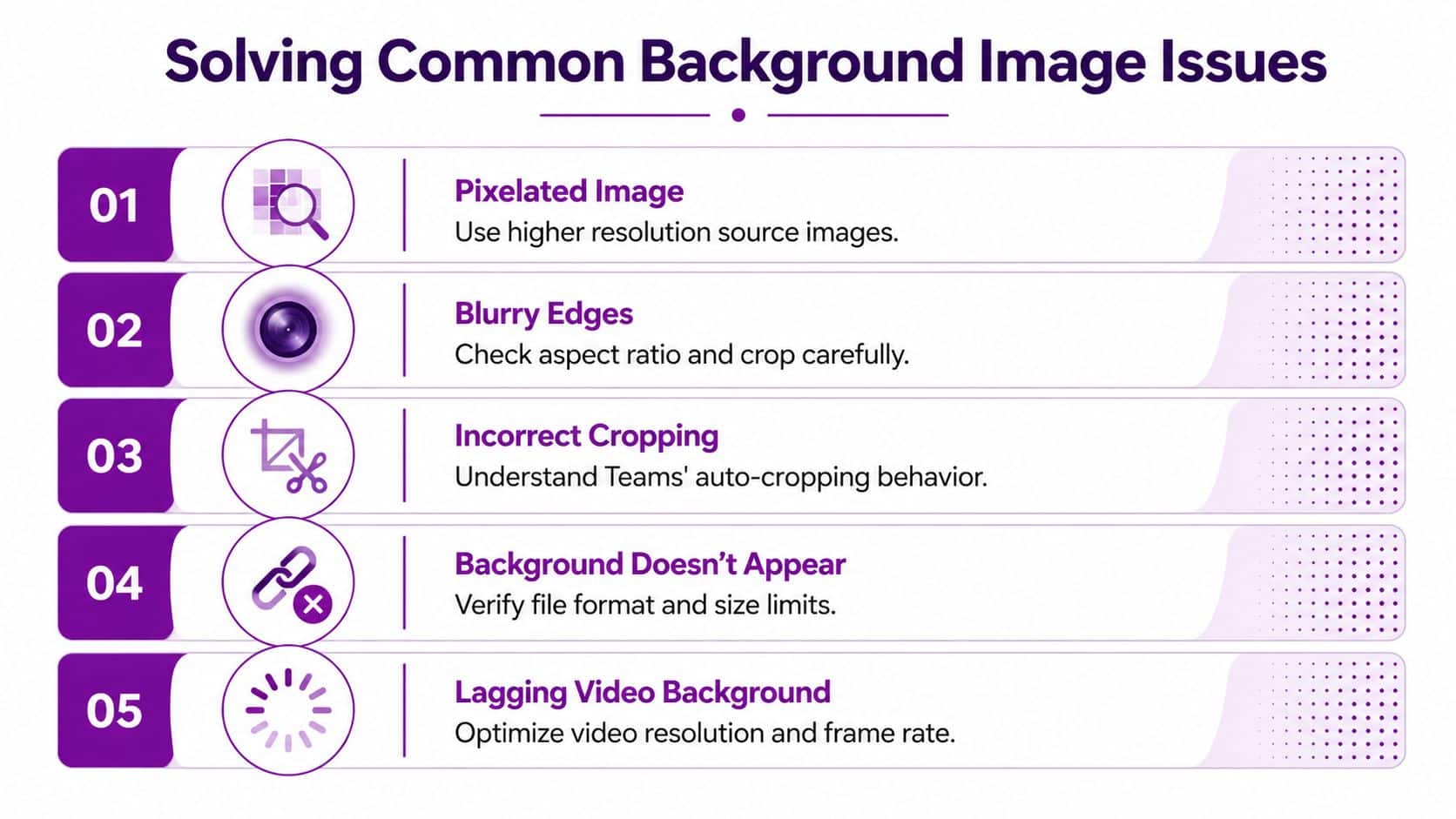
A good example was the March 2025 issue where a software update temporarily enforced a strict 1800×1800 maximum, which meant standard 1920×1080 uploads could fail. Microsoft resolved that by March 31, 2025. The same source also notes that on resource-constrained devices, Teams background filters can add 15-25% latency, and disabling GPU hardware acceleration can sometimes help, according to the Microsoft Answers discussion on the 2025 Teams background upload issue.
If the image looks bad
Start with the source file.
- Pixelated background means the original image is too small or too compressed.
- Distorted background usually means the aspect ratio is wrong.
- Logo looks chopped means the design relied on edge placement that Teams cropped away.
If the file is poor, Teams won’t rescue it.
If Teams feels slow
Background effects aren’t free. On older business laptops, they can push the machine just enough to make calls stutter, especially if the user already has Outlook, a browser with many tabs, Excel, and a line-of-business app open.
Try this order:
- Switch from an elaborate custom background to blur and compare behaviour.
- Use a simpler static image with less detail.
- Check whether hardware acceleration is causing instability and test with it disabled if appropriate for the device.
- Test the camera and call quality without any effect applied.
A background that looks impressive but makes audio and video unstable isn’t professional. It’s just distracting in a different way.
If the upload fails
Don’t assume the user has done something wrong. Check whether Teams itself has changed behaviour, whether policy settings restrict custom uploads, and whether the file format is supported.
A short troubleshooting checklist helps:
| Problem | Likely cause | Practical fix |
|---|---|---|
| Upload rejected | Temporary client issue or unsupported file | Recheck file type and current Teams behaviour |
| Background missing from list | Sync or policy issue | Restart Teams and confirm policy settings |
| Speaker outline looks rough | Busy image or weak lighting | Use a simpler design and improve front lighting |
| Video call lags after enabling background | Device strain | Use a static image or no effect |
Creating Professional Branded Backgrounds for Your Business
A branded Teams background shouldn’t look like an advert pasted behind someone’s head. It should look intentional, calm, and consistent with the way the business presents itself everywhere else.

The strongest designs are usually the simplest. A subtle brand colour, a soft office-style scene, or a restrained graphic element works better than a full marketing banner. The person on the call should remain the focus.
Good branding choices
Keep the logo modest and away from the extreme edges. Use clean contrast so the subject stands out from the background. Avoid fussy patterns that make segmentation worse around hair, glasses, or shoulders.
Good business backgrounds usually include:
- A restrained logo placement rather than a giant centre graphic
- Neutral or cooler tones because they tend to separate more cleanly on camera
- Minimal text because text often crops badly and becomes unreadable
- Visual consistency across departments so external contacts see one organisation, not twenty homemade designs
What to avoid
Promotional backgrounds often fail because they try to do too much. Product shots, taglines, QR codes, and dense text blocks nearly always look cluttered on camera.
If you're sourcing graphics or generating artwork with AI tools, make sure the team checks licensing and usage rights. A practical overview of preventing copyright violations is worth reviewing before rolling branded assets out across the business.
For teams that want motion, this short video gives a useful visual example of the style decisions involved:
The best test is still the simplest one. Put the background behind a real member of staff, in ordinary office lighting, using a normal webcam. If the person disappears into the design, start again.
Security and Accessibility Best Practices
Backgrounds look like a minor detail until someone uploads something off-brand, inappropriate, or unreadable. Then it becomes a governance issue. For that reason, many organisations are better off using approved background sets rather than treating custom uploads as a free-for-all.
Admins can manage this more tightly with Microsoft 365 policies and broader endpoint governance. That matters if you want consistency across departments, regulated environments, or shared devices. It also sits neatly alongside wider Microsoft 365 security best practices rather than being treated as a cosmetic afterthought.
Accessibility matters here too
A background has to work for the speaker and the viewer. If there’s any text on the image, it needs enough contrast to remain readable. For Teams panels, Microsoft’s device guidance highlights a contrast ratio of at least 4.5:1 for small white text against darker backgrounds, which is the right mindset for accessible design generally, even when the meeting background is mostly visual.
A few practical rules make a big difference:
- Use contrast generously so faces don’t blend into the backdrop.
- Avoid busy visual texture behind the speaker’s head and shoulders.
- Don’t rely on small text as part of the design.
- Approve a limited set of company backgrounds instead of allowing anything.
Accessible design isn’t only for public websites. It matters in internal tools, meeting rooms, and everyday video calls too.
Guidelines for Using Animated Video Backgrounds
Animated backgrounds can look polished, but they’re not the default choice for most businesses. Motion adds load, and more load means more chance of poor call quality on ordinary office hardware.
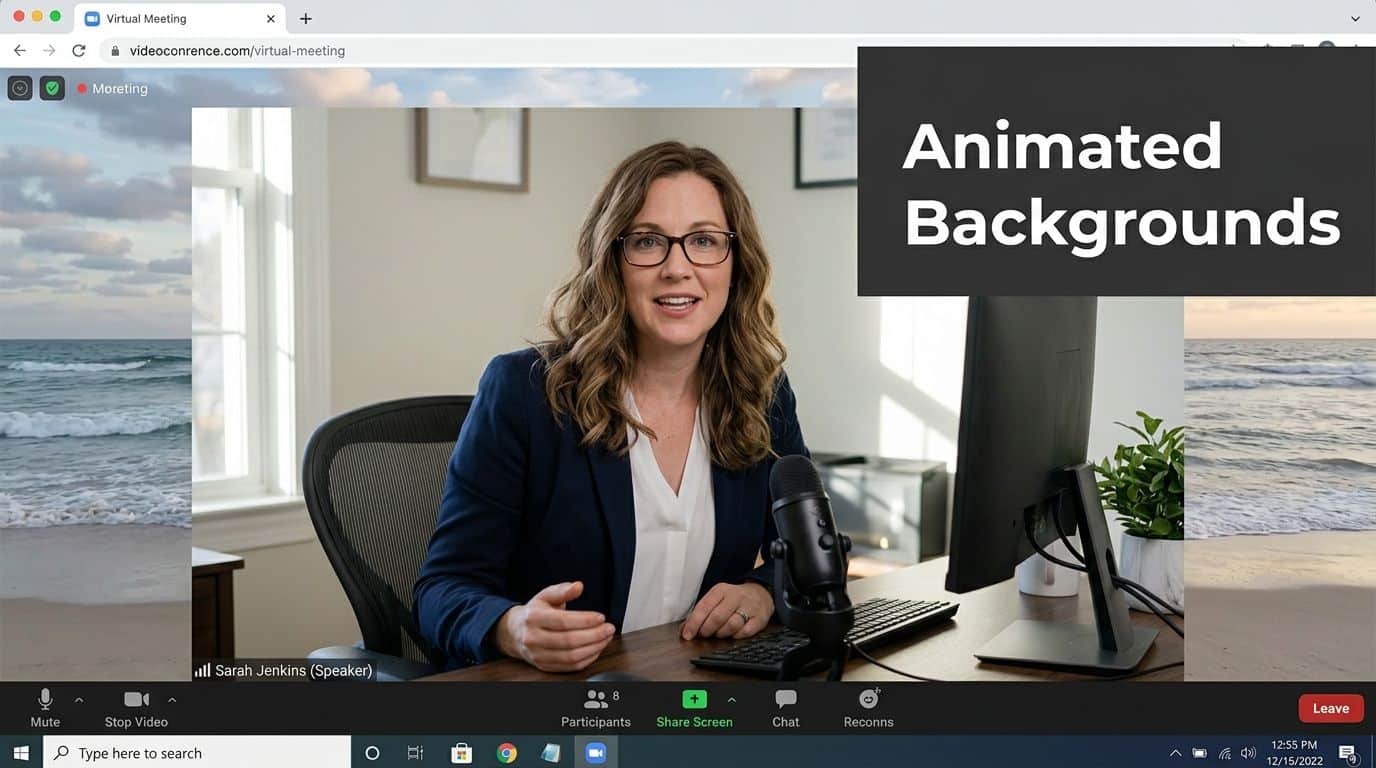
If you decide to use video backgrounds, keep them restrained. Gentle movement is fine. Constant motion, flashing transitions, and high-detail animation usually make meetings worse rather than better.
Use video backgrounds carefully
The practical trade-offs are straightforward:
- Static images are safer for day-to-day business use.
- Video backgrounds demand more from the device and can expose weaknesses in webcams, lighting, or laptop performance.
- Subtle loops work better than anything theatrical.
- Test on the weakest likely device, not just the newest one in the office.
For most SMBs, a strong static background is the better standard. Save animated versions for controlled use, such as webinars or marketing-led events, where the machine, lighting, and setup have all been checked beforehand.
Get Expert Microsoft 365 Support
Getting teams background size right seems small until you’re dealing with inconsistent branding, room device quirks, struggling laptops, and users who all need a different fix. At that point, it’s part of the wider Microsoft 365 estate, not a one-off design task.
That’s where experienced support matters. If your organisation is standardising Teams, rolling out room devices, tightening Microsoft 365 governance, or improving the user experience across hybrid work, it helps to have someone who can deal with the technical detail and the operational reality. Some businesses also compare remote support models before deciding how hands-on they want their IT partner to be, and services such as the Sitego Livesupport service can be useful to review alongside managed support options.
| Phone 0845 855 0000 today | Send us a message https://www.f1group.com/contact/ |
|---|---|
| Call for help with Microsoft 365, Teams, Azure, Dynamics 365, Power Platform, Copilot AI, and managed IT support | Use the contact form to discuss your requirements |
If you want a practical fix rather than generic advice, get specialist help and sort the root cause properly.
If your business wants dependable help with Teams, Microsoft 365, Azure, Dynamics 365, cyber security, or wider IT support, contact F1Group. Phone 0845 855 0000 today or send us a message.