
One add-on costs more than most core licences combined. Microsoft's UK Commerce pricing lists Dynamics 365 Commerce at £161.50 per user per month when paid yearly, excluding VAT, while its e-commerce add-on is £3,075.80 per user per month on the same basis. If you budget from the headline licence alone, you'll miss the line that breaks the business case.
That's why this Dynamics 365 Licensing Guide treats licensing as an access governance decision, not a shopping list. You'll save money by matching named users, shared devices and tenant-wide capabilities to real work. You'll lose money by giving everyone a full licence, ignoring attach eligibility, or forgetting VAT and reseller pricing. Our recommendation is blunt. Map roles first, price second, and don't approve a subscription until finance and IT agree who needs what, and why.
Dynamics 365 Licence Prices at a Glance
The listed prices below are monthly GBP rates, based on annual payment and excluding VAT. Your budget will be higher once VAT and the purchasing route are included.
| Application or edition | Licence unit | Price per month (GBP, ex VAT) | Billing |
|---|---|---|---|
| Sales Professional | Per user | £50.00 | Paid yearly |
| Sales Enterprise | Per user | £80.70 | Paid yearly |
| Sales Premium | Per user | £115.30 | Paid yearly |
| Business Central Essentials | Per user | £61.50 | Paid yearly |
| Business Central Premium | Per user | £84.60 | Paid yearly |
| Business Central Team Members | Per user, limited access | £6.20 | Paid yearly |
| Human Resources | Per user | £103.80 | Paid yearly |
| Human Resources Self Service | Per user | £3.10 | Paid yearly |
| Commerce | Per user | £161.50 | Paid yearly |
| Commerce e-commerce add-on | Per user | £3,075.80 | Paid yearly |
| Finance | Per user | £161.50 | Paid yearly |
| Customer Insights | Per tenant | £1,307.20 | Paid yearly |
| Customer Insights Attach | Per tenant | £769.00 | Paid yearly |
How to Read These Figures
Microsoft's UK Dynamics 365 Sales pricing page lists Sales Professional at £50.00 per user per month, Sales Enterprise at £80.70 and Sales Premium at £115.30, based on annual payment and excluding VAT. Treat these as list prices, not your final budget: Microsoft says pricing can vary by country, currency, regional factors and checkout conditions, and reseller prices may differ.
Customer Service, Supply Chain Management and Project Operations also have per-user licences. Ask for them as separate quote lines rather than assuming they are included with another application.
Budget rule: Check the licence unit before multiplying. Per-user prices scale with headcount; per-tenant prices apply to the tenant.
Keep add-ons separate from base licences in your comparison. The Commerce e-commerce add-on is priced at £3,075.80 per user per month, so folding it into a blended average can conceal a significant commitment. If accounting tools help your business simplify invoices and tax season, apply the same discipline to Dynamics 365: identify the capability you need and the licence that provides it before approving spend.
Don't annualise yet. First decide whether cost should follow a person, a device or the whole tenant.
How User, Device and Tenant Licences Differ
Think of a user licence as a named season ticket. It belongs to one person and works wherever that person works. A device licence is a shared terminal pass. It covers access through that machine, whoever's on shift. A tenant licence is a building-wide pass for a capability. It applies across the organisation, regardless of who uses it or which device they use.
The model below shows the three units side by side.
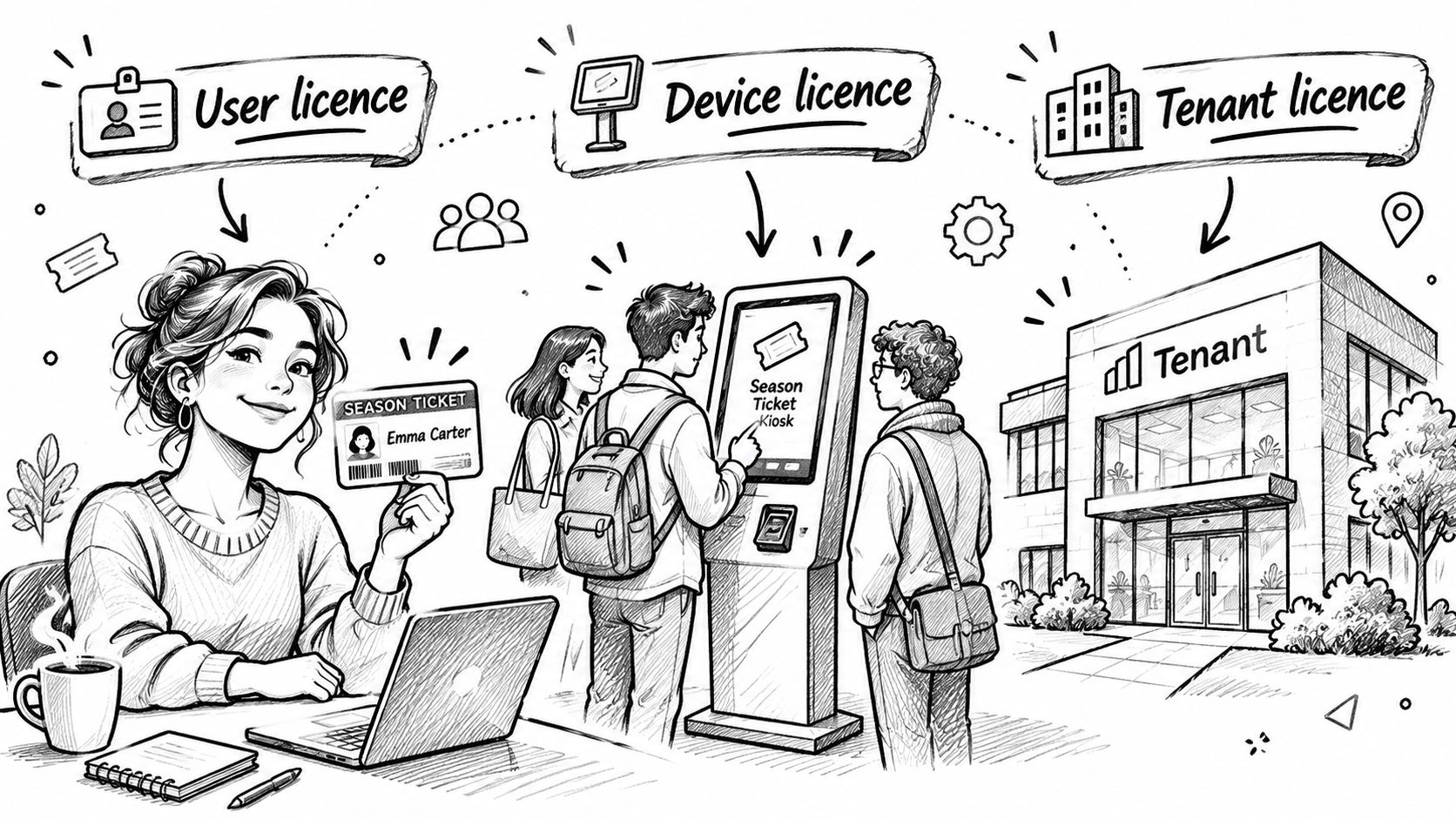
Microsoft's Dynamics 365 licensing guidance for Business Central explains that a user licence is assigned to a named individual and permits access from any device, a device licence covers access through a shared device, and a tenant licence applies to a feature or service across the organisation, regardless of user or device. That's the foundational choice. It decides whether your cost follows employees, shared operational equipment or an organisation-wide capability.
Match the Unit to the Working Pattern
- Named user: A sales manager works from a laptop at home, a phone on the road and a desk in Nottingham. Licence the person, not the hardware.
- Shared device: A warehouse terminal is used by rotating shift staff to book goods in and out. Licence the terminal pattern where the product terms allow it, don't buy a full user licence for every picker.
- Tenant capability: Customer Insights sits outside per-person counting. Budget it once for the tenant and govern capacity, not headcount.
Don't force every scenario into per-user licensing because it's familiar. Shared operational equipment is where organisations routinely overbuy. Equally, don't use a shared device argument to cover named knowledge workers who log in personally all day. Auditors look at actual access, not your preferred label.
Count Everyone Who Touches the Service
Microsoft's licensing documentation states Dynamics 365 subscription licences apply to employees, on-site agents, vendors and contractors who directly or indirectly access the service. Licensing only permanent staff is therefore a compliance gap, not a saving. If an outsourced agent updates cases, a contractor approves invoices, or a vendor accesses data indirectly through an integration your team controls, count that access and confirm the correct licence type.
Run three questions for each system before you request prices. Who logs in, by name? From which hardware, personal or shared? Does the capability serve the whole organisation rather than a defined group?
If you can't answer those questions from a roster, you're not ready to buy. Build a simple register with name, role, device pattern and applications used weekly. That register becomes your licence count, your attach analysis and, later, your audit evidence.
How Base-Plus-Attach Licensing Works
Pay full price once per person, then add extra applications properly. That's the principle.
The diagram below sets out the base and attach relationship.
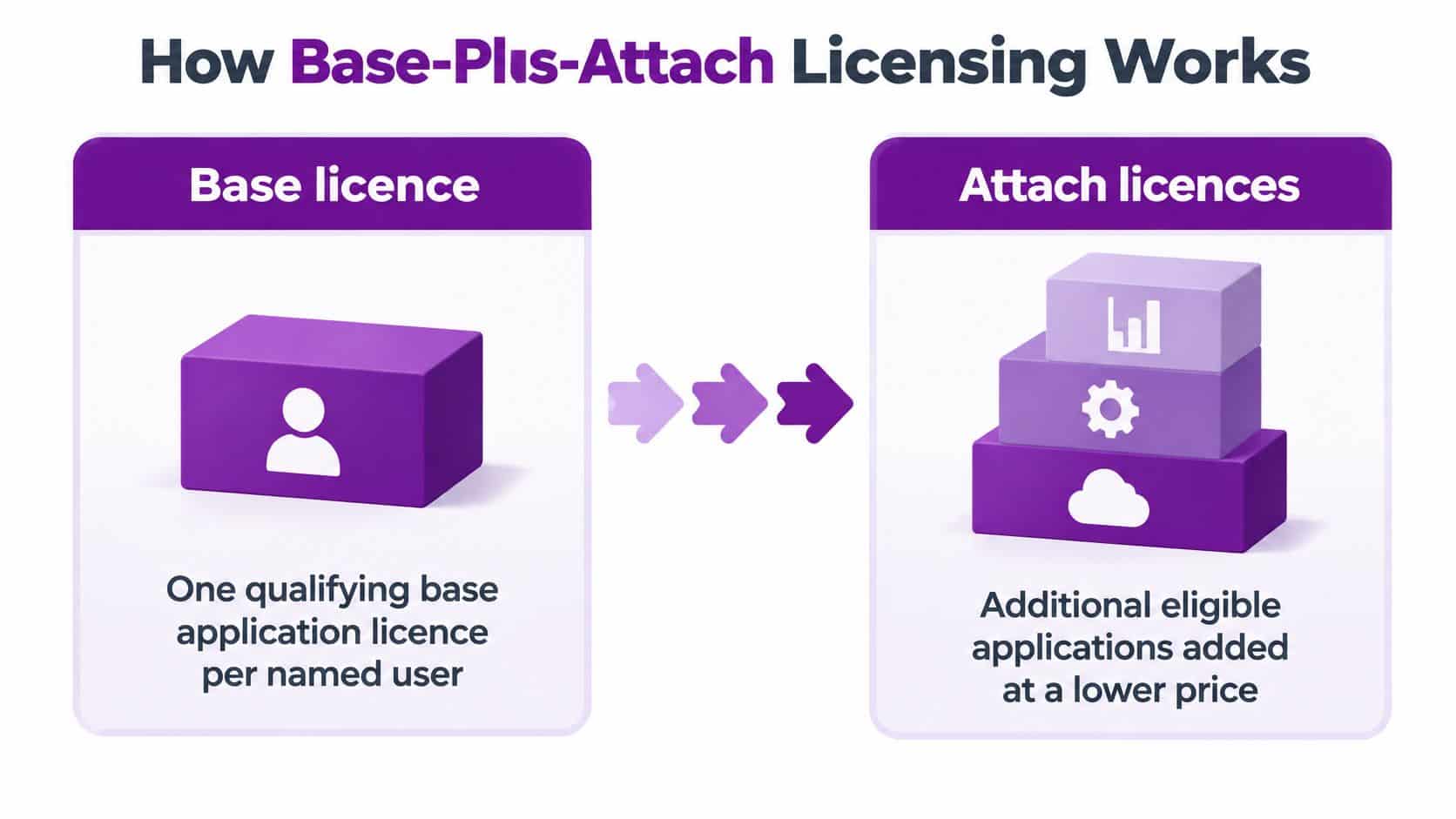
Microsoft's Dynamics 365 product licensing page states most full-user licensing follows the base-plus-attach model, where a full-access user must hold a qualifying base application licence and additional applications for that same named user may be added using attach licences, subject to product and agreement rules. Attach licences are intended for users who need multiple applications.
A Worked Sales and Service Example
Say a salesperson sells, then handles escalations for their own accounts. They open Sales daily and Customer Service several times a week. If you assign two separate full licences, you've double-counted one person. If Sales is the qualifying base for their main role, you assess Customer Service as an attach licence for that same named user. The saving comes from matching the second application to real secondary use, not from removing access the person needs.
Reverse the roles and the answer can change. A service team leader who mainly works cases but checks pipeline for renewals may need Customer Service as the base and Sales attached. Don't standardise the base application across the company. Standardise it by role.
The short video below is useful background before you work through your own role list.
The Four-Step Routine
- List weekly use: For each named user, list every Dynamics 365 application they open in a normal week.
- Choose the base: Pick the qualifying base application that matches the user's main role.
- Add attach only where used: Add attach licences for secondary applications that user needs.
- Validate before purchase: Check the qualifying-base rule, GBP pricing, VAT treatment and commercial channel in the current product terms.
Don't assume eligibility. It depends on the specific product and agreement, and the licensing guide defines rights and models but isn't itself a legally binding contract. Record three fields for every role: base application, attach applications and unit count. If a field service pattern is part of the mix, review our Dynamics 365 Field Service pricing guidance alongside the base choice, because field roles often combine scheduling, service and sales visibility.
Usual multi-app roles include sales staff who handle service, service leads who need sales context, and HR users who also work in finance processes. Review them user by user. That's where attach licensing cuts marginal cost without cutting capability.
Restricted and Tenant-Priced Licences
Not every role needs the full application. Giving a full licence to someone who approves two documents a week is the fastest way to inflate a Dynamics 365 bill.
Microsoft's UK Business Central pricing page states a Team Members licence provides limited access, including reading data, approving workflows and creating or updating selected information. Compare its row in the price table with Essentials and Premium. The gap is the point. You're paying for depth of access, so only buy depth where the job needs it.
Human Resources Self Service works on the same logic. Employees and managers who book leave, check details or complete self-service tasks don't need the full Human Resources application. Reserve full HR licences for the HR team and others who manage employee records and processes end to end.
When the Tenant Is the Unit
Customer Insights is licensed per tenant, not per person. Microsoft's UK Customer Insights pricing page states Customer Insights Attach includes unlimited users, 100,000 Unified People and 10,000 Interacted People, and requires a qualifying Dynamics 365 application. Additional Unified People capacity is tiered at 100,000 to 500,000, 500,000 to 2 million, or more than 2 million people, while Interacted People capacity is sold in packs of 5,000.
Budget tenant items once, then govern capacity growth. Headcount growth won't drive that line. Contact volume and engagement will.
A Three-Step Test for Every Role
- Read-only or self-service: Choose the restricted licence.
- Tenant-wide feature: Budget it once at tenant level and monitor capacity.
- Full write access: Choose the full per-user licence.
Apply the test to actual access, not job title. A director who only approves purchase orders is a restricted user. A junior coordinator who creates orders, updates stock and posts documents is a full user. Titles mislead. Permissions don't.
If a person's security role lets them do full application work, a restricted licence won't make that compliant.
Review assignments whenever a role changes, someone moves department, or a project ends. Restricted licensing saves money only when your access controls stay aligned with it.
Keeping Licences Compliant in Finance and Operations
Procurement doesn't keep you compliant. Identity management does.
The checklist below names the applications caught by the enforcement change.

Microsoft's Dynamics 365 blog on simplifying licence management announced that from 1 November 2025, users of Finance, Finance Premium, Supply Chain Management, Supply Chain Management Premium, Commerce, Project Operations and Human Resources would need licences assigned directly through the Microsoft 365 admin centre. Microsoft also introduced in-product notifications and stated some customers would receive a 12-month grace period or staged rollout depending on renewal timing.
Don't treat a grace period as a free year. Treat it as time to clean up assignments before enforcement blocks access or an audit finds the gap for you. Confirm your exact dates in writing against your renewal.
Run This Audit Sequence
- Export actual usage: Review usage per user for the last 90 days and identify who hasn't logged in.
- Map security roles: Match each security role to licensed users. A role that grants finance posting rights needs the licence to match.
- Remove dormant access: Disable dormant accounts or reassign their licences. Don't pay for leavers.
- Resolve conflicts: Check service-plan conflicts and licence assignments against the subscription.
- Reconcile monthly: Compare assigned licences, active users and renewal dates every month.
Our software licensing best practices guidance supports the same monthly discipline across your wider Microsoft estate. Apply it here with Finance and Operations evidence, not general good intentions.
Where Mid-Sized Organisations Get Caught
An acquisition brings duplicate finance logins for the same people. An outsourced finance team shares accounts, so named-user tracking collapses. A shared service centre gives broad roles for convenience, then nobody narrows them. Temporary project staff keep access after go-live because no one owns removal.
Fix the controls that connect those scenarios. Tie licence assignment to Entra ID groups, make leaver processes remove group membership on the final day, and use segregation of duties reviews to challenge broad finance roles. Assign one owner for monthly reconciliation. If finance owns the budget but IT owns identity, both sign the same report.
Build an evidence pack now. Keep the monthly reconciliation report, the security role to licence mapping, dormant account actions, and your dated grace-period confirmation. If an auditor asks how you know you're compliant, that pack is your answer.
Buying Channels, VAT and a Sample Budget
A list price is a starting point, not an approval figure. The buying channel affects the quoted price, renewal flexibility and support when licence assignments need attention.
Microsoft licensing guidance lists Volume Licensing and the Cloud Solution Provider programme as purchasing routes, including Enterprise Agreement and Enterprise Agreement Subscription arrangements. Reseller prices can differ from Microsoft list prices. Request written quotes using the same editions, licence counts and term, then compare like with like. A lower annual price may offer less flexibility than a monthly option.
Use IT procurement services to structure the purchase. Before approval, confirm the edition, user count, payment term, purchasing channel and VAT treatment. Check base-plus-attach eligibility in the product terms, and confirm whether a minimum seat requirement applies before modelling a small pilot.
What 25 Sales Users Cost in a Year
The annual commitment is the figure Finance needs to budget. This example annualises the Sales list prices for 25 users and shows standard 20% VAT separately.
| Sales edition | Annual cost for 25 users ex VAT | Annual cost for 25 users inc 20% VAT | Billing |
|---|---|---|---|
| Sales Professional | £15,000 | £18,000 | Paid yearly |
| Sales Enterprise | £24,210 | £29,052 | Paid yearly |
| Sales Premium | £34,590 | £41,508 | Paid yearly |
Sales Premium costs more than twice as much as Sales Professional for the same number of users. Choose the higher edition only where its capabilities justify the additional cost for specific roles. If only some users need it, price those users separately rather than upgrading the entire team for convenience.
Finance check: Show ex VAT and inc VAT totals side by side. For the £15,000 Sales Professional example, the ex VAT figure understates cash outflow by the £3,000 VAT amount.
Keep tenant-priced items and major add-ons on separate budget lines. Customer Insights is not priced by Sales headcount, and the Commerce e-commerce add-on should not be averaged across users. Separate lines make it easier to assign an owner, assess value and review renewals.
Build the Budget in This Order
- Start with named users: Use your role register, not the organisation chart.
- Assign one base per role: Choose the main application first.
- Add attach selectively: Include secondary applications a named user opens weekly.
- Use restricted licences: Match them to read, approve and self-service access.
- Add tenant and add-on lines: Price each once, assign an owner and track capacity.
- Apply VAT and term: Annualise the total, show inc VAT cash cost and confirm payment timing.
Treat figures as indicative until a written quote confirms edition, eligibility, channel and taxes. Check whether prices are billed annually and make sure the quote states its VAT treatment before approval.
F1Group is a qualified licensing expert for users, students or faculty on Microsoft 365 or Power Solutions, and offers a free, no-obligation consultation with a local Microsoft Cloud Specialist. Use the consultation to check your role map before committing.
Map each named user to their weekly applications, choose a base licence for each role, and add attach and restricted licences only where needed. Confirm Finance and Operations enforcement and grace-period dates. You can also send F1Group a message to discuss the figures before you buy.
If your Dynamics 365 quote does not show base and attach choices, VAT, tenant lines and compliant assignments per named user, hold approval until it does. F1Group can help organise the role map, review the licence mix and assess renewal risk. Visit F1Group to arrange a focused licensing review.