
For any IT professional who’s been in the game for a while, Active Directory has been the bedrock of business IT. It was the undisputed king of user management, permissions, and network access. But times change. As UK businesses have embraced remote working and cloud services like Microsoft 365, that on-premises foundation is starting to look less like a fortress and more like an anchor.
The process of removing Active Directory is no longer a fringe idea discussed in server rooms; it's a strategic conversation happening in boardrooms. It’s about moving forward, improving security, and making your business more agile.
Why Modern UK Businesses Are Removing Active Directory
Let's be honest, maintaining on-premises domain controllers has become a real headache for many IT leaders in the UK. The way we work has completely transformed, and clinging to infrastructure designed for a 9-to-5 office environment is creating unnecessary operational and financial strain.

This move is about shedding the baggage of legacy IT. The constant cycle of managing physical servers, troubleshooting flaky VPNs for remote staff, and patching against the latest security threats eats up time and money that could be channelled into genuine business growth.
Slashing Costs and Reducing Complexity
One of the most immediate benefits you'll notice is the impact on your budget. The costs tied to on-premises AD are significant and often spread across different budget lines, hiding the true expense.
When you really add it all up, the list gets long quickly:
- Physical Servers: The initial capital outlay is just the start. You have to factor in a refresh cycle every 3-5 years.
- Licensing: Keeping on top of Windows Server licences and Client Access Licences (CALs) is a job in itself.
- Maintenance: Think about the hidden costs – power, cooling, physical security for the server room, and the countless hours your team spends on routine upkeep.
Switching to a cloud-native identity solution like Microsoft Entra ID gets you off this expensive hardware treadmill. It turns a chunky capital expenditure into a predictable, operational one, simplifying your finances. For a closer look at the numbers, it's worth exploring the full breakdown of cloud vs on-premises infrastructure.
Bolstering Security for a Modern Workforce
Security is, without a doubt, the most critical reason for making this change. On-premises Active Directory is a massive and very attractive target for cybercriminals. If an attacker compromises a single domain controller, they essentially get the "keys to the kingdom." The statistics are sobering: a staggering 90% of organisations have an Active Directory environment that is vulnerable to attack.
The fundamental problem is that traditional Active Directory was built for an era when everyone worked inside a walled-garden office network. Today’s workforce is everywhere, and legacy AD just wasn't designed to secure that kind of distributed environment.
Modern identity platforms are built from the ground up on a Zero Trust security model. They provide powerful security controls that are incredibly complex and costly to build and maintain yourself.
These platforms provide a side-by-side comparison of features that shows just how different the approaches are.
On-Premises AD vs Cloud-Native Azure AD
| Feature | On-Premises Active Directory | Microsoft Entra ID |
|---|---|---|
| Primary Use Case | Manages on-premises resources, users, and devices within a private network. | Manages access to cloud and on-premises applications with a single identity. |
| Security Model | Traditional perimeter-based security. Assumes trust within the network. | Zero Trust model. Assumes breach and verifies every access request. |
| User Access | Relies on VPNs for secure remote access, which can be slow and complex. | Direct, secure access to apps from anywhere. No VPN needed for cloud services. |
| Key Features | Group Policy, domain join, LDAP, Kerberos/NTLM authentication. | Conditional Access, MFA, Identity Protection, single sign-on (SSO). |
| Management | Requires physical servers, patching, and manual oversight by IT staff. | Managed via a web portal. Microsoft handles all infrastructure and updates. |
| Cost Structure | Capital expenditure (hardware, licences) and operational costs (maintenance). | Operational expenditure (subscription-based), often included in M365 plans. |
The differences are stark. Moving to a cloud-native model isn't just a technical upgrade; it's a fundamental shift in how you secure and manage your organisation's identity infrastructure.
Future-Proofing for Cloud and AI Integration
Finally, getting rid of on-premises AD is about setting your organisation up for the future. The next wave of productivity tools, particularly AI-powered ones like Microsoft Copilot, are designed to work seamlessly with cloud-native identity. A legacy AD setup can act as a roadblock, preventing you from taking full advantage of these game-changing technologies.
For any UK business that wants to stay competitive, having an agile, secure, and scalable IT foundation is non-negotiable. Decommissioning Active Directory is one of the most important steps you can take on that journey.
Your Blueprint for a Seamless Transition
If you get one thing right when removing Active Directory, make it the planning. We've seen it time and time again: a meticulous plan accounts for 90% of the project's success. Rushing this is a surefire way to cause major business disruption, a hard lesson learned from years in the trenches. Think of this stage as creating your project's master blueprint before a single server is touched.
This is essentially a full-scale audit. Your goal is to hunt down every last service, application, and device that pings AD for authentication or configuration. We’re not just talking about user logins; we're talking about the deep, hidden dependencies that quietly keep the business running.
Uncovering Hidden Dependencies
First things first: you need to go on a discovery mission to map everything connected to your on-premises AD. It’s almost certainly woven into more systems than you realise, and missing just one can unleash chaos down the line. A complete inventory isn't just a nice-to-have; it's non-negotiable.
Your dependency list needs to be forensic. Make sure you document:
- Applications: List all software, from the main CRM system to that bespoke internal tool the finance team loves, that uses AD to sign users in. Pay special attention to legacy apps that have been humming away in a corner, forgotten by everyone.
- Network Devices: This is a big one. Think printers, scanners, and even Wi-Fi access points that might be using AD credentials for access control.
- File and Print Services: Get a clear map of every single file share and printer that relies on AD groups and user accounts for its permissions.
- Authentication Protocols: Make a note of which services are using protocols like LDAP, Kerberos, or the very outdated NTLM. Knowing this is key to planning a smooth migration to modern authentication.
This isn't a job you can do from your desk alone. You'll need to get out there and talk to department heads and key users. They know their daily workflows and the tools they can't live without.
Setting a Realistic Timeline and Defining Success
Once you have that complete dependency map, you can finally start building a realistic timeline. And this isn't just about the technical tasks. It has to include scheduling user communications, planning for inevitable (but manageable) downtime during cutovers, and organising training on the new system. A rushed timeline is the number one killer of these projects.
What does a win look like? That’s a critical question to answer right now. Success isn't just about flicking the off-switch on the old servers. It’s about reaching a state where users don’t notice a thing, your security posture is measurably stronger, and your team’s management overhead has actually gone down.
By setting clear, measurable goals from the start, you get everyone on the same page. This could be anything from a target to reduce authentication-related support tickets by 20% to decommissioning a specific number of physical servers by the end of the quarter.
The Cost of Inaction and Orphaned Accounts
Putting this off creates its own storm of problems, especially around security and day-to-day efficiency. Orphaned accounts left lingering in an outdated system are a massive security risk and a waste of money, especially as you look to adopt modern tools like Copilot AI. An interesting parallel can be seen in UK government data on returns management. Between 2010 and 2020, only 48% of refused asylum seekers who applied in that period had been removed from the UK by June 2024. This highlights the persistent challenge of enforcing a clean and final process. For IT managers, the lesson is clear: timely and complete action is vital. Decommissioning Active Directory properly prevents orphaned accounts—much like unreturned migrants—saving costs and tightening security. You can read more about these UK government return statistics.
This planning stage is the critical groundwork that makes the whole transition predictable and smooth. It turns the daunting task of removing Active Directory from a high-risk gamble into a well-managed, strategic IT project with clear benefits for the business. Take the time to build this blueprint now, and you'll avoid nasty operational surprises later.
The Technical Nitty-Gritty of Decommissioning AD
With your plan locked in, it’s time to get your hands dirty. We’re moving from the 'what if' to the 'how to', where a steady hand and a methodical approach are your best friends. This isn’t a quick rip-and-replace job; it’s more like a careful disassembly of your network’s central nervous system. Let's walk through it, step-by-step.
Before you touch a single setting, you absolutely must have a full, verified backup of every domain controller. This is your get-out-of-jail-free card. Seriously, don't skip this. A system state backup is what you need, as it grabs the AD database, registry, and all the other critical bits that make a DC tick.
Use your standard tools—Windows Server Backup or whatever enterprise solution you run—to get a complete backup of each DC you plan to demote. And here's the crucial part: test the restore. A backup you haven't tested is just wishful thinking.
Carefully Transferring FSMO Roles
Once your safety net is in place, you need to deal with the Flexible Single Master Operations (FSMO) roles. These are the five key jobs—Schema Master, Domain Naming Master, RID Master, PDC Emulator, and Infrastructure Master—that keep the whole domain running smoothly. You can't just power down a server holding one of these roles. You have to pass the torch first.
First, figure out which server holds which role. A quick PowerShell command will tell you everything you need to know. The transfer process itself is straightforward, but it needs to be done deliberately.
- Find the Current Role Holders: Run
netdom query fsmoin a command prompt. This gives you a clean, simple list of which DC is doing what. - Plan the Handover: If you’re just shrinking your domain, move the roles to a DC that’s sticking around for the long haul. If the whole domain is going, you’ll eventually demote all of them, but you still need to transfer roles off the one you're working on now.
- Make the Move: The
Move-ADDirectoryServerOperationMasterRolePowerShell cmdlet is your best bet here. It’s the cleanest, most reliable way to gracefully transfer the roles without causing a fuss.
Getting this right ensures your domain doesn’t have a panic attack while you’re removing servers from the picture.
The Art of Demoting Domain Controllers
Now for the main event: actually demoting the domain controllers. This is the process that officially strips the Active Directory Domain Services (AD DS) role from a server, turning it back into a regular member server. You'll do this through Server Manager, which launches a wizard to guide you.
Don't just click 'Next' blindly. The wizard is smart and will warn you if you’re about to do something problematic, like demoting the last Global Catalog server in a site. It will ask for credentials and handle removing the AD DS components for you.
Once the demotion wizard finishes, the server will restart. When it comes back online, it’s just another server on the network, no longer a domain controller. The golden rule here is to go one at a time. Demote one DC, then check the health of your domain before even thinking about touching the next one. Trying to rush this is how outages happen.
Essential Metadata Cleanup
What happens when things go wrong? Sometimes a demotion fails partway through, or worse, a physical DC dies and can't be brought back online to be demoted properly. This leaves behind orphaned records in Active Directory that still point to the now-defunct DC.
These "ghost" records are poison for your domain, often causing weird replication errors and authentication failures that are a nightmare to track down.
You have to hunt down this leftover metadata and remove it manually. This means digging into Active Directory Sites and Services to delete the server object and using tools like ntdsutil or the Active Directory Users and Computers console to remove its computer account. Leaving this orphaned data behind is asking for trouble down the line.
Finally, remember that the technical process doesn't end with a software change. The physical hardware will eventually need to be retired, which means following procedures for proper IT asset disposal to protect your data and stay compliant.
Post-Decommissioning Cleanup and Service Migration
So, you’ve powered down the last of your on-premises domain controllers. It’s a huge milestone, but the job isn't quite finished. Think of it like demolishing a building – the structure is gone, but now you have to clear away the rubble and re-route the old plumbing and electricals before you can build something new. This phase is all about that meticulous cleanup, making sure no ghosts of the old AD are left lurking on your network.
Failing to tackle this cleanup properly is a recipe for disaster. We've seen it lead to all sorts of strange, hard-to-pinpoint network errors and, even worse, gaping security holes. It’s time to hunt down every last dependency.
The core technical work of getting the domain controllers offline is the essential first step, as this diagram shows.
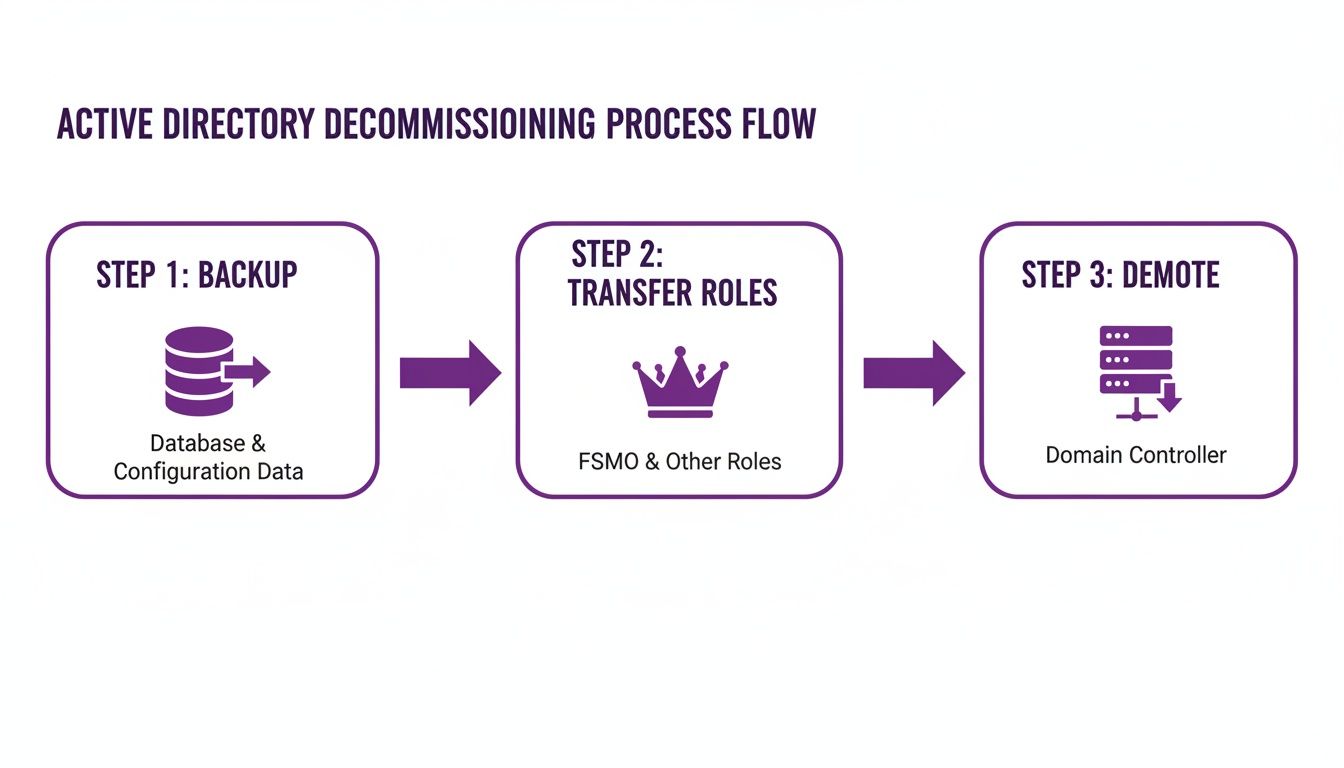
With the backups, role transfers, and demotions complete, you're ready to dive into the real cleanup and migration work.
Reconfiguring Network DNS Settings
Your first port of call should almost always be DNS. For years, your domain controllers were likely the primary DNS servers for your entire network. Every client PC, server, and printer was hardwired to ask them for directions.
Now they're gone, every single device needs to be pointed to its new DNS provider, whether that's your firewall, a cloud-based service, or other dedicated DNS servers.
- Update DHCP Scopes: The quickest win is to update your DHCP server settings. Just change the DNS server option to point to the new resolvers, and your client machines will pick up the change.
- Manually Check Static IPs: Don't forget about anything with a static IP. This is where that inventory you built during the planning phase really pays off. You'll need to manually reconfigure servers, printers, and other network hardware.
- Clean Up DNS Records: Finally, get onto your new DNS servers and hunt for any stale SRV or A records that still point to the hostnames or IP addresses of the old domain controllers.
A classic mistake is to assume DHCP will take care of everything. We’ve seen entire applications go down because a single critical server with a static IP was missed. The troubleshooting can be a nightmare, all for a simple network setting.
Migrating Group Policy Objects to Intune
Group Policy Objects (GPOs) were the backbone of device management in Active Directory, controlling everything from password complexity to mapped network drives. In a modern setup, Microsoft Intune is the heir to this throne, but it’s not a simple copy-and-paste job.
You can’t just dump hundreds of legacy GPOs into Intune and hope for the best. This is your chance to completely rethink and modernise your device management strategy. If you're looking for guidance on moving complex configurations between systems, you might find our insights on data migration best practices helpful.
The smart way to do this is with the Group Policy analytics tool inside Intune. You can import your GPOs, and the tool will tell you exactly which settings are compatible with cloud-native management. From there, you build new, clean configuration profiles in Intune, bringing over only what you need and leaving the legacy baggage behind.
Handling Application Authentication and Permissions
The final, and often most complex, piece of the puzzle is dealing with all the applications and file shares that used Active Directory for security. You're essentially performing a security transplant on your core business services.
Most applications will need to shift away from old-school Kerberos or NTLM authentication. The goal is to integrate them with Microsoft Entra ID using modern protocols like SAML or OAuth 2.0 to enable true single sign-on (SSO).
For file shares, those permissions meticulously built with AD security groups need a new home. This might mean reconfiguring access control lists (ACLs) or, better yet, migrating the data to a cloud platform like SharePoint Online, which handles permissions through Entra ID.
This kind of modernisation isn't just about convenience; it's a major security and compliance win. In the year ending December 2026, the UK recorded 9,914 enforced removals, a 21% jump from the previous year. For IT directors, moving from on-premises AD to a solution like Entra ID gets rid of legacy attack surfaces and helps demonstrate due diligence in an era of tightening enforcement. You can find the full breakdown in the official UK government removal statistics.
Completing this final cleanup ensures your infrastructure isn't just new—it's truly secure and unburdened by the past.
Ready to start your journey away from legacy Active Directory? Phone 0845 855 0000 today or Send us a message to speak with our experts.
Moving to Modern Identity with Microsoft Entra ID
So, the last of your on-premises domain controllers have been powered down and the clean-up is in full swing. Your IT infrastructure is now in a completely different place. The conversation naturally moves from "how do we get rid of Active Directory?" to "what's our identity strategy now?" For almost everyone, the answer is to fully embrace a modern, cloud-native solution: Microsoft Entra ID.
Think of this as more than just a replacement for AD. It's a genuine evolution. Microsoft Entra ID (which you might know by its old name, Azure AD) is built from the ground up for how we work today—from any location, on any device, accessing cloud-based apps. It becomes the new, secure core of your organisation's identity and access management.
The Power of a Cloud-Native Approach
Switching to Entra ID opens up a world of possibilities that just aren't practical with a legacy, on-premises setup. The integration with the rest of the Microsoft ecosystem is incredibly smooth. In fact, if your business uses Microsoft 365, you're already using Entra ID behind the scenes. This move simply cements it as your single source of truth for all things identity.
One of the biggest wins you'll see is a major uplift in your security. Entra ID offers advanced tools designed for a Zero Trust world, where you rightly assume no user or device can be trusted by default.
A few key security benefits really stand out:
- Conditional Access: This allows you to build really specific access rules based on real-time signals. You could, for example, enforce multi-factor authentication (MFA) only when a user logs in from an unrecognised network or a device that isn't managed by your IT team.
- Identity Protection: This feature taps into Microsoft's massive global threat intelligence network to automatically spot and shut down identity-based risks, like credentials found in a data breach or a user trying to log in from two different continents at once.
- Simplified Management: Gone are the days of needing to VPN into the office to manage users or groups. Your team can now handle everything from a central web portal, from anywhere.
By shifting identity management to the cloud, you're essentially handing over the huge responsibility of securing and maintaining that critical infrastructure. Microsoft invests billions in security every year, providing enterprise-grade protection that would be impossible for most businesses to replicate on their own.
Full Cloud vs Hybrid Identity
As you move away from on-premises Active Directory, you essentially have two paths for your identity strategy. Getting your head around the difference is key to picking the right model for your organisation.
A hybrid identity setup is where you synchronise your on-premises AD with Microsoft Entra ID. This is a common stepping stone, especially when some legacy apps still need local AD to function. While it works, you still have the cost and management overhead of running those on-prem servers.
The full cloud-only model is the endgame of removing Active Directory. In this world, Microsoft Entra ID is your one and only identity provider. All users, devices, and applications authenticate directly with it. This completely removes the need for any on-premises domain controllers, giving you maximum agility and security. It's the clear destination for most modern businesses.
For a more detailed breakdown, you can learn more about what Azure Active Directory (now Entra ID) is and how it can become the heart of your IT operations.
Budgeting for Microsoft Entra ID
Of course, you need to understand the costs involved. Entra ID is priced as a per-user, per-month subscription, which makes your budget predictable and straightforward. The good news for many UK businesses is that core Entra ID features are already included with your Microsoft 365 subscriptions.
Here’s a quick look at the common licensing tiers and their approximate UK costs:
| Plan | Key Features | Approx. GBP Price (per user/month) |
|---|---|---|
| Free (with M365) | Core identity and access management, SSO | £0 (Included) |
| Entra ID P1 | Conditional Access, MFA, hybrid identities | ~£5.20 |
| Entra ID P2 | All P1 features, plus Identity Protection | ~£7.60 |
From our experience, the licences bundled with Microsoft 365 Business Premium are often more than enough for most small and medium-sized businesses. The P1 and P2 plans are fantastic add-ons, bringing powerful, automated security tools that are a wise investment for any organisation that handles sensitive data or has a higher risk profile.
Ready to map out your journey to a modern, secure identity platform? Phone 0845 855 0000 today or Send us a message to chat with one of our experts.
Common Questions on Removing Active Directory
When we talk to businesses about moving away from Active Directory, the same questions tend to pop up. It’s a big project with plenty of moving parts, so it's only natural to have concerns. Drawing from years of experience guiding companies through this process, we've answered some of the queries we hear most often.
Can I Remove Active Directory with On-Premises Servers?
Yes, you can, and it's a common scenario. The key is to shift your management perspective. Your physical servers can stay right where they are, but instead of being joined to a local AD domain, they get managed through cloud-based tools. A great example is using Azure Arc, which lets you manage on-premises servers right alongside your cloud resources in a single pane of glass.
For things like file shares, the typical path is to migrate that data into SharePoint Online or Azure Files. The absolute non-negotiable part of this process is identifying every single service that uses Active Directory for authentication and moving it to a Microsoft Entra ID-based alternative first. For many UK businesses, this is a logical step in their wider cloud strategy.
What Are the Biggest Risks I Should Be Aware Of?
By far, the biggest risk is missing a dependency and causing a major service outage. Imagine an accounts package or a line-of-business application that authenticates against AD. If you switch AD off without reconfiguring that app first, it simply stops working. Your team can't log in, and business grinds to a halt. It’s this kind of disruption that proper planning is designed to prevent.
The other major risk is inadvertently losing data or opening up security holes during the transition. That’s exactly why we insist on a thorough discovery phase and multiple, verified backups. Think of it as your project's safety net—it’s what makes a complex decommissioning viable and safe.
How Long Does This Process Typically Take?
This is the classic "how long is a piece of string?" question. The timeline is completely dependent on the size and complexity of your environment.
For a small business with just one or two servers and a handful of users, the technical work might only take a couple of days, following a week or so of careful planning. On the other end of the spectrum, a larger organisation with multiple sites, legacy applications, and hundreds of users could be looking at a project that spans several months from initial assessment to final shutdown.
The one rule we always follow is: don't rush it. A realistic timeline is built from a detailed audit of your specific setup, ensuring every dependency is mapped out long before anything is decommissioned.
Is It Expensive to Migrate from Active Directory to Entra ID?
It's better to think of this as an investment rather than just a cost. While there's an upfront project cost, you have to balance that against the long-term savings. You'll be eliminating server hardware costs, Windows Server licences, maintenance contracts, and all the IT hours spent just keeping the old system running.
Your main ongoing cost will be your Microsoft Entra ID licences, but many of the features you need are likely already included in your existing Microsoft 365 plan. For more advanced capabilities, you might look at premium licences.
Here's a rough idea of the costs:
- Entra ID P1: Adds core features like Conditional Access. This is around £5.20 per user/month.
- Entra ID P2: Includes everything in P1 plus advanced Identity Protection and is about £7.60 per user/month.
The real value comes from a successfully executed project. When you see the reduction in IT overheads and the boost in your security posture, the return on investment often becomes clear very quickly.
Ready to explore your next steps? Phone 0845 855 0000 today or Send us a message to discuss your project with our expert team.
Ready to Modernise Your IT?
Moving on from Active Directory is a major project, but as we've walked through, the rewards in security, cost, and flexibility are substantial. It’s the kind of strategic shift that sets your business up for the long term.
If you’ve read this far, you understand the scope of the work involved. You also see the potential. The next step is turning that plan into a reality, and you don’t have to do it alone. Let us help you map out a transition that fits your specific business needs, ensuring nothing gets left behind.
Give us a call on 0845 855 0000 today or send us a message to talk it through.