
Your team already knows the pattern. A contract comes in by email. Someone downloads the attachment to their desktop. Another person updates it and emails it back. Two days later, nobody is certain which copy is current, who approved the last change, or whether the version sent to a client was the right one.
That’s where outlook and sharepoint stop being separate Microsoft tools and start becoming a working system. Outlook handles communication. SharePoint handles controlled document storage, permissions, version history, and team access. When they’re connected properly, staff spend less time hunting for files and less time forwarding emails that should never have stayed in one person’s inbox.
For East Midlands SMEs, that matters because the main issue usually isn’t a lack of software. It’s that people are still working around the platform rather than through it. The practical difference comes from putting email, documents, calendars, approvals, and governance into the same day-to-day flow.
Beyond the Inbox Why Integrate Outlook and SharePoint
If Outlook is where work starts, SharePoint should be where business records live. That sounds simple, but many firms still treat SharePoint as a separate place people visit only when they have to. The result is familiar: inboxes become filing cabinets, attachments become unofficial records, and project knowledge gets trapped in personal folders.
Microsoft Outlook remains central to business communication, with over 400 million active users worldwide, while 68% of users use calendar features and 70% of corporate users implement encryption according to Outlook usage and feature statistics. That scale matters because it confirms something most IT managers already know. Outlook is where users already are. Putting SharePoint access into that working environment is usually more effective than asking people to change habits overnight.

What changes when documents stop travelling by attachment
A business gets immediate control when staff share links to a SharePoint document instead of sending file copies around by email. One file sits in one managed location. The team works on the same version. Permissions are inherited from the library or site. Retention, auditing, and review become possible in a way they aren’t when copies are scattered across inboxes.
That shift also changes accountability. When a document is stored in SharePoint, a manager can see where it belongs, who can access it, and whether the library structure still matches the way the team works. When it sits in Outlook attachments, the process depends on memory and goodwill.
Important commercial documents shouldn’t rely on somebody remembering which attachment was final.
The business case is efficiency, security, and control
The firms that get the best results from outlook and sharepoint integration usually aren’t trying to do something flashy. They want fewer duplicated files, cleaner handovers, and less dependence on individuals. They want project correspondence accessible to the team without giving everyone unrestricted access to everything.
That’s especially relevant when choosing Microsoft 365 licensing. In practice, most SMEs looking at this setup are comparing plans such as Business Standard and Business Premium based on security controls, desktop apps, and management features rather than on Outlook or SharePoint alone. The integration works best when the licence supports the wider governance model, not just the mailbox.
A practical way to think about the value is this:
| Business problem | What Outlook alone does | What Outlook with SharePoint does |
|---|---|---|
| Version confusion | Stores the email thread | Stores the live document in one managed location |
| Staff handover | Leaves knowledge in personal mailboxes | Keeps files and related records in shared team spaces |
| Sensitive file sharing | Encourages forwarded attachments | Uses controlled links and site permissions |
| Audit readiness | Makes retrieval inconsistent | Supports structured storage and access control |
When clients ask whether this is worth the effort, the answer depends on whether they want a communications tool or an operating model. Outlook alone is excellent for communication. Outlook and SharePoint together are what start to make communication manageable.
Setting the Foundation Connecting SharePoint to Outlook
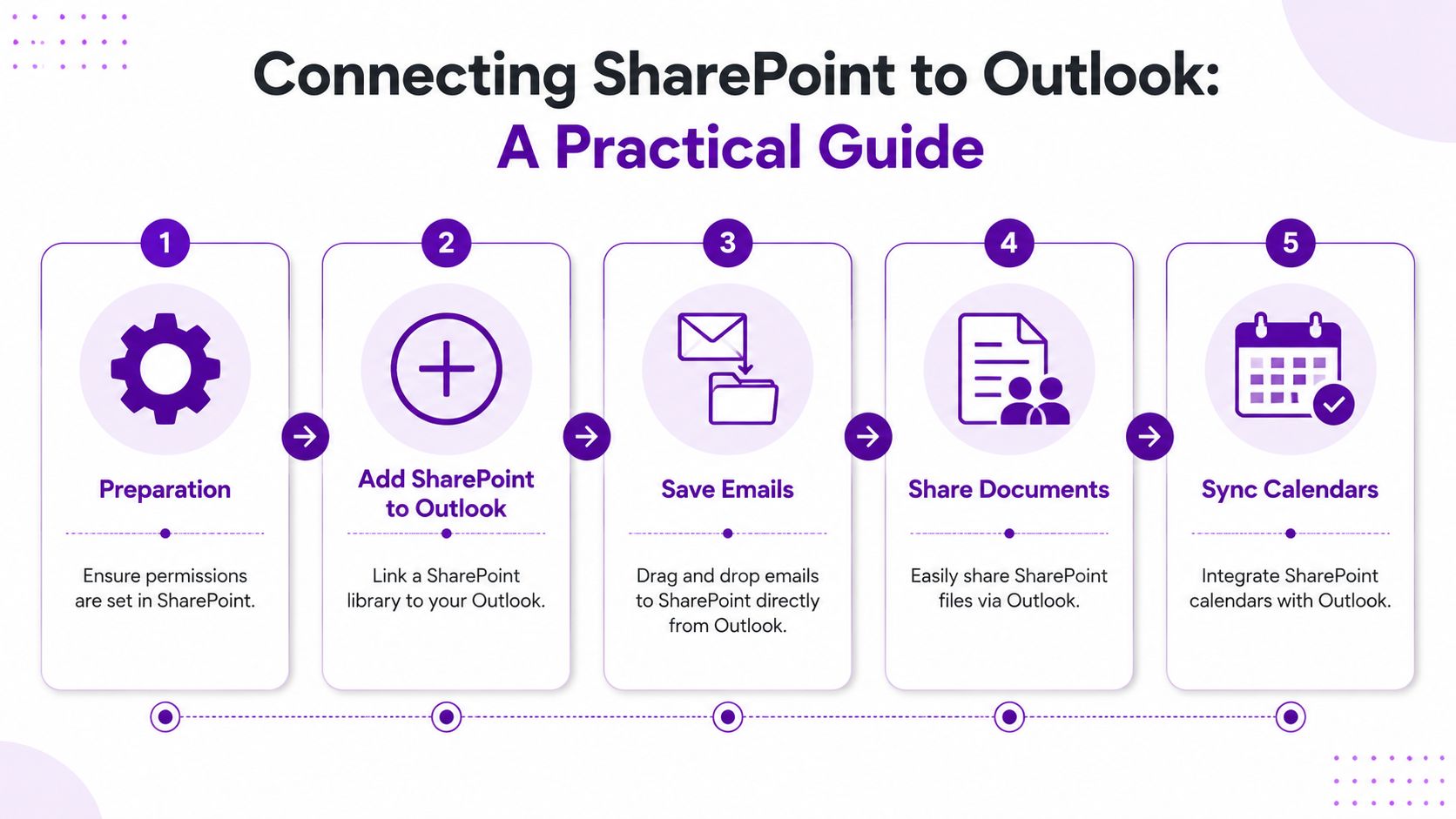
The connection only works well when the basics are clean. Before anyone links a library, drags an email, or syncs a calendar, permissions, site structure, and naming need to make sense. If they don’t, users will still connect the tools, but they’ll connect them to clutter.
Prepare the site before you connect anything
Begin in SharePoint rather than Outlook. Verify that the document library features the correct access model, a logical folder or metadata structure, and defined ownership. Users require permissions for both the site and the particular library where they will work. If access inheritance is disorganized, Outlook will expose that complication more conveniently.
The most reliable setups are the ones where teams can answer three questions quickly:
- Where should this email or attachment go. The destination library should be obvious.
- Who owns the content area. A named business owner matters more than a generic IT mailbox.
- What should users see when they open it. If the library looks confusing in the browser, it won’t feel better inside Outlook.
For teams reviewing their document design first, our guide to using SharePoint for document management is a useful starting point.
Make the connection practical for users
There are several ways users experience the connection. In some cases, they’re opening SharePoint libraries from within the Microsoft 365 environment and using Outlook alongside them. In others, they’re using approved add-ins or built-in sharing actions to save, attach, or reference SharePoint content without leaving their email workflow.
What matters is the user outcome, not the label. Staff should be able to reach the correct library quickly, save or share the right file, and avoid downloading documents just to re-upload them elsewhere.
A sound rollout usually includes:
- A pilot library first. Pick one team with a predictable process, such as HR, finance, or projects.
- Clear filing rules. Decide what belongs in email, what belongs in SharePoint, and what must never stay in a personal mailbox.
- Visible naming standards. If users can’t recognise the right location immediately, they’ll default to attachments.
Know what success looks like after connection
Once the tools are connected, the first win isn’t technical. It’s behavioural. People stop treating SharePoint as a separate archive and start using it as part of normal communication.
You can also measure usage more realistically once the setup is live. SharePoint’s native analytics report across 7, 30, and 90-day periods, which helps organisations see whether teams are engaging with sites and documents after integration, as outlined in Microsoft’s note on SharePoint analytics periods.
Practical rule: if users can connect a library but still save files to Downloads first, the process isn’t finished.
That’s why a clean connection matters. It turns Outlook into a route to managed information instead of a dead end where important records sit unseen.
Mastering Daily Workflows in Outlook and SharePoint
The setup only pays off when it becomes routine. If staff still treat SharePoint as “the place we upload things later”, adoption stalls quickly. That’s not a minor issue. 40% of organisations don’t consider their SharePoint implementation successful, with low adoption as the main reason, according to analysis of SharePoint adoption barriers.

Workflows that users will actually keep using
The strongest daily workflows are the ones that remove steps, not add them. Staff won’t adopt a process that asks them to save an attachment locally, rename it, browse to a site, upload it manually, and then tell the rest of the team where it went. They will use a process that lets them save or share directly from the place they’re already working.
Three patterns tend to stick.
- Project email filing. When a client thread contains a decision, quote, approval, or change request, it should move into the relevant SharePoint location while the context is fresh.
- Attachment handling. Save the attachment to the correct document library instead of to a local machine. Then share the link if someone else needs access.
- Calendar visibility. If a team uses a SharePoint calendar or shared schedule, sync it to Outlook so meetings, deadlines, and site activity don’t sit in separate worlds.
A lot of teams also benefit from standard wording and structured prompts inside Outlook. If your staff are trying to reduce repetitive email work at the same time, this overview of AI email tools for UK professional services is worth reading alongside document workflow planning.
A good process feels smaller than the old one
Take a common example. A supplier sends a revised order document by email. The old way is to download it, save it on a desktop, reply with the file attached again, and hope the team knows where the latest copy ended up.
The better way is shorter. Save it straight into the correct SharePoint library, apply the right context if your setup supports it, and send a link from Outlook. The email remains the communication record. SharePoint remains the document record.
For organisations refining this connection, SharePoint to Outlook integration guidance can help clarify where the handoff between communication and storage should happen.
Here’s a practical demonstration of the kind of user behaviour worth reinforcing:
Where teams often go wrong
The common mistake is assuming the integration itself creates discipline. It doesn’t. If nobody agrees where commercial correspondence belongs, users will still improvise. If folders are inconsistent or permissions are confusing, people will keep private copies “just in case”.
Users adopt the path that feels safest to them. If the governed path feels awkward, they’ll build their own.
That’s why daily workflow design matters more than the original technical connection. Outlook and SharePoint work well together when users can file, find, share, and schedule without thinking about the platform every time.
Essential Governance and Security Controls
Productivity is only half the story. The other half is making sure the content moving between Outlook and SharePoint stays under control. In Microsoft 365, the most common risk isn’t usually a dramatic breach. It’s routine oversharing, where sites, folders, Teams, or OneDrive content are more open than the business intended, as discussed in this review of hidden Microsoft 365 data risk.
That risk often starts with default behaviour. A site is created quickly. Sharing is left on. Permissions are inherited without review. Then Outlook makes it easier to send links to content that hasn’t been governed properly in the first place.
Permissions need business ownership
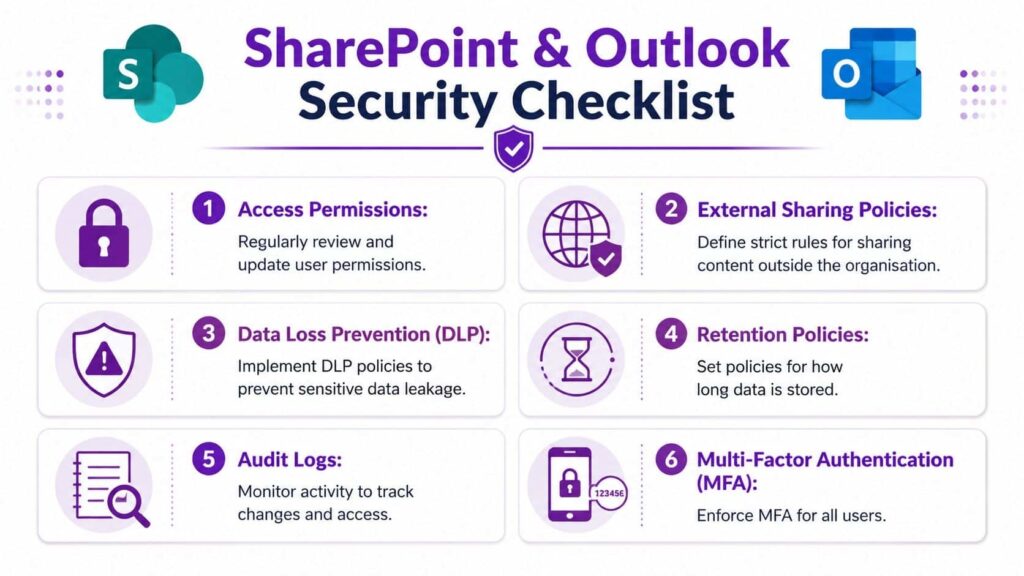
A secure Outlook and Sharepoint setup depends on named owners for every team site and document area. IT can build the framework, but the business has to decide who should see what. Without that ownership, permissions tend to drift. People leave, projects end, and legacy access remains.
A practical governance model usually includes:
- Named site owners. Someone in the business, not just in IT, must be accountable for access decisions.
- Controlled external sharing. Where external sharing is necessary, defaulting to Specific people is generally safer than broad anonymous or open links.
- Regular access reviews. Old project sites and inactive Teams should be checked, not left untouched.
Outlook convenience must not bypass SharePoint control
One reason people trust Outlook too much is that it feels personal and familiar. But if a user can grab a file link from Outlook and send it externally, the SharePoint permission behind that link becomes the primary security control. If the underlying site is too open, Outlook speeds up the exposure.
That’s why permissions should be designed at the site and library level first. Folder-level exceptions can be useful, but too many exceptions create confusion. Staff stop knowing what is private, what is shared internally, and what can safely go outside the organisation.
A short checklist helps keep decisions grounded:
| Control area | What to check |
|---|---|
| Site ownership | Is there a named business owner for this site or library? |
| External sharing | Are links restricted to the intended recipients? |
| Sensitive content | Is confidential material separated from general collaboration spaces? |
| Access review | Does someone review old membership and stale sites? |
Governance isn’t the opposite of collaboration. It’s what stops collaboration becoming accidental disclosure.
Build controls that users can live with
If the rules are too vague, users take risks. If they’re too awkward, users work around them. Good governance sits in the middle. It should let staff send the file they mean to send, from the right location, to the right recipient, without needing detective work.
That’s also where security features such as retention, audit visibility, and authentication controls become useful in practice. They aren’t there to slow people down. They’re there to make sure fast working doesn’t create long-term exposure.
Next Level Automation with Power Automate
Once the manual process is stable, automation becomes worth doing. Before that point, it usually magnifies disorder. If files are landing in the wrong libraries, naming is inconsistent, or nobody agrees which mailbox should trigger a process, Power Automate won’t fix it. It will move the mess faster.
The strongest automation starts with a clear business event. An email arrives in a monitored mailbox. A document is added to a controlled library. An approval is needed. A notification must be sent. Outlook provides the signal. SharePoint provides the governed destination. Power Automate handles the movement and the decision logic in between.

A practical automation example
A common SME use case is invoice handling. Instead of relying on someone in finance to watch a mailbox all day, an incoming message to accounts can trigger an automated flow. The flow can save the attachment into the correct SharePoint library, apply the expected metadata, and notify the team that a new item is ready for review.
That sounds straightforward because it is. The difficult part is usually not the Power Automate flow itself. It’s deciding where the file belongs, what information needs to be captured, and who owns exceptions when the incoming email doesn’t match the pattern.
Successful automation depends on Information Architecture, mandatory metadata at upload, and a proper search schema. Organisations that skip that design work run into retrieval failures later, as described in this SharePoint implementation review.
What works and what tends to fail
Automation works well when the process is repetitive, rules-based, and tied to a specific destination. It fails when teams try to automate judgement-heavy work before defining the underlying business rules.
Useful candidates include:
- Shared mailbox triage for finance, HR, service, or projects
- Document approvals where status changes should trigger review
- Notification flows when new content is added to a client or department library
- Simple capture processes where Outlook content must be stored in SharePoint consistently
For business owners exploring broader product and process thinking around automation, this perspective on workflow automation development founders is a useful companion read.
If you’re planning flows inside Microsoft 365, our own practical guide to using Power Automate covers the building blocks in more depth.
The best automation doesn’t feel clever. It removes a repetitive decision and puts the record in the right place every time.
When outlook and sharepoint are structured properly, Power Automate stops being an experiment and starts becoming a dependable business process tool.
Troubleshooting and Getting Expert Help
Most issues with outlook and sharepoint integration aren’t dramatic. They’re usually signs that one of the basics is off. A user can’t save to a library. A synced calendar doesn’t refresh. Search results don’t show the file everyone knows exists. Those symptoms often point back to permissions, metadata, sync state, or an unclear site structure.
Start with the likely cause
If a user sees permission denied, check SharePoint access first, including whether access is inherited or has been broken at library or folder level. If a document library appears but saving fails, look at required fields, naming rules, or missing metadata that the user hasn’t been prompted to complete.
When calendars don’t update properly, the first question is whether the team is relying on a legacy pattern, an unsupported method, or an inconsistent mix of personal and shared calendars. Many calendar complaints turn out to be process issues rather than technical faults.
For search problems, don’t assume the file is missing. Check whether it was stored in the wrong location, named poorly, or saved without the structure needed to retrieve it consistently later.
When the issue isn’t yours
Sometimes the platform itself is the problem. Microsoft’s cloud services can and do have incidents. A reported example was the May 2026 degradation affecting Outlook and SharePoint search functionality, linked to underperforming infrastructure, covered in reporting on the Microsoft outage and bug fixes.
That matters because business continuity planning for Microsoft 365 shouldn’t assume constant perfect availability. If search degrades, teams need a fallback. If a library is mission-critical, staff need to know alternative routes to the content. If an automated process depends on cloud services, the business needs to understand what happens when one of them slows or fails.
Know when to stop patching around the problem
A simple fix is fine when the issue is isolated. But repeated symptoms usually mean the design needs attention. If staff keep saving files locally, permissions keep breaking, or the same library keeps confusing users, the answer isn’t another quick tip. It’s a review of the working model.
That’s where an experienced Microsoft partner helps. Not because every issue is complex, but because governance, structure, and adoption usually sit behind the technical symptom.
If your business is trying to get more value from F1Group’s Microsoft 365 support, SharePoint services, or Power Platform expertise, we can help you turn Outlook and SharePoint into a practical operating system for documents, communication, and control. Phone 0845 855 0000 today or Send us a message.