
Monday morning starts with a familiar call. Staff in Nottingham can't send messages, a shared mailbox appears empty in Leicester, and a director travelling from Newark reports that Outlook keeps asking for a password. The instinct is to blame Microsoft, restart every laptop and wait for the problem to disappear. That approach often wastes time because Outlook failures usually fall into different categories, each requiring a different response.
Effective Outlook support separates individual user faults from Microsoft 365 tenant configuration problems and genuine Microsoft service incidents. That distinction matters to East Midlands organisations because a quick profile repair may resolve one person's issue, while an incorrect mail-flow rule or cloud outage needs administrator action and clear communication.
Understanding Modern Outlook Support Challenges
A manufacturing business near Derby may report that one employee's calendar has stopped updating. At the same time, a charity in Lincoln might lose access to its shared mailbox, while a professional services firm in Leicester sees delays to external recipients. The symptoms look similar to users, but the response depends on where the fault sits.
A reliable Outlook support process separates three tiers:
- User-level problems: Password prompts, damaged Outlook profiles, offline mode, local synchronisation faults and incompatible add-ins usually affect one person or device.
- Tenant configuration issues: Mail-flow rules, permissions, Conditional Access policies, mobile device controls and security settings can affect groups or the entire organisation.
- Microsoft service incidents: Problems affecting Outlook, Exchange Online or connected Microsoft 365 services may sit outside the organisation's direct control.
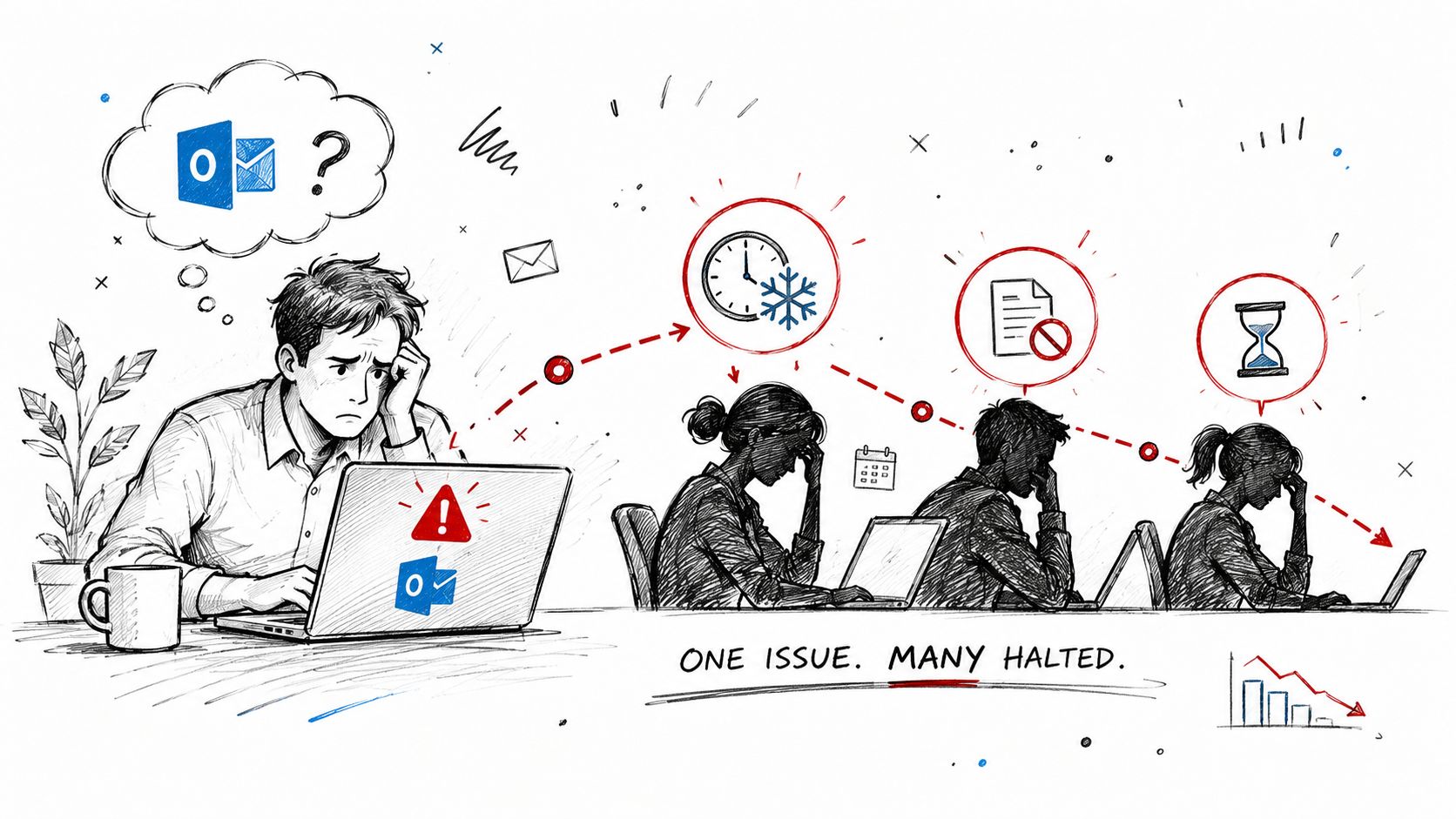
Why rapid triage matters
The first checks should establish scope, timing and impact. Is one user affected, or are several reporting the same symptom? Does Outlook on the web work while the desktop application fails? Can staff send internal messages but not external ones? These answers identify the likely fault domain before anyone changes settings.
Rebuilding profiles across several devices before checking tenant health wastes time and can remove useful evidence. Blaming Microsoft for a single laptop's corrupted profile creates the same problem. A structured triage process keeps routine faults with internal IT, while configuration errors and service incidents move to administrators or managed support with the relevant evidence attached.
Practical rule: Identify who is affected before changing what is configured.
For East Midlands organisations, the escalation point should be clear. A single-user profile or connectivity fault is usually suitable for internal support. Widespread symptoms, unexplained mail-flow changes, access-policy failures or confirmed Microsoft incidents need tenant-level investigation, incident communication and, where internal capacity is limited, specialist assistance. Read the cross-government Microsoft 365 Copilot findings.
Common Outlook Problems and Practical Solutions
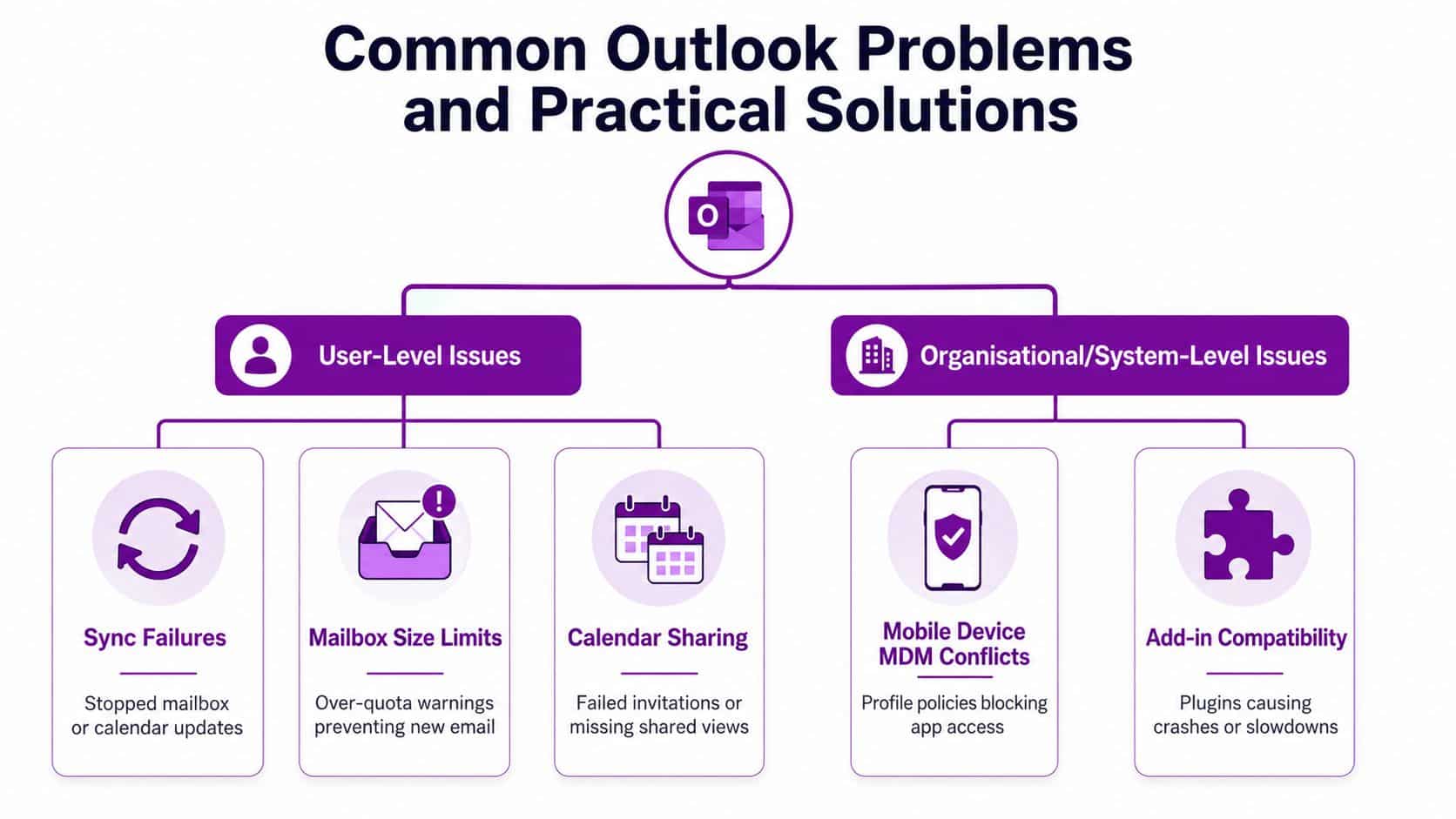
Most Outlook faults can be placed on a scale from safe user self-service to administrator-led remediation. The key is knowing where that boundary sits.
Issues users can usually investigate
Sync failures often show as old messages, missing calendar updates or an Outlook status indicating that the application is offline. Start by checking whether Outlook on the web reflects the current mailbox. If it does, restart Outlook, confirm the device has a working connection and create a fresh profile if the desktop client remains out of date.
Mailbox limits produce warnings, rejected messages or an inability to send. Users can remove unnecessary messages, empty deleted items and review large attachments, but administrators may need to apply retention policies or adjust mailbox management. Deleting random mail without understanding retention requirements can create compliance problems, especially for regulated organisations.
Calendar sharing faults commonly involve missing permissions, failed invitations or a shared calendar that appears blank. Check whether the problem affects one person or every delegate. A manager can often correct a straightforward sharing permission, while an administrator should handle broken delegation, room-booking behaviour or organisation-wide calendar policies.
Problems needing administrator intervention
Mobile access can fail when a device management policy blocks the Outlook app, requires stronger authentication or detects a non-compliant device. Reinstalling Outlook won't fix a policy decision. The administrator needs to inspect the relevant Microsoft 365, identity and mobile management controls.
Add-ins create another layer of complexity. CRM tools, document-management extensions and productivity plug-ins can slow Outlook or cause crashes after an update. Disable add-ins selectively, reproduce the fault and check vendor compatibility before removing a business-critical integration.
Microsoft 365 Business Premium and Enterprise environments often combine Exchange Online, identity controls, mobile policies and security tooling. That integration improves governance, but it also means that an Outlook symptom may originate outside Outlook itself. Escalate when several users are affected, permissions behave inconsistently or a change to mail flow or security policy is required.
Diagnosing Service Outages Versus Local Issues
The first diagnostic question is simple: is the problem affecting other people? Ask for examples from different devices, locations and connection types. If only one user is affected, focus on the account, device, profile or local network. If several users report the same failure, investigate the tenant and Microsoft service health before attempting local repairs.
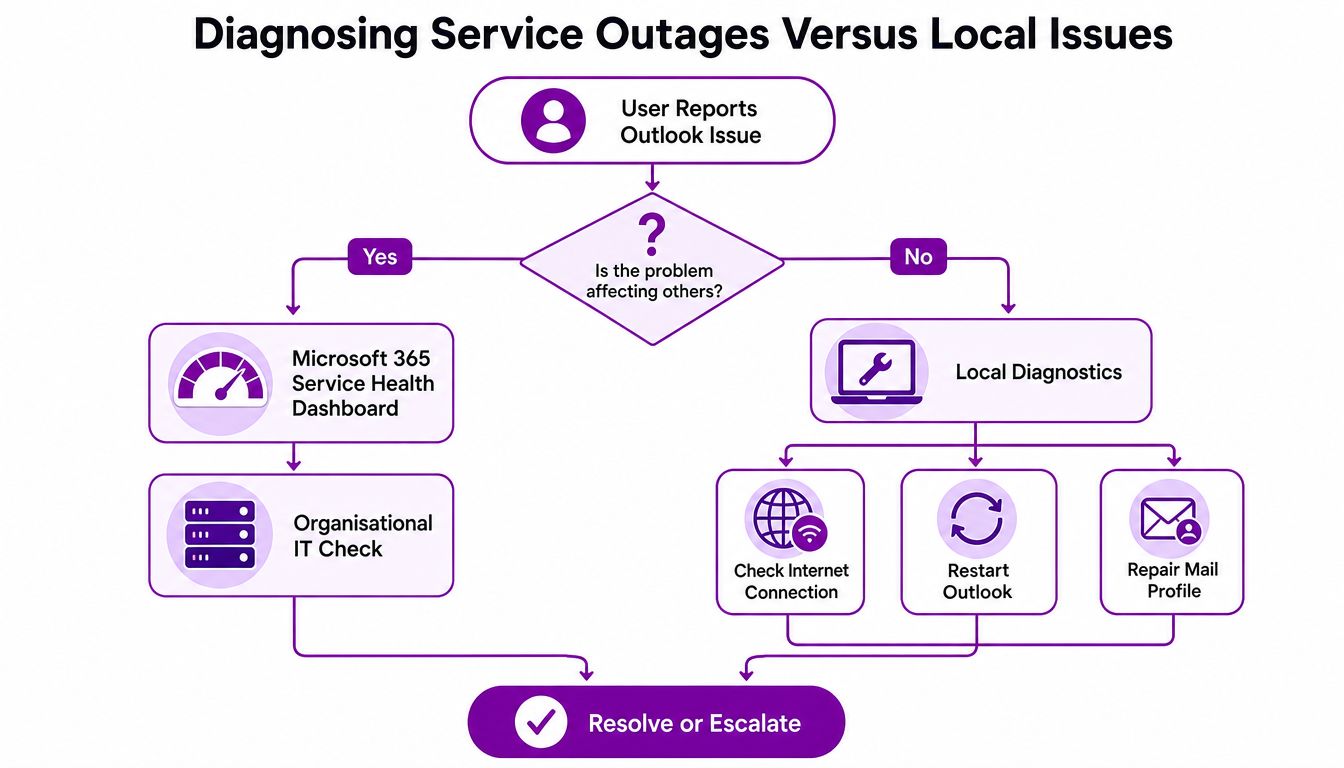
A reliable diagnostic sequence
- Confirm the symptom. Record whether users can send, receive, open shared mailboxes, use Outlook on the web and access calendars.
- Compare users and clients. Test another account, browser and device. A difference between Outlook desktop and Outlook on the web points towards a client or profile issue.
- Check Microsoft 365 Service health. In the Microsoft 365 admin centre, open Health, then Service health. The Overview tab lists current service states and active incidents or advisories, as described in Microsoft's service health guidance for administrators.
- Review recent organisational changes. Look for a new Conditional Access rule, transport rule, mobile policy, licence change or permission update.
- Capture error details. Preserve exact wording, timestamps and affected accounts. Error codes are useful evidence, but they need to be interpreted alongside scope and timing.
PowerShell connectivity testing can help an experienced administrator verify access paths and service responses, but it shouldn't replace the Service health check. If Microsoft has already acknowledged an incident, repeated profile repairs won't restore service and may complicate later diagnosis.
The UK has local Microsoft support routing, including a toll-free number and a paid service number for business support. Microsoft's UK support channels provide the appropriate route when an incident needs formal escalation. Keep a clear incident record, communicate what Microsoft has confirmed and avoid promising a resolution time that nobody controls.
In-House IT Support Versus Managed Services
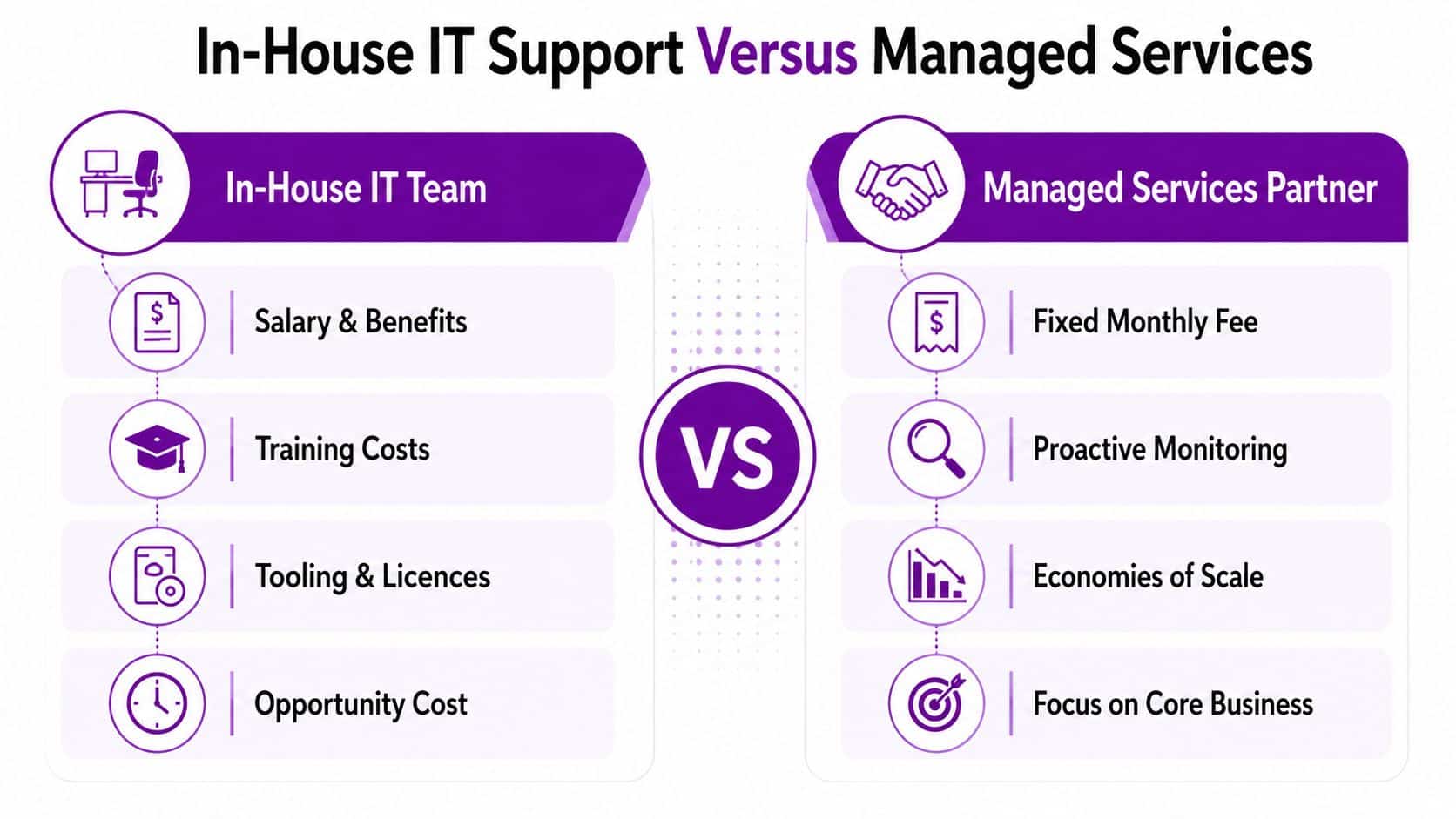
An internal IT manager offers immediate organisational context. They know which shared mailboxes matter, which directors need priority support and which legacy applications depend on Outlook. For a stable environment with sufficient coverage, that familiarity can make in-house support highly effective.
The trade-off is resilience. One person or a small team may be responsible for endpoint management, Microsoft 365 administration, cyber security, suppliers and strategic projects at the same time. Training, tooling, licence management and cover during absence all add to the cost, even when they don't appear as a separate Outlook support invoice.
Where managed support changes the equation
A managed services partner can provide a broader pool of expertise across Exchange Online, Entra identity, device management, security and the wider Microsoft stack. That depth is useful when an Outlook fault crosses service boundaries, which happens frequently in Microsoft 365 environments.
| Consideration | In-house team | Managed services partner |
|---|---|---|
| Response | Depends on workload and availability | Defined through agreed service arrangements |
| Expertise | Strong local knowledge, potentially narrow specialisms | Wider access to Microsoft-focused skills |
| Coverage | Limited by team size and working patterns | Can include wider operational coverage |
| Continuity | Vulnerable to absence or staff turnover | Shared responsibility and documented processes |
| Cost control | Includes employment, training and tooling overhead | Usually structured around an agreed recurring service |
Organisations with an internal IT function don't have to choose a completely outsourced model. Co-managed support can leave strategic decisions and user relationships inside the business while a specialist handles escalation, monitoring, projects or out-of-hours incidents. This can suit growing firms across the East Midlands that need additional capability without immediately expanding headcount.
For smaller companies, guidance on how to find IT support services for startups can help leaders compare service scope rather than focusing only on headline pricing. The same principle applies to established businesses. Ask what the fee includes, what counts as an out-of-scope project and who owns Microsoft escalation.
F1Group's managed IT services for businesses represent one option for organisations that want Microsoft 365 support alongside wider infrastructure and security assistance. The right model depends on risk, internal capability and the consequence of prolonged email disruption.
Security Configuration and Email Protection
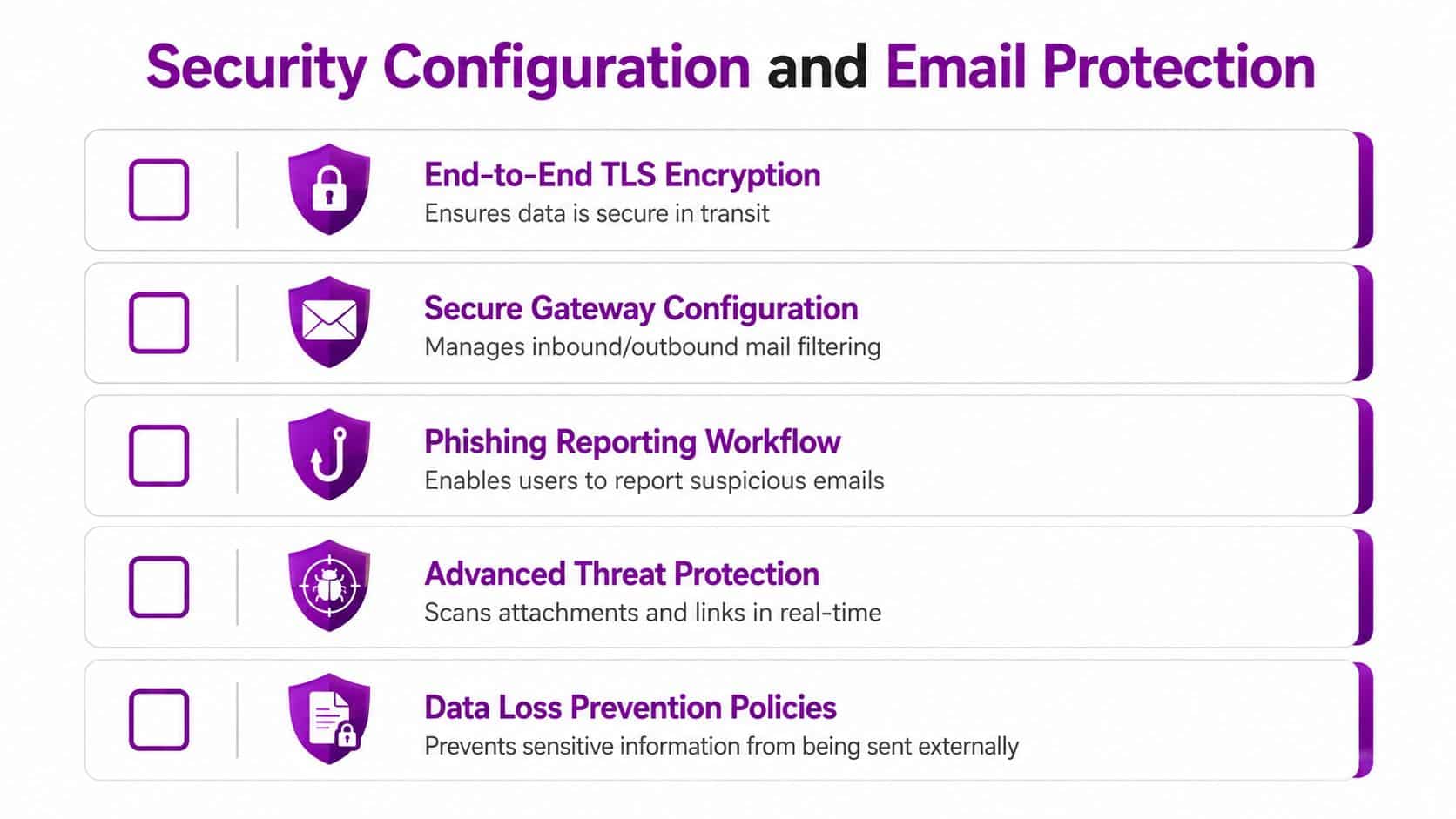
Basic spam filtering isn't a complete email security strategy. An organisation can have a modern Outlook deployment and still expose itself through weak mail-flow controls, poorly managed relays, excessive permissions or an ineffective phishing-reporting process.
UK public-sector guidance recommends end-to-end TLS, encrypted routing through third-party scanners, restricted SMTP traffic and avoiding open-relay servers. These controls matter because insecure gateway or relay arrangements can bypass cloud protections and increase the risk of spam, malware or interception. The UK government's Microsoft 365 email security guidance provides the configuration principles administrators should use when reviewing mail flow.
Make reporting practical for staff
The National Cyber Security Centre recommends configuring the Outlook Report Phishing add-in for the Suspicious Email Reporting Service, known as SERS. It also advises forwarding suspicious messages to report@phishing.gov.uk. The NCSC configuration guidance sets out the technical route.
The operational challenge is adoption. Staff need a visible reporting button, a short explanation of what to report and reassurance that reporting a suspicious message isn't an admission of failure. The support team should monitor reports, remove similar messages, check affected accounts and communicate outcomes without overwhelming users.
Treat identity and recovery as part of Outlook support
Compromised Microsoft 365 accounts and authentication-lure attacks can make genuine-looking messages especially dangerous. Conditional Access, multifactor authentication, sensible administrator separation and prompt investigation of unusual sign-ins should sit alongside mail filtering.
Backup and recovery planning also deserve explicit attention. Retention, legal holds and backup are not interchangeable, so an organisation should document what it must recover, how quickly it needs access and who can authorise restoration. F1Group's email security services cover this wider security context rather than treating Outlook as an isolated desktop application.
Microsoft 365 Integration and Productivity Gains
Outlook delivers more value when it works properly with the rest of Microsoft 365. A calendar invitation can create a Teams meeting, a SharePoint document can be shared through a controlled link, and a shared mailbox can give a service team one record of customer communication.
These connections also create support dependencies. A permission problem may appear as a missing SharePoint file. An Outlook add-in may rely on an authentication policy, while a Power Automate workflow can stop after its connector account changes. Support teams should record ownership, permissions, dependencies and recovery steps, rather than treating every symptom as a separate ticket.
For East Midlands organisations, the practical question is whether a failure sits with the user, the tenant or Microsoft's service. A single user unable to create a Teams meeting may need profile or add-in troubleshooting. Several users with the same problem point towards tenant configuration or a service incident. Check the Microsoft 365 admin centre before rebuilding profiles across the business.
Connected services only improve productivity when staff can use them reliably. Teams meeting creation from Outlook depends on policy, licensing and add-in availability. SharePoint sharing depends on site permissions, external access rules and clear ownership. Automation requires monitored connectors, controlled changes and an identified person who can restore a failed flow.
Support the workflow, not just the licence
Copilot adoption needs clear permissions, data governance, user training and a process for handling inaccurate or inappropriate outputs. Power Platform automation needs separate development and production controls, connector ownership and change records. Dynamics 365 integration needs dependable mailbox configuration and agreed rules for which messages and customer details belong in the customer system.
The Outlook and SharePoint integration guidance helps teams improve document sharing while retaining control of information. Start with one workflow, measure where users lose time, and document the support route before extending it. Internal IT can usually handle user training and routine permissions. Tenant redesign, repeated workflow failures or Microsoft service incidents warrant managed support or specialist escalation.
Choosing the Right Support Partner for Your Organisation
A support provider should be assessed against the failures your organisation experiences. A small charity in Lincoln may need dependable mailbox administration and security guidance, while a small PLC in Nottingham may require documented escalation, audit support and continuity during internal IT absence. A growing business across Leicester, Newark or the surrounding areas may need project assistance before it needs a fully managed service.
Questions worth asking providers
- Response commitments: Ask how incidents are prioritised, what response means in practice and whether urgent email failures have a defined escalation route.
- Microsoft capability: Confirm experience with Exchange Online, Outlook, identity, Conditional Access, mobile management and Microsoft 365 security, not just desktop troubleshooting.
- Onboarding method: Look for an asset and licence review, tenant documentation, administrative access controls and a clear list of known risks.
- Support boundaries: Establish which work is included, which tasks become projects and how third-party applications are handled.
- Continuity arrangements: Ask how the service operates during staff absence, major incidents and out-of-hours events.
- Industry awareness: Charities, professional firms and regulated businesses may have different retention, access and reporting needs.
A good engagement starts by recording the environment before making changes. The provider should understand user groups, shared mailboxes, mobile access, integrations, security policies and recurring incidents. Ongoing reviews should then focus on reducing repeat faults, improving documentation and preparing for Microsoft changes.
Not every organisation needs a long-term managed contract. Project-based migration support may be appropriate for a tenant move or Outlook profile refresh. Co-managed support may suit an IT department that needs escalation capacity. Fully managed support can make sense when the business needs predictable ownership across users, Microsoft 365 and cyber security.
For a startup selecting technical assistance beyond email, comparing startup-friendly development offerings can also help clarify whether a provider understands the wider application and integration needs around a growing business.
F1Group supports East Midlands organisations with Microsoft 365, Outlook, Azure, Dynamics 365, Copilot, Power Platform and cyber security services, providing remote and on-site assistance across Lincoln, Nottingham, Leicester, Scunthorpe, Grimsby and Newark. Phone 0845 855 0000 today or Send us a message to discuss the right support model for your organisation, and visit F1Group for more information.