
Your finance team has just added a new invoicing tool, marketing has launched a newsletter platform, and Microsoft 365 still sends everyday mail. Then a customer forwards you an invoice that looks like it came from your domain, but nobody in accounts sent it. That is usually when SPF and DKIM stop feeling like DNS housekeeping and start feeling like an ownership problem. If you don't know which systems may send as you, a receiving server cannot know either.
What SPF and DKIM Actually Protect
Say a finance inbox in Lincoln or Nottingham receives an invoice displaying your company domain. The wording is familiar, the amount is plausible, and the sender address looks right at a glance. The message was never sent by your accounts team. SPF and DKIM exist to give the receiving service public evidence it can check before it decides whether that claim is believable.
They are not two versions of the same stamp. SPF answers whether the connecting host is authorised to send for a domain. DKIM answers whether signed parts of the message still match a cryptographic signature. DMARC then asks whether the domain people see in the From address aligns with one of those authenticated domains.
SPF, DKIM and DMARC at a glance
| Control | What it proves | What it does not prove | Common legitimate failure | DNS artefact |
|---|---|---|---|---|
| SPF | The connecting host is authorised for the envelope domain | Message content is unchanged or the visible From matches | Forwarding from a host not in the SPF record | One TXT record starting v=spf1 |
| DKIM | Signed headers and body match the private key of a selector | The sending IP is on an allow list | A gateway or disclaimer that alters a signed header or body | TXT at selector._domainkey |
| DMARC | Header From aligns with a passing SPF or DKIM domain | Either SPF or DKIM is configured correctly by itself | p=none while reports still show failures | TXT at _dmarc with p, pct and rua |
The UK National Cyber Security Centre email security and anti-spoofing collection, with SPF guidance published on 7 October 2019, identifies SPF and DKIM as complementary controls and says an SPF record is limited to 450 bytes, or characters. That limit sounds generous until Microsoft 365, a CRM, a ticketing system and two marketing tools all want space in one record.
Microsoft 365 is normally represented by an include for its sending service, while other platforms add their own mechanisms or address ranges. Adding every new tool without removing the old one makes the record longer, harder to analyse and more likely to fail. Publishing a second SPF TXT record for the same domain also makes evaluation unreliable, because a receiver shouldn't have to guess which list you meant.
For a broader view of mailbox, user and policy controls around these records, our email security best practices guide puts sender authentication in its wider context.
Publishing records is the start of the work. It is not proof that every legitimate sender is covered, signed and aligned.
That's the distinction readers often miss. A domain can have an SPF record and still let a new invoicing app send unauthenticated mail. It can have DKIM enabled for Microsoft 365 and still leave a newsletter platform unsigned. Treat the table as a set of separate questions, and you're less likely to mistake one green tick for complete protection.
How a Receiving Server Checks Each Message
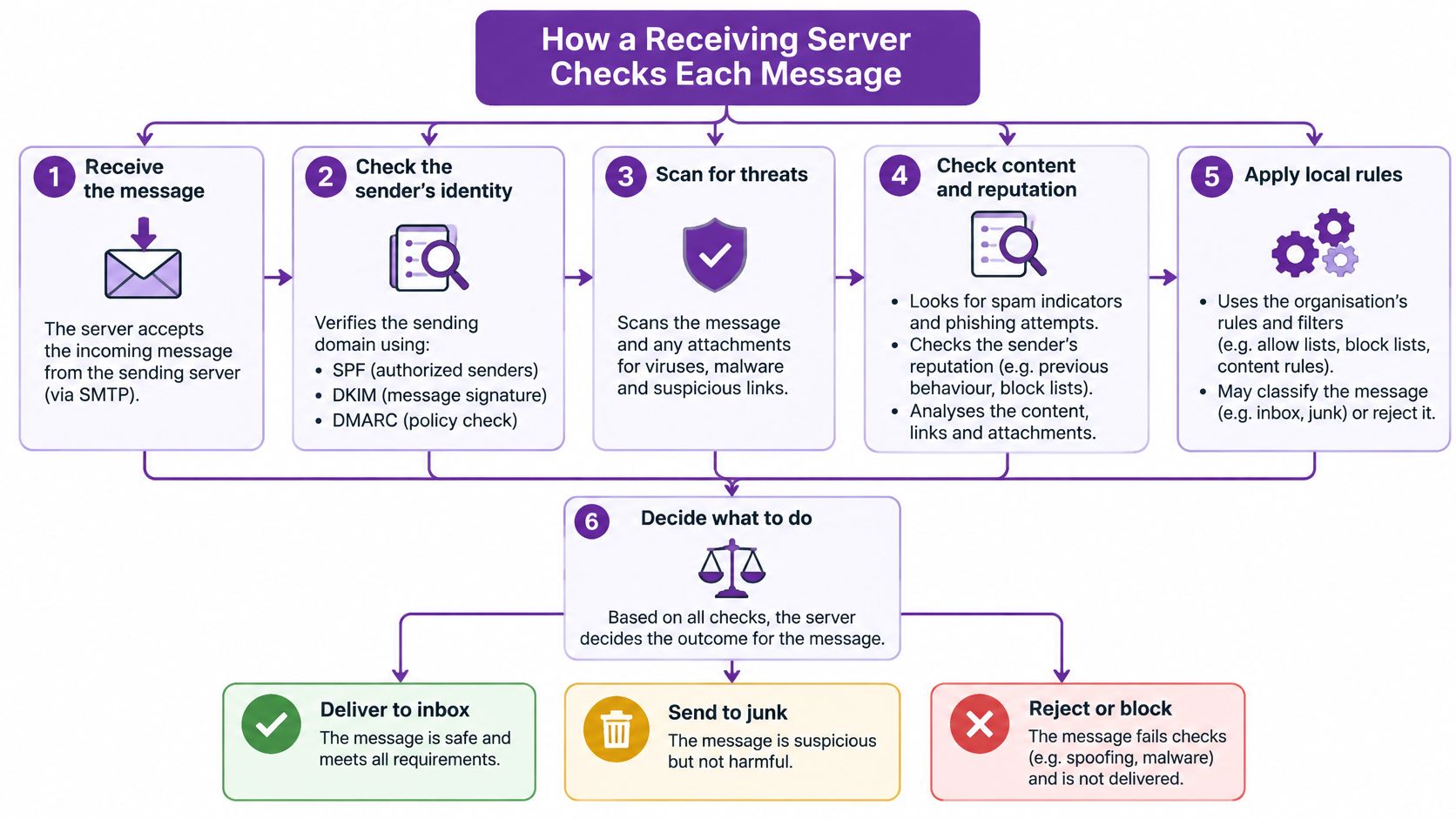
Follow one message from a Microsoft 365 mailbox to an external recipient. The user clicks Send, Exchange Online passes the message to the recipient's mail service, and that service starts checking claims it didn't create. It doesn't begin by reading the friendly display name. It begins with the technical identity presented during delivery.
The flow below shows the order receivers work through when they validate a message.
The SPF check in order
- Read the envelope domain: The receiver takes the domain from the MAIL FROM address used in the SMTP conversation. This can differ from the address shown in Outlook.
- Fetch the public record: It queries DNS for that domain's SPF TXT record and expands each include mechanism. Microsoft's include resolves to the address ranges Microsoft publishes for its mail service.
- Compare the connecting address: It checks whether the server that connected is inside those authorised IPv4 or IPv6 ranges, counting DNS lookups as it expands nested includes.
- Return one result: Common outcomes include pass, fail, softfail, neutral and temperror. A temperror means the check couldn't complete, not that the sender is trusted.
The qualifier at the end sets the weight of a miss. ~all marks unauthorised senders as a soft fail, which is useful while you're still checking reports. -all states a hard fail for anything not listed. Even then, most receivers weigh that result alongside DMARC before they reject a message outright.
The DKIM check alongside it
While SPF is checking the host, the signing service has already attached a DKIM-Signature header. That header names a selector and carries hashes created with a private key held by the sender. The receiver uses the selector to find the matching public key in DNS, then recalculates the hashes over the signed headers and body.
If the values match, the signed content hasn't changed since signing. Think of SPF as an approved courier list pinned up in reception. DKIM is the tamper-evident seal on the parcel itself. A courier can be approved while a seal is broken, and a seal can stay intact after a different courier forwards the parcel.
The NCSC guidance on creating and iterating an SPF record describes SPF as providing host authenticity and DKIM as checking message integrity, and recommends DKIM because it supports forwarded email better than SPF. That difference explains two everyday failures in Microsoft 365 estates.
- Forwarded mail: A recipient auto-forwards your message to another mailbox. The forwarding server isn't in your SPF record, so SPF often fails, yet the original DKIM signature can still verify if nothing signed was changed.
- Disclaimer gateways: A gateway appends legal text or rewrites a signature block after DKIM signing. SPF may pass because the host is authorised, but the body hash no longer matches and DKIM fails.
Neither result on its own proves the visible sender is your organisation. SPF could pass for a different envelope domain, and DKIM could be valid for a signing domain recipients never see. The receiver still needs an alignment check before it can connect those passes to the From address in the inbox.
Why DMARC Makes SPF and DKIM Enforceable
An attacker doesn't need to break into your tenant to misuse your name. They can send from infrastructure they control, pass SPF for a domain they own, and still place your trusted business address in the visible Header From field. Without alignment, a receiver sees one authenticated identity behind the scenes and a different identity in front of the user.
This five step view shows how DMARC turns those separate results into a policy decision.
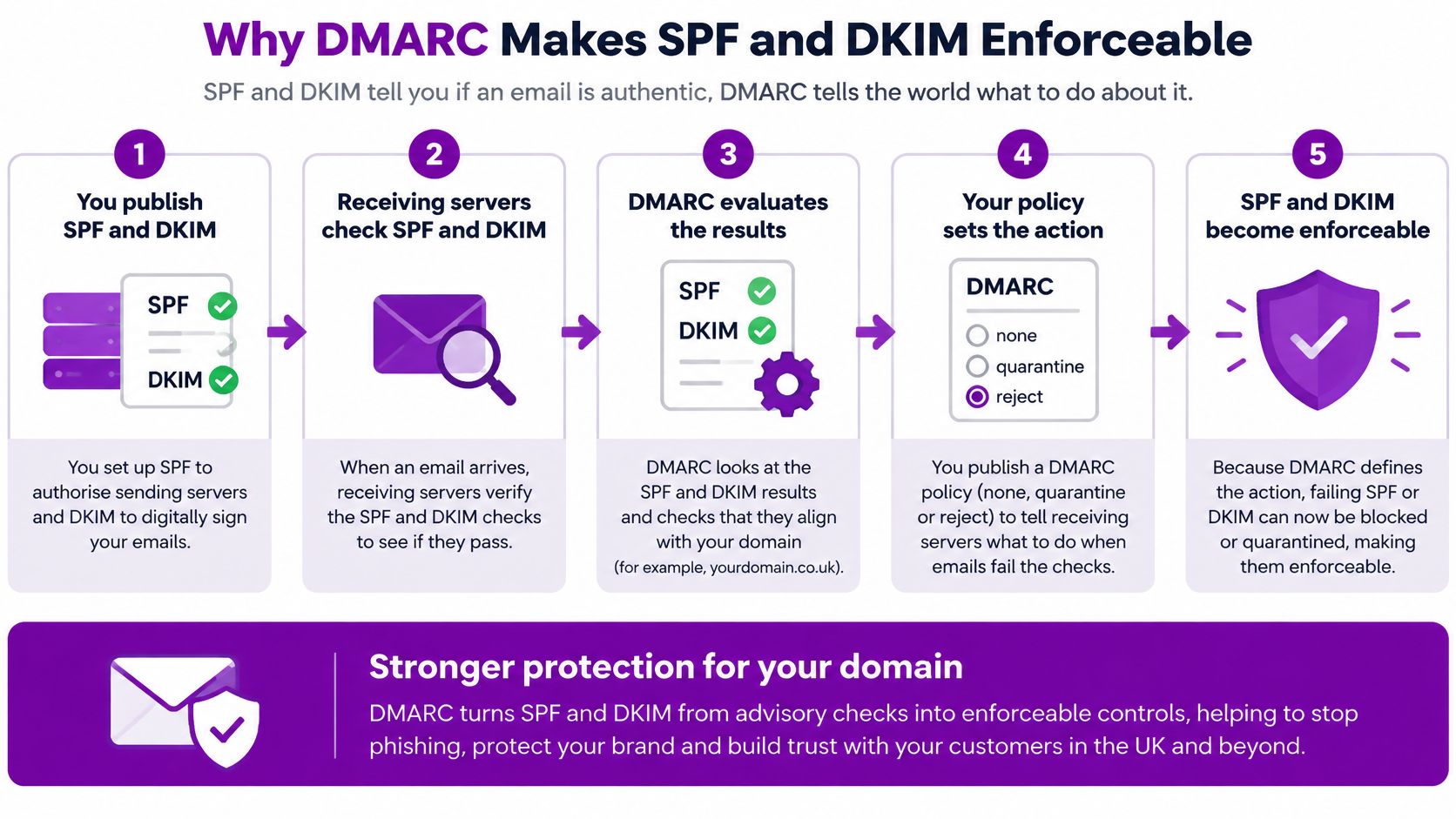
DMARC alignment closes that gap. The domain shown to the recipient must align with the domain that passed SPF, the domain that signed with DKIM, or both. It doesn't require both checks to pass. One aligned pass is enough, which is why an intact DKIM signature can carry a forwarded message even when SPF fails on the forwarding hop.
The NCSC guidance on monitoring, analysing and updating DNS records recommends beginning with a monitoring policy of p=none, using aggregate reports to identify legitimate services failing SPF or DKIM, then correcting records before progressing to quarantine or reject. That order matters because reports often reveal senders nobody in IT approved formally, such as a website form, a scanner relay or an old CRM trial.
DMARC policy stages
| Policy | Effect on failing mail | When to use it |
|---|---|---|
| p=none | Reports only, nothing is blocked | Start here while mapping every sender |
| p=quarantine; pct=100 | Failing mail is treated as spam | After every legitimate sender passes SPF or DKIM with alignment |
| p=reject | Failing mail is refused | Final stage once quarantine runs cleanly |
A monitoring record has the shape v=DMARC1; p=none; rua=mailto:dmarc@yourdomain.co.uk. It asks receivers to send aggregate reports, but it does not stop unauthorised messages. Staying there indefinitely gives you visibility without enforcement.
The short video below is useful if you want to hear the alignment idea explained aloud before you change a live policy.
At full quarantine, a record looks more like the UK Government DMARC standard example, v=DMARC1; p=quarantine; pct=100; rua=mailto:dmarc@mydomain.gov.uk, where pct=100 applies the policy to 100% of messages rather than a sample. Failing mail is then treated as spam instead of merely being reported.
Before you tighten anything, include Microsoft 365 and every third-party sender, test forwarding and shared mailboxes, and consider a separate subdomain for a bulk platform so its failures don't muddy your main domain. Missing or misconfigured records can leave you open to impersonation and can also push genuine mail towards junk when receivers fall back on their own heuristics.
Readiness rule: SPF and DKIM must already pass for legitimate mail, with alignment, before you move DMARC to quarantine.
Microsoft 365 and Third-Party Sender Patterns
Most Microsoft 365 domains don't fail because the syntax is mysterious. They fail because three suppliers were added at different times by different people, and nobody consolidated the result. Compare your DNS with the patterns below and look first for duplication, stale includes and platforms that send but don't sign.
For a domain that sends only from Microsoft 365, the finished shape is v=spf1 include:spf.protection.outlook.com -all. Use ~all instead while reports are still being checked, because a soft fail marks unauthorised sources without asking receivers to treat every miss as final. Once you're confident no other system sends, -all states your position clearly.
When a second platform sends
The UK Government Sender Policy Framework standard gives the example v=spf1 include:spf.protection.outlook.com include:servers.mcsv.net ~all for Microsoft 365 with Mailchimp, and describes ~all as a soft fail recommended as a minimum while testing. Notice what that example doesn't do. It doesn't create one record for Microsoft and another for the newsletter tool.
One domain, one SPF record. Add the new mechanism to the existing TXT value, or move that sender to a subdomain such as news.example.co.uk with its own SPF, DKIM and DMARC records. A subdomain is often cleaner for bulk mail because its reputation, reports and policy can be managed separately from everyday staff mail.
SPF and DKIM patterns for common senders
| Sending pattern | SPF approach | Extra DKIM selector | Notes |
|---|---|---|---|
| Microsoft 365 only | include:spf.protection.outlook.com | No, use the two Microsoft 365 CNAMEs | Move from ~all to -all after reports are clean |
| Microsoft 365 and Mailchimp-style newsletter | Both includes in one record, as in the GOV.UK example | Yes, the platform's selector | Keep ~all until the newsletter IP or include passes |
| Invoicing, CRM or ticketing app | Add its include, or a subdomain if lookups are tight | Yes, if that app signs its own mail | Do not create a second SPF TXT record |
| Dynamics 365 or Power Platform via Exchange Online | No extra include when mail uses the tenant | No | A custom SMTP relay is a different sender and must be listed |
| Acquired or parked domain | Its own SPF, even if it only needs v=spf1 -all | Only if something genuinely sends | An unsigned parked domain is an easy spoof |
For Exchange Online DKIM, enable signing in the Microsoft Defender or Exchange admin centre for each accepted domain, then publish the two CNAME records Microsoft supplies for its selectors. Those CNAMEs point receivers to keys Microsoft manages and rotates. You aren't storing a static private key on a local server, and you shouldn't copy selector values from another tenant or domain.
Third-party platforms work differently. A marketing, invoicing or ticketing supplier usually gives you its own selector and public key details, or CNAME targets, to publish in your DNS. The UK Government guidance on setting up email services securely explains that the selector identifies which public key a recipient should retrieve, while the corresponding private key remains with the sending service. Publishing that DNS entry isn't the same as switching signing on in the supplier's admin centre, so confirm both sides.
Dynamics 365 and Power Platform messages that leave through your Exchange Online tenant normally travel as Microsoft 365 mail already, so they don't need a separate SPF include or selector. A Power Automate flow using a custom SMTP relay is different. That relay is a sender in its own right, and it must be authorised and, where it supports it, set to sign.
Keep an eye on two ceilings as the list grows. Nested includes consume DNS lookups, and an overlong record becomes unreliable. If finance, support and marketing all compete for space in the root record, that's a signal to organise senders by subdomain rather than keep squeezing mechanisms into one line.
How to Verify Records and Fix Failures
Run the same checks after every DNS change, even a small one. A supplier may tell you a record is published while public DNS still shows the old value, and a message can pass from Outlook yet fail from the invoicing app that prompted the change. Work in order and keep the previous values to hand.
Six checks after a change
- Confirm there is one SPF record: Look up the domain's public TXT records and check there's exactly one value beginning v=spf1, listing every current sender. What matters is what the public internet sees, not what a supplier portal claims.
- Count the lookups: Expand each include mentally or with a checker and keep the total at or below 10 DNS lookups. Nested includes are where tidy looking records often go over the limit.
- Confirm DKIM is switched on: In Microsoft 365, check each accepted domain shows DKIM enabled and that both selector CNAMEs resolve publicly. A published CNAME with signing disabled still produces unsigned mail.
- Read real headers: Send to an external mailbox you control, open the message headers, and read Authentication-Results for spf=pass, dkim=pass and dmarc=pass. Note which domain aligned, not just that something passed.
- Test the awkward paths: Repeat through an auto-forwarder and through any disclaimer or security gateway. Shared mailboxes, distribution lists and scan to email devices deserve the same treatment.
- Give reports time: Read DMARC aggregate reports for at least a week before changing the policy value. Month end invoicing and weekly newsletters won't appear in a single day of data.
For the day to day mailbox and transport settings behind several of these checks, our Exchange Online administration guide covers the admin centre tasks IT teams handle most often.
SPF and DKIM symptoms and fixes
| What you see | Usual cause | Fix |
|---|---|---|
| spf=temperror or permerror | More than 10 lookups, a syntax error, or a record past 450 characters | Flatten unused includes or move a sender to a subdomain |
| SPF result is none or unreliable | Two or more v=spf1 TXT records | Merge them into one record and delete the spare |
| spf=softfail on genuine mail | Sender missing, or ~all still in place during a new tool rollout | Add that include, then retest before -all |
| spf=fail only after forwarding | Forwarder's IP is not authorised for the original domain | Rely on an intact DKIM signature and DMARC alignment |
| dkim=fail and body hash mismatch | Disclaimer, signature or security gateway rewrote signed content | Exclude that header or body change, or sign after the rewrite |
| dkim=fail and key not found | Selector CNAME missing or pointing at the wrong tenant | Republish the Microsoft 365 selector records and wait for DNS |
| dmarc=fail though one check passed | Alignment failed against the visible From domain | Sign and authorise the same organisational domain shown to recipients |
Diagnose from the symptom, not from the policy you'd like to reach. A temperror or duplicate record is a DNS problem. Loosening DMARC won't repair it. A body hash mismatch points to something editing the message after signing, so look at disclaimer tools, data loss prevention footers and gateway rewriting before you touch selectors.
The reverse also happens. Mail can show clean passes and still land in junk because of content, complaint history or a damaged sending reputation. That's when domain reputation guidance for MSPs from GoSafe can help you separate an authentication fault from a wider reputation problem. Don't remove -all to chase inbox placement. You'd weaken a correct control to treat a different cause.
A pass proves authentication worked for that message. It doesn't promise the inbox, and a junk folder result doesn't automatically mean your records are wrong.
Who Owns Authentication When Suppliers Change
Records rarely break on the day they're created. They break six months later, when marketing swaps newsletter tools, finance adopts a new invoicing system, or an acquired company's domain is added to the tenant over a weekend. Nobody set out to weaken security. Nobody owned the follow-on DNS work either.
That makes sender authentication a change-management problem: the records only stay accurate while someone owns them through every supplier change. The Cyber Security Breaches Survey 2025/26 tracks how often attacks like phishing reach UK businesses, so a stale include or an unsigned new sender is a live operational risk. Ownership gaps show up in larger estates too, where missing, duplicated or overly complex SPF records are common.
Keep one inventory and name the roles
The register works like a joiners-and-leavers list for your domain: each new sender is authorised before its first message, and each departed one is removed on the way out. Keep it short enough that a new IT lead could use it without interviewing three departments.
- Domain and DNS host: every sending domain and subdomain, plus where its DNS is managed, which may not be where it was registered.
- Authorised senders: each Microsoft 365 tenant, CRM, marketing tool, invoicing system, ticketing platform and relay allowed to send.
- Named people: who can edit DNS, who owns each DKIM selector, and who reviews DMARC reports.
- Review date: when records and reports were last compared, and what changed.
Assign the decision rights clearly. The IT lead approves DNS changes. The supplier confirms in writing what it sends, from which domain, and how it signs. Finance or marketing can choose a platform, but they can't put it live for sending until that approval exists. A sending supplier sits inside your identity chain, so the same discipline behind managing supply chain risk applies to every new sender.
Three changes cause most trouble
During a Microsoft 365 migration, remove the old host's include at cutover and give any parked legacy domain an explicit record, because a domain with no record tells receivers nothing about who may send from it. When onboarding a new supplier, add it to the existing SPF record or place it on a subdomain before go-live, and publish its DKIM selector in advance so the first invoice or newsletter is already signed. After an acquisition, decide whether the acquired domain sends, redirects users to your main domain, or is locked down with v=spf1 -all because nothing should send from it.
Change, test, then watch
For every change, export the current TXT records first. Change one mechanism at a time, send test messages from the affected system itself rather than a mailbox that was already working, and watch the aggregate reports for several days before calling the job done. If legitimate mail fails, restore the saved record rather than improvising a second one under pressure.
Offboard suppliers completely
Vendor exits need the same discipline. Publish the replacement supplier's DKIM selector, confirm signing works, then remove the old supplier's include and public key once no live mail uses them. A departed vendor that stays authorised is quiet and invisible in normal mail flow, which is exactly the sort of gap the register exists to close.
Confirm Your Domain Before You Enforce
The decision is simpler than the record syntax suggests. If your aggregate reports show every legitimate sender passing SPF or DKIM with DMARC alignment, you're ready to move to quarantine and then, once that runs cleanly, to reject. If reports are silent about invoicing, marketing or a connector you know sends mail, you aren't ready, however tidy the Microsoft 365 side looks.
Stay on p=none and fix that sender first. Add its SPF mechanism or move it to a subdomain, publish and enable its DKIM signing, and retest from the application itself rather than from Outlook. Enforcement applied to an incomplete sender list doesn't make you more secure. It makes genuine invoices and password resets disappear, and the business then pressures you to switch the whole policy off.
If DNS is split across a registrar, a web host and Microsoft 365, name one owner before changing any qualifier. Export the current SPF, DKIM and DMARC records, list every system that sends mail, and compare that list line by line with the aggregate reports. Don't move to reject until the two match and you can explain every remaining failure as mail you want refused.
F1Group provides managed IT support for East Midlands organisations, including Microsoft 365 and Azure, and can review your sender records as part of that service. Phone 0845 855 0000 today to speak to the team, or send us a message with your domain name and a recent DMARC report if you have one. Bring the messy sender list too. That's usually where the answer is.
If your Microsoft 365 domain is ready for enforcement, or your reports show senders nobody can identify, F1Group can audit your SPF, DKIM and DMARC records, reconcile them with the systems that send your mail, and help you move to quarantine or reject without breaking legitimate messages.