
A Monday morning in Nottingham starts with a familiar queue. A new starter needs a mailbox, a finance user can't find a message, a shared inbox is approaching its storage allowance, and a security alert suggests that an administrator's password may have been used from an unfamiliar location. The IT manager has limited time, a tight budget and no spare colleague to investigate every request.
That situation is common across East Midlands businesses, charities and growing professional firms. Exchange Online administration isn't merely a matter of creating mailboxes. It connects identity, licensing, mail flow, retention, monitoring and security controls across the Microsoft 365 tenant. A shortcut in one area can create extra work or an avoidable access risk somewhere else.
A structured approach gives a small IT team a repeatable way to handle daily requests while preparing for wider changes, including the retirement of older Exchange integrations. It also helps the business choose sensible licence assignments, document administrative access and align its controls with the expectations set out in UK public-sector Microsoft 365 guidance.
Introduction to Exchange Online Administration
Exchange Online looks simple to users because Outlook hides most of the underlying service. For an administrator, however, every mailbox sits inside a wider system of identities, permissions, policies, domains, devices and applications. A request such as “give the sales team access to this inbox” can involve mailbox delegation, group membership, licensing, audit considerations and a review of whether the access should remain permanent.
The pressure is particularly noticeable in small and mid-sized organisations. One person may manage Microsoft 365, support users, approve new accounts and respond to security incidents. The business still expects email to remain available, but it also needs sensible governance around confidential information, joiners and leavers, shared mailboxes and third-party applications.
The UK government treats Microsoft 365 security as a tenant-wide discipline rather than isolated email maintenance. Its guidance, produced by Microsoft in partnership with the Central Digital and Data Office and the National Cyber Security Centre, is aimed at professionals administering enterprise Microsoft 365 platforms in UK government and partner organisations, with a focus on secure and interoperable use at the OFFICIAL tier. The UK government Microsoft 365 guidance was published on 5 October 2023, and a Microsoft update on 28 February 2024 described the revised guidance as a “three-piece collection” providing a common baseline.
This guide turns those principles into a practical operating model for East Midlands SMBs. It starts with the concepts that prevent configuration mistakes, compares the tools administrators use, then moves through everyday tasks, security, monitoring and local operating processes.
Understanding Key Concepts
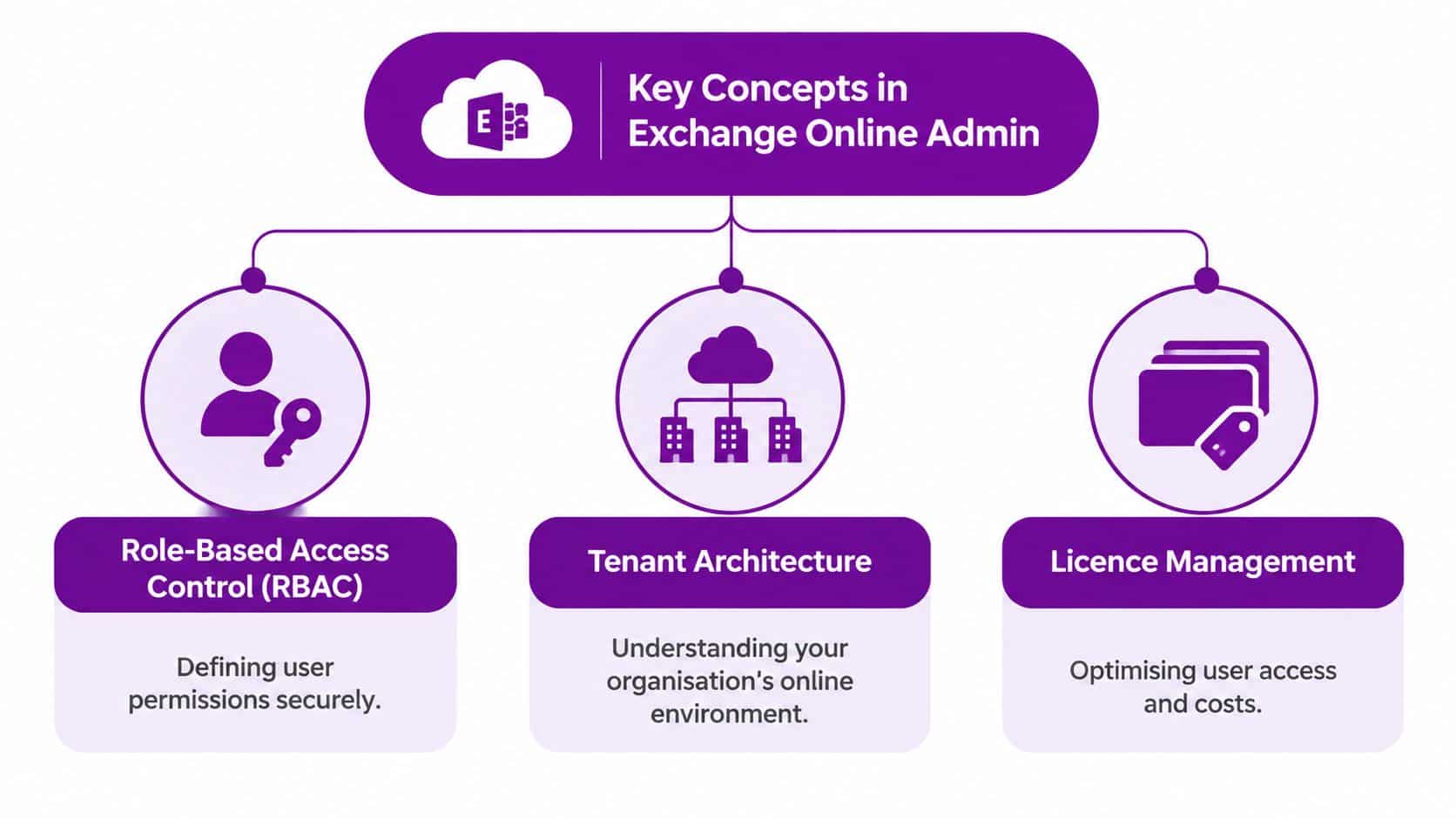
Good administration starts with a clear mental model. Think of the Microsoft 365 tenant as a managed office building. The organisation owns the building, accepted domains identify the business areas, mailboxes are rooms, and administrative roles determine which doors each person can open.
Role-based access control
Role-based access control, or RBAC, assigns permissions to roles instead of giving every administrator unrestricted access. An Exchange administrator might manage recipients and mailboxes, while another role handles compliance or security policies. The office keycard analogy is useful here. A facilities manager may enter plant rooms, but that doesn't mean they should automatically enter every private office.
Use separate administrative identities for privileged work, keep role assignments narrow, and review them when responsibilities change. A daily user account shouldn't become a permanent tenant-wide administrator because it was convenient during setup. This separation also makes investigations clearer because privileged actions are easier to associate with the right identity.
Tenant architecture
A tenant is the organisation's Microsoft 365 environment. It contains users, groups, domains, mailboxes, policies and service settings, even when the organisation operates several brands or domains. Multiple accepted domains can coexist, but they still share the tenant's identity and administrative framework.
That distinction prevents a common misunderstanding. Adding a second domain doesn't create a separate Exchange environment. If a business needs separate administration or information boundaries, it must assess tenant architecture deliberately rather than assuming domain separation provides it.
Licence management
Licences are service entitlements, not just mailbox price tags. Assign them according to the user's actual requirements, such as mailbox capability, compliance features, security services and collaboration needs. A full-time employee, a shared enquiry address and a room resource don't necessarily need the same arrangement.
The UK administration model has also evolved. The 2015 Office 365 email security guidance stated that an administrator of a hybrid deployment could manage both Exchange Server and Exchange Online through the Exchange Admin Center. Later guidance moved towards secure, standardised tenant configuration, with the 2023 and 2024 material providing a modern UK public-sector baseline.
Practical rule: Treat identity, roles, licences and policies as parts of one tenant design. Don't troubleshoot a mailbox problem without checking the wider controls around it.
Navigating Administrative Tools
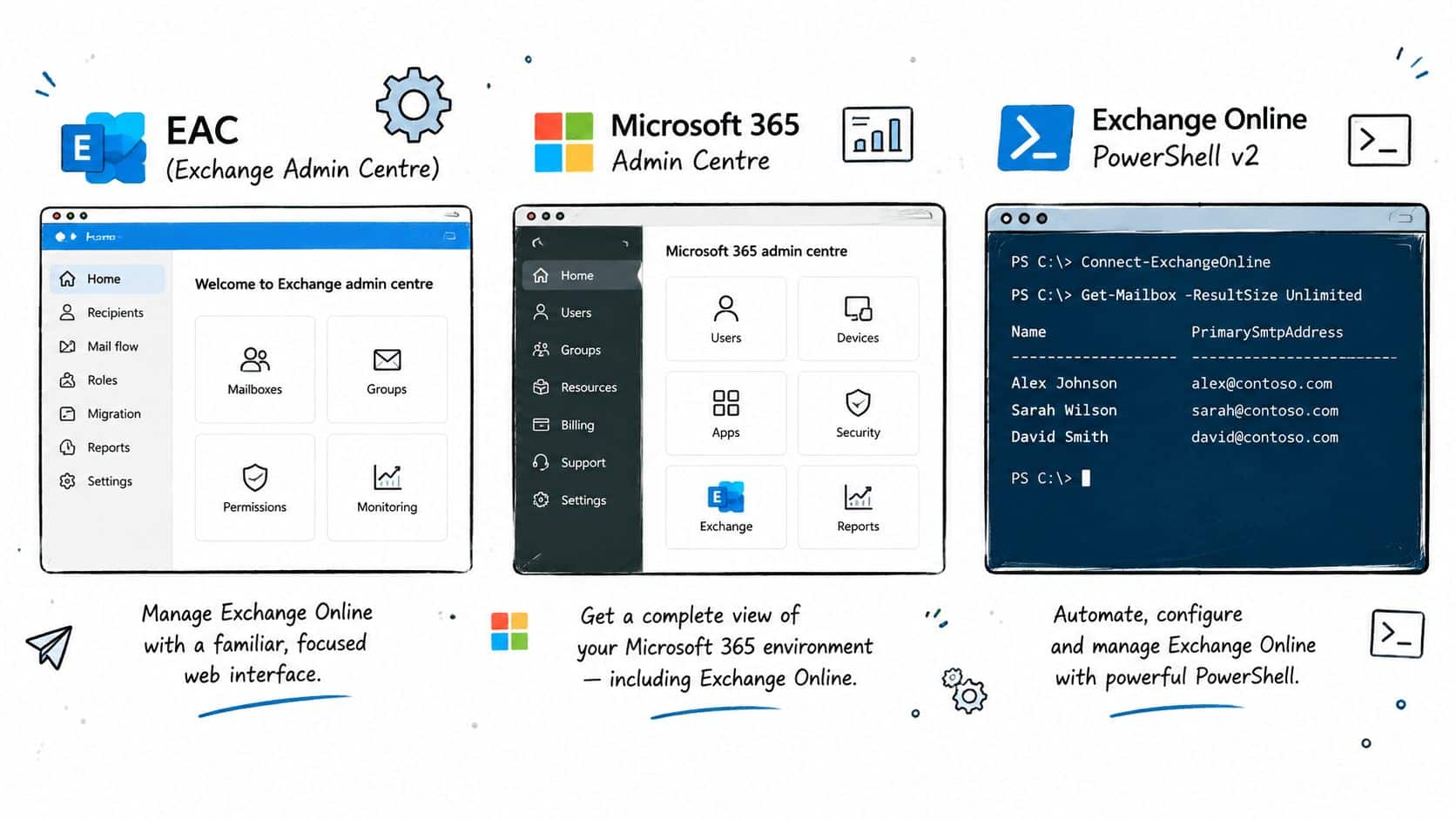
No single interface is ideal for every Exchange Online task. The Exchange Admin Center is the specialist control room, the Microsoft 365 admin centre is the wider service desk, PowerShell is the repeatable automation layer, and Microsoft Graph is the broader development interface.
Choosing the right interface
Exchange Admin Center, or EAC, is usually the quickest choice for a focused Exchange task. Use it for recipient settings, shared mailbox delegation, mail flow rules, message trace and organisation configuration when you need to inspect the result visually. It suits a one-off change where the administrator wants immediate confirmation.
The Microsoft 365 admin centre provides the wider administrative context. User creation, licence assignment, service health and organisation-level administration often begin there. It helps an administrator understand whether an apparent Exchange issue is caused by an account, subscription or service configuration problem.
Exchange Online PowerShell, including the EXO V2 module, is better for repeatable work. A script can create several users using the same process, export mailbox properties for review, apply a standard configuration and record what it changed. Use it carefully. Test commands against a small, controlled scope, authenticate with modern methods and avoid giving automation more rights than it needs.
Microsoft Graph API is useful when Exchange information forms part of a wider application or workflow involving users, groups, Teams, SharePoint or security data. It isn't a complete replacement for every Exchange administration operation, so administrators should confirm that the required endpoint and permission model support the task before designing around it.
Message trace and operational limits
Message trace illustrates why tool choice matters. In the new EAC, the tenant accepts a maximum of 100 query requests within a 5-minute rolling window, while the new trace has a default result size of 1,000 and a maximum of 5,000 through the ResultSize parameter, as documented in Microsoft's Exchange Online limits.
Don't build a forensic process that repeatedly fires broad trace queries. Start with a defined sender, recipient, subject or time range, save relevant results, and use PowerShell when the investigation needs a repeatable export. A helpdesk analyst may use EAC to confirm whether a message entered the service, while an administrator can use scripted queries to collate evidence for a ticket.
For wider Microsoft 365 administration support, an internal escalation process can include Microsoft 365 support from F1Group when an issue crosses Exchange, identity and security boundaries.
A sensible tool sequence looks like this:
- Check the Microsoft 365 admin centre: Confirm the user, licence and service status.
- Inspect EAC: Review the mailbox, delegation, mail flow or trace details.
- Use PowerShell: Repeat, document or extend the task across several objects.
- Use Graph deliberately: Integrate supported data into a broader application or workflow.
The following video provides a visual introduction to the administrative environment:
Implementing Common Tasks
Daily administration becomes safer when each request follows a known sequence. The administrator should identify the object, confirm the business owner, apply the smallest suitable change, and record what happened.
Creating a user mailbox
Start in the Microsoft 365 admin centre by creating the user account and assigning the approved licence. Confirm the sign-in name, department, manager and required service access before the user receives credentials. Exchange Online provisions the mailbox as part of the licensed service, after which EAC or PowerShell can be used to check recipient details.
For repeatable onboarding, PowerShell can reduce omissions. A controlled process should collect the user's identity data, assign the approved licence, add required groups, configure mailbox settings and record completion. Avoid copying an old user's permissions without review. Similar job titles don't always justify identical access.
A basic administrative checklist should include:
- Identity: Confirm the user's name, sign-in identity and manager.
- Licence: Assign the licence approved for that user's role.
- Delegation: Add only the mailbox and calendar access the manager has authorised.
- Security: Apply the organisation's sign-in and device policies.
- Leaver control: Set a clear process for disabling access and preserving required information.
Configuring shared mailboxes
Shared mailboxes work well for addresses such as enquiries, accounts or service. Create the mailbox, add named members, decide whether members can send as the address or send on behalf, and test both receiving and sending. Keep membership tied to a group or documented owner so it doesn't become an invisible collection of historic access.
Storage planning needs particular care. Microsoft documents that a shared mailbox can store up to 50 GB without a licence, while assigning Exchange Online Plan 2 increases the limit to 100 GB, as set out in the shared mailbox storage guidance.
| Mailbox Type | Storage Limit |
|---|---|
| Shared mailbox without a licence | Up to 50 GB |
| Shared mailbox with Exchange Online Plan 2 | Up to 100 GB |
The allowance isn't a substitute for information governance. If a shared mailbox contains years of business correspondence, agree what must be retained, what can be removed and who owns the decision.
Applying retention policies
Retention is often confused with backup. A retention policy governs how Microsoft 365 handles information under defined rules, while backup and recovery arrangements address a different operational need. Establish the business reason first, then choose the scope, retention period and disposal or preservation behaviour.
Purview has explicit policy limits. A static-scope retention policy can include a maximum of 1,000 items for Exchange mailboxes, and Microsoft recommends no more than 25 policies per mailbox before performance may be affected, with 50 as the supported limit, according to the Microsoft Purview retention limits.
Use fewer, well-designed policies where possible. Document why a policy exists, which users it covers and how exceptions are approved. A policy sprawl problem usually begins with administrators creating a new rule for every request instead of reviewing the overall design.
Managing mail flow and migrations
Create mail flow rules only when the business requirement is clear. Define the condition, action, exception and owner, then test the rule with controlled messages. Pay close attention to rules that redirect, reject, quarantine or modify messages, because a small condition mistake can affect more users than intended.
Migration planning should begin with discovery. Inventory mailboxes, aliases, domains, delegates, mobile devices, applications and hybrid dependencies. A hybrid deployment can be appropriate where Exchange Server remains part of the estate, but it adds identity synchronisation, connector and operational dependencies. The 2015 UK guidance recognised this model by describing administration of Exchange Server and Exchange Online through EAC.
Don't treat migration as a weekend mailbox copy. Build a rollback plan, communicate the change, validate mail flow and check the applications that send or access mail. For user-facing Outlook problems after a change, use a documented Outlook support process rather than changing Exchange settings without evidence.
Security and Compliance Best Practices
A compromised administrator account can change mailbox access, forwarding, mail flow and recipient settings before anyone notices. In a small East Midlands business, the same person may manage several services, so protecting privileged identities and recording each exception matters. Treat security controls like the locks and access registers for an office: they should be planned before an incident, not fitted afterwards.
Enforce MFA and remove bypasses
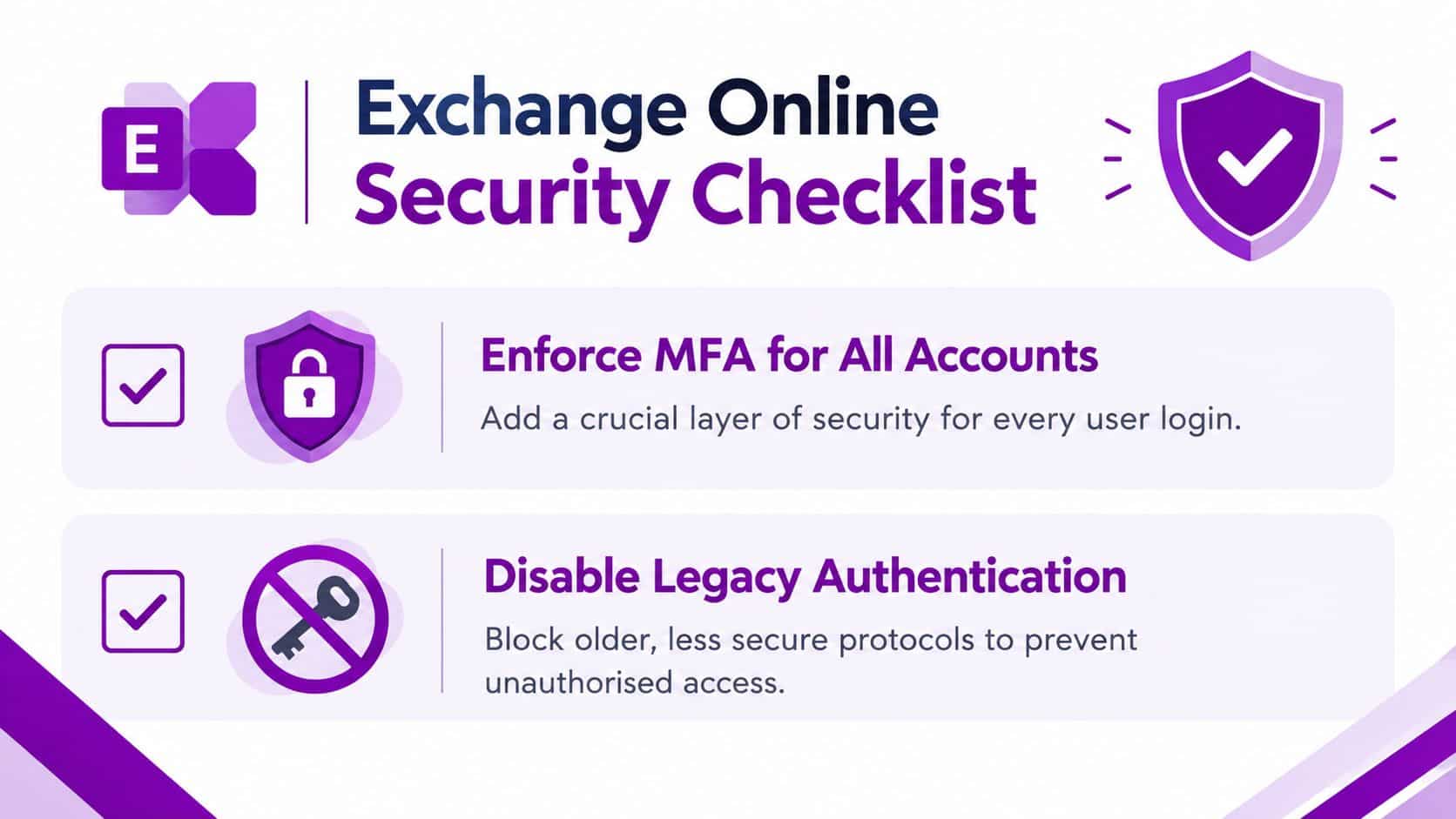
UK government Microsoft 365 guidance recommends enabling MFA for all users and disabling legacy authentication with Conditional Access. It also describes authentication policies that can disable legacy authentication at the Exchange Online service level. The UK secure configuration blueprint explains that older protocols, including Exchange ActiveSync, cannot satisfy MFA challenges and may provide a bypass path.
Start with a report-only Conditional Access policy. Review sign-in logs, identify older clients, confirm exclusions and then enforce the block. Avoid a broad exclusion because one application is inconvenient. Replace or modernise the application, or document a tightly controlled exception with an owner and review date.
Keep privileged identities separate from ordinary daily accounts. Use supported authentication methods, maintain controlled emergency access accounts and test recovery procedures. Microsoft Entra security defaults require MFA at every sign-in for key administrator roles, including Global Administrator, Authentication Administrator and Helpdesk Administrator.
Plan authentication changes
Microsoft is retiring legacy MFA and self-service password reset policy management. The recommended migration is to the Authentication methods policy before the 30 September 2025 deprecation date, as described in Microsoft's authentication methods management guidance. Leaving older per-user controls in place can split responsibility for sign-in methods and increase the risk of lockouts or lost administrative access.
Inventory administrator identities, shared service accounts and automation accounts. Move supported users to modern methods such as Microsoft Authenticator, FIDO2 security keys or Temporary Access Pass. Confirm emergency access arrangements before changing enforcement, and record who can approve exceptions.
Strengthen message trust
MFA protects accounts, but it does not prove that every message is genuine. Configure and monitor SPF, DKIM and DMARC, then review mail flow rules and internal trust assumptions. A message that appears to come from a colleague or familiar Microsoft 365 address still needs scrutiny when it requests payment, credentials or a bank-detail change. Use this GDPR compliance checklist to connect mail security decisions with data governance, access control and evidence of review.
Direct Send and compromised tenant accounts need specific attention. UK reporting described a 2025 campaign involving compromised Microsoft 365 accounts sending convincing billing messages from genuine Microsoft addresses. UK threat reporting also described more than 70 organisations targeted since May 2025 through Direct Send abuse. Review whether Direct Send is required, restrict unnecessary pathways and pair technical controls with payment-verification procedures.
Exchange Web Services retirement adds another planning task. Microsoft has announced that EWS is scheduled for deprecation, with a projected date of October 2026. Identify applications and suppliers that depend on it, review the Exchange Web Services usage report in the Microsoft 365 admin centre and confirm replacement options. A cloud mailbox does not guarantee that every connected application uses a modern interface.
Monitoring Reporting and Automation
A small IT team doesn't need to watch every setting continuously, but it does need reliable signals. Monitoring should answer three practical questions: what changed, which users or services are affected, and what action should follow?
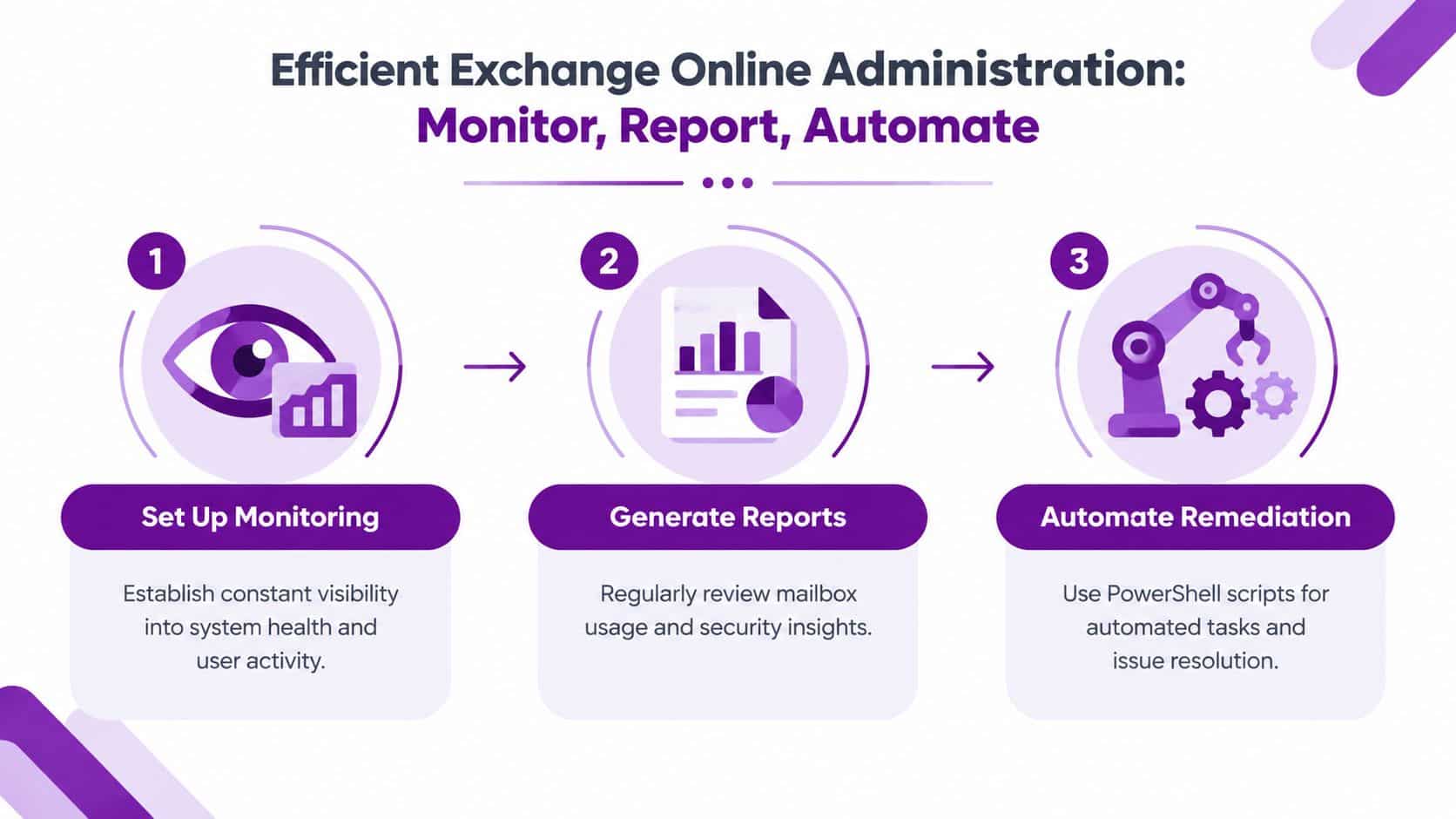
Set up monitoring
Begin with a baseline. Export mailbox properties, shared mailbox membership, administrative role assignments, transport rules and authentication policies. Store the output securely with a date and script version so the team can compare later changes against an approved state.
Use Microsoft 365 audit data and Entra sign-in logs to watch for privileged activity, unusual authentication and changes to mail flow. For transport rules, schedule a regular comparison of the current configuration with the approved record. Microsoft Graph can support wider workflows where the required data and permissions are available, while Exchange Online PowerShell remains the practical choice for many Exchange-specific administrative operations.
Generate useful reports
A report should lead to a decision. Useful outputs include mailbox size reviews, shared mailbox ownership, inactive accounts, forwarding configuration, privileged role membership, legacy authentication activity and recent transport rule changes.
Message trace automation needs restraint because the new EAC applies tenant-level request limits. Queue investigations, narrow the search criteria and save results rather than repeatedly asking the service for the same broad dataset. A scheduled report can alert the administrator to a pattern, while a focused trace can then investigate the individual event.
Automate remediation carefully
Automation works best for predictable, reversible actions. For example, a PowerShell runbook can identify disabled users who still hold mailbox delegation, produce an approval report and remove access only after the owner confirms it. Power Automate or Azure Functions can provide scheduling and notification, but the workflow should still use a service identity with narrowly defined permissions.
Use a simple control loop:
- Monitor: Collect changes, sign-ins and mailbox signals.
- Report: Send a concise exception list to the responsible owner.
- Approve: Decide whether the change is authorised.
- Remediate: Apply the documented correction.
- Record: Keep the result for audit and future troubleshooting.
Automation principle: Automate the evidence gathering first. Automate changes only after the team understands the exceptions.
Recommended Processes for East Midlands SMBs
East Midlands SMBs need governance that fits a small team. A useful process doesn't require a large committee. It requires named owners, clear approvals and a regular point at which someone checks whether the configuration still matches the business.
Start with a licence register. Record each user type, assigned services, shared mailbox arrangements and the reason for any higher-tier entitlement. Review leavers promptly and avoid leaving licences attached to accounts that no longer need them. Storage, retention and compliance requirements should influence the decision, not habit or a copied configuration from another organisation.
Choose cloud-only or hybrid administration based on dependencies rather than preference. If the business still relies on Exchange Server, synchronised identities or applications that haven't been modernised, document those dependencies before changing mail flow. If the estate is cloud-based, review the remaining integrations and supplier access instead of assuming the migration removed every operational risk.
A lean governance cycle can include:
- Monthly checks: Review privileged access, shared mailbox owners and significant mail flow changes.
- Quarterly reviews: Reassess Conditional Access, authentication methods, retention scopes and application dependencies.
- Joiner and leaver controls: Use the same approval path for every new starter and departure.
- Incident records: Capture the timeline, commands or interface changes, affected users and corrective action.
- Escalation: Define when an issue moves from the internal administrator to a specialist support partner.
F1Group provides Microsoft 365 administration and migration support for organisations across the East Midlands, including Nottingham, Leicester, Lincoln, Scunthorpe, Grimsby and Newark. That type of external support can give an internal team a practical escalation route when an Exchange issue overlaps with Azure, identity, security or a wider Microsoft 365 project.
Conclusion and Next Steps
Effective Exchange Online administration depends on connected decisions. RBAC controls who can change the environment, tenant architecture defines where services and domains sit, and licensing determines what each user or mailbox can use. EAC helps with focused inspection, PowerShell supports repeatable administration, and Graph can connect supported data to wider business workflows.
Security needs to remain central. Enforce MFA, remove legacy authentication pathways, protect privileged identities and review message trust controls. Keep retention policies purposeful, monitor mail flow changes and investigate Direct Send or compromised-account risks as operational issues rather than treating anti-phishing as a one-time configuration task.
EWS preparation should begin with dependency discovery. Review application usage, speak to suppliers, identify hybrid connections and test replacements before the October 2026 deprecation projection described in Microsoft's Exchange guidance. The right replacement may vary by application, and Microsoft positions the Exchange Online Admin API as a targeted alternative for particular administrative scenarios, not a complete replacement for Exchange Online PowerShell.
For an East Midlands SMB, the first practical action is to document the current tenant. List administrators, licences, shared mailboxes, retention policies, transport rules, authentication controls and EWS-dependent applications. Then prioritise the risks that could interrupt access or expose privileged mail administration, and use automation to collect evidence before making changes.
F1Group can help East Midlands organisations review their Exchange Online configuration, plan Microsoft 365 migrations, investigate security and mail flow issues, and prepare applications for changing Microsoft requirements. Phone 0845 855 0000 today or visit F1Group and send us a message to discuss your Exchange Online administration needs.