
A suspicious Microsoft 365 sign-in alert usually lands at the worst possible moment. Someone in finance has just approved supplier payments, your sales team is in Outlook all day, and a director is travelling with full mailbox access on a mobile. If an attacker gets past the sign-in screen, they don’t need to break into your servers. They can work as the user.
That’s why authentication matters far beyond an IT definition. In a mid-sized East Midlands business, authentication is the control that decides whether the person, device, or service trying to sign in should be trusted at all. Get it right, and you reduce the chance of account takeover, inbox fraud, and unauthorised access across Microsoft 365, Azure, and connected SaaS tools. Get it wrong, and every other security control starts from a weak assumption.
Why Authentication is Your First Line of Defence
A lot of businesses still think of authentication as “the login bit”. That’s too narrow. Authentication is the first security decision your systems make. Before SharePoint opens, before Outlook syncs, before a payroll app loads, something has to verify identity.
In practice, that means checking whether a user, device, or service is really who it claims to be. Passwords used to carry most of that burden. They don’t any more.
Microsoft reports that more than 99.9% of compromised accounts do not have multi-factor authentication enabled, and JumpCloud’s 2024 IT Trends Report found that 83% of organisations now require MFA according to JumpCloud’s MFA statistics summary. Those two facts explain why authentication is now a baseline control rather than an optional extra.
Why passwords alone keep failing
A password can be guessed, reused, phished, or stolen from another breach. Once that happens, the attacker often signs in using the same route as a legitimate employee. To Microsoft 365, a correct password can look normal unless you’ve added stronger checks.
That’s why modern authentication layers additional proof on top. A phone approval, a fingerprint, a security key, a trusted device, or a short-lived token changes the security model from “do you know the password?” to “can you prove this is really you right now?”
Practical rule: If a business still relies mainly on passwords for Microsoft 365 sign-in, it’s relying on the weakest part of the identity chain.
What this means for a business leader
For an IT Manager, authentication affects risk, user friction, support effort, and governance. For a CEO or Finance Director, it affects exposure to fraud and disruption. If an attacker compromises one mailbox, they may gain access to supplier conversations, invoice trails, Teams messages, and password reset links for other services.
Strong authentication works like ID checks at the front door. It doesn’t solve every problem, but it stops a large number of avoidable ones before they enter the building.
Authentication vs Authorisation What Business Owners Need to Know
The two terms are often blurred together, and that creates poor decisions. Authentication answers one question: who are you? Authorisation answers a different one: what are you allowed to do?
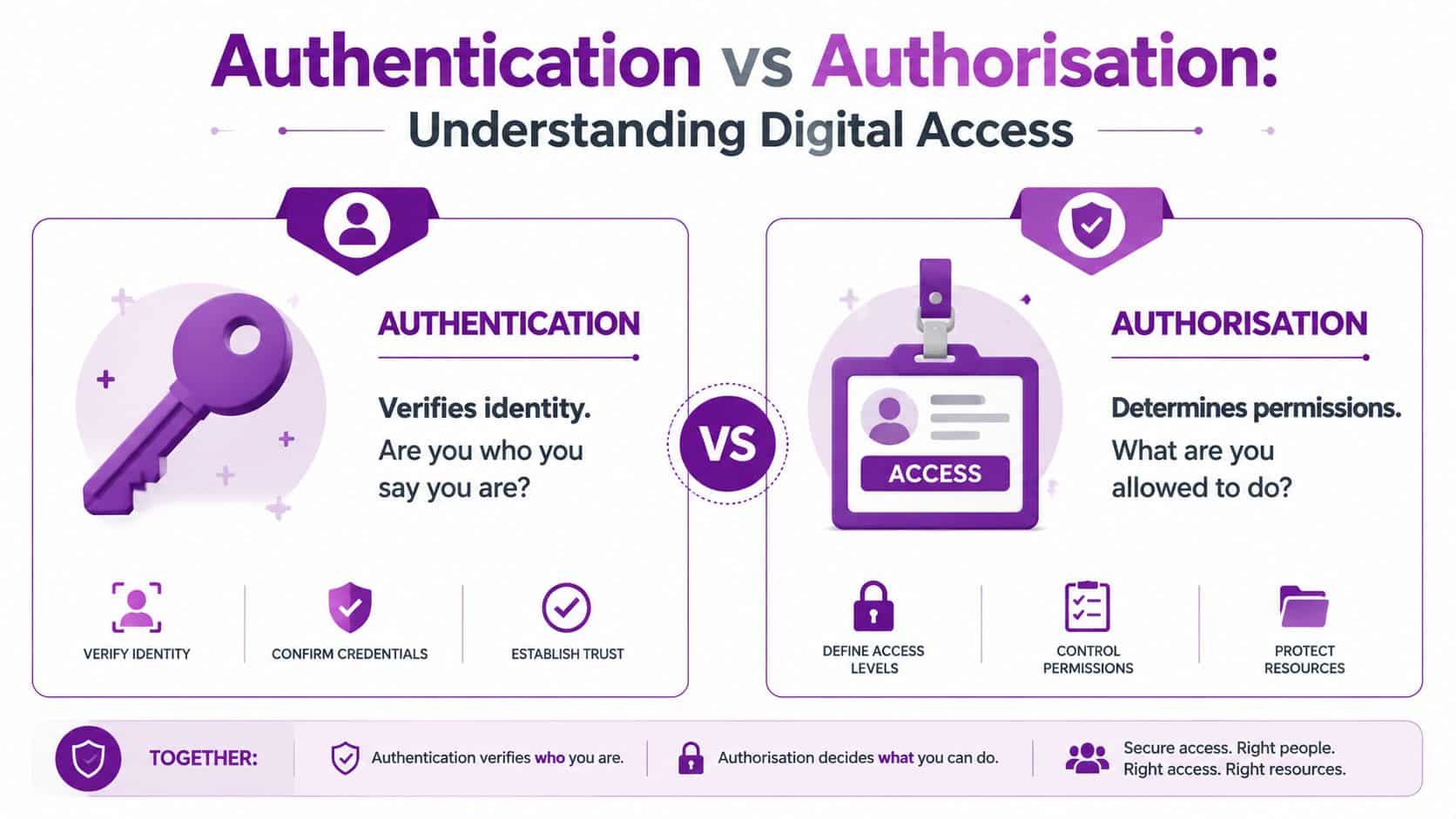
Showing your passport or company ID is authentication, much like entering an office building. Being allowed into the server room, finance office, or warehouse is authorisation.
From a security engineering perspective, authentication must be kept separate from authorisation because it only answers “who are you?” and not “what can you do?”, as outlined in this overview of authentication protocols and access control separation. That separation matters in regulated UK environments because identity checks can stay standards-based and auditable, while access rules can be restricted by role, device state, or policy.
Why the distinction matters in Microsoft 365
A strong sign-in process doesn’t help much if the account itself has excessive access. If a compromised user can read HR files, approve invoices, and manage users, the damage escalates quickly.
That’s why a sensible Microsoft setup combines both controls:
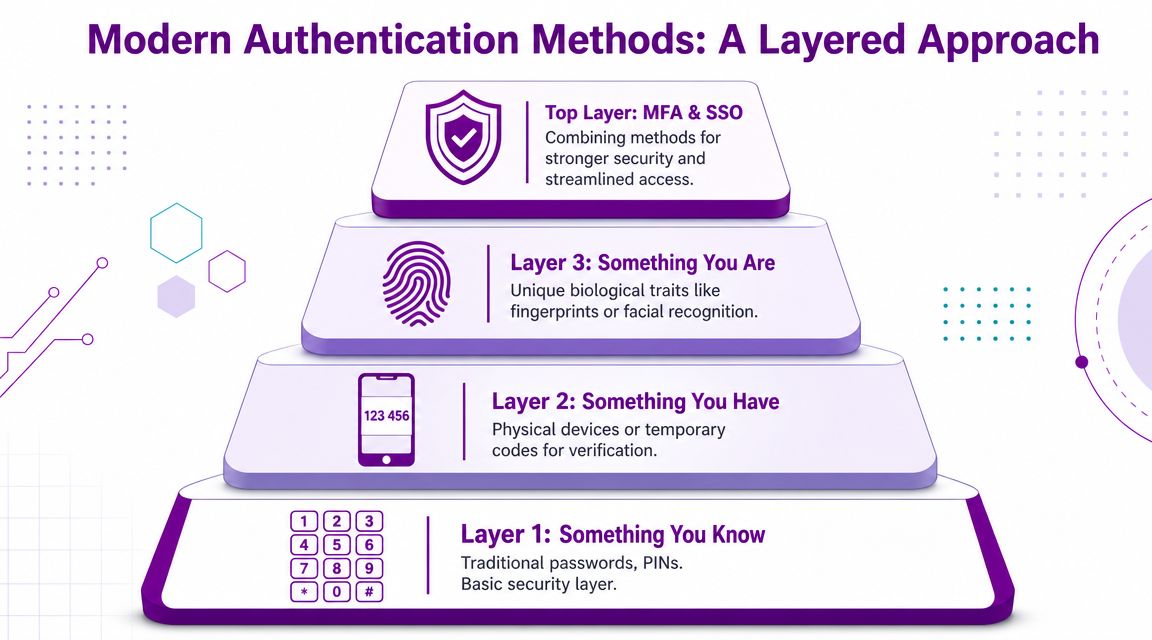
- Authentication first. Prove the identity with MFA, biometrics, device trust, or passwordless sign-in.
- Authorisation second. Limit access through roles, group membership, app permissions, and least privilege.
- Ongoing checks. Reassess access when risk changes, such as a new location, unmanaged device, or unusual sign-in pattern.
A lot of businesses improve passwords but leave access sprawling. That’s usually where risk hides.
A useful way to test your own setup
Ask two separate questions for every important account:
- How do we prove this user is genuine?
- Once signed in, what exactly can this user reach?
If those answers are vague, the identity model needs work. A more structured way to think about this sits under identity and access management, where authentication and authorisation are designed together rather than patched separately.
Strong authentication without access control is incomplete. Broad access with weak authentication is worse.
A Guide to Modern Authentication Methods
Most businesses are using several authentication methods at once, whether they realise it or not. The question isn’t whether you have authentication. It’s whether the methods you’ve enabled are still fit for purpose.
Yubico highlights a sizeable gap in MFA maturity. 87% of firms with over 10,000 employees use MFA, compared with 34% of small and medium firms, and 67% of UK consumers view MFA as a sign of a company’s commitment to data protection in Yubico’s global authentication survey. For a mid-sized business, that’s a practical issue, not just a trend. Customers and insurers increasingly expect stronger sign-in controls.
Passwords
Passwords are still common because they’re simple to deploy and familiar to users. They’re also the method attackers target first.
The weakness isn’t only poor password choice. It’s reuse, phishing, sharing, and storage in browsers or notebooks. Passwords still have a place, but they shouldn’t be the only factor protecting Microsoft 365, VPN access, or admin accounts.
Multi-factor authentication and two-factor authentication
MFA means requiring more than one kind of proof. That might be a password plus an approval prompt, or a password plus a hardware key. Two-factor authentication is a subset of MFA using exactly two factors.
The strength of MFA comes from forcing the attacker to steal more than one thing. A password on its own is often enough to get into trouble. A password plus a trusted device or biometric check is much harder to abuse.
For businesses reviewing their options, this guide to multi-factor authentication in Microsoft environments is a sensible starting point.
Biometrics and device-based sign-in
Biometrics use something the user is, such as a fingerprint or face scan. Device-based sign-in relies on something the user has, such as a managed laptop, mobile authenticator, or hardware security key.
These methods are usually stronger than passwords because they’re harder to replay remotely. In Microsoft estates, they also tend to improve the user experience. Staff are more willing to use security controls that are quick and predictable.
Single sign-on
Single sign-on reduces the number of separate logins users need across business systems. The benefit is convenience, but also control. When one central identity provider handles sign-in, IT can enforce consistent policies, revoke access faster, and audit sign-in events in one place.
SSO isn’t automatically secure by itself. If the central account is weak, SSO can centralise risk as well as convenience. That’s why SSO should sit on top of strong authentication, not replace it.
Token-based authentication
Modern systems don’t usually ask for the password on every request. After the user signs in, the identity platform issues a signed token that proves authentication for a limited period. The app checks the token rather than repeatedly checking the password.
That matters because it reduces password replay and supports smoother access across cloud services. If you want to see how similar layered sign-in ideas appear outside Microsoft too, this piece on understanding iCloud security is useful background for comparing consumer and business authentication models.
The best authentication method is the one users will actually complete, administrators can govern, and attackers struggle to bypass.
How Authentication Protocols Work Together
Under the surface, authentication depends on protocols that let systems trust one another. Most business users never see them, but IT teams deal with the outcomes constantly. A user clicks “Sign in with Microsoft”, lands in the right application, and expects it to work first time.

In modern systems like Microsoft 365, authentication is increasingly token-driven. A user signs in once, the identity provider issues a signed, time-bound token, and the service validates that token rather than asking for the password over and over, as explained in this overview of token-based authentication flows.
The protocols you’ll meet most often
OAuth 2.0 is mainly about delegated access. It allows one application to request limited access to another service without handing over the user’s password.
OpenID Connect, usually shortened to OIDC, adds an identity layer on top of OAuth 2.0. It tells the application who the user is after successful sign-in.
SAML is still common in enterprise single sign-on, especially with older or established business applications. It’s widely used where an identity provider authenticates the user and sends an assertion to the application.
Kerberos remains relevant inside traditional Windows domain environments. It’s often part of on-premises authentication even when cloud sign-in has become the front door for most users.
Common Authentication Protocol Use Cases
| Protocol | Primary Use Case | Common Environment |
|---|---|---|
| OAuth 2.0 | Delegated access to APIs and third-party services | Cloud applications and integrations |
| OpenID Connect | User sign-in with identity information returned to the app | Modern web and mobile applications |
| SAML | Enterprise single sign-on between identity provider and application | Business SaaS and legacy enterprise tools |
| Kerberos | Ticket-based authentication inside Windows networks | On-premises Active Directory environments |
Why protocol choice matters
For an IT Manager, the practical question isn't which acronym sounds better. It's whether the application supports modern identity controls cleanly.
A good fit usually means central sign-in, strong policy enforcement, cleaner audit trails, and fewer passwords stored in disconnected systems. A poor fit often means local accounts, awkward exceptions, and brittle support arrangements.
Key Security Threats and Their Authentication Solutions
Most attacks against SMEs don't start with advanced exploitation. They start with a user. Someone clicks a link, enters a password into a fake sign-in page, approves a prompt they shouldn't, or reuses credentials from another service.
The UK Government's Cyber Security Breaches Survey consistently reports phishing as the most common cyber attack type faced by businesses, which is why authentication matters so much as a frontline control, as noted in IBM's summary of authentication and phishing-related risk.
Phishing
Phishing tries to capture credentials or trick users into approving access. In Microsoft 365, that often means fake login pages, malicious QR codes, or cloned supplier emails.
Best authentication response: phishing-resistant MFA, passwordless sign-in, and Conditional Access. If the attacker steals a password but can't satisfy the second factor or device requirement, the attack often stops there.
Credential stuffing and password reuse
If staff reuse passwords across business and personal services, stolen credentials from an unrelated breach can be tried against your Microsoft account estate.
Best authentication response: MFA, SSO, and reducing the number of passwords users must manage. Fewer passwords usually means less unsafe reuse.
On the ground: businesses often focus on password complexity and ignore password reuse. That's the wrong fight.
Password spray attacks
Password spray attacks try common passwords across many accounts rather than repeatedly targeting one account. They're designed to avoid lockouts and exploit weak password hygiene.
Best authentication response: block legacy authentication, enforce MFA, and monitor risky sign-ins. Even if a weak password exists somewhere, layered sign-in controls limit what an attacker can do with it.
A short explainer on how attackers abuse common login patterns can help non-technical stakeholders understand the risk:
Man-in-the-middle and session abuse
Some attacks don't need to know the password if they can intercept or misuse a session. Instead, short-lived tokens, device trust, and re-authentication policies become important to prevent these threats.
Best authentication response: trusted identity providers, limited token lifetimes, stronger session controls, and avoiding static credentials wherever possible.
Implementing Strong Authentication with Microsoft Tools
The theory must now be translated into policy. In a Microsoft estate, the centre of gravity is usually Microsoft Entra ID. It handles user identities, app sign-ins, policy enforcement, and the trust relationships that sit behind Microsoft 365 and Azure access.
If your team still thinks of it as Azure AD, that's normal. The product naming has changed, but the practical question hasn't. How do you stop stolen credentials being enough?
A useful reference point for that identity layer is Microsoft Entra ID and Azure Active Directory, especially if your environment has grown from on-premises Active Directory into a hybrid setup.
Start with account tiers, not a blanket rollout
One of the most common mistakes is trying to change every sign-in path for every user on day one. That creates confusion, missed dependencies, and support spikes.
A better order is:
-
Privileged accounts first
Global admins, finance approvers, senior leadership, and IT support staff should have the strongest controls earliest. These accounts are the most damaging to lose. -
Remote access and cloud access second
Prioritise Microsoft 365, VPN, Azure portals, and line-of-business SaaS integrated with Entra ID. -
General user population after testing
Roll out in waves with pilot users from different departments. Include people who aren't technically confident. Their experience will tell you where the process breaks.
Use Conditional Access to apply judgement
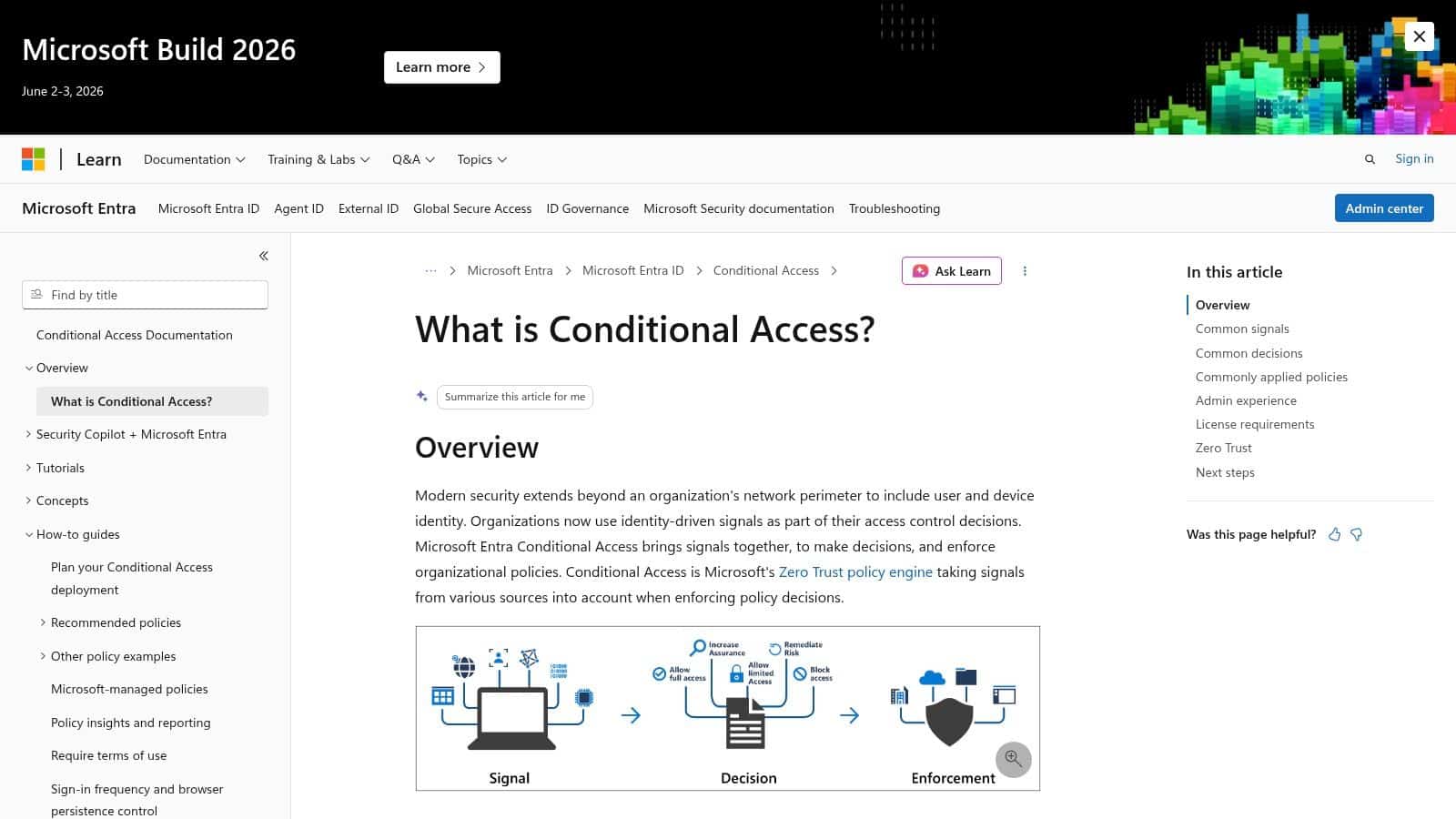
Conditional Access is where Microsoft's tooling becomes highly practical. It allows you to say “require stronger proof under these circumstances” instead of treating every sign-in the same.
That matters because not all logins carry equal risk.
Controls that usually work well
- Require MFA for admin roles. This should be standard and tightly enforced.
- Challenge risky sign-ins. If the context looks unusual, require extra verification.
- Block or restrict unmanaged devices. A valid password on an unknown device shouldn't automatically open everything.
- Protect sensitive apps separately. Finance systems, HR platforms, and administrative portals deserve stricter conditions than routine services.
Controls that often create trouble
- Applying harsh policies without exclusions. Service accounts, emergency access accounts, and legacy workflows can fail if you don't plan for them.
- Treating SMS as a long-term answer for everyone. It may be useful as a stepping stone, but it isn't the strongest option for high-risk users.
- Ignoring break-glass planning. If your primary authentication route fails, you need a safe recovery path that is documented and controlled.
A good Conditional Access policy reflects business reality. It doesn't assume every user, device, app, and location behaves the same way.
Move towards passwordless where it makes sense
Passwordless doesn't mean “no security”. It usually means stronger security with less reliance on memorised secrets.
For Microsoft environments, that often means:
- Windows Hello for Business for staff on managed Windows devices
- Authenticator app approvals where appropriate
- FIDO2 security keys for privileged users, frontline roles, or users at higher phishing risk
Passwordless rollouts need planning. Device compatibility, onboarding steps, user training, and recovery methods all matter. A weak fallback path can undo a strong front-end design.
Don't forget self-service and support impact
Authentication changes fail when the helpdesk is swamped. Self-Service Password Reset, clear enrolment guidance, and sensible fallback methods reduce support pressure and improve adoption.
The practical questions are usually basic:
- What happens when someone gets a new phone?
- How does a traveller sign in from abroad?
- What's the process when a director loses a laptop?
- Who approves exceptions for shared devices or specialist systems?
Those aren't side issues. They determine whether the control sticks.
Where an external partner fits
Some organisations build and tune this themselves. Others use a managed IT provider for policy design, rollout sequencing, user communication, and operational support. In the East Midlands, that often means combining internal ownership with outside help on Entra ID, Conditional Access, Microsoft 365 hardening, and ongoing review. F1Group is one option for that kind of Microsoft-focused support.
Next Steps for a More Secure Business
Authentication is simple in concept and demanding in practice. You need to prove identity reliably, reduce dependence on passwords, and make sure a successful sign-in doesn't grant more access than it should.
For most mid-sized businesses, the priority list is clear. Tighten sign-ins for privileged accounts. Enforce MFA properly. Use Conditional Access to add context. Move high-risk users towards stronger, less phishable methods. Review fallback and recovery routes before you need them.
The important point is that authentication isn't a one-off project. Staff change phones, new applications are added, suppliers connect systems, and attackers keep adapting. The businesses that handle this well treat identity as an operational control that gets reviewed, tested, and improved.
If your Microsoft 365 or Azure environment still relies too heavily on passwords, or your current setup has grown through exceptions rather than design, it's worth fixing before the next phishing attempt lands in the wrong inbox.
If you want practical help reviewing authentication across Microsoft 365, Azure, Entra ID, and Conditional Access, speak to F1Group. Phone 0845 855 0000 today or send us a message.