
It's 6.45am, your first engineer is already texting the office because yesterday's job sheet hasn't arrived, and your dispatcher is rebuilding the day in a shared calendar while customers chase updates by phone. That pattern is still common in the UK. In a 2025 survey of more than 1,000 civil servants, only 2% said their organisation used a mobile application for booking field jobs, while 46% relied on a shared calendar and 46% booked appointments by email, and only 29% considered their job booking system very effective, according to the UK public sector mobile management research. The Dynamics 365 Field Service mobile app replaces that scattergun approach with one governed workflow, if you configure it properly.
A Day in the Life of a Field Service Technician
At 7am Maya, a heating engineer covering Lincoln and Newark, opens the Dynamics 365 Field Service mobile app on her tablet in the yard. She doesn't phone dispatch for a list. Her bookings for the day are already there, ordered by start time, with customer, address, work order summary and any safety notes attached by the office.

She taps the first booking and changes its status to travelling. That simple action matters more than it looks. The dispatcher in the office sees progress without a phone call, and the customer record starts building an auditable timeline for arrival, work started and completion.
On Site and Working Through the Job
At the property, Maya opens the linked work order. She can see the reported fault, the asset history for the boiler, previous service tasks and any documents the office attached. If the customer mentions a radiator problem that wasn't on the original call, she adds a note there and then rather than scribbling it on a van notebook for someone else to decipher later.
She works through the service tasks in order, marking each one complete. A replacement valve comes off van stock, so she records the product used against the job. That's not admin for its own sake. It keeps stock honest, supports accurate invoicing and stops the next engineer arriving without the part everyone assumed was still on the van.
The app works best when technicians treat it as the record of the job, not as paperwork to complete after the job.
Before leaving, Maya photographs the finished installation, adds a short note for the back office and captures the customer's signature on the tablet. She closes the booking, checks directions to the next site and moves on. No separate timesheet, no duplicate entry back at the depot and no hunt for a paper form at the end of the week.
That flow is the benchmark for every design decision that follows. If a configuration choice makes Maya's morning slower, heavier or less clear, it's the wrong choice, however tidy it looks in a desktop demonstration. The mobile app isn't a smaller version of the office system. For the technician, it is the system.
Core Capabilities Every Technician Touches
Most rollouts fail on scope, not technology. Teams try to expose every Field Service feature on day one, technicians face crowded forms, and adoption stalls. Start with the loop every engineer touches on every job, then add depth where a team has a proven need.
The Work Order and Booking Loop
A work order describes what needs doing, where, for which customer and often against which asset. A booking places that work in a named technician's diary at a specific time. Keeping that distinction clear helps dispatchers and engineers talk about the same job without confusion.
In practice, the office creates the work order from a case, a planned maintenance agreement or a direct request. Dispatch then schedules it, manually or with scheduling assistance, and the technician sees the resulting booking in the mobile app. From there the engineer updates status as the job progresses, completes tasks, records products and services, and closes the work with notes and a signature.
Those status changes are worth configuring carefully. Too few and dispatch can't tell travelling from on site. Too many and engineers waste time tapping through stages that add no operational value. Use statuses your managers will act on.
Assets Products and Proof of Work
Asset records give the engineer context before a spanner comes out. Model, location, service history and previous faults reduce repeat questions to the customer and help with first time diagnosis. Product records handle parts used or sold on site, while service records capture labour and chargeable activities.
Signatures, photos and notes provide proof of work. They're valuable, but they shouldn't become an uncontrolled photo dump. Decide which jobs require photographs, what a good completion note contains and when a signature is mandatory. Clear expectations produce consistent records that invoicing and compliance teams can trust.
Core Field Service Entities on the Mobile App
| Entity | What it does on the device | Typical user action |
|---|---|---|
| Booking | Shows scheduled time, location and status | Accept job, update progress, complete visit |
| Work order | Holds job instructions and customer detail | Review scope, add notes, close work |
| Service task | Lists checks or steps to complete | Mark each task done in sequence |
| Customer asset | Shows equipment and service history | Check past faults before starting |
| Product | Records parts used from stock | Add part and quantity to the job |
| Service | Records labour or chargeable activity | Log time or fixed service delivered |
Out of the box behaviour covers this core loop well for many mid-sized firms. Tailoring usually focuses on forms, views, booking statuses, mandatory fields and which related records appear first. That's configuration work, not custom development, and it's where a partner earns their fee. Resist bespoke screens until technicians have used the standard flow on real jobs and you can name the specific friction you are removing.
Offline Mode as a Configuration Decision
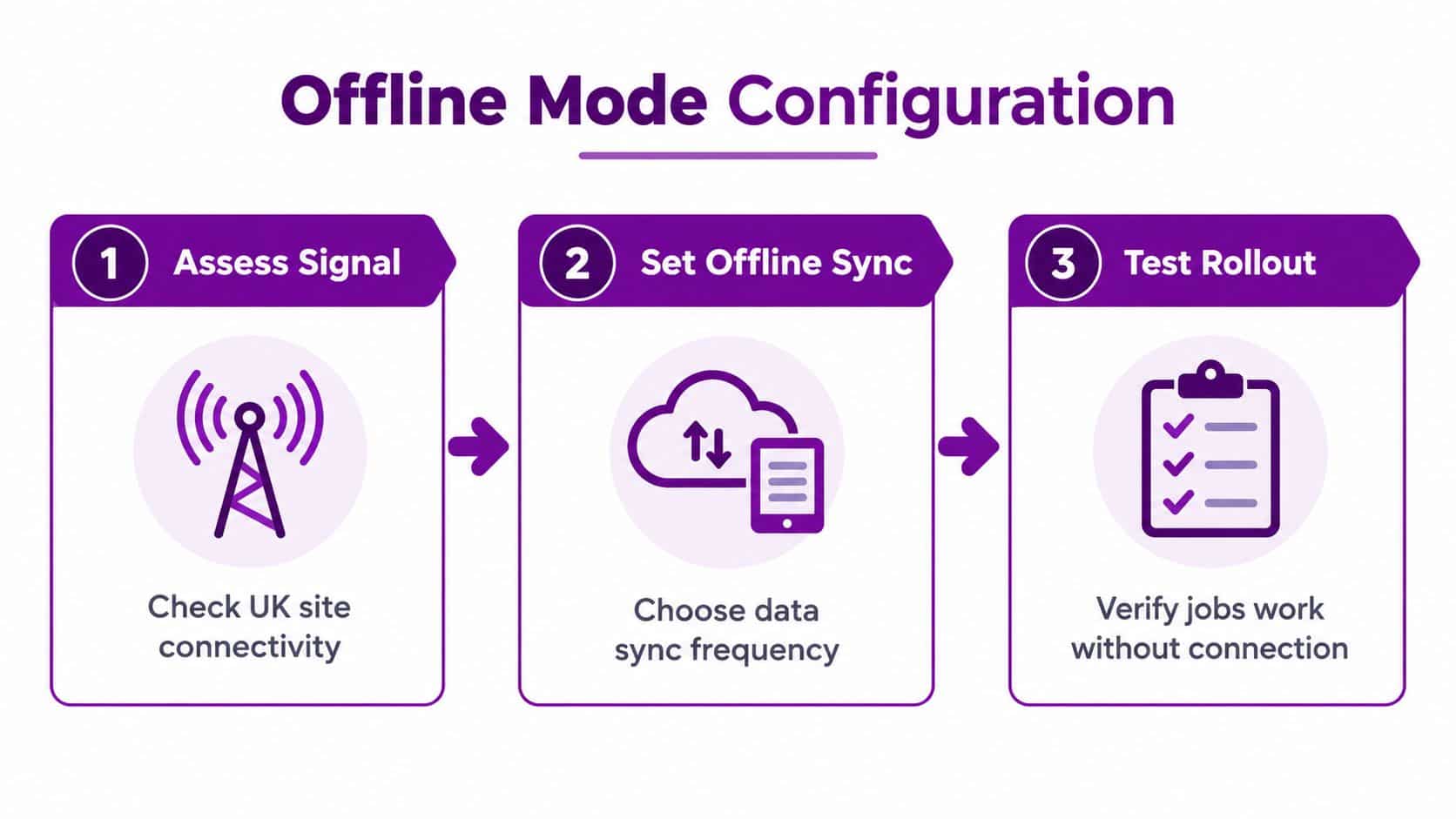
Offline working decides whether the app survives a plant room in Scunthorpe, a farm outside Lincoln or a basement in Nottingham. Microsoft states that technicians can access and update work data without internet connectivity after an administrator configures offline capabilities and profiles, as explained in Microsoft's Field Service mobile overview. That condition is the whole point. Offline isn't automatic, and it isn't the entire system copied to a phone.
What the Default Profile Actually Does
Offline access is controlled through a mobile offline profile that defines tables, filters, relationships and synchronisation intervals, and by default bookings beginning within the next seven days are downloaded, with a five minute synchronisation interval for bookings, work orders, incidents, products, services, service tasks and not to exceed records, according to Microsoft's offline profile guidance. Administrators choose which users can work offline and which related records, files and images come down with each job.
That scoping is a strength. A technician needs this week's bookings, relevant assets, products and tasks. They rarely need years of history for every customer in the East Midlands sitting on a handset.
Practical rule: Download the minimum data that lets a technician finish a job safely in a dead zone. Anything extra is storage, staleness and risk.
A Framework That Works in the Field
Use a deliberate sequence before you widen any filters:
- Map dead zones: Ask engineers where signal fails, including car parks, plant rooms and rural routes, not just where coverage maps look weak.
- Identify minimum viable data: List the records needed to arrive, diagnose, complete tasks, record parts and capture sign off without a connection.
- Test conflict scenarios: Have dispatch amend a job while a pilot engineer edits it offline, then reconnect and agree how your team handles the result.
- Monitor synchronisation: Review failures during the pilot and train engineers to recognise sync status before they leave a site.
More offline data is not always better. Broad downloads increase exposure if a device is lost, make information more likely to be stale and can make synchronisation less predictable. Treat offline design as a balance between resilience, data minimisation and usability, and revisit it after the pilot with evidence from real routes rather than assumptions made in the office.
Choosing Hardware That Will Not Bite Back
Cheap handsets look like a saving until synchronisation crawls, maps stutter and storage fills halfway through a shift. Microsoft publishes minimum and recommended specifications, and you should buy to the recommended line for anyone completing several jobs a day.
The comparison below summarises the choice between entry level and heavier duty devices.
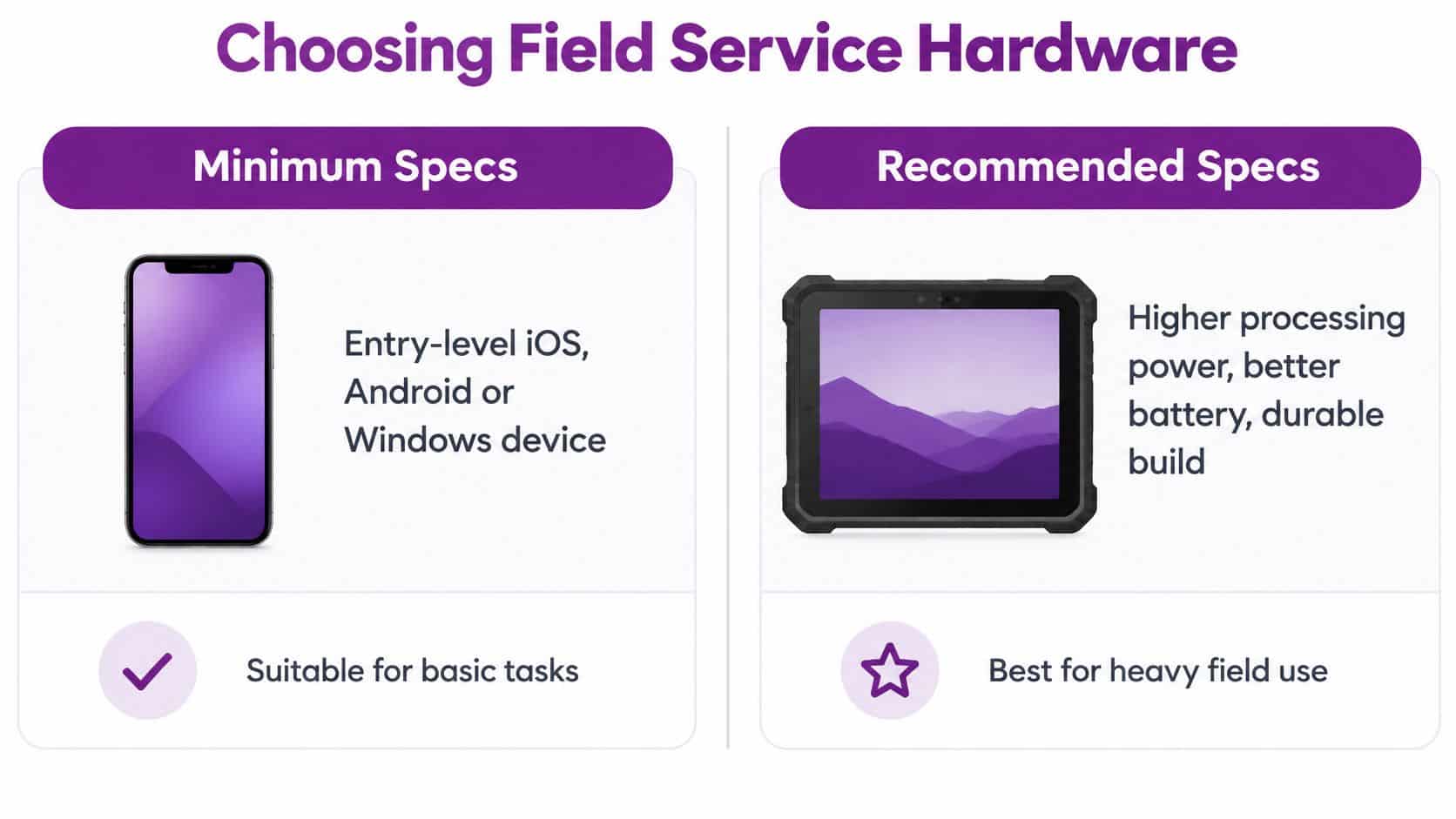
For iOS, Microsoft recommends the latest operating system version, a Geekbench CPU score of at least 1,000 and 64 GB or more of storage, while for Android it recommends the latest version, a CPU score of at least 900, 8 GB of RAM and 64 GB or more of storage, and for Windows it recommends 8 GB of RAM and 128 GB of storage, as set out in Microsoft's mobile app device requirements. Minimum specifications exist, but minimum is a floor for running the app, not a promise of a pleasant shift.
Matching Device to Workload
A surveyor completing one detailed inspection a day may manage well on a standard tablet with a good case. A utilities technician moving between sites, taking photographs and working offline needs processing headroom, storage and battery life that survive the full route. Screen readability outdoors, glove use and drop protection matter as much as processor scores on wet or dusty sites.
Standardise where you can. One or two approved models simplify Intune policies, spares, training and troubleshooting. A mixed estate of ageing personal handsets turns every fault into detective work.
This short walkthrough shows the mobile experience your hardware choices need to support.
Buy a small batch first, run them through the pilot routes and check first synchronisation times, photo handling and battery drain under real use. Replacing an estate after rollout costs far more than testing properly before it.
Integrations That Make the App Useful
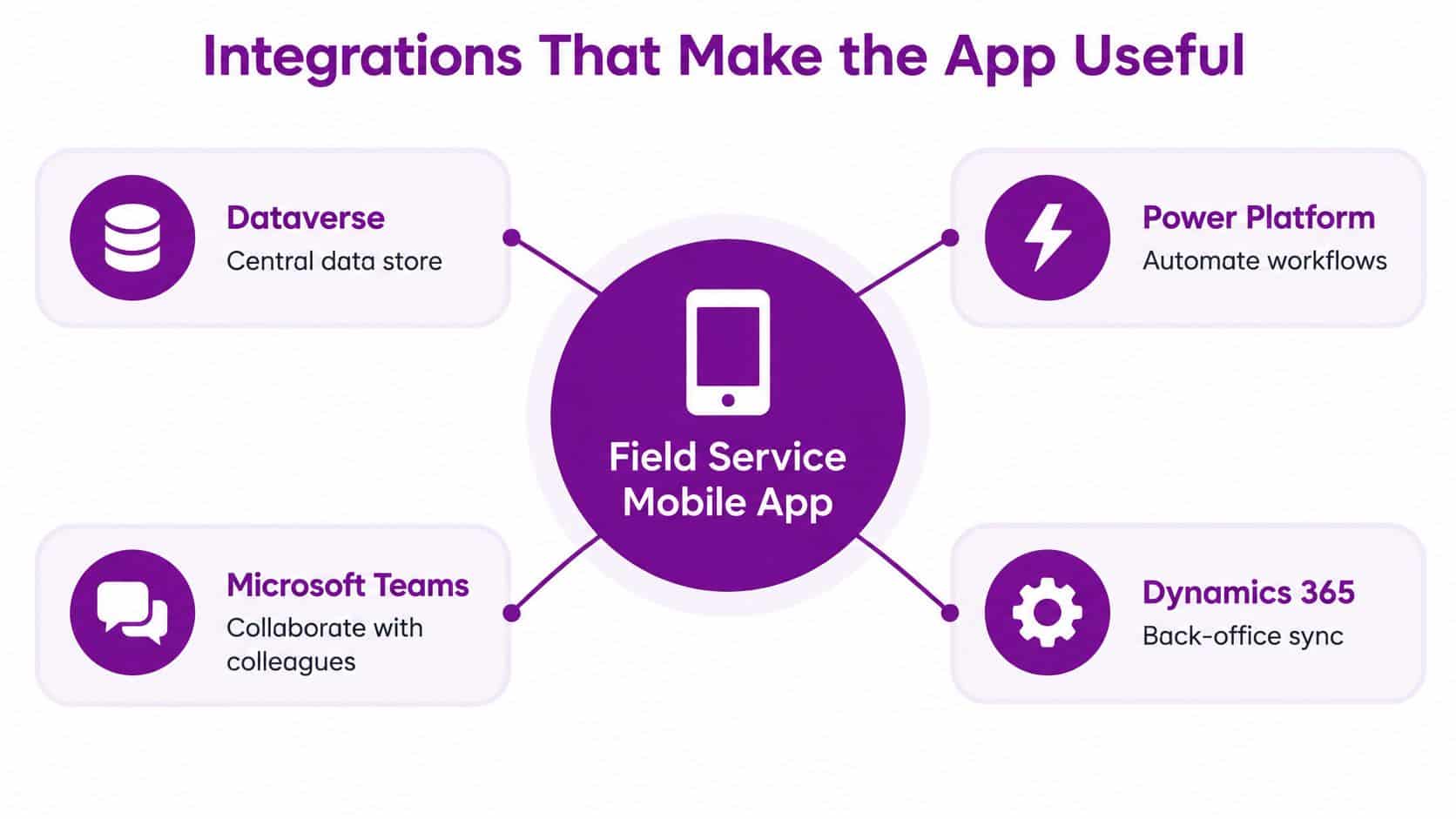
On its own, the Dynamics 365 Field Service mobile app is a capable task runner. Its value multiplies when job data flows cleanly into the systems your office already lives in, without rekeying or side spreadsheets.
The Dataverse Backbone
Dataverse is the shared data layer underneath Dynamics 365 and Power Platform. Work orders, bookings, assets and customer records created in the office appear on the device, and updates from site land in the same records for dispatch, finance and customer service. That single record is what stops the familiar argument about which spreadsheet holds the truth.
Because the data sits in Dataverse, related Dynamics 365 applications can work from it too. A customer service case can generate field work, and the completed job history remains visible when the customer calls again. If you are planning that wider join up, our guide to Dynamics 365 integration services sets out the main patterns to consider.
Communication and Routing Around the Job
Outlook and Teams handle the human traffic around a job. Dispatch can message an engineer about an access problem, share a document or escalate to a specialist without leaving the Microsoft estate. Maps integration supports travel to site and gives dispatch a better view of the day as bookings move.
For firms whose office phones overflow at peak times, an automated voice assistant for small businesses can sit alongside this stack as a way to handle routine inbound queries, freeing dispatchers to manage exceptions rather than repeat appointment details. It isn't part of Field Service, but it addresses the same bottleneck at the front door.
Power Automate covers the small automations that remove manual chasing. Examples include notifying a customer when a booking status changes, creating a follow up activity when a job closes with further work required, or alerting a manager when a high priority work order remains unscheduled. Keep flows few and purposeful at first. Every automation needs an owner.
Power BI then turns completed work into management information on job volumes, repeat visits and engineer utilisation. Start with Dataverse, communication and maps in the first quarter. Add automation and reporting once technicians are recording clean data consistently. Integrating everything at once usually means debugging everything at once.
Governance, Security and BYOD Realities
Treating the mobile app as a casual download is the mistake we see most often in smaller firms. A technician's phone holds customer addresses, asset history, photographs and signatures. That's a corporate endpoint, whether the business bought the handset or not.
UK government mobile device policy expects corporate devices accessing corporate data to be managed through an appropriate Mobile Device Management solution, kept patched and restricted to authorised, compliant devices, and the National Cyber Security Centre recommends PIN, password or biometric protection, automatic patching, approved software only and remote tracking, locking or wiping, as described in the NCSC small business guide. Microsoft Intune is the natural fit beside Dynamics 365, and you can compare approaches in our overview of mobile device management solutions.
Controls to Set Before the First Job
Use conditional access so only compliant devices can open Field Service data. Enforce encryption and screen lock, push the app as an approved installation, apply app protection policies and keep business data separate from personal applications. Remote lock and wipe must be tested, not assumed, because the first lost phone will not wait for a policy meeting.
Role based access matters just as much. Engineers should see the customers and jobs they need, contractors should see less, and office roles should match actual duties. When a contractor finishes, offboarding must remove access and business data promptly. The UK Government Digital Marketplace listing for Field Service also references security controls such as MFA, TLS and VPN options for the service, as shown on the G Cloud 14 service listing.
Richer capture does not automatically mean better compliance. A photograph can include faces, screens or confidential documents, and offline capture delays central oversight.
Set a short, plain English policy on customer consent for photographs, retention of images and signatures, and what must never be captured. Cover personal device use clearly. BYOD can work with app protection and separation of business data, but if your risk appetite or client contracts require full device control, issue corporate handsets and say so early. Ambiguity helps nobody when a device goes missing between Grimsby and Leicester.
A Practical Rollout Plan for Mid-Sized UK Teams
A phased rollout inside one quarter is realistic for a mid-sized team if scope stays tight. Big bang launches across every depot usually produce big bang support queues.
Phase one, pilot. Choose a small group of trusted engineers across different routes and job types. Configure the core work order loop, the offline profile and device policies, then run real jobs only. Synthetic test data won't expose the car park with no signal or the form field nobody understands.
Phase two, adjust. Review pilot feedback weekly. Shorten forms, fix views, amend offline filters and clarify statuses before training anyone else. This is the cheapest point to change your mind.
Phase three, train. Run short role specific sessions for technicians, dispatchers and managers separately. Engineers need the job flow and sync behaviour. Dispatchers need scheduling and exception handling. Managers need reporting and what good data looks like.
Phase four, measure and expand. Microsoft published a sample telemetry dashboard in December 2024 covering daily offline sync users, sync type distribution, app version usage and daily sync success rates across Android, Windows and iOS, as documented in Microsoft's offline telemetry dashboard guidance. Use that kind of evidence to decide when to scale, rather than relying on anecdotes from the loudest depot.
Keep costs honest from the start. Microsoft lists Dynamics 365 Field Service at £80.70 per user per month paid yearly excluding VAT, the Contractor licence at £38.40 per user per month and Resource Scheduling Optimisation at £23.10 per resource per month on Microsoft's UK Field Service pricing page. Our breakdown of Dynamics 365 Field Service pricing helps separate those licences from implementation, devices, data and support, which sit outside the licence figures.
Getting Field Service Right First Time
Keep this checklist visible during your project:
- Define the technician's day: Configure around booking, travel, tasks, parts, notes and sign off.
- Scope offline deliberately: Download minimum viable data and test conflicts before launch.
- Buy to the recommended specification: Standardise devices and trial them on real routes.
- Integrate in order: Dataverse and communication first, automation and reporting next.
- Govern every device: Intune, conditional access, encryption and tested remote wipe.
- Roll out in phases: Pilot, adjust, train, then expand on telemetry evidence.
Get those six decisions right and the Dynamics 365 Field Service mobile app becomes a dependable operational tool, not another system your engineers work around.
If you want a guided Dynamics 365 Field Service mobile rollout covering offline configuration, Intune governance and technician training, visit F1Group to see how we support East Midlands organisations with Microsoft technologies. Phone 0845 855 0000 today to discuss your field teams, or Send us a message and we will help you plan a pilot that works on real UK sites.