
A sales rep loses a phone on the M1. A designer working from home signs into Sage from a laptop that hasn't been patched for months. Then your cyber-insurance renewal asks for evidence that company mobiles are encrypted, managed and capable of being wiped remotely. None of these problems feels like a transformation project, yet together they create a board-level exposure.
That's the point at which mobile device management solutions stop being an optional IT improvement. For an East Midlands business with a small IT team, unmanaged phones, tablets and personal laptops create support work, data-protection risk and awkward questions from insurers, clients and auditors. The trigger is rarely one dramatic breach. It's the steady accumulation of hybrid working, client contract requirements, FCA or GDPR exposure, and employees accessing Microsoft 365 from devices nobody can properly verify.
The Moment Mobile Devices Stop Being Someone Else's Problem
The typical organisation in this position has enough devices to create a serious operational burden, but not enough IT capacity to manage them manually. One IT manager may already be dealing with Microsoft 365 issues, joiners and leavers, Wi-Fi faults, software updates and supplier escalations. Every unmanaged phone adds another exception, and every exception eventually becomes a support ticket or an incident.
The lost sales phone is the obvious example. The immediate questions are practical. Can someone revoke access? Can the business remove its data without deleting an employee's personal content? Was the device protected by a passcode? Can the company prove what happened afterwards?
The home laptop creates a different problem. It may still work perfectly well, but an old operating system, weak local controls or unauthorised applications can undermine the security of every service that user reaches. Hybrid work has moved the security boundary away from the office, so the old assumption that the building's network provides enough protection no longer holds.
Board-level test: If you can't identify the device, its user, its security state and the access it currently has, you don't have adequate control of the company data on it.
Insurers increasingly ask for evidence rather than assurances. A client may require device attestation before allowing access to its systems. A regulated organisation or charity may need to demonstrate that access is restricted to compliant endpoints. The UK Government Security policy on mobile device management as a cyber-security control places MDM within formal governance and risk-management processes, which reflects the direction of travel for UK organisations.
The labour market tells the same story. A UK jobs benchmark recorded 166 permanent vacancies mentioning Mobile Device Management in the six months to 7 July 2025, equal to 0.28% of all permanent jobs advertised in the UK and 0.31% of the Processes & Methodologies category. The median salary was £37,500, or £33,250 outside London, and the year-on-year median salary rise was 10.29%, according to IT Jobs Watch's UK MDM benchmark. Practical device administration has become a recognised IT capability, not a back-office oddity.
What Mobile Device Management Actually Does
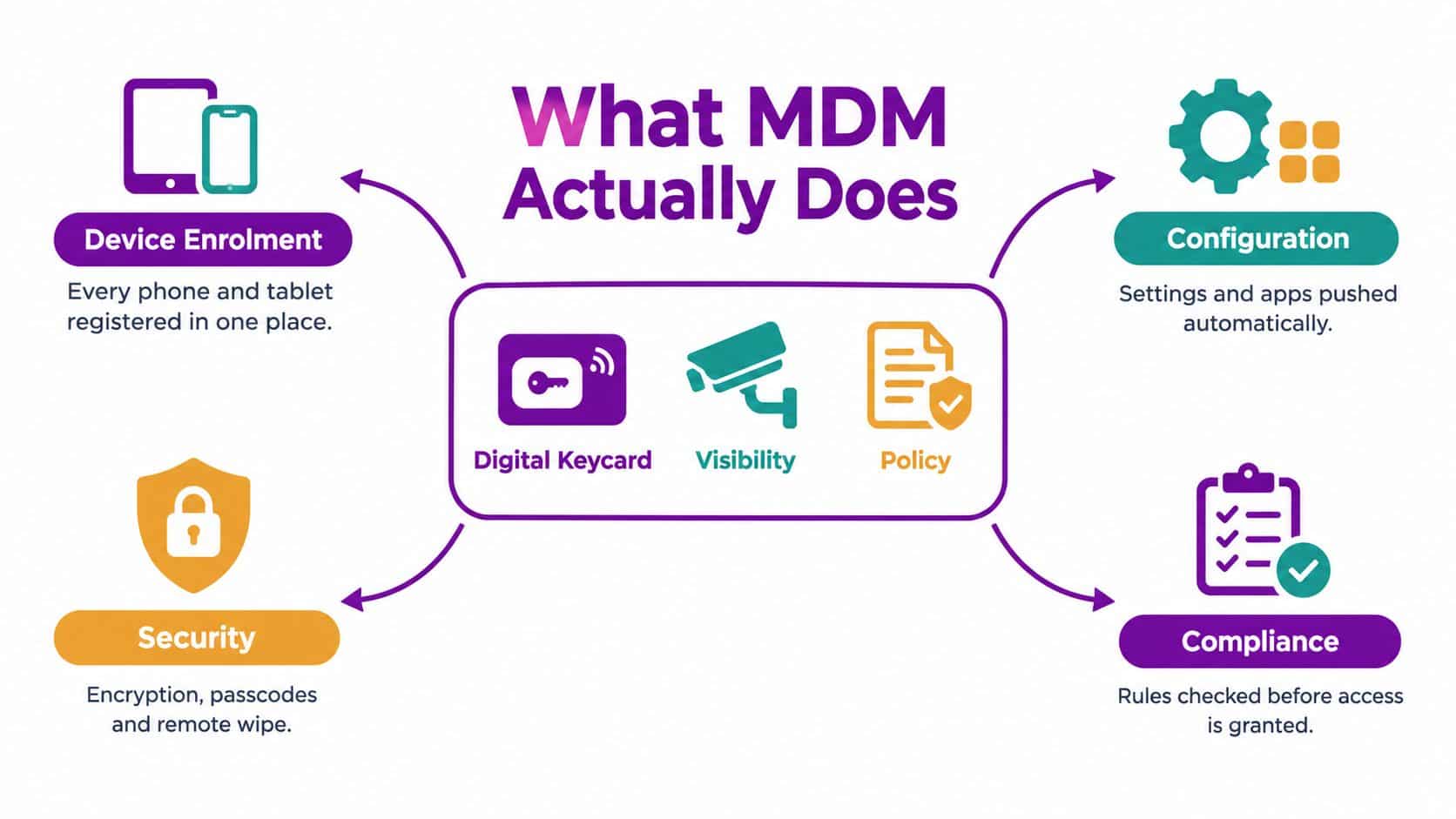
MDM is the digital equivalent of the controls already used in a physical workplace. A keycard determines who can enter. CCTV provides visibility. HR and security policies define acceptable behaviour. Mobile device management applies the same thinking to phones, tablets and laptops, using a central service to register devices, apply rules, distribute applications and respond when something goes wrong.
The value comes from consistent execution. Without MDM, an administrator may configure devices one at a time, rely on users to install updates and discover missing controls only after an incident. With MDM, the business defines the standard once and applies it to the right devices or users.
Enrolment and inventory
Start by establishing what exists. Enrolment links a phone, tablet or laptop to the organisation's management service and records its ownership, user, operating system and compliance state. That inventory gives the IT team a reliable answer when someone asks which devices can access Microsoft 365, whether a leaver's equipment has been returned, or which endpoints need attention.
Corporate-owned devices can be enrolled during setup. For personally owned devices, the business should use an approach that protects work data without creating unnecessary visibility into personal content.
Policy and configuration
Policies turn security expectations into settings. An administrator can enforce passcodes, encryption, screen-lock requirements and supported operating-system versions. MDM can also push Wi-Fi, email and VPN profiles, which removes configuration work from the user and reduces the chance of typing errors.
The business should map policies to roles. A warehouse worker, finance manager and senior executive may need different applications, access conditions and support arrangements, even though all three require a secure baseline.
App and data control
MDM can publish required applications, restrict unauthorised stores and manage how work data moves between applications. On BYOD devices, application protection can separate business information from personal information, allowing the organisation to remove corporate data without taking control of the entire handset.
For a business using Microsoft 365, this is particularly useful for Outlook, Teams, OneDrive and other work applications. The policy should answer practical questions, such as whether users can copy text into personal applications or open company documents in unmanaged software.
Security response and evidence
A lost phone shouldn't require a chain of phone calls. The IT team should be able to block access, lock the device or wipe corporate data remotely. When an employee leaves, the same process should remove company access promptly.
MDM also produces evidence. The UK's NCSC mobile device management guidance recommends zero-touch enrolment or secure manual enrolment, unique per-device credentials, MFA on enrolment interfaces, activation monitoring, and logging of device state, user activity, network communications, authentication and access events. Those controls connect MDM to identity, conditional access, incident response and audit work.
If your inventory is broader than mobiles, a practical guide to IT asset management software can help you think about the relationship between device records, ownership and lifecycle management.
Microsoft Intune and the Endpoint Manager Path
For a Microsoft-focused East Midlands firm, Intune should be the first platform assessed, not because it wins every comparison, but because identity and access already sit in the Microsoft ecosystem. Entra ID, Microsoft 365, conditional access and endpoint compliance can operate as one control model, rather than four disconnected administration tasks.
Intune can manage Windows, iOS, Android and macOS from a common console. It can also use compliance state as a condition for access. That means the question isn't merely whether a user knows the password. It's whether the device is enrolled, encrypted, running an accepted operating-system version and meeting the organisation's access policy.
A business already licensing Microsoft 365 Business Premium or an eligible enterprise plan may find Intune the lowest-friction route because the identity, productivity and security services are already connected. The licensing position still needs checking carefully. An included entitlement isn't the same as a configured service, and the internal cost of designing policies can exceed the effort expected by the finance team.
Where standalone tools remain credible
Jamf remains a serious consideration for Apple-heavy estates because its administration model is built around Apple's management framework. ManageEngine can appeal where the organisation wants a broad standalone management suite with a different licensing and reporting model. Samsung Knox Manage makes more sense where Samsung Android devices dominate and the business wants deeper manufacturer-specific controls.
Intune's weaknesses are practical. Android estates can be inconsistent, BYOD application protection requires careful design, and endpoint security baselines have a learning curve. A single console doesn't remove the need to understand the operating systems being managed.
| Capability | Microsoft Intune / Endpoint Manager | Jamf, Apple-first | ManageEngine MDM Plus | Samsung Knox Manage |
|---|---|---|---|---|
| Identity integration | Strong fit with Entra ID, Microsoft 365 and conditional access | Strong Apple identity and ecosystem support, with broader identity integration requiring design | Standalone identity integrations available, configuration varies | Strongest fit for Samsung-centred Android estates |
| Device coverage | Windows, iOS, Android and macOS from one Microsoft console | Apple devices are the primary focus | Broad multi-platform coverage | Samsung Android devices are the central strength |
| Compliance reporting | Suited to Microsoft access policies and audit evidence when configured properly | Detailed Apple administration and compliance capabilities | Practical standalone dashboards and reports | Device-specific security and management visibility |
| BYOD | Useful, but app protection and privacy boundaries need careful policy design | Strong for Apple BYOD, less suitable as a universal platform | Can support mixed BYOD requirements | Best where supported Samsung controls match the estate |
| Administration effort | Lower friction for Microsoft estates, higher learning curve for full endpoint security | Efficient for Apple-focused teams | Separate platform to operate and integrate | Efficient for standardised Samsung fleets |
| Best fit | Microsoft-first organisations with mixed endpoints | Apple-dominant organisations | Firms wanting an independent multi-platform suite | Samsung-heavy deployments |
Before committing, review the practical Microsoft Intune implementation path against your existing Microsoft 365 licences, device mix and internal capability. The decision should be based on the fleet you have, not the product demonstration.
A Practical Deployment and Onboarding Checklist
A 75-seat East Midlands firm can run a disciplined rollout in a fortnight, provided it treats policy as the first task rather than opening the console and clicking through defaults. The aim isn’t to activate every feature. It’s to create a small, supportable baseline that the IT team can operate after launch.
Days one to three, decide the rules
First, choose the ownership model. Corporate-owned devices allow stronger control. BYOD requires clearer privacy boundaries and a defined separation between work and personal data. Write the acceptable-use policy before enrolment begins, including what the organisation can see, what it can remove and what happens when a user opts out.
Then check the Microsoft 365 estate. Confirm whether Intune is already available through Business Premium, an enterprise plan or an add-on. Link Intune to Entra ID, create role-based groups and avoid assigning every policy directly to individuals. Groups based on department, device ownership and risk are easier to review than a collection of personal exceptions.
Days four to eight, build and test
Use Company Portal for supported BYOD enrolment. Use Windows Autopilot for corporate Windows kit, so the device can receive its configuration without the IT team preparing it manually. For Apple hardware, connect the procurement and device-registration process to the chosen management workflow.
Define the application catalogue. Required apps should install automatically. Approved stores and browser behaviour should match the risk appetite of the business. Compliance policies should cover operating-system support, encryption, passcodes and jailbreak or root detection where the platform supports it.
Use the following sequence as the working checklist:
- Document ownership: Record which devices are corporate-owned, personally owned or shared.
- Map roles: Assign policies to groups, not individual users wherever possible.
- Prepare applications: Identify required apps, approved alternatives and prohibited data flows.
- Test access: Confirm that compliant devices can reach services and non-compliant devices receive a clear remediation path.
- Pilot deliberately: Start with a representative group that includes office, remote and operational users.
- Prepare support: Give staff a short explanation and provide one named escalation route.
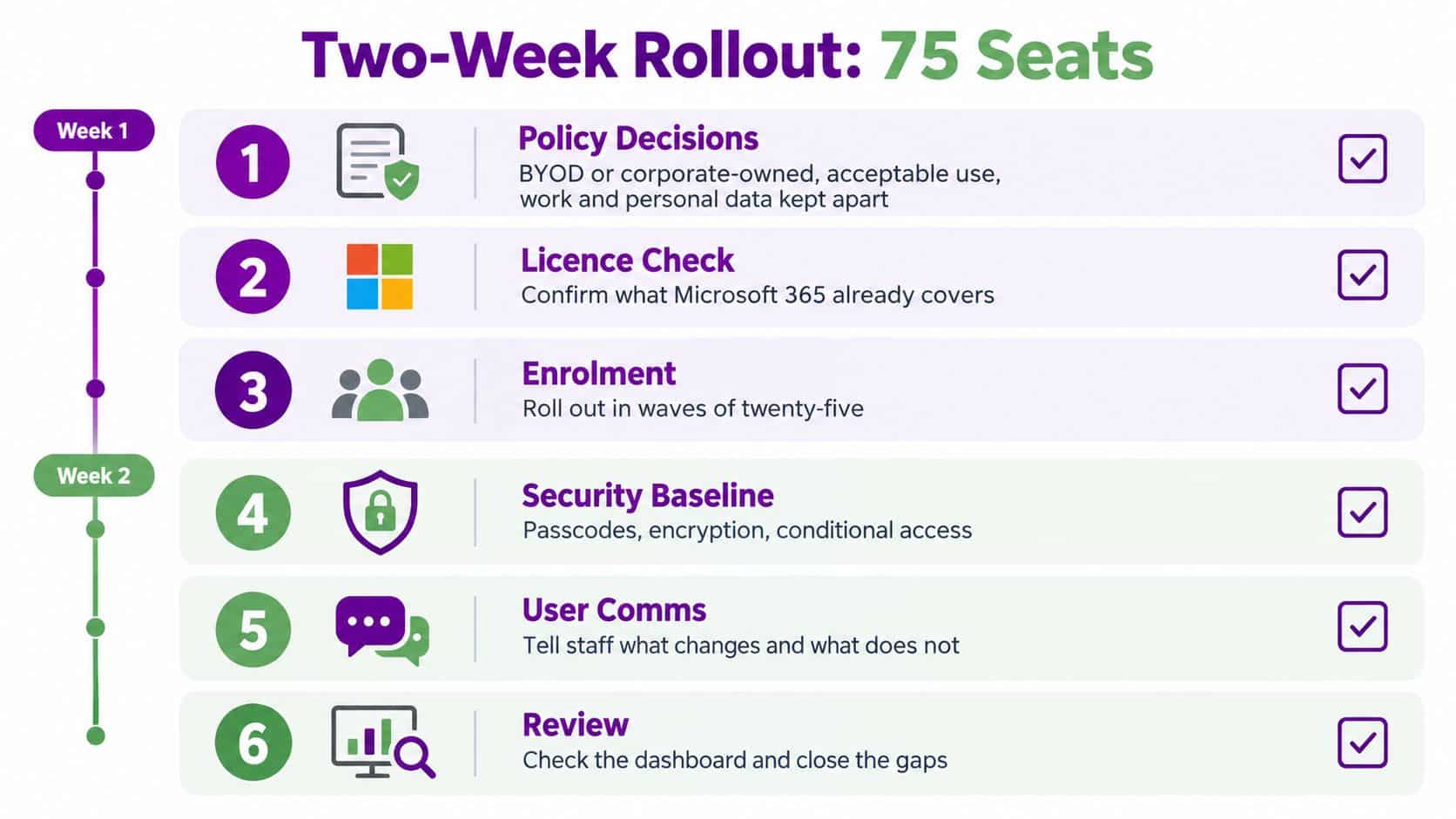
A rollout needs an exit route. Agree what will trigger a pause, how a policy will be rolled back and who makes the go or no-go decision. Staff communications should explain what changes and what doesn’t, especially for personal devices.
For wider lifecycle thinking, the IT lifecycle guide for Singapore offers useful context on connecting deployment decisions with replacement, support and retirement. The same principle applies in the East Midlands. Enrolment is only the beginning of device ownership.
Finally, connect device management to the wider employee journey. Employee onboarding automation becomes more valuable when a new starter receives the right identity, applications and device policies through one controlled process.
Implementation Roadblocks and How to Mitigate Them
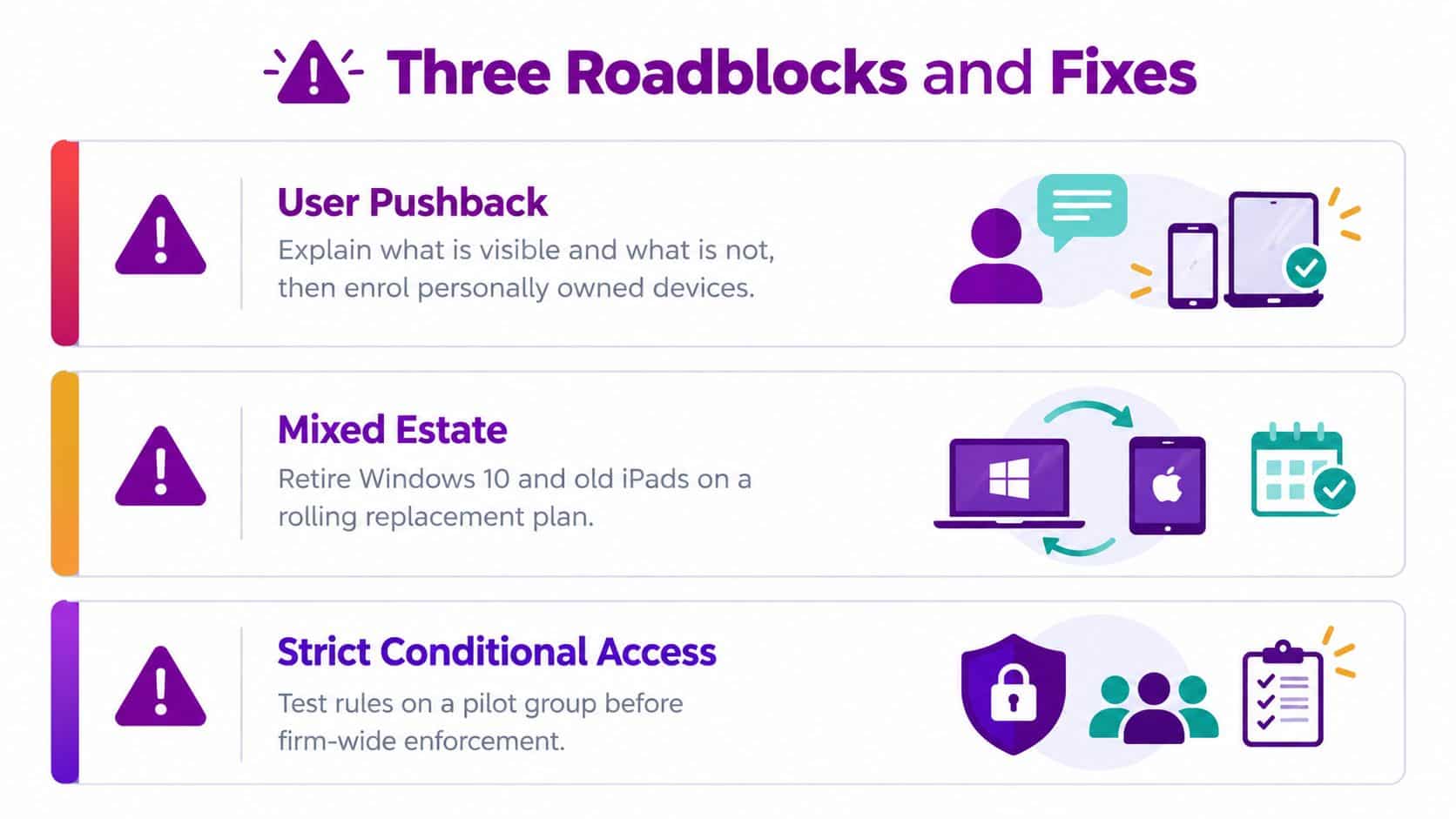
The three most common failures aren’t caused by a missing feature. They come from poor ownership decisions, an unrealistic device estate and access rules introduced without operational testing.
User pushback
Employees often object to personal-device enrolment because the business hasn’t explained the privacy boundary. They want to know whether IT can read personal messages, view private photographs or track their location. If the policy is vague, users will assume the broadest possible monitoring.
Offer a BYOD opt-out path. Be explicit about the consequence, such as using a company-owned handset or losing access from an unmanaged personal device. For BYOD, use work-data protection rather than full-device control wherever the business requirement allows it.
Mixed and ageing devices
A rollout cannot make unsupported hardware secure. Windows devices and older iPads may lack the operating-system support, encryption capability or management framework required by the chosen policy. Treat replacement as an operating expenditure tranche, not as an embarrassing surprise discovered during enrolment.
Create a replacement list before launch. Prioritise devices used by finance, senior leadership, administrators and staff with access to sensitive client information. Retire unsuitable equipment through a rolling plan rather than weakening the baseline for everyone.
Conditional access surprises
A conditional access rule can lock out a warehouse, sales or customer-service team if the business hasn’t tested real working conditions. Shared devices, unreliable connectivity, time-sensitive applications and unusual sign-in patterns expose assumptions that look harmless in a test office.
Stage new rules in report-only mode for two weeks, then review the resulting events before enforcing them. Pilot with users from every operational environment, not only cooperative office staff. Assign a named escalation contact during cutover, and keep a documented recovery route for authorised administrators.
The support load will rise during the first week. Users forget passcodes, lose enrolment prompts, encounter unsupported devices and misunderstand access messages. Budget named staff hours for that period, and don’t describe the rollout as quick if nobody is available to handle the consequences.
What belongs in the budget
The software line is only the visible part. Include:
- Licence alignment: Confirm whether existing Microsoft 365 subscriptions already include the required Intune entitlement.
- Implementation time: Allow for group design, policy creation, testing, documentation and reporting.
- Hardware remediation: Replace devices that can’t meet the agreed security baseline.
- Autopilot and provisioning: Include procurement, registration and preparation work for corporate kit.
- Support capacity: Fund enrolment assistance, exception handling and post-launch tuning.
- Ongoing governance: Schedule access reviews, policy changes, audit preparation and leaver processing.
The business case should focus on risk reduction, not invented productivity gains. Official UK data reports that 43% of businesses and 30% of charities experienced a cyber breach or attack in the previous 12 months, while 37% of businesses reported phishing in 2025, according to the Cyber Security Breaches Survey 2025. MDM won’t stop every phishing message or ransomware event. It can help enforce device conditions, restrict access from unsuitable endpoints and provide evidence that controls operate.
For an 80-user organisation, build a defensible model by comparing the existing Microsoft 365 entitlement with standalone device pricing, then add the one-off deployment and support effort. Finance should receive three figures: recurring licence cost, first-year implementation cost and the expected annual operating cost after stabilisation. Don’t present a single licence price as the total project cost.
For a broader view of the service element, compare the software decision with managed IT support pricing from F1Group. The right question is whether the business is buying a tool or an operating capability.
| Licensing path | Per user/month | Annual software cost, 80 users | Typical add-on cost | Total year one |
|---|---|---|---|---|
| Microsoft 365 plan with included Intune entitlement | Confirm current contract | Confirm current contract | Configuration, testing and support | Existing licence cost plus implementation |
| Standalone per-device MDM | Supplier quote required | Device count multiplied by quoted annual rate | Integration, reporting and support | Licence plus implementation and remediation |
| User-based MDM service | Supplier quote required | User count multiplied by quoted annual rate | BYOD design, policy work and support | Licence plus implementation and remediation |
| Managed MDM with Microsoft integration | Contract-specific | Contract-specific | Ongoing monitoring, escalation and governance | Service agreement plus any hardware work |
When a Managed IT Partner Earns Their Fee
A managed IT partner earns its fee when the business needs an operating service, not access to a management console. The distinction becomes clear at awkward times: a 7am Teams outage, a Cyber Essentials Plus auditor asking for conditional-access evidence, or a Copilot rollout that requires application-protection policies before users receive access.
A two-person IT team can configure Intune. The harder question is whether it can absorb the recurring work after go-live. Someone must tune policies, investigate broken enrolments, approve exceptions, wipe a lost device on a Friday evening and keep documentation aligned with the live configuration.
The work that needs ownership
| Ongoing task | Best handled by | Why |
|---|---|---|
| Policy design and security baseline | Shared responsibility | Internal leaders define risk tolerance, while technical specialists convert it into workable settings |
| Enrolment failures | Managed partner or named internal administrator | Fast triage prevents users from being stranded without access |
| Lost-device response | Managed partner with authorised internal approval | The process needs speed, evidence and clear authority |
| Conditional-access tuning | Shared responsibility | The partner analyses technical events, while the business confirms operational impact |
| Quarterly access reviews | Managed partner prepares, internal owner approves | Separation supports accountability and audit readiness |
| Microsoft licence co-management | Managed partner | Licence changes should remain connected to identity, security and device policy |
| Audit evidence | Managed partner prepares, internal owner signs off | Reports must reflect the actual control environment, not a template |
The deliverables matter more than claims about expertise. Require a documented security baseline, an exception register, quarterly access reviews, named-account escalation and a clear process for emergency device actions. Ask who responds outside office hours, what counts as a priority incident and how quickly the partner will contact the business.
A partner isn't automatically cheaper. If your internal team has the time, platform knowledge and out-of-hours coverage, keeping the work in-house may be sensible. If the team is already firefighting, outsourcing the operational burden can protect delivery and reduce the chance that policies become outdated.
Contract check: Make the SLA name the response route, severity definitions, escalation contacts, reporting frequency and responsibilities for Microsoft licensing. “Support included” isn't enough.
For an East Midlands business, F1Group can provide Microsoft-focused support around Intune, Microsoft 365, Azure and cyber-security controls. Assess that option against the same deliverables you'd require from any other partner.
Deciding Your Next Step
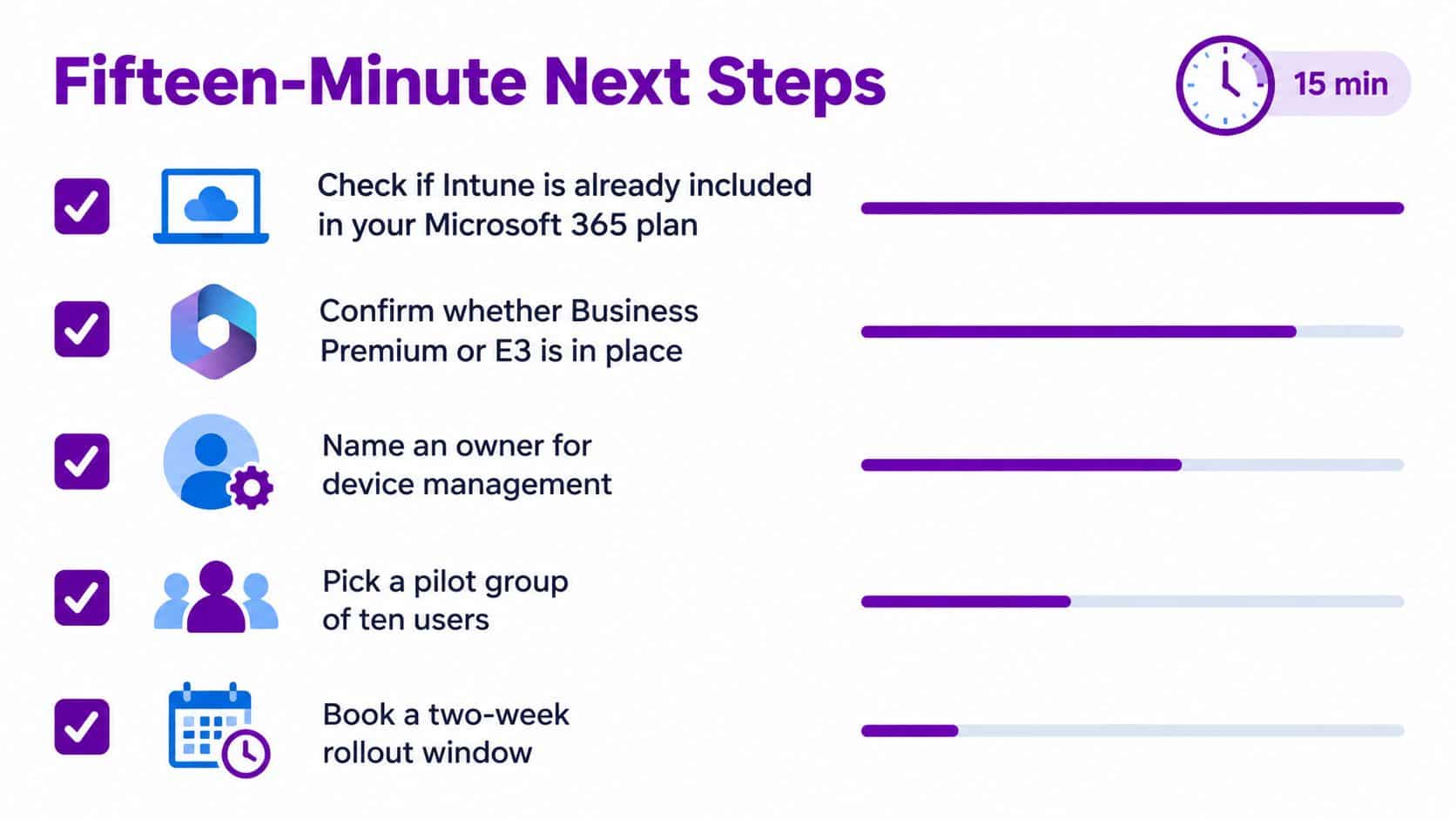
You can establish whether MDM deserves immediate attention in fifteen minutes. Start with the Microsoft 365 admin centre and confirm whether your organisation already holds Microsoft 365 Business Premium, an enterprise plan or a separate Intune entitlement.
Then count the access paths, not just the company-owned devices. Include personal phones, home laptops, tablets, shared warehouse equipment and any endpoint used to reach company data. Identify one compliance pressure that the rollout must evidence, such as Cyber Essentials, FCA expectations, NHS DSPT requirements or an insurer questionnaire.
Assign one accountable owner. Choose a pilot group of ten users that reflects real working conditions, then reserve a two-week rollout window with support capacity around it.
Bring your licence summary, device inventory, BYOD position, current compliance requirement and known problem devices to the conversation. That turns an introductory call into a practical scoping session.
F1Group helps East Midlands organisations plan and implement Microsoft Intune-based mobile device management, including device enrolment, access policies, application control and ongoing support. Visit F1Group to arrange a focused scoping conversation, or call 0845 855 0000 today and send us a message with your current Microsoft 365 plan and device estate.