
Your Wi-Fi often ends up carrying far more business risk than people realise. In many East Midlands firms, the wireless network grew in stages: one router became several access points, staff connected laptops and mobiles, someone added a printer, then a meeting room screen, then a smart device nobody documented. It still works, so it gets ignored.
That’s usually the problem.
For businesses using Microsoft 365, Azure and cloud line-of-business systems, Wi-Fi isn’t just “the internet”. It’s the path into email, files, Teams calls, SharePoint, business apps and admin sessions. If that path is weak, everything behind it is easier to reach. Secure Wi-Fi starts with accepting a simple point: the wireless network is part of your security boundary, not a convenience feature.
Why Your Business Wi-Fi Is a Bigger Risk Than You Think
A familiar setup looks harmless enough. One shared Wi-Fi password. Company laptops, personal phones, a visitor needing internet access, and a few devices in the corner that nobody has reviewed in months. In a small office in Nottingham or Leicester, that can happen without anyone making a reckless decision. It just accumulates over time.
The risk sits in the gaps between those choices. Shared credentials get passed around. Old devices stay connected. A guest device ends up on the same network as finance laptops. Someone works from a café, reconnects later in the office, and assumes everything is fine because the Wi-Fi icon looks normal.
The wider threat picture is hard to ignore. In the UK, 43% of businesses reported a cyber breach or attack in the past 12 months, and 83% of these incidents involved phishing attacks, according to the government’s 2024 Cyber Security Breaches Survey as cited in this Statista summary of public Wi-Fi safety and use. Weak or poorly managed wireless access doesn’t cause every breach, but it gives attackers another route to credentials, sessions and internal systems.
Practical rule: If staff can reach Microsoft 365 over Wi-Fi, your wireless network is part of your identity security model whether you’ve planned it that way or not.
A lot of generic advice stops at “change the password”. That’s not enough for a business environment. If you want a solid baseline, Monro Cloud’s guide to network protection is a useful companion read because it treats Wi-Fi as one layer inside a broader security approach, not as a standalone checkbox.
Your Initial Secure Wi-Fi Checklist
Before changing advanced settings, clean up the obvious weaknesses. Most businesses can make meaningful improvements in an hour by checking what exists, who has access, and which old settings are still hanging around from years ago.
Start with access and ownership
If nobody owns the Wi-Fi, nobody secures it properly. One named person or provider should be responsible for the router, access points, passwords, firmware and documentation.
Run through this short audit first:
- List who knows the current Wi-Fi password. Include current staff, former staff, contractors, guests and third parties who may still have it saved on devices.
- Check who has administrator access to the router, firewall and wireless controller. Admin access matters more than the Wi-Fi password itself.
- Remove old devices from remembered or approved device lists if they no longer belong to current users.
- Write down the make and model of every router and access point. If you can’t identify a device, that’s a warning sign.
- Check for personal kit. Consumer extenders and old routers often get plugged in to “improve signal” and create unmanaged holes in the network.
Fix the basics that get missed
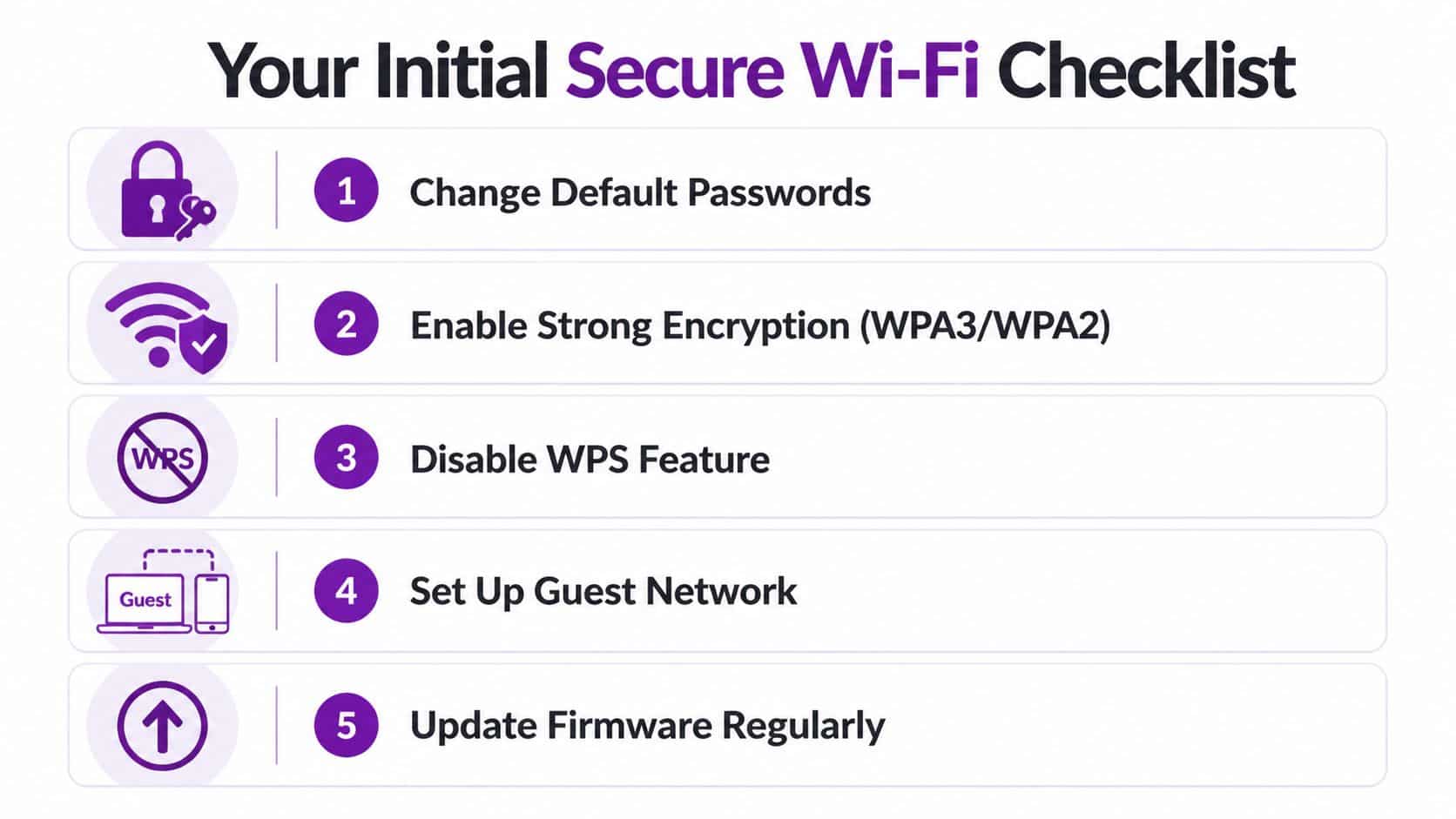
The simplest issues are still common in business environments. Default credentials, poor placement and out-of-date firmware are not glamorous problems, but they’re exactly the sort of things attackers take advantage of.
Prioritise these actions:
- Change default administrator credentials on every wireless and network device.
- Turn off WPS if it’s enabled. It has no place in a business setup.
- Update firmware on routers and access points.
- Review where access points are placed. If signal pours into the car park or street, you’re broadcasting beyond the space you control.
- Separate visitor access from staff access. Even a basic guest network is better than handing visitors the main password.
A secure Wi-Fi setup is usually less about one clever setting and more about removing five or six ordinary mistakes.
Check the physical environment too
Wireless security isn’t only in the admin panel. Walk the office.
Look for exposed network ports in reception areas, spare meeting rooms and shared desks. Check whether access points are mounted securely and labelled. Make sure nobody has reset a device and left it running with default settings. In smaller offices, I often find a forgotten switch, an old broadband router or a mesh node that nobody remembers installing.
A quick review like this gives you a useful dividing line. If your environment is still using shared passwords, mixed personal devices and undocumented equipment, fix that first. Advanced enterprise controls come later, but the basics still have to be right.
Essential Router and Access Point Configuration
Once the obvious issues are out of the way, move into the settings that define how secure your wireless network is. Many businesses then discover their Wi-Fi is still running on old assumptions: shared passwords, flat network access, and settings carried forward from hardware that should have been retired.
Choose the right security mode
For most businesses, the first target is simple. Use WPA3 where your equipment supports it, and fall back to WPA2 only where compatibility forces you to. WPA3 certification launched in 2018 and had reached over 40% adoption in UK enterprise networks by 2024, with stronger protection against brute-force attacks than older approaches, as noted in this overview of Wi-Fi safety and protocol changes.
That doesn’t mean every business should rush into every WPA3 option immediately. Some older devices, especially printers, scanners and specialist kit, don’t cope well with newer security settings. The practical answer is to identify those exceptions deliberately rather than lowering the standard for the whole office.
A sensible configuration approach looks like this:
- Main staff network. Use WPA3 if your laptops, phones and access points support it.
- Fallback for legacy business devices. Keep this limited and documented.
- Guest wireless. Separate it completely from internal systems.
- IoT or building devices. Put these on their own wireless segment if possible.
Set names and passwords properly
Your SSID naming matters more than people think. It should be clear enough for staff to recognise, but it shouldn’t advertise unnecessary information about your business, location or network role. Avoid names that identify a department, office function or exact site.
For password-based wireless, use a real passphrase, not a single word with a number on the end. Good passphrases are long, memorable and unique to that network. They should not be reused for VPNs, admin logins or cloud accounts.
Use this quick comparison when reviewing your setup:
| Setting | What works | What causes problems |
|---|---|---|
| SSID name | Neutral and simple | Naming it after the company, floor or server role |
| Wi-Fi passphrase | Long, unique passphrase | Short or reused passwords |
| Guest access | Separate guest SSID with isolation | Guests on the main office Wi-Fi |
| Admin login | Unique admin account and password | Shared admin credentials |
| Security mode | WPA3 where supported | Leaving older modes enabled without a reason |
If your business also needs perimeter controls beyond wireless settings, F1Group’s network security and firewall services explain how the wireless layer should sit alongside firewalls, filtering and policy enforcement.
Don’t let guest traffic mix with business traffic
Guest Wi-Fi should be isolated. Not restricted by goodwill. Isolated by design.
That means a visitor should get internet access and nothing more. No visibility of shared folders. No path to printers unless you have a specific reason. No route to the same internal network used by staff laptops running Outlook, Teams and line-of-business systems.
A short walkthrough can help if you’re reviewing these settings yourself:
If a guest can browse to an internal device, the guest network isn’t really a guest network.
One more practical point. Don’t hide behind obscurity. Hiding an SSID can reduce casual visibility, but it does not replace proper encryption, isolation and access control. Businesses sometimes treat hidden networks as a security measure. They aren’t. Real secure Wi-Fi comes from strong authentication, clear segmentation and disciplined admin practice.
Upgrading to Enterprise-Grade Wi-Fi Security
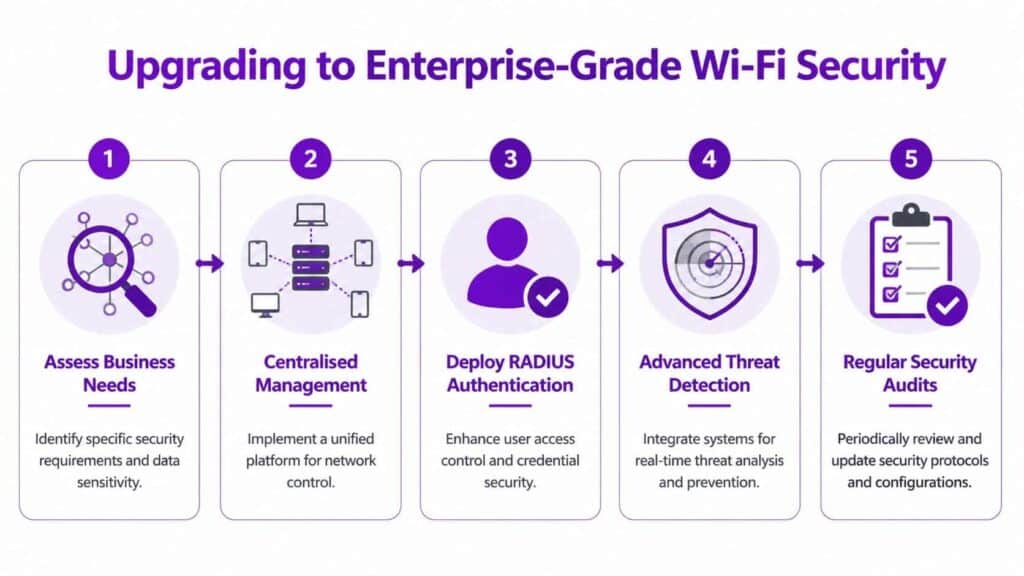
There’s a point where shared Wi-Fi passwords stop being manageable. Usually that happens when a business grows, adopts stricter compliance requirements, or starts relying heavily on Microsoft 365 and Azure for day-to-day work. At that stage, the right answer is no longer “make the password harder”. The right answer is to stop using a shared password for staff access.
What enterprise Wi-Fi changes
Enterprise wireless replaces one shared secret with per-user or per-device authentication. In practice, that usually means 802.1X authentication backed by a RADIUS server. Instead of everyone typing the same password into every device, each connection is checked against a trusted identity source.
For businesses already using Microsoft services, this matters because wireless access can align with your wider identity model. A user’s account status, device compliance and certificate posture can all influence whether that device should be allowed onto the network.
Shared Wi-Fi passwords are convenient right up until the day somebody leaves, loses a device, or connects something that never should have been trusted.
The gold standard for higher-risk environments
For stronger protection, the benchmark is WPA3-Enterprise 192-bit mode with EAP-TLS and a RADIUS server. That setup can integrate with Azure AD, and UK NCSC pilot reporting cited in Ekahau’s secure Wi-Fi guidance says it can prevent up to 95% of breaches in pilot tests, outperforming WPA2 approaches.
That sounds impressive, but there is a trade-off. This model is more secure because it is more controlled. It needs planning, certificate management and proper device onboarding. It is not something to switch on late on a Friday and hope for the best.
What to plan before you deploy it
A practical upgrade usually follows this order:
-
Check hardware support
Confirm that your access points, wireless controller and client devices support the enterprise mode you want to use. Legacy devices are often the first blocker. -
Decide who or what authenticates
Some organisations authenticate users. Others authenticate devices. In many Microsoft-led estates, a mixed approach works best. -
Set up RADIUS properly
RADIUS is the decision point for wireless access. It should be treated as critical infrastructure, not as an afterthought. -
Use certificates with EAP-TLS
Certificate-based authentication is far stronger than a shared passphrase because it removes the habit of circulating one secret around the business. -
Test legacy and specialist devices separately
Printers, scanners, handhelds and warehouse devices often need a different plan.
A lot of teams also benefit from reading about understanding zero trust principles, because enterprise wireless works best when it’s treated as part of a verify-first model rather than a trusted internal free-for-all.
Where Microsoft fits
If your business uses Azure, Microsoft 365 and device management tools, enterprise Wi-Fi becomes far easier to govern. Certificates can be deployed in a controlled way. Access can be tied to approved devices. Leavers can be removed centrally. That’s a much better operational model than trying to rotate a wireless password every time staffing changes.
The main thing to keep in mind is this. Enterprise-grade Wi-Fi is not only about stronger encryption. It’s about accountability. You need to know which user or device connected, whether it was meant to connect, and how quickly you can remove access if circumstances change.
Managing Devices, Policies, and People
A well-configured wireless network can still be undermined by poor device control and loose working habits. That’s why secure Wi-Fi isn’t just a router project. It’s also a device management and policy discipline.
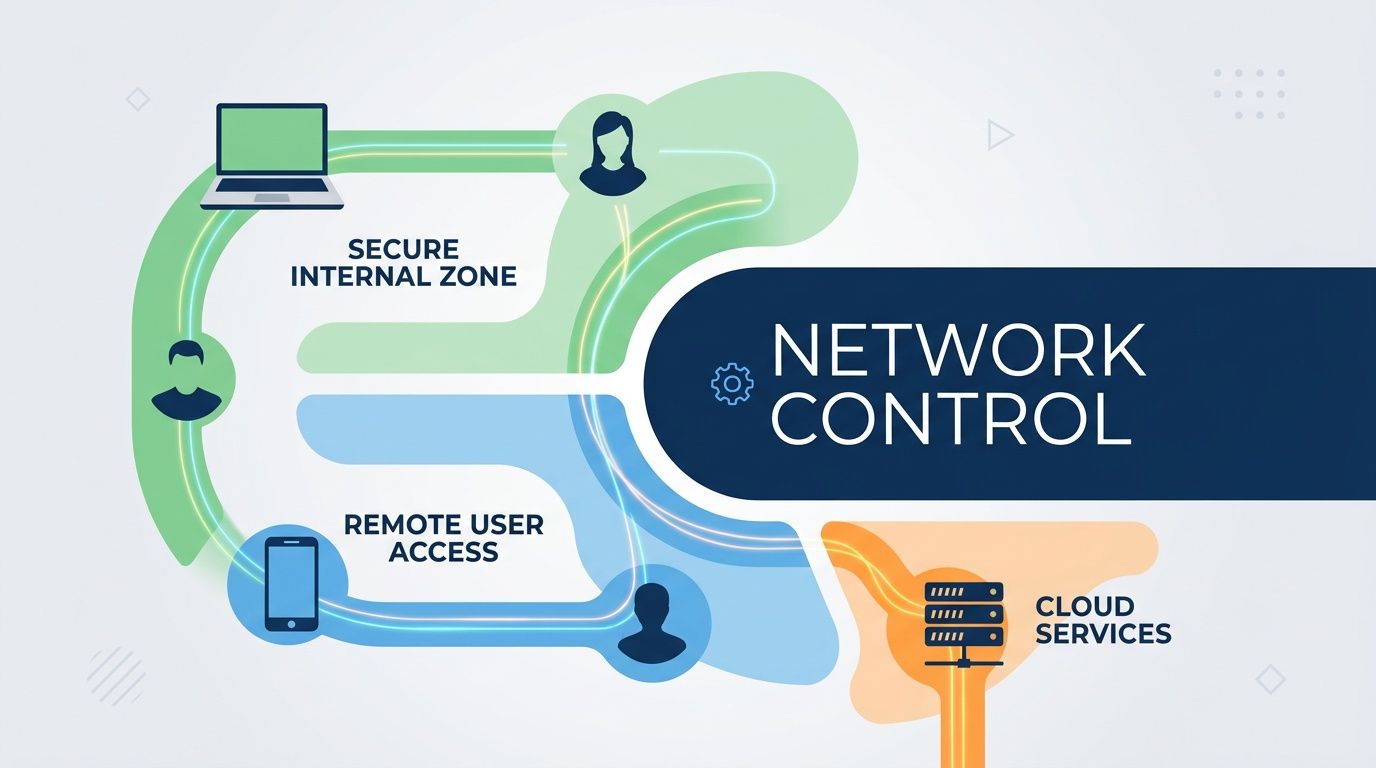
The easiest way to explain this is with rooms in a building. You wouldn’t put visitors, finance staff, warehouse handhelds and printers all in one unsecured room and assume people will behave sensibly. Network segmentation follows the same logic. Different devices and users need different spaces.
Split the network by purpose
Use VLANs or equivalent segmentation to separate traffic by role. In plain terms, that means creating controlled network areas for:
- Core business devices such as managed laptops and approved phones
- Guest users who should only reach the internet
- Printers and shared peripherals that don’t need broad access
- IoT and smart devices that are often weak from a security perspective
- Sensitive teams such as finance or HR where tighter controls may be justified
When businesses keep everything on one flat wireless network, an avoidable mistake becomes a bigger incident. A compromised personal phone should not be able to browse across the same space used by payroll, management and admin systems.
Put policy behind the technology
Technical controls work best when staff know the rules. You need a written Wi-Fi and device access policy, even if it’s short.
That policy should cover:
- Who may connect. Staff, approved contractors and managed devices only.
- What may connect. Company devices by default, with a defined process for exceptions.
- How guests get online. Through a guest network, never the main office wireless.
- What staff must not do. No personal access points, no sharing passwords, no bypassing controls.
- What happens when someone leaves. Their device and access should be removed as part of the offboarding checklist.
Staff don’t break wireless security because they want to. They usually do it because nobody gave them a safer process that was easy to follow.
Manage the endpoint, not just the signal
Mobile device management proves its value. If you’re using Microsoft tooling, Microsoft Intune for business device management gives you a cleaner way to push wireless profiles, enforce compliance and remove access from unmanaged or non-compliant devices.
That matters because the Wi-Fi connection is only one piece of trust. The other piece is the device itself. If a laptop is unpatched, unmanaged or no longer belongs to a current member of staff, it shouldn’t be treated like a safe endpoint just because it knows the wireless settings.
For shared credentials, policy also matters. Teams that still need password-based access should stop storing key details in ad hoc notes or chat threads. If you’re reviewing options for safer credential handling, Toolradar’s guide to team tools is useful for comparing how teams manage shared secrets more responsibly.
Train for the real-world failure points
Most wireless risk shows up in ordinary habits:
| Scenario | Better approach |
|---|---|
| Staff member shares the main Wi-Fi password with a visitor | Use guest access only |
| Employee connects business laptop to unknown public Wi-Fi | Use approved remote access methods and staff guidance |
| Old phone still connects after staff departure | Remove saved access during offboarding |
| Smart devices join the main business SSID | Place them on a separate segment |
People don’t need a lecture on radio protocols. They need simple rules that fit the way they work. If your policy is too vague, staff will improvise. If your onboarding and offboarding processes are weak, the network will slowly fill up with trusted devices that no longer deserve trust.
Ongoing Monitoring and When to Call for Experts
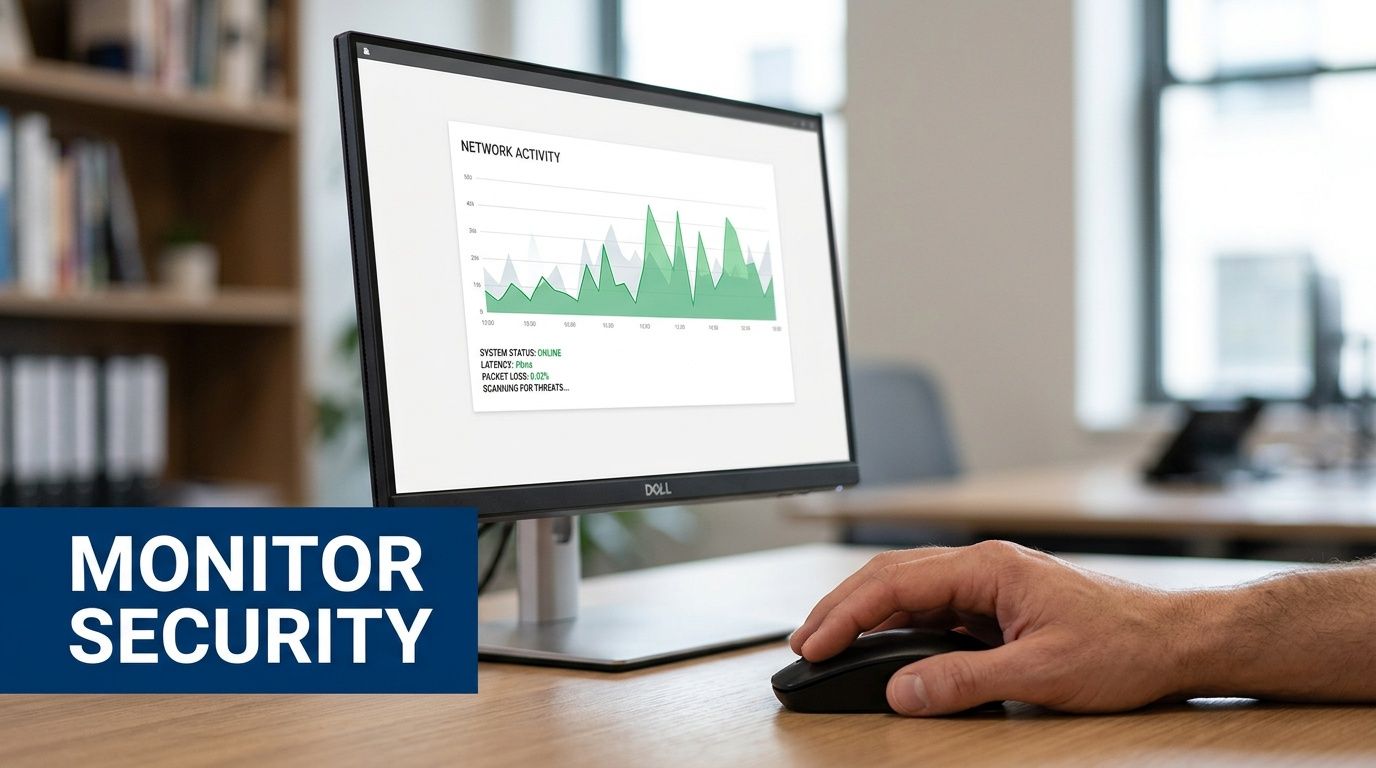
Wi-Fi security isn’t finished when the settings look tidy. A business network changes constantly. People join and leave, devices age, firmware updates appear, and one hurried exception can undo months of careful work.
That’s why a secure wi fi approach needs routine review.
What to review every month
Most businesses don’t need a dramatic process. They need a repeatable one. A monthly review catches a lot of drift before it becomes a genuine incident.
Check these items:
- Connected devices. Look for unfamiliar names, old devices and equipment that should have been retired.
- Admin accounts. Confirm who still has access to the wireless platform, controller or firewall.
- Guest network behaviour. Make sure guest traffic is still isolated and the settings haven’t been relaxed for convenience.
- Firmware status. Keep routers, access points and related security appliances current.
- Coverage changes. Building layouts, new partitions and office moves can alter how far your signal reaches.
What to review every quarter
Quarterly reviews should go a bit deeper. This is the point where you test whether the wireless setup still matches the business, not just whether it still powers on.
Use a structure like this:
-
Review access by role
Check whether departments that handle more sensitive data need tighter segmentation or authentication. -
Test guest and staff separation
Verify that isolation still works in practice, not just on paper. -
Inspect legacy exceptions
Any old scanner, printer or embedded device that forced a weaker setting should be challenged again. Temporary exceptions tend to become permanent if nobody revisits them. -
Review documentation
Your team should know what hardware exists, who manages it and how access is granted or removed.
The biggest long-term weakness in business Wi-Fi is usually drift. Settings stay in place long after the reason for them has gone.
What good monitoring actually looks like
Businesses sometimes hear “monitoring” and imagine a complex security operations centre. In reality, good wireless monitoring starts with visibility and discipline.
You want to be able to answer basic questions quickly:
- Which devices are connected right now?
- Which SSIDs are active?
- Who changed the wireless configuration last?
- Which access points need updates?
- Are guest users isolated from internal services?
- Are there devices authenticating in ways you no longer want to allow?
If those answers are difficult to get, you already have an operational problem even before any attacker arrives.
For businesses that need stronger perimeter oversight alongside wireless controls, managed firewall support from F1Group is part of the wider picture. Wi-Fi, firewall policy, remote access and cloud identity should reinforce each other.
When internal management stops being practical
There’s a clear line where DIY administration becomes a false economy. That line usually appears when the wireless environment affects compliance, operational uptime or a Microsoft-led cloud estate that the business relies on every day.
It often makes sense to bring in specialist help when:
- You need 802.1X, RADIUS or certificate-based authentication
- You have multiple sites and need consistency across offices
- You handle sensitive data and need stronger segregation and audit confidence
- You rely heavily on Microsoft 365 or Azure and want wireless access aligned with device and identity controls
- You’re carrying legacy equipment that needs careful transition planning
- Nobody internally owns the platform and Wi-Fi problems are being fixed reactively
What an expert review should cover
If you ask an external team to assess your Wi-Fi, the review should be practical and specific. It should not stop at “enable WPA3” and “change the password”.
Expect a proper review to cover:
| Area | What should be checked |
|---|---|
| Security mode | Whether WPA2, WPA3 or enterprise authentication is configured appropriately |
| Segmentation | Whether guests, staff, IoT and sensitive devices are separated properly |
| Identity integration | Whether wireless access matches your wider user and device controls |
| Device compatibility | Which legacy devices are forcing compromises |
| Operational process | How onboarding, offboarding, patching and ownership are handled |
| Monitoring | Whether logs, alerts and admin activity are visible and reviewed |
A good outcome isn’t necessarily the most complex setup. It’s the one your business can run reliably, support properly and improve over time. For some organisations that will mean a strong password-based design with good segmentation. For others, especially those with larger teams or stricter requirements, it will mean moving to full enterprise authentication.
If you’re in Lincoln, Nottingham, Leicester, Scunthorpe, Grimsby or Newark, the principle is the same. Wireless should not be the soft spot in an otherwise well-managed Microsoft environment. It should be one of the controls that makes the rest of your estate safer.
If you want a professional review of your secure wi fi setup, or you need help moving from a shared-password network to a properly managed business-grade design, contact F1Group. Phone 0845 855 0000 today or send us a message.