
If you’re still running projects from a shared spreadsheet, a handful of Outlook flags, and a long email thread nobody wants to reopen, you’re not alone. In a lot of East Midlands businesses, that’s still how work gets tracked. Sales hands something to operations. Operations chases finance. Finance asks for the latest version. Someone says they never saw the email. The job keeps moving, but not cleanly.
That mess usually doesn’t come from laziness. It comes from teams using the tools they already know, even when those tools stop being enough. Spreadsheets are fine for lists. Email is fine for conversations. Neither is good at showing who owns a task, what’s late, what depends on what, and what the whole team should focus on next.
Office 365 Planner, now more commonly called Microsoft Planner, earns its place. It gives teams one visual place to organise work, assign tasks, set dates, and see progress without turning project management into a full-time admin job.
For a business owner in Nottingham, Lincoln, Newark, Leicester, Scunthorpe, or Grimsby, that’s the practical appeal. You don’t need a heavyweight project platform to fix day-to-day coordination. You need something your team will use, something that fits the Microsoft 365 setup you probably already rely on, and something that reduces the daily back-and-forth instead of adding to it.
Tired of Tracking Tasks on Spreadsheets and Emails
A familiar pattern shows up in growing businesses. A manager starts with a spreadsheet because it’s quick. Then another team member makes a copy. Someone adds comments by email. Deadlines move. The spreadsheet isn’t updated. By Friday, nobody is completely sure which version is right.
That gets expensive in ordinary ways. Work is duplicated. Handoffs stall. Simple follow-ups turn into meetings. Staff spend more time asking for updates than doing the work. In smaller teams, the pressure lands on one person who becomes the human project tracker for everyone else.
Planner works because it replaces scattered task tracking with one shared view. Instead of asking, “Who said they’d do this?” the team can see the task, the owner, the due date, the notes, the files, and the current status in one place. That removes a surprising amount of noise.
Teams don’t usually need more communication. They need clearer coordination.
In practice, that might mean a professional services firm in Nottingham using one plan for client onboarding, or a logistics team in Newark using buckets to track dispatch, delivery exceptions, and billing follow-up. The point isn’t the label on the tool. The point is that work stops living in private inboxes.
Planner also helps because it feels approachable. People who would never open a traditional project management package can usually understand a board with tasks arranged by stage. That’s why it often succeeds where more advanced systems fail. It lowers the barrier to adoption without removing accountability.
What Is Microsoft Planner and Who Is It For
Think of Microsoft Planner as a digital team noticeboard. If you’ve ever seen a whiteboard split into columns such as “To Do”, “In Progress”, and “Done”, you’ve already understood the basic model.
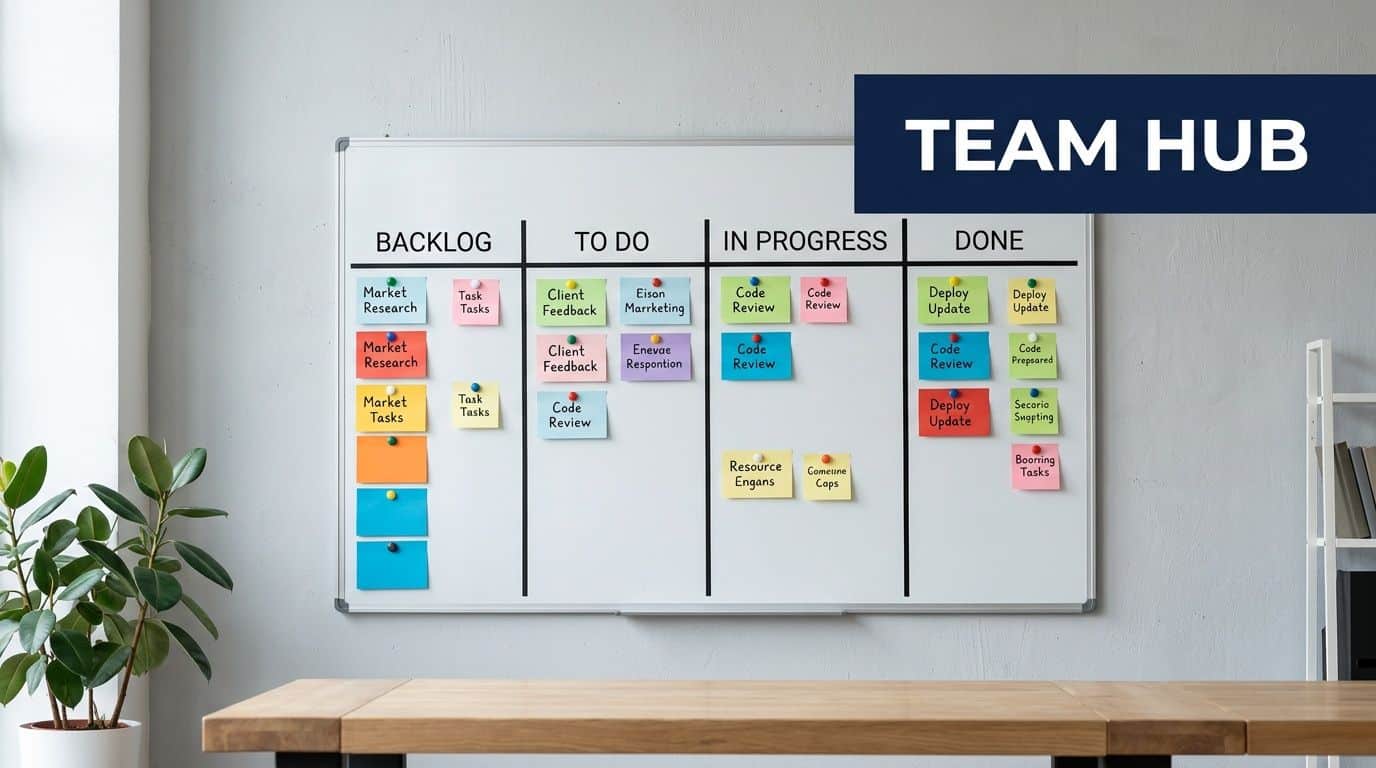
Planner began as a simpler way to manage team tasks inside Microsoft 365. Microsoft Planner was first launched in 2016 to simplify task management within Office 365. Since 2023, premium features have expanded its capabilities to include Timeline views, task dependencies, and custom fields, moving it closer to lightweight project management software, as noted in this Planner roadmap summary.
The plain-English version
At its core, Planner gives you a place to:
- Create a plan for a team, department, or project
- Break work into tasks with owners and due dates
- Group tasks into buckets such as stages, departments, or workstreams
- Track status visually so people can see progress without asking
- Work inside Microsoft 365 rather than adding another disconnected app
That makes it a good fit for teams that need structure, but not the overhead of a large project management platform.
Who tends to get the most value
Planner is usually strongest for organisations that sit in the middle ground. They need more than a to-do list, but they don’t want to run every job like a major programme.
Common fits include:
- Operations teams managing recurring work, service delivery, or internal improvements
- HR departments handling onboarding, policy rollouts, and recruitment stages
- Marketing teams coordinating campaigns, approvals, and content production
- Sales and admin teams tracking post-sale handovers and internal actions
- Charities and mid-sized firms that need visibility without a complex setup
For East Midlands businesses, that often means practical use cases rather than theory. A Nottingham accountancy practice might use Planner for month-end task control. A Lincoln manufacturer might use it for internal change projects. A Newark logistics firm might use it to coordinate tasks between operations, customer service, and finance.
Who it isn’t for
Planner isn’t the right answer for every scenario.
If you’re running highly detailed programmes with complex resource management, formal baselines, or deep portfolio reporting, Planner on its own may feel too light. If your team needs rigid methodology enforcement, it may need a wider toolset around it.
Practical rule: Use Planner when the team needs visibility, ownership, and momentum. Look beyond Planner when the organisation needs full programme control and formal project governance.
That middle ground is exactly why office 365 planner remains so useful. It covers the gap between personal task lists and full project software, and it does it in a way most staff can grasp quickly.
Understanding Core Features and Business Benefits
Planner is straightforward on the surface, but the value comes from how its simple parts fit together. If a team understands the basic building blocks, it usually gets better results and far less clutter.

Plans and buckets
A plan is the container for a set of work. That could be a client implementation, a department process, a fundraising campaign, or an office move. Inside the plan, buckets let you organise tasks in a way that makes sense to the team.
Some businesses structure buckets by stage:
- Backlog
- Ready
- In progress
- Waiting
- Complete
Others use buckets by function:
- Sales
- Operations
- Finance
- Customer care
The business benefit is clarity. A good bucket structure answers the question, “Where is this piece of work right now?” without anyone needing to ask for an update.
Task cards that hold the real work
Each task card can carry the details that normally get lost in email. You can assign an owner, add a due date, write notes, attach files, and include a checklist.
That matters because most operational work isn’t one action. “Set up new starter” sounds simple until you break it down into laptop setup, account creation, security group checks, training schedule, payroll confirmation, and manager sign-off. A checklist inside the task keeps that process visible and repeatable.
Here’s a practical perspective:
| Planner feature | What it does in practice |
|---|---|
| Assigned owner | Stops tasks becoming “everyone’s job”, which usually means nobody owns them |
| Due date | Gives the team a visible commitment point |
| Checklist | Helps staff follow repeatable processes consistently |
| Notes and attachments | Keeps context with the task instead of burying it in inboxes |
Labels, views, and what people actually notice
Labels are easy to underestimate. They look like coloured tags, but they become useful when a team agrees what they mean. One business might use labels for urgency. Another might use them for client type, risk, or department.
The key is consistency. If one person uses red for urgent and another uses red for finance, the label system collapses.
Planner’s views help in different ways:
- Board view is best for day-to-day team coordination
- Schedule view helps spot deadline pressure
- Charts and progress views help managers see where work is stuck
If your business is already looking at workflow automation, Planner becomes even more useful when paired with tools in the Microsoft ecosystem. That’s where services such as the Microsoft Power Platform often come into the conversation, especially when manual updates start slowing the team down.
A tidy Planner board isn’t the goal. A board that helps people take the next action without confusion is the goal.
Improving Teamwork with Key Microsoft 365 Integrations
A Planner board on its own can help a team stay organised. In practice, most Nottingham and Lincoln businesses get more value when Planner sits inside the tools staff already use each day. That is usually the point where task tracking starts supporting the business properly, rather than becoming another tab people forget to open.
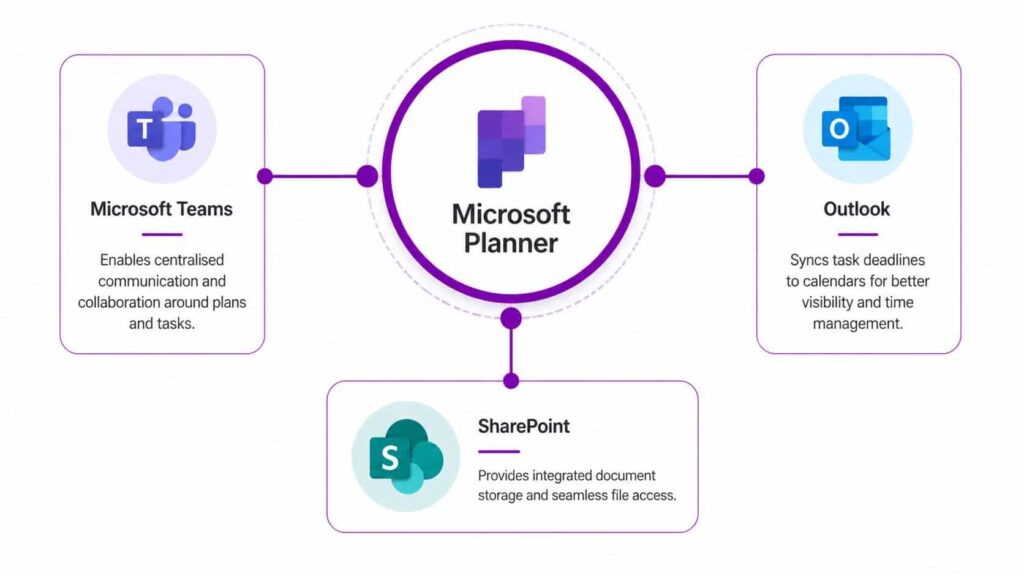
Teams keeps work, conversation, and files in one place
Planner works especially well inside Microsoft Teams. Add the plan as a tab in the right channel, and staff can see tasks next to the chat, meeting notes, and documents tied to that piece of work.
That small setup choice changes habits. People do not have to jump between apps or search back through emails to work out what was agreed. For firms standardising on Teams across office, warehouse, and field-based staff, that reduction in friction matters. If your team still needs the basics putting in place, this guide on how to use Microsoft Teams effectively is a sensible starting point.
To Do gives individuals a clearer daily view
Shared visibility is useful for managers, but individual staff still need a practical way to manage their own day. Assigned Planner tasks can appear in Microsoft To Do, which gives each person one place to review what needs attention across different plans.
That matters in busy environments where one employee may be part of sales, service, and internal improvement work at the same time. Planner helps the team coordinate. To Do helps the individual decide what to tackle first.
Power Automate and Dynamics 365 connect tasks to live business processes
Generic guides often stop at Teams and To Do. For East Midlands firms running finance, service, or sales processes through Dynamics 365, the bigger benefit usually comes from connecting Planner to operational systems with Power Automate.
A straightforward example is a sales handover. When an opportunity reaches a certain stage in Dynamics 365, Power Automate can create a set of Planner tasks for onboarding, delivery, or account setup. In a finance process, completing a Planner task can trigger the next approval step or notify the right team in Teams. Staff spend less time re-keying updates, and managers get a clearer picture of where work is waiting.
Many local businesses have grown by adding systems over time. CRM sits in one place, documents in another, and tasks somewhere else entirely. Planner can act as the visible task layer, while Power Automate handles the movement of information behind the scenes.
When Planner is tied to the process, progress no longer depends on someone remembering to copy an update from one system into another.
The combinations that usually deliver the most day-to-day value are:
| Integration | Business result |
|---|---|
| Planner plus Teams | Keeps tasks, discussions, and files together |
| Planner plus To Do | Gives staff a manageable personal task list |
| Planner plus Power Automate | Cuts out repetitive admin and status chasing |
| Planner plus Dynamics 365 | Links delivery work to customer, case, or finance records |
There is a trade-off to handle properly. Automation helps when the process is stable and the ownership is clear. If a Nottingham manufacturer or Lincoln professional services firm tries to automate a workflow that is still changing every week, Planner will mirror that confusion rather than fix it. Governance, naming, and a sensible process design need sorting first.
Advanced Capabilities with the New Planner Premium
Basic Planner is enough for a lot of teams. Then a business hits a point where simple boards stop being enough. Deadlines start depending on each other. Leadership wants a clearer project view. The team needs more than cards moving across columns.

What Premium adds
Planner Premium brings in features that make it feel more like lightweight project management software than a straightforward task board.
The most useful additions for many organisations are:
- Timeline view for seeing work across time rather than just by bucket
- Task dependencies so one task can wait on another properly
- Custom fields for project-specific information
- Goals support for linking work to broader objectives
The practical change is this. Basic Planner helps teams track activity. Premium helps them manage sequence, structure, and reporting more deliberately.
When the upgrade makes sense
If your team only needs a shared task list, Premium may be unnecessary. If you're coordinating a business change project, an implementation with multiple workstreams, or a process that depends on ordered handoffs, Premium starts to earn its keep.
The licensed cost often matters to business owners, so it's worth being direct. The premium plan is listed at £10 per user per month equivalent from the cited pricing reference, based on the provided premium plan figure in the verified data linked above through Microsoft's pricing page. That doesn't mean every user needs it. In many businesses, only project leads, coordinators, or specific departments need the extra features.
A simple decision test helps:
| Situation | Basic Planner | Planner Premium |
|---|---|---|
| Team task tracking | Good fit | Possible, but often unnecessary |
| Cross-team projects with dependencies | Limited | Better fit |
| Need for timeline-style planning | Limited | Better fit |
| Need to track custom project data | Limited | Better fit |
Where people often get this wrong
Some businesses jump to Premium too early. They assume more features will fix weak working habits. They won't. If due dates are inconsistent and tasks aren't owned properly, a timeline view just gives you a more expensive picture of the same disorder.
Others wait too long. They try to force complex delivery work into a basic board and end up with awkward workarounds, duplicate plans, or manual reporting.
This walkthrough gives a useful visual sense of the newer Planner experience:
A sensible approach
Start with the process, not the licence. If the team needs simple collaboration, stay simple. If the team needs sequencing, milestones, and more structured oversight, Premium is a reasonable step.
Buy Premium when the project has outgrown the board, not when the board is still being ignored.
For many East Midlands firms, that means using basic Planner in departments and Premium in more formal delivery teams. That mix is often more practical than trying to standardise everything at the most advanced level.
Essential Governance and Deployment Best Practices
Planner is easy to start with. That's one of its strengths. It's also why it can become messy very quickly if nobody sets rules for how it's meant to be used.
Governance matters earlier than most teams think
Without governance, Planner can recreate the same confusion it was meant to solve. You end up with duplicate plans, unclear ownership, inconsistent labels, and tasks spread across too many workspaces.
A controlled rollout doesn't need to feel bureaucratic. It just needs a few decisions made up front.
For example:
- Plan naming rules should be agreed before rollout. "HR Tasks", "HR Project", and "HR Team Board" might all refer to the same thing.
- Creation rights need thought. If everyone can create plans without any standard, sprawl follows.
- Lifecycle rules matter. Finished projects shouldn't clutter live working spaces forever.
Teams that already work better with clear scope definitions often benefit from simple planning discipline before they even create the first board. A useful external read on this is defining project scope for development teams, because many task management problems start before the tool is ever opened.
Security and compliance in a UK context
Security is one area where generic advice usually falls short. For UK organisations, especially charities, regulated firms, and businesses handling client-sensitive information, Planner needs to sit inside the same governance model as the rest of Microsoft 365.
Planner's security is built on Azure AD (now Entra ID), allowing for Conditional Access policies and role-based access control. Tasks and their attachments are stored within the UK data residency boundaries for Microsoft 365, and can be protected with Microsoft Purview Data Loss Prevention policies to meet GDPR and NCSC compliance, according to the Microsoft Planner service description.
That has practical consequences:
- Guest access shouldn't be enabled casually
- Sensitive projects may need tighter membership control
- DLP and access policies should reflect the type of data being handled
If you're already reviewing broader tenant controls, these Microsoft 365 security best practices are a helpful companion.
Good governance doesn't slow teams down. It stops them cleaning up avoidable mess six months later.
A deployment model that usually works
Rather than opening Planner to everyone on day one, a phased rollout is often more effective.
-
Start with a clear use case
Pick one process that already suffers from poor visibility, such as onboarding or internal project delivery. -
Create a shared template approach
Decide your bucket structure, labels, naming convention, and task rules before users branch off into their own versions. -
Review after live use
Watch how the team uses it. The best governance model is usually adjusted after a few weeks of real work, not imagined perfectly in advance.
The point is control with enough flexibility to be useful. Too rigid, and staff avoid it. Too loose, and the environment fills with noise.
Migration Guidance and Common Pitfalls to Avoid
A lot of businesses assume Planner adoption should be easy because the interface looks simple. That's only partly true. The software is approachable. The migration of habits is harder.
If your team is coming from Trello, Asana, spreadsheets, or a home-grown mix of Outlook tasks and shared files, don't treat the move as a drag-and-drop exercise. A board may transfer. A working method often doesn't.
Moving from another tool without carrying the old mess across
When teams migrate badly, they usually copy everything. Every list becomes a bucket. Every old card becomes a task. Every outdated label gets recreated. The result is a fresh Planner board filled with legacy clutter.
A better approach is to map concepts, not copy history blindly.
- Current boards or lists become candidate buckets, but only if they still reflect how the team works
- Old labels should be reduced to a smaller, agreed set
- Dormant tasks should be archived, not imported for the sake of completeness
- Owners and due dates should be checked before go-live, because bad data on day one damages confidence quickly
The common pitfalls that quietly weaken Planner
The biggest mistake is plan sprawl. Teams create a new plan for every small initiative, every meeting stream, or every temporary request. That splits attention and makes reporting harder.
Another problem is inconsistent discipline. If some tasks have due dates and others don't, if labels are optional, or if checklists are used by one person and ignored by the rest, the board stops being trustworthy.
Three issues show up repeatedly:
| Pitfall | What happens |
|---|---|
| Too many plans | Staff stop knowing where work belongs |
| Weak task hygiene | Due dates and ownership become unreliable |
| Planner left outside Teams | The board becomes isolated from daily collaboration |
The phrase "we'll tidy it up later" usually means the board will become harder to trust each week.
The East Midlands integration problem many firms recognise
Here, a local view matters. In businesses across Nottingham, Lincoln, and the wider region, the challenge often isn't using Planner. It's connecting Planner to existing systems properly, especially when legacy applications or mixed cloud and on-premise setups are involved.
A cited UK report states that 42% of East Midlands SMEs had fully integrated Planner with Dynamics 365, compared to a 58% national average, as referenced in this Tech Community source included in the verified data. In practical terms, that gap often shows up as duplicated updates, delayed handovers, and staff maintaining the same status in more than one system.
That doesn't mean Planner and Dynamics 365 are a poor match. It means integration needs design, testing, and ownership. Common trouble spots include unclear trigger logic, mismatched field expectations, and workflows built around exceptions nobody documented.
What works better in practice
A steadier rollout usually looks like this:
- Start with one workflow that already has clear stages
- Decide which system is the master for each piece of information
- Test with live users before broad rollout
- Keep change management simple and visible
Planner succeeds when the business treats it as part of an operating model, not just a new app to switch on.
Partner with F1Group for Planner Success
Microsoft Planner can make work much clearer. It gives teams shared visibility, creates accountability, and reduces the friction that builds up when tasks live across emails, spreadsheets, and memory. Used well, it helps people spend less time chasing updates and more time getting work finished.
It also has a practical advantage many businesses overlook. Because Planner sits within Microsoft 365, it can fit naturally with the tools your staff already use. That makes adoption easier than introducing a completely separate platform, provided the rollout is handled sensibly.
The difference between a Planner board that helps and one that gets ignored usually comes down to setup, governance, and integration. Teams need the right structure, the right permissions, and a clear decision on how Planner will connect with Teams, To Do, Power Automate, and, where relevant, Dynamics 365.
For organisations across the East Midlands, that often means balancing usability with control. A business owner wants something staff will use. An IT manager wants something secure, supportable, and well governed. Both are right.
F1Group helps businesses across Lincoln, Nottingham, Leicester, Scunthorpe, Grimsby, and Newark implement Microsoft technologies in a way that works in day-to-day operations, not just in a demo. That includes practical Planner setup, process design, Microsoft 365 integration, user adoption support, and ongoing guidance so the environment stays organised as your business grows.
If office 365 planner feels like the right fit but you're not sure how to deploy it properly, that's the point to get expert help. A good rollout saves a lot of rework later.
If you want help turning Microsoft Planner into a tool your team relies on, speak to F1Group. Phone 0845 855 0000 today or send us a message to discuss your requirements.