
A lot of business owners only look at Outlook sign-in security after something odd happens. A user gets a login prompt they weren't expecting. Mail stops syncing on one phone. A finance mailbox starts sending replies nobody recognises. By that point, you're no longer discussing a nice security improvement. You're dealing with business risk in real time.
That's where the current two factor authentication Outlook conversation often goes wrong. Most advice online shows a simple personal account setup, but that isn't how a real business works. A proper Microsoft 365 rollout has to account for staff mobiles, Outlook desktop, shared access, older devices, admin accounts, and the fact that not every member of staff is comfortable with security prompts.
If you run a business in the East Midlands and rely on Microsoft 365 for email, calendars, Teams and files, two-factor authentication needs to be treated as part of operations, not a side setting. Done properly, it reduces account takeover risk without making day-to-day work harder. Done badly, it creates lockouts, support tickets and workarounds that weaken security again.
Why Your Business Needs Two-Factor Authentication Now
The most common starting point is simple. A member of staff receives a convincing email that looks like Microsoft, a supplier, or a document-sharing request. They enter their password into a fake sign-in page. From there, an attacker doesn't need to break in. They can just log in.
That's why passwords on their own are no longer enough for Microsoft 365. Two-factor authentication adds a second proof of identity, so a stolen password is less useful on its own. If you want a plain-English overview before getting into Microsoft-specific decisions, Vulnsy's multi-factor authentication guide gives a useful summary of how the control works in practice.
The gap between what businesses should do and what many still do is significant. A UK industry report from Chess ICT states that only 40% of UK businesses and around one-third of charities use 2FA (Chess ICT's UK 2FA statistics). For organisations built around Microsoft 365, that leaves a lot of email accounts, SharePoint files and Teams access protected by passwords alone.
Why Outlook is usually the first target
Outlook isn't just an email app. It's often the front door to the rest of the business. Once someone gets into a mailbox, they can read invoice chains, impersonate staff, reset other accounts, and watch internal conversations.
Practical rule: If email is compromised, assume the attacker will try to use trust, not just technology.
For smaller firms, this matters even more. Many don't have a full-time internal security team, but they still hold payroll data, customer records, contracts and banking discussions in Microsoft 365. That makes account protection a board-level issue, even in businesses with modest headcount.
Why this is now baseline protection
Microsoft's own guidance is clear that MFA helps block unauthorised access even when a password is compromised, which is why it has moved from optional extra to basic sign-in hygiene. If you need a Microsoft-focused explanation of how this works in business environments, F1 Group has a straightforward guide on what multi-factor authentication means for Microsoft sign-ins.
What works is enforcement across the organisation. What doesn't work is leaving MFA optional and hoping people set it up themselves. In practice, the users least likely to enrol voluntarily are often the ones most likely to click quickly, reuse passwords, or ignore suspicious prompts.
Choosing Your MFA Rollout Strategy in Microsoft 365
The first decision is administrative, not technical. In Microsoft 365, most businesses will land on one of two routes. Security Defaults or Conditional Access. Both improve security. They don't give you the same level of control.

Security Defaults for simpler environments
Security Defaults suits smaller businesses that want a cleaner starting point. It's the practical answer when you want Microsoft 365 protected without building a policy framework from scratch.
You turn on a baseline set of protections, users are pushed towards MFA registration, and the environment becomes safer quickly. For firms with standard user accounts, cloud-only services and no unusual access requirements, that's often enough to get moving.
What Security Defaults doesn't give you is nuance. You can't easily create different rules for finance, remote workers, admin accounts, or specific access conditions. If your environment is basic, that limitation may be acceptable. If it isn't, you'll hit the edges quite fast.
Conditional Access for control and exceptions
Conditional Access is the stronger fit where business reality is messier. It lets you decide who must use which method, under what conditions, and with what exceptions. That matters if you've got privileged accounts, mixed device standards, location-based restrictions, or legacy software you're still phasing out.
A useful background read here is learn secure development with AuditYour.App. It isn't an Outlook setup guide, but it helps frame the wider point that security works best when it's designed into systems and processes from the start, not bolted on later.
A lot of business owners hear “more advanced” and assume “better”. That isn't always true. Conditional Access is better only if someone is going to manage it properly.
The wrong policy can lock out the right people just as effectively as it blocks the wrong ones.
A practical comparison
| Option | Best fit | Strength | Limitation |
|---|---|---|---|
| Security Defaults | Smaller firms with standard Microsoft 365 use | Fast baseline rollout | Limited control |
| Conditional Access | Businesses with higher risk roles or complex access needs | Granular enforcement | More planning and administration |
Microsoft's security data adds weight to the decision. More than 99.9% of compromised accounts do not have multi-factor authentication enabled (Microsoft security guidance). The lesson isn't that every business needs the most complex setup. It's that not enforcing MFA is the bigger mistake.
How to choose without overcomplicating it
Use these criteria:
- Choose Security Defaults if your users mainly work in Microsoft 365, you want a fast rollout, and you don't need many exceptions.
- Choose Conditional Access if you need to separate standard staff from admins, apply stronger controls to sensitive roles, or manage access based on risk and device state.
- Pause and map exceptions first if you already know you have older mail clients, shared access arrangements or specialist line-of-business tools tied into Microsoft accounts.
If your team is still getting familiar with the platform, it helps to understand how Azure Active Directory fits into Microsoft identity management, because most of the important sign-in decisions sit there.
A Step-by-Step Guide to User MFA Enrolment
For most staff, the best method is the Microsoft Authenticator app. It's more secure than SMS, easier to support, and usually quicker for the user once it's set up.

The aim during enrolment is to remove uncertainty. If staff don't know what they're seeing, they hesitate, guess, or call the helpdesk. A short, consistent process avoids most of that.
What users should do
-
Sign in when prompted
The user signs into Microsoft 365 with their normal work email address and password. Microsoft will then ask for more security information. -
Install Microsoft Authenticator
Ask the user to install the Microsoft Authenticator app on their work or personal mobile, depending on your company policy. -
Add the work account
In the app, they choose to add a work or school account. Microsoft 365 will display a QR code on screen. -
Scan the QR code
The user scans the QR code using the app. This links the phone to their Microsoft 365 account. -
Approve the test prompt
Microsoft sends a test notification. The user approves it, proving the setup works. -
Complete registration
Once confirmed, their account is enrolled. Future Outlook and Microsoft 365 sign-ins may ask for app approval based on your settings.
Why app-based MFA is the better default
SMS still has a role as a fallback in some environments, but it shouldn't be your first choice. Microsoft's Entra team highlights that SMS is “fire and forget” and that delivery rates can fall as low as 50% in some regions (reported in this summary of Microsoft Entra guidance). In plain terms, text messages can be less reliable and offer weaker assurance than an authenticator app.
That matters during rollout. If the message doesn't arrive, the user thinks the system is broken. If the message does arrive but the phone number is wrong or outdated, support gets dragged into resets and manual fixes.
Use SMS as a fallback, not the standard. It reduces risk compared with no MFA, but it creates avoidable support and security problems.
A quick visual walk-through can help users who prefer to see the process before they do it:
What to tell staff before go-live
- Expect the prompt so they don't mistake it for a scam.
- Only approve sign-ins they initiated from Outlook, Teams, Microsoft 365 or another trusted work service.
- Report unexpected approval requests immediately rather than pressing approve to “make it stop”.
- Keep one recovery path available if your policy allows it, so replacing a phone doesn't become a crisis.
The enrolment itself is usually straightforward. The success or failure of the rollout comes from communication. Businesses that explain the reason behind the change usually get far less pushback than those that just switch it on.
Handling Outlook Desktop and App Passwords
This is the awkward part of many rollouts. Not every application handles modern authentication properly. Older Outlook versions, old mobile mail apps, printers with scan-to-email features, and some third-party tools may not know what to do with an MFA prompt.
When that happens, people often think MFA has broken Outlook. Usually, it hasn't. The problem is that the application can't complete a modern sign-in flow.
What app passwords are
An app password is a generated password used for older software that can't handle the second authentication step itself. It isn't a long-term strategy. It's a compatibility workaround while you move the affected application to a better method or replace it.
That distinction matters. App passwords keep a service running, but they don't provide the same quality of protection or visibility as a proper modern-authentication sign-in.
When you may need one
You may need an app password if:
- Older Outlook keeps asking for credentials but never presents the normal MFA prompt.
- A third-party mail application supports mailbox access but not current Microsoft sign-in methods.
- A device or utility account still depends on legacy authentication behaviour while you're migrating it.
A sensible way to use them
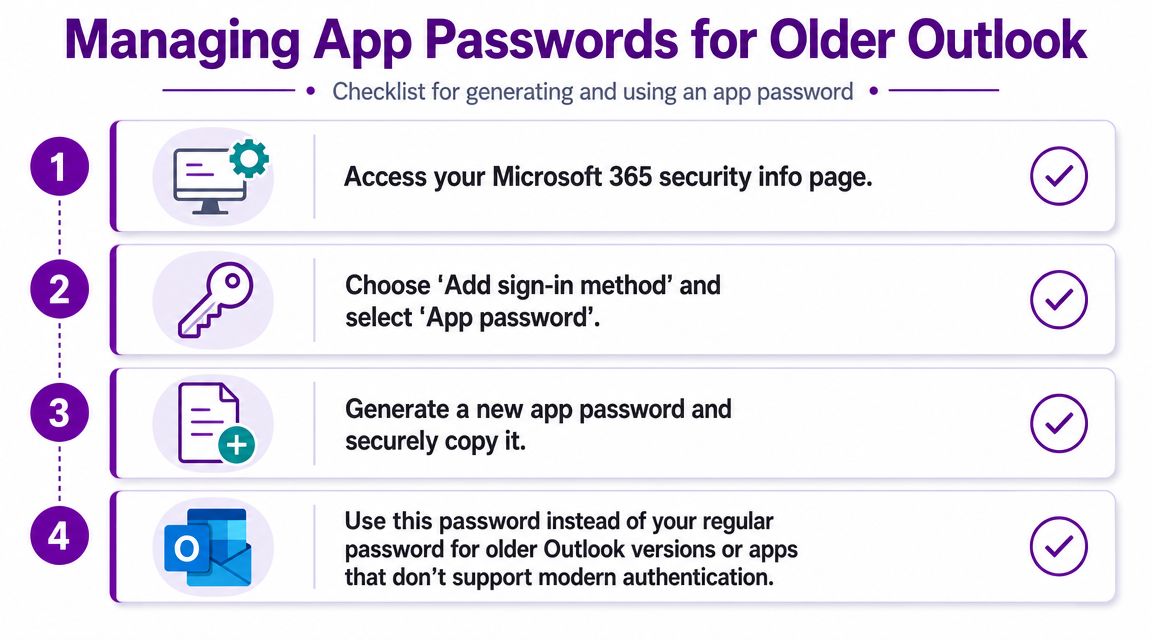
If app passwords are enabled in your environment, the user typically signs into their Microsoft 365 security information area, adds an app password method, generates a new password, copies it once, and pastes it into the older application in place of their normal account password.
Use them carefully:
- Create them only for specific legacy needs.
- Label the related application clearly so you know what the password is tied to.
- Remove them when the old app is retired.
- Don't treat them as standard practice for normal Outlook desktop use.
If staff need app passwords for mainstream Outlook on supported devices, the problem is usually your client version or sign-in method, not MFA itself.
For businesses standardising Microsoft 365 properly, moving users onto supported licensing and modern desktop apps tends to reduce these exceptions. If you're reviewing that stack, Microsoft 365 Business Premium options are often relevant because they bring the identity, security and management features into one business-focused package.
Troubleshooting Common MFA Hurdles and Best Practices
Most MFA issues don't happen on day one. They appear later, when someone replaces a phone, a shared mailbox behaves differently, or a user starts approving prompts they shouldn't.
The operational side matters because the UK Government's Cyber Security Breaches Survey 2024 found that 50% of businesses had experienced a cyber breach or attack, with phishing the most common type (referenced summary of the survey). In a real Microsoft 365 estate, that means email protection has to include day-to-day handling, not just initial setup.
Lost phones and replacement devices
This is the issue most businesses hit first. A user gets a new mobile, the old one is wiped or damaged, and they can't approve sign-ins.
The fix isn't complicated if you planned for it. Give users a clear route to contact IT, reset their MFA registration securely, and re-register the new device. The problem becomes painful only when there's no recovery process and no alternative sign-in method.
Good practice includes:
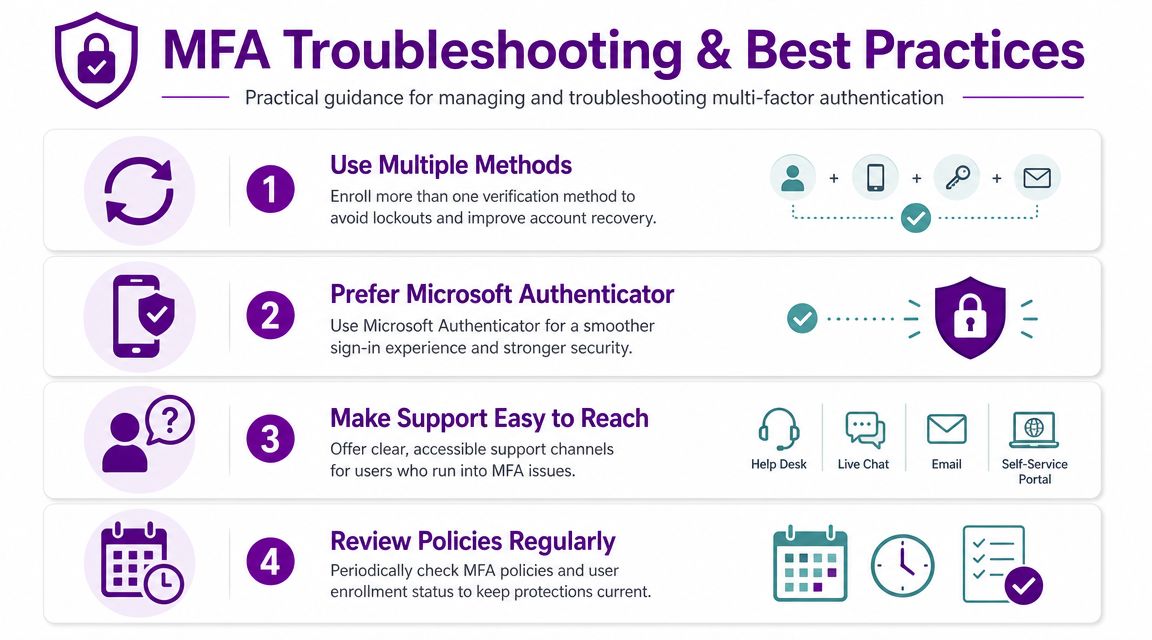
- Register more than one method where your policy allows it.
- Document the reset process so support staff follow the same checks every time.
- Treat device changes as identity events, not just phone swaps.
MFA fatigue and suspicious prompts
MFA fatigue happens when a user receives repeated approval requests and eventually presses approve out of frustration or confusion. This is one of the most important behaviours to train against.
Tell staff one simple rule. If they didn't start the sign-in, they must deny it and report it. Don't let “I thought it was Outlook refreshing” become an acceptable answer.
An unexpected MFA prompt is a security event, not a minor annoyance.
Shared mailboxes and front-line access
Shared mailboxes are where many consumer-level Outlook guides fall short. A shared mailbox shouldn't be treated like a normal named user with a single person's phone tied to it. In most business setups, access should be granted through properly permissioned user accounts, with each person authenticating as themselves.
That preserves accountability. It also avoids the mess of one shared mobile number or one shared authenticator app becoming the gatekeeper for front-line operations.
A working support standard
A practical support standard usually includes:
- Clear ownership so users know who resets MFA and who approves exceptions.
- Privileged account separation so admin accounts use stronger controls than ordinary users.
- Regular review of enrolment status, unused methods and legacy exceptions.
- Emergency access planning for rare lockout scenarios, handled through tightly controlled admin arrangements.
One managed support partner can help alongside your internal team. F1 Group provides Microsoft-focused IT support for East Midlands organisations that need help with rollout, policy tuning, user support and legacy clean-up in Microsoft 365 environments.
Secure Your Business with Expert IT Support
Outlook MFA is no longer a nice extra. It's a practical control that reduces the chance that one stolen password turns into invoice fraud, internal impersonation or loss of access to core systems.
The hard part usually isn't switching it on. It's making the rollout fit the way your business works. Security Defaults versus Conditional Access. Authenticator versus SMS. Modern Outlook versus old clients that still depend on workarounds. Shared mailbox access, recovery processes, and admin safeguards. Those are the details that decide whether the change sticks.
It's also worth looking at the wider security posture of the tools your business depends on. For example, reviews of TimeTackle security show the same pattern seen across cloud platforms generally. Good security comes from layered controls, sensible identity management and clear operational handling, not one isolated setting.
If you want your two factor authentication Outlook setup done properly across Microsoft 365, it helps to approach it as an organisation-wide sign-in project rather than a user-by-user tweak. That's especially true if you've got older devices, mixed working patterns or no appetite for disruption during rollout.
If you'd like help planning or tightening your Microsoft 365 sign-in security, contact F1Group. Call 0845 855 0000 today or send us a message to discuss Outlook MFA, Conditional Access, legacy app issues and wider Microsoft 365 security support.