
You know the scene. Two people in a Midlands office are staring at a crowded screen, one trying to find a spreadsheet, the other hunting for a client email thread that has vanished under a pile of browser tabs, Teams chats, and half-finished documents. That is the problem people mean when they talk about virtual desktops on Windows. It can mean a simple way to separate work on one PC, or it can mean a proper hosted desktop that keeps users away from their local machine altogether.
Those are not the same thing, and too many guides blur them together. Native Windows virtual desktops are a window-management feature. Azure Virtual Desktop is a hosted delivery platform that changes where the session lives, how it is secured, and how it is governed. If you run a UK SMB, you need to choose the right tool for the problem in front of you, not the one that sounds cleverest in a demo.
Windows virtual desktops became a formal part of Microsoft's desktop experience in 2015, after earlier experiments and third-party tools paved the way, and that history matters because it explains why the native feature feels useful but limited rather than enterprise-grade isolation (Microsoft history and Windows virtual desktops). In plain English, Microsoft built a neat way to organise work on a single Windows PC. It did not build a new security boundary.
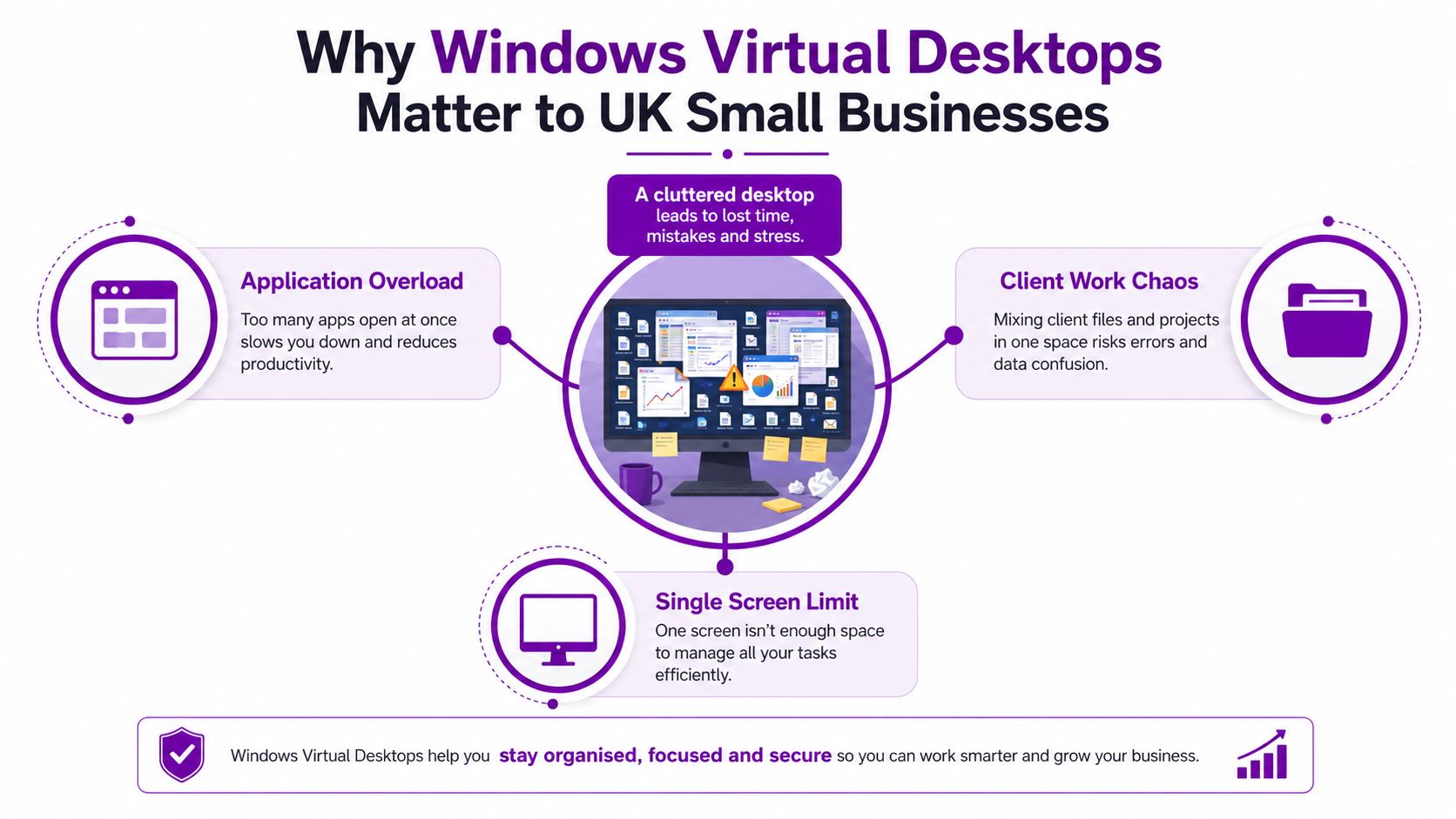
Why Windows Virtual Desktops Matter to UK Small Businesses
A typical East Midlands office has at least one person running too many things at once. Accounts has invoices open, sales has CRM on the left screen and a quote on the right, and the office manager is trying to juggle Teams, a supplier portal, and a shared drive without losing their place. Virtual desktops on Windows help with that specific mess because they cut down visual clutter and context switching.
They do not fix everything. They won't make a slow laptop fast, and they won't magically separate one client's data from another client's data. They're a workspace discipline tool, not a performance upgrade or a compliance control.
What they solve, and what they don't
Use them when your staff need tidy separation between task sets. A director can keep board work apart from day-to-day email. A project manager can split one desktop for planning and another for delivery. A hybrid worker can keep office-only tasks separate from home admin, which is useful when they jump between teams and clients all day.
They're weaker when people assume they're a security wall. Microsoft's own framing puts virtual desktops in the window-management category, and that's the honest view to hold onto (Microsoft on the usability purpose of virtual desktops). If your problem is endpoint risk, data leakage, or controlled access to corporate apps, you're already outside the native feature's comfort zone.
Practical rule: if the pain is clutter, use native Windows. If the pain is governance, isolation, or remote delivery, look at hosted desktops.
The other reason this matters in the UK is platform standardisation. Windows 10 and Windows 11 still account for the vast majority of Windows desktop installations worldwide, so native virtual desktops are relevant wherever a business has standardised on Microsoft endpoints. That's especially true in SMBs that don't want another tool to support, license, or explain to staff.
F1Group sees this constantly across Lincoln, Nottingham, Leicester, Scunthorpe, Grimsby, and Newark. Since 1995, the right answer has usually been the simple one, provided it matches the job.
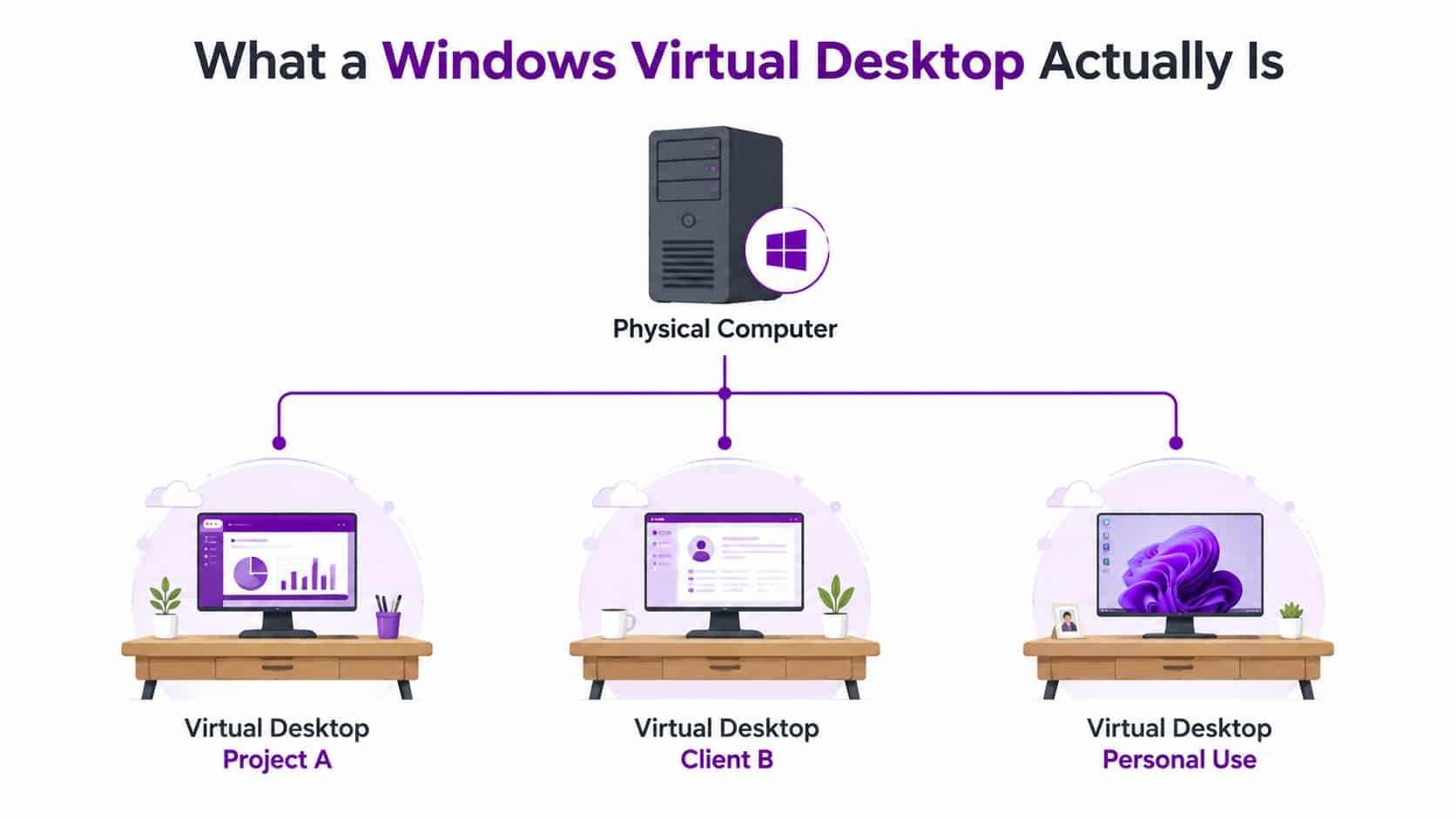
What a Windows Virtual Desktop Is
A Windows virtual desktop is a second workspace on the same PC. It is useful when one machine has to handle finance, customer work, and personal admin without turning every open window into a mess. The hardware stays the same. The point is better separation of tasks, not a new computer.
The Windows reality
In Windows, a virtual desktop is a workspace layer inside one session. It does not create a separate machine. It does not give you real isolation. It does not improve performance by itself.
Microsoft's built-in control room for this is Task View, as documented in Microsoft support for multiple desktops. You open it, create a desktop, switch between desktops, and close the current one from there. The exact shortcut use is already covered above, and that is enough to show the feature's job, which is to keep work organised inside one Windows session.
That behaviour is simple on purpose. Apps and windows stay open in the same state when you move between desktops, so you are arranging work rather than starting over. ASUS describes the same model in its Windows guidance, which matches how the feature behaves in practice (ASUS guidance on virtual desktops).
What people get wrong
The usual mistake is treating virtual desktops like a security boundary. They are not. A local machine still holds the same open app sessions, cached data, and browser state, even if those items sit on different desktops.
Virtual desktops reduce clutter. They do not create separation.
That is why they work well with Snap Layouts and keyboard shortcuts. Used together, they make one PC behave like a tidier workstation. Used alone, they only hide the mess behind another desktop.
For a director or office lead, the decision is straightforward. If the problem is focus on a single device, native Windows desktops are enough. If the problem is isolation, controlled access, or a remote session that lives somewhere else, you need cloud-hosted delivery. If you want a deeper look at the broader case for hosted infrastructure, see server virtualization advantages in 2026.
Native Windows Desktops Compared to Cloud-Hosted Options
For a Midlands SMB, this is not a fluffy terminology debate. You are choosing between a local tidy-up tool and a real delivery platform. Native Windows desktops help with local workspace organisation. Azure Virtual Desktop handles remote desktop delivery with proper control-plane design. Sysinternals Desktops sits in a separate utility bucket, and it only matters if you understand how limited it is.
| Dimension | Native Windows Desktops (Task View) | Cloud-Hosted (Azure Virtual Desktop) |
|---|---|---|
| User level | One user on one PC, organising work | One user signs into a remote Windows session |
| Management overhead | Very low, built into Windows | Higher, because you manage hosts, identity, storage, networking, and monitoring |
| Security boundary | None in the true isolation sense | Stronger separation because the session runs in Azure |
| Data residency | Stays on the endpoint and connected services | Depends on the Azure design and tenant governance |
| Cost shape | No extra platform spend | Ongoing platform and licensing spend |
| Best fit | Focus, tidiness, task separation | Centralised delivery, hybrid work, controlled access |
That table is the decision aid. If your office team just needs less clutter, native Windows desktops do the job. If you need controlled access, a managed session, or a desktop that lives away from the endpoint, you are in Azure Virtual Desktop territory.
Sysinternals Desktops is useful to know about, but it is not a business-grade answer. Microsoft keeps it to up to four virtual desktops, windows stay bound to the desktop object they were created in, and you cannot move a window between desktop objects later (Microsoft Sysinternals Desktops). That makes it a neat utility for a power user, not a serious way to run a company desktop estate.
Azure Virtual Desktop is the opposite end of the scale. Microsoft's architecture pushes you toward ExpressRoute, Microsoft Entra ID or AD DS, Azure Files or Azure NetApp Files, and Log Analytics, which tells you where the work sits. The pressure points are latency, identity, storage throughput, and telemetry, not the remote display protocol itself (Azure Virtual Desktop reference architecture).
If you want the wider infrastructure view, the logic lines up with server virtualization advantages in 2026. Central control, predictable delivery, and cleaner management are the same reasons businesses move other workloads off individual machines.
For a manager, the call is simple. Native Windows desktops are for personal productivity. Cloud-hosted virtual desktops are for managed delivery. Mix those up and you buy the wrong thing. The comparison matters because productivity without isolation is fine for a local workstation, but it falls short the moment you need control, separation, or a desktop experience that follows policy instead of the device. F1Group's Windows 11 feature guidance is worth a look if you want the practical Windows side alongside the hosted option.
Everyday Use of Task View on Windows 11
Windows 11 already has the Virtual Desktop feature turned on by default, so there is nothing to install. The Task View button may already be on the taskbar. If it is missing, switch it on in Taskbar settings. For a quick walkthrough of the Windows 11 setup side, see F1Group's Windows 11 feature guidance and the Microsoft guidance on enabling Task View (Microsoft support guidance).
Use it properly and it becomes a basic discipline, not a gimmick. One desktop for finance, one for customer calls, one for management reporting keeps workstreams separate without forcing staff to live inside a wall of overlapping windows. That is useful for a single user trying to stay organised on one PC.
The keyboard shortcuts are already covered above, so there is no need to repeat them here.
A simple pattern still works best:
- Desktop 1, client work: keep the live project, email thread, and file explorer together.
- Desktop 2, admin: use it for Teams, finance, or internal updates.
- Desktop 3, review: put reporting, dashboards, and sign-off documents here.
The multi-monitor gap
The part Microsoft does not solve is the part Midlands SMBs run into as soon as they use dual screens. Windows 11 virtual desktops are a window-management tool. They do not give each monitor its own separate desktop set (Microsoft's explanation of the limitation).
That matters. If your team expects one desktop for the left screen and a different desktop for the right screen, native Windows will not do it. You can pin a window so it appears on every desktop, but that is a workaround, not proper multi-monitor isolation.
Bottom line: Task View helps one person organise one PC. It does not give a small office the separate work zones people often assume they are buying.
So the decision is straightforward. Stay with Task View if the goal is tidier personal working on a single device. Move to Azure Virtual Desktop if you need real separation between users, sessions, or roles. Carry on as you are only if neither of those problems exists.
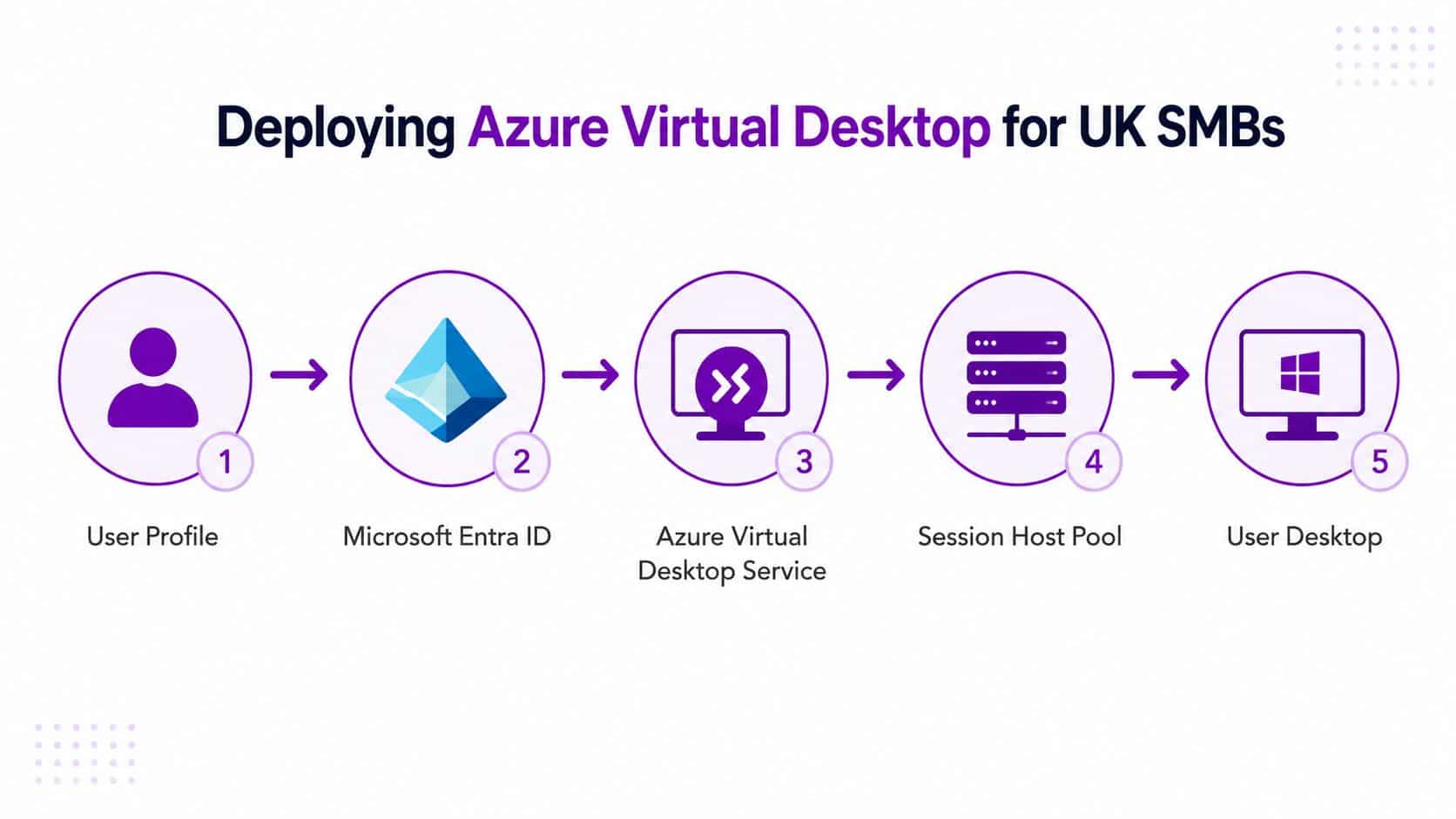
Deploying Azure Virtual Desktop for UK SMBs
A Midlands SMB does not deploy Azure Virtual Desktop because it looks modern. It deploys it when native Windows desktop management stops being enough and the business needs a controlled, centrally managed desktop service. Microsoft's guidance puts identity, networking, storage, and monitoring at the centre, which is the right order of operations.
What actually has to be designed
The design starts with the boring bits, and the boring bits decide whether the project works. You need ExpressRoute or another private connectivity design that behaves properly, Microsoft Entra ID or AD DS, Azure Files or Azure NetApp Files, and Log Analytics. Those choices set the standard for network stability, authentication, storage performance, and visibility.
The remote protocol is not the strategic problem. The session host pool is.
For the wider delivery approach, our Azure cloud migration services follow the same principle, get the landing zone and operating model right first, then build the desktop service on top. That keeps the rollout tied to how the business works, not to a neat demo that falls apart in production.
Microsoft's desktop-hosting reference architecture also explicitly targets 5 to 5000 users (Desktop Hosting Reference Architecture). That range matters because it shows the model is meant to scale from a small estate to a much larger multi-tenant environment without changing the core design.
Pooled versus isolated session hosts
Pooled session hosts are the cost-conscious route. They cut per-user VM cost, but once density rises you also increase contention for CPU, memory, and storage I/O. That works for knowledge workers who live in Office apps, browser systems, and email.
Graphics-heavy roles and developer workloads need a different setup. Give those users more isolated session hosts, or GPU-capable hosts if the work justifies it. If you force them into a pooled estate, the experience gets sloppy fast.
Practical rule: pool standard office users, isolate demanding users.
That is where many SMBs get it wrong. They buy a platform, then try to run every role through the same host profile. It rarely ends well.
For a Midlands IT Manager, the right pilot is modest and boring. Test identity, network path, user profile storage, and a small set of representative workloads. Do that first, and the rollout becomes predictable.
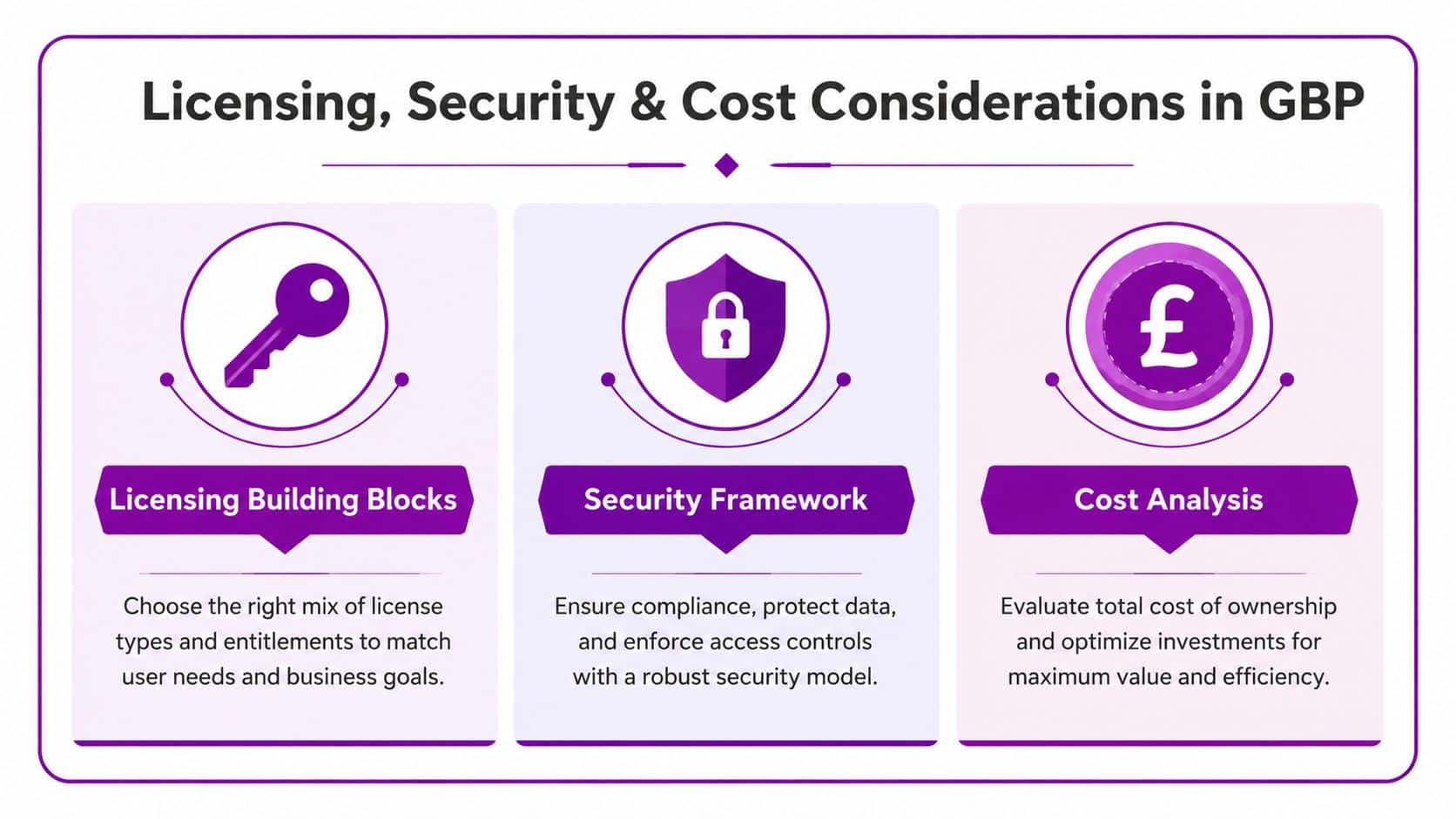
Licensing, Security and Cost Considerations in GBP
An AVD plan only stacks up if the controls and the commercial terms fit the business. You need the right per-user access entitlement, an eligible Microsoft 365 plan or equivalent rights, and a Windows licence on the session hosts. If those pieces are missing, the rest of the design is academic.
The cost profile is plain enough. You pay for compute, storage, and outbound data transfer, and those are the parts that move the monthly bill. For a small UK pilot, I'd price it in GBP from the start, not US figures, because an MD needs to judge the spend against local budget reality, not a rough conversion.
Security
Virtual desktops do help in a few practical ways. They reduce endpoint data residue because more of the working session stays centrally managed, and they make patching simpler because you are dealing with controlled session hosts instead of a fleet of laptops with different habits. That matters.
They do not replace Conditional Access, MFA, Intune device compliance, or Defender for Cloud. Any reseller who implies that a hosted desktop covers the whole security story is selling short. The desktop is one layer in a wider control stack, not the control stack itself.
Cost should follow risk and role
A lean back-office team with predictable apps may not need AVD at all. A charity with hybrid staff, shared applications, and stronger governance demands may find the platform worth the spend. The wrong move is to start with the assumption that virtual desktops are cheaper than laptops, because that misses the true buying decision.
The right question is whether you are buying central control, predictable access, and simpler management in return for ongoing cloud spend. If the answer is yes, price the design properly and keep the pilot tight.
For the policy side, I'd point an IT lead to software licensing best practices before signing off the estate. Licensing mistakes cost more than the desktop platform itself if nobody owns them.
Migration Checklist and F1Group Recommendations
Start with a hard inventory. Know who needs a tidy local workspace, who needs hosted delivery, and who just needs better training on Task View. Once that's clear, the migration path gets a lot simpler.
Pre-deployment checklist
- Identity first: confirm how users will authenticate, and whether your tenant design is clean enough for remote sessions.
- Network path second: decide whether the business needs private connectivity and predictable latency, not just a broadband connection that looks fine on paper.
- Licensing third: check user entitlements, Windows rights, and any Microsoft 365 overlap before you touch the platform.
- Pilot scope last: choose a small group that reflects real work, not a hand-picked friendly crowd.
The decision rules are blunt.
If you've got a five-person firm in Lincoln that mainly wants to stop losing windows, Task View is enough. Standardise on it, train people properly, and move on. If you're running a 200-seat charity in Nottingham with mixed roles, shared systems, and more serious control needs, Azure Virtual Desktop deserves a proper evaluation. If you're somewhere between the two, or you're not sure whether hosted desktops are the answer, keep the business on native Windows until the case is clear.
I wouldn't recommend Windows 365 unless the business wants a simpler hosted desktop model and is happy to pay for that convenience. It's easier to consume than AVD, but you should still judge it against the same reality, user need, control requirement, and ongoing spend.
F1Group works with East Midlands organisations that want this judged properly, not guessed at. If you want a straight answer on whether your team should stay with Task View, move to Azure Virtual Desktop, or leave things as they are, phone 0845 855 0000 today and send us a message at F1Group.