
Your finance inbox fills before 9am with supplier invoices as PDFs, delivery notes photographed on phones, and forms scanned at an angle. Someone opens each file, types the details into your accounts system, and files it away. It's slow, it's error prone, and it breaks whenever that person is on leave.
Power Automate OCR can remove much of that retyping, but only if you build it as a review-first system. I would not let a flow post amounts straight to accounts on day one. Start with queueing, checks for UK formats, and a named person clearing exceptions, then widen automation once your own documents prove the flow can handle them.
Choosing Between AI Builder, Desktop OCR and Third-Party Tools
Which route fits the documents you receive? Answer that before you build anything, because the four routes solve different problems and carry different costs.
| Route | Best for | Input and limits | Licensing note |
|---|---|---|---|
| AI Builder Text recognition | Scanned PDFs and images turned into text | PDF, JPG, PNG, BMP up to 20 MB; first 2,000 PDF pages | Consumes AI Builder credits per page |
| AI Builder invoice processing | Supplier invoices needing ID, date and amount due | Prebuilt model; OCR runs on every file and raw output is available | Consumes AI Builder credits per page |
| Desktop OCR (Windows OCR or Tesseract) | On-screen desktop applications without an API | Tesseract reads English, German, Spanish, French and Italian without extra setup | Desktop flow licensing; confirm the current GBP price with Microsoft before budgeting |
| Third-party or Azure OCR connector | Unusual layouts or specialist accuracy needs | PDF and image formats listed in the provider agreement | Separate contract and price; confirm with provider |
What Each Route Does Well
AI Builder Text recognition turns scanned PDFs, JPGs, PNGs and BMPs into machine readable text inside a cloud flow, which suits emailed documents stored in SharePoint or OneDrive. Invoice processing goes further and pulls out fields such as invoice ID, invoice date and amount due, while keeping the raw OCR output available so a reviewer can check what the model read.
Desktop OCR runs inside desktop flows, so it reads what's on screen in an application that has no usable API. Microsoft's Power Automate OCR actions reference describes two engines, Windows OCR and Tesseract, and states that Tesseract can extract text in five languages without additional configuration, English, German, Spanish, French, and Italian. English support matters for UK scanned invoices, delivery notes, forms and archived records, and the extracted text becomes usable data inside the desktop flow rather than staying locked in a scan.
A third-party or Azure connector can suit unusual layouts, dense tables or specialist accuracy needs. Check data residency, licensing and support terms before you commit, and ask where document images are processed and stored. If some of your source data arrives from web pages rather than scans, a web scraping api from Context.dev can feed structured content into the same downstream checks instead of forcing it through OCR.
Practical rule: Use cloud AI Builder for emailed PDFs and Microsoft 365 storage, desktop OCR for on-screen applications you can't connect by API, and a specialist tool only when a pilot shows the built-in models failing on your documents.
Don't choose on a vendor demo with one clean invoice. Run your messiest real scans through each candidate, including rotated pages and faded print, and compare field by field. The cheapest route that reads your documents reliably is usually the right one, and for most UK firms already in Microsoft 365 that's AI Builder.
Limits, Credits and Costs to Plan For
Design around the limits before you build, not after a batch fails on a Monday morning. These numbers shape queueing, file handling and your monthly budget.
| Limit or cost | Value | What it means for your design |
|---|---|---|
| Text recognition calls | 480 per environment every 60 seconds | Queue large runs; more users won't raise the rate |
| Document processing | 360 documents per environment every 60 seconds (21,600 per hour) | Use as the ceiling when sizing peak volume |
| PDF page cap | First 2,000 pages per file | Split longer PDFs before OCR |
| File size limit | 20 MB per file | Compress or split oversized scans |
| Text recognition credit rate | 0.1 credit per page; minimum 0.001 credit per operation | Filter blank and irrelevant pages before OCR |
| Credits per premium licence | 5,000 per user; up to 1,000,000 per tenant | Track tenant consumption as flows run |
| Assessment allowance | 5,000 per user; runs through 1 November 2026 | Cost pilots on paid credits after that date |
| Licence price in GBP | Confirm the current UK price with Microsoft before budgeting | Don't quote US dollar examples as UK prices |
Throughput Is Per Environment
Microsoft's AI Builder document processing FAQ documents 480 text-recognition calls per environment during each 60-second renewal period and states that up to 360 documents can be processed per environment every 60 seconds. Adding users doesn't raise throughput in the same environment, so a large overnight batch needs a queue, concurrency limits and retries with delay rather than unbounded parallelism.
Microsoft's AI Builder licensing guidance prices text recognition at 0.1 AI Builder credits per page, with a minimum consumption value of 0.001 credit per operation, and treats a flow containing any AI Builder action as a premium flow. Microsoft's AI Builder credit management guidance lists 5,000 AI Builder credits for Power Automate Premium, Process and the RPA add-ons, subject to a maximum of 1,000,000 credits per tenant for each listed licence category, and states each user licence grants 5,000 AI Builder credits for assessment purposes through 1 November 2026.
Worked Estimate in Credits
Say you process 1,200 invoices a month averaging three pages each. That's 3,600 pages, which at 0.1 credit per page is 360 credits a month before re-runs and retries. Add a margin for failures and duplicate submissions, then compare the total with credits included in your licences.
Every page consumes credits, including blank or irrelevant pages, so cost on the full processed page count, not only pages with useful fields. Filter unsuitable files before OCR and split workflows by document type to avoid waste. I would leave the GBP licence price unconfirmed until you've checked Microsoft's current UK pricing, and our guide to Power Automate costs in the UK explains how to sense check a quote before you commit budget in pounds sterling.
Governing Personal Data Across the Whole Flow
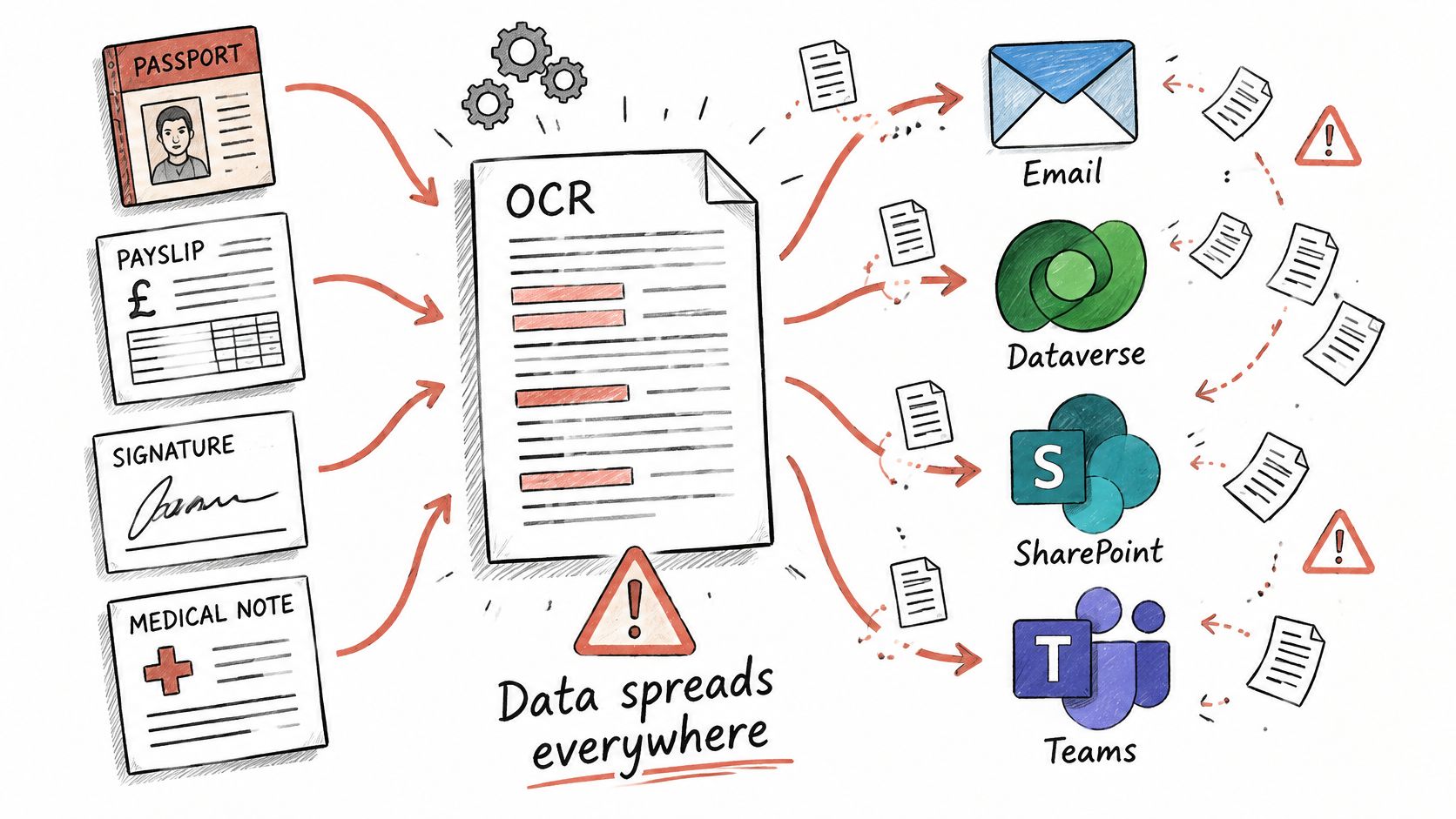
OCR doesn't stop at reading. Each extracted copy of a passport, payslip, signature or medical note can spread across email, Dataverse, SharePoint and Teams unless you govern the whole flow end to end.
The diagram below shows how quickly document data scatters once a flow starts copying it between systems.
Controls to Put in Place First
Write down a lawful basis and stated purpose before the build, then apply data minimisation so the flow stores only the fields it needs. Hold originals in a restricted library with a deletion date, give reviewers role-based access to their own queue only, and keep audit logs showing who viewed what. Process in the UK region where residency matters to your clients or regulators.
The ICO's biometric data guidance states that biometric data is personal information and that biometric-recognition deployments require data protection by design, a Data Protection Impact Assessment, processor contracts, and appropriate security measures. Ordinary OCR isn't automatically biometric recognition, but passport details, signatures and facial images create similar risk when a flow copies them between systems.
This walkthrough shows the governance thinking in practice, including where extracted data lands after the OCR step.
Pre-deployment Checklist
- Which documents enter the flow: List every document type and source folder.
- Which fields are required: Name each field and drop anything you don't need.
- How long originals are kept: Set a retention period and a deletion owner.
- Who can see extracted data: Confirm roles, queues and audit logging.
- Is a DPIA needed: Record the decision and the reasoning before go live.
A Power Platform centre of excellence approach, covered in our guide to building a Power Platform CoE, helps you apply these controls consistently across flows. Keep the source file in a restricted store, pass only required fields onward, and delete the scan after the agreed period. OCR can reduce manual handling and exposure, but only if you stop it multiplying copies.
How to Build a Text Recognition Flow Step by Step
Build for scanned supplier documents first, because they're frequent, structured enough to test, and expensive when they're wrong. The infographic below summarises the six stages before the detailed steps.

Step 1 Choose a UK Region Environment
- Create or choose a Power Platform environment in the United Kingdom region. AI Builder models run in the region hosting the environment, and Microsoft's Text recognition guidance lists the model as generally available in the United Kingdom, with inputs validated as PDF, JPG, PNG, or BMP and no larger than 20 MB. The same guidance caps PDF processing at the first 2,000 pages, so split archive scans before they reach the flow.
- Set the trigger. Use a SharePoint or OneDrive folder, or a Dataverse table, so every new file starts the flow automatically. One trigger folder per document type keeps routing simple, and a mixed folder forces you to classify before you can validate.
Step 2 Validate Before You Send Anything
- Check file type and size before OCR. Reject unsupported formats and oversized files into a holding folder with a clear status, rather than letting them fail halfway through a batch. This also protects your credit budget, because you don't pay to process files you already know are unusable.
- Submit the file to the Text recognition action. Store the full returned text and the page-level results, not just the fields you need today. When a reviewer disputes a value later, the page-level output shows exactly what the model read on that page.
Don't treat OCR output as validated business data. It's a reading, and every reading needs checks before it touches accounts, payroll or client records.
Step 3 Apply Rules and Route Exceptions
- Apply business rules to the extracted text. Match the supplier name against your supplier list, check the date parses correctly, and confirm totals add up. Add explicit checks for UK dates, postcodes, National Insurance style identifiers, VAT numbers, currency symbols and decimal separators before anything posts downstream.
- Send low-confidence or failed items to a manual review queue. Move completed files to an archive folder so the trigger folder only ever holds work in progress. A reviewer should see the scanned image beside the extracted fields, correct or approve, and the flow should log the outcome against the original file.
- Record a file identifier and a status value for every document. A retry must never process the same invoice twice, and a missing status column is the most common cause of duplicated records. Mark each file as received, processed, in review or complete, and skip anything already marked complete.
Step 4 Test With Your Own Scans
Run ten real scans from your supplier mix before you connect the flow to anything live. Include your worst scan quality, a rotated page, a handwritten annotation and a multi-page PDF, because clean test files hide the failures that matter. Confirm every file lands either in the archive or in the review queue, with nothing stuck in between and nothing processed twice.
If you're new to building flows, our guide on how to use Power Automate covers triggers, actions and error handling in plain terms. I would build this flow in a test environment first, prove the routing works, and only then move it into production with the same checks switched on.
Handling OCR Errors and Exceptions Safely
A misread amount can turn a time-saving flow into a payment correction. Treat OCR output as untrusted until it passes checks, and route uncertain cases to a person before posting.
| Symptom | Likely cause | Fix |
|---|---|---|
| Totals misread | Low-resolution scan or skew | Rescan at higher resolution, deskew, and check the total against line items |
| Dates or VAT numbers rejected | Format mismatch with UK conventions | Add day-month-year and VAT format checks before posting |
| Flow fails with throttling errors | More than 480 text-recognition calls or 360 documents per environment within a 60-second period | Queue work, limit concurrency, and retry with a delay |
| Blank or irrelevant pages billed | No pre-filter before OCR | Filter unsupported and blank pages before submission |
| Handwritten notes missed | Handwriting outside reliable model scope | Route to manual review; do not auto-post |
| Duplicate records created | Same file reprocessed on retry | Store a file ID and status column; skip completed files |
The Three Part Safety Net
Validation rules come first. Check dates in day-month-year order, postcodes, VAT numbers, currency symbols and decimal separators before posting. Reject values that do not fit the expected pattern. A failed format check is a reason to review the reading, not to wave it through.
Exception routing comes second. Send items that fail a rule or fall below your confidence threshold to a named reviewer, with a time limit for clearing the queue. Show the scanned image beside the extracted fields. Track weekly queue volumes: a rising count can point to a supplier layout change or a drop in scan quality.
Retry logic comes third. Use delays and concurrency limits to handle throttling without creating partial batches or duplicate records. Log every retry against the file identifier.
Automate Less at First
Start with deliberate human review. It is safer to expand automation after the flow handles exceptions reliably than to optimise for maximum straight-through processing from day one.
Keep an exception checklist that names what to log, who owns each queue, and how corrections feed back into the flow. If the same field needs correcting repeatedly on one supplier's documents, adjust the rule or scan process rather than treating the queue as normal.
Some documents should never run unattended. Send poor scans, complex tables, handwritten annotations and legally significant documents such as signed contracts to a person, whatever the confidence score says. Route too much to review at first rather than risk posting an incorrect bank detail.
Measuring Accuracy and Running a Pilot
One headline OCR percentage misleads, because a document can score well overall while the one field that matters, the total, is wrong. Measure field-level accuracy and straight-through processing separately, as the infographic below sets out.

| Approach | Typical field accuracy | Reported time saving | Use when |
|---|---|---|---|
| Conventional OCR on clean, structured forms | Around 85% to 90% | Measure against your manual baseline in the pilot | Fixed layouts with consistent print quality |
| AI-enabled document processing | Mid-90s percentage | Roughly 50% to 90% | Varied invoices and correspondence |
| Your pilot baseline | Measured on your own UK documents | Measured against current manual handling time | Required before setting review thresholds |
UK-focused guidance in an intelligent document processing guide places conventional OCR on clean, structured forms at approximately 85%–90% accuracy, while AI-enabled deployments report extraction accuracy in the mid-90s and processing-time reductions of roughly 50%–90%. Those figures are directional, not Microsoft guarantees, so build your own baseline with real documents from your suppliers.
Baseline and Pilot Sequence
Collect a representative sample of invoices, forms and letters, label the expected text and key fields, then run the sample through the flow. Compare values field by field and calculate error rates by supplier, scan quality and field type. Set conservative thresholds for high-risk fields, so a wrong invoice total, VAT amount, bank detail or customer identifier forces human verification even when the rest of the document reads correctly.
Run a four to six week pilot on one document type and one supplier group, such as invoices from your ten largest suppliers. In week one, confirm the licence and credit budget using Microsoft's current UK price in GBP, then in week two build the flow in a UK region environment and run the labelled baseline sample. In week three, set thresholds, name review owners and switch on the review queue, and in week four compare field accuracy, manual-review rate, minutes saved per document and monthly credit use against budget before widening scope.
After launch, keep tracking precision, recall and exception rate per field. Redesign the flow when a supplier or document class consistently exceeds the agreed error threshold, rather than letting reviewers absorb the problem.
F1Group can build, test and hand over a review-first Power Automate OCR flow for your invoices and forms, including UK format checks, exception queues, credit budgeting in GBP and data protection controls. Phone 0845 855 0000 today or send us a message to discuss a pilot on your own documents, and visit F1Group to see how we support Microsoft 365 and Power Platform projects across the East Midlands.