
Your approval flow finishes successfully, but the attachment count is wrong. A daily ticket summary misses an item, or a flag stays false even though the urgent branch should have changed it. You open the designer and find a handful of apparently harmless variable actions.
Power Automate variables are straightforward until several actions share the same value. Placement, data types, branch execution and loop concurrency all affect the result. Those small actions also consume request allowance, so a flow can be logically correct yet unnecessarily expensive to run.
How to Create and Initialise a Variable in a Cloud Flow
Start with a flow that already has a trigger. A variable action needs an execution context, so adding one to an otherwise empty designer isn't the starting point.
Microsoft's cloud-flow variable documentation explains that variables remain available throughout the flow that creates them and across loop iterations, support Integer, Float, Boolean, String, Array and Object types, and must be initialised outside scopes, conditions and loops. Global means within that cloud flow, not shared across separate flows or runs.
Build the variable before using it
Add a trigger. Choose something appropriate to the process, such as When a new email arrives or Recurrence. The trigger must exist before you add variable actions.
Search for Initialise variable. Place the action near the top of the flow, before any condition or loop that will use it. This makes the starting state easy to inspect and ensures the variable exists before an update runs.
Give it a descriptive name. For an attachment counter, use
varAttachmentCountrather thanValueorTemp. A consistent prefix is a team convention, not a technical requirement, but it makes variables easier to distinguish from connector outputs.Choose an explicit type. Select Integer, Float, Boolean, String, Array or Object from the dropdown. Match the type to the operation you'll perform, rather than choosing String because the incoming value looks like text.
Enter the starting value. Use
0for an attachment counter,falsefor an approval flag or an empty string for text you'll build later. Decide what the starting value means operationally, especially when a branch might never update it.Save and test the flow. Open the run history, expand the initialisation action and inspect its recorded inputs and outputs. Confirm the configured starting value before diagnosing any later calculation.
The process is simple when the trigger, declaration and test are in the right order.
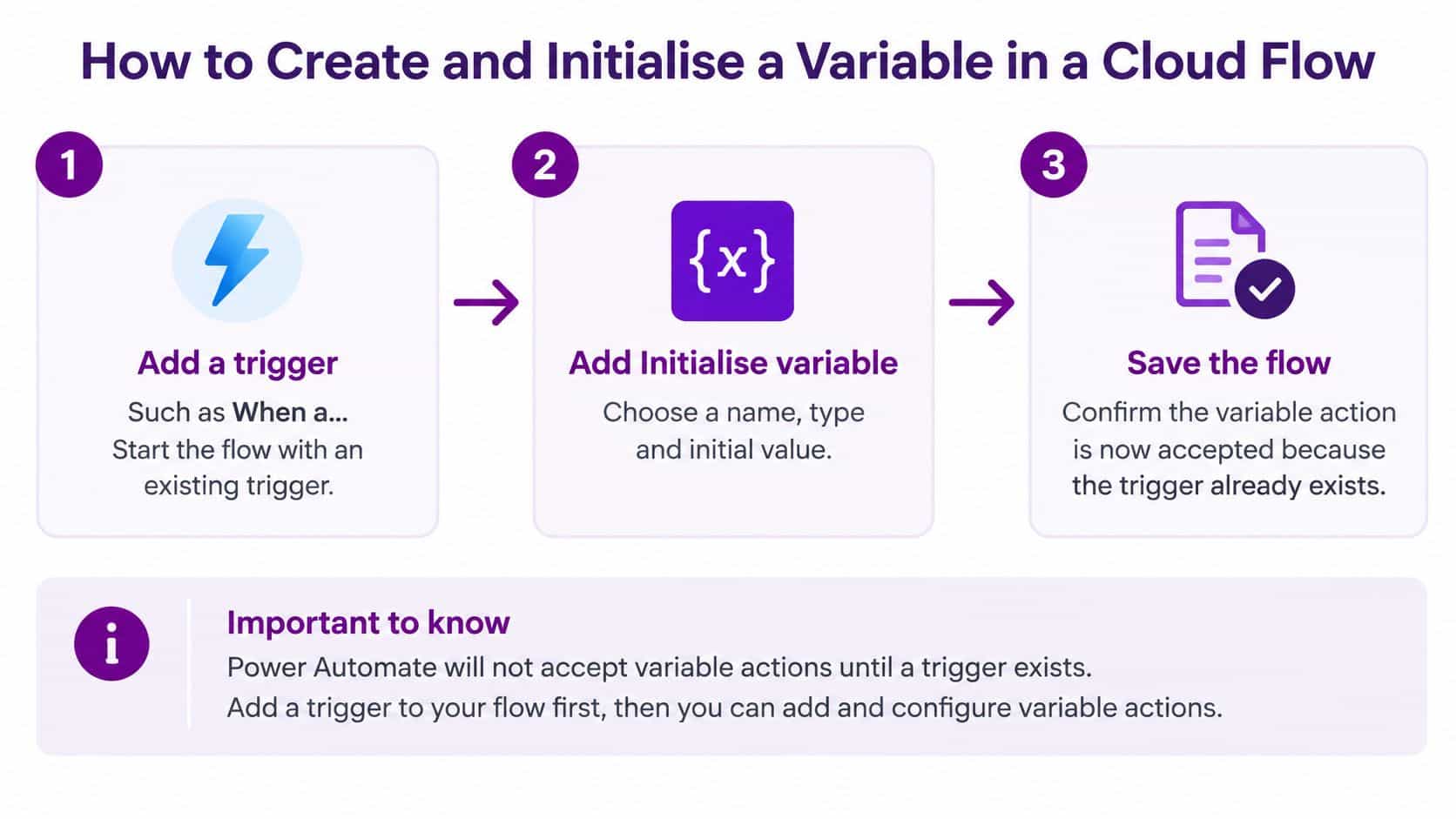
Keep declaration separate from updates
A common mistake is trying to put Initialise variable inside Apply to each. Cloud flows don't permit that placement, so it produces a validation problem rather than a supported way to reset the counter on every pass. Declare the variable at flow level, then use an update action inside the loop.
An explicit reset is different. If you place Set variable inside a loop and assign the starting value each time, you'll erase the accumulated result. Check which action you've added before changing expressions.
Practical rule: Initialise the state before the work begins. Update it only where the business process requires a change.
For the broader trigger-and-action setup, our guide to using Power Automate provides the surrounding workflow context. Your immediate success criteria are simpler: the flow saves without a validation error, and the test run records the intended starting value.
Choosing the Right Variable Type for Your Data
Variable data types and typical use
| Type | Example value | Typical use |
|---|---|---|
| Integer | 5 | Counters and loop indexes |
| Float | 12.50 | Prices, rates and percentages |
| Boolean | true | Approval flags and status checks |
| String | INC-Example | Ticket references, file names and email text |
| Array | Three email addresses in a list | Collecting items across a loop |
| Object | One customer record with name, ID and email | Structured records passed between actions |
Read the table by asking what you'll do with the value, not just what it looks like. A ticket reference containing digits is still text if you won't perform arithmetic on it. A customer object preserves named fields, while an array represents a collection you can iterate over.
The most troublesome mistake is treating numeric-looking text as a number. An Integer counter can be incremented; a String containing "5" can't be used as an Integer variable by Increment variable. Comparisons between text and numbers can also return an unexpected false result or require conversion, depending on the expression.
Match the type to the business decision
Say a SharePoint list supplies support tickets. Initialise a Boolean called isUrgent to false, then set it to true when the current ticket's priority is High. Append the ticket title to an Array variable for the daily summary, keeping each title as a separate item rather than building a comma-separated string.
If that Boolean describes the current ticket, explicitly set it for each ticket. Otherwise, an earlier urgent ticket can leave the flag true for a later ordinary ticket. The type is correct, but the lifetime of the value is wrong.
For a Float used with prices, decide separately how rounding and display formatting should work. A decimal value isn't automatically a currency policy.
Choose the narrowest type that represents the data correctly. Don't use text as a universal container.
Desktop flows need a separate mental model. Microsoft's desktop variable training distinguishes flow variables from input/output variables, describes automatically generated action-result variables, and explains how inputs and outputs exchange data with cloud flows. Use those boundaries to pass an invoice reference into desktop automation and return a processing result, rather than hard-coding run-specific values.
If you've chosen the wrong cloud variable type, create a correctly typed replacement and update its references deliberately. Don't try to make an established variable serve incompatible purposes.
Updating Variables Inside Loops Without Breaking Them
Choose the update action according to the change you intend. Increment variable and Decrement variable suit numeric counters, Set variable replaces the current value, and the append actions extend strings or arrays.
| Action | Use it when |
|---|---|
| Increment variable | A counter needs to increase |
| Decrement variable | A remaining-work counter needs to decrease |
| Set variable | The previous value should be replaced |
| Append to string variable | You're building text |
| Append to array variable | You're collecting separate items |
These operations may look similar in the designer, but replacing a value and accumulating a value produce very different results.
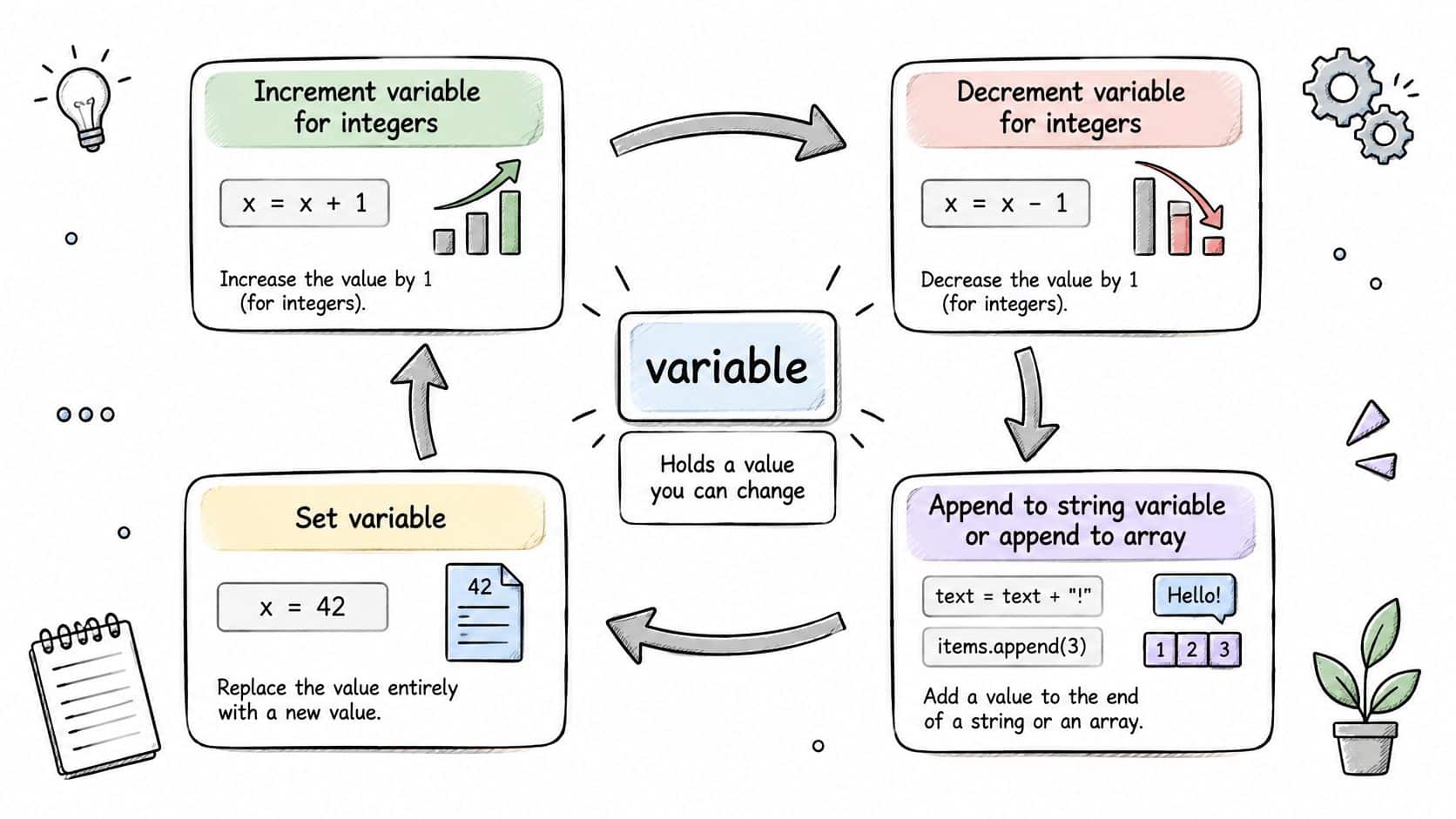
Build an attachment counter in execution order
Initialise an Integer named varAttachmentCount to 0 before the attachment loop. Point Apply to each at the attachment collection, then put Increment variable inside it with an increment of 1.
Decide exactly what you're counting. An increment before an attachment-processing action counts attempts; an increment after that action, configured to run on success, counts completed processing. Those aren't interchangeable measures.
After the loop finishes, read the final value in a condition to decide whether a notification is necessary. Select the variable from dynamic content or use variables('varAttachmentCount'). Copy the name exactly, because a mistyped reference can fail at run time.
Make shared updates sequential
When loop iterations update shared variables, run them sequentially. Open the loop's settings and, if concurrency control is enabled, set the degree of parallelism to 1.
Parallel iterations can read and change the same state at overlapping times. That makes intermediate values unsafe to rely on and can make accumulated results or item order unpredictable. Faster execution isn't useful if the final summary can't be trusted.
The trade-off is elapsed time. Sequential processing waits for each iteration, so a slow attachment action delays the next one; if that becomes unacceptable, redesign the collection-processing approach rather than turning parallelism back on.
Open individual iterations in the run history and inspect the increment action's recorded values. Check the final count against the attachments processed, including any deliberately skipped or failed items. A green run status alone doesn't prove that your counter measures the right thing.
Variable Limits and What They Cost in Requests
A cloud flow can contain 250 variables per workflow, according to Microsoft's Power Automate licensing FAQ, which also explains that triggers and actions consume requests, including built-in actions, failed executions, retries and pagination-generated requests. This is a workflow-level variable ceiling, not a fresh allocation of declarations for every loop pass.
Variable limits and request allowances
The plan allocations below come from Microsoft's request-limit guidance.
| Item | Limit | What it applies to |
|---|---|---|
| Variables per cloud flow | 250 | Workflow-level ceiling, not a per-run count |
| Power Automate Free | 6,000 requests per user per 24 hours | Connectors, HTTP and built-in actions, including variable initialisation |
| Power Automate Premium | 40,000 requests per user per 24 hours | The same action categories under the user's allocation |
| Power Automate Process | 250,000 requests per licence per 24 hours | The process covered by that licence |
Count executions, not designer boxes
Consider a hypothetical loop over 1,000 items that updates three variables on every pass. Those updates add 3,000 action executions, before counting connector calls, initialisation or the trigger. A compact-looking loop can therefore account for substantial request consumption.
Initialise variable, Set variable, Increment variable, scopes and Compose aren't request-free. Nor does avoiding premium connectors make built-in actions exempt.
Cost check: Count how often an action executes, not how many times its box appears in the designer.
Remove variables that are written but never read. Merge related counters only where you can derive the required results from fewer updates without obscuring the business meaning. Replacing several obvious counters with a complicated object expression isn't automatically a maintainability improvement.
Move calculations that don't depend on the current item outside the loop. A Compose action used there executes once per flow run rather than once per item, but replacing an in-loop variable action with an in-loop Compose doesn't itself remove the request cost.
Separate allowance from price
Request allocations aren't GBP subscription prices, and consuming a request doesn't establish a fixed cash charge. Check the current UK commercial terms when choosing a licence; our Power Automate cost guide explains the licensing discussion in context.
For an audit, list the variable actions, their loop multipliers and expected run frequency. Include other flows using the applicable allocation, then allow for failed actions and retries rather than budgeting only for the ideal run.
Pitfalls That Break Variables and How to Fix Them
Start with the product and the symptom. Cloud-flow declaration rules aren't desktop subflow scoping rules, and applying the wrong model can send you towards a fix that doesn't exist.
For desktop automation, Microsoft's scoped-variable guidance documents local and global visibility, case-insensitive naming, reserved terms, session-input restrictions and the multiline viewer limitation.
Diagnose the failure before changing the expression
- Cloud flow, declaration rejected: Initialise variable is inside a scope, condition or loop. Move the declaration to flow level before the actions that need it.
- Cloud flow, value never changes: Set variable sits in a branch that wasn't executed. Inspect the condition's actual inputs and provide a default path where the process needs one.
- Cloud flow, comparison unexpectedly false: Numeric text is being compared with a number. Validate the incoming value, then use
int()where appropriate or correct the type at the source. - Desktop, confusing name reuse:
Countandcountaren't separate variables because names are case-insensitive. Rename by purpose rather than capitalisation. - Desktop, invalid name: Start with a letter or underscore, continue with letters, digits or underscores, and avoid reserved terms such as
if,loop,global,inputandoutput. - Desktop, session input unavailable: Browser, Excel, Word, Outlook, Access and Terminal instance/session inputs can't have default values. Obtain valid instances through the corresponding launch, open or attach actions.
- Desktop, text appears truncated: Multiline datatable or datarow cells show only their first line in the viewer. Preserve the full original value separately in diagnostic logging.
- Desktop, subflow cannot access a value: A local variable is outside its owning subflow. Keep temporary state local and expose only the inputs and outputs that another subflow requires.
Use this checklist to separate placement, execution and visibility problems before rebuilding the flow.

Test the awkward inputs
An acceptance test should cover empty values, duplicate records, multiline text, failed application launches and reruns. Define the expected outcome before running each case, including whether a rerun should repeat an external update or recognise work already completed.
Check the business result as well as the variable value. A correct counter won't prevent duplicate invoices if the action that creates them isn't designed for safe reruns.
When Compose, Scopes or Arrays Work Better
Variable, Compose, scope or array: which to use
| Option | Best for | Main cost or limit |
|---|---|---|
| Variable | Values that change across loop passes or branches | Consumes requests and contributes to the workflow variable ceiling |
| Compose | A value calculated once and never changed | Simple Compose actions still consume requests |
| Scope | Grouping actions and handling errors together | Cannot contain a variable declaration |
| Array variable | Lists that grow with each loop pass | Shared appends need sequential execution for dependable ordering |
| Filter array action | Reducing an existing list without per-item updates | Requires a list already available in the flow |
Choose by the operation you need, not by habit.

Use Compose for a formatted date or combined address that won't change. Use a variable for mutable state, and an array variable when you're accumulating items. Use Filter array to narrow an existing collection, not to transform each item's structure.
A scope groups work for execution and error handling; it doesn't provide a private cloud-variable namespace. Keep variables for state and choose the simplest suitable action for everything else.
For a visual walkthrough alongside your own designer, use the video below.
Review Your Variable Design With F1Group
Declare variables before use with explicit types, update them only when state must change, and design each flow around its variable ceiling and applicable request allowance.
If your team wants a second opinion, bring a focused review scope: variable-action executions, loop concurrency, acceptance-test results and flows that may need redesign. Ask for a short written record listing each flow, its variable count, concurrency setting and fixes in priority order, so the outcome is actionable rather than a general health check.
Bring enough detail to diagnose the problem
- Flow names: Identify the exact automations involved.
- Triggers: Record what starts each flow and how often it normally runs.
- A failing run: Include its run history and the expected business result, with sensitive information removed where necessary.
For a wider automation programme, enterprise automation planning with Kagool offers useful strategic context. Our Power Platform Centre of Excellence guide addresses the governance side of managing a growing flow estate.
Prioritise incorrect business outcomes before cosmetic tidying. Once the result is dependable, reduce unnecessary updates and document why the remaining state exists.
F1Group offers Power Apps, Power Automate, Power BI, SharePoint and Teams services, alongside AI transformation consultancy to optimise internal workflows using Power Platform, SharePoint and AI. Visit F1Group to discuss your variable design, loop behaviour and request consumption. Phone 0845 855 0000 today, or send us a message with your flow names, triggers and a sample failing run.